The Equipment Borrowing Request Tracker in Excel packs 8 purpose-built worksheets, a VBA-powered Login Form, an Add/Update/Delete Data Entry form, and a Dashboard with 4 slicers and 5 auto-refreshing charts — all in a single workbook that costs $6.99 once instead of $480–$2,100 per year for Asset Panda, Cheqroom, or EZOfficeInventory. Setup takes under 10 minutes: enable macros, set your admin login, customize the dropdown lists, and start logging equipment checkouts.
If you run IT, facilities, a media studio, a lab, or a classroom that lends shared assets — laptops, cameras, instruments, tools, kits — a full-blown asset-management SaaS is usually overkill. The Equipment Borrowing Request Tracker in Excel gives you login-gated access, role-based users, and a slicer-driven management dashboard without a subscription — running entirely offline on Excel 2016, 2019, 2021, or Microsoft 365 for Windows. This post walks through every sheet, every button, the comparison with paid alternatives, and exactly how to get it running in your office.
Key Features of the Equipment Borrowing Request Tracker in Excel
The tracker is built around a clean separation between data, logic, and presentation. Three design decisions matter most:
- 8 worksheets that stay in sync. Login Form, Home Page, Dashboard, Data Sheet, List Sheet, Support Sheet, Settings Sheet, and User Management Sheet — each with a specific job. New records written through the VBA form flow automatically into pivot tables on the Support sheet, which feed the Dashboard charts.
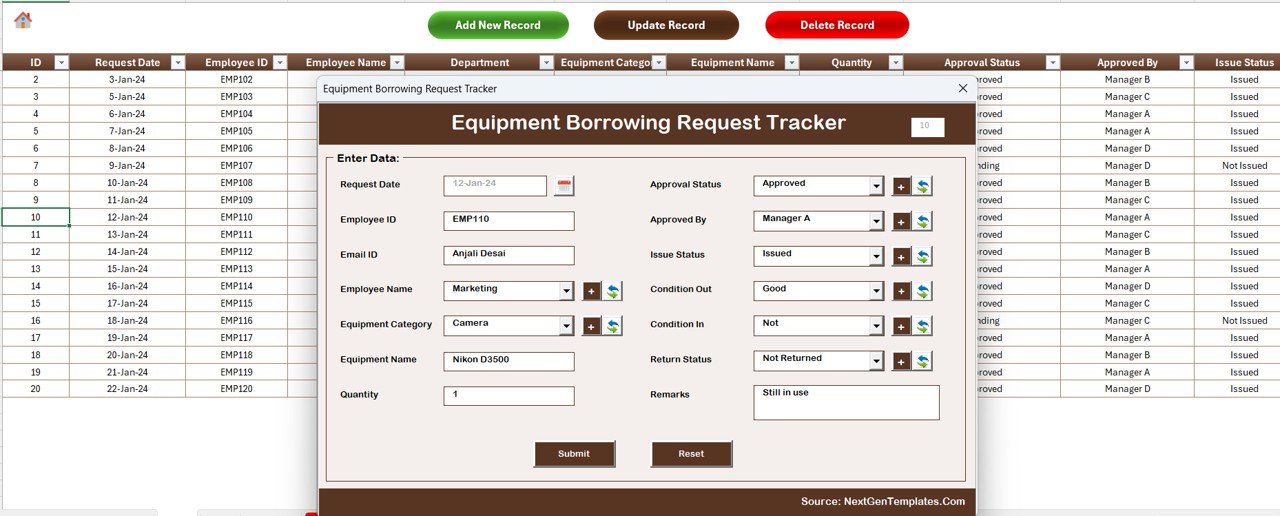
- VBA Data Entry form with three action buttons. Add New Record opens a blank form. Update Record (after selecting a Request ID) opens the same form pre-populated with that record’s values, so editing is a matter of changing fields rather than retyping. Delete Record confirms before removing, preventing accidental loss of audit history.
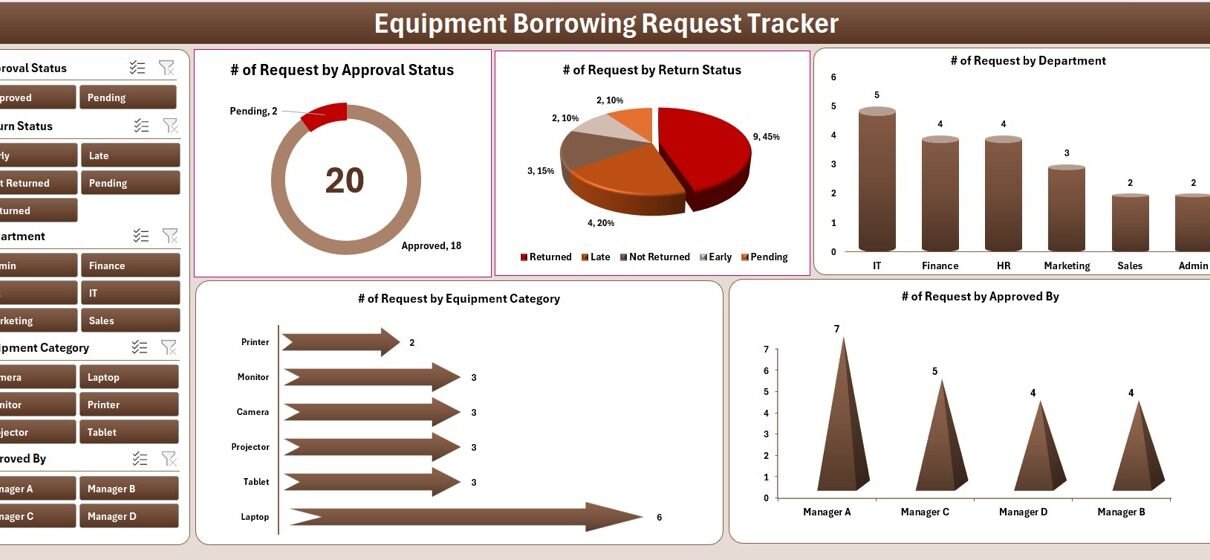
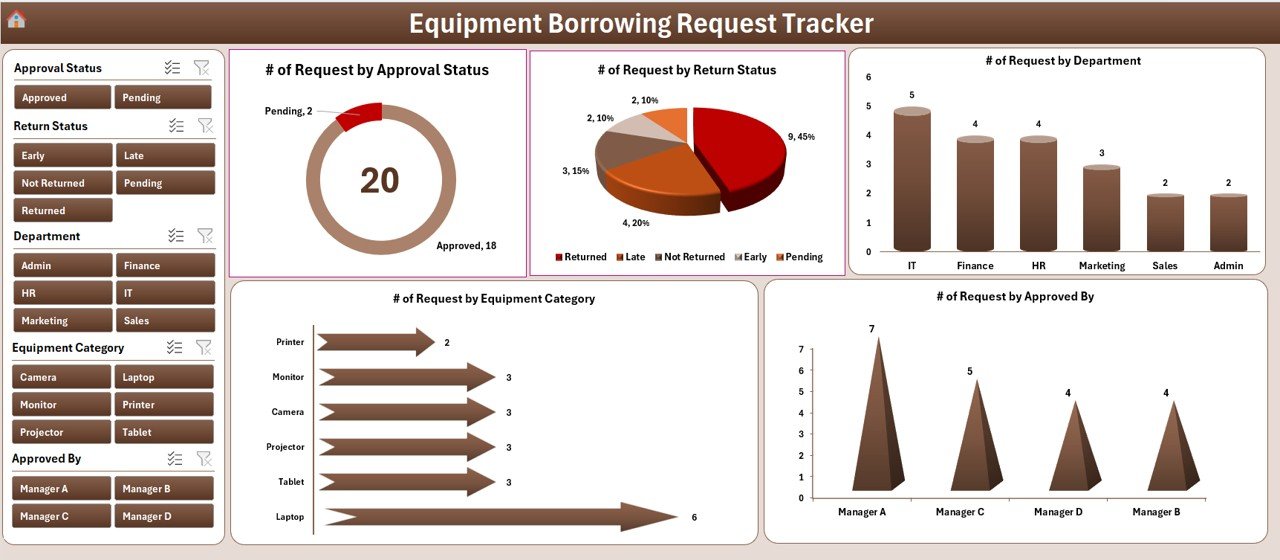
- Dashboard with 4 slicers and 5 charts. Total Requests by Department (bar), Approval Status Breakdown (doughnut), Requests by Equipment Name (column), Requests by Equipment Type (pie), and Requests by Purpose (bar). Slicers filter every chart simultaneously — click “IT” and every visual refocuses on IT requests only.
Because the tracker is a single .xlsm file, you own the data outright — there’s no vendor cloud, no data residency concern, and no chance of losing access when a subscription lapses. Microsoft’s official VBA in Office guide documents the underlying automation model the forms use.
Dashboard Pages Explanation
1. Login Form
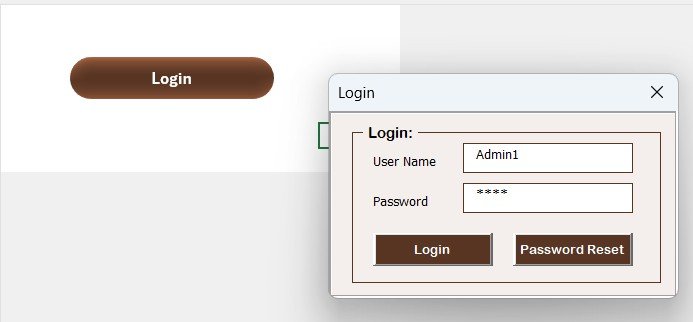
Opens on launch. Validates the username and password against the User Management sheet. Failed attempts are blocked; a successful login routes to the Home Page. This is what lets you hand the file to non-admin users without risking accidental edits to sensitive sheets.
2. Home Page
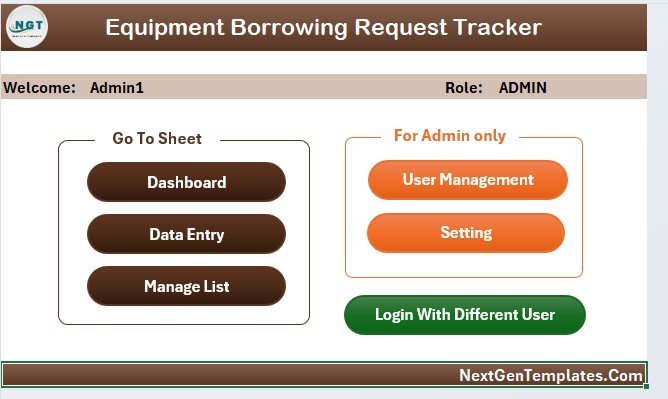
A visual navigation hub with buttons for Dashboard, Data, Settings, and Log Out. Designed so non-Excel users never need to touch sheet tabs.
3. Dashboard
Four slicers at the top (typical setup: Department, Equipment Type, Status, Purpose) control 5 charts below. Click or ctrl-click slicer values to filter, or clear the slicer to see the full view. All charts are wired to pivot tables on the Support sheet, so a single refresh updates every visual.
4. Data Sheet
The master borrowing log. Three buttons at the top — Add New Record, Update Record, Delete Record — drive the VBA Data Entry form. Every record gets a unique Request ID; the form refuses duplicates. All 5 charts refresh after each submit. Columns include Request ID, Department, Requested By, Equipment Name, Equipment Type, Purpose, Request Date, Return Date, Status, and Approver.
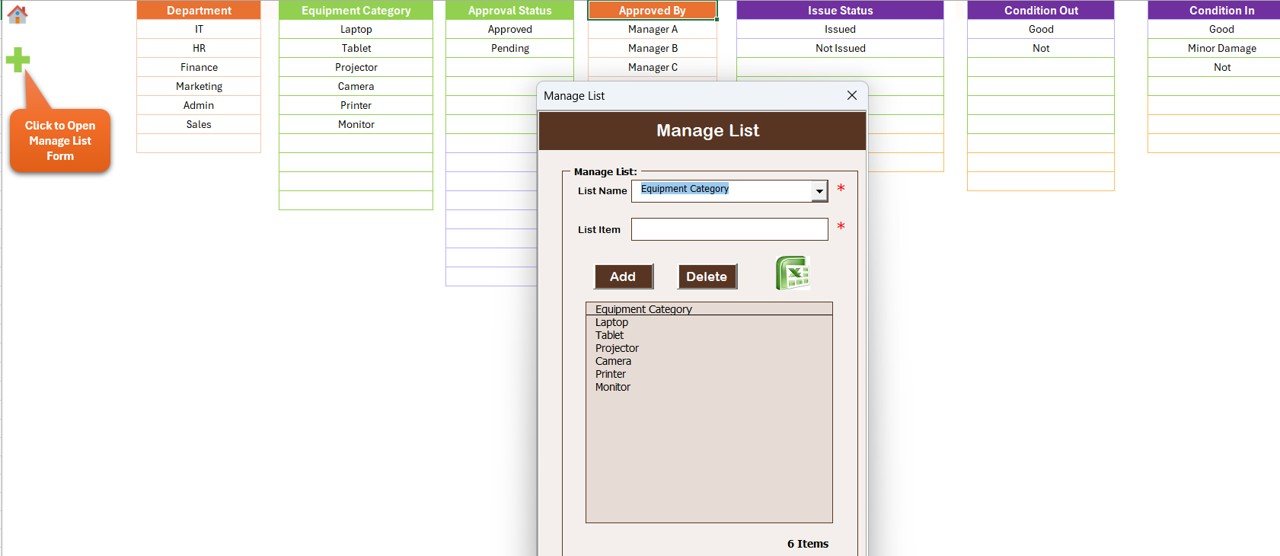
5. List Sheet
Source of truth for every dropdown on the form — departments, equipment types, statuses, purposes, approvers. Edit this sheet and the form picks up new options automatically. This is the fastest way to customize the tracker for your organization’s vocabulary.
6. Support Sheet
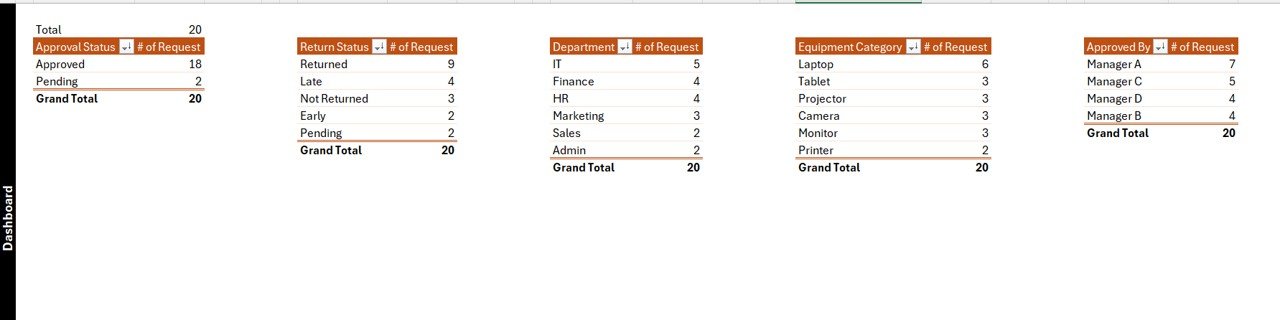
Pivot tables that feed the Dashboard charts. You don’t need to touch this sheet — in production, right-click the tab and hide it so users aren’t tempted to edit the pivot sources.
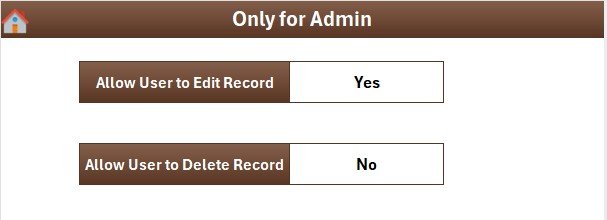
7. Settings Sheet
Controls theme colors, header labels, and admin preferences. A quick place to rebrand the tracker for your organization.
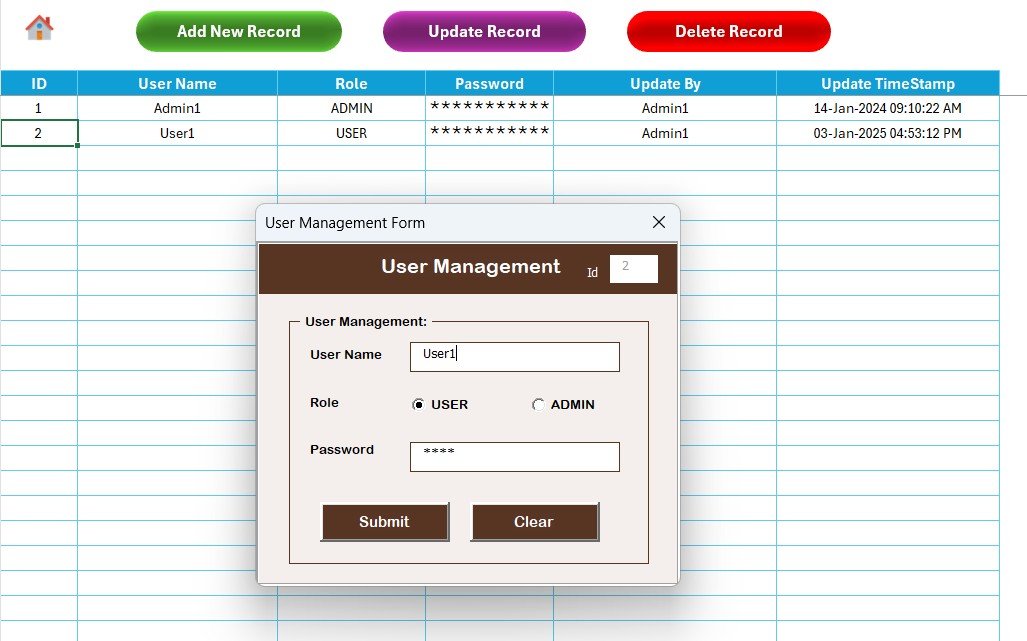
8. User Management Sheet
Create login accounts, assign roles, and reset passwords. The Login Form reads from this sheet at runtime, so changes here take effect immediately on the next login.
Equipment Borrowing Request Tracker in Excel vs. Google Sheets vs. Paid Asset SaaS — Feature Comparison
| Feature | Equipment Borrowing Request Tracker in Excel | Google Sheets equivalent | Asset Panda / Cheqroom / EZOfficeInventory |
|---|---|---|---|
| Cost | $6.99 one-time ✅ | $6.99 one-time | $8–$35 / user / month |
| Platform | Microsoft Excel (offline) | Google Sheets (cloud) | Proprietary SaaS |
| Setup time | Under 10 minutes ✅ | Under 10 minutes | 2–6 weeks onboarding |
| Login / User roles | VBA login + User Mgmt sheet ✅ | Google account only | Yes (SSO extra cost) |
| Works offline | Yes ✅ | No | No |
| Customizable fields | Unlimited ✅ | Unlimited | Limited by plan |
| Year-1 cost at 5 users | $6.99 total ✅ | $6.99 total | $480–$2,100 |
| Data ownership | 100% local file ✅ | In your Google Drive | Vendor cloud |
For teams that want a login-protected equipment checkout log without paying $480+ per year for Asset Panda or Cheqroom, the Equipment Borrowing Request Tracker in Excel sits in the sweet spot.
Who Should Use This Template
✅ Perfect for:
- IT and facilities managers at 10–300-person companies tracking laptop, projector, and peripheral loans
- Media, photography, and video teams checking out cameras, drones, lenses, and audio gear
- Engineering and R&D labs lending instruments, tools, and testing equipment across projects
- Schools, colleges, and training institutes issuing tablets, lab kits, and classroom resources to faculty and students
- Indian SMBs and startups that want an INR-friendly, one-time-purchase alternative to USD-priced asset-management SaaS
❌ Not a fit if:
- You need SAML SSO, SOC 2 compliance, or barcode/RFID scanner integration
- You’re running a public-facing customer rental workflow (use Booqable, Rentman, or a dedicated rental platform)
- Your team is Mac-only — the VBA forms require Windows Excel
- You prefer cloud collaboration — in which case the Google Sheets version fits better
Real-World Use Cases
Anita runs IT operations at a 120-person software company in Pune. She uses the Equipment Borrowing Request Tracker in Excel to log every laptop, monitor, and docking-station loan, gives login access to 3 IT coordinators via the User Management sheet, and reviews the Approval Status chart on the Dashboard every Friday. By moving off Asset Panda’s starter plan, she saves roughly ₹80,000 per year — budget that now pays for one additional spare laptop in the pool rather than a recurring SaaS bill.
Daniel manages production gear at a Berlin video studio with 18 freelance creators. He replaced a messy email-and-spreadsheet checkout workflow with the tracker, letting two producers add and update camera, lens, and audio-pack requests through the VBA form. The Requests by Equipment Name chart flags the two gear items that are always out on loan — a clear signal it’s time to buy a second Sony FX3 and another wireless lav set.
Ms. Shah, a lab coordinator at an engineering college in Mumbai, tracks borrowing of oscilloscopes, soldering stations, and project kits across 8 faculty members and 400+ students. The login protection means students can submit requests through the Data Sheet while the Approver column and Delete Record button guard against accidental changes to historical records. The Requests by Purpose chart shows which labs drive the most utilization — helping her make the case for budget in the next academic year.
Advantages of the Equipment Borrowing Request Tracker in Excel
- One-time $6.99 replaces $480–$2,100/year of SaaS spend at 5 users — payback on the first borrowing request logged.
- Full offline operation means no VPN, no cloud outage risk, no data-residency compliance headaches.
- Role-based logins without per-user fees — add 3 users or 30, the price stays $6.99.
- Every field is editable — add asset tag, serial number, condition on return, or any field your organization needs without waiting on a vendor feature request.
- Slicer-driven dashboard lets managers explore borrowing patterns — by department, by equipment type, by purpose — in seconds.
Opportunities for Improvement
Being honest about limitations builds trust — and keeps buyers happy after purchase:
- Single-user at a time. The tracker is a single-file workbook, not a multi-user cloud database. If two people try to edit the same file simultaneously on a shared drive, one will be blocked until the other closes.
- Windows Excel required for VBA features. The dashboard and charts work on Mac Excel, but the Login Form, Data Entry form, and Add/Update/Delete buttons don’t run reliably on Mac.
- No barcode scanner integration out of the box. If you need barcode or RFID scanning for high-velocity equipment loans, pair the tracker with a dedicated scanner input sheet or consider an asset-management SaaS designed for that workflow.
- No automated email notifications. Overdue return alerts are not emailed out — this is a logger and dashboard, not a communications platform.
Best Practices
- Lock the Settings and User Management sheets with a sheet password before sharing the file with team members. Excel’s Review → Protect Sheet prevents non-admins from tampering with login credentials.
- Back up the file weekly. Since data lives locally, Friday’s incremental backup to OneDrive or Google Drive (as a copy) is your insurance policy against corruption.
- Hide the Support sheet in production so nobody edits the pivot sources by mistake. Right-click the tab → Hide.
- Refresh the dashboard after bulk imports (right-click any chart → Refresh) rather than waiting for automatic refresh.
- Document your dropdown choices on the List sheet. When you customize it for your organization, a small note column explaining abbreviations keeps the vocabulary consistent across teams.
Explore Relevant Templates
If equipment borrowing is part of a broader operational stack, these companion templates are worth a look:
- Equipment Borrowing Request Tracker in Google Sheets — the cloud-based sibling of this tracker, ideal for multi-user teams.
- Resource Booking Tracker in Excel — pairs well with the borrowing tracker for meeting-room and desk bookings that share the same VBA architecture.
- Document Receiving Log Tracker in Excel — similar log-and-approve workflow for inbound documents.
- Resource Booking Tracker in Excel — detailed guide for the same VBA form + dashboard architecture applied to a different workflow.
- IT Project Request Tracker in Excel — another request-tracking workflow built on the same pattern.
- Browse the full Excel Tracker library.
Frequently Asked Questions
What is the Equipment Borrowing Request Tracker in Excel?
The Equipment Borrowing Request Tracker in Excel is a VBA-powered workbook with 8 worksheets — Login Form, Home Page, Dashboard, Data Sheet, List, Support, Settings, and User Management — designed to log, approve, and analyze equipment checkouts across departments without an asset-management SaaS subscription.
How does this compare to Asset Panda or Cheqroom?
Asset Panda and Cheqroom charge $8–$35 per user per month. The Equipment Borrowing Request Tracker in Excel is a $6.99 one-time purchase — for a 5-person team that’s $480–$2,100 saved in year one. You trade barcode scanning and mobile apps for full offline control, lifetime access, and no per-user fees.
How long does setup take?
Under 10 minutes for most teams. Enable macros, set up your admin account in User Management, customize dropdown options in the List sheet, and start adding borrowing requests through the form. Dashboard charts refresh automatically as you capture each record.
Does the Equipment Borrowing Request Tracker in Excel work on Mac?
The Dashboard, pivot tables, and Data Sheet display correctly on Mac Excel, but the VBA Data Entry form, Login Form, and User Management logic run reliably only on Windows Excel 2016, 2019, 2021, and Microsoft 365. Mac users should use our Google Sheets version instead.
Can multiple users submit requests at the same time?
The Equipment Borrowing Request Tracker in Excel supports multiple logins via the User Management sheet, but the underlying .xlsm file is single-user — only one person can edit at a time. For real-time multi-user collaboration, use the Google Sheets version.
Is the download safe, and what format is it?
Yes. It’s delivered as a zipped standard .xlsm Excel workbook with VBA code written and tested by PK (Microsoft Certified Professional, 15+ years experience). Enable macros when prompted — required for the login check and form buttons to function.
Can I customize the charts and KPIs?
Yes. The Dashboard charts sit on top of pivot tables on the Support sheet — edit the pivot fields, change chart types, or add new charts using the same data source. Field values (departments, equipment types, statuses, purposes) are fully editable via the List sheet.
About the Author
Built by PK — Microsoft Certified Professional with 15+ years of Excel, Google Sheets, and Power BI experience. Founder of NextGenTemplates, reaching 300K+ subscribers across YouTube channels (@PK-AnExcelExpert, @NextGenTemplates, @NeoTechNavigators). Every template is hand-built and tested before release.
Conclusion
The Equipment Borrowing Request Tracker in Excel gives you a login-protected checkout workflow, a slicer-driven dashboard, and a VBA Data Entry form — all in a single $6.99 workbook that replaces $480–$2,100 per year of asset-management SaaS at a 5-user team. It’s built for IT managers, facilities leads, media teams, labs, and classrooms that want analytical visibility over shared assets without a subscription or onboarding call.
👉 Click here to Purchase the Equipment Borrowing Request Tracker in Excel
✅ Instant download · One-time payment · No subscription
For step-by-step walkthroughs and more Excel/VBA templates, visit Youtube.com/@PK-AnExcelExpert.
📅 Last updated: April 2026