If you’ve ever reached the end of the week and wondered where all your money went, you’re not alone. The Weekly Expense Tracker in Excel is a free, ready-to-use Microsoft Excel template that helps you log every daily transaction, visualize your spending across 8 categories, and instantly see how much of your weekly budget is still available. In this detailed guide, we’ll walk through exactly what this free template includes, how each sheet works, who it’s designed for, and how you can get the most out of it — whether you’re a student, freelancer, family, or young professional trying to build healthier money habits.
What is the Weekly Expense Tracker in Excel?
👉 Click here to download the Weekly Expense Tracker in Excel
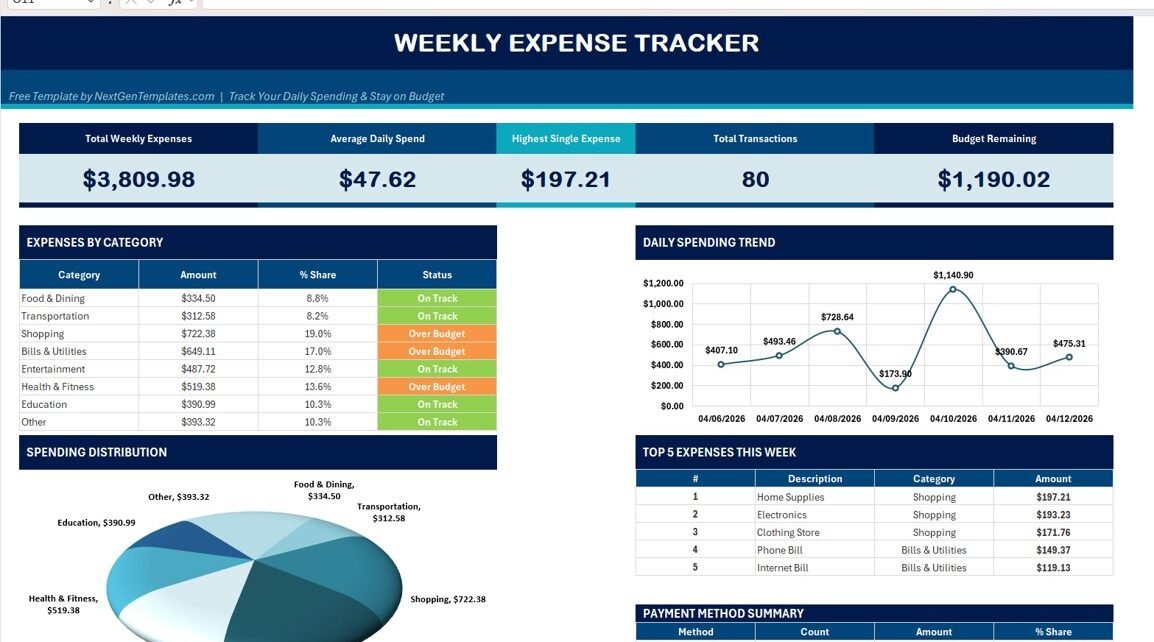
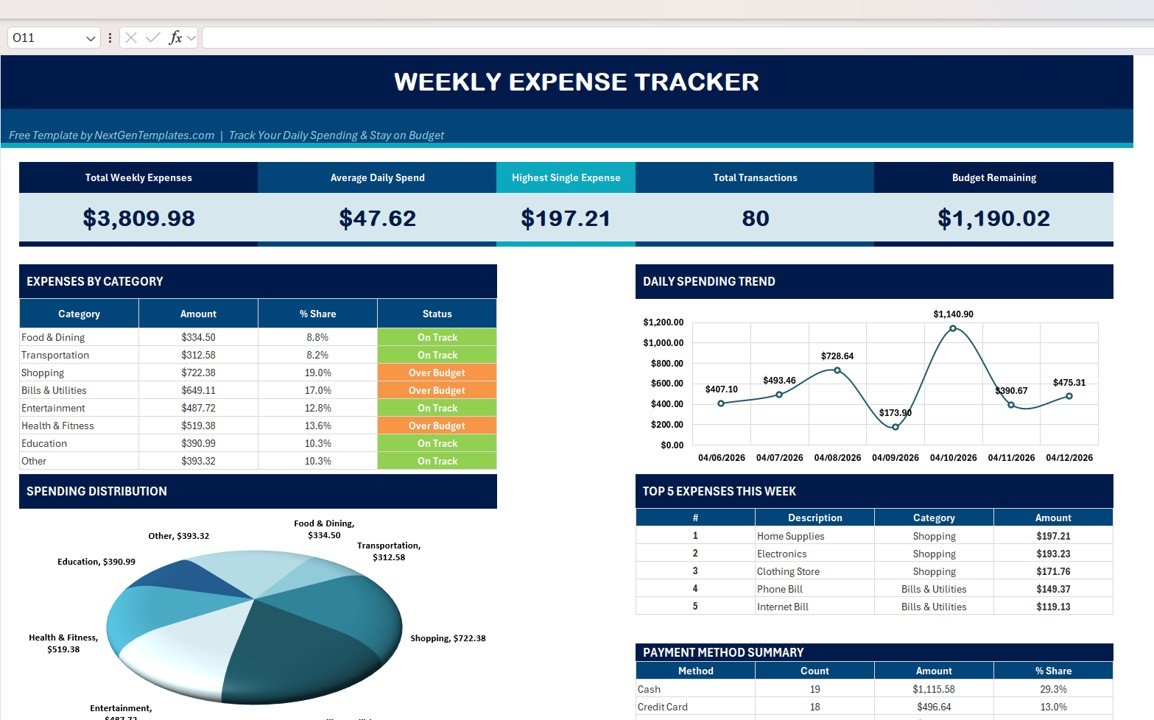
The Weekly Expense Tracker in Excel is a lightweight, two-sheet Excel template built for personal finance tracking. One sheet holds your raw transactions (Date, Description, Category, Payment Method, Amount, Notes), and the other automatically turns that data into a professional-looking weekly dashboard with five KPI cards, a category budget status table, a pie chart for spending distribution, a line chart for daily trends, a Top 5 Expenses table, and a Payment Method Summary.
Unlike most budgeting apps, it doesn’t require an account, subscription, or internet connection. It runs entirely inside Microsoft Excel — and because it uses standard formulas rather than macros or VBA, it works on Excel 2016, 2019, 2021, Microsoft 365, and Excel for Mac without any security warnings.
Key Features of the Weekly Expense Tracker in Excel
- 5 High-Level KPI Cards — Total Weekly Expenses, Average Daily Spend, Highest Single Expense, Total Transactions, and Budget Remaining at the top of the dashboard.
- Expenses by Category Table with Status Column — Color-coded On Track / Over Budget indicators for 8 default categories (Food & Dining, Transportation, Shopping, Bills & Utilities, Entertainment, Health & Fitness, Education, Other).
- Spending Distribution Pie Chart — Visually breaks down where your money went for the week.
- Daily Spending Trend Line Chart — 7-day curve that reveals high-spend days, weekend blowouts, and low-activity days.
- Top 5 Expenses This Week — A focused table that surfaces your biggest transactions so you can spot impulse buys instantly.
- Payment Method Summary — Breakdown by Cash, Credit Card, Debit Card, and UPI/Digital with count, amount, and % share.
- Simple Data Entry Sheet — Only 6 columns; no formulas to learn, no special skills needed.
- No Macros, No VBA — Fully compatible with Excel on Windows, Mac, and the web.
Dashboard Pages Explanation
👉 Click here to download the Weekly Expense Tracker in Excel
The template is built around two sheets. Together they form a complete expense-tracking workflow: you enter, Excel calculates, the dashboard reports.
1. Dashboard Sheet (Summary & Visuals)
The Dashboard sheet is the sheet you’ll spend most of your time on. The moment you open it, five KPI cards at the top — Total Weekly Expenses, Average Daily Spend, Highest Single Expense, Total Transactions, and Budget Remaining — give you an instant pulse check on your finances. Below the KPIs, the left column shows the Expenses by Category table with an Amount, % Share, and Status (On Track / Over Budget) column, followed by a Spending Distribution pie chart that visualizes category weight.
The right column shows a Daily Spending Trend line chart covering seven consecutive days, followed by a Top 5 Expenses This Week table and a Payment Method Summary that breaks your spending down by Cash, Credit Card, Debit Card, and UPI/Digital. Every visual on this page is powered by a single source: the Data sheet.

2. Data Sheet (Input Layer)
👉 Click here to download the Weekly Expense Tracker in Excel
The Data sheet is where the entire tracker begins. It has six simple columns — Date, Description, Category, Payment Method, Amount, and Notes — designed for quick entry. Just type a row every time you spend money: the date of the transaction, a short description (e.g., “Uber Ride,” “Coffee Shop,” “Phone Bill”), the category, how you paid, the amount, and an optional note (e.g., “Impulse buy,” “Recurring,” “Planned,” “One-time expense”).
As soon as you add or edit a row, the Dashboard sheet recalculates instantly. Sample records come pre-filled so you can see the format — delete them when you’re ready to start logging your own data.
Advantages of the Weekly Expense Tracker in Excel
- Completely Free — No paywall, no trial, no sign-up required.
- Privacy-Friendly — Your financial data never leaves your device. No cloud sync, no third-party access.
- Zero Learning Curve — If you can type a number in a cell, you can use this tracker.
- Works Offline — Open Excel on a plane, a train, or in a café without Wi-Fi.
- Cross-Platform — Windows, Mac, Excel Online, and Microsoft 365 all supported.
- Customizable — Rename categories, add columns, tweak charts — it’s your file.
- Visual at a Glance — KPIs, pie chart, line chart, and tables on one page give you answers in 5 seconds.
- Lightweight — No macros, no VBA, no security prompts, no plugins.
Opportunities for Improvement
👉 Click here to download the Weekly Expense Tracker in Excel
To keep the template free and beginner-friendly, some advanced features are intentionally kept out. If you want any of the following, consider pairing this tracker with one of our premium dashboards:
- Monthly & Yearly Views — The current layout focuses on a single week. If you want multi-month trends, try the Personal Monthly Budget Tracker in Google Sheets.
- Income vs. Expense Comparison — This tracker focuses on expenses only. For full cash-flow analysis (income + savings + expenses), the premium Wedding Budget Dashboard in Excel is a great reference.
- Savings Goal Tracking — No dedicated savings/goal module. You’d need to build one manually or upgrade.
- Receipt Storage — No image/attachment columns. Add a column and paste hyperlinks if needed.
- Multi-User Collaboration — Excel files aren’t great for real-time sharing. For collaboration, move to a Google Sheets version.
Best Practices
Here’s how to get the most out of the Weekly Expense Tracker in Excel:
- Log Every Day — The tracker only helps if the data is complete. Make it a 2-minute end-of-day habit.
- Set a Weekly Budget — Use the Budget Remaining KPI as your North Star. When it turns red, slow down.
- Use the Notes Column — Tag transactions as “Planned,” “Impulse,” “Recurring,” or “One-time.” Over time, patterns emerge.
- Review Every Sunday — Spend 5 minutes on Sunday evening reviewing your dashboard. Look at Top 5, check category Status, plan the coming week.
- Save Weekly Copies — File → Save As → “Expenses – Week 42 – 2026.xlsx”. At the end of a year, you’ll have 52 snapshots you can consolidate.
- Customize Categories — Rename the 8 default categories to match your life. Students, parents, and freelancers all have different spending profiles.
Explore Relevant Templates
If you love this free Weekly Expense Tracker, you’ll probably love these related templates too:
- Personal Expense Tracker in Google Sheets — A cloud-based alternative for users who prefer Google Drive and mobile access.
- Personal Monthly Budget Tracker in Google Sheets — Expands weekly tracking into full monthly budgeting with income.
- Wedding Budget Dashboard in Excel — Premium dashboard for event-specific financial planning.
- Crypto Portfolio Dashboard in Excel — Track digital asset portfolios alongside your traditional expenses.
- All Excel Financial Tools — Browse our complete library of budget, expense, and finance templates in Excel.
Frequently Asked Questions
👉 Click here to download the Weekly Expense Tracker in Excel
Is the Weekly Expense Tracker in Excel free to download?
Yes. The Weekly Expense Tracker in Excel is 100% free from NextGenTemplates.com. There’s no trial, no subscription, no email gate — just click the download link on the product page and the file is yours to keep.
What is the best free Excel template for tracking weekly expenses?
The Weekly Expense Tracker in Excel from NextGenTemplates is one of the best free options because it includes 5 KPI cards, 8 category budget tracking with traffic-light status, 4 visual charts, and a Payment Method Summary — all in a single Excel file with no macros or VBA required.
How do I track my weekly expenses in Excel step by step?
Open the Weekly Expense Tracker template. On the Data sheet, enter each transaction in a new row: Date, Description, Category, Payment Method, Amount, and Notes. Switch to the Dashboard sheet — all KPIs, tables, and charts update automatically. Review weekly, adjust your budget, and repeat.
Does the Weekly Expense Tracker work on Mac and Excel Online?
Yes. Because the tracker uses only standard Excel functions (SUMIF, COUNTIF, AVERAGE, MAX) and no macros or VBA, it works seamlessly on Microsoft 365, Excel for Mac, Excel Online, and Excel 2016/2019/2021 on Windows.
Can I customize the categories in the Weekly Expense Tracker?
Absolutely. The 8 default categories (Food & Dining, Transportation, Shopping, Bills & Utilities, Entertainment, Health & Fitness, Education, Other) are fully editable on the Dashboard and Data sheets. Rename them to fit your lifestyle — examples include Pets, Subscriptions, Childcare, Travel, or Gifts.
What’s the difference between this free tracker and paid expense templates?
The free Weekly Expense Tracker focuses on a single week of expense-only data with 2 sheets. Paid templates like the Wedding Budget Dashboard or Personal Finance Dashboard include income tracking, savings goals, multi-month comparisons, and deeper analytics. The free tracker is perfect for getting started; upgrade when you need multi-dimensional financial planning.
Conclusion
The Weekly Expense Tracker in Excel is the fastest way to answer the question “where did my money go this week?” without signing up for an app, handing over your bank credentials, or paying a monthly subscription. It’s free, private, visual, and works on every version of Excel. Download it, log 7 days of transactions, and you’ll have clearer financial insights than 90% of people walking around without a tracker. Small habit, big results.
👉 Click here to download the Weekly Expense Tracker in Excel — free, no strings attached.
🎥 Visit our YouTube channel for step-by-step video tutorials
👉 YouTube.com/@PK-AnExcelExpert
For more Excel tutorials, free templates, and advanced financial dashboards, visit Excel Trackers on NextGenTemplates.com or explore the official Microsoft Excel documentation.