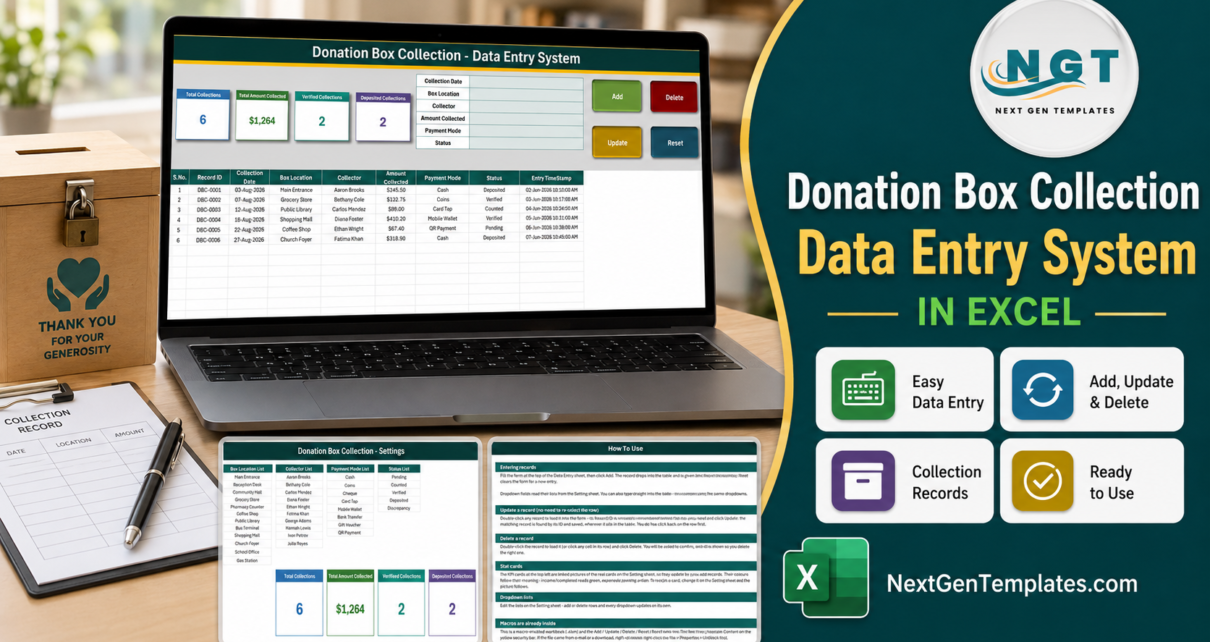
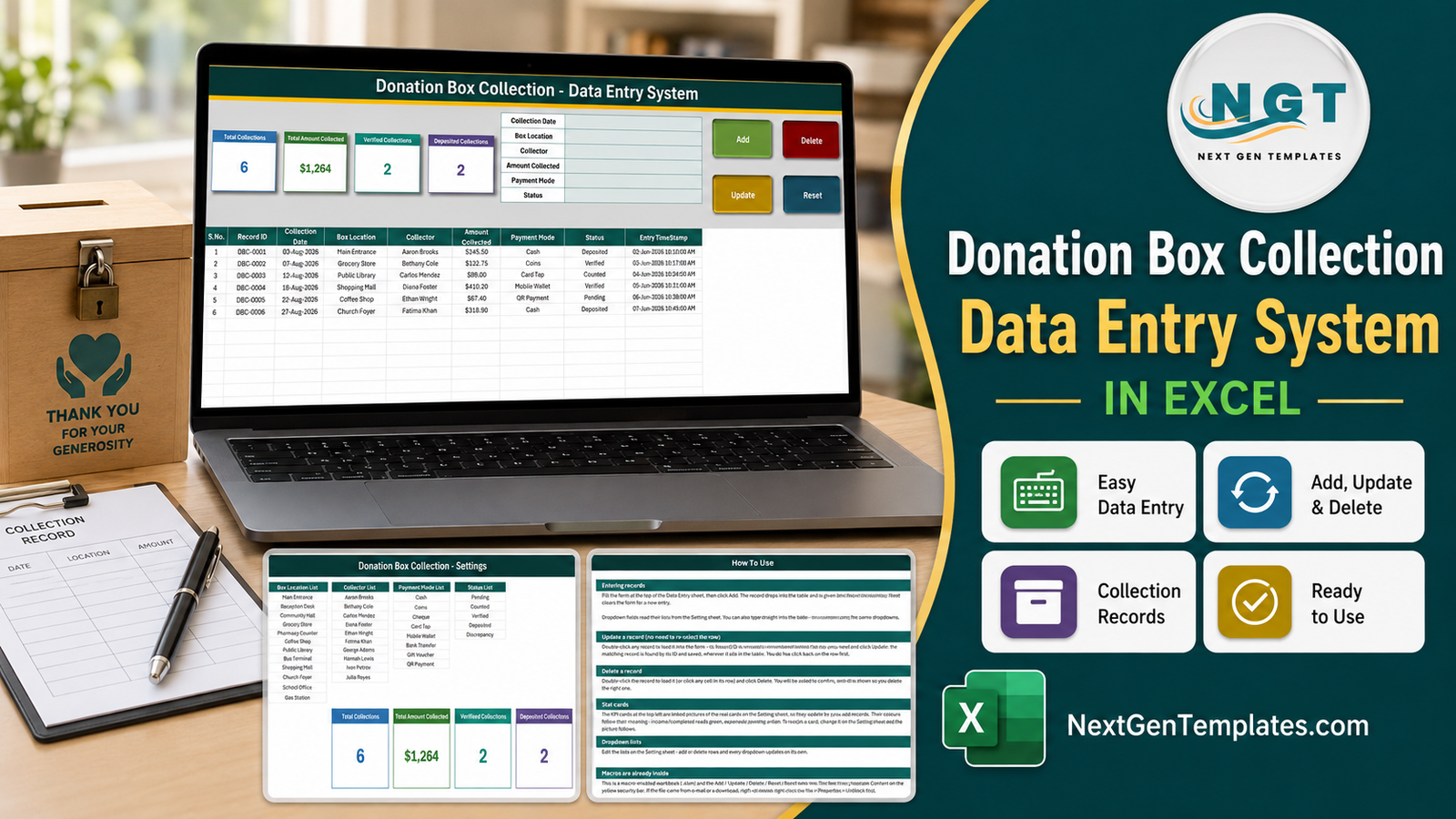
A collection box is the least structured money an organisation handles. Somebody unlocks it, somebody counts it, somebody carries it to the bank, and the only record of all three steps is often a line in a notebook. The Donation Box Collection Data Entry System in Excel replaces that notebook with a four-sheet macro-enabled workbook: a six-field form, four VBA buttons, an automatic Record ID on every collection, and a 200-row table that already carries its dropdowns and formats. It holds six sample collections totalling $1,263.75 across six box locations so you can see a filled sheet before you clear it.
This post walks through every sheet in the file, states what the four stat cards actually calculate, and is equally specific about what the workbook does not do – because a data-entry sheet for donation money is exactly the kind of file people over-trust.
Key Features of the Donation Box Collection Data Entry System in Excel
- Six-field entry form in cells G4:H9 of the Data Entry sheet: Collection Date, Box Location, Collector, Amount Collected, Payment Mode and Status.
- Four VBA buttons – Add, Update, Delete and Reset – wired to
Add_Record,Update_Record,Delete_RecordandReset_ForminModule1. They are macros, not formulas. - Automatic Record IDs in the form
DBC-0001, allocated as one more than the highest number already used, so an ID is never reissued after a deletion. - Double-click to edit. A
Worksheet_BeforeDoubleClickhandler loads the clicked row back into the form and remembers its Record ID in a hidden cell, so Update rewrites the right record wherever it has moved to. - Four live stat cards: Total Collections, Total Amount Collected, Verified Collections and Deposited Collections.
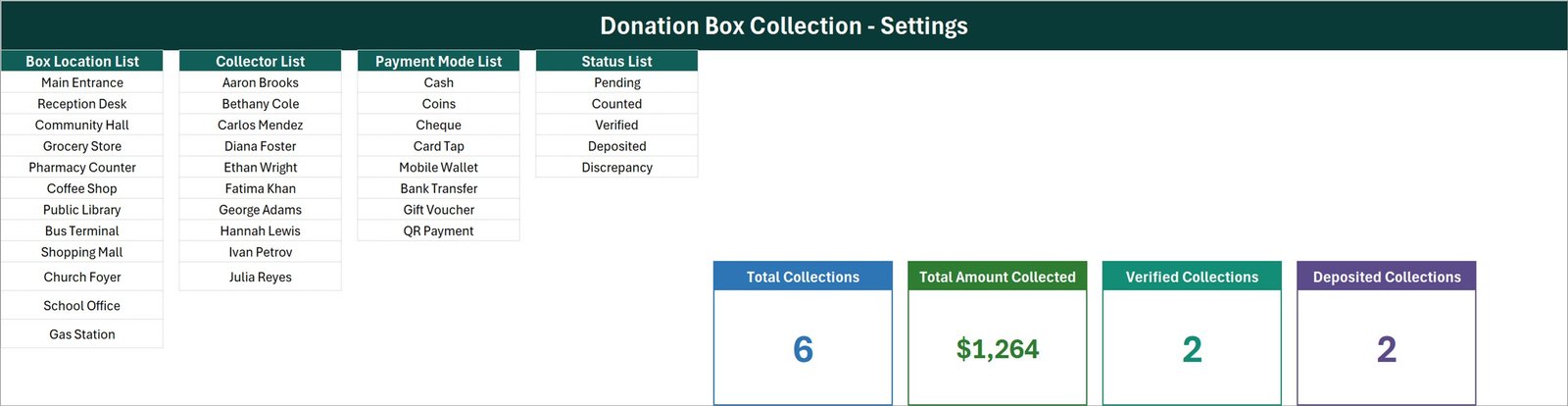
- Four editable dropdown lists: 12 box locations, 10 collectors, 8 payment modes and 5 statuses.
- 200 pre-formatted rows (rows 15 to 214) with validation, date and currency formatting already applied.
- An Entry TimeStamp column separate from the Collection Date, so you can see when a row was keyed as well as when the box was emptied.
The Four Sheets, Explained
1. Data Entry
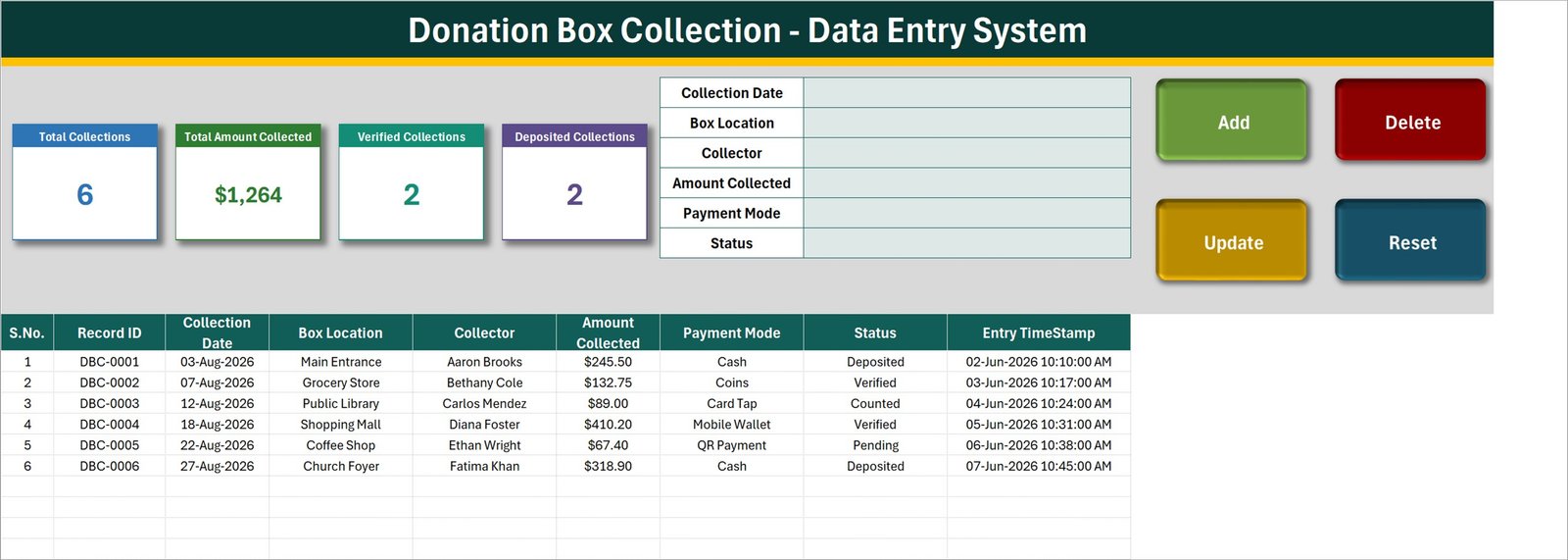
The working sheet. Top left are the four stat cards; top right is the entry form; to the right of the form sit the Add, Delete, Update and Reset buttons in a two-by-two block. Row 14 is the table header and the records begin at row 15 with nine columns: S.No., Record ID, Collection Date, Box Location, Collector, Amount Collected, Payment Mode, Status and Entry TimeStamp.
The S.No. column is a formula – =IF($B15="","",ROW()-14) – so it numbers only the rows that actually hold a Record ID and leaves the rest blank. The Box Location, Collector, Payment Mode and Status columns carry the same dropdowns as the form, so you can type straight into the table if you prefer.
2. Setting
Four list columns and the four real stat cards. The shipped Box Location List runs Main Entrance, Reception Desk, Community Hall, Grocery Store, Pharmacy Counter, Coffee Shop, Public Library, Bus Terminal, Shopping Mall, Church Foyer, School Office, Gas Station. The Collector List holds ten names. Payment Mode covers Cash, Coins, Cheque, Card Tap, Mobile Wallet, Bank Transfer, Gift Voucher and QR Payment – useful, because a modern box often sits next to a card reader. Status runs Pending, Counted, Verified, Deposited, Discrepancy, which is the counting workflow in five words.
The cards on the Data Entry sheet are linked pictures of the cards here, which is why restyling a card means restyling it on this sheet.
3. Instructions
A How To Use page with six sections: entering records, updating by ID, deleting, the stat cards, the dropdown lists, and a note that this is a macro-enabled workbook whose buttons need Enable Content on first open.
4. Get More Templates
A links page back to the NextGenTemplates store.
What the Four Cards Actually Calculate
This matters more than the labels suggest, so here are the formulas as they ship, read out of the workbook:
- Total Collections =
COUNTA('Data Entry'!$C$15:$C$1048576)– a count of the Collection Date column, not of the Record ID column. - Total Amount Collected =
SUM('Data Entry'!$F$15:$F$1048576)– the whole amount column, with no status filter. - Verified Collections =
COUNTIF('Data Entry'!$H$15:$H$1048576,"Verified"). - Deposited Collections =
COUNTIF('Data Entry'!$H$15:$H$1048576,"Deposited").
Three consequences follow, and none of them is a reason not to buy the file – they are a reason to read it correctly.
The money card is a gross figure. In the shipped sample it shows $1,264. The true sum is $1,263.75 (the card’s number format rounds), and of that only $564.40 sits on rows marked Deposited. $542.95 is Verified but not yet banked, $89.00 is merely Counted, and $67.40 is still Pending. If a row were marked Discrepancy it would be inside that total too. Read the card as “everything logged”, not “money banked”.
The status cards do not reconcile to the total. There are five statuses but only two have cards, so Verified 2 + Deposited 2 = 4 against Total Collections 6. Pending, Counted and Discrepancy are recorded in the column and counted nowhere.
Total Collections counts the date column. Because it is a COUNTA on column C rather than the Record ID in column B, a row typed directly into the table without a Collection Date is stored but never counted. The Add button protects you from this – it refuses to add a record with an empty first field – but direct typing does not.
Excel vs. Google Sheets vs. Paid Nonprofit Software
| This workbook | A Google Sheets equivalent | Paid donor / fund software | |
|---|---|---|---|
| Cost | One payment of $6.99 | Free, or a paid Sheets template | Typically $50-$200+ per month |
| Platform | Excel, Windows desktop | Browser, any device | Browser plus mobile app |
| Setup time | Minutes | Minutes | Days to weeks |
| Real-time collaboration | No | Yes | Yes |
| Mobile access | No – macros need Excel for Windows | Yes | Yes |
| Customisable fields | Headings and all four lists are editable | Editable | Configurable |
| Share with a link | No – you send the file | Yes | Yes |
| Year-1 cost at 5 users | $6.99 once | $0-$20 once | $600-$2,400+ |
| Receipts / acknowledgements | No | No | Usually included |
| Charts and monthly reports | No | Varies | Yes |
| Works offline | Yes | No | No |
Who Should Use This Template
Anyone who empties a small number of physical collection boxes on a repeating route and wants one offline file recording who opened which box, when, how much came out, in what form, and how far along the counting workflow it has travelled. Volunteer coordinators, shop-front partners, treasurers keeping a handover record – the shape of the sheet fits all three.
It is not for you if you need donor records, receipts, fund allocation, bank reconciliation, charts, or several people editing at once. Those are different products and, in some cases, a different category of software entirely.
Real-World Use Cases
A volunteer rota across eleven boxes. One row per box per Saturday. The Status column carries each row from Counted to Verified once a second person checks the money, then to Deposited after the bank run. The two status cards give an at-a-glance sense of how much of the day’s work is finished.
Boxes in six local shops. Replace the shipped locations with the shop names and use Payment Mode to separate coins in the box from card taps on the reader beside it. Over a few months the sheet becomes a plain record of which shop’s box performs.
A treasurer who wants a clean handover file. One .xlsm, on one machine, openable by anyone with Excel and no account – deliberately not a cloud tool.
Advantages
- The buttons are real macros, so adding a record is one click rather than a copy-paste into the next free row.
- Editing by double-click and Record ID means a correction never lands on the wrong row, even after sorting.
- Everything you would want to change – locations, collectors, payment modes, statuses – is plain text on one sheet.
- The Entry TimeStamp gives you a second, independent date on every record.
- It works with no internet, no add-in and no account.
- It holds no donor names, so the file’s privacy footprint is small by construction.
Opportunities for Improvement
Stated plainly, because you will meet all of these:
- The dropdown named ranges are fixed, and currently exactly full –
Box_LocationListis Setting!$A$3:$A$14 with 12 of 12 used,CollectorList10 of 10,Payment_ModeList8 of 8,StatusList5 of 5. The How To Use sheet says the lists update on their own; they do not. Add a 13th location and you must extend the range in Excel’s Name Manager before it appears. - Validation covers rows 15 to 214 only, so 200 collections is the practical ceiling per file.
- The money card is unfiltered and only two of five statuses are carded, as described above.
- Total Collections counts the date column rather than the Record ID.
- The sample dates run backwards: the six demo collections are dated 3 to 27 August 2026 but their Entry TimeStamps are 2 to 7 June 2026. Cosmetic in demo data, but worth clearing before you show the file to anyone.
- No charts, no monthly summary, no search sheet, no printable report – four numbers and a table is the whole reporting surface.
- Windows-desktop Excel only. The sheets open elsewhere; the buttons do not run.
What This Workbook Is Not
It is a data-entry workbook. It is not an accounting system, a fund-accounting package, a donor database, a receipting or acknowledgement tool, or a cash-control procedure. It does not allocate money to funds, post to a ledger, reconcile to a bank statement, or generate any statutory return. It makes no claim about any charity, tax or reporting requirement in any country, and keying a collection into it is not evidence that the collection was counted, witnessed or handled correctly. Whatever rules apply to you, they still apply, and this file neither knows about them nor satisfies them.
On personal data: the workbook has no donor name, address, phone or e-mail field. The only names in it are your collectors – staff or volunteers – alongside the box locations they cover. That is a small footprint, but it is still personal data plus a map of where money sits, so keep the file where you would keep a staff record.
Best Practices
- Rewrite all four Setting lists before the first real entry, and extend the named ranges at the same time if you need more than the shipped counts.
- Delete the six sample rows once you have looked at them.
- Always add records through the form, so the Record ID and timestamp are generated and the empty-date case is caught.
- Treat Status as the workflow, not a label: move a row Counted to Verified to Deposited as the money moves, and use Discrepancy honestly.
- Do not read Total Amount Collected as banked money. If you need a banked figure, filter the table on Deposited and read the status bar sum.
- Start a new file each year, or extend the formatting past row 214 before you get there.
- Keep a backup. It is a single file with no version history behind it.
Explore Relevant Templates
- Donation Register Data Entry System in Excel – the donor-side companion, with donor, mobile, purpose and mode instead of box and collector.
- Donation Allocation and Beneficiary Dashboard in Google Sheets – what happens to the money afterwards.
- Charitable Giving and Tithe Tracker in Google Sheets – the giver-side view.
- Nonprofit & NGO Operations Bundle – seven templates at a bundle price.
Related Templates
More related walkthroughs on this blog: Blood Donation Camp Calendar in Excel, Subscription Box KPI Dashboard in Power BI and Organ Donation Networks Dashboard in Excel. Each is a separate template with its own layout and sample data.
Frequently Asked Questions
Do the buttons work without enabling macros?
No. Add, Update, Delete and Reset are VBA. Click Enable Content on the yellow bar on first open; if the file arrived by e-mail, right-click it, choose Properties and tick Unblock first. Microsoft explains the security bar in its guidance on enabling macros.
Does it store donor names?
No. There is no donor field of any kind. Collector name and box location are the only identifying data in the file.
Can two people use it at the same time?
No. It is a single desktop file with no sharing or sync.
Why does Verified plus Deposited not equal Total Collections?
Because only two of the five statuses have cards. Pending, Counted and Discrepancy rows are in the table and in the money total, but no card counts them.
Can I add more than 200 records?
You can, but rows past 214 will not carry the dropdowns or formats until you extend them yourself.
Does it produce receipts or reports?
No. There are no receipts, no acknowledgement letters, no charts and no report sheet – four cards and the record table are the whole output.
About the Author
Built by PK – Microsoft Certified Professional with 15+ years of Excel, Google Sheets, and Power BI experience. Founder of NextGenTemplates, reaching 300K+ subscribers across YouTube channels. Every template is hand-built and tested before release.
Conclusion
The Donation Box Collection Data Entry System in Excel does one job properly: it turns “somebody emptied the box on Saturday” into a dated, identified, status-tracked row that a second person can check. The form, the automatic Record ID and the edit-by-double-click are the parts that make daily use painless; the four cards are a quick read as long as you know that the money card is a gross figure and that three of the five statuses have no card of their own. Nothing in it pretends to be accounting software, and that is the point.
Get the Donation Box Collection Data Entry System in Excel for a single payment, or browse the rest of the MS Excel library.
For step-by-step Excel and VBA walkthroughs, subscribe to youtube.com/@PKAnExcelExpert.