The Financial Year-End Close Calendar in Excel organizes 5 interactive worksheets with annual, monthly, and daily calendar views plus a centralized events database containing 7 fields per record. The template includes VBA-powered Add New Event, Update Record, and Delete Record forms, 5 switchable color themes, weekend highlighting, and event date highlighting in yellow. Finance teams tracking year-end close deadlines across journal entries, reconciliations, and audit preparation milestones can set up the entire calendar in under 10 minutes.
Year-end financial close typically involves 30–60+ tasks spread across 2–4 weeks — from sub-ledger reconciliations and intercompany eliminations to audit document preparation and regulatory filings. Tracking these tasks through email threads or ad-hoc spreadsheets leads to missed deadlines and last-minute scrambles. The Financial Year-End Close Calendar in Excel gives controllers and accounting managers a single, structured schedule that visually maps every close task onto a calendar grid with date, time, location, and description fields.
Key Features of Financial Year-End Close Calendar in Excel
The Financial Year-End Close Calendar in Excel includes 5 worksheets: Home (navigation), Annual View (12-month grid with control panel), Monthly View (single-month calendar with event display), Daily View (date-range filtered event list), and Events (centralized database with full CRUD operations). Every calendar view includes built-in buttons to add or view events via VBA forms.
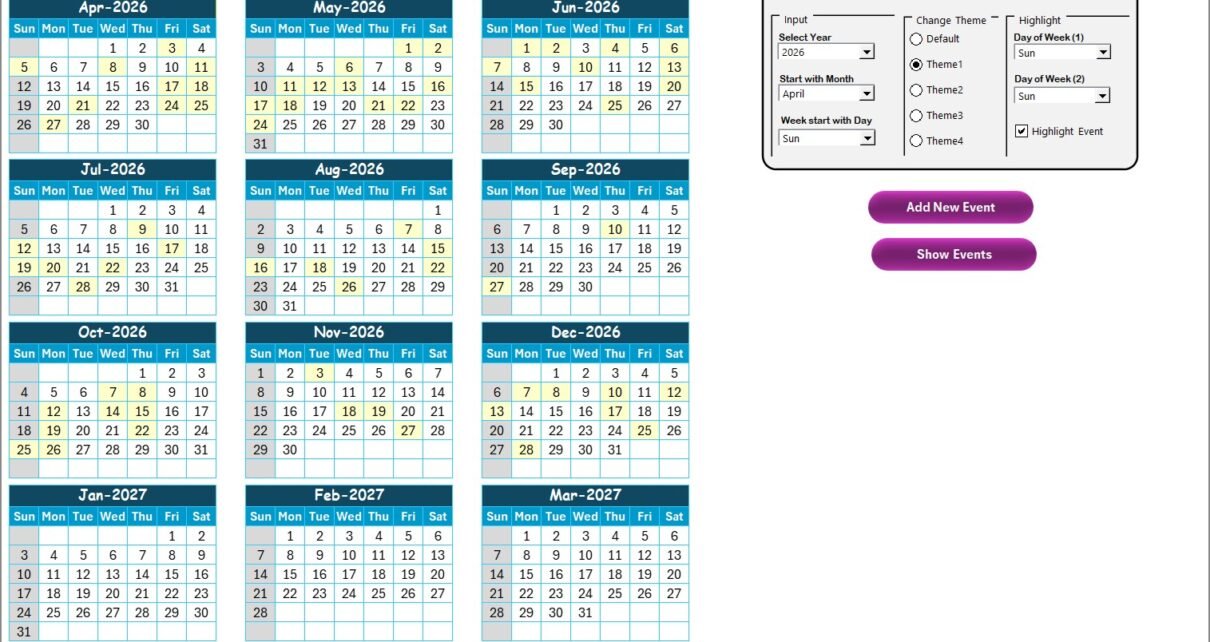
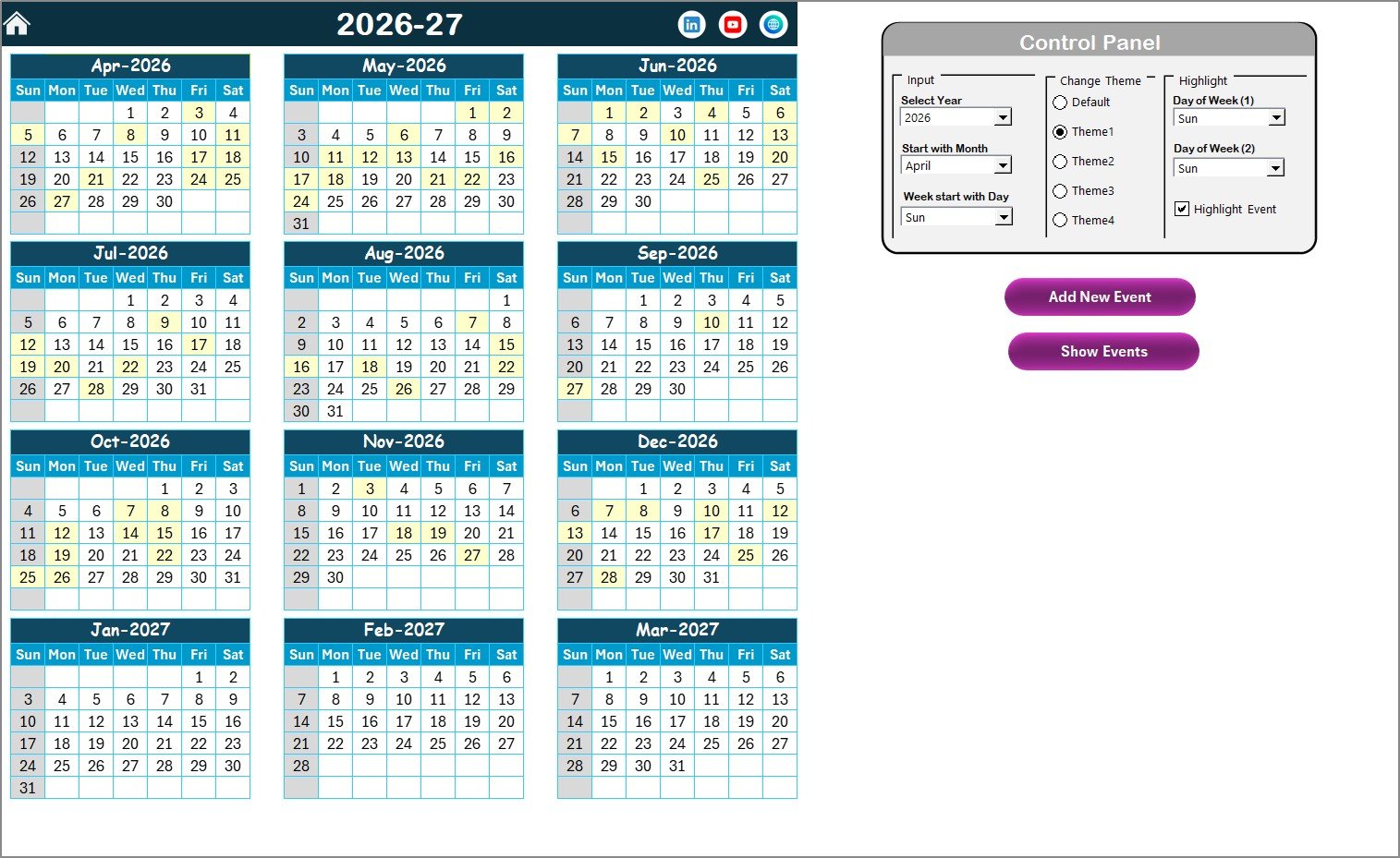
The Annual View control panel provides 3 configuration groups — Input (Year, starting month, starting weekday), Change Theme (5 color themes applied workbook-wide), and Highlight (2 weekday selectors plus event highlight checkbox). This means you can mark Saturdays and Sundays in grey while highlighting all event dates in yellow, giving you instant visual clarity on where close deadlines cluster during the year.
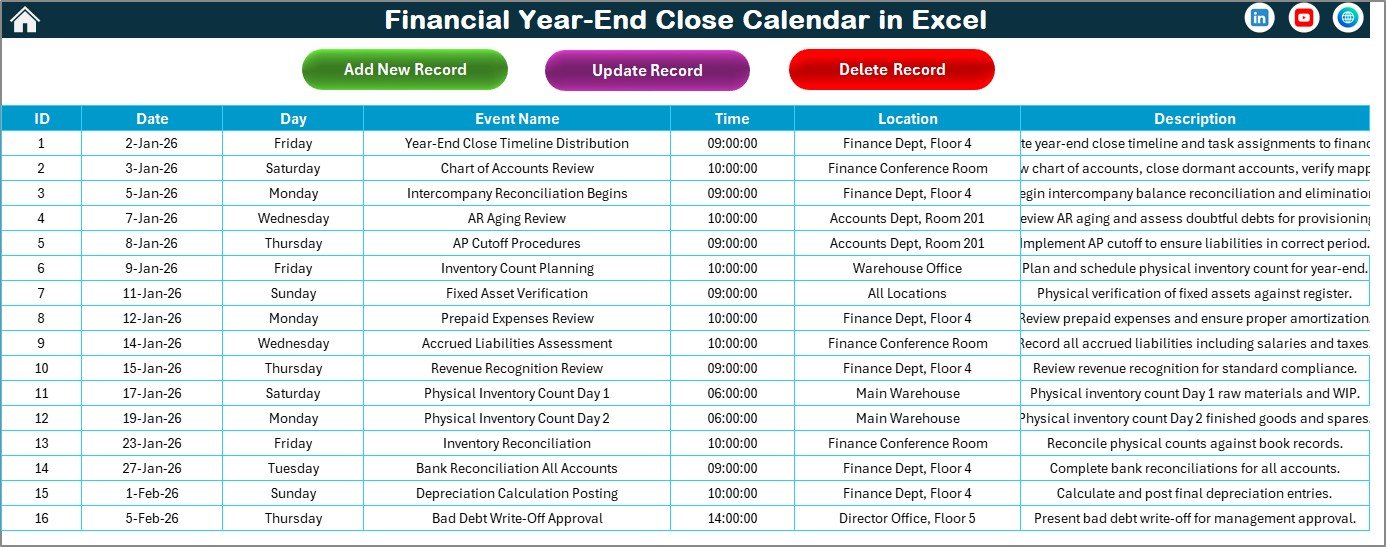
The Events sheet captures 7 structured fields per record: ID (auto-generated), Date, Day, Event Name, Time, Location, and Description. Three VBA buttons — Add New Record, Update Existing Record, and Delete Record — provide full data management without editing cells directly. Each event entered here automatically appears in the Annual, Monthly, and Daily views.
Template Structure Explained
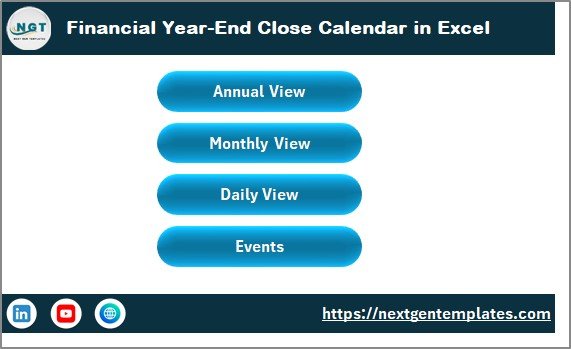
Home Sheet — The index page with 4 navigation buttons: Annual View, Monthly View, Daily View, and Events. Click any button to jump directly to the corresponding worksheet.
👉 Click here to Purchase the Financial Year-End Close Calendar in Excel
Annual View Sheet — Displays all 12 months in a traditional calendar grid. The control panel includes Year selection, starting month, starting weekday, 5 color themes, and weekend/event highlighting options. Two buttons — Add New Event and Show Event — let you manage events directly from this view.
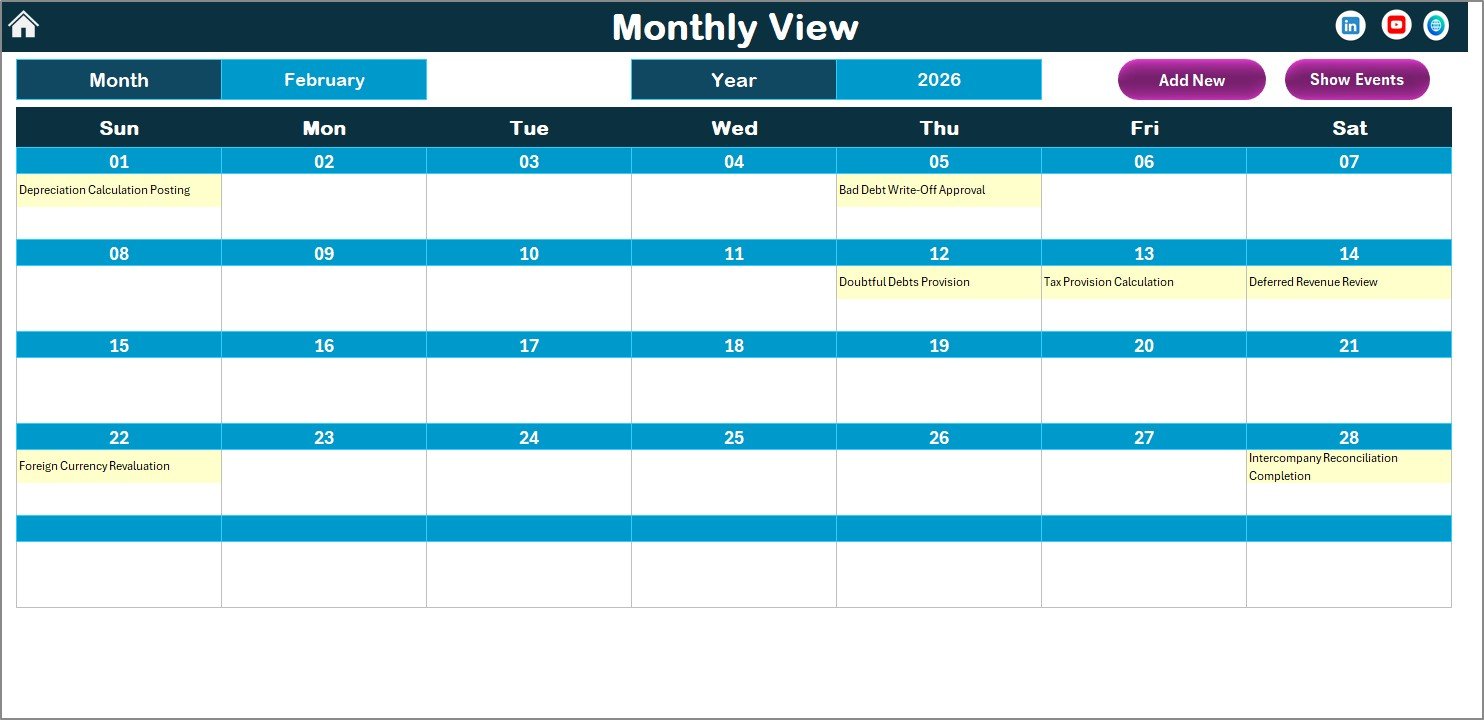
Monthly View Sheet — A single-month calendar for any selected month and year. Drop-down selectors at the top control which period is displayed. Each date cell shows 1 event, and dates with multiple events display “more than 1…” as an indicator. Add New Event and Show Event buttons are available at the top.
👉 Click here to Purchase the Financial Year-End Close Calendar in Excel
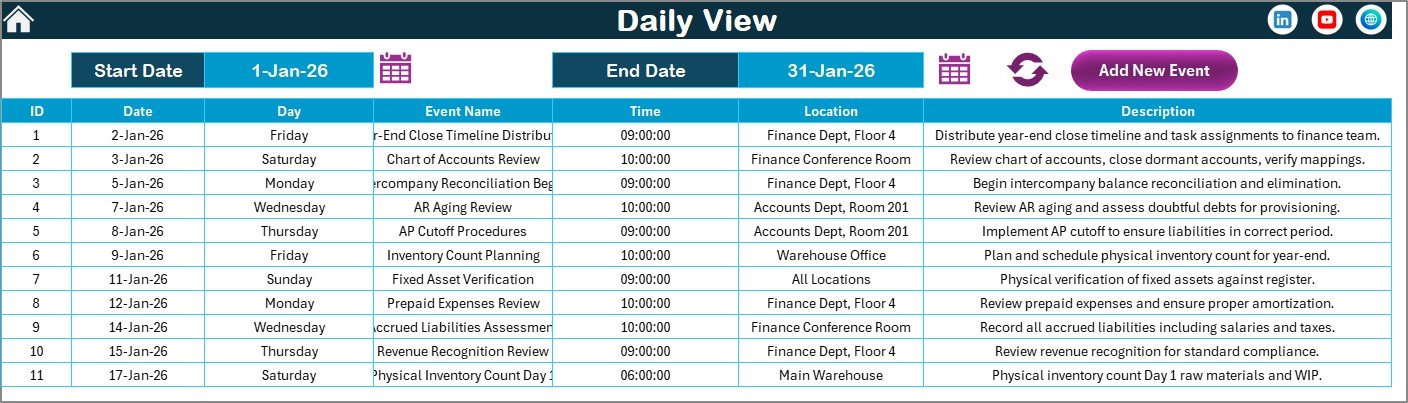
Daily View Sheet — Lists all events with full details for a selected date range. Enter a Start Date and End Date at the top, click Refresh, and the sheet displays every event within that window. An Add New Event button is also available. This view is especially useful during the close period when you need to see exactly which tasks fall in the next 3–5 days.
Events Sheet — The central database storing all event records with 7 fields: ID, Date, Day, Event Name, Time, Location, and Description. Three VBA buttons at the top — Add New Record, Update Existing Record, and Delete Record — provide structured data management.
👉 Click here to Purchase the Financial Year-End Close Calendar in Excel
Financial Year-End Close Calendar in Excel vs. Google Sheets Calendar vs. FloQast / BlackLine — Feature Comparison
| Feature | Financial Year-End Close Calendar (Excel) | Google Sheets Calendar | FloQast / BlackLine |
|---|---|---|---|
| Cost | $4.99 one-time | $4.99–9.99 one-time | $2,000–10,000+ / year |
| Platform | Microsoft Excel (offline) | Google Sheets (browser) | Cloud SaaS |
| Setup time | Under 10 minutes | Under 10 minutes | 4–12 weeks onboarding |
| Works offline | ✅ Yes | ❌ Needs internet | ❌ Needs internet |
| VBA event forms | ✅ Add / Update / Delete | ❌ Manual cell entry | ✅ Proprietary UI |
| 5 color themes | ✅ | ❌ | N/A |
| Annual + Monthly + Daily views | ✅ All 3 built-in | ✅ | ✅ |
| Customizable event fields | ✅ 7 fields per event | Varies | ✅ |
| Year-1 cost at 5 users | $4.99 total | $4.99–9.99 | $2,000–10,000+ |
For finance teams that want a structured year-end close schedule with VBA forms and 3 calendar views without paying $2,000+ for FloQast or BlackLine, the Financial Year-End Close Calendar in Excel sits in the sweet spot.
Who Should Use This Template
👉 Click here to Purchase the Financial Year-End Close Calendar in Excel
Perfect for:
- Controllers and accounting managers at 10–500 person companies scheduling monthly and year-end close tasks on a visual calendar
- Finance teams tracking journal entry deadlines, reconciliation due dates, and audit preparation milestones
- Small business owners who need a single offline calendar for all financial close activities and compliance dates
- Outsourced accounting firms managing close schedules for multiple clients in separate Excel files
Not a fit if:
- You need automated ERP integration, real-time task assignment, and SOC 2 audit trails (use FloQast or BlackLine)
- Your organization requires multi-user role-based access with approval workflows tied to Active Directory
- Your team does not use Microsoft Excel on Windows (VBA features require Excel 2016+ on Windows)
Real-World Use Cases
👉 Click here to Purchase the Financial Year-End Close Calendar in Excel
Meera is a controller at a 90-person manufacturing company in Pune. She uses the Financial Year-End Close Calendar in Excel to schedule 45+ close tasks across January — from sub-ledger reconciliations and intercompany eliminations to audit document preparation. The Annual View with event highlighting in yellow gives her a bird’s-eye view of all close deadlines, and the Daily View filtered to the first 2 weeks of January shows her team exactly what’s due each day.
James runs accounting for a mid-size SaaS company in Austin. He replaced a $3,000/year close management tool with this $4.99 calendar because his team of 4 accountants only needed a shared schedule of close deadlines — not workflow automation. The VBA Add New Event form lets his team log tasks consistently, and the Monthly View helps him prep for each month’s close meeting.
Anita is an outsourced accounting consultant in Dubai. She duplicates this template for each client, customizes the Events sheet with their specific close tasks, and delivers a branded year-end close calendar within a single engagement. The 5 color themes let her match each client’s branding preferences.
Advantages of Financial Year-End Close Calendar in Excel
The template eliminates scattered email reminders and ad-hoc spreadsheets by centralizing every close deadline in one calendar workbook. The VBA forms enforce consistent data entry — every event gets the same 7 fields — so nothing gets recorded as a half-finished note in a cell. The 5 color themes and weekend/event highlighting make close-period calendars presentation-ready for leadership reviews without additional formatting. And because it runs entirely in Excel with no internet dependency, teams in regulated industries or remote locations can use it without cloud access concerns.
Opportunities for Improvement
👉 Click here to Purchase the Financial Year-End Close Calendar in Excel
The template does not include automated reminders or email notifications — you’ll need to check the calendar manually or set up separate Outlook reminders. VBA macros require Excel on Windows, which limits Mac and web users. The single-user file model means simultaneous editing by multiple team members requires OneDrive or SharePoint hosting with potential merge conflicts. For teams needing task assignment, approval workflows, or integration with accounting software, a dedicated close management tool like FloQast remains the better fit.
Best Practices
Start by entering all recurring year-end close tasks into the Events sheet at the beginning of your fiscal year — reconciliation deadlines, journal entry submission dates, audit preparation milestones, and regulatory filing dates. Use the Annual View at the start of Q4 to identify deadline clusters and redistribute tasks if needed. During the close period, switch to Daily View filtered to the current week for a day-by-day task list. Keep the Events sheet as your single source of truth — avoid tracking close tasks in parallel email threads or chat channels. If you manage multiple entities or clients, duplicate the entire workbook for each one and apply a different color theme to visually differentiate them.
Explore Relevant Templates
📅 Financial Planning Calendar in Excel — Plan budgets, forecasts, and financial milestones with annual, monthly, and daily views.
📅 Financial Compliance Calendar in Excel — Track regulatory filings, audit dates, and compliance deadlines.
📊 Business Expense Calendar in Excel — Schedule expense-related events, payment due dates, and budget review meetings.
💎 Save more — Get all finance templates in the Finance & Accounting Command Center — 8 Premium Templates.
Browse more Excel Calendar Templates on NextGenTemplates.
Frequently Asked Questions
👉 Click here to Purchase the Financial Year-End Close Calendar in Excel
What is the Financial Year-End Close Calendar in Excel?
The Financial Year-End Close Calendar in Excel is a VBA-enabled workbook with 5 worksheets that helps finance teams schedule, track, and manage year-end close tasks — including journal entries, reconciliations, audit preparation, and compliance deadlines — across annual, monthly, and daily calendar views.
How long does setup take?
Setup takes under 10 minutes. Open the file in Excel, enable macros, select your year and starting month on the Annual View control panel, and start adding year-end close events using the built-in VBA form. No formulas to configure.
How does this compare to FloQast or BlackLine?
FloQast and BlackLine cost $2,000–10,000+ per year and require weeks of implementation. The Financial Year-End Close Calendar in Excel is a one-time $4.99 purchase that covers the scheduling side of year-end close — task dates, deadlines, and event tracking — without workflow automation or ERP integrations.
Can I customize the event fields in the Events sheet?
The Events sheet includes 7 fields: ID, Date, Day, Event Name, Time, Location, and Description. You can add new columns for your needs and update the VBA form code to bind the new fields. The calendar views reference the default 7 fields.
Does this template work on Mac?
The Financial Year-End Close Calendar in Excel uses VBA macros and ActiveX controls for the event forms and buttons. These features work on Microsoft Excel 2016 or later on Windows. Mac users may experience limited VBA functionality. For Mac-compatible alternatives, check out the Google Sheets Calendar Templates.
Is this a one-time payment or subscription?
One-time payment of $4.99. You get instant download, lifetime access, and no per-user fees. No subscription, no recurring charges.
Can I track events for multiple fiscal years?
Yes. Change the Year selector in the Annual View control panel to switch between fiscal years. All events in the Events database are date-stamped, so events from different years coexist in the same sheet and appear on the correct calendar view.
About the Author
Built by PK — Microsoft Certified Professional with 15+ years of Excel, Google Sheets, and Power BI experience. Founder of NextGenTemplates, reaching 300K+ subscribers across YouTube channels. Every template is hand-built and tested before release.
Conclusion
The Financial Year-End Close Calendar in Excel gives finance teams a structured, visual way to manage every close deadline — from journal entry submissions and reconciliation due dates to audit preparation milestones — without paying $2,000+ per year for enterprise close management software. Five worksheets, VBA-powered event forms, 5 color themes, and 3 calendar views deliver the scheduling infrastructure that controllers and accounting managers need during the most critical period of the fiscal year.
👉 Click here to Purchase the Financial Year-End Close Calendar in Excel
✅ Instant download · One-time payment · No subscription
📅 Last updated: April 2026
🎥 Visit our YouTube channel for step-by-step video tutorials
👉 Youtube.com/@PK-AnExcelExpert