A mobile-accessory counter sells small things quickly. Ten cases, four cables, a power bank and a pair of earbuds can go across the till before lunch, each one a different brand, a different price and a different way of paying. Most small shops record none of it, or scribble a total into a notebook at closing time and lose everything underneath – which brand actually moved, who sold it, and what is still sitting unpaid or waiting to ship.
The Mobile Accessory Sales Data Entry System in Excel is a four-sheet macro-enabled workbook that fixes exactly that problem and nothing beyond it. A seven-field form drops each sale into a ten-column table, stamps it with its own MAS-0001 Record ID and the date and time you saved it, and keeps four live counters above the form. It is not a point-of-sale system, and this article is as clear about what it will not do as about what it will.
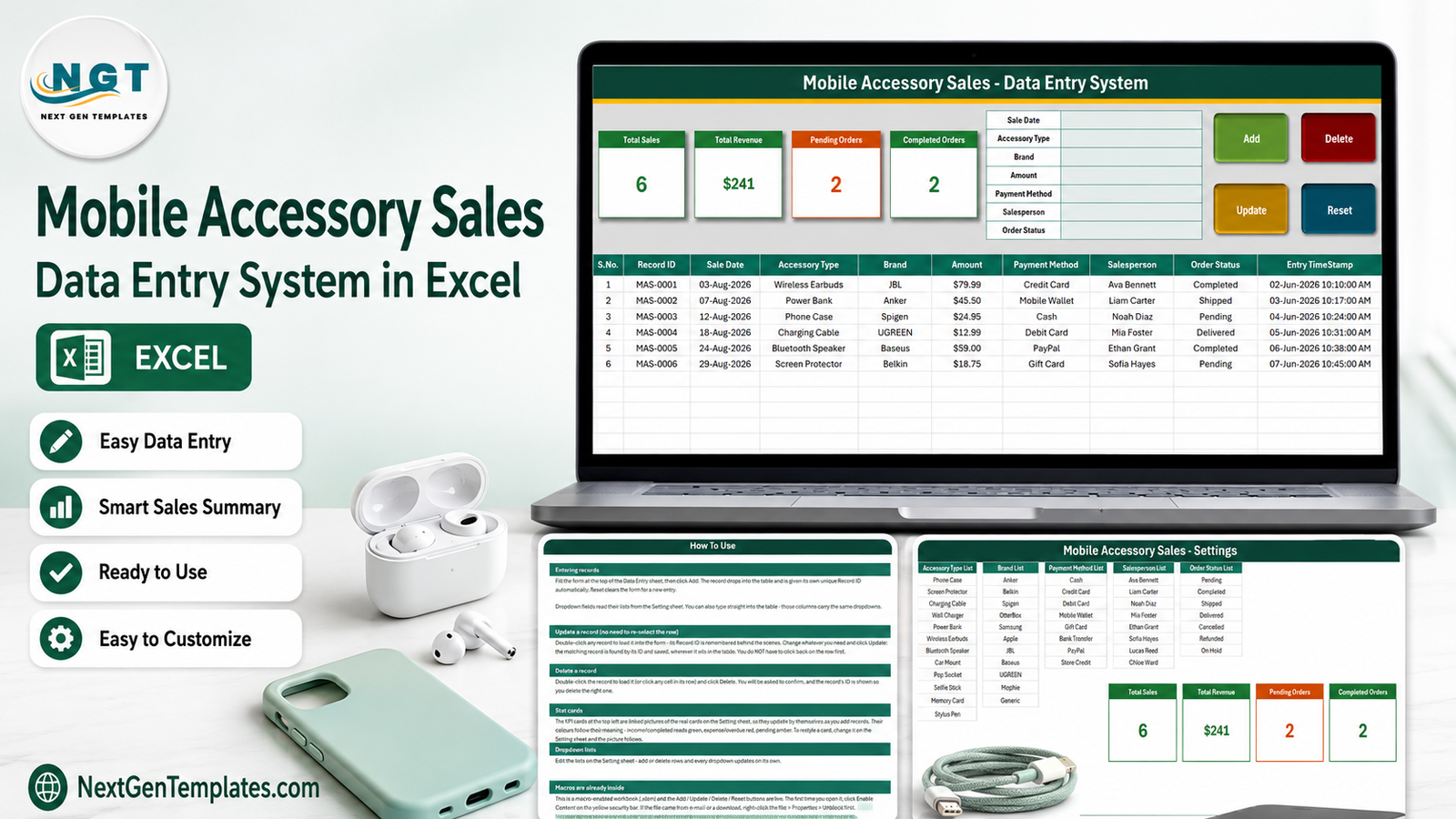
Key Features of the Mobile Accessory Sales Data Entry System in Excel
- A seven-field entry form – Sale Date, Accessory Type, Brand, Amount, Payment Method, Salesperson and Order Status, laid down the middle of the Data Entry sheet.
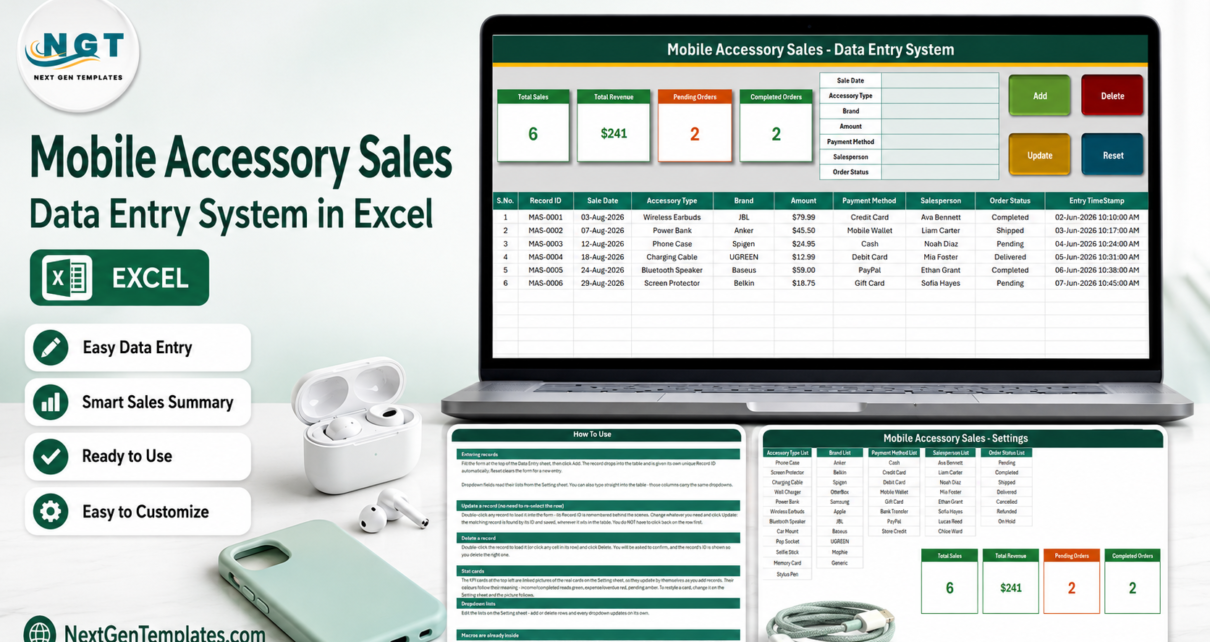
- Four VBA buttons – Add in green, Delete in red, Update in gold and Reset in teal, sitting to the right of the form.
- Automatic Record IDs – MAS-0001, MAS-0002 and onward, so two identical cases sold on the same afternoon stay as two separate lines.
- An Entry TimeStamp column – written for you to the second, in dd-mmm-yyyy hh:mm:ss AM/PM format.
- Update and delete by Record ID – double-click a row, it loads back into the form, and the macro finds it again by ID no matter how the table has been sorted since.
- Four live stat cards – Total Sales, Total Revenue, Pending Orders and Completed Orders, drawn as linked pictures of the real cells on the Setting sheet.
- Five dropdown lists you control – 12 accessory types, 11 brands, 8 payment methods, 8 salespeople and 7 order statuses.
- 200 pre-formatted rows – rows 15 to 214 already carry the validation, the date format and the currency format.
- Fully offline – one .xlsm file on a Windows PC. No account, no subscription, no internet.
- No customer personal data – there is no customer name, phone, e-mail or address field anywhere in it.
Sheet-by-Sheet Walkthrough
1. Data Entry
The working sheet, and the only one you will use daily. A dark green banner reads “Mobile Accessory Sales – Data Entry System”. Below it sit the four stat cards, then the seven-field form with the Add, Delete, Update and Reset buttons beside it, and then the records table: S.No., Record ID, Sale Date, Accessory Type, Brand, Amount, Payment Method, Salesperson, Order Status, Entry TimeStamp.
S.No. is a formula rather than a typed number, so sorting or deleting never leaves a hole in the sequence. Six sample sales ship with the file – JBL Wireless Earbuds at $79.99 on a Credit Card marked Completed, an Anker Power Bank at $45.50 on a Mobile Wallet marked Shipped, a Spigen Phone Case at $24.95 in Cash marked Pending, a UGREEN Charging Cable at $12.99 marked Delivered, a Baseus Bluetooth Speaker at $59.00 through PayPal marked Completed, and a Belkin Screen Protector at $18.75 on a Gift Card marked Pending. Use them to watch the buttons work, then delete them.

2. Setting
Five editable lists side by side, and the four real stat cards to their right. Accessory Type List: Phone Case, Screen Protector, Charging Cable, Wall Charger, Power Bank, Wireless Earbuds, Bluetooth Speaker, Car Mount, Pop Socket, Selfie Stick, Memory Card, Stylus Pen. Brand List: Anker, Belkin, Spigen, OtterBox, Samsung, Apple, JBL, Baseus, UGREEN, Mophie, Generic. Payment Method List: Cash, Credit Card, Debit Card, Mobile Wallet, Gift Card, Bank Transfer, PayPal, Store Credit. Salesperson List: eight placeholder names to replace with your own staff. Order Status List: Pending, Completed, Shipped, Delivered, Cancelled, Refunded, On Hold.

3. How To Use
The tab is named Instructions and its banner reads “How To Use”. Six short sections cover entering a record, updating one without re-selecting its row, deleting, how the stat cards are built, editing the dropdown lists, and enabling macros the first time you open the file.

4. Get More Templates
A short page of links back to the NextGenTemplates store.
Exactly What the Four Cards Count – and What They Do Not
This is the part most template listings skip. The four cards are real formulas on the Setting sheet, and they are simple ones. Knowing precisely what each does saves you from quoting a number that does not mean what you think it means.
| Card | Formula on the Setting sheet | What it really counts |
|---|---|---|
| Total Sales | =COUNTA('Data Entry'!$C$15:$C$1048576) | Filled cells in column C – the Sale Date, not the Record ID in column B. A row saved without a sale date is stored but never counted. |
| Total Revenue | =SUM('Data Entry'!$F$15:$F$1048576) | The whole Amount column with no status filter. Cancelled, Refunded, On Hold and Pending amounts are inside it. Formatted $#,##0, so the sample’s true $241.18 displays as $241. |
| Pending Orders | =COUNTIF('Data Entry'!$I$15:$I$1048576,"Pending") | Rows whose status reads Pending. Accurate – but one status out of seven. |
| Completed Orders | =COUNTIF('Data Entry'!$I$15:$I$1048576,"Completed") | The same for Completed. Shipped, Delivered, Cancelled, Refunded and On Hold get no card. |
The shipped sample shows all of this plainly. Total Sales reads 6. Pending reads 2, Completed reads 2, and 2 + 2 does not reach 6 because the Shipped row and the Delivered row have no card of their own. Total Revenue reads $241 for an actual $241.18, of which only $138.99 sits on Completed lines.
None of that is broken – it is what those four formulas do. But if you want a settled-revenue figure, change the SUM to a SUMIF against the Order Status column; and if you want the missing five statuses counted, copy the COUNTIF pattern into five more cells. Both edits take a minute on the Setting sheet and the linked pictures on the Data Entry sheet update themselves.
Mobile Accessory Sales Data Entry System in Excel vs. Google Sheets vs. Retail POS Software – Feature Comparison
| What you need | This Excel workbook | A Google Sheets log | Retail POS software |
|---|---|---|---|
| Cost | One-off purchase | Free, but you build it | Monthly per till |
| Works offline | Yes | No | Usually no |
| Guided form with Add / Update / Delete | Yes, four VBA buttons | Only with Apps Script | Yes |
| Automatic Record IDs and timestamps | Yes | You would script it | Yes |
| Barcode scanning | No | No | Yes |
| Live stock levels | No | No | Yes |
| Receipts and tax invoices | No | No | Yes |
| Taking payments | No – you only record the method | No | Yes |
| Profit and margin | No cost field, so no | Only if you add one | Yes |
| Several people entering at once | No | Yes | Yes |
| You own the file outright | Yes | Yes | No |
Who Should Use This Template
It suits an independent accessory counter or mall kiosk, a phone-repair shop that wants its accessory sales kept apart from its repair jobs, a weekend market stall working with no signal, a small online seller who needs to see what is still Pending versus Shipped, and any owner who wants to compare two or three counter staff at month end.
It is the wrong tool if you need live stock counts, barcode scanning or a cash drawer; if you must issue GST, VAT or other tax invoices from the same record; if you track IMEI or serial numbers for warranty claims; if you run several branches and want them consolidated; if more than one person must type into the file at the same time; or if you are on a Mac, on Excel for the web, or in Google Sheets, where the VBA buttons simply will not run.
Real-World Use Cases
- Logging the day’s counter sales at closing time and reading Total Revenue as a rough day figure.
- Keeping accessory income visibly separate from repair income in a combined phone shop.
- Recording a market stall’s sales on a laptop with no internet at all.
- Working the Pending, Shipped and Delivered statuses as a simple queue of what still has to go out.
- Reviewing the Salesperson column monthly to see which staff member is moving the most stock.
- Spotting which accessory types and brands get asked for most before placing the next restock order.
Advantages of the Mobile Accessory Sales Data Entry System in Excel
- A form instead of a blank grid, so entries stay consistent between staff members.
- Dropdowns on five of the seven fields, which removes most typos before they happen.
- Record IDs and timestamps you never have to think about.
- Update by ID rather than by row, so sorting the table cannot break editing.
- Everything in one 65 KB file you own, back up and e-mail yourself.
- Cards built as linked pictures, so restyling them is a Setting-sheet job rather than a redesign.
- No customer personal data is captured at all, which keeps a small shop well clear of any data-protection burden.
Opportunities for Improvement
Four things in this build are worth knowing before you buy, and each has a short fix.
- Total Revenue is unfiltered. It sums every Amount regardless of status, so Cancelled and Refunded lines inflate it. A SUMIF on Order Status fixes it.
- Only two of the seven statuses have a card. Pending and Completed are counted; Shipped, Delivered, Cancelled, Refunded and On Hold are not, so the cards will not reconcile to Total Sales. Copy the COUNTIF for the other five.
- Total Sales counts the Sale Date column, not the Record ID column. A row saved without a date is invisible to that card. Repoint the COUNTA at column B.
- The dropdown lists do not extend themselves, despite what the How To Use sheet says. All five named ranges are already exactly full – Accessory Type holds 12 of 12, Brand 11 of 11, Payment Method 8 of 8, Salesperson 8 of 8, Order Status 7 of 7 – so anything typed below the last item is invisible to the dropdown. Overwrite an existing entry, or widen the range once in Formulas > Name Manager.
One cosmetic note as well: on the six demo rows the Entry TimeStamp values (June 2026) sit before the Sale Date values (August 2026). It affects only the sample data you are going to delete, and your own entries get a real timestamp of the moment you press Add.
Best Practices
- Set up the Setting sheet before you enter a single real sale – overwrite the lists rather than appending below them.
- Widen the five named ranges in Name Manager on day one if your shop carries more than 12 accessory types or 11 brands.
- Delete the six sample rows once you are confident with the buttons.
- Enter through the form, not by typing straight into the table, so you keep the Record ID and timestamp.
- Use Order Status honestly – a Refunded line left as Completed quietly corrupts every card.
- Keep a dated copy of the file at the end of each month; it is one small file, so backups are cheap.
- If you replace the card formulas, edit them on the Setting sheet only; the Data Entry sheet’s cards are pictures of those cells.
Explore Relevant Templates
- Mobile Repair Log Data Entry System in Excel – the repair-side companion for the same shop.
- Product Inventory Data Entry System in Excel – what you hold, rather than what you sold.
- Uniform Sales Data Entry System in Excel – the same build tuned for a uniform shop.
- Online Order Tracker Data Entry System in Excel – for sellers whose orders ship rather than walk out.
- General Store POS Web App – a real till, for when one workbook is no longer enough.
- E-commerce Dashboard in Google Sheets – for charting the sales once you have a few months of them.
More on this blog: Mobile Gaming Dashboard in Power BI, Mobile Banking KPI Dashboard in Excel and Mobile Repair Log Data Entry System in Excel.
Frequently Asked Questions
Is this a point-of-sale system?
No. It records a sale after it has happened. It does not scan barcodes, hold stock, print receipts, take payments or open a cash drawer. You pick the payment method from a dropdown; no money moves anywhere.
Do I have to enable macros?
Yes. Add, Update, Delete and Reset are VBA. Without macros the buttons do nothing and you would be typing directly into the table, losing the automatic Record ID and timestamp.
Will it run on a Mac, in Excel for the web, or in Google Sheets?
It is built and tested for desktop Excel on Windows. Excel for the web runs no VBA at all, this build’s buttons are not supported on Mac, and Google Sheets cannot open an .xlsm’s macros.
Does Total Revenue tell me what I actually took?
Not by itself. It sums every Amount with no status filter, so Cancelled, Refunded, On Hold and Pending rows are all inside it, and it rounds to whole dollars on display. Swap it for a SUMIF on Order Status if you want settled sales only.
Why do Pending plus Completed not equal Total Sales?
Because five of the seven statuses have no card. In the sample that is 2 + 2 against a Total Sales of 6.
If I add a brand to the list, will the dropdown show it?
Only if you widen the named range first, or overwrite an existing entry. Every list is a fixed range that is already exactly full, so a value typed underneath is not picked up – regardless of what the How To Use sheet claims.
How many sales will it hold?
200 rows are pre-formatted with the dropdowns and formats, on rows 15 to 214. The card formulas run to the bottom of the sheet, so later rows are still counted; they just will not carry the validation until you extend it yourself.
Does it store customer details?
No. There is no customer name, phone, e-mail or address field anywhere in the workbook. The only person named on a record is your own salesperson.
Can it show me profit?
No. There is a single money column, Amount, and no cost price, so margin cannot be worked out without adding a column and your own formula.
What happens if I sort the table after adding records?
Nothing breaks. S.No. recalculates itself and Update and Delete find rows by Record ID rather than by position.
About the Author
PK is a Microsoft Certified Professional who has been building Excel, VBA, Power BI and Google Sheets tools for small businesses for years. Every NextGenTemplates workbook is opened and clicked through by hand before release – which is why the exact behaviour of these four stat cards is written out above instead of being left for a buyer to discover. Walkthrough videos are on youtube.com/@PKAnExcelExpert.
Conclusion
If your accessory counter currently runs on memory and a notebook, this workbook is the smallest possible step up: a form, a table, four counters, and a file you own outright. It will not scan a barcode or print a receipt, and this page has said so several times over. What it will do is give you a clean, timestamped, per-sale record of what moved, from which brand, at what price, paid how and by whom – and that alone is usually the difference between guessing at a restock order and knowing.
Get the Mobile Accessory Sales Data Entry System in Excel on NextGenTemplates.com – instant download, lifetime access, no subscription.