A shoe shop carries the same style in eight sizes and four colours, which means a shop holding 200 pairs is really tracking several hundred separate lines. That is exactly the kind of register that lives on paper for years and then loses a size run nobody noticed had gone. The Footwear Shop Stock Data Entry System in Excel is a 65,900-byte macro-enabled workbook with four sheets that turns that register into a single seven-field form: type the pair, click Add, and the row is written with its own Record ID and a timestamp. This walkthrough covers exactly what the workbook does, what it does not do, and the four card behaviours you should understand before you rely on the numbers at the top of the sheet. Footwear Shop Stock Data Entry System in Excel
Key Features of the Footwear Shop Stock Data Entry System in Excel
Everything below was read off the shipped workbook rather than a feature list, so what you see here is what opens on your screen.
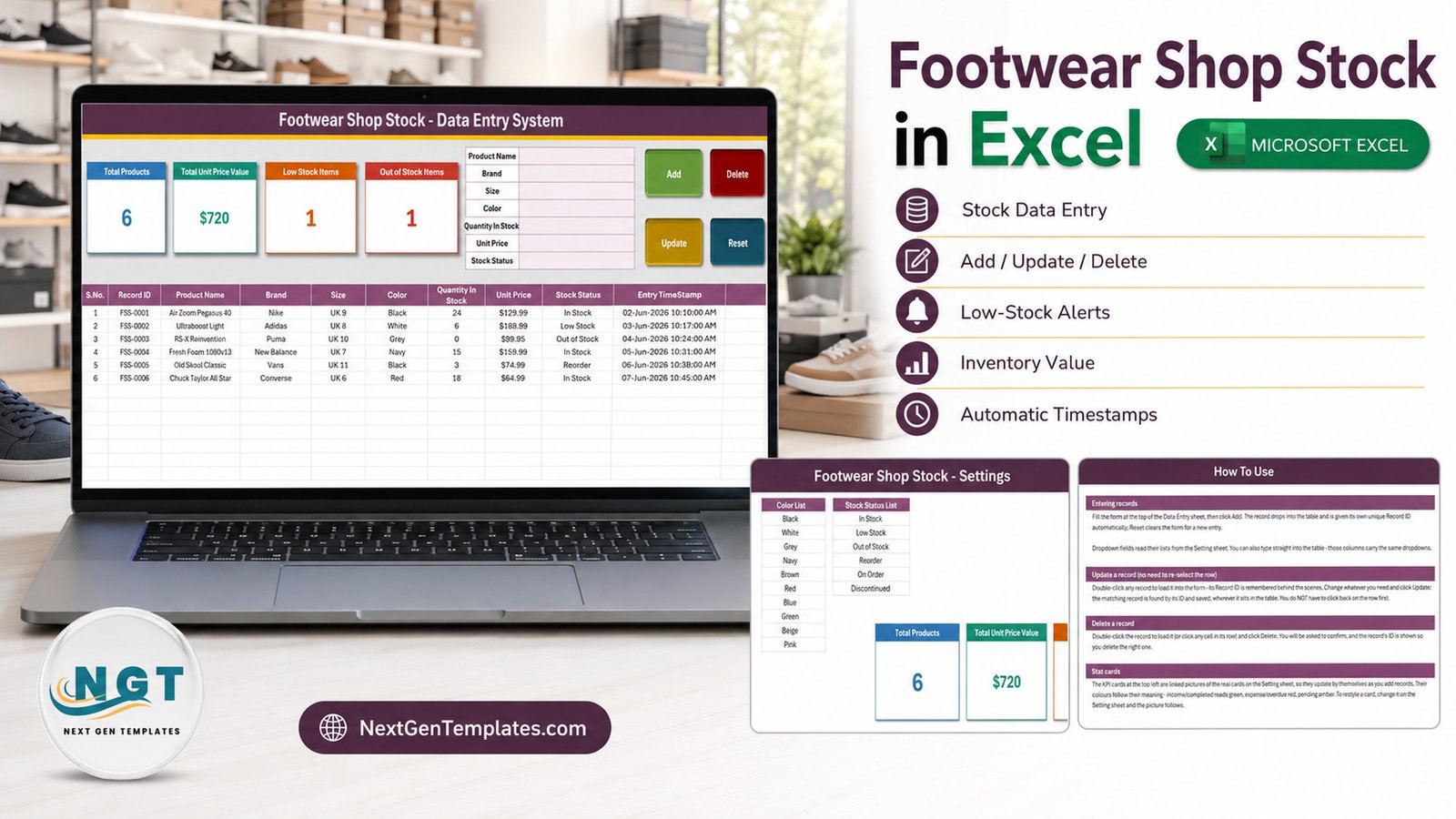
- A seven-field entry panel – Product Name, Brand, Size, Color, Quantity In Stock, Unit Price and Stock Status, sitting in a pink-tinted block at the top of the Data Entry sheet.
- Four VBA buttons – Add (green), Delete (red), Update (amber) and Reset (teal). They are macros inside an
.xlsm, so this is Excel for Windows desktop with Enable Content clicked. - Sequential Record IDs – the macro writes
FSS-0001,FSS-0002and so on, plus an Entry TimeStamp in the format 02-Jun-2026 10:10:00 AM. - Update by ID rather than by row – double-click a record, change it, click Update. The workbook finds the matching Record ID wherever it now sits, so sorting the table does not break editing.
- Four stat cards – Total Products, Total Unit Price Value, Low Stock Items and Out of Stock Items, each a linked picture of a live cell on the Setting sheet.
- Four dropdown lists – 12 brands, 8 UK sizes, 10 colours and 6 stock statuses, all editable on the Setting sheet.
- A ten-column register – S.No., Record ID, Product Name, Brand, Size, Color, Quantity In Stock, Unit Price, Stock Status, Entry TimeStamp – validated and formatted from row 15 to row 214. Footwear Shop Stock Data Entry System in Excel
Sheet-by-Sheet Walkthrough
1. Data Entry
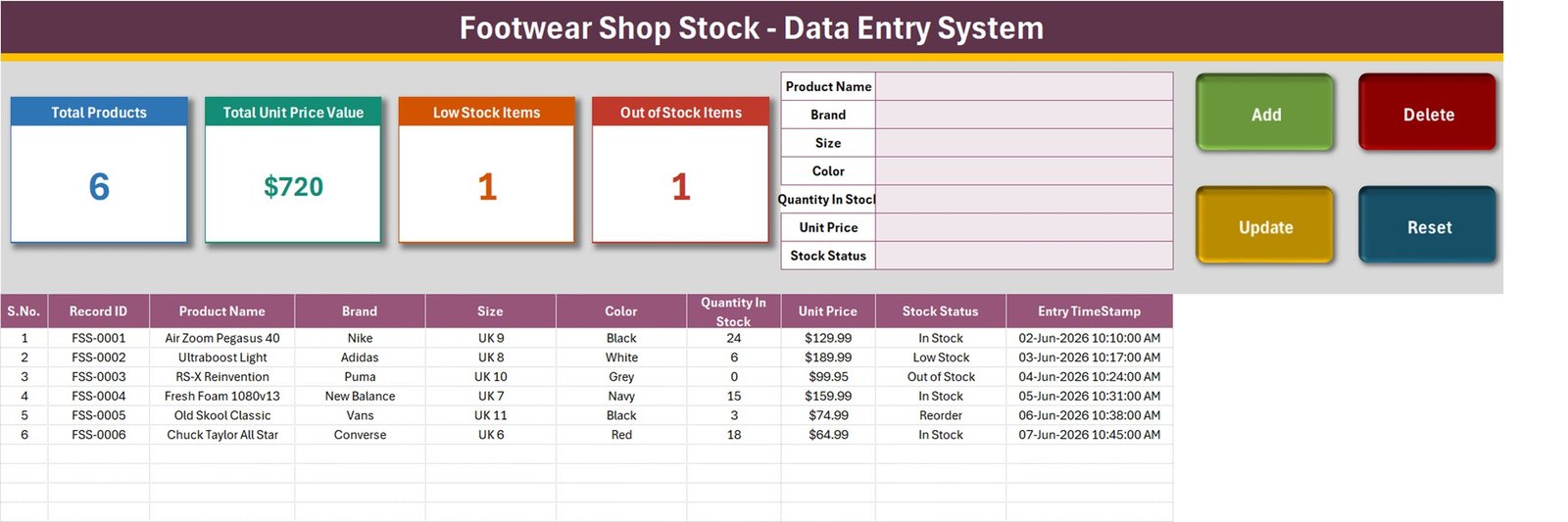
This is the only sheet you work in day to day. The banner reads “Footwear Shop Stock – Data Entry System”; below it the four cards, then the form, then the four buttons on the right, then the table. The workbook ships with six sample pairs so you can watch the buttons behave before you clear them: a Nike Air Zoom Pegasus 40 in UK 9 Black with 24 in stock at $129.99, an Adidas Ultraboost Light in UK 8 White marked Low Stock, a Puma RS-X Reinvention in UK 10 Grey at zero and marked Out of Stock, a New Balance Fresh Foam 1080v13, a Vans Old Skool Classic marked Reorder, and a Converse Chuck Taylor All Star. On that sample the cards read Total Products 6, Total Unit Price Value $720, Low Stock Items 1 and Out of Stock Items 1. Footwear Shop Stock Data Entry System in Excel
2. Setting
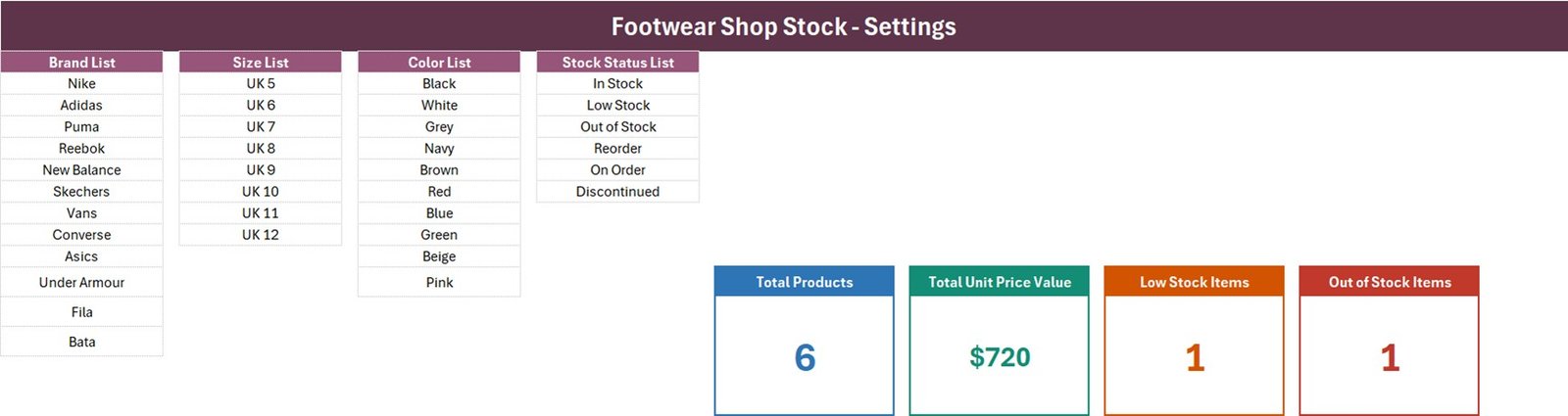
Four lists side by side, and the four real KPI cells the Data Entry pictures point at. The Brand List ships with Nike, Adidas, Puma, Reebok, New Balance, Skechers, Vans, Converse, Asics, Under Armour, Fila and Bata. The Size List runs UK 5 to UK 12. The Color List holds Black, White, Grey, Navy, Brown, Red, Blue, Green, Beige and Pink. The Stock Status List holds In Stock, Low Stock, Out of Stock, Reorder, On Order and Discontinued. Every one of those is yours to rewrite – a shop that sells in EU sizes replaces the size column outright. Footwear Shop Stock Data Entry System in Excel
3. Instructions
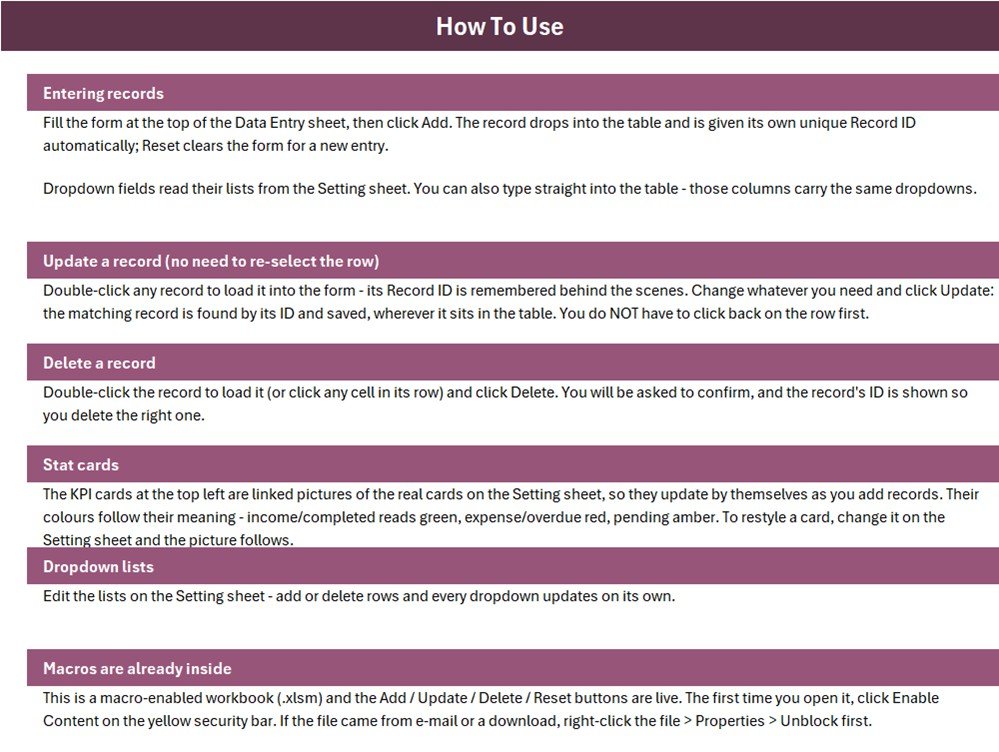
A How To Use page with six blocks: entering records, updating a record, deleting a record, how the stat cards work, where the dropdowns come from, and the macro-security step. That last block is the one to read first – it tells you to click Enable Content on the yellow bar and, if the file came from e-mail or a download, to right-click it and use Properties > Unblock before opening. Microsoft’s own guidance on that block is in the Microsoft Learn article on macros blocked from the internet. Footwear Shop Stock Data Entry System in Excel
4. Get More Templates
A links sheet pointing back to the NextGenTemplates catalogue. Nothing to configure.
Footwear Shop Stock Data Entry System vs. Google Sheets vs. Zoho Inventory – Feature Comparison
| What matters | This workbook | A Google Sheets stock list | Zoho Inventory / NetSuite ERP |
|---|---|---|---|
| Cost | $6.99 once | Free, but you build it | $39 – $300+ per month |
| Platform | Excel for Windows desktop, macros on | Any browser | Browser and mobile apps |
| Setup time | Under 5 minutes | 1 – 3 hours of building | Days, often with onboarding |
| Real-time team collaboration | No – single user, one file | Yes | Yes |
| Mobile access | No | Yes | Yes |
| Customizable fields | Yes, edit the sheet and the VBA | Yes | Within the vendor’s model |
| Share with link | No – send the file | Yes | Yes |
| Year-1 cost at 5 users | $6.99 | $0 plus your build time | $2,340 – $18,000 |
| Size and colour variants as separate lines | Yes, one row per pair | Yes, if you design it | Yes, as SKU variants |
| Automatic reorder alerts | No – status is chosen by hand | No, unless you build it | Yes |
Who Should Use This Template
A single-branch shoe shop, a sneaker resale desk, a boutique holding a few hundred pairs, or a stockroom assistant replacing a paper size-and-colour register. It also suits a bookkeeper who wants a clean footwear stock list at month end without buying inventory software. Footwear Shop Stock Data Entry System in Excel
It is the wrong tool for a multi-branch chain that needs one shared stock figure, for a shop selling online that needs quantities pushed to a storefront, and for anyone who expects barcodes, purchase orders or automatic reordering. It is not a point-of-sale system: there is no sales, returns, cost-price or margin column, and nothing decrements Quantity In Stock when a pair leaves the shop. Footwear Shop Stock Data Entry System in Excel
Real-World Use Cases
Ritu runs a single-store sneaker boutique holding around 180 pairs. Every Monday she walks the shelves with a laptop, updates Quantity In Stock and flips anything at two pairs or fewer to Low Stock, so the card at the top tells her how many lines need a call to the distributor.
Daniel is the stockroom lead at a family shoe shop. He sorts by Brand then Size, so a customer asking for a UK 10 Puma gets an answer in seconds, and he uses the Entry TimeStamp to spot lines that have not been touched since the last delivery.
Meera resells sneakers. Each pair is entered as it arrives with its Unit Price, and she leans on the On Order and Discontinued statuses to keep what is genuinely sellable separate from what is still in transit. Footwear Shop Stock Data Entry System in Excel
Advantages of the Footwear Shop Stock Data Entry System in Excel
- It is one file. No account, no sync, no monthly bill – back it up by copying it.
- The four fields that footwear actually needs are first-class columns. Brand, Size, Color and Status are dropdowns, not free text, so the same size does not get typed three different ways.
- Editing is safe. Because Update matches on Record ID rather than row position, sorting or filtering the table cannot make you overwrite the wrong pair.
- The macros are open. The VBA is inside a normal
.xlsm, so a shop with its own conventions can add a supplier column or a cost-price column and extend the Add macro to match. - 200 rows are pre-formatted, which for most single-branch shops is a year of stock lines before anything needs extending.
Opportunities for Improvement
These are real behaviours in the shipped build, checked against the workbook’s own formulas rather than guessed at. None of them stop the workbook doing its job, but you should know them before you trust a card. Footwear Shop Stock Data Entry System in Excel
- Total Unit Price Value is not inventory value. The cell is
SUMof the Unit Price column, with no quantity multiplier and no status filter. On the shipped sample it reads $720 – the six ticket prices added up – while those six lines at their listed quantities are worth $8,054.34. Add a helper column of quantity multiplied by price if you need a stock-at-cost figure. - Only two of the six statuses are carded. Low Stock and Out of Stock are counted with
COUNTIF; In Stock, Reorder, On Order and Discontinued are not. The status cards therefore never reconcile to Total Products. - Total Products counts the Product Name column, not the Record ID column. A row saved without a product name is stored in the table but never counted.
- The dropdown named ranges are fixed. The Instructions sheet says every dropdown updates on its own, but the four ranges are exactly as long as the lists shipped – 12 brands, 8 sizes, 10 colours, 6 statuses. A 13th brand typed below the last one will not appear in the dropdown until you widen the range in Formulas > Name Manager.
- Quantity In Stock is never totalled anywhere in the workbook.
- Validation stops at row 214. Beyond 200 records you copy the formatting and validation down yourself.
- The Instructions sheet’s Stat cards paragraph is generic. It mentions income, expense and overdue colours that do not match these four cards – shared wording from the template family, cosmetic only. Footwear Shop Stock Data Entry System in Excel
Best Practices
- Rewrite the Setting lists before you enter anything. Your brands, your size run, your colour names, your status vocabulary – and widen the named ranges immediately so the dropdowns stay in step.
- Agree one row per size-colour pair and stick to it. Mixing “Air Zoom Pegasus 40” as one row and as eight size rows makes every card meaningless.
- Use Reorder rather than Low Stock as your action flag if you want Low Stock Items to keep meaning “getting thin” rather than “already ordered”.
- Never edit a row by typing over it when you can double-click and use Update – that is what keeps the Record ID and timestamp trustworthy.
- Keep a dated copy at each stock take. There is no version history in a desktop file.
- Treat Total Unit Price Value as a price-band indicator, and keep your real valuation in a helper column.
Explore Relevant Templates
- Salon Product Stock Data Entry System in Excel – the same form-and-cards build for retail product stock.
- Uniform Sales Data Entry System in Excel – sizes and quantities again, but on the selling side.
- Photocopy Shop Sales Data Entry System in Excel – the closest small-shop sales register in this family.
- Footwear Manufacturing Dashboard in Excel – the production side of the same industry.
A companion Garment Shop Sales Data Entry System in Excel is being prepared for the same retail family; watch this blog for it if you sell apparel alongside footwear.
Frequently Asked Questions
Does it warn me when a size runs low?
No. There is no reorder point, no formula and no alert of any kind. Stock Status is a dropdown you set by hand, and Low Stock Items simply counts the rows you have marked “Low Stock”.
Is Total Unit Price Value the value of my stock?
No. It adds the Unit Price column only, with no quantity multiplier and no status filter. Build your own quantity-times-price column for a true valuation.
Will it work in Excel for the web or on a Mac?
Excel for the web cannot run VBA at all, so the buttons are dead there. Excel for Mac runs VBA but with known gaps in Windows-only features, so this is sold as an Excel for Windows desktop tool.
Does it handle sales, receipts or barcodes?
No. There is no sales, returns, cost-price, margin, supplier or barcode field, and nothing reduces Quantity In Stock automatically. It is a stock register.
Can two staff use it at the same time?
No. It is a single-user desktop file. Concurrent editing needs a Google Sheets style tracker instead.
How many pairs can it hold?
200 rows come pre-validated (rows 15 to 214). You can extend beyond that by copying the formatting and validation down.
Can I add my own brands and sizes?
Yes – edit the lists on the Setting sheet, then widen the matching named range in Formulas > Name Manager so the dropdown picks up the new rows.
About the Author
Built by PK – Microsoft Certified Professional with 15+ years of Excel, Google Sheets, and Power BI experience. Founder of NextGenTemplates, reaching 300K+ subscribers across YouTube channels. Every template is hand-built and tested before release.
Conclusion
The Footwear Shop Stock Data Entry System in Excel does one job properly: it keeps a disciplined, timestamped register of every pair on your shelves, with the four fields footwear actually turns on – brand, size, colour and status – locked to dropdowns so the data stays clean. It is not inventory software, it does not sell anything, and two of its four cards need reading with the notes above in mind. Within those limits it replaces a paper register in five minutes and costs less than one pair of laces.
Get the Footwear Shop Stock Data Entry System in Excel on NextGenTemplates – one ZIP, one workbook, instant download, no subscription.
For step-by-step Excel and VBA walkthroughs, subscribe at youtube.com/@PKAnExcelExpert.