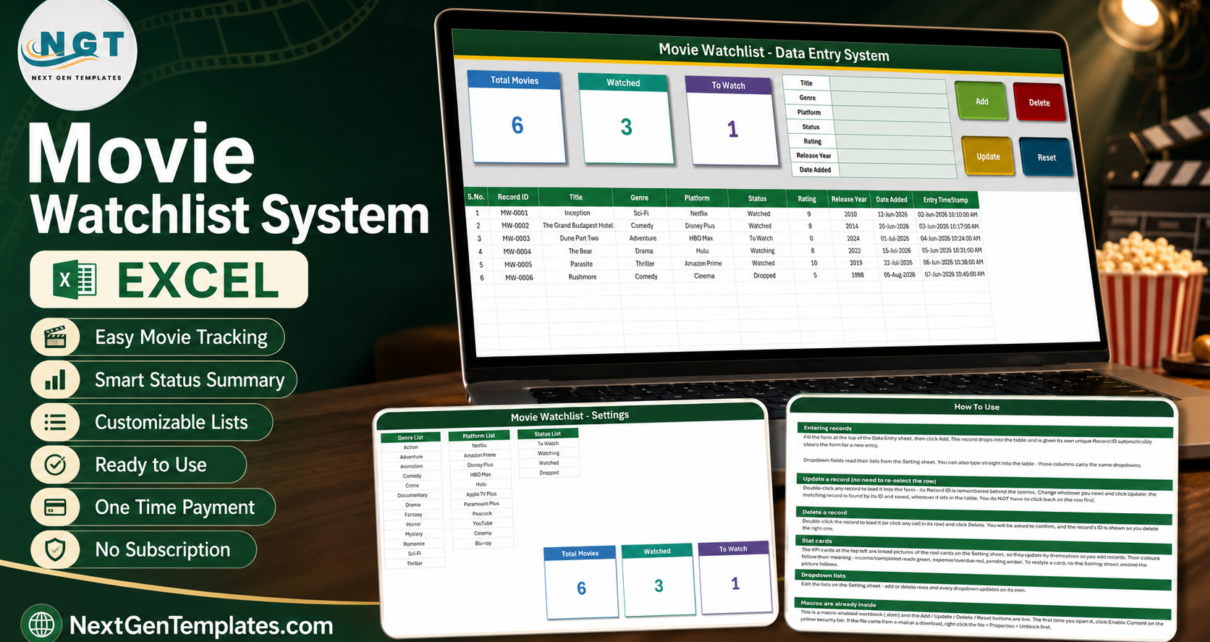
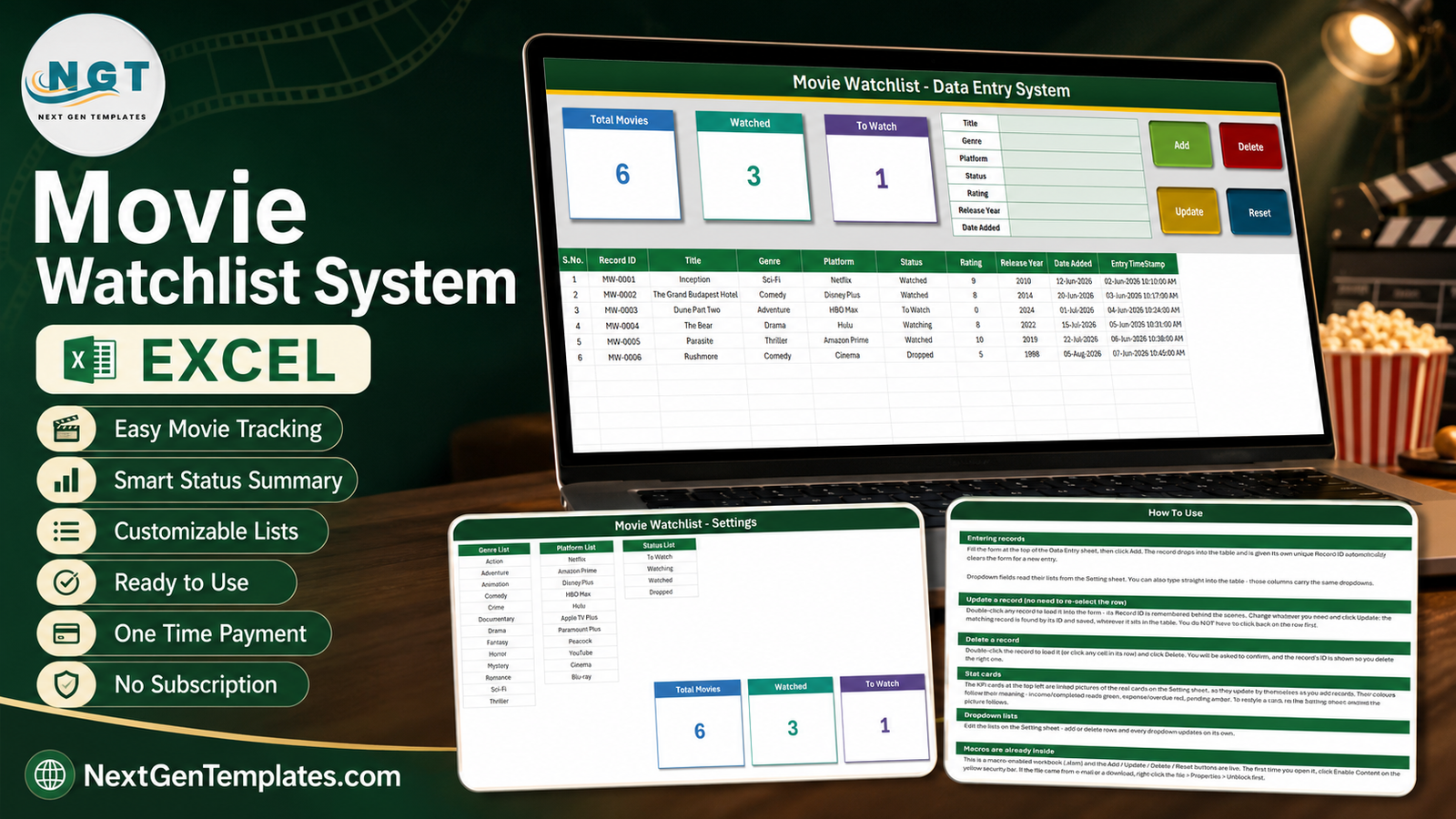
Most watchlists are scattered. A few titles in a notes app, a few in a group chat, a couple screenshotted from a trailer you meant to come back to. The Movie Watchlist Data Entry System in Excel puts them in one macro-enabled workbook: a 7-field entry form, four working VBA buttons, automatic MW-0001 Record IDs, an automatic entry timestamp, three live summary cards, and three editable dropdown lists carrying 13 genres, 11 platforms and 4 statuses. Six sample records ship inside so you can see it work before typing anything. It costs $6.99 once, runs entirely offline, and stores nothing outside your own machine.
This post walks through what is actually in the file, sheet by sheet, including the two card behaviours that are worth understanding before you rely on the numbers.
Key Features of the Movie Watchlist Data Entry System in Excel
- Seven form fields – Title, Genre, Platform, Status, Rating and Release Year, plus Date Added.
- Four VBA buttons – Add, Update, Delete and Reset, bound to the
Add_Record,Update_Record,Delete_RecordandReset_Formmacros. - Automatic Record IDs – sequential
MW-0001codes. The workbook remembers the highest number issued, so an ID is never reused after a delete. - Automatic Entry TimeStamp – column J stamps the date and time each row was typed.
- Double-click to edit – a row loads into the form and its Record ID is held in a hidden named cell, so Update rewrites the correct row even after you have sorted the table.
- Three linked-picture cards – Total Movies, Watched and To Watch, drawn from the Setting sheet so restyling the source restyles the card.
- Ten table columns – S.No., Record ID, Title, Genre, Platform, Status, Rating, Release Year, Date Added, Entry TimeStamp.
- Validated dropdowns in the table – Genre, Platform and Status columns carry the same lists as the form, pre-applied for 200 rows.
Workbook Sheets Explained
1. Data Entry
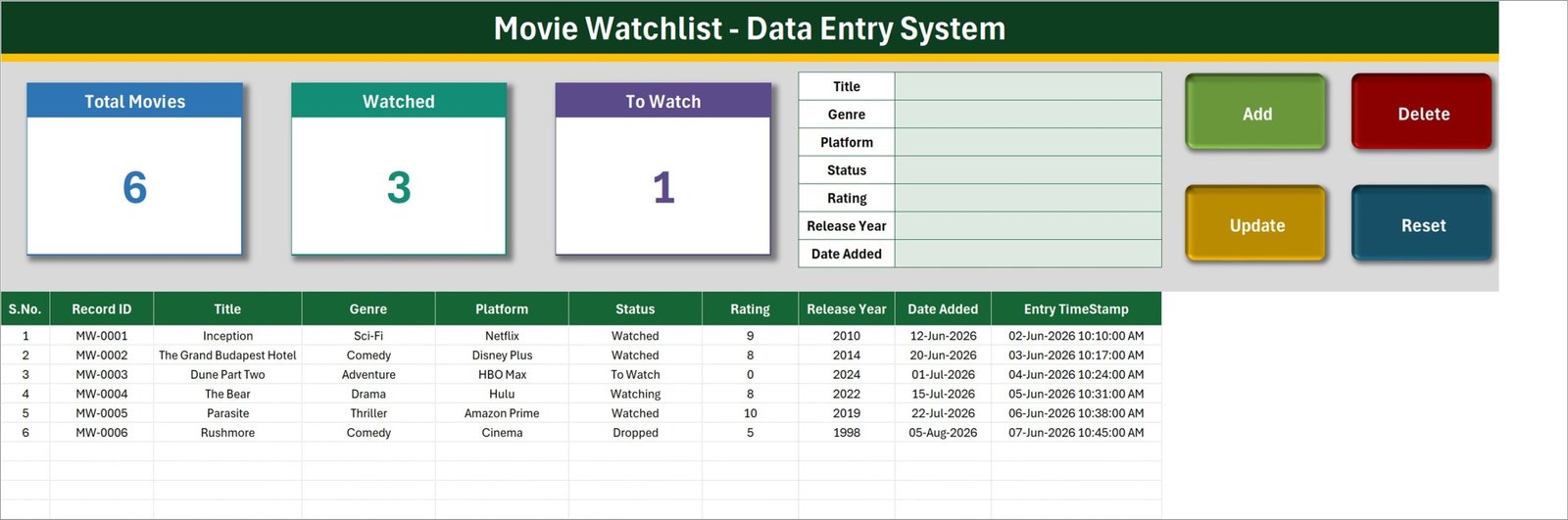
The working sheet. Across the top left sit three cards – Total Movies, Watched and To Watch, reading 6, 3 and 1 in the shipped sample. To their right is the seven-field form, and to the right of that the four coloured buttons. The records table starts at row 15 and runs the ten columns listed above.
The sample rows are a deliberate mix so the statuses are visible in use: Inception (Sci-Fi, Netflix, Watched, 9), The Grand Budapest Hotel (Comedy, Disney Plus, Watched, 8), Dune Part Two (Adventure, HBO Max, To Watch, unrated), The Bear (Drama, Hulu, Watching, 8), Parasite (Thriller, Amazon Prime, Watched, 10) and Rushmore (Comedy, Cinema, Dropped, 5).
2. Setting
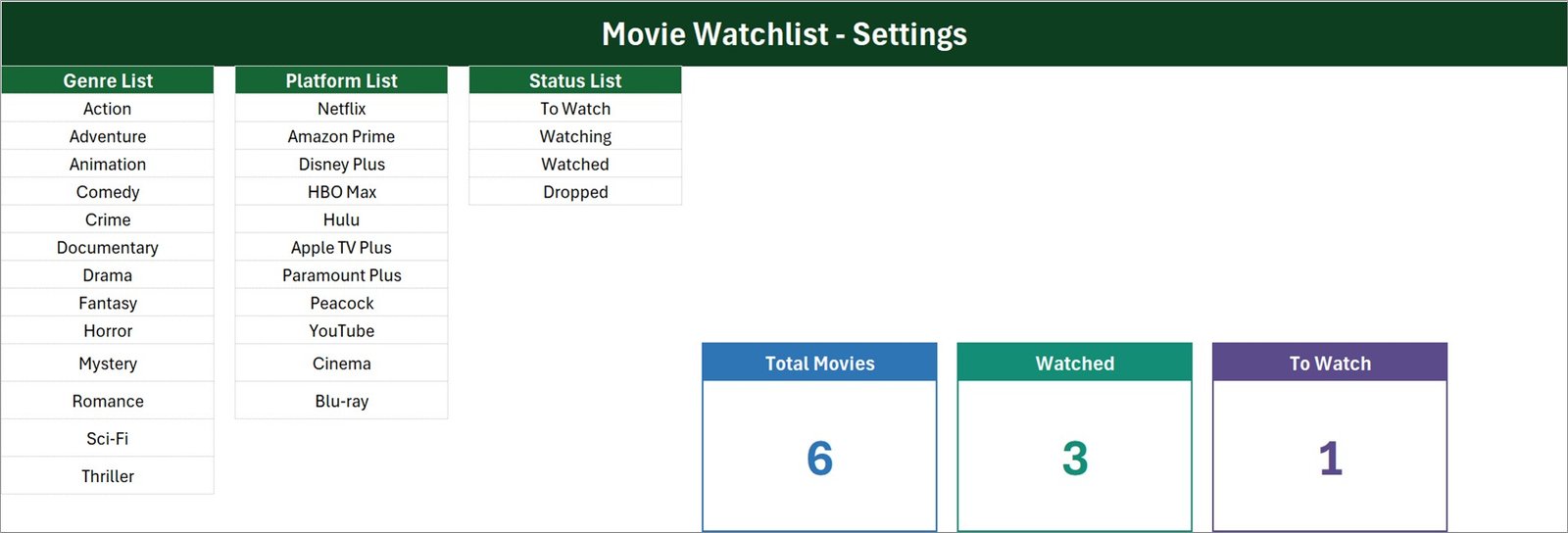
Three list columns and the master copies of the three cards. Genre List ships thirteen values – Action, Adventure, Animation, Comedy, Crime, Documentary, Drama, Fantasy, Horror, Mystery, Romance, Sci-Fi, Thriller. Platform List ships eleven – Netflix, Amazon Prime, Disney Plus, HBO Max, Hulu, Apple TV Plus, Paramount Plus, Peacock, YouTube, Cinema, Blu-ray. Status List ships four – To Watch, Watching, Watched, Dropped.
Each list is published as a named range (GenreList, PlatformList, StatusList) and every dropdown points at the name rather than at a fixed address, so editing the list is all it takes to change the dropdowns. If you are new to this pattern, Microsoft’s own guide to applying data validation to cells explains it well.
3. Instructions
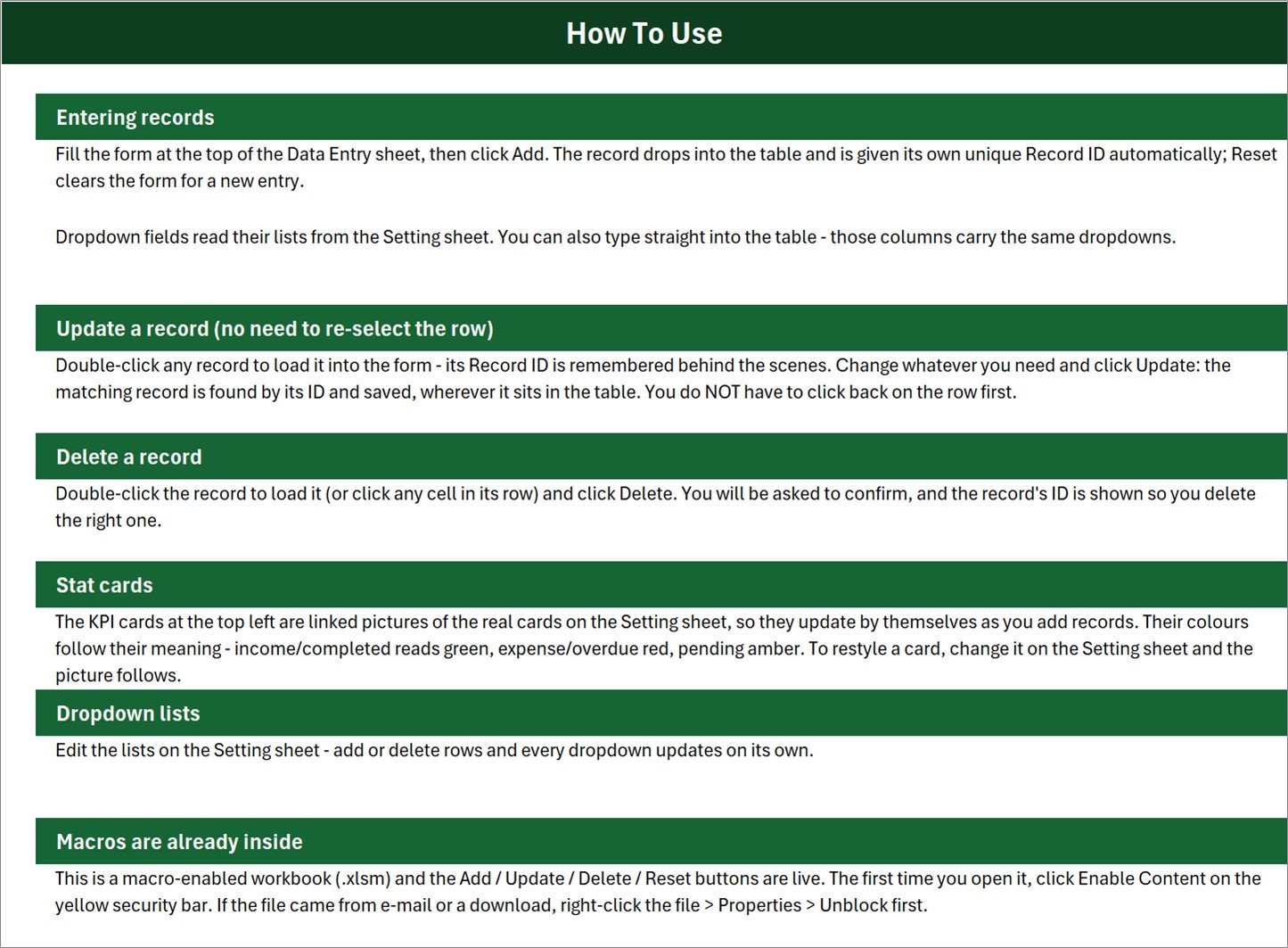
A single How To Use page with six blocks: entering records, updating a record without re-selecting the row, deleting a record, how the stat cards work, editing the dropdown lists, and a note that macros are already inside the file.
4. Get More Templates
A short links page pointing back to the NextGenTemplates store – data entry systems, Excel dashboards, Google Sheets templates, Power BI dashboards and web apps.
Movie Watchlist in Excel vs. Google Sheets vs. a Paid Watchlist App – Feature Comparison
| This template (Excel) | Google Sheets watchlist | Paid watchlist app | |
|---|---|---|---|
| Cost | $6.99 once | Free, but self-built | $19 – $60 per year |
| Platform | Desktop Excel for Windows | Any browser | Web and mobile |
| Setup time | Under 5 minutes | Hours | Minutes, after signup |
| Real-time team collaboration | No | Yes | Yes, on paid tiers |
| Mobile access | No | Yes | Yes |
| Customizable fields | Yes | Yes | Rarely |
| Share with link | No – send the file | Yes | Yes |
| Year-1 cost at 5 users | $6.99 | $0 | $95 – $300 |
| Auto-fetches posters, cast, runtimes | No | No, without scripting | Yes |
| Works offline | Yes | No | No |
Who Should Use This Template
It suits anyone who wants a private, offline record of what they intend to watch and what they already have. If you already work in Excel every day, adding one more workbook costs nothing in learning. If you want your own vocabulary – your genres, your platforms, “Abandoned” instead of “Dropped” – the Setting sheet gives you that in about a minute.
It does not suit a household that wants one shared list on four phones; that is a Google Sheets job. It does not suit anyone expecting the file to know anything about films – see the honest limits below.
Real-World Use Cases
Clearing a recommendation backlog. Every title a friend sends goes in as To Watch with the platform it is on. The To Watch card becomes a running count of the backlog, which is a surprisingly effective brake on adding more.
Running a film club. Log each film the group has seen with genre and the group’s rating out of 10. Nobody re-suggests a title, and sorting by Genre exposes the rut the group has fallen into.
Deciding which subscription to cancel. Record the platform on every title you finish. At renewal, sort by Platform and count. A service that carried two titles in twelve months makes its own case.
Advantages of the Movie Watchlist Data Entry System in Excel
- Nothing to learn. The form is seven fields and four buttons.
- Nothing leaves your machine. No account, no cloud, no vendor holding your viewing history.
- Edits are safe. Update resolves the row by Record ID rather than by cursor position, so a sorted or filtered table cannot cause you to overwrite the wrong film.
- The lists are genuinely yours. Named ranges mean a list edit propagates to the form and the table at once.
- It is a plain workbook underneath. Sort, filter, PivotTable or chart the table however you like – nothing is locked.
Opportunities for Improvement
Four things are worth knowing before you rely on the numbers. None of them stop the workbook working; all of them are honest limits of the shipped build.
- The cards do not add up to the total, by design. The status list has four values but only two of them have cards. In the sample, Total Movies is 6 while Watched is 3 and To Watch is 1 – the missing two rows are the Watching and the Dropped title. If you want cards for those, copy a Setting-sheet card and repoint its
COUNTIF. - Total Movies counts the Title column. The formula is a
COUNTAover the Title column, so a row saved with the title left blank is stored in the table but never counted. Pointing thatCOUNTAat the Record ID column instead is a one-cell change and makes the count unconditional. - Rating is never summarised. There is no average-rating card. The column sorts and filters, but nothing aggregates it.
- Two cosmetic issues in the shipped sample. The Instructions sheet’s “Stat cards” paragraph carries generic wording about income, expense and overdue colours that belongs to other templates in this family, not to Total Movies / Watched / To Watch. And in the sample rows the Date Added values run June to August 2026 while the Entry TimeStamps are all early June 2026, so several titles look as though they were added after they were typed. Both are sample and boilerplate issues, not formula errors – delete the sample rows and the second one goes with them.
One more practical limit: the Genre, Platform and Status dropdowns are pre-applied from row 15 to row 214, which covers 200 records. The card formulas read the entire column, so the counts keep working past that; only the dropdowns need copying down.
What This Template Does Not Do
It is worth being blunt, because the category is full of apps that do the opposite. This workbook fetches nothing. There is no IMDb, TMDb, Rotten Tomatoes, Letterboxd, Trakt or JustWatch lookup. It does not pull posters, synopses, cast lists, runtimes or critic scores. It does not sync with Netflix, Prime Video, Disney+, HBO Max or Hulu, and it cannot tell you where a title is streaming. It makes no recommendations. It does not play, download or store video, and it has no connection to any subscription or billing. It is a single-user desktop file – no accounts, no permissions, no sharing workflow. Every value in it is one you typed.
Best Practices
- Rewrite the three lists first, before you enter a single title. Retro-fitting a genre vocabulary across 80 rows is tedious.
- Delete the six sample rows once you have looked at them.
- Use the form, not the grid, for new records – that is what generates the Record ID and the timestamp.
- Double-click before you Update. Clicking Update with an empty form does nothing except warn you, which is the safe behaviour, but the habit avoids confusion.
- Keep one workbook per person if two of you rate the same films differently – there is no user column.
- Back it up. It is a local file with no cloud copy. A macro-enabled workbook in OneDrive or Dropbox is still just a file.
Explore Relevant Templates
- Movie Watchlist Data Entry System in Excel – the template in this post.
- Book Reading Log Data Entry System in Excel – the same build for books.
- Subscription and Membership Tracker in Google Sheets – what each streaming renewal actually costs.
- Film and Television Dashboard in Google Sheets – the industry-side view.
- Hobby Progress Checklist in Excel – a macro-free alternative.
Frequently Asked Questions
Does the workbook look up film details automatically?
No. Every field is typed by you. There is no catalogue, API or streaming-service connection of any kind.
Why do Watched and To Watch not add up to Total Movies?
Because only two of the four statuses have cards. Watching and Dropped rows are inside Total Movies but have no card of their own. Copy a Setting-sheet card and change its COUNTIF criterion if you want them.
Will it run on a Mac or in Excel for the web?
No. The buttons are VBA, and VBA does not run in Excel for Mac’s sandbox, in Excel for the web, on mobile, or in Google Sheets. Use desktop Microsoft Excel for Windows and enable macros on first open.
How many records can it hold?
The count formulas read the whole column, so there is no practical cap. The dropdowns are pre-applied for 200 rows; copy the validation down for more.
Can I add my own columns?
Yes, to the right of Entry TimeStamp. The macros write to the existing columns by position, so inserting a column in the middle of the table is the one edit to avoid.
What happens to a Record ID when I delete a row?
It is retired. The workbook tracks the highest ID issued, so numbers are never reused and two rows can never share one.
About the Author
Built by PK – Microsoft Certified Professional with 15+ years of Excel, Google Sheets, and Power BI experience. Founder of NextGenTemplates, reaching 300K+ subscribers across YouTube channels. Every template is hand-built and tested before release.
Conclusion
The Movie Watchlist Data Entry System in Excel is deliberately small: one macro-enabled workbook, four sheets, seven form fields, four buttons and three lists you rewrite in a minute. It will not tell you anything about a film you did not type in yourself – but it will hold every title you meant to watch in one place, offline, for a single $6.99 payment and no subscription.
Get the Movie Watchlist Data Entry System in Excel from NextGenTemplates, and subscribe to youtube.com/@PKAnExcelExpert for Excel and VBA tutorials.