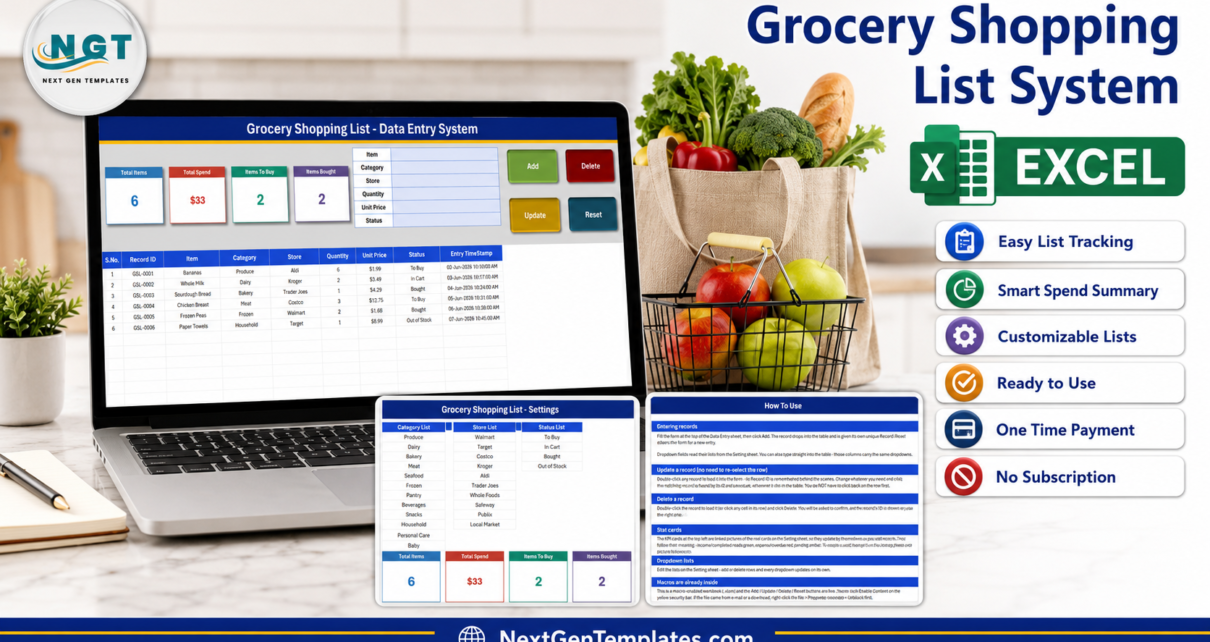
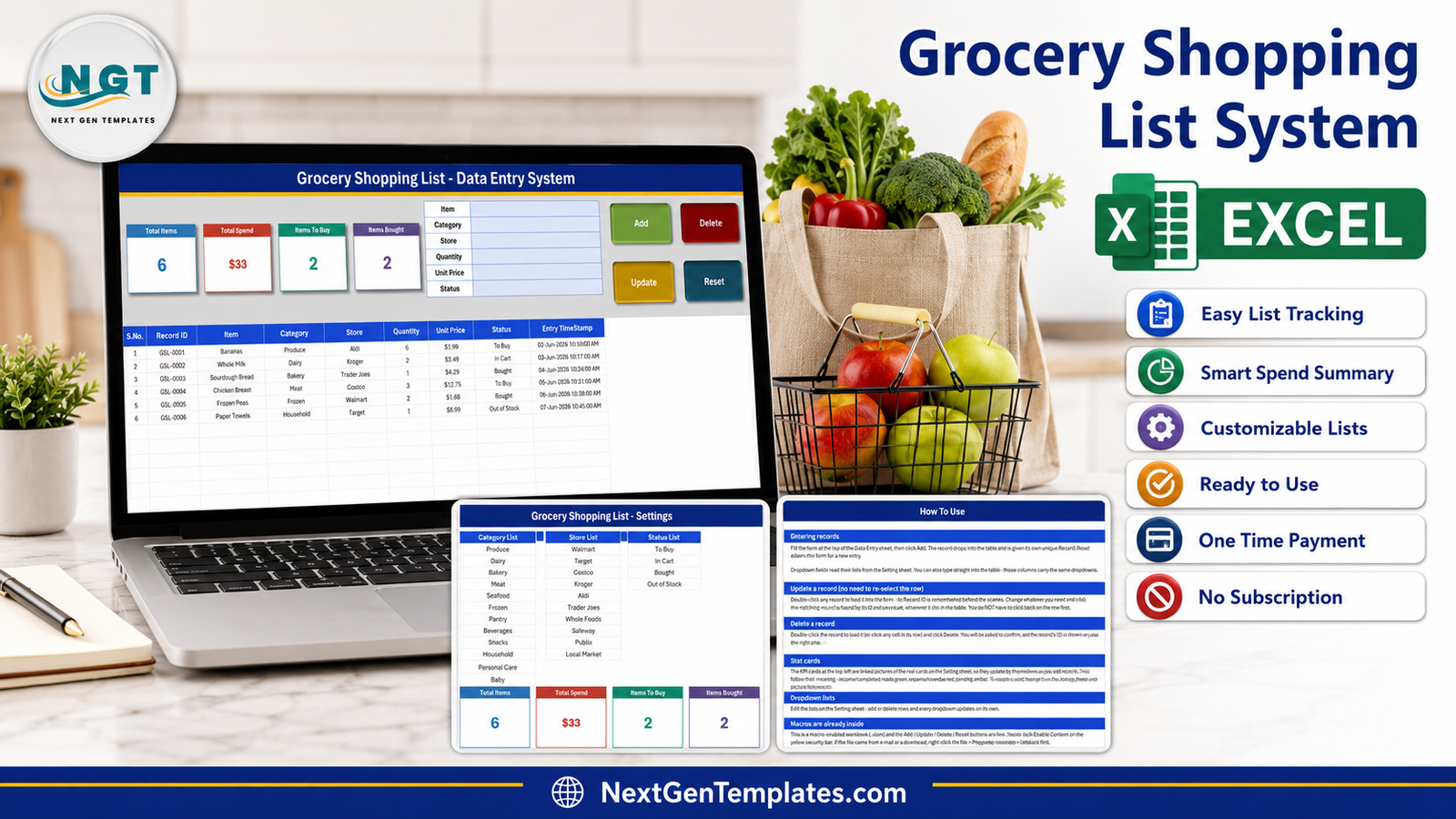
The Grocery Shopping List Data Entry System in Excel is a macro-enabled workbook that records 6 fields for every item you plan to buy – Item, Category, Store, Quantity, Unit Price and Status – and writes a unique GSL-0001 style Record ID plus an entry timestamp onto every row you save. Four live summary cards sit above the form, three editable dropdown lists ship with 12, 10 and 4 entries, and the whole file is four sheets: Data Entry, Setting, Instructions and Get More Templates. Setup takes under 10 Grocery Shopping List Data Entry System in Excelminutes.
Most household shopping lists live on the back of an envelope, and the ones that survive to a spreadsheet usually fall apart the same way: “Trader Joes” and “Trader Joe’s” become two different stores, half the rows have no price, last month’s list is gone, and nobody can answer the one question that matters – what does this basket actually cost, and is it cheaper somewhere else? This workbook fixes the boring part. It gives you a form, forces the messy columns into dropdown lists, numbers every record for you, and keeps four running totals in view while you type. What it deliberately does not do is go and find anything on your behalf, and that distinction is worth getting straight before you read any further. Grocery Shopping List Data Entry System in Excel
Key Features of the Grocery Shopping List Data Entry System in Excel
Everything below was read off the shipped workbook, not off a feature list.
- A 6-field entry form. Item, Category, Store, Quantity, Unit Price and Status occupy one block at the top of the Data Entry sheet. Fill it in, click Add, and the record drops into the table underneath.
- Four working VBA buttons. Add, Delete, Update and Reset are macros, not shapes with tooltips. Reset clears the form so the next item starts clean.
- Update without hunting for the row. Double-click any record and it loads back into the form. Its Record ID is remembered behind the scenes, so Update rewrites the correct row even if the table has been sorted since.
- Delete with a confirmation. The record’s ID is shown in the prompt, so you delete the line you meant to delete.
- Automatic Record ID and Entry TimeStamp. Every saved item is numbered GSL-0001, GSL-0002 and so on, and stamped with the moment it was added.
- Four summary cards. Total Items, Total Spend, Items To Buy and Items Bought. They are linked pictures of live formulas on the Setting sheet, so restyling a card on Setting restyles it on Data Entry too.
- Three dropdown lists you own. 12 categories (Produce, Dairy, Bakery, Meat, Seafood, Frozen, Pantry, Beverages, Snacks, Household, Personal Care, Baby), 10 stores (Walmart, Target, Costco, Kroger, Aldi, Trader Joes, Whole Foods, Safeway, Publix, Local Market) and 4 statuses (To Buy, In Cart, Bought, Out of Stock).
- Validation in the table as well as the form. The Category, Store and Status columns carry the same dropdowns, so bulk-typing straight into the grid is just as safe.
- A nine-column record table. S.No. (filled by formula), Record ID, Item, Category, Store, Quantity, Unit Price, Status, Entry TimeStamp.
- Six sample rows – bananas, milk, sourdough, chicken, frozen peas and paper towels – so you can see the workflow before you clear them out. Grocery Shopping List Data Entry System in Excel
Sheet-by-Sheet Walkthrough
1. Data Entry
The screen you will actually live in. Four summary cards run along the left, the six-field form sits in the middle, and the Add, Delete, Update and Reset buttons stack on the right. Below the grey band, the record table starts at row 15 and grows downward. Because the serial number is a formula keyed to the Record ID column, deleting a record renumbers the rest for you. Grocery Shopping List Data Entry System in Excel
2. Setting
Three list blocks – Category List, Store List, Status List – feed every dropdown in the file. Add a store, delete a category, reorder them; the validation follows without you touching a name manager. The four card formulas live on this sheet too, immediately under the lists, which is what makes them editable rather than locked away.
3. Instructions
Six short sections: entering records, updating a record, deleting a record, the stat cards, the dropdown lists, and enabling macros. It is a printable page for whoever inherits the file.
4. Get More Templates
A standard NextGenTemplates sheet linking back to the wider catalogue.
Grocery Shopping List Data Entry System in Excel vs. Google Sheets vs. a Paid Grocery App – Feature Comparison
| This template (Excel VBA) | A Google Sheets shopping list | A paid grocery app (AnyList, Out of Milk Pro) | |
|---|---|---|---|
| Cost | $6.99 once | Free to $12.99 once | $8-$15 per year, per household |
| Platform | Desktop Excel for Windows (.xlsm) | Any browser | iOS / Android app |
| Setup time | Under 10 minutes | Under 10 minutes | Minutes, plus an account |
| Real-time shared list | No – single-user file | Yes | Yes |
| Mobile access | No – the buttons need desktop Excel | Yes | Yes |
| Customisable fields and lists | Yes – edit the Setting sheet | Yes | Limited to what the app offers |
| Share with a link | No – you send the file | Yes | Invite by account |
| Year-1 cost, one household | $6.99 | $0-$12.99 | $8-$15, then again next year |
| Barcode scan / price lookup | No | No | Usually yes |
| Permanent offline history | Yes – one file on your PC | Tied to a Google account | Tied to a subscription |
Who Should Use This Template
Households that plan the weekly shop at a desk rather than in the aisle. Anyone who wants evidence rather than a hunch about whether Aldi is really cheaper than Whole Foods for the same twenty staples. Shared flats where one person does the ordering and the others just add lines. Small offices buying pantry, cleaning and personal-care supplies who need a spend record they can hand to whoever does the books. And Excel users who would rather own a file outright than rent an app that may not exist in three years.Grocery Shopping List Data Entry System in Excel
It is a poor fit if you want to tick items off on your phone while you shop, if two people need to edit the same live list, or if you expect the file to know what things cost. Excel for the web, Excel for Mac and Google Sheets will not run the buttons at all.
Real-World Use Cases
A four-person household. Sunday’s list is built from the form and everything starts at To Buy. Items flip to In Cart in the shop and Bought on unpacking. Whatever is still sitting at To Buy on Monday rolls into next week rather than being quietly forgotten.
A two-store price comparison. Log the same twenty staples with Store set to Aldi one week and Kroger the next. Sort the table by Item and the two unit prices sit next to each other. After six weeks you have a defensible answer instead of an impression.
A twelve-person office. Pantry, Household, Beverages and Personal Care carry the office spend. Out of Stock flags what the supplier could not deliver, and the gap between Entry TimeStamp and the day a line was marked Bought shows how long a request really sat. Grocery Shopping List Data Entry System in Excel
Advantages of the Grocery Shopping List Data Entry System in Excel
- Clean data by construction. Three dropdown lists mean one spelling of “Trader Joes” forever, which is the difference between a list and a dataset you can pivot later.
- Every row is identifiable. The Record ID makes Update and Delete safe operations rather than a scroll-and-pray exercise.
- Nothing is hidden. The four card formulas sit in the open on the Setting sheet, so you can read exactly what each number means and change it.
- It is yours. One .xlsm on your own disk. No account, no cloud, no renewal, and it still opens in ten years.
- It is cheap to try. $6.99 once, against $8-$15 every year for an app that does more but owns your data. Grocery Shopping List Data Entry System in Excel
Opportunities for Improvement
This is an honest list, and it is worth reading before you buy rather than after.
- Total Spend ignores Quantity. The card is
SUMof the Unit Price column, so it adds the six sample prices to $33. Those same six lines at their listed quantities actually cost $73.81. If you want the true basket cost, replace the formula on the Setting sheet with aSUMPRODUCTof the Quantity and Unit Price columns. - Total Spend does not filter by Status. To Buy and Out of Stock rows are included, so read it as “value of the prices on the list”, not “money spent”. Wrapping it in
SUMIFSon Status = Bought is a one-line change. - Total Items counts the Item column, not the Record ID column. A row saved with the item name left blank is stored but never counted, while the S.No. formula keys off Record ID. Pointing the
COUNTAat column B makes the two agree. - Only two of the four statuses have cards. In Cart and Out of Stock have none, so Items To Buy plus Items Bought will not equal Total Items. That is deliberate, but it surprises people.
- Quantity is never totalled anywhere. There is no “total units” figure on any sheet.
- A cosmetic wording bug. The Instructions sheet’s “Stat cards” paragraph talks about income, expense, overdue and pending colours. That sentence is shared boilerplate from the wider data-entry template range and does not describe this workbook’s four cards.
- No mobile story. VBA does not run on phones, Macs or the browser, so the shop itself stays a paper or memory exercise unless you print the table. Grocery Shopping List Data Entry System in Excel
Best Practices
- Edit the Setting lists first, before you enter anything. Changing a category name after fifty rows exist leaves the old value sitting in those rows.
- Enable macros properly. If the file came by e-mail or download, right-click it, open Properties and tick Unblock before you open it – otherwise Protected View strips the buttons. Microsoft explains the security bar in its own guidance on enabling or disabling macros in Microsoft 365 files.
- Delete the six sample rows before your first real shop, or your first Total Spend will be nonsense.
- Save one file per week under a dated name if you want a price history. The workbook keeps a running table, not versions.
- Use Unit Price consistently. Decide once whether $1.99 means per item or per kilo and stick to it, since the card cannot tell the difference.
- Fix the two formulas on day one if basket cost matters to you. Both live on the Setting sheet, both are one line, and both are described above.
- Back the file up. There is no cloud copy. A single .xlsm on a single disk is one accident away from gone. Grocery Shopping List Data Entry System in Excel
Explore Relevant Templates
- Grocery Shopping List Data Entry System in Excel – the template this article covers.
- Meal Planner & Grocery List in Google Sheets – the shareable, browser-based companion if you need a live list two people can edit.
- Income and Expense Data Entry System in Excel – the same form-and-buttons build, aimed at household money.
- Book Reading Log Data Entry System in Excel – another personal record from the same line.
- Product Expiration Date Calendar in Excel – the natural next step once the shopping is unpacked.
- Or browse every Excel VBA Tool in the catalogue.
Frequently Asked Questions
Does it scan barcodes or look up prices?
No. Every field is typed by you. There is no barcode scanning, no price lookup or verification, no coupon matching, and no connection to any store, loyalty scheme, delivery service or online basket.
Why does Total Spend look too low?
Because it sums the Unit Price column without multiplying by Quantity, and it includes every status. The shipped sample reads $33 for six lines that would really cost $73.81 at their listed quantities. The formula is on the Setting sheet and takes one edit to change to a SUMPRODUCT.
Why don’t Items To Buy and Items Bought add up to Total Items?
There are four statuses and only two cards. In Cart and Out of Stock rows are counted in Total Items but have no card of their own.
Will it work on my phone, on a Mac, or in Google Sheets?
No. It is a macro-enabled .xlsm and the four buttons need desktop Microsoft Excel for Windows. Excel for the web, Excel for Mac and Google Sheets do not run VBA.
Can two people use the same list at once?
No. It is a single-user desktop file with no accounts and no sync. For a live shared list, the Google Sheets meal planner linked above is the better fit.
Can I add my own categories, stores or statuses?
Yes, and that is the intended workflow. Edit the three lists on the Setting sheet and every dropdown – in the form and in the table – updates by itself.
Does it plan meals or count calories?
No. It records what you intend to buy and what it costs. It holds no recipes, no meal plans and no nutrition data.
About the Author
Built by PK – Microsoft Certified Professional with 15+ years of Excel, Google Sheets, and Power BI experience. Founder of NextGenTemplates, reaching 300K+ subscribers across YouTube channels. Every template is hand-built and tested before release. Grocery Shopping List Data Entry System in Excel
Conclusion
The Grocery Shopping List Data Entry System in Excel is a small, honest tool: a six-field VBA form, automatic Record IDs, four summary cards and three dropdown lists you control, in a four-sheet macro-enabled workbook you own outright for $6.99. It will not shop for you and it will not follow you into the aisle. What it will do is give a household or a small office a clean, permanent, offline record of what gets bought, where, and at what price – the thing that no envelope and no cancelled subscription ever leaves behind. Fix the two Setting-sheet formulas on day one, delete the sample rows, and it earns its keep by the second shop. Grocery Shopping List Data Entry System in Excel
For step-by-step Excel and VBA walkthroughs, subscribe at youtube.com/@PKAnExcelExpert.
Get the Grocery Shopping List Data Entry System in Excel – instant download, lifetime access, no subscription.