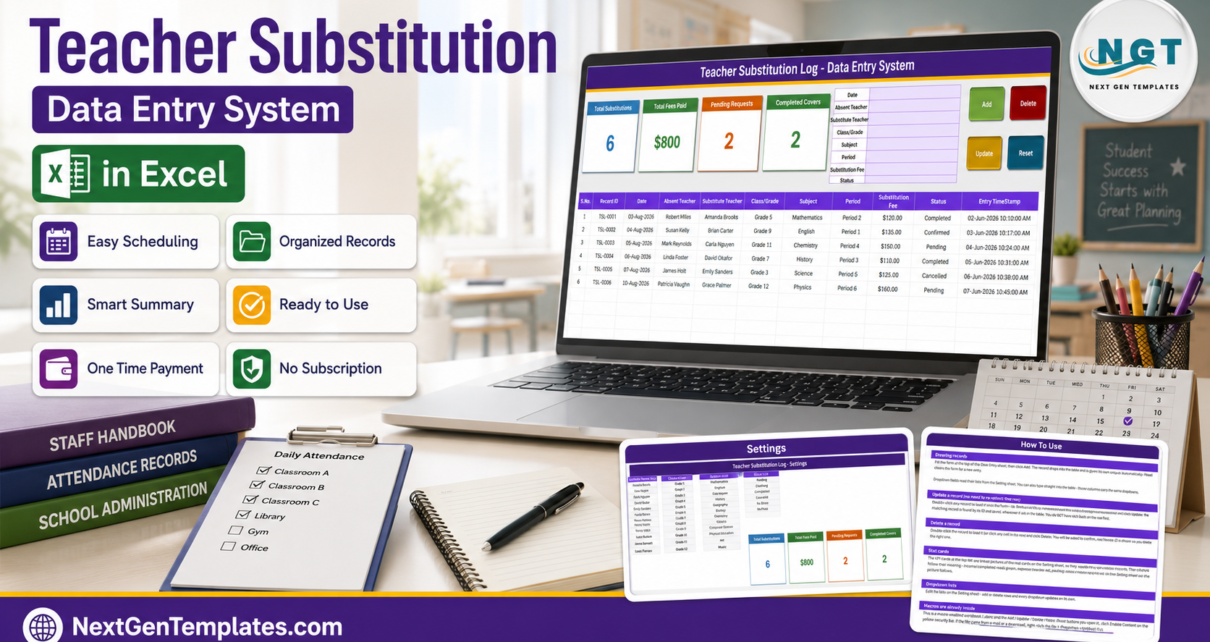
The cover book is where a school’s admin day quietly leaks. A teacher phones in at 7:40, someone scribbles a name on a printed timetable, a supply teacher is rung, and by Friday nobody can say with confidence how many periods were covered that week, by whom, or what it cost. The Teacher Substitution Data Entry System in Excel replaces that with one macro-enabled workbook – four sheets, an eight-field entry form, four live KPI cards, an eleven-column record table and a status list that runs from Pending all the way to No Show. Six sample records ship inside it, and the Add, Update, Delete and Reset buttons are real VBA rather than formulas you have to drag down.
This walkthrough covers exactly what is in the file, what each of the four KPI cards actually calculates, where the arithmetic will surprise you, and who should skip it.
Key Features of the Teacher Substitution Data Entry System in Excel
- An eight-field form, not a wall of columns. Date, Absent Teacher, Substitute Teacher, Class/Grade, Subject, Period, Substitution Fee and Status sit in one panel at the top of the Data Entry sheet.
- Four VBA buttons. Add, Update, Delete and Reset. Delete confirms first and shows the Record ID, so you cannot wipe the wrong cover.
- Automatic Record IDs. Every cover is stamped TSL-0001, TSL-0002 and onwards, so two covers for the same grade on the same morning stay distinct.
- Double-click to edit. Double-click a record to load it into the form; the Record ID is held behind the scenes so Update finds the right row wherever it has moved to.
- A five-stage status. Pending, Confirmed, Completed, Cancelled and No Show – which means a booked substitute who never turned up is on the record, not just in someone’s memory.
- Dropdowns fed from one sheet. Substitutes, grades, subjects, periods and statuses all read from the Setting sheet, so “Grade 5” never becomes “grade 5” or “Gr 5” halfway through a term.
- Absent Teacher is deliberately free text. Your permanent staff are not on the dropdown, so you can log a cover for anyone – a new starter, a visiting specialist – without editing the Setting sheet first.
- An Entry TimeStamp column. The moment the record was saved, kept separate from the date of the absence.
- One .xlsm file. Desktop Excel for Windows, macros enabled, no add-in, no cloud service, no monthly fee.
Inside the Workbook – Sheet by Sheet
1. Data Entry
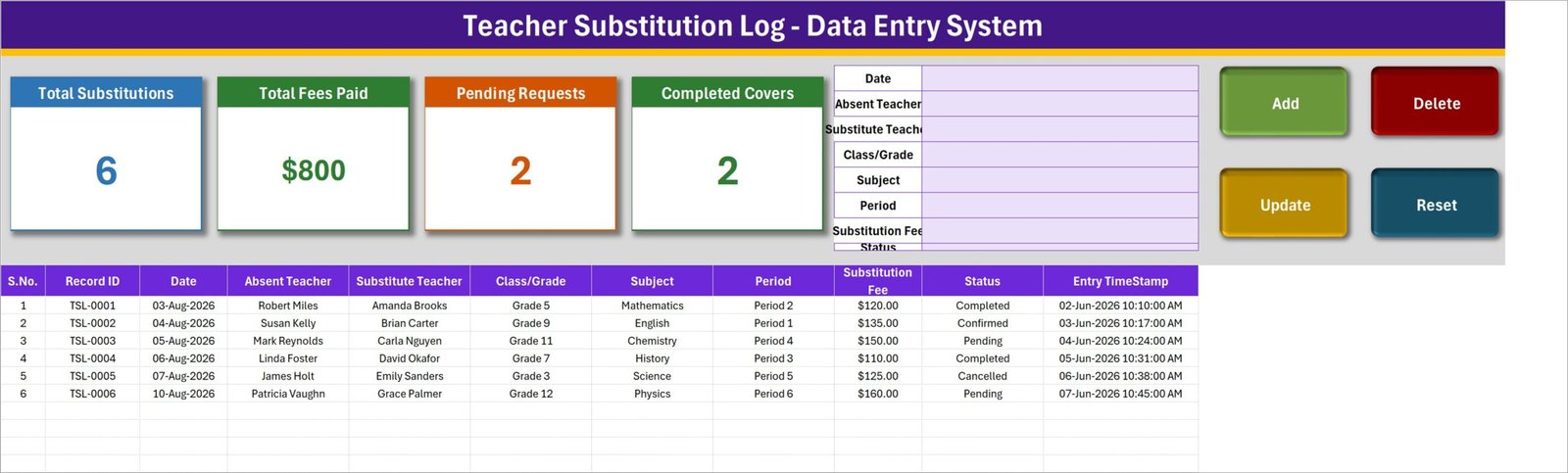
The working screen, and the only one you will use daily. Four KPI cards run across the top left – Total Substitutions, Total Fees Paid, Pending Requests and Completed Covers. The eight-field form sits beside them in the centre, and the Add, Delete, Update and Reset buttons sit at the far right. Underneath, the record table runs across eleven columns: S.No., Record ID, Date, Absent Teacher, Substitute Teacher, Class/Grade, Subject, Period, Substitution Fee and Status, closing with Entry TimeStamp. Records begin at row 15; the S.No. column is a formula that numbers rows automatically as soon as a Record ID appears.
2. Setting
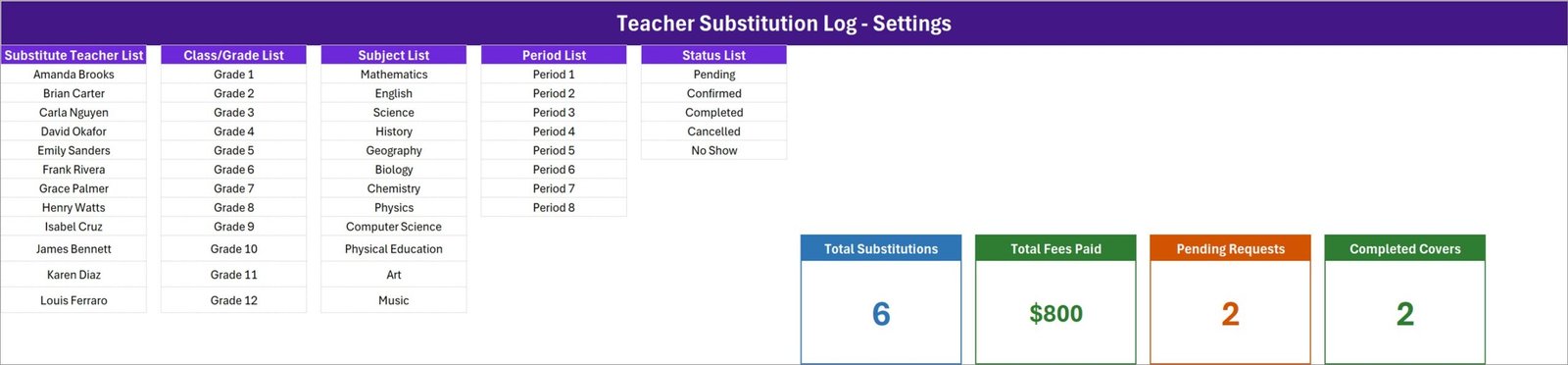
Five lists and the four real KPI cards. Substitute Teacher List holds twelve sample names, Class/Grade List holds Grade 1 to Grade 12, Subject List holds twelve subjects from Mathematics to Music, Period List holds Period 1 to Period 8, and Status List holds the five stages. The cards you see on the Data Entry sheet are linked pictures of the cards here, which is why they refresh on their own as you type.
3. Instructions
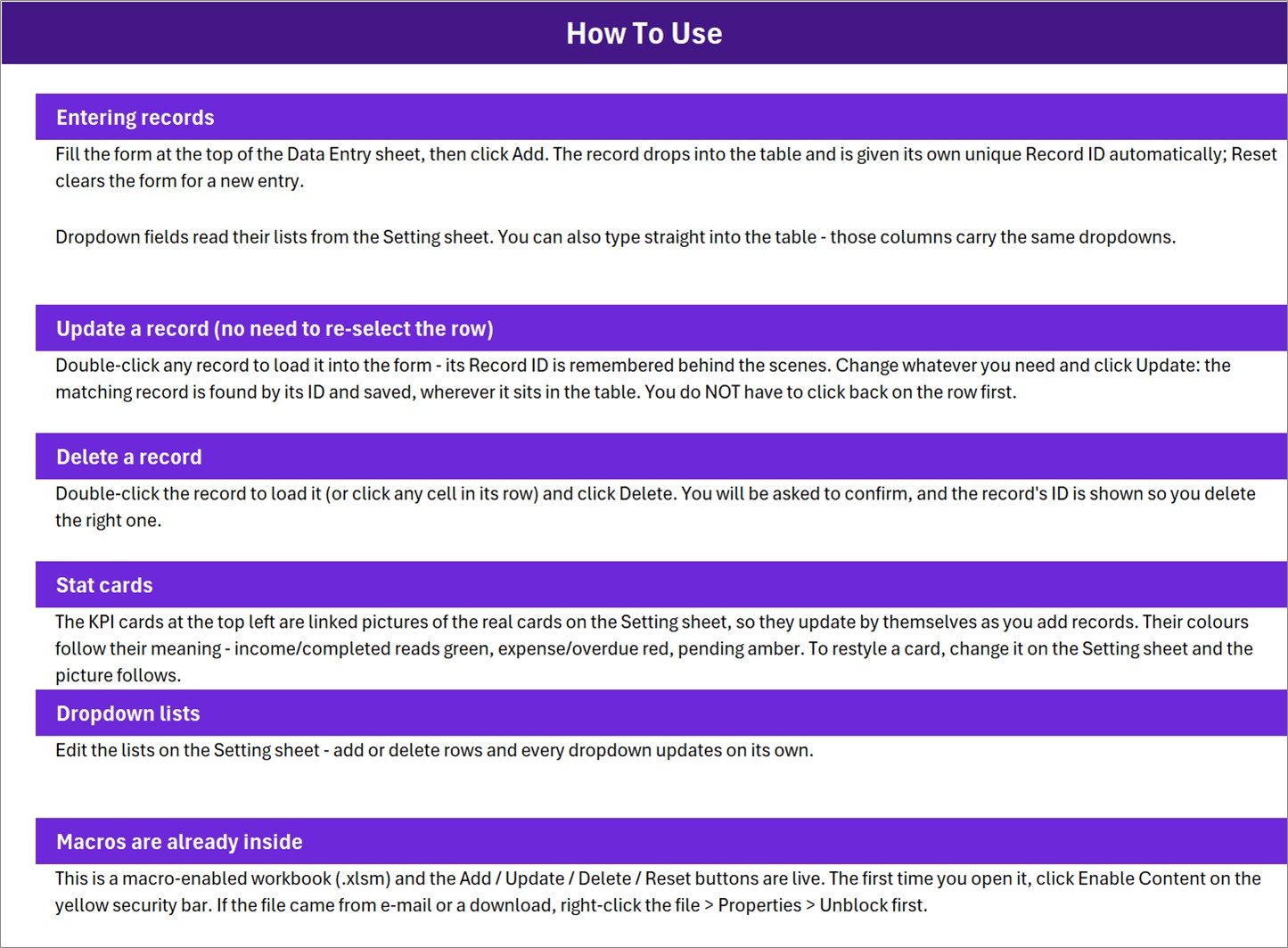
A single How To Use page: entering records, updating without re-selecting the row, deleting safely, how the stat cards work, editing the dropdown lists, and enabling macros the first time you open the file.
4. Get More Templates
Links back to the NextGenTemplates store. Nothing to configure.
What the Four KPI Cards Really Calculate
The cards are plain Excel formulas sitting on the Setting sheet, and it pays to know what they add up before you quote a figure to a head of department.
- Total Substitutions is a COUNTA over the Date column. It counts filled dates, not Record IDs – so a row saved with the date left blank is stored in the table but never counted. Keep Date filled and the two always agree.
- Total Fees Paid is an unfiltered SUM of the whole Substitution Fee column. It does not care about Status. In the shipped sample it reads $800, but that $800 contains a $125 Cancelled cover and two Pending covers worth $310 between them. Only $230 of it sits against Completed covers.
- Pending Requests counts rows whose Status is exactly “Pending”.
- Completed Covers counts rows whose Status is exactly “Completed”.
Which leads to the arithmetic that catches people out: only two of the five statuses have a card. In the sample, 2 Pending plus 2 Completed comes to 4 against a Total Substitutions of 6, because one record is Confirmed and one is Cancelled. Nothing is broken – each count is right on its own terms – but the two small cards are never meant to reconcile to the big one.
Teacher Substitution in Excel vs. a Paper Cover Book vs. Timetabling Software – Feature Comparison
| What you need | Paper cover book | This Excel system | Timetabling / MIS software |
| Cost | Free | $6.99 once | Annual licence per school |
| Setup time | None | Under 10 minutes | Weeks, plus training |
| Unique ID per cover | No | Yes, TSL-0001 onwards | Yes |
| Consistent names and subjects | No | Yes, dropdown driven | Yes |
| Live running totals | No | Yes, four cards | Yes |
| Automatic substitute assignment | No | No | Yes |
| Availability and clash checking | No | No | Yes |
| Email or SMS to the substitute | No | No | Usually |
| Payroll output | No | No | Sometimes |
| Multiple people editing at once | No | No | Yes |
| Works offline, no login | Yes | Yes | Rarely |
| You own the file | Yes | Yes | No |
Who Should Use This Template
It fits the person who actually arranges cover: a deputy head, cover coordinator, school office administrator or department head in a single school, coaching centre, language school or tuition academy. If you already keep a cover book and the only thing wrong with it is that you cannot search, sort or total it, this is a ten-minute upgrade.
It does not fit a multi-academy trust that needs one shared live record across sites, a school that wants substitutes chosen automatically from an availability matrix, anyone who needs to log covers from a phone at the school gate, or an office where two people must enter records at the same moment. Those are shared-system problems, and a single desktop workbook is the wrong tool for them.
Real-World Use Cases
- The 7:40 phone call. Log the absence as Pending the moment it comes in, flip it to Confirmed when a substitute agrees, and see how many gaps are still open before registration.
- End-of-term cover cost. Filter to Completed, total the Substitution Fee column, and hand finance a figure with the records standing behind it.
- Absence patterns. Sort by Absent Teacher across a term to see where cover is repeatedly needed; sort by Subject to see which department is carrying the load.
- Agency review. The No Show status turns “they let us down twice” into two dated records with names attached.
- Handover. When the coordinator is off, the file is the handover – one table, one ID per cover, no personal shorthand to decode.
Advantages of the Teacher Substitution Data Entry System in Excel
- It is a form, so a record is either complete or not entered – no half-filled rows appearing three columns to the right.
- Editing does not need you to find the row first. Double-click, change, Update, and the macro locates the record by its ID.
- Deleting asks for confirmation and names the record it is about to remove.
- Everything stays on your machine. No account, no sync, no third party holding staff names.
- Dropdowns come from one sheet, so a whole term’s data can be filtered and sorted without cleaning it first.
- It is a single file, which means backing it up is copying it.
Opportunities for Improvement
Three things are worth knowing before you buy, and none of them is hidden in the file – you just have to look.
- The dropdown lists are fixed length. The named ranges behind them cover exactly the rows the lists ship with: twelve substitutes, twelve grades, twelve subjects, eight periods and five statuses. Type a thirteenth substitute directly under the last name and it will not appear in the dropdown. Overwrite an entry you do not need, or extend the range in Formulas > Name Manager. The Instructions sheet claims the lists grow on their own; that is the one sentence on it to ignore.
- Total Fees Paid does not filter by status. As above – it is a total of everything logged, not of what is payable. Filter the table when you need the second number.
- Validation stops at row 214. The dropdowns are applied to rows 15 to 214, which is 200 records. Past that the table still works, but the cells lose their lists until you extend the validation range – which is a two-minute job in Data > Data Validation.
One cosmetic point on the sample data: the six demo covers are dated 3 to 10 August 2026 while their Entry TimeStamps read 2 to 7 June 2026, so the entries appear to have been made two months before the absences. It is filler data and you are deleting it anyway, but it is worth not reading anything into the pattern.
Best Practices
- Set up the Setting sheet before you log anything. Your supply pool, your grades, your periods – fifteen minutes now saves a term of tidying.
- Enter the record while you are on the phone, at Pending. Filling it in later is how cover books lose their accuracy.
- Use Status honestly, including No Show. The value of the log is that it records what happened, not what was planned.
- Keep Date filled on every row – the Total Substitutions card is counting that column.
- Start a new file each academic year and archive the old one. The table is comfortable to about 200 rows with validation intact.
- Store the workbook where your school’s policy says staff records belong, and back it up the same way. It holds people’s names.
Explore Relevant Templates
- Student Attendance Data Entry System in Excel – the pupil-side twin: who was in the room, rather than who taught it.
- Class Schedule Data Entry System in Excel – record the timetable this cover log sits alongside.
- Homework Submission Data Entry System in Excel – the same form-and-cards build, aimed at assignments.
- Exam Marks Entry Data Entry System in Excel – marks entry with the same Add / Update / Delete workflow.
- School Admin Dashboard in Google Sheets – when you want charts and a shareable link instead of a desktop log.
- School Management System Web App – the multi-user system, for when one file on one desk stops being enough.
Frequently Asked Questions
Does it decide who covers the class?
No. There is no assignment engine and no suggestion list. You arrange the cover as you do now and record the outcome. The workbook keeps the record; it does not make the decision.
Is it a timetable?
No. It neither holds nor reads a timetable, and it cannot tell you whether the substitute you picked is teaching elsewhere that period. Period 1 to Period 8 are dropdown labels, not a schedule the file understands.
Does it calculate what to pay the substitute?
No. Substitution Fee is a number you type so the record is complete. There is no rate table, no tax, no payslip and no payroll export.
What does the Total Fees Paid card really add up?
Every value in the Substitution Fee column, regardless of Status – including Pending, Cancelled and No Show rows. Read it as “fees logged”, and filter the table by Status when you need the amount actually owed.
It holds teachers’ names. What about data protection?
The file stores what you type on your own computer and transmits nothing. That also makes the staff data in it entirely your responsibility: keep the workbook where your school’s policy says staff records belong, restrict who can open it, and delete records when your retention schedule says so.
Will the buttons work on a Mac, a phone or Excel for the web?
The workbook opens, but the buttons will not run. VBA needs desktop Microsoft Excel for Windows. Excel for the web, Excel on iPad and Android, and Google Sheets do not execute the code, so Add, Update, Delete and Reset do nothing there.
How many records can it hold?
The table itself has no practical limit, but the dropdown validation is applied to rows 15 to 214 – 200 covers, which is roughly an academic year for a mid-size school. Beyond that, extend the validation range or start a fresh file for the new year.
Can I add my own columns?
You can add columns to the right of Entry TimeStamp for your own formulas – agency name, invoice number, a cost-per-period calculation. Adding a field that the buttons should write to means editing the VBA, since the macro maps the eight form cells to fixed columns.
Can two people use it at once?
No. It is a single .xlsm file, not a shared database. One machine, one owner of the entries.
About the Author
Built by PK – Microsoft Certified Professional with 15+ years of Excel, Google Sheets, and Power BI experience. Founder of NextGenTemplates, reaching 300K+ subscribers across YouTube channels. Every template is hand-built and tested before release.
Conclusion
A cover log is not glamorous work, but it is the difference between knowing what a term of absences cost and guessing at it. This workbook will not ring a supply teacher, read your timetable or work out anybody’s pay – and it says so plainly. What it will do is make every cover a numbered, dated, dropdown-clean record that you can filter in August and still understand in May. Get the Teacher Substitution Data Entry System in Excel for $6.99, pay once, and keep the file.