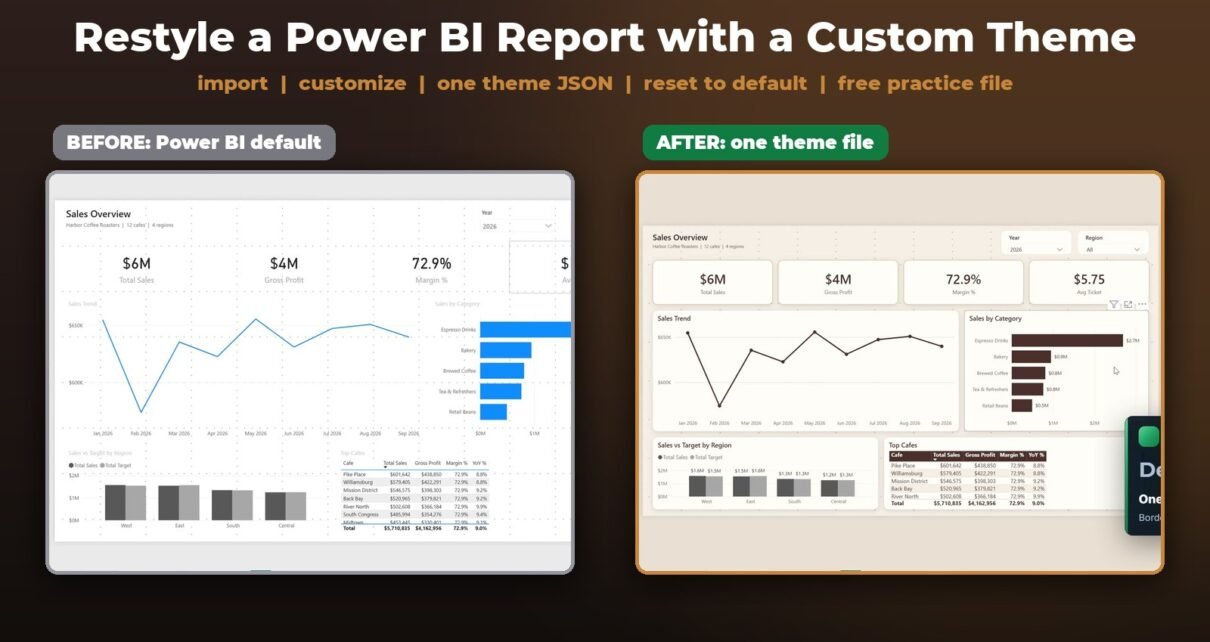
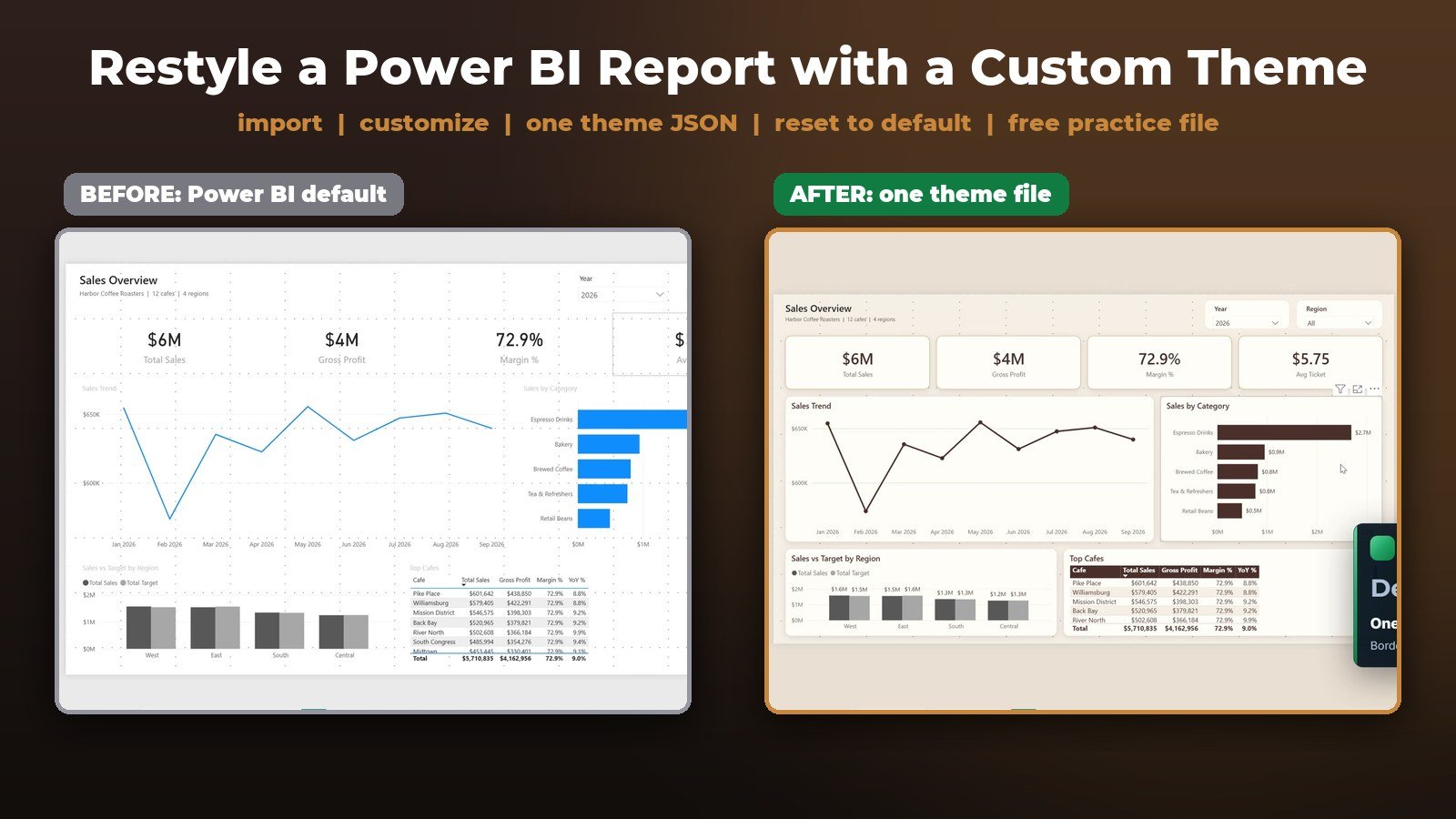
Harbor Coffee Roasters has 12 cafes and a two-page Power BI sales report. Marketing just sent new brand colors, and formatting every visual by hand would take a whole afternoon – with a new report next month. A Power BI theme does it in one click. In this tutorial you import a 12-line brand-color theme, tweak it with Customize theme without code, share it with Download theme, and apply one complete custom theme JSON that styles fonts, borders, shadows, cards, tables and slicers on both pages. The bonus shows why one chart ignores the theme and the one-click fix.
⬇️ Download the Free Practice File
Practice + Solution .pbix, Harbor Coffee data, 2 theme JSON files and a cheat sheet · .zip · Power BI Desktop
Watch the Video Tutorial
Video Overview
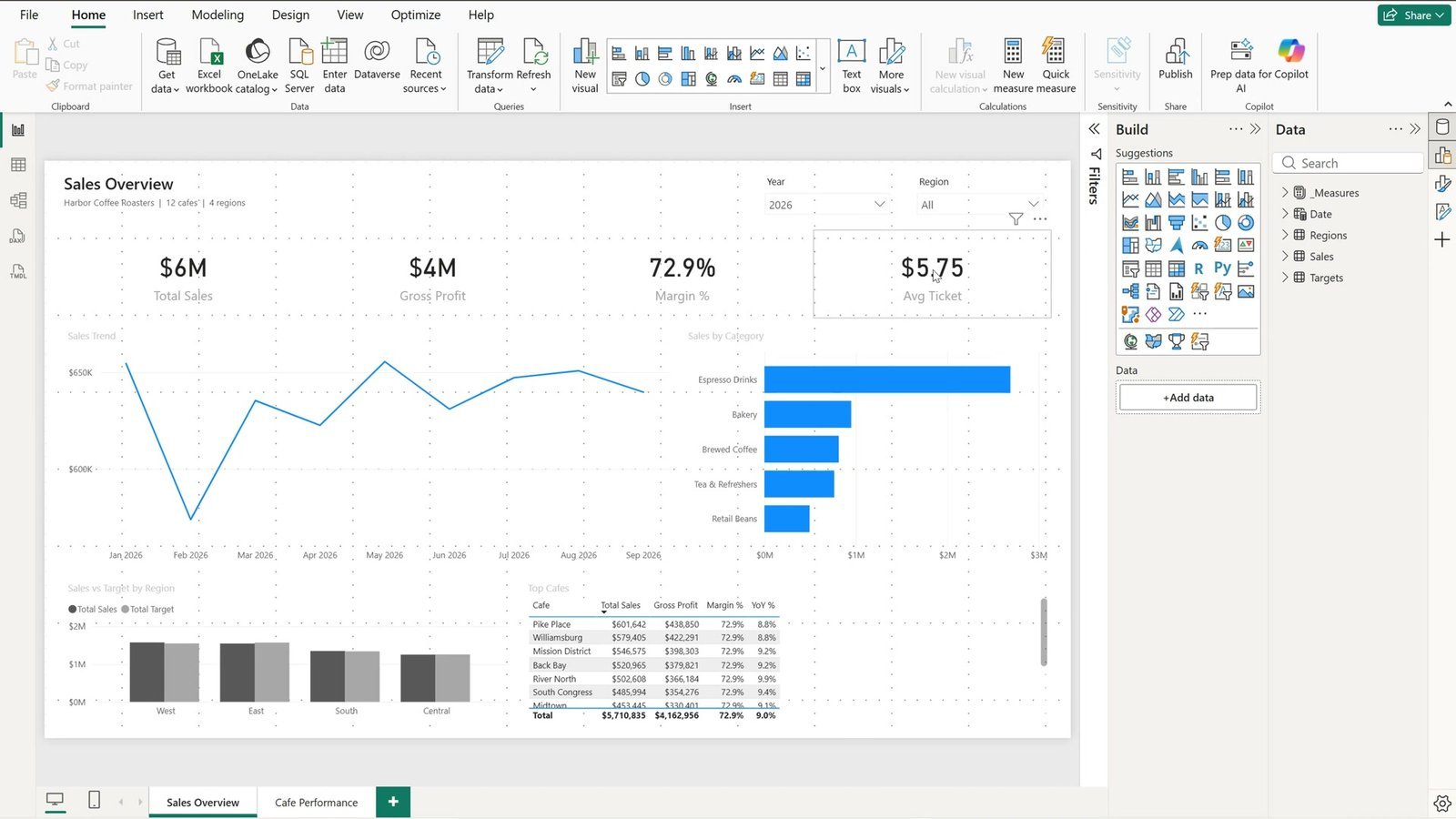
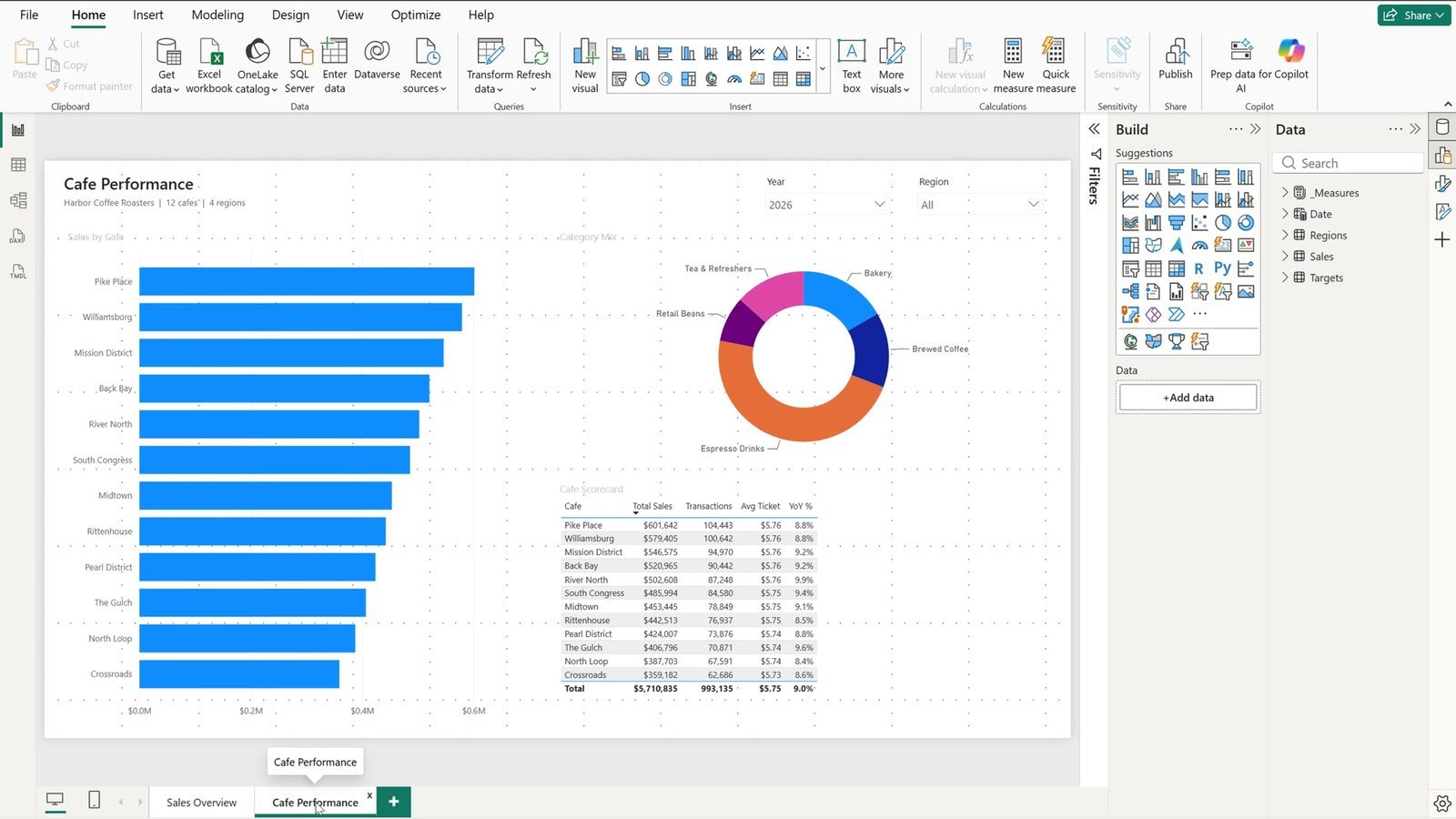
The 8-minute video works on the free Harbor Coffee practice report: a Sales Overview page with Year and Region slicers, four cards, a sales trend line, sales by category, sales versus target by region and a top cafes table, plus a Cafe Performance page with a bar chart, a category mix donut and a scorecard table – all in the default Power BI colors. Step one imports a small theme with the brand colors from the Design tab and both pages change at once. Step two renames the theme and gives the page a cream background with Customize theme, then shares it with Download theme. Step three walks through the four blocks of a complete theme file and imports it: rounded borders, soft shadows, card borders, a dark table header and data labels, all from one file. The bonus fixes the one chart that stays grey.
What You Will Learn
- What a Power BI theme is and what goes inside a theme JSON file.
- How to import a theme from the Design tab and recolor every page in one click.
- How to customize a theme without code and share it with Download theme.
- How to write one complete theme: colors,
textClasses,visualStyleswith a star, and per-visual overrides. - Why hand formatting beats the theme, and how Reset to default fixes it.
The Practice File
The free zip has the Power-BI-Theme-Practice.pbix report to follow along, the finished Solution file, the Harbor Coffee sales data, the two theme files (1-Harbor-Brand-Colors.json and 2-Harbor-Pro-Theme.json) and a theme JSON cheat sheet.
What Is a Power BI Theme?
A theme is one small JSON file. It holds the colors, the fonts and the default look of every visual, and Power BI applies it to the whole report at once – every page, every visual. That is why it beats formatting visuals one by one.
Step 1: Import a Brand-Color Theme in One Click
- Click the Design tab on the ribbon. All the theme tools live here.
- In the Themes group you see the built-in themes. To use your own file, click Import theme on the right.
- Open the Themes folder from the practice file, select 1-Harbor-Brand-Colors.json and click Open.
- Power BI says the file was successfully added. Click Got it.
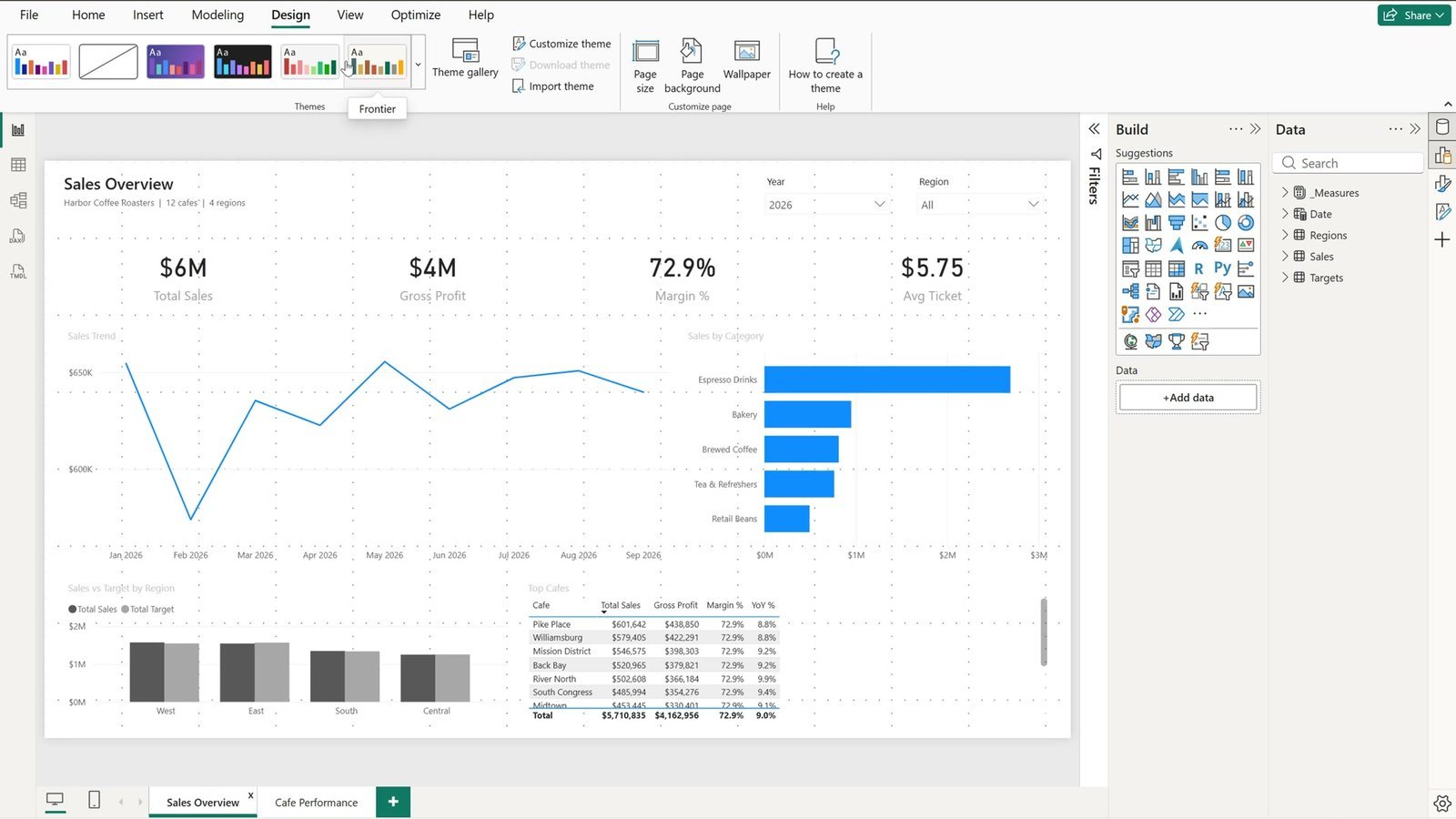
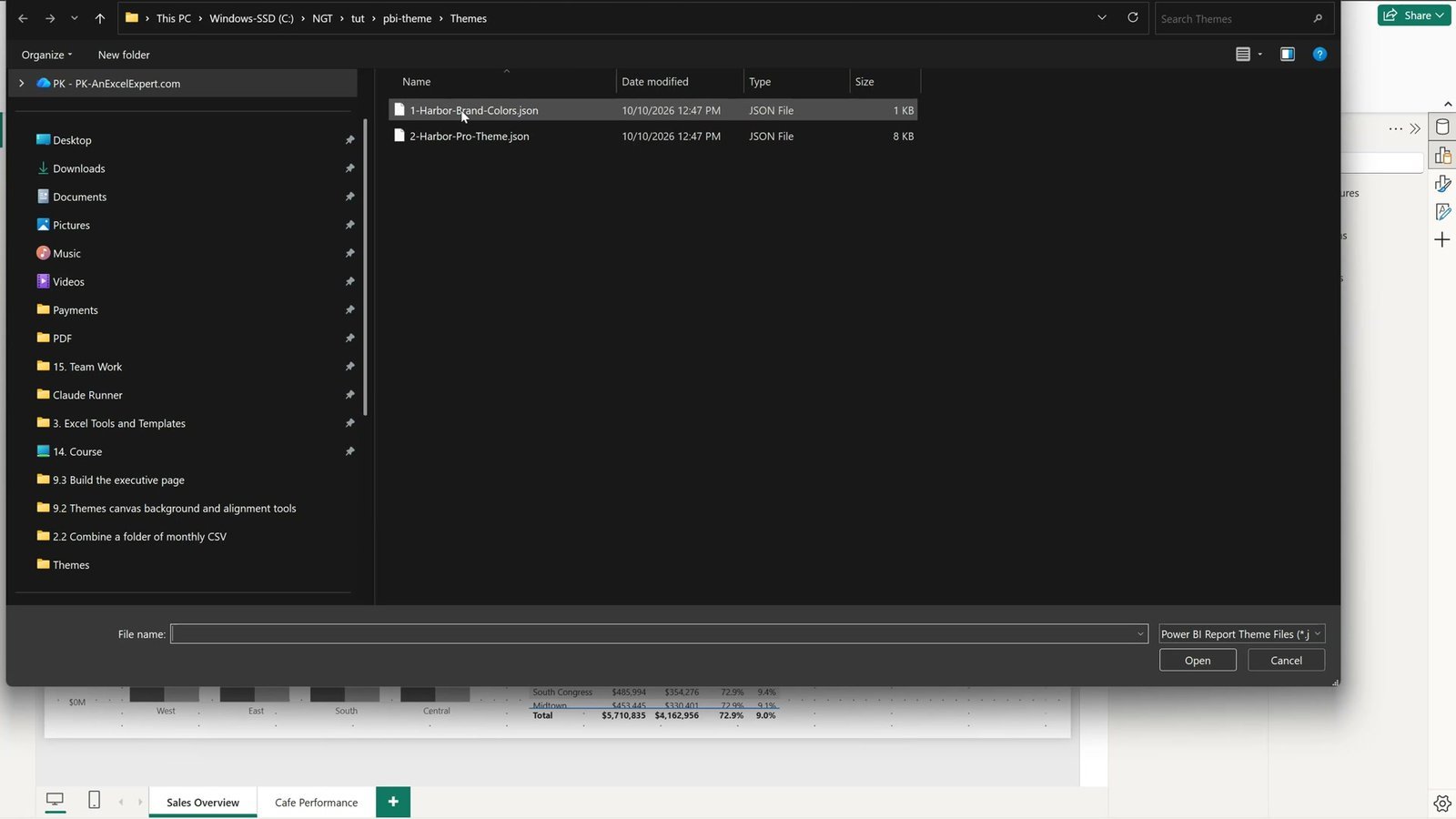
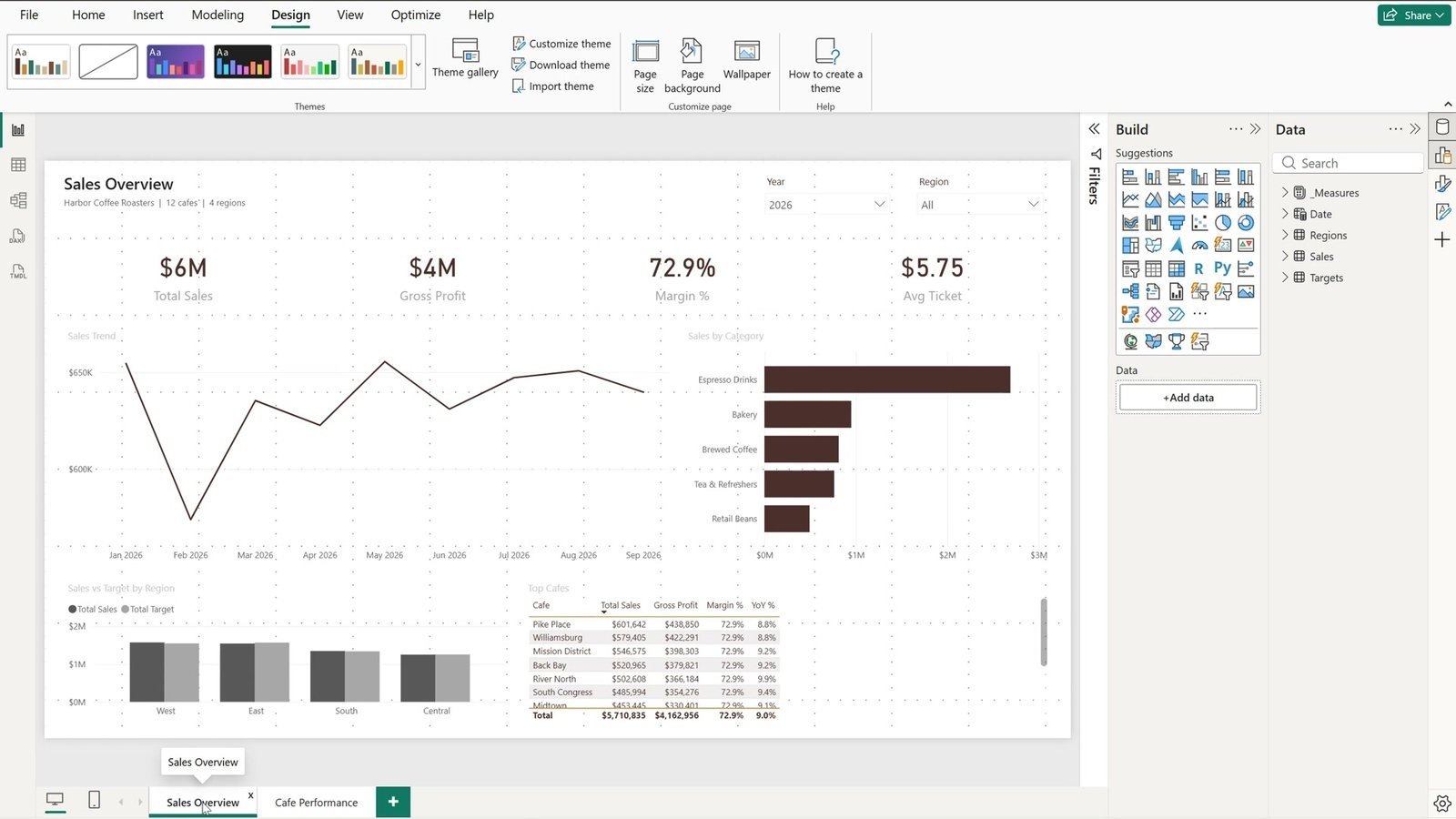
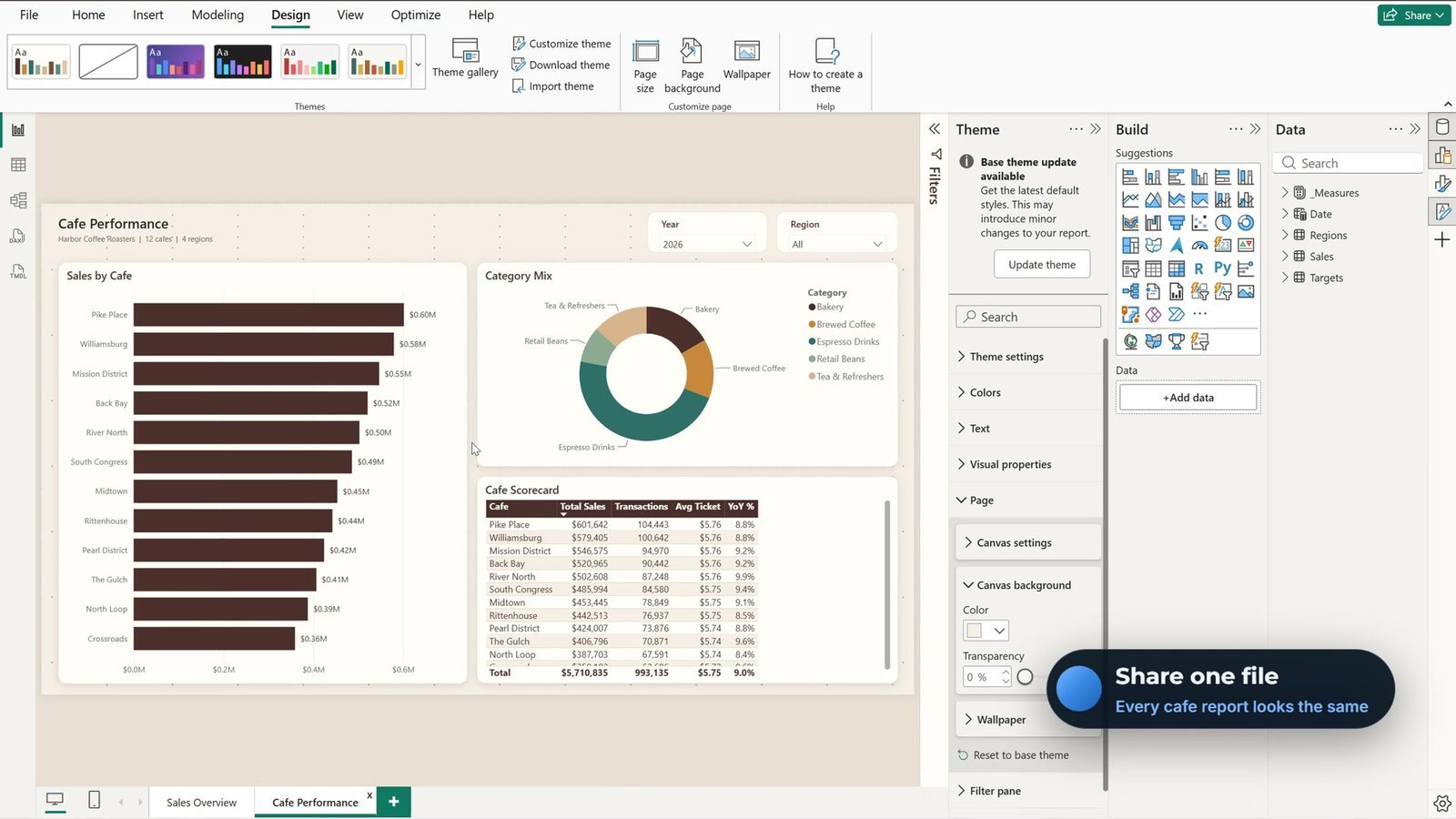
The line, the bars, the card numbers and the table accent are now Harbor espresso brown. Switch to the Cafe Performance page: the bars, the donut and the table accent changed there too, without touching a single visual.
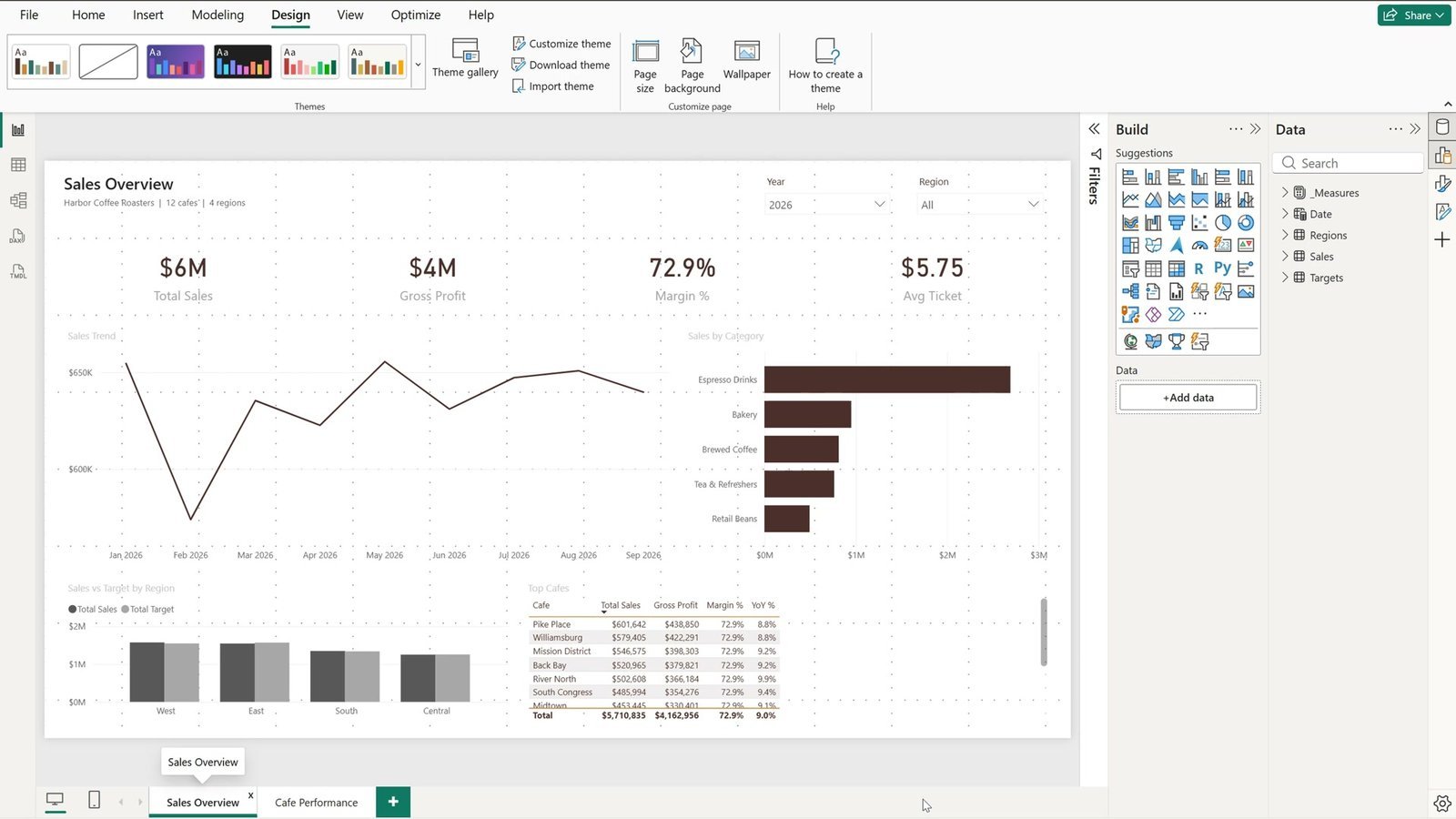
But look closely – the Sales vs Target by Region chart is still grey. It ignored the theme. We fix it in the bonus.
Inside the Theme JSON File
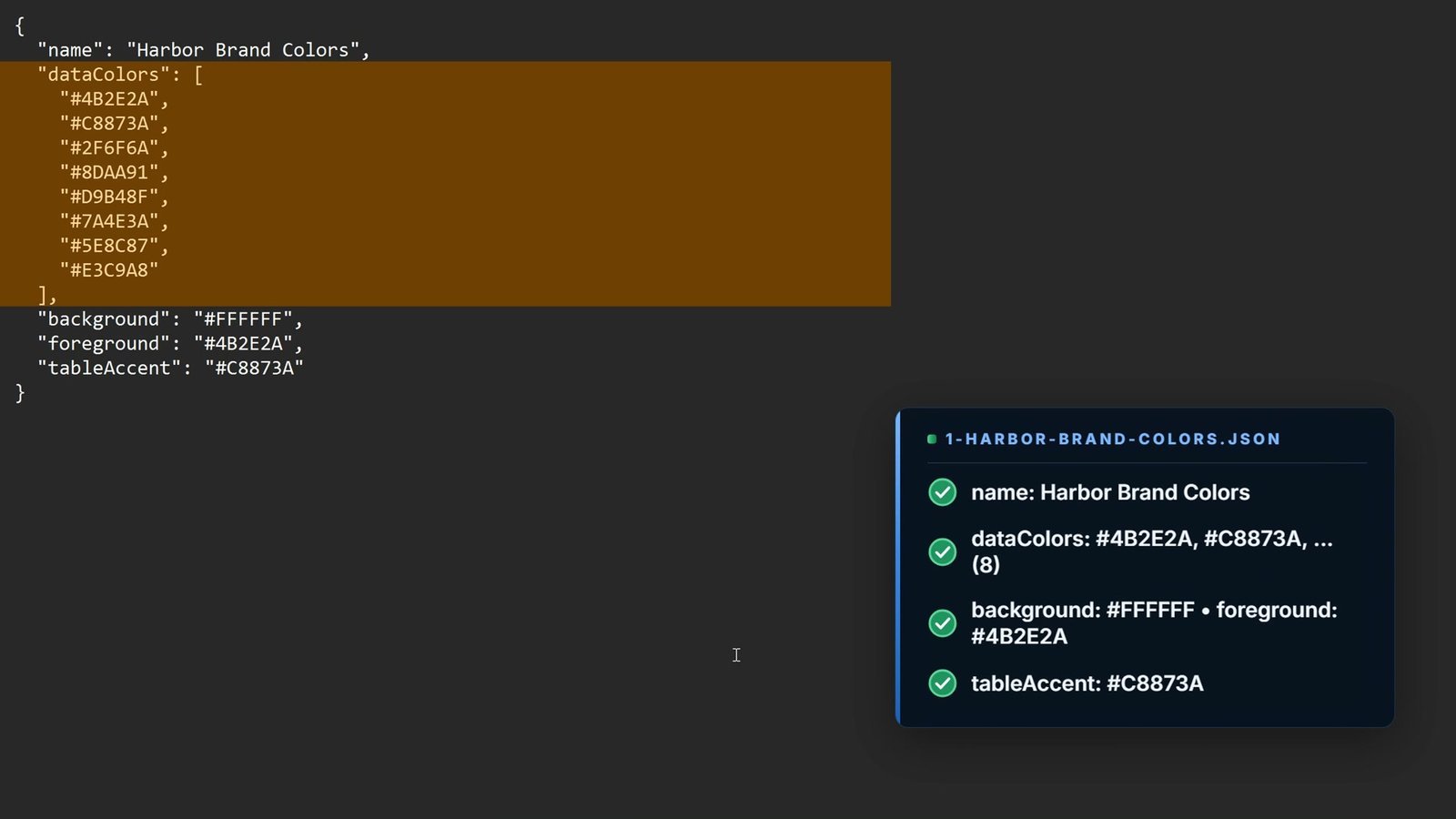
The brand-color theme is only twelve lines: a name, a list of dataColors (the first color goes to the first series, the second color to the second series, and so on), then background, foreground for the text and tableAccent. That is the smallest useful theme.
{
  "name": "Harbor Brand Colors",
  "dataColors": [
    "#4B2E2A",
    "#C8873A",
    "#2F6F6A",
    "#8DAA91",
    "#D9B48F",
    "#7A4E3A",
    "#5E8C87",
    "#E3C9A8"
  ],
  "background": "#FFFFFF",
  "foreground": "#4B2E2A",
  "tableAccent": "#C8873A"
}
Step 2: Customize the Theme Without Code
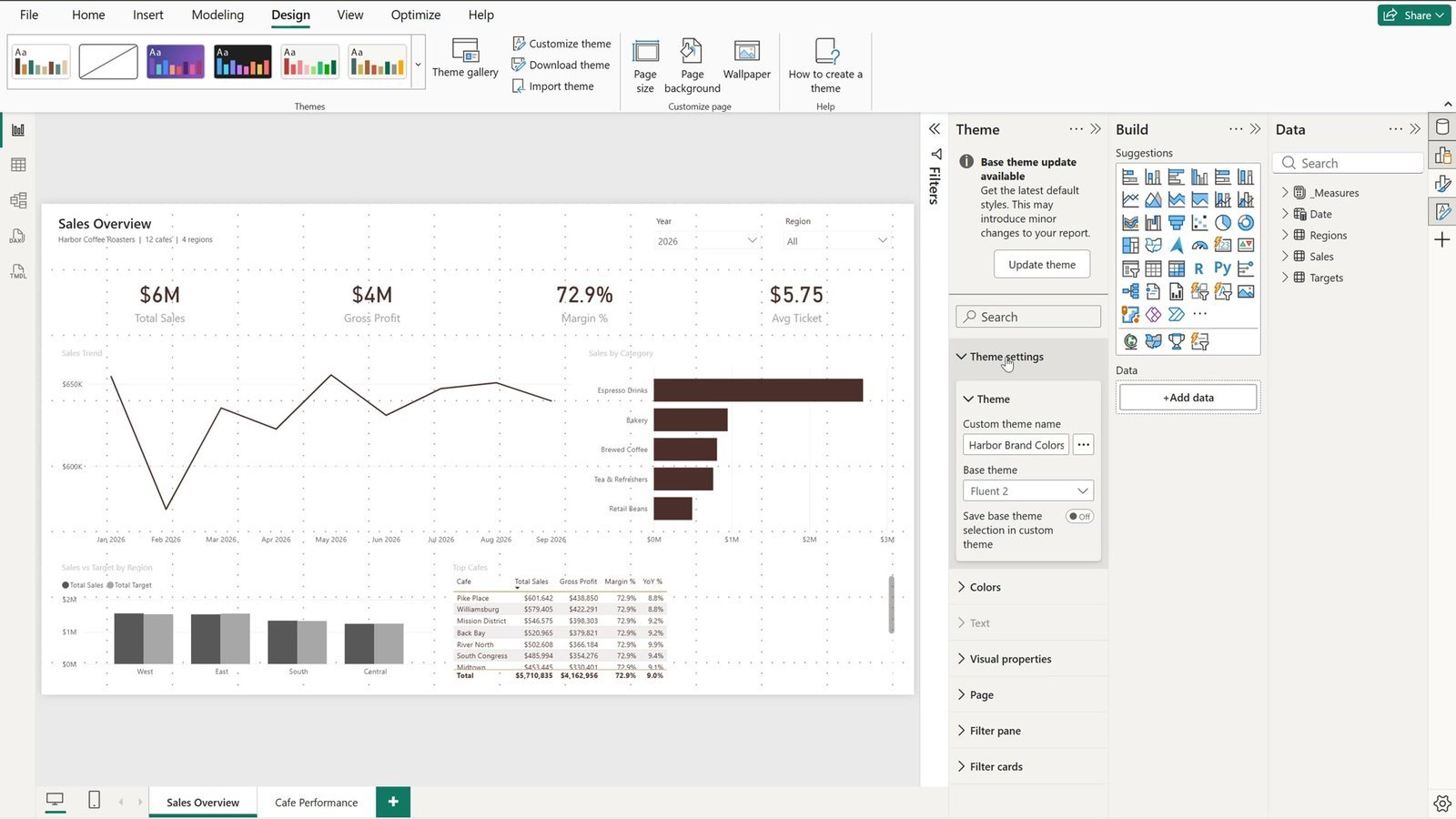
- On the Design tab click Customize theme. The Theme pane opens on the right, with every setting in sections.
- Open Theme settings, select the old name in the custom theme name box and type a new one: Harbor Brand Colors v2. Press Enter.
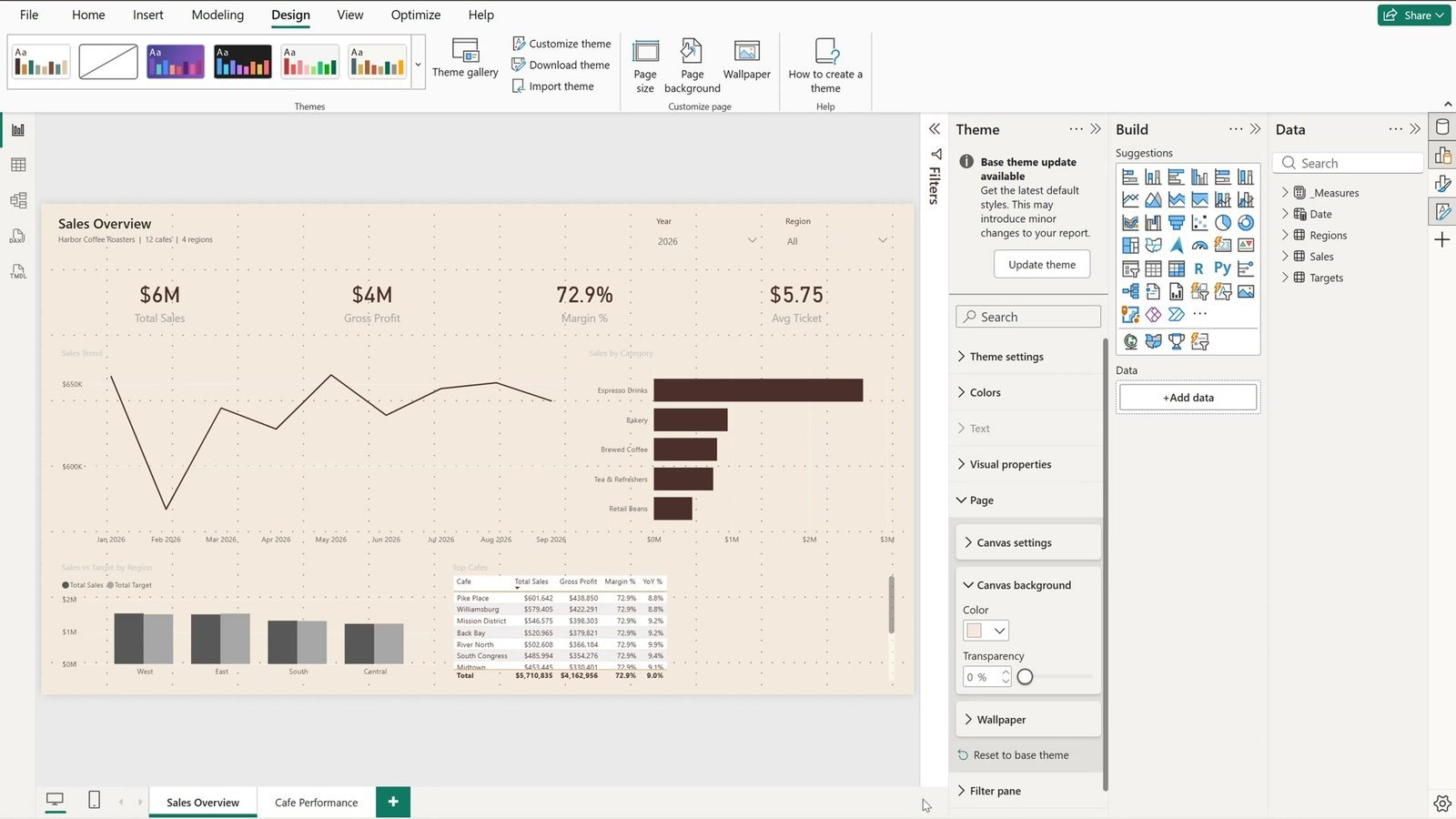
- Open the Page section, then Canvas background, click the color drop-down and pick the light cream color. The page gets a warm background instead of plain white.
There is no Apply button: every change shows up live, and the rest of the theme is kept.
Share It With Download Theme
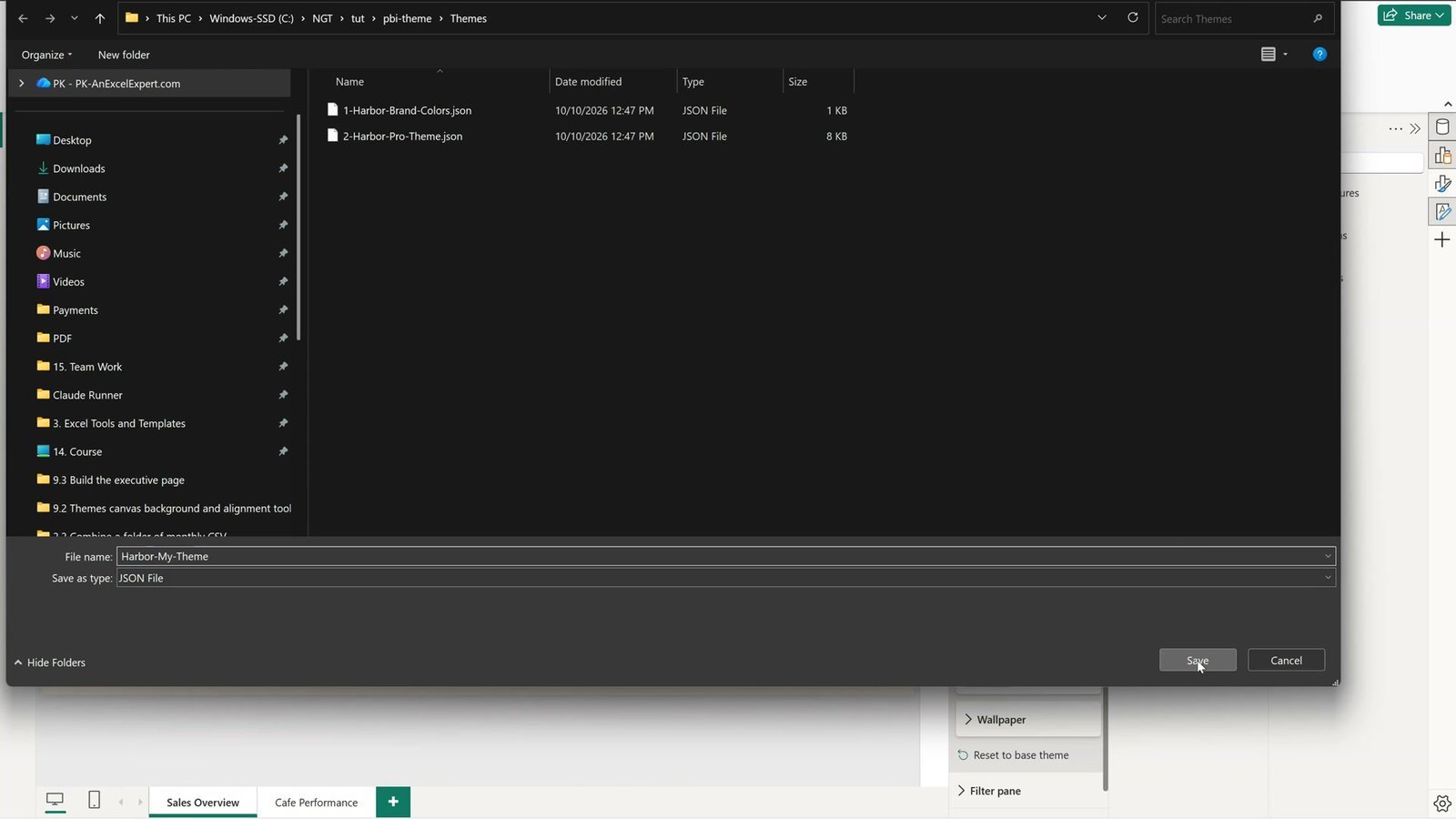
To share the result with your team, click Design › Download theme, type a name (for example Harbor-My-Theme) and click Save. That JSON file holds every change you made, and anyone can import it the same way.
Step 3: One Complete Theme File for Every Report
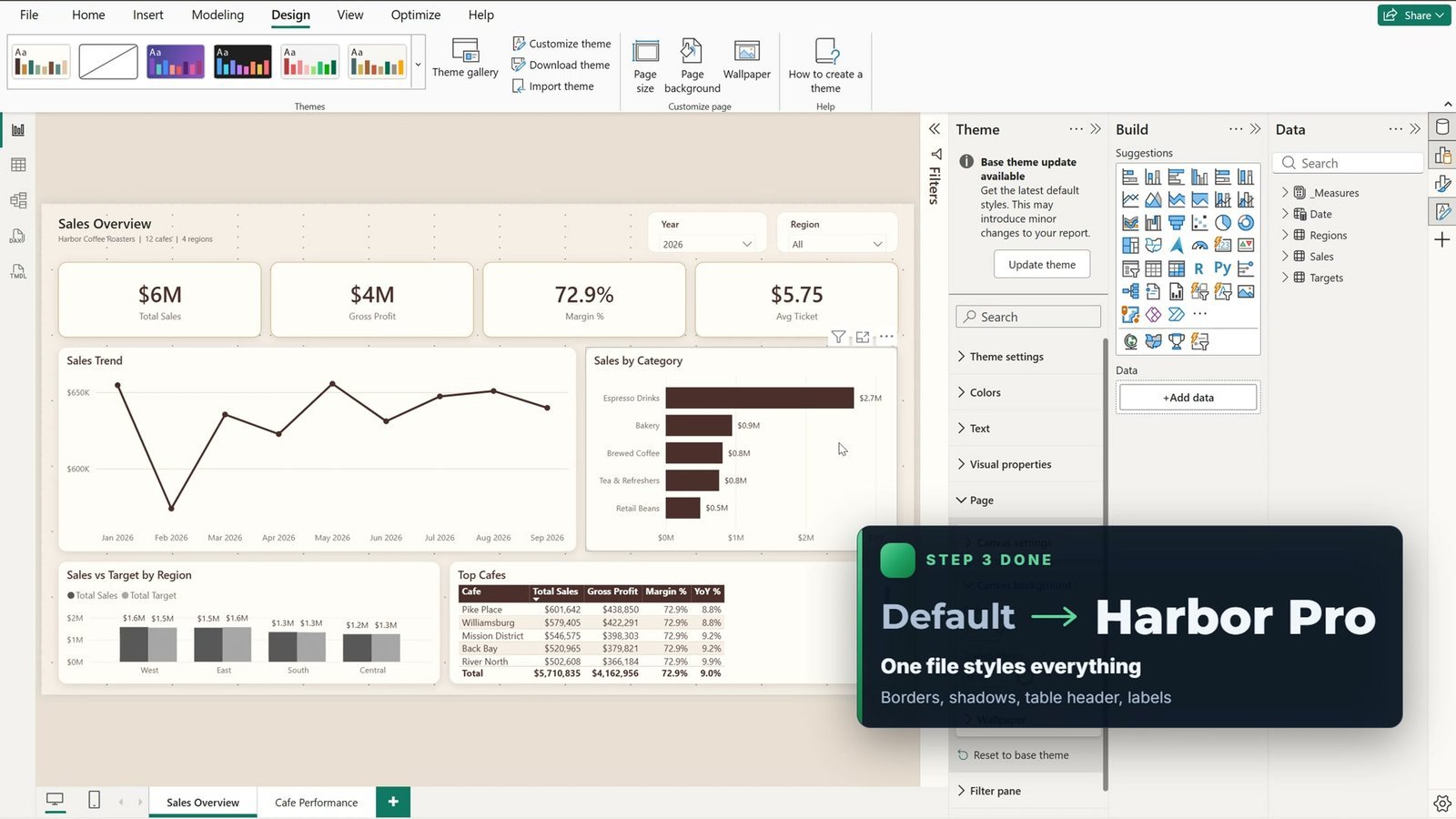
The small theme only changed colors. A complete theme also controls fonts, borders, shadows and each type of visual. 2-Harbor-Pro-Theme.json has four blocks:
- Colors – the same
dataColors, plusgood,neutralandbad, which Power BI uses for conditional formatting. - textClasses –
calloutis the big number on the cards,titlethe visual titles,labelthe axis and data labels. Set them once and every visual follows. - visualStyles with a star –
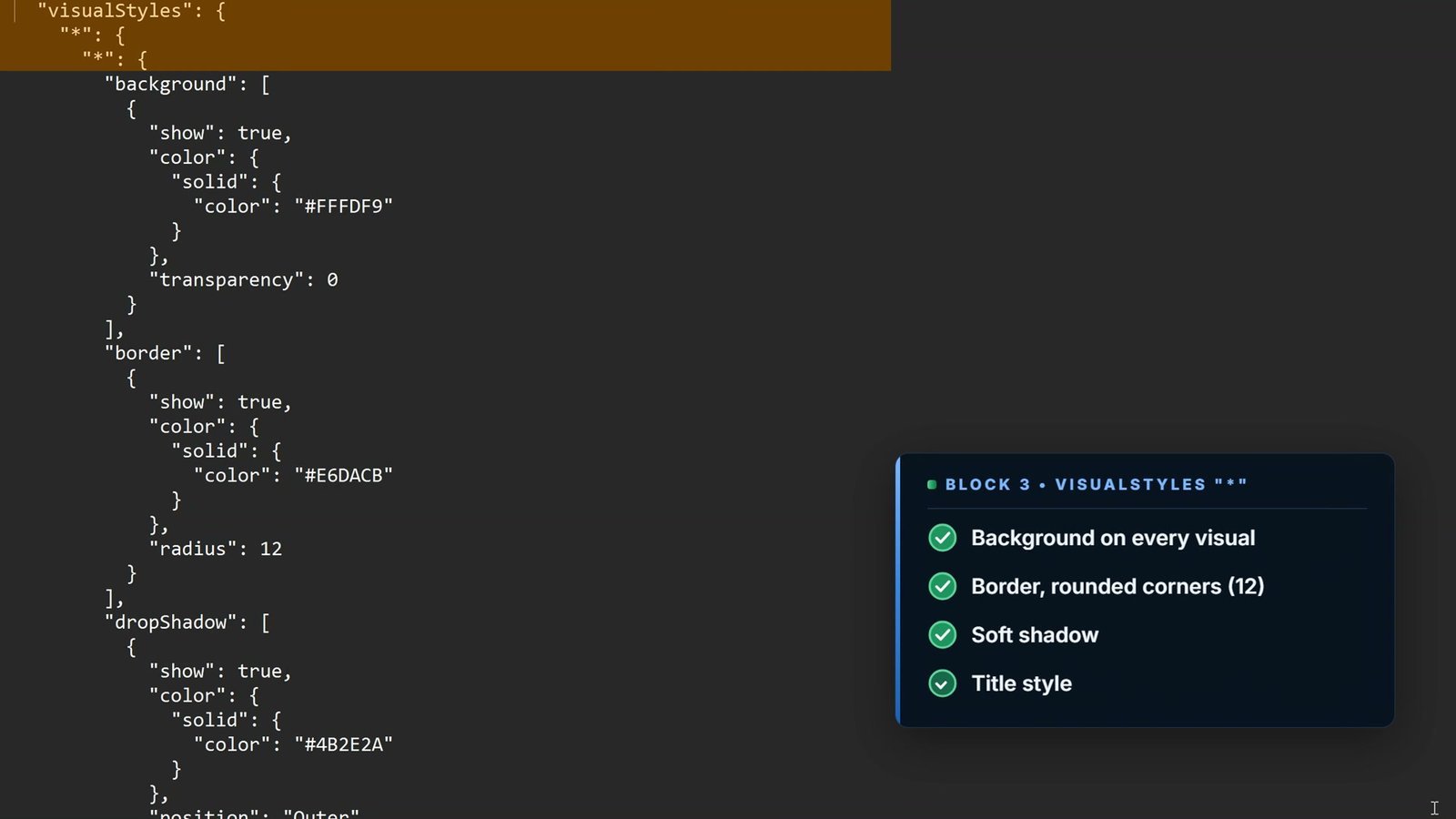
"*"means every visual: background, a border with rounded corners, a soft shadow and the title style. - Overrides for one visual type – the card gets a caramel border, the table an espresso header with white bold text and cream stripes, and the slicer and the page get their own settings.
"textClasses": {
  "callout": { "fontSize": 24, "fontFace": "Segoe UI Semibold", "color": "#4B2E2A" },
  "title":   { "fontSize": 12, "fontFace": "Segoe UI Semibold", "color": "#4B2E2A" },
  "label":   { "fontSize": 10, "fontFace": "Segoe UI", "color": "#7A6A64" }
}
"visualStyles": {
"*": {
"*": {
"background": [{ "show": true, "color": { "solid": { "color": "#FFFDF9" } }, "transparency": 0 }],
"border": [{ "show": true, "color": { "solid": { "color": "#E6DACB" } }, "radius": 12 }],
"dropShadow": [{ "show": true, "color": { "solid": { "color": "#4B2E2A" } }, "position": "Outer" }]
}
}
}
Import it the same way: Design › Import theme › Harbor Pro Theme › Open › Got it. Rounded borders, soft shadows, a soft border on the cards, a dark header on the table and data labels on the charts – all from one file. Both pages match, so put this file in a shared folder and all twelve cafe reports can look exactly the same.
Note: a theme does not recolor text you typed into a text box, such as a page title. That text keeps the format you gave it.
Bonus: The Chart That Ignores the Theme
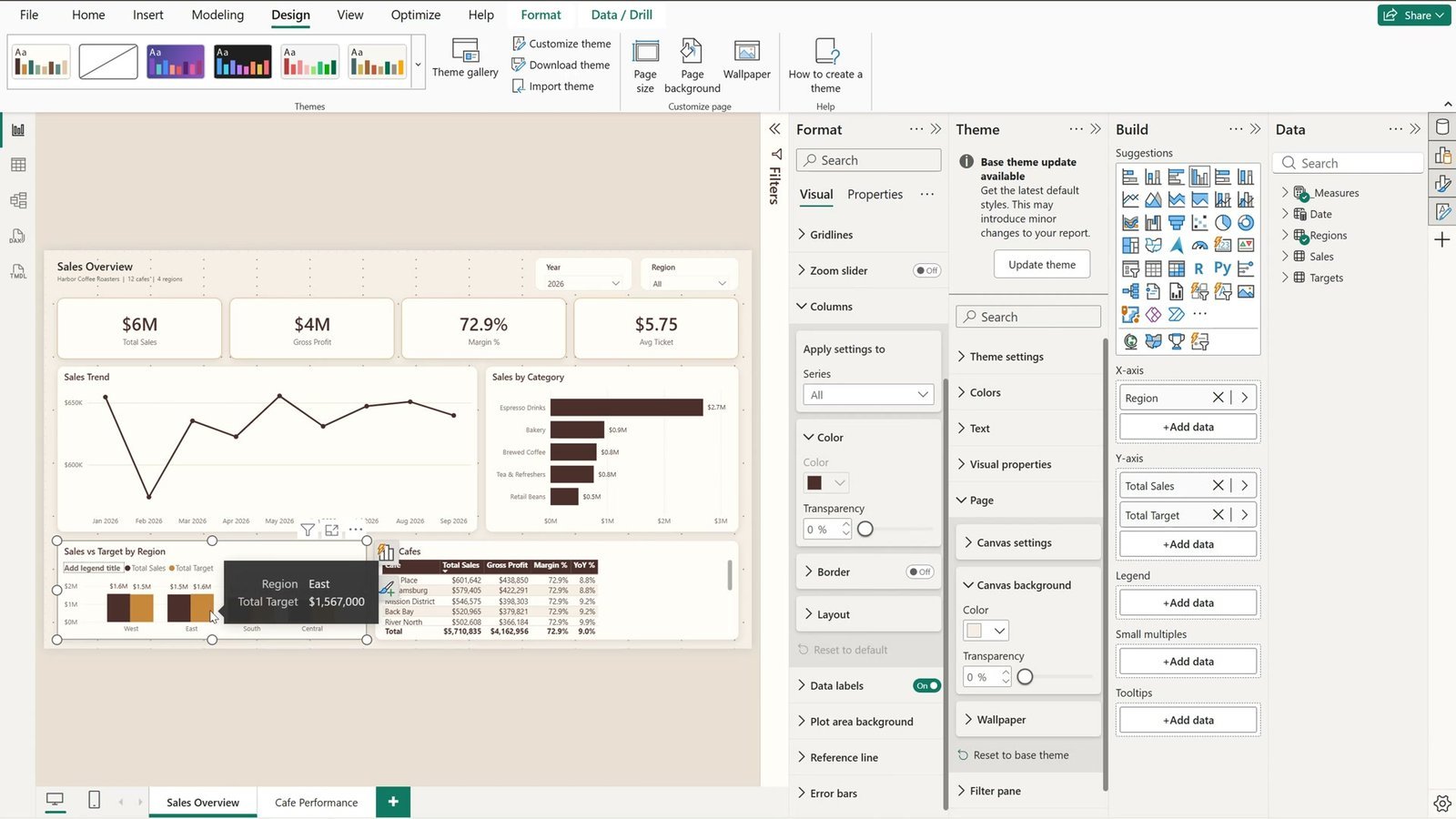
Sales vs Target by Region still ignores every theme because someone formatted its colors by hand – and formatting done by hand always wins over the theme. The fix:
- Click the chart to select it and open the Format pane (Visual tab).
- Open the Columns section, where the two greys were picked by hand.
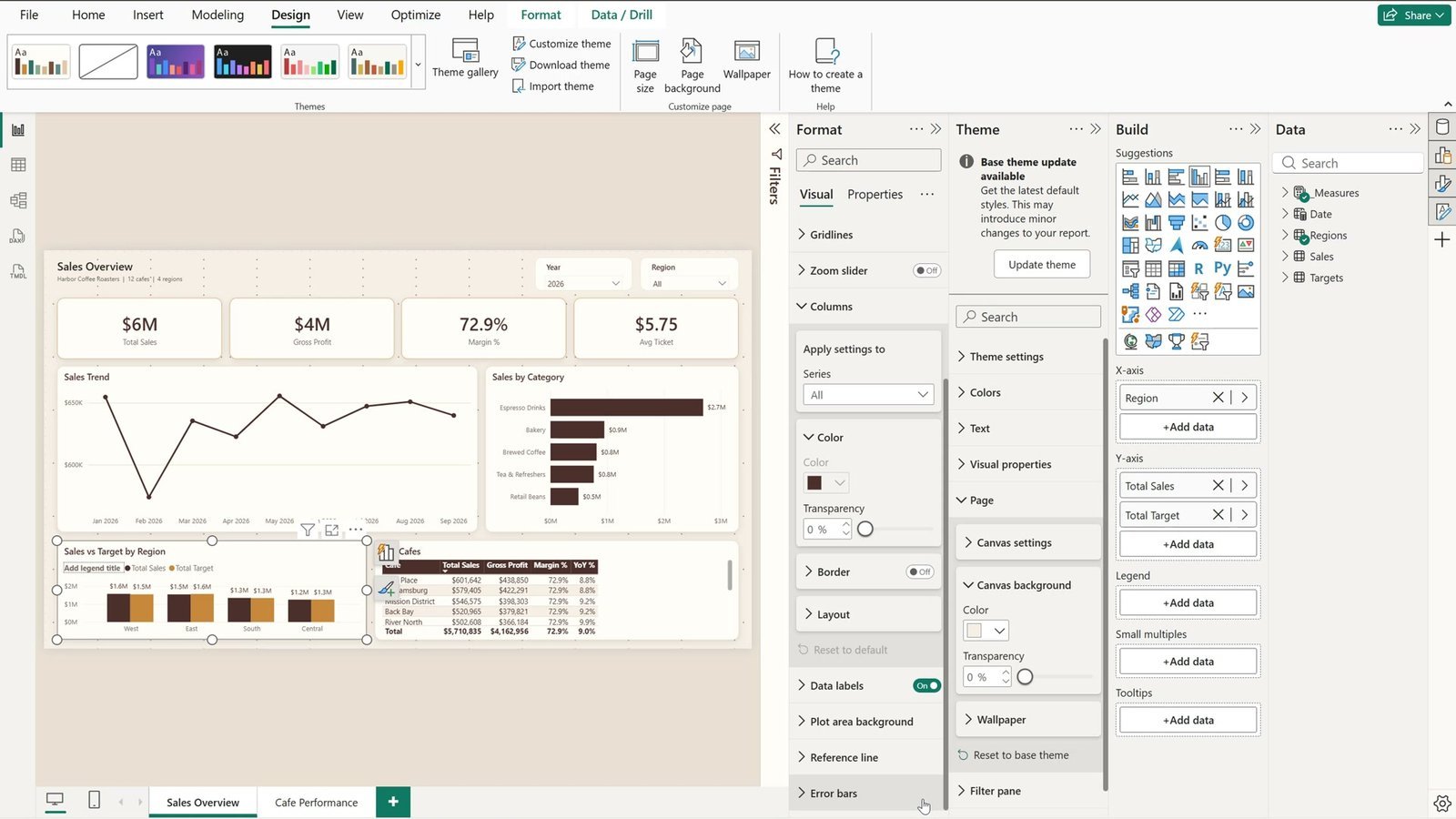
- Scroll to the end of the section and click Reset to default.
Now the chart takes the theme colors, espresso and caramel, like the rest of the report.
Three Ways to Theme a Power BI Report
| Method | Where | Best for |
|---|---|---|
| Import theme | Design › Import theme | Applying brand colors or a ready theme file in one click |
| Customize theme | Design › Customize theme | Small changes without code; share with Download theme |
| Complete theme JSON | Edit the .json, then import | Fonts, borders, shadows and per-visual styles for every report on a team |
Tips
- Format through the theme, not visual by visual. Then one file controls the whole report, and a reset brings back any visual that drifts.
- Edit theme files in VS Code or Notepad++. One missing comma gives “We couldn’t import your theme”.
- Microsoft’s report themes documentation lists every property you can set in a theme JSON.
- Next step: make your Power BI report look like an app with five design moves.
Want It Ready-Made?
Browse our ready-to-use Power BI dashboards at affordable rates – each one ships with its own custom theme, for example the Sporting Goods Dashboard in Power BI or the Lawn Care Business KPI Dashboard in Power BI. We also build custom dashboards on demand with a 1-2 day turnaround. If you also work in Excel, the Excel Pivot Tables & Dashboards course on Next Gen Templates Academy teaches dashboards step by step.
Frequently Asked Questions
What is a Power BI theme?
A Power BI theme is a small JSON file that holds the colors, fonts and default look of every visual. Power BI applies it to the whole report at once – every page and every visual that was not formatted by hand.
How do I import a custom theme in Power BI Desktop?
Click the Design tab on the ribbon, then Import theme on the right of the Themes group. Pick the .json file and click Open. Power BI says the file was successfully added and recolors the report.
Where are the theme options in the new Power BI Desktop?
In the current Power BI Desktop the theme tools live on the Design tab: the built-in themes, Import theme, Customize theme and Download theme. Older versions kept them under View > Themes.
Can I change a Power BI theme without writing JSON?
Yes. Design > Customize theme opens the Theme pane. Change the theme name, colors, text, visual properties or the page background; every change shows up live and there is no Apply button.
How do I share a Power BI theme with my team?
Use Design > Download theme. Power BI saves the current theme, including every change you made in Customize theme, as a .json file that anyone can import the same way.
Why does one visual ignore my Power BI theme?
Formatting done by hand always wins over the theme. Select the visual, open the Format pane, go to the section that was changed (for example Columns) and click Reset to default. The visual then takes the theme colors.
Does a theme change the text in a text box?
No. Text you typed into a text box, such as a page title, keeps the format you gave it.
Why do I get 'We couldn't import your theme'?
The file is not valid JSON – usually a missing comma, or an extra comma before } or ]. Edit theme files in VS Code or Notepad++, or paste them into a JSON validator to find the line.
Download the Practice File
Get the Practice and Solution .pbix files, the Harbor Coffee data, both theme JSON files and the cheat sheet in one zip.
⬇️ Download the Free Practice File
Practice + Solution .pbix, Harbor Coffee data, 2 theme JSON files and a cheat sheet · .zip · Power BI Desktop
About the Author
PK (Priyendra Kumar) runs PK: An Excel Expert and NextGenTemplates.com and has been teaching Excel, Power Query and Power BI on YouTube for years. Every step in this tutorial was recorded in the real Power BI Desktop with the files you can download above.
Conclusion
A Power BI theme turns an afternoon of formatting into one click. Import a brand-color theme, tweak it with Customize theme, share it with Download theme, and keep one complete theme JSON in a shared folder so every report your team builds looks the same. When a visual refuses to follow, Reset to default brings it back.