Managing customer service schedules without a structured system often leads to missed follow-ups, delayed responses, overlapping tasks, and unhappy customers. Although many teams still rely on emails, sticky notes, or scattered Excel sheets, these methods create confusion instead of clarity.
That is exactly why a Customer Service Scheduling Calendar in Excel plays a critical role in modern service operations.
In this detailed guide, you will learn what a Customer Service Scheduling Calendar in Excel is, why it matters, how it works, its worksheet-wise structure, advantages, best practices, challenges, and frequently asked questions. Moreover, this article explains everything in simple language so you can apply it immediately.
Click to buy Customer Service Scheduling Calendar in Excel
What Is a Customer Service Scheduling Calendar in Excel?
A Customer Service Scheduling Calendar in Excel is a ready-to-use scheduling and event-management tool designed to plan, track, and monitor customer service activities in one centralized file.
Instead of managing schedules across multiple tools, this Excel-based calendar consolidates annual planning, monthly scheduling, daily tracking, and event management into a single workbook. As a result, customer service teams gain full visibility and control over their operations.
More importantly, this calendar allows users to add, update, delete, and review events dynamically without complex formulas or external software.
Why Do Customer Service Teams Need a Scheduling Calendar?
Customer service teams handle multiple responsibilities every day. Therefore, without proper scheduling, even the best teams struggle to perform consistently.
Here is why a scheduling calendar becomes essential:
- Customer service tasks change daily and require flexibility
- Teams must track events, follow-ups, meetings, and escalations
- Managers need a clear view of workloads and availability
- Missed schedules directly impact customer satisfaction
Because of these challenges, a Customer Service Scheduling Calendar in Excel ensures that nothing slips through the cracks.
How Does a Customer Service Scheduling Calendar in Excel Work?
This Excel calendar works through interactive views, buttons, and forms. Instead of manual data entry across sheets, users interact with simple controls.
The calendar allows users to:
- Select years, months, and date ranges
- Add events using user-friendly forms
- Highlight important days and events
- Switch between annual, monthly, and daily views instantly
As a result, planning becomes faster, clearer, and more reliable.
Worksheet-Wise Structure of Customer Service Scheduling Calendar in Excel
This ready-to-use template includes 5 well-structured worksheets, each designed for a specific purpose.
Home Sheet – Central Navigation Hub
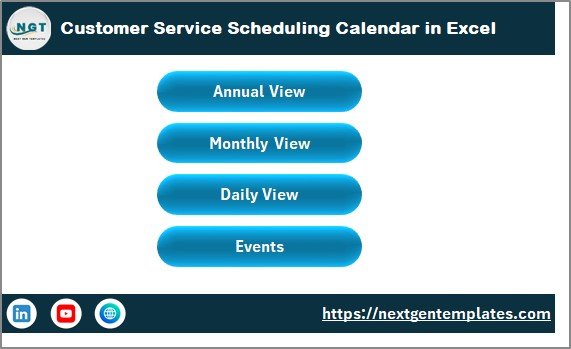
The Home sheet acts as the index page of the calendar. Instead of searching through multiple tabs, users navigate the entire workbook from here.
Key Features of Home Sheet
- Clean and simple layout
- One-click navigation
- Central access point for all views
Navigation Buttons Available
- Annual View Button – Jump to yearly calendar
- Monthly View Button – Open monthly schedule
- Daily View Button – View events in detail
- Events Button – Access the event database
Because of this structure, even first-time users navigate the calendar effortlessly.
Click to buy Customer Service Scheduling Calendar in Excel
Annual View Sheet – Yearly Planning at a Glance
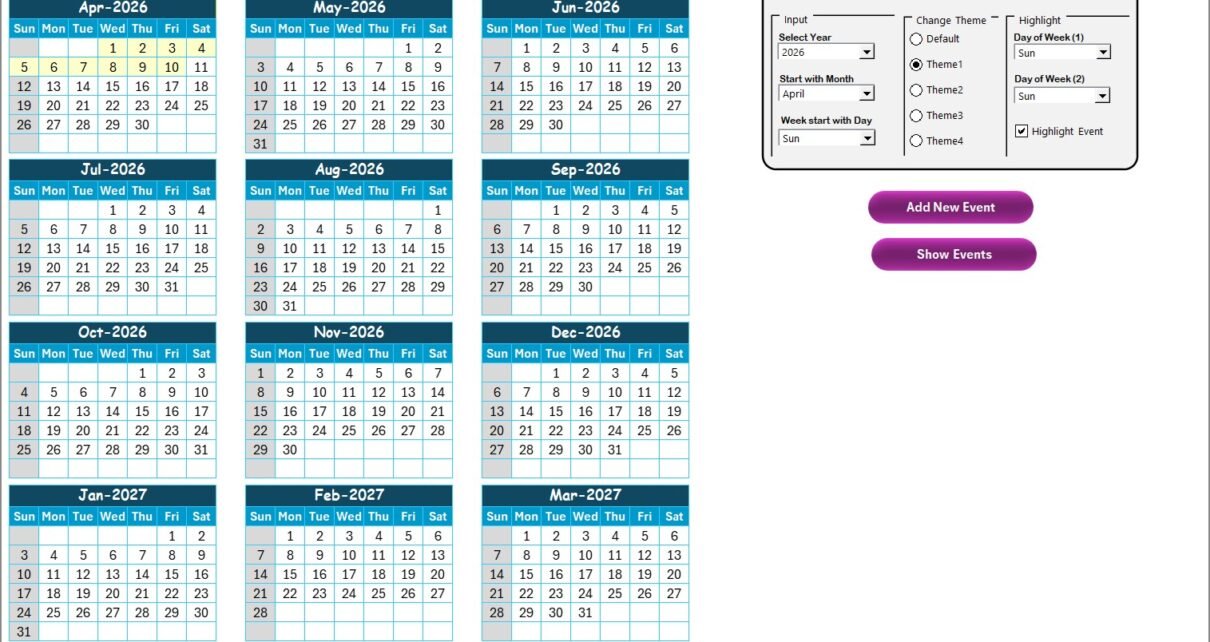
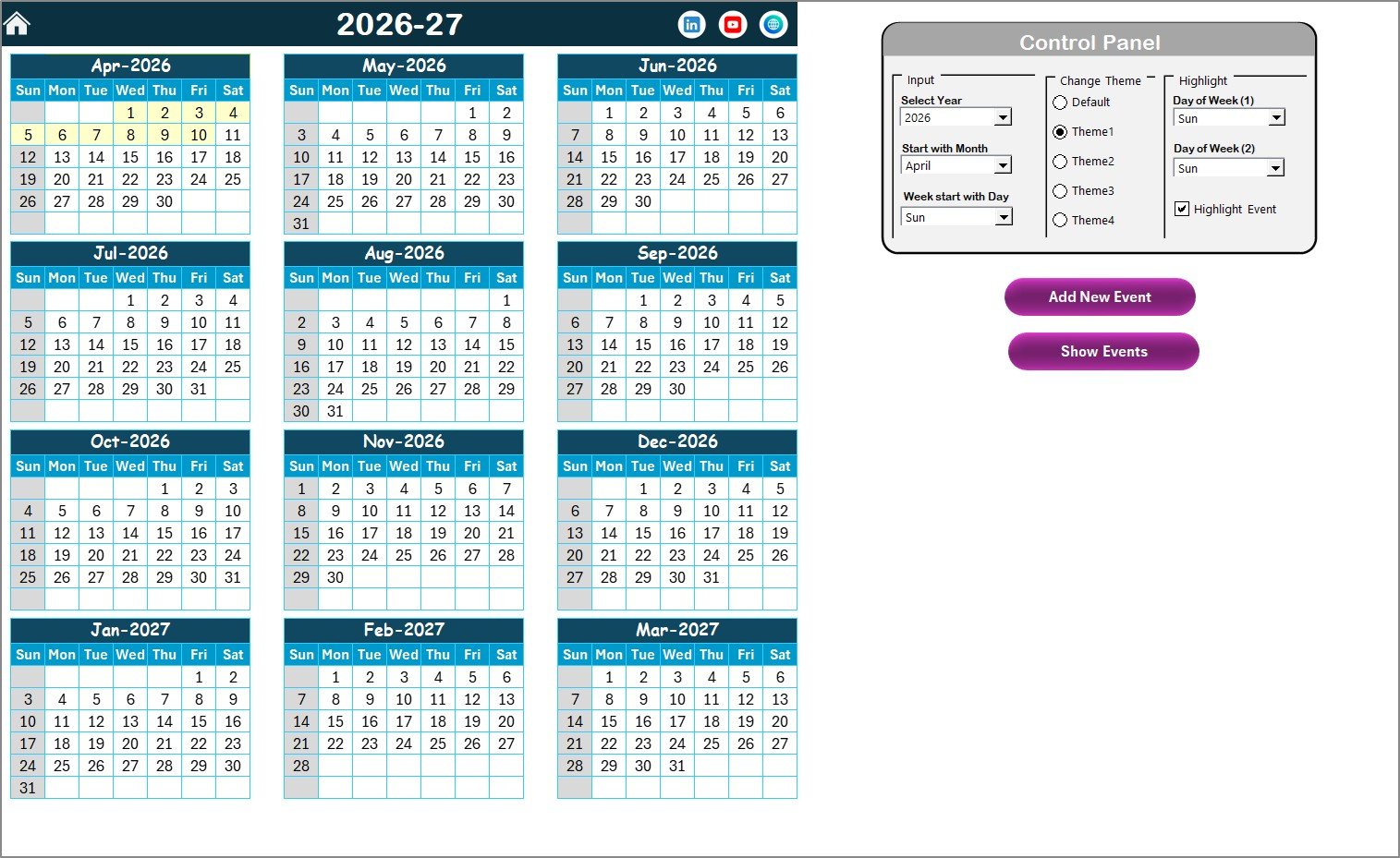
The Annual View Sheet displays all 12 months in a single screen. This view helps managers and teams plan long-term customer service activities.
What Does the Annual View Show?
- Complete 12-month calendar
- Events highlighted on respective dates
- Clear visibility of busy and free periods
Control Panel in Annual View
The control panel makes this sheet dynamic and flexible.
Input Group
- Select Year to update the calendar instantly
- Change Starting Month of the year
- Set Starting Day of the Week
Change Theme Group
- Choose from 5 color themes
- Apply selected theme across the entire workbook
Highlight Group
- Highlight Day of Week (1) and Day of Week (2)
- Example: Highlight Saturday and Sunday
- Enable Highlight Events checkbox to mark events in yellow
Buttons in Annual View
Add New Event Button
- Select a date on the calendar
- Click the button to open the event form
- Enter details and submit
- Event appears instantly on the selected date
Show Event Button
- Select any date
- Click the button to view all events scheduled for that day
This approach ensures faster yearly planning with zero confusion.
Click to buy Customer Service Scheduling Calendar in Excel
Monthly View Sheet – Focused Monthly Scheduling
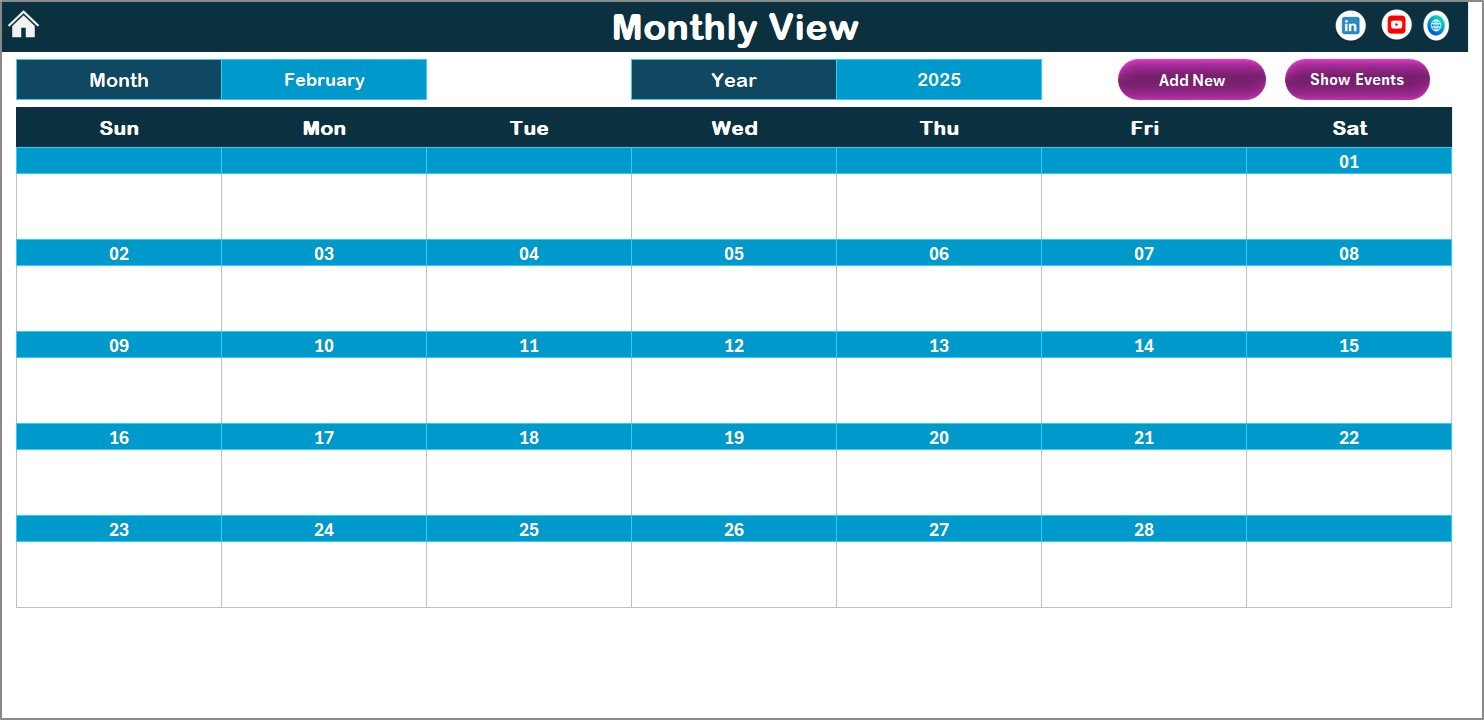
The Monthly View Sheet displays a single month calendar based on user selection.
How Monthly View Works
- Select Month and Year from the top
- Calendar updates automatically
- Displays events directly on calendar dates
If a date contains multiple events, the calendar shows “more than 1…”, which keeps the view clean.
Buttons in Monthly View
Add New Event Button
- Select a date
- Open event entry form
- Add event details
- Save and update calendar instantly
Show Event Button
- View all events scheduled on a selected date
Because of this structure, teams manage month-wise workloads with precision.
Click to buy Customer Service Scheduling Calendar in Excel
Daily View Sheet – Detailed Event Tracking
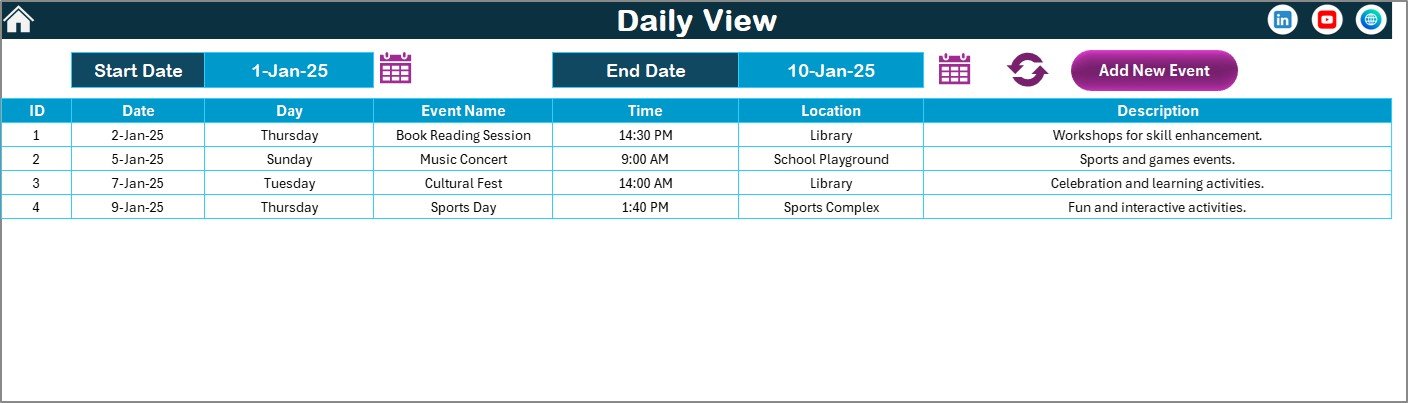
The Daily View Sheet focuses on event-level details across a selected date range.
Key Capabilities of Daily View
- Select Start Date and End Date
- Use calendar icons for quick date selection
- Click Refresh to load updated data
This sheet displays complete event details, which improves tracking and accountability.
Daily View Action Button
Add New Event Button
- Open event entry form
- Fill in details
- Submit to update database instantly
This view works best for supervisors and service coordinators.
Click to buy Customer Service Scheduling Calendar in Excel
Events Sheet – Central Event Database
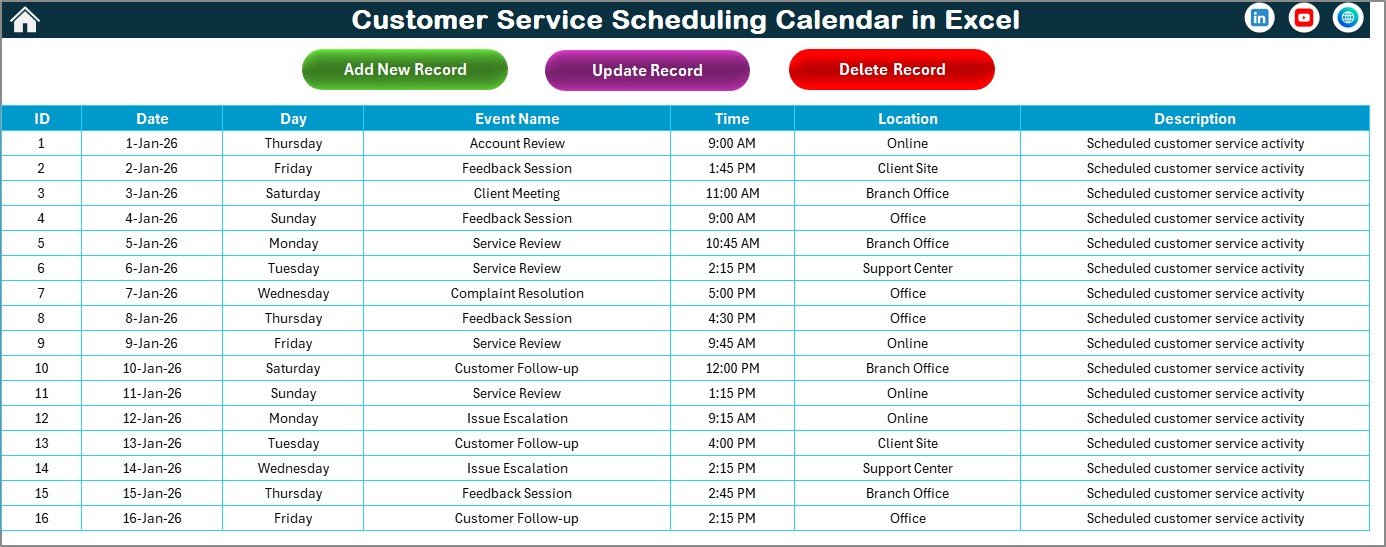
The Events Sheet stores all customer service events in a structured table.
Information Captured in Events Sheet
- ID – Auto-generated number
- Date – Event date
- Day – Day name (Sunday, Monday, etc.)
- Event Name – Name of activity
- Time – Event time
- Location – Event location
- Description – Short event details
Because this sheet acts as the backbone, all calendar views pull data from here.
Click to buy Customer Service Scheduling Calendar in Excel
Event Management Buttons
Add New Record
- Open event form
- Enter details
- Submit to add new event
Update Existing Record
- Select event ID
- Open pre-filled form
- Edit details and submit
Delete Record
- Select event ID
- Click delete to remove record permanently
This structure ensures data accuracy and easy maintenance.
Advantages of Customer Service Scheduling Calendar in Excel
Using this calendar delivers multiple benefits for customer service teams.
Key Advantages
- Centralized scheduling system
- Saves time by reducing manual tracking
- Improves task visibility and accountability
- Supports annual, monthly, and daily planning
- Customizable themes and highlights
- Easy to use without technical knowledge
As a result, teams stay organized and responsive.
How This Calendar Helps
- Visual scheduling prevents overlaps
- Event forms reduce entry errors
- Central database ensures consistency
- Multiple views improve planning
Therefore, this Excel calendar directly solves real-world problems.
Best Practices for Customer Service Scheduling Calendar in Excel
To get maximum value, follow these best practices.
Recommended Best Practices
- Update events daily
- Use highlight options for weekends and peak days
- Standardize event naming
- Review monthly and annual views regularly
- Avoid duplicate event entries
- Train team members on basic usage
By following these steps, you ensure long-term efficiency.
Who Can Use Customer Service Scheduling Calendar in Excel?
This template suits a wide range of users.
Ideal Users
- Customer service managers
- Call center supervisors
- Support team coordinators
- Small business owners
- Service operation teams
Because of its simplicity, anyone can use it effectively.
Conclusion
A Customer Service Scheduling Calendar in Excel transforms chaotic schedules into a structured, easy-to-manage system. Instead of juggling multiple tools, teams gain one centralized solution for planning, tracking, and managing customer service events.
With annual, monthly, and daily views, interactive controls, and a powerful event database, this calendar improves efficiency, accountability, and customer satisfaction. Therefore, if you want better service planning without complexity, this Excel calendar becomes the perfect choice.
Frequently Asked Questions (FAQs)
What is a Customer Service Scheduling Calendar in Excel?
It is an Excel-based tool that helps plan, track, and manage customer service events across annual, monthly, and daily views.
Can beginners use this Excel calendar?
Yes, the template uses buttons, forms, and simple controls, making it beginner-friendly.
Does this calendar support multiple events on one day?
Yes, it supports multiple events and displays them clearly in monthly and daily views.
Can I customize themes and highlights?
Yes, you can select from five themes and highlight specific days or events.
Is this calendar suitable for small teams?
Yes, it works well for both small teams and growing service departments.
Visit our YouTube channel to learn step-by-step video tutorials
Watch the step-by-step video tutorial:
Click to buy Customer Service Scheduling Calendar in Excel