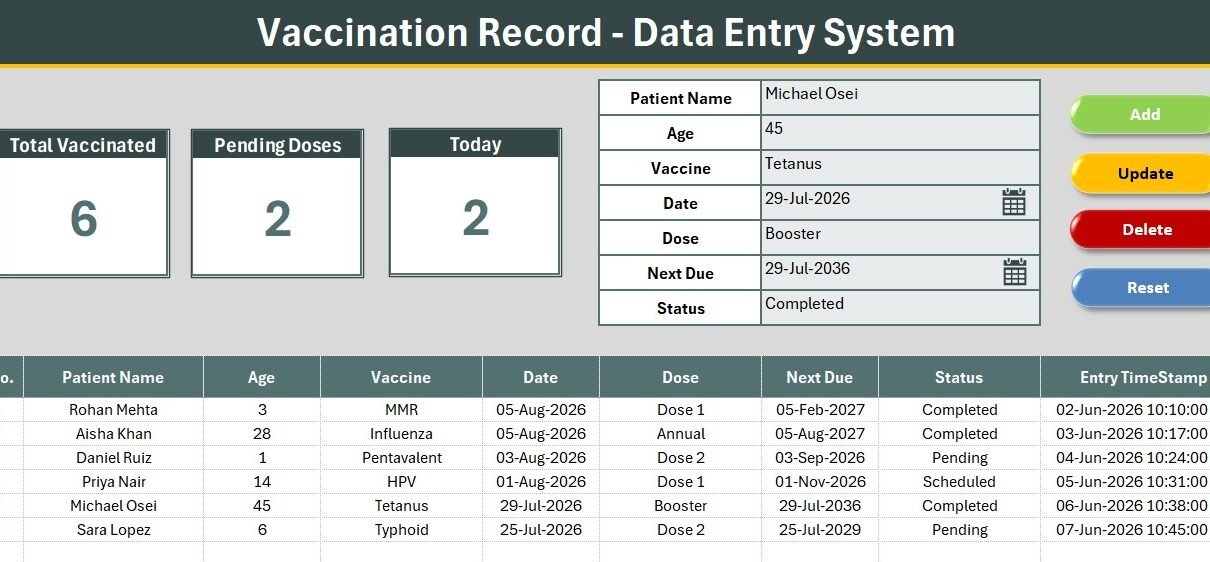
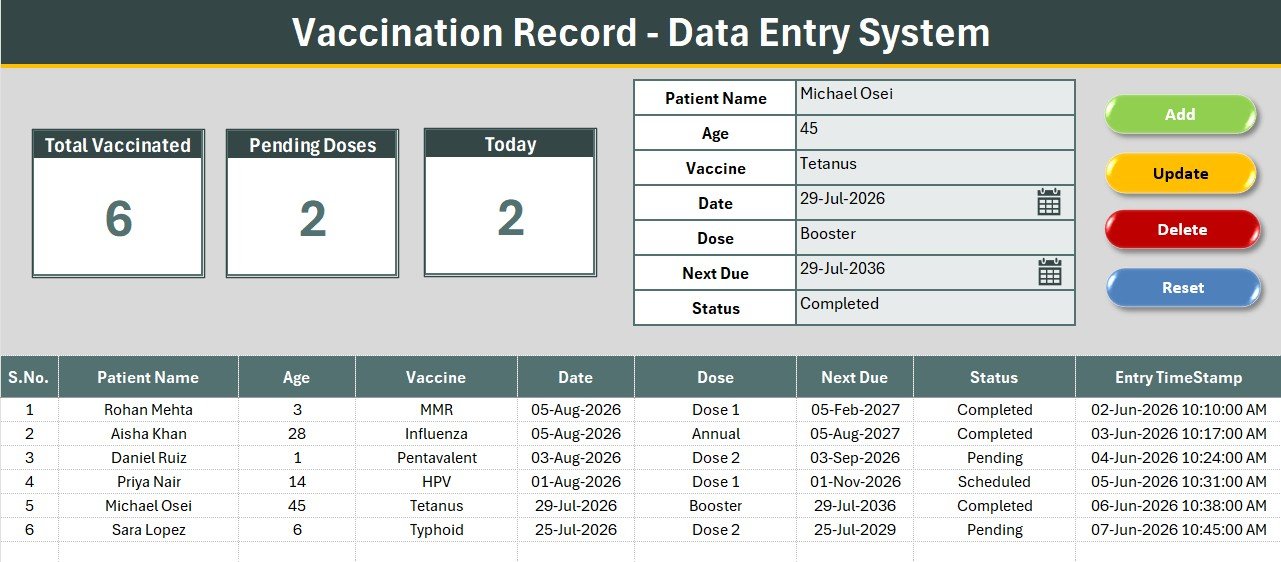
The Vaccination Record Data Entry System in Excel captures 7 fields per patient, drives 3 live KPI cards, and runs on 4 VBA macros. Its Setting sheet ships with 27 pre-loaded dropdown values — 17 vaccines, 6 dose stages and 4 status options — and the whole workbook activates in under 10 minutes with a single .bas import. Six sample records come pre-loaded so the KPI cards show real numbers the moment the file opens.
Most small clinics still track immunizations in a paper register or a flat spreadsheet where somebody typed “Hep B”, “HepB” and “Hepatitis-B” in the same column. Three months later nobody can answer a simple question like “how many second doses are still pending?” The Vaccination Record Data Entry System in Excel fixes that at the source: the fields that matter are dropdown-driven, the follow-up date is captured at the same moment as the shot, and the counts you actually report on are formulas rather than manual tallies.
Key Features of the Vaccination Record Data Entry System in Excel
A seven-field form built for a front desk. The form captures Patient Name, Age, Vaccine, Date, Dose, Next Due and Status. Only four of those require typing — Vaccine, Dose and Status are selected from lists, so the data stays clean enough to filter and pivot from day one.
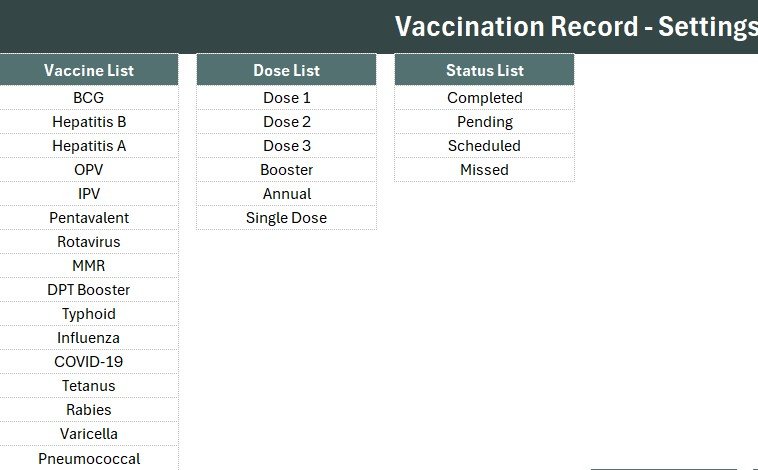
27 dropdown values, all editable. The Vaccine list holds 17 entries including BCG, Hepatitis B, Hepatitis A, OPV, IPV, Pentavalent, Rotavirus, MMR, DPT Booster, Typhoid, Influenza, COVID-19, Tetanus, Rabies, Varicella, Pneumococcal and HPV. Dose covers Dose 1, Dose 2, Dose 3, Booster, Annual and Single Dose. Status offers Completed, Pending, Scheduled and Missed. Every list lives on the Setting sheet and is wired to the form through a named range.
Three KPI cards that recalculate on their own. Total Vaccinated counts every record in the table. Pending Doses counts rows where Status equals Pending. Today counts vaccinations dated on the current system date, using a COUNTIFS formula bound to TODAY(). None of the three needs a macro run — they update the instant a row lands.
Four VBA macros covering the whole record lifecycle. Add_Record appends a new row, Update_Record rewrites the selected one, Delete_Record removes it after a confirmation prompt, and Reset_Form clears the input line. The module also includes an optional double-click loader so a staff member can click any record in the table and pull it straight back into the form for editing. If you want to understand what the code is doing, Microsoft’s Excel VBA object model reference is the authoritative source.
A Next Due column that prevents the most common failure. The reason multi-dose schedules break down is that nobody writes down when the next shot is due. Here it is a first-class field, filled in at the same moment as the current dose — which turns the follow-up call list into a simple filter rather than a research project.
Auto S.No and Entry TimeStamp. Column A renumbers itself through a formula as rows are added or deleted, and every record carries the date and time it was entered. That is a lightweight audit trail, enough for most internal clinic record-keeping policies.
Sheets Explanation
The workbook ships with four sheets — Data Entry, Setting, Instructions and Get More Templates — plus a separate .bas module holding the VBA. Here is what each one does.
Sheet 1: Data Entry
The working sheet. A gray dashboard panel holds the three KPI cards and the seven-field input form with its Vaccine, Dose and Status dropdowns. Four coloured button cells sit in a 2×2 block — green Add, red Delete, gold Update, dark-blue Reset — and the records table begins at row 15 with the auto S.No column on the left and the Entry TimeStamp column on the right.
Sheet 2: Setting
The control sheet. It holds the three source lists — Vaccine, Dose and Status — and adding a value to any column makes it appear in the form immediately. The three KPI cards are duplicated here too, so you can Copy → Paste Special → Linked Picture and drop a live set of counts into any report or slide.
Sheet 3: Instructions
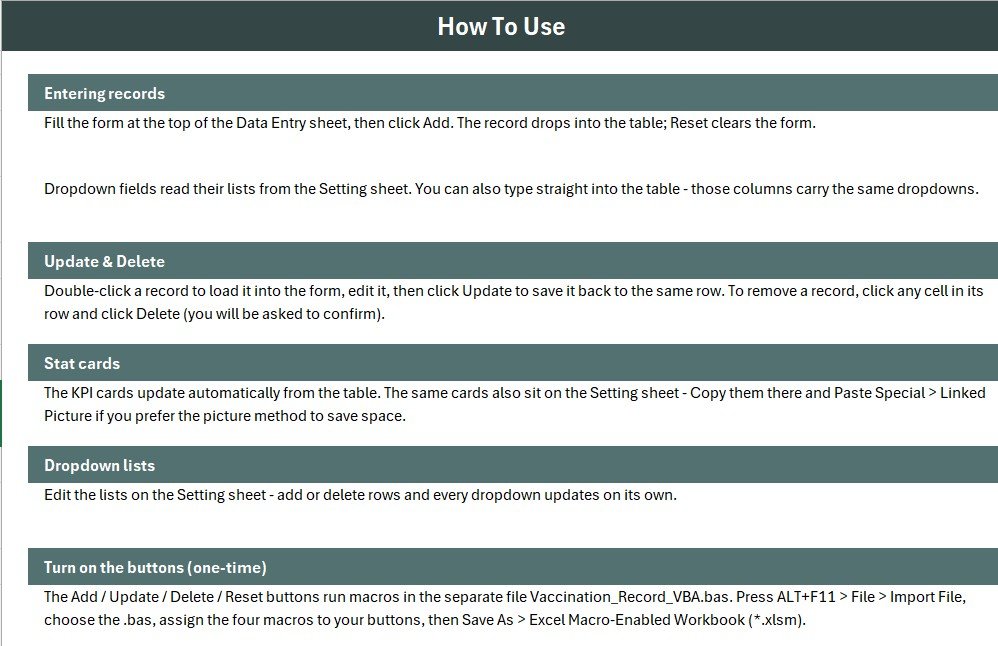
A plain-English activation guide covering the .bas import, the four button assignments and the Save As .xlsm step. It assumes no prior VBA knowledge, which means you can hand the file to a receptionist without booking a training session first.
Vaccination Record Data Entry System in Excel vs. Google Sheets Equivalent vs. Athenahealth / Kareo — Feature Comparison
| Feature | Vaccination Record Data Entry System in Excel | Google Sheets Equivalent | Athenahealth / Kareo |
|---|---|---|---|
| Cost | $5.99 one-time ✅ | Free to build, hours to assemble | $140-$500 / provider / month |
| Platform | Microsoft Excel (.xlsm) | Browser + Google account | Cloud EHR suite |
| Setup time | Under 10 minutes ✅ | 2-4 hours of scripting | 2-6 weeks onboarding |
| Works fully offline | Yes — no internet needed ✅ | No | No |
| Patient data stays on your machine | Yes ✅ | Stored on Google servers | Stored on vendor servers |
| Real-time team collaboration | No — one editor at a time | Yes ✅ | Yes ✅ |
| Mobile access | View only (macros disabled on mobile) | Yes ✅ | Yes ✅ |
| Editable fields and dropdown lists | Fully editable on the Setting sheet ✅ | Editable | Vendor-controlled |
| Year-1 cost at 5 users | $5.99 total ✅ | $0 + your build time | $8,400-$30,000 |
For clinics that want a tidy, auditable immunization log without paying EHR pricing or handing patient data to a vendor, the Vaccination Record Data Entry System in Excel sits in the sweet spot.
Who Should Use This Template
Perfect for:
- Small clinics, paediatric practices and single-doctor surgeries logging 20-500 vaccinations a month
- School and college health rooms tracking student immunization compliance
- Corporate HR and occupational-health teams running annual flu or travel-vaccine drives
- NGO and camp organisers who need an offline record in the field
- Veterinary clinics willing to swap the Vaccine list for an animal schedule
Not a fit if:
- You need HIPAA-certified hosting, role-based access and full audit logging — that is EHR territory
- Three or more people must enter records simultaneously; a single Excel file locks to one editor
- You want data entry from a phone — Excel mobile does not run VBA macros
- You need billing, insurance claims or e-prescribing in the same tool
Real-World Use Cases
Dr. Meera runs a two-room paediatric clinic. Every child’s shot is logged with the Next Due date filled in at the same moment. Each Monday she filters the records table by Status = Pending and works down the list calling parents whose follow-up dose has slipped. The paper register she used for eleven years is now a backup, not the system of record.
Arjun manages occupational health for a 120-person factory. During the annual influenza drive, the Today card sits on a second monitor at the vaccination desk as a live counter, and the Total Vaccinated card gives him the number he reports to the plant manager at the end of each shift — no manual counting, no end-of-day reconciliation.
Sister Rose coordinates a rural immunization camp. There is no reliable connectivity at the site, so she records everything offline on a laptop through the day and emails the workbook to the district office each evening. A cloud-only EHR would simply not function in that setting, which is a real constraint that global immunization programmes deal with constantly.
Advantages of the Vaccination Record Data Entry System in Excel
Cost. At $5.99 one-time against $140-$500 per provider per month for a cloud EHR, the payback is immediate for any practice that only needs an immunization log rather than a full practice-management suite.
Data hygiene. Because the three highest-variance fields are dropdown-driven, you never end up with four spellings of the same vaccine. That single design choice is what makes the Pending Doses count trustworthy.
Speed to value. Import, wire four buttons, save as .xlsm — under 10 minutes from download to first record, against weeks of onboarding for a commercial system.
Privacy by default. Nothing leaves the machine. For a small practice in a jurisdiction with strict local data-residency expectations, an offline file is often the simplest defensible answer.
Opportunities for Improvement
Being honest about the limits matters more than overselling. The system is single-user by design: Excel locks the file to one editor, so a three-person desk taking walk-ins simultaneously will hit friction. There is no automated reminder engine — the Next Due column tells you who is overdue, but somebody still has to filter it and make the calls. Macros do not run in Excel for the web or on mobile, so data entry is desktop-only. And there is no built-in encryption beyond Excel’s own password protection, which is not a substitute for a HIPAA-compliant platform if you are legally bound to one.
If any of those are dealbreakers, the honest recommendation is a shared Google Sheets build or a proper web app rather than forcing this template into a role it was not designed for.
Best Practices
- Edit the Setting sheet lists before your first real record, so you are never renaming values retroactively.
- Delete the six sample rows once you are comfortable with how Add and Update behave.
- Keep Status disciplined — Completed, Pending, Scheduled, Missed. The Pending Doses card is only as good as that column.
- Filter by Next Due weekly rather than monthly; a shorter cycle keeps second doses from drifting.
- Back up the .xlsm file daily. An offline system means the backup responsibility is yours.
- If more than one person needs the file, keep it on a shared drive and agree a simple “one editor at a time” rule.
Explore Relevant Templates
If this format suits how you work, the same engine has been applied to several other record-keeping problems:
- Prescription Record Data Entry System in Excel — the natural companion, logging medicine, dosage and duration per patient. There is also a full walkthrough of the prescription system on this blog.
- Salon Appointment Data Entry System in Excel — the same form-and-KPI pattern applied to bookings.
- Blood Bank Management System Tracker in Google Sheets — for teams that genuinely need shared, simultaneous access.
- Patient Care Homes Dashboard in Power BI — reporting layer, once the capture layer is solid.
- Healthcare Administrator Toolkit — nine healthcare templates bundled together at a steep discount.
Related reading on this blog: Course Enrollment Data Entry System in Excel, Hostel Room Allotment Data Entry System in Excel, and Inventory Management in Excel: From Basic Stock Sheet to Full VBA System.
Frequently Asked Questions
What fields does the Vaccination Record Data Entry System in Excel capture?
The Vaccination Record Data Entry System in Excel captures seven fields: Patient Name, Age, Vaccine, Date, Dose, Next Due and Status. Vaccine, Dose and Status are dropdown-driven from the Setting sheet, and every saved record also receives an automatic S.No and Entry TimeStamp.
Can I add my own vaccines to the dropdown?
Yes. Open the Setting sheet and type the vaccine into the Vaccine column. Each list is wired to the form through a named range, so the new value appears in the dropdown immediately — no VBA edit and no re-linking required.
How long does setup take?
Under 10 minutes. Import the .bas module through the VBA editor, draw and assign four buttons over the coloured cells, then Save As .xlsm. The Instructions sheet inside the Vaccination Record Data Entry System in Excel covers every step and assumes no prior VBA knowledge.
How does this compare to Athenahealth or Kareo?
Athenahealth and Kareo are cloud EHR platforms costing $140-$500 per provider per month with weeks of onboarding. The Vaccination Record Data Entry System in Excel is a $5.99 one-time offline log — no billing, no claims, no e-prescribing, but also no subscription and no patient data leaving your computer.
Does it work on Mac and older Excel versions?
Yes. The Vaccination Record Data Entry System in Excel uses standard VBA and formulas that run in Excel 2010 and later on Windows, and Excel for Mac 2016 and later. Macros must be enabled for the Add, Update, Delete and Reset buttons to function.
Why does the Today card show zero when I first open it?
The Today card counts records whose Date matches the current system date through a COUNTIFS formula tied to TODAY(). Sample rows dated earlier will not be counted. Add a record dated today and the card updates instantly.
Can I track pets or livestock with it?
Yes. Replace the 17 human vaccines on the Setting sheet with your animal schedule and the rest of the Vaccination Record Data Entry System in Excel works unchanged — the Dose, Next Due and Status logic is species-agnostic.
About the Author
Built by PK — Microsoft Certified Professional with 15+ years of Excel, Google Sheets, and Power BI experience. Founder of NextGenTemplates, reaching 300K+ subscribers across YouTube channels. Every template is hand-built and tested before release.
Conclusion
A vaccination log does not need to be complicated — it needs to be consistent. Seven fields, three dropdowns, three live counts and four buttons is enough structure to make the data reliable, and little enough to hand to a receptionist on their first morning. If your current immunization record is a paper register or a spreadsheet nobody trusts, this replaces it in the time it takes to make a cup of tea.
👉 Click here to Purchase the Vaccination Record Data Entry System in Excel
✅ Instant download · One-time payment · No subscription
🎥 For step-by-step video tutorials, visit Youtube.com/@PK-AnExcelExpert
Last updated: August 2026