Every club secretary and PE teacher knows the shoebox. Paper entry slips, a WhatsApp thread, three text messages and a note on the back of an envelope – and somewhere in there is the answer to “how many kids are actually running the 800 metres, and which of them has paid?” The Sports Event Data Entry System in Excel is the small, boring, extremely useful file that turns that pile into one list.
Sports Event Data Entry System in Excel
It is a macro-enabled Excel workbook (.xlsm) built around a seven-field form and four VBA buttons. You type a registration, click Add, and the row lands in a table with its own Record ID and a timestamp. Four cards at the top tell you how many entries you have, what the fees add up to, how many are paid and how many are still pending. That is the whole product – and this walkthrough goes through every sheet of it, including the places where the arithmetic does not do quite what the card label suggests. Sports Event Data Entry System in Excel
What the workbook actually is (and what it is not)
Let us get the honest part out of the way first, because it decides whether the rest of this article is worth your time.
This is a record-keeping workbook. Entrants cannot register themselves – there is no web form and no sign-up link. It takes no money, issues no receipts, and sends no confirmation or reminder e-mails. It does not build draws, seedings, heats, brackets or fixtures, and it records no results, times or scores. It does not check anybody’s age, hold a waiver, a consent form or a medical note, and it does not make your event insured, safeguarded or compliant with anything.
What it does do is take the entries that reach you by paper, phone and message, and hold them in one structured list that you can sort, filter and count. For a school sports day, an inter-house meet, a club tournament or a charity fun run, that is usually the actual problem.
The Data Entry sheet
The working page has four parts, laid out left to right across the top and then down.
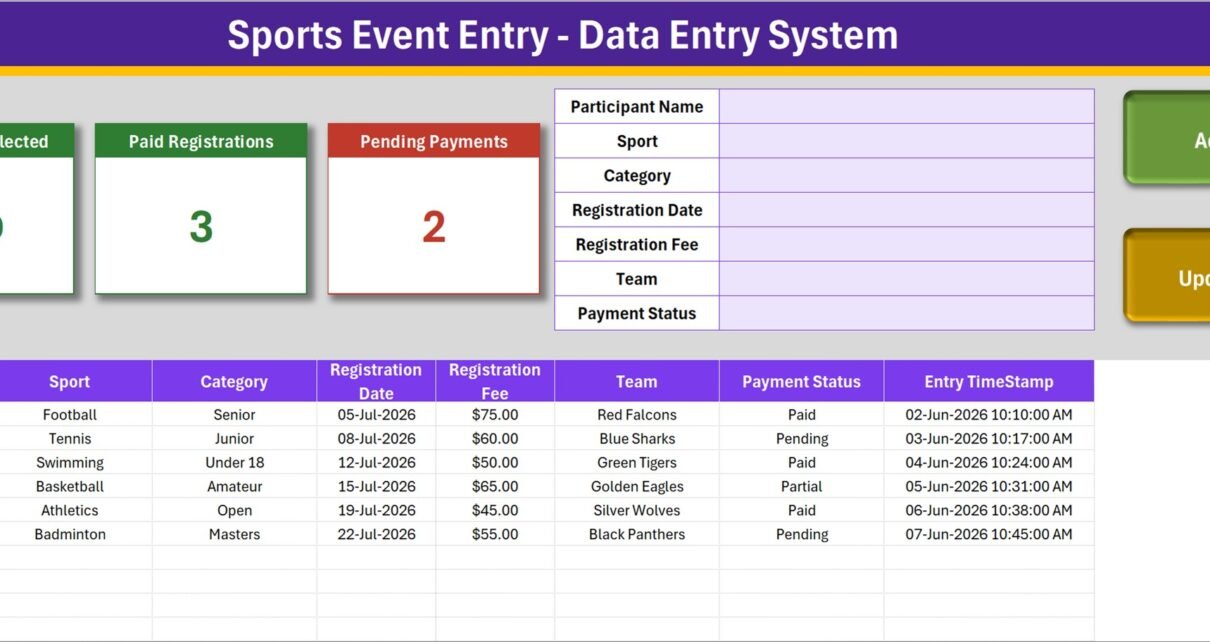
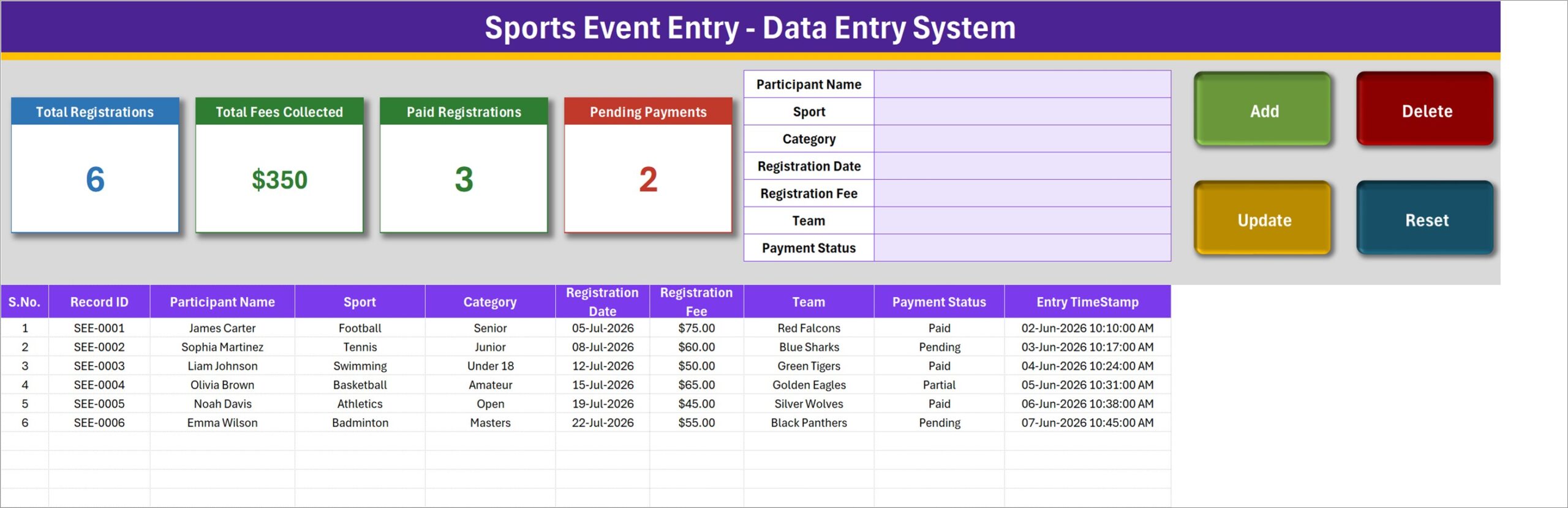
The four summary cards. Total Registrations, Total Fees Collected, Paid Registrations and Pending Payments. In the shipped sample data they read 6, $350, 3 and 2. They are linked pictures of master cards that live on the Setting sheet, which is why restyling the originals restyles the copies.
The entry form. Seven fields in a single block: Participant Name, Sport, Category, Registration Date, Registration Fee, Team and Payment Status. Four of them are dropdowns fed from the Setting sheet; Participant Name, Registration Date and Registration Fee are typed.
The four buttons. Add writes a new row. Update saves an edit. Delete removes a row after a confirmation that shows you the Record ID it is about to remove. Reset clears the form. All four are VBA, so the file has to be opened in desktop Excel with macros enabled.
The records table. Ten columns – S.No., Record ID, Participant Name, Sport, Category, Registration Date, Registration Fee, Team, Payment Status and Entry TimeStamp. The Record IDs run SEE-0001 upward and are generated for you; the Entry TimeStamp is stamped at the moment you click Add, quite separately from the Registration Date you typed.
The nicest touch is the double-click. Double-click any row and it loads back into the form with its Record ID remembered behind the scenes. Change what you need, click Update, and the workbook finds that record by ID wherever it has since moved to in the table. You never have to re-select the row first, which is exactly the step people forget in home-made versions of this.
The Setting sheet: your sports, your categories, your teams
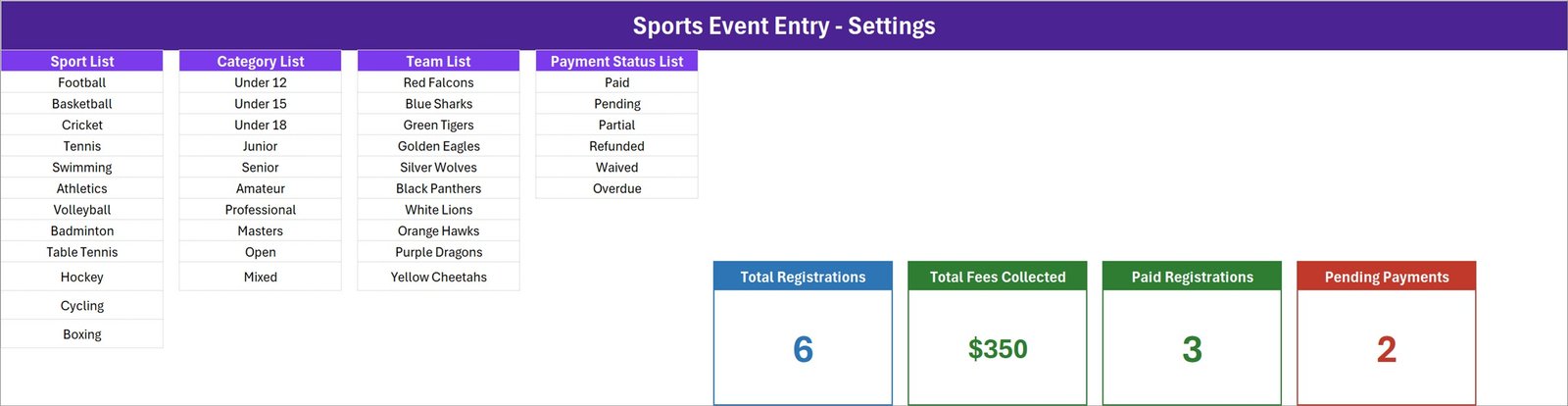
Four lists sit side by side here, and they are the part you should edit before you enter a single real registration.
- Sport List – 12 entries. Football, Basketball, Cricket, Tennis, Swimming, Athletics, Volleyball, Badminton, Table Tennis, Hockey, Cycling, Boxing.
- Category List – 10 entries. Under 12, Under 15, Under 18, Junior, Senior, Amateur, Professional, Masters, Open, Mixed.
- Team List – 10 entries. Sample club names from Red Falcons through to Yellow Cheetahs.
- Payment Status List – 6 entries. Paid, Pending, Partial, Refunded, Waived, Overdue.
The same four master cards live to the right of the lists, and their formulas are worth reading before you rely on the numbers. There is one thing the built-in instructions get slightly wrong, and it is better to know it now than to discover it at 9pm the night before an event: the How To Use sheet says the dropdown lists update on their own as you add rows. In fact each list is a fixed named range – Sport spans 12 rows, Category and Team 10 each, Payment Status 6 – so replacing or shortening entries takes effect immediately, while appending a thirteenth sport below the last row will not appear in the dropdown until you widen that named range in Formulas > Name Manager. It is a thirty-second fix, and worth doing on day one for any list you expect to grow. Sports Event Entry Data Entry System in Excel
The four cards, read carefully
This is the section I would want a buyer to read twice, because three of the four cards behave slightly differently from what their labels imply.
Total Fees Collected is not money collected. The formula sums the Registration Fee column for every row in the table, regardless of Payment Status. In the sample data that is $350 – but $115 of it sits against entrants marked Pending and $65 against a Partial payment. Only $170 is actually against rows marked Paid. Read the card as fees entered. If you want the banked figure, add a SUMIF on the Setting sheet that filters Payment Status to Paid, and point a card at it. Sports Event Data Entry System in Excel
The status cards do not sum to the total. There are six payment statuses but only two of them – Paid and Pending – have a card. In the sample data 3 Paid plus 2 Pending is 5, not 6, because one entrant is marked Partial. Refunded, Waived and Overdue have no card either. Nothing is broken; there simply are not enough cards for the list, and if that matters to you the fix is another COUNTIF alongside the existing ones. Sports Event Data Entry System in Excel
Total Registrations counts names, not records. The formula is a COUNTA over the Participant Name column rather than the Record ID column. In normal use the two are identical, because you always type a name. But a row saved with the name field left blank will be stored in the table and never counted on the card. Pointing that COUNTA at the Record ID column instead makes the card bulletproof. Sports Event Data Entry System in Excel
Paid Registrations and Pending Payments are straight counts – those two do exactly what they say.
One cosmetic note while you are in there: the money card is formatted to whole dollars while the table column carries cents, so a fee total that ends in cents will round on the card. And in the shipped sample the Registration Dates fall in July 2026 while the Entry TimeStamps are early June 2026, which reads as though records were created before the dates they carry. It is demo data and you will delete it, but it is the kind of thing that makes a careful buyer squint, so it is better said out loud. Sports Event Entry Data Entry System in Excel
The How To Use sheet
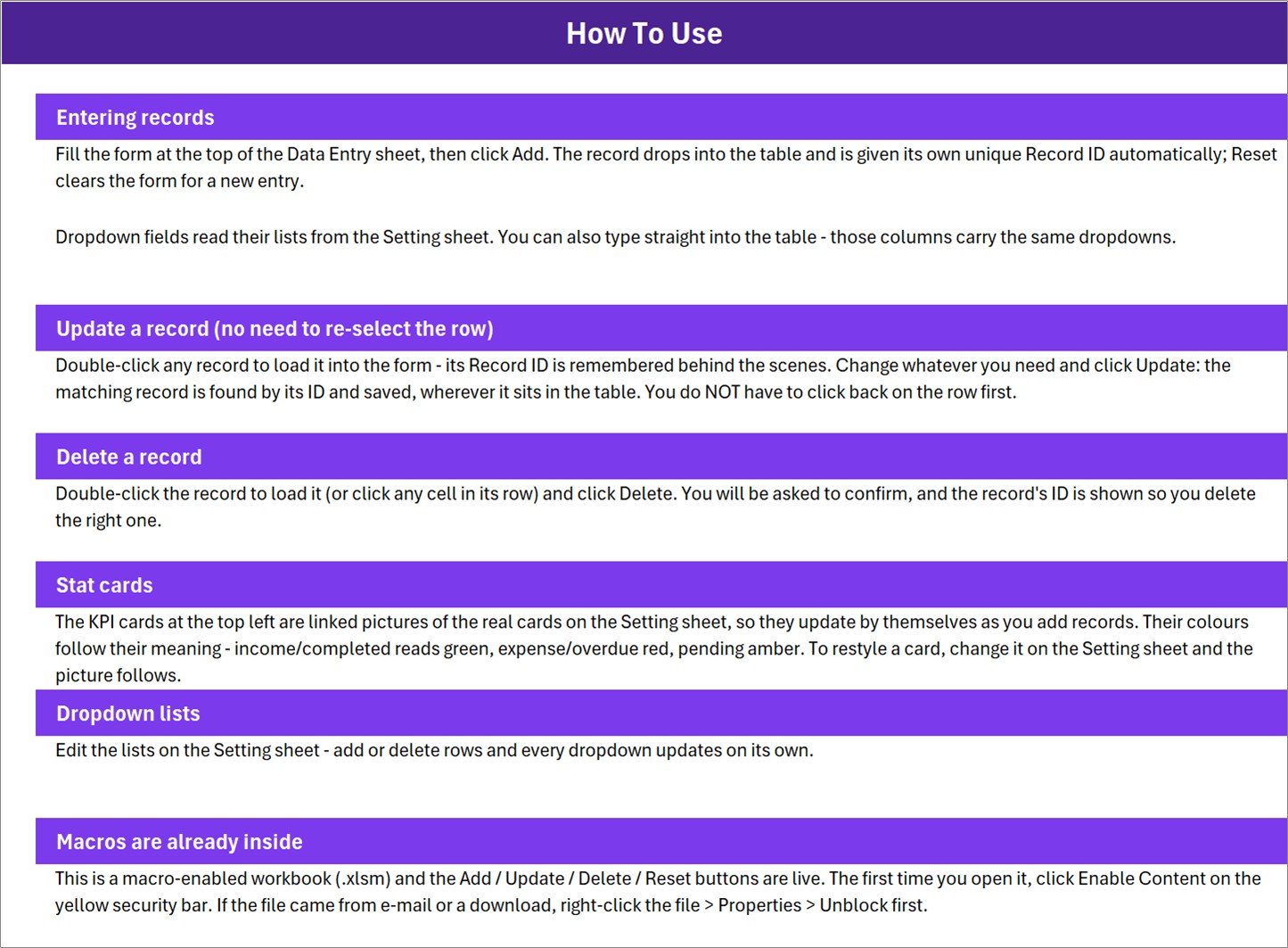
Six short sections are written into the workbook itself – entering records, updating a record without re-selecting the row, deleting a record safely, how the stat cards work, editing the dropdown lists, and enabling macros. It is genuinely useful, and it means the file explains itself to whoever inherits it from you next season.
Two caveats on that sheet. The dropdown section makes the “updates on its own” claim discussed above. And the stat-cards paragraph describes card colours in generic terms – “income/completed reads green, expense/overdue red, pending amber” – which is boilerplate shared across this family of workbooks rather than a description of these four particular cards. The mechanism it describes (the cards are linked pictures of the Setting-sheet originals) is correct. Sports Event Data Entry System in Excel
There is also a fourth sheet, Get More Templates, which is a one-page index of the wider catalogue with nothing to fill in. Sports Event Entry Data Entry System in Excel
A realistic first hour with the file
- Unzip and unblock. Right-click Sports_Event_Entry_System.xlsm, choose Properties, tick Unblock. Windows marks files that arrived by download or e-mail, and macros stay dead until you clear that flag.
- Open it in desktop Excel and click Enable Content on the yellow bar. Google Sheets and Excel for the web do not run VBA at all, so the buttons will do nothing there.
- Rewrite the four lists on the Setting sheet to match your event – your sports, your age groups, your house or club names, your payment states. Extend a named range if a list needs to be longer.
- Delete the six sample rows.
- Enter ten real registrations to get a feel for the rhythm: fill the form, Add, Reset, repeat. Then double-click one and Update it, and delete one, so you have seen all four buttons work before the entries start arriving for real.
- Decide your fee workflow. Most people run Pending → Partial → Paid, filter the Payment Status column to Pending once a week, and chase from that filtered list.
Who gets the most out of it
School sports days. Entry slips come back by class; one person types them against a Sport and an Under 12 / Under 15 / Under 18 category, then sorts by Sport and prints a list per event.
Club leagues and tournaments. Players entered against a Team with a fee each. Filter to Pending on a Thursday, send one round of reminders instead of ten.
Charity fun runs. Registrations by phone and paper at the club, volunteers marked Waived, and Total Registrations as the headcount handed to the marshals.
It is a poor fit if you need entrants to sign themselves up online, if you need to take entry fees inside the tool, if several officials must enter registrations simultaneously, or if you want draws and results. Those are different products, and this one is honest about not being them. Sports Event Entry Data Entry System in Excel
A note about the names in your file Sports Event Data Entry System in Excel
The Participant Name column holds real people, and in the youth categories those people are children. A spreadsheet of minors’ names sitting on an open shared drive is a genuine risk, not a theoretical one. Keep the file somewhere access-controlled, share it only with the officials who need it, do not e-mail it around casually, delete it once the event is over, and follow whatever data-protection rules apply where you organise. The workbook gives you no protection here; that part is on you. Sports Event Data Entry System in Excel
Frequently asked questions
Can entrants register themselves?
No. Someone in the organising team types each registration into the form and clicks Add. There is no portal, no link and no self sign-up. Sports Event Data Entry System in Excel
Does it collect entry fees?
No. Registration Fee and Payment Status are columns you fill in yourself to record what was agreed and what has arrived. There is no gateway, no invoice and no receipt.
Does it produce fixtures, heats or results?
No. It stores entries. No draw, no seeding, no bracket, no scoring, no ranking.
Why don’t the Paid and Pending cards add up to the total?
Only two of the six payment statuses have a card. Partial, Refunded, Waived and Overdue entries are counted in Total Registrations but appear on neither status card.
Do I have to enable macros?
Yes – the four buttons are VBA. Open it as a macro-enabled .xlsm in desktop Excel and click Enable Content. Sports Event Data Entry System in Excel
Will it run on a Mac, on the web, or in Google Sheets?
It is built and tested for desktop Microsoft Excel on Windows. Google Sheets and Excel for the web do not run VBA. Excel for Mac is not guaranteed. Sports Event Data Entry System in Excel
How many entries does it hold?
The in-table dropdown validation is applied to rows 15 to 214 – 200 record rows, which covers most school and club events comfortably. Rows below that still accept data, they just have no dropdown validation until you extend it. Sports Event Data Entry System in Excel
Where to get it
The Sports Event Data Entry System in Excel is a one-off purchase on NextGenTemplates – instant download, lifetime access, free future updates. You get a single ZIP containing Sports_Event_Entry_System.xlsm.
If the entry list is only part of what you need, a few neighbours are worth a look:
- Sports & Recreation Dashboard in Excel – charts and analysis for when one season’s worth of events needs a picture.
- Sports KPI Dashboard in Excel – the season-level scorecard above individual events.
- Course Enrollment Data Entry System in Excel – the same form-and-buttons build for course sign-ups.
- Gym Membership Tracker in Google Sheets – the browser-based option when several people need shared access.
- Adventure Sports Booking Management System Web App – a full multi-user system for when a workbook is no longer enough.
Built by PK – Microsoft Certified Professional, 15+ years in Excel, Google Sheets and Power BI, and founder of NextGenTemplates. Video walkthroughs of templates like this one are on YouTube. Sports Event Data Entry System in ExcelExcel
Last updated: 29 August 2026.