Most diet plans fail on logistics long before they fail on willpower. The batch-cook that never got scheduled, the grocery run that slipped a week, the review appointment nobody wrote down. The Diet Plan Calendar in Excel is a macro-enabled workbook that puts those dates in one place: you type each entry once, and four linked views — Annual, Monthly, Daily and This Month — redraw themselves from that single list.
Before we go further, let us be blunt about what this is. It is a calendar. It stores dates, times, labels, locations and notes that you type. It does not count calories or macros, holds no food database, sizes no portions and calculates nothing about your body. It is not medical or nutritional advice, it was not written or reviewed by a dietitian, nutritionist or physician, and it does not replace one. If you are planning or changing a diet, a fasting schedule or any other health routine, talk to a qualified professional. This workbook only helps you remember when things are meant to happen.
What This Template Is — and What It Is Not
It is: a seven-sheet Excel workbook with an Events table, an entry form, and four ways of looking at the same list. It ships with 100 sample entries covering 2026 so you can see the layout populated. It is a one-time purchase you own outright, works offline, and keeps your data in a file on your own machine.
It is not:
- Not nutritional or medical advice. It gives no guidance about what to eat, when to fast, how much to weigh or anything else, and it is not a substitute for a registered dietitian, nutritionist, physician or other qualified professional.
- Not reviewed by a clinician. No dietitian, nutritionist or doctor wrote, checked or endorsed this file or the words in its sample rows.
- Not a calorie or macro counter. No food database, no nutrient table, no portion sizing, no scoring. The Events sheet has seven columns and not one of them is nutrition data.
- Not an outcome claim. Nothing here promises or implies anything about weight, body composition, blood sugar, energy, adherence or health.
- Not a patient record, EHR or clinic system. It is not HIPAA, GDPR or any other health-data certified, and it does not encrypt what you type.
- Not a reminder service. No SMS, no email, no push notification. It is a file you open.
- Not the sample plan. The 100 sample labels — “16:8 Fast Day”, “BMI Review”, “Blood Sugar Check-Up”, “Planned Cheat Meal” — are placeholder text to show the layout. They are not a recommended protocol and you should replace them with whatever you and your own professional have agreed.
Key Features of the Diet Plan Calendar in Excel
- Seven tabs — Home, Annual View, Monthly View, Daily View, This Month, Events, Setting.
- One source table — every view reads the Events sheet, so nothing is typed twice and nothing can drift out of sync.
- Pop-up entry form with a date picker and a time picker; the Day box fills itself from the date you choose.
- Add, Update and Delete buttons on the Events sheet.
- 100 sample entries — 01 Jan 2026 to 31 Dec 2026, 8 or 9 per month, 40 distinct labels, 7 locations, times from 06:30 to 20:00.
- Setting sheet — year, starting month, first day of the week, two highlighted weekdays, an event-highlight switch and a five-option colour theme.
- Verified sample data — we recomputed all 100 weekdays against their dates before release. 100 checked, zero mismatches, no duplicate IDs and no duplicate dates.
- Macro-enabled .xlsm for Excel on Windows.
Sheets Explanation
Home — the navigation menu
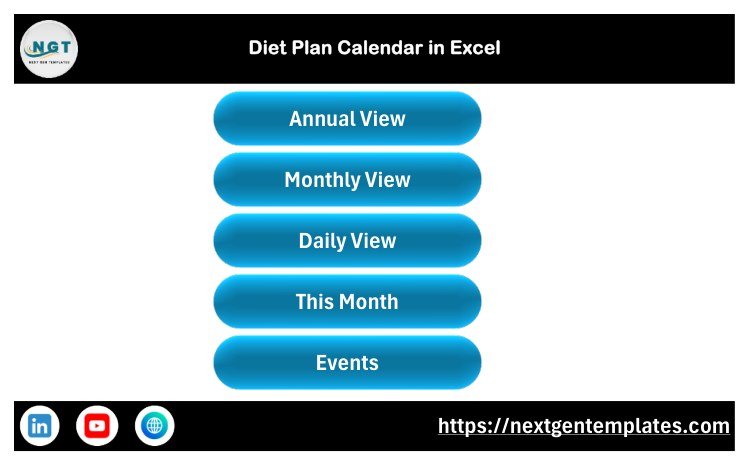
Five buttons under the title: Annual View, Monthly View, Daily View, This Month, Events. It is a menu and nothing else; each button jumps to a sheet. Useful mainly because it stops you hunting along the tab strip.
Annual View — the whole year on one page
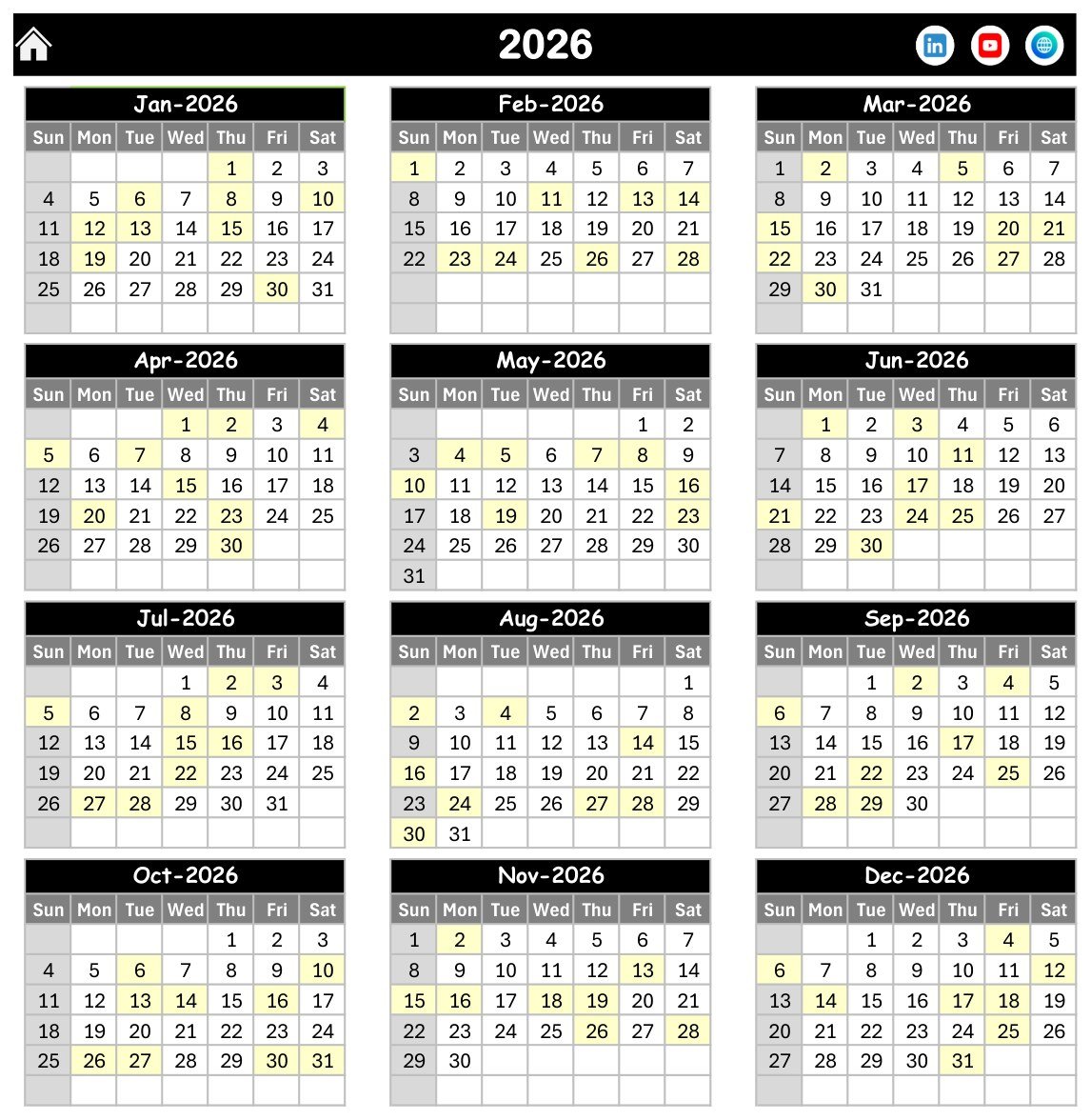
Twelve mini-months in a three-by-four grid, each with a Sun-to-Sat header, under the year heading. Dates carrying an entry are shaded pale yellow. This is the page for spotting that March is empty and October is stacked. It is also the most formula-driven sheet in the workbook — 602 formulas — and it recalculates the moment you change the year on Setting.
Monthly View — the month you are working in
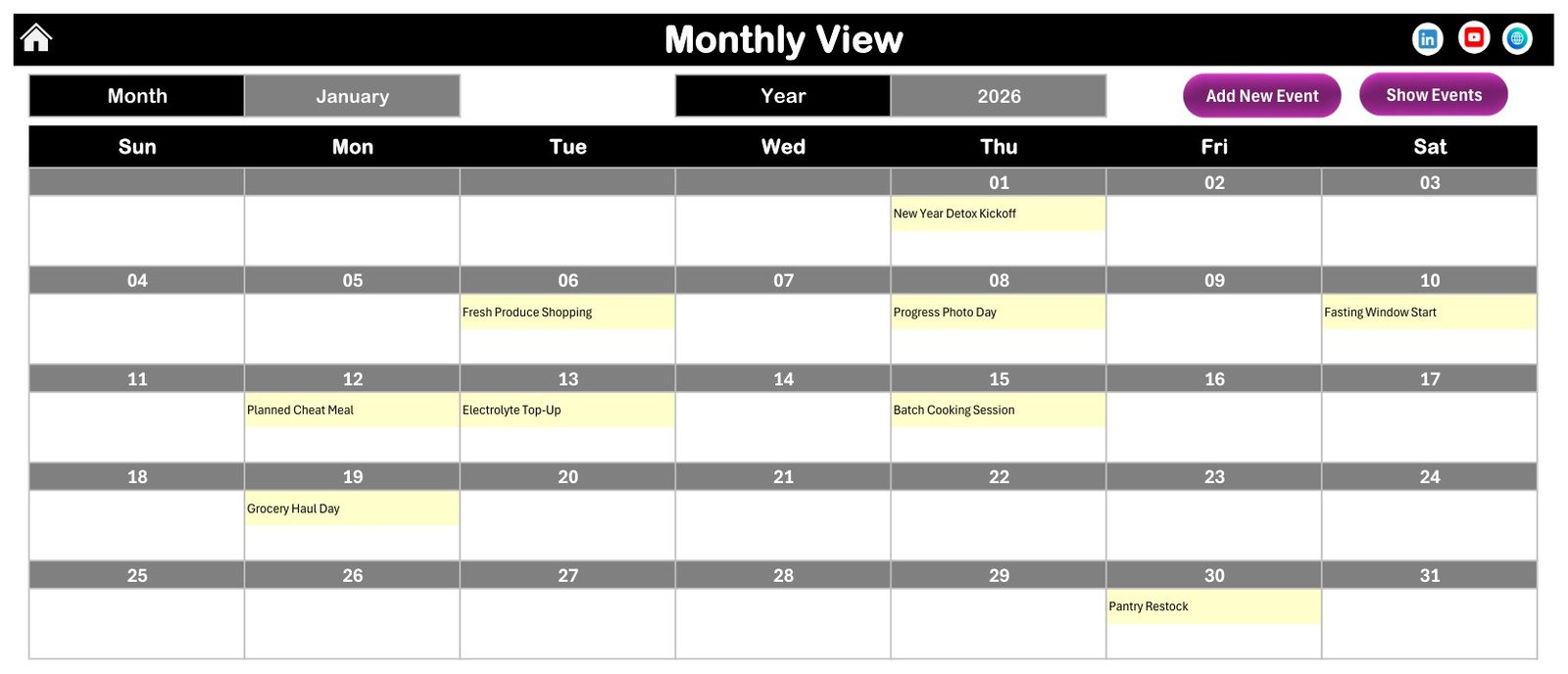
A Month box and a Year box at the top, a Sun-to-Sat grid beneath, and the entry name written into the cell for its date. In the January 2026 sample you can read New Year Detox Kickoff on Thursday the 1st, Fresh Produce Shopping on Tuesday the 6th, Progress Photo Day on Thursday the 8th, Fasting Window Start on Saturday the 10th and Pantry Restock on Friday the 30th. Two buttons sit beside the pickers: Add New Event opens the form, Show Events redraws the grid.
Daily View — the printable range list
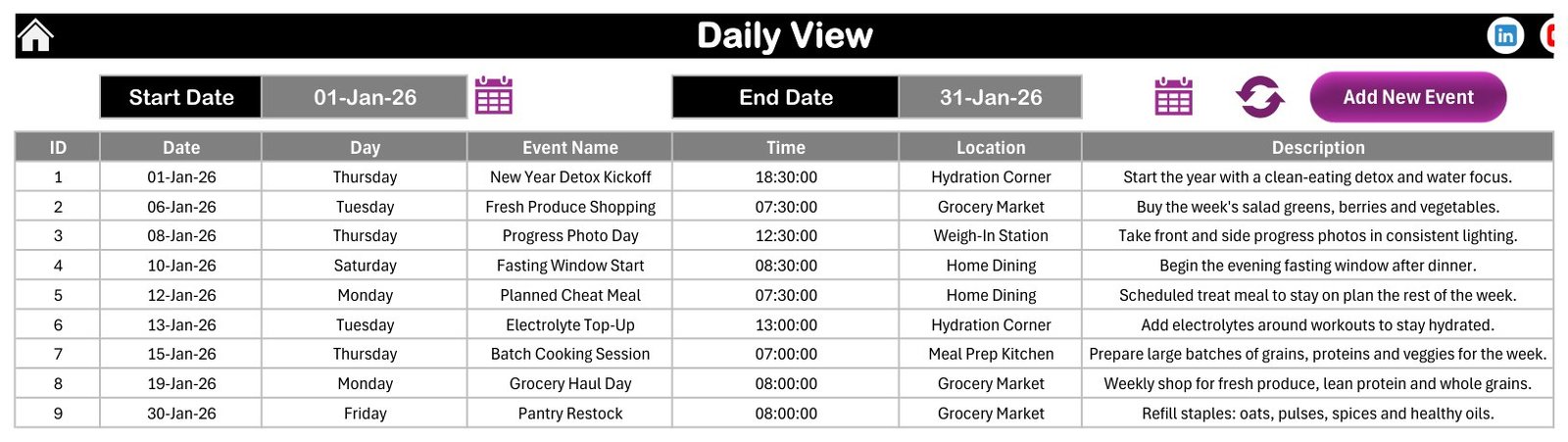
Set a Start Date and an End Date and the sheet lists everything between them — ID, Date, Day, Event Name, Time, Location, Description. This is the page you print for the week and stick on the fridge or the kitchen wall. A refresh button rebuilds the list; an Add New Event button opens the form.
This Month Summary — counts, not analysis
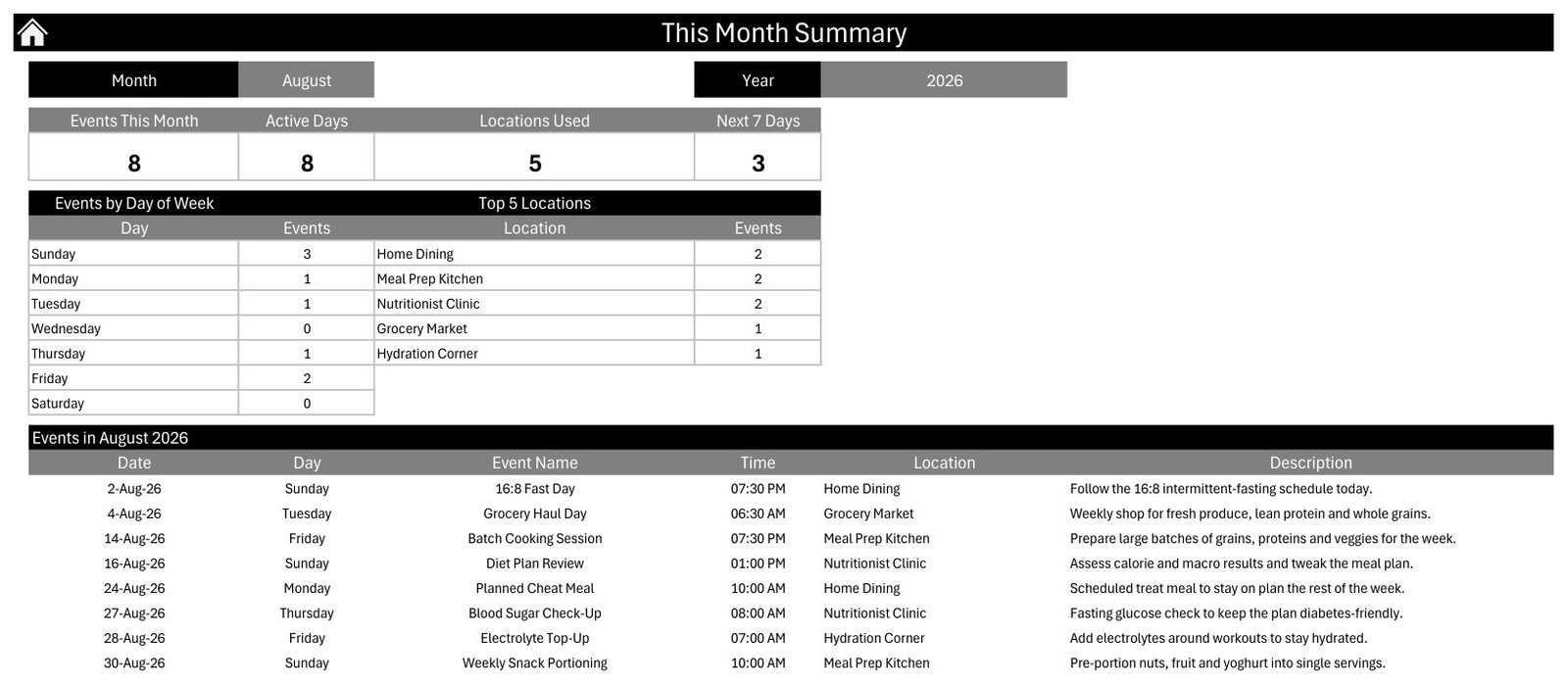
Pick a month and a year and read four numbers: Events This Month, Active Days, Locations Used and Next 7 Days. Under them an Events by Day of Week table and a Top 5 Locations table, then the full list for that month. In the August 2026 sample: 8 events across 8 active days in 5 locations, 3 of them in the next seven days, with Home Dining, Meal Prep Kitchen and Nutritionist Clinic tied at two apiece.
Be clear about what those numbers mean. They are counts of rows you typed. They measure nothing nutritional and say nothing about how a plan is going.
Events — the table everything reads from
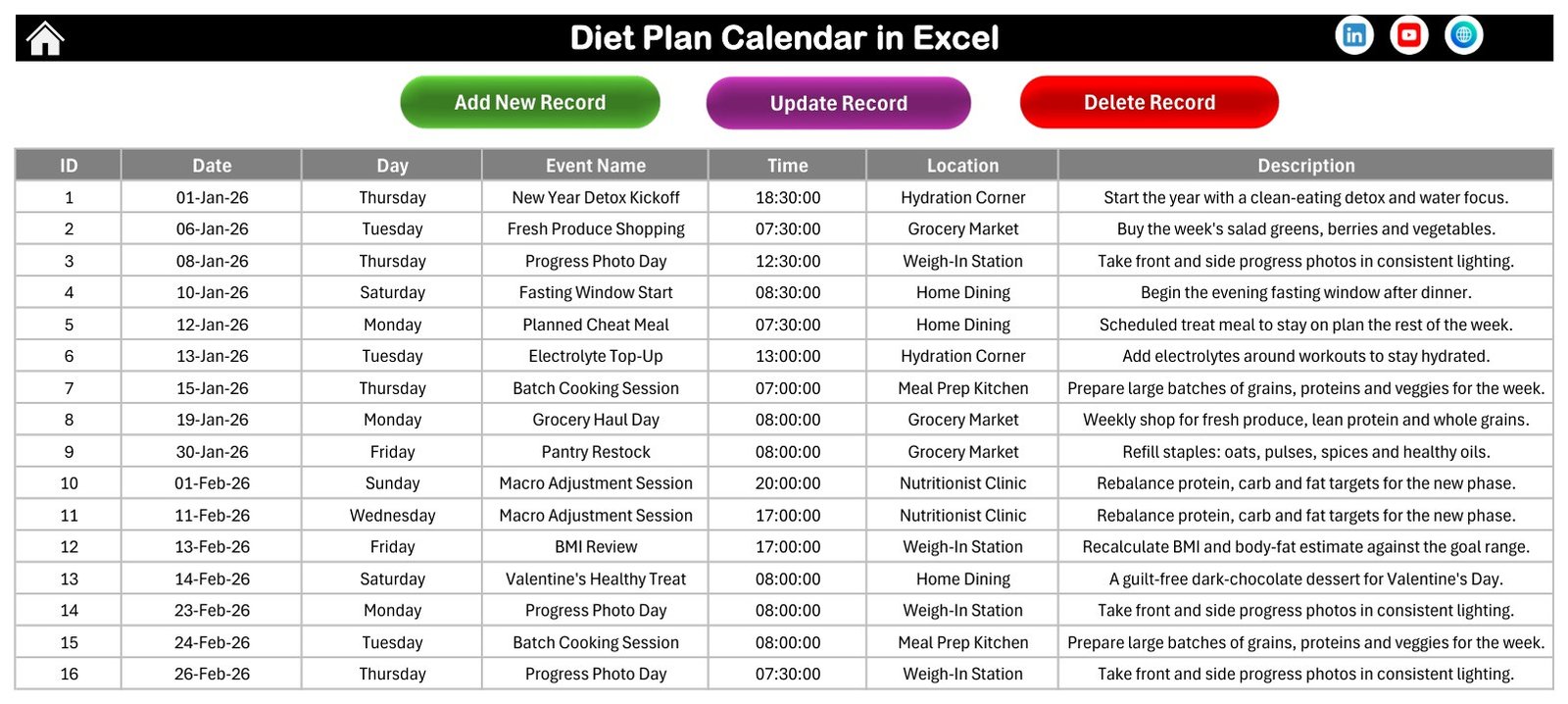
Seven columns — ID, Date, Day, Event Name, Time, Location, Description — and three buttons: Add New Record, Update Record, Delete Record. Everything else is a view of this. Notice what is absent: no person name column, no weight column, no calorie column, no measurement column, no medical column. The schema simply has nowhere to put personal health data, which is by design.
The entry form
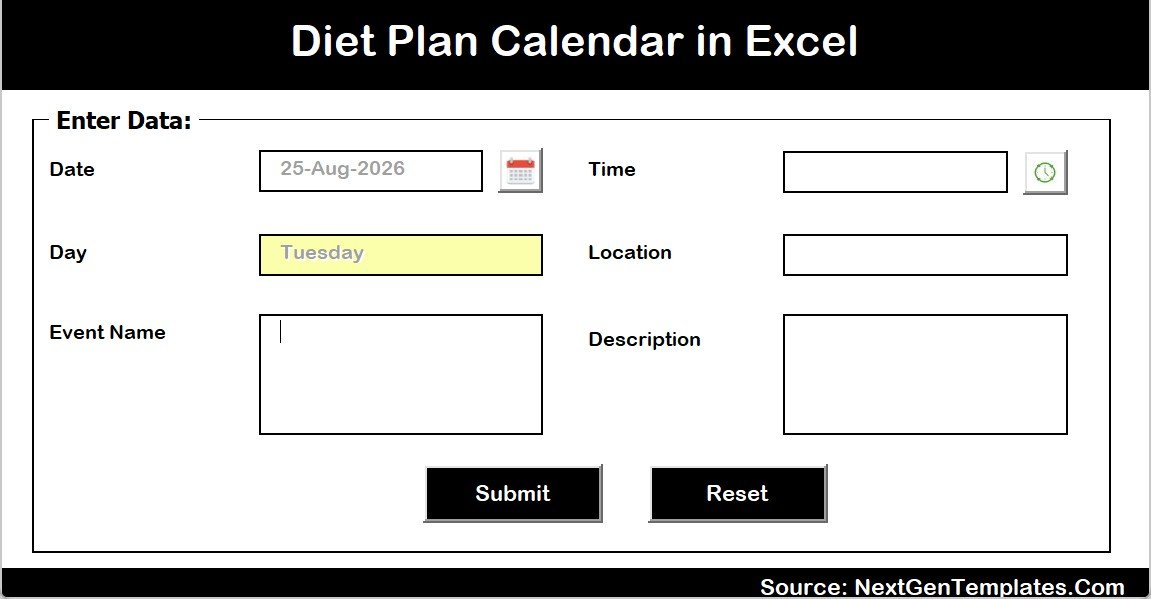
Date with a calendar picker, Time with a clock picker, plus Location, Event Name and Description boxes, and Submit and Reset buttons. The Day box derives itself from the date — pick 25-Aug-2026 and it writes Tuesday. Submit appends the row to Events and every view picks it up.
Three Honest Notes About How It Works
1. Macros are load-bearing
We counted the formulas on every sheet of the file that ships: Annual View 602, Monthly View 113, Setting 38, Events 1 — and Daily View 0, This Month 0. Those two pages contain no formulas whatsoever. They are drawn entirely by VBA when you click into them. So “enable macros” is not a formality here: with macros off you lose two of the five views outright, plus all three record buttons and the entry form. Click Enable Content, and always save as .xlsm — save as .xlsx and Excel silently strips every macro out of the file.
2. The Day column is typed text, not a formula
On the Events sheet, all 100 Day values are literal words written once by the entry form. They are correct as shipped — we recomputed every one against its date and found zero mismatches. But because they are text and not formulas, if you later edit a date by typing over it the weekday beside it will quietly stay wrong. Two fixes: re-enter the row through the form, or replace the column with a formula. Put this in C5 and fill it down:
=TEXT(B5,"dddd")After that the weekday derives itself from the date and can never drift again.
3. The year list follows today’s date
The Setting sheet builds its year drop-down starting from YEAR(TODAY())-5, and the sample entries are dated 2026. If you open the file in a later year you may need to pick 2026 from the list to see the sample data — or, more likely, you will just replace the sample with your own dates and never notice.
Who Should Use This Template
Good fit:
- Anyone following a plan already agreed with a professional who simply wants the dates in one place.
- Batch-cookers and meal-preppers who want cooking and grocery days visible across the whole year.
- Households coordinating shared dinners and who cooks when.
- Coaches and nutrition professionals who want a simple offline session diary and are willing to use client codes (see the privacy note below).
- Anybody who would rather own a file than rent an app.
Poor fit: if you want calorie or macro counting, weight logging, fasting-window logging, automatic reminders, a phone app, multi-user cloud editing, or a clinical record system, this is the wrong tool. It does none of those and is not trying to.
If You Schedule Other People
Coaches sometimes use a calendar like this for client sessions, so this needs saying plainly. The workbook is an unencrypted .xlsm on your disk, with no user accounts, no permissions and no audit trail, and its Description column will hold anything at all that you type into it.
So do not type client names, phone numbers, email addresses or anything about a person’s health into it. Label each booking with an internal code — “C-014, 09:00 review” — and keep the code-to-person key in a separate file with its own access control. Never put this workbook, or a copy of it, anywhere that is readable by “anyone with the link”. And whether a particular use is lawful where you practise is a question for you and your own compliance adviser, not for a template listing.
Real-World Use Cases
- Sunday-prep household. Sunday Meal Prep, Overnight Oats Prep and Salad Jar Assembly go into Monthly View; the Daily View print-out for the coming week goes on the fridge.
- Grocery rhythm. Grocery Haul Day, Farmers Market Run and Pantry Restock across the Annual View means a restock never sneaks up on you.
- Appointment diary. Nutritionist Consultation and review dates sit alongside everything else rather than in a separate app you forget to open.
- Coaching practice. Book client review slots by code, print the week from Daily View, and read Top 5 Locations to see where sessions are actually happening.
- Shared kitchen or flatshare. Family Balanced Dinner and Mindful Eating Dinner entries tell everyone which nights are cooked together.
- Seasonal blocking. The sample shows Spring Diet Reset, Summer Hydration Challenge, Thanksgiving Mindful Feast and Christmas Balanced Feast placed across the year — an example of blocking out the dates that always need forethought.
Advantages of the Diet Plan Calendar in Excel
- One entry, four views. Type it once; Annual, Monthly, Daily and This Month all update.
- Genuinely offline. No account, no sync, no server holding your schedule.
- One-time cost. No subscription and no upsell treadmill.
- Prints well. Daily View is built to be printed for a date range, which is what most kitchens actually want.
- Editable to the bone. It is a spreadsheet. Rename the columns, recolour it, add your own sheet.
- Honest scope. It does one job — scheduling — and does not pretend to do nutrition science.
Opportunities for Improvement
Three things we would change, said out loud rather than hidden:
- The Day column should be a formula. It is typed text, so edited dates leave a stale weekday. The
=TEXT(B5,"dddd")fix above takes ten seconds and removes the problem permanently. - Two views depend entirely on VBA. Daily View and This Month have zero formulas, which is why they need macros and why the file cannot be used in Excel for the web or on a phone. A formula-driven version would be more portable.
- There is no recurrence. A weekly grocery run has to be entered 52 times, or copied down the Events sheet by hand. If you want recurring entries, copy a block of rows and edit the dates in bulk.
Best Practices
- Enable macros on open, and save as .xlsm every single time. Saving as .xlsx destroys the workbook’s working parts.
- Set the year first, on the Setting sheet, before you type anything.
- Replace the Day column with the formula if you expect to edit dates.
- Keep labels short. Monthly View writes the entry name into a date cell; a fifty-character label will not read well there.
- Use Location consistently. The Top 5 Locations table is only useful if “Kitchen” and “kitchen” are not two different places.
- Keep a backup copy before a big clear-out. There is no undo once you have saved.
- Never put personal or health details in the Description column. Codes only, key kept separately.
Explore Relevant Templates
- Calorie & Macro Tracker in Google Sheets — for the counting this calendar deliberately does not do.
- Weight Loss Tracker in Google Sheets — for logging measurements over time.
- Intermittent Fasting Tracker in Google Sheets — for recording fasting windows.
- Patient Follow-Up Visit Calendar in Excel — the same calendar engine, set up for follow-up visits.
- Home Nursing Visit Calendar in Excel — the same engine, for home visit rounds.
- Lab Sample Collection Calendar in Excel and Veterinary Clinic Calendar in Excel — two more from the Excel calendar line.
- Browse the full Calendar category.
- Being prepared, not yet on sale: Meal Prep & Batch Cooking Tracker in Google Sheets (product 91378), Nutrition & Dietetics Dashboard in Google Sheets (product 91477) and Optical Store Appointment Calendar in Excel (product 92210).
More on this blog: Ambulance Duty Calendar in Excel, Doctor On-Call Calendar in Excel and Dialysis Session Calendar in Excel.
Frequently Asked Questions
Is the Diet Plan Calendar in Excel medical or nutritional advice?
No. It is a scheduling workbook. It stores dates and text you type and shows them in four layouts. It offers no dietary, nutritional or medical guidance, makes no health claim, and is not a substitute for a registered dietitian, nutritionist, physician or other qualified professional. Speak to one before starting or changing a diet or fasting routine.
Does it count calories or macros?
No. There is no food database, no nutrient table and no calculation of calories, macros, portions or body metrics anywhere in the file. The Events sheet columns are ID, Date, Day, Event Name, Time, Location and Description — none of them nutrition data.
Was it written or reviewed by a dietitian?
No. No dietitian, nutritionist or clinician wrote, reviewed or endorsed this workbook or its sample text.
Do I have to enable macros?
Yes, and it genuinely matters. Daily View and This Month contain zero formulas and are written entirely by VBA, and the Add / Update / Delete buttons and the entry form are macros too. With macros disabled you lose two of the five views and every button. Always save as .xlsm.
Does it work on Mac, in Excel for the web, or on a phone?
It is built for Microsoft Excel on Windows desktop. Excel for the web and the mobile apps do not run VBA at all, so the macro-driven pages will not work. Excel for Mac runs VBA but does not support the ActiveX form controls this workbook uses, so the entry form is unreliable there.
Why does the weekday not change when I edit a date?
Because the Day column is typed text, written once when the row was created — all 100 sample values are literals, not formulas. Retype the day, re-enter the row through the form, or put =TEXT(B5,"dddd") in C5 and fill it down so the weekday derives itself from the date.
Can I use it to schedule clients?
You can schedule sessions, but do not type client names, contact details or health information into it. It is an unencrypted file with no access control and no certification. Use an internal code per client, keep the key in a separate access-controlled file, and check your own professional and data-protection obligations first.
What is in the sample data, and must I keep it?
100 entries dated 01 Jan 2026 to 31 Dec 2026 — 8 or 9 a month, 40 distinct labels, 7 locations (Weigh-In Station, Meal Prep Kitchen, Home Dining, Grocery Market, Hydration Corner, Nutritionist Clinic, Fitness Studio) and times between 06:30 and 20:00. Every weekday was checked against its date. Delete the lot and start clean if you prefer; nothing depends on it.
Can I change the year, the colours or the first day of the week?
Yes, all on the Setting sheet: year, starting month, first day of the week, two highlighted weekdays, an event-highlight switch and a colour theme with five options (Default, Blue, Red, Black, Orange). It ships on Black.
Is there a Google Sheets version?
Not of this calendar. This is the Excel edition and it depends on VBA, which Google Sheets does not run, so the file cannot simply be uploaded there. The nutrition-related Google Sheets templates listed above are separate products with different jobs.
Get the Template
The Diet Plan Calendar in Excel is available on NextGenTemplates.com. The download is a single ZIP containing the macro-enabled workbook and the Excel Calendar user manual. One-time payment, unlimited downloads, no expiry.
Step-by-step Excel walkthroughs are on youtube.com/@PKAnExcelExpert, and the template channel is youtube.com/@NextGenTemplates.
This article and the template it describes are for scheduling and organisation only. Nothing here is medical, nutritional or dietary advice, and none of it replaces a consultation with a qualified professional.