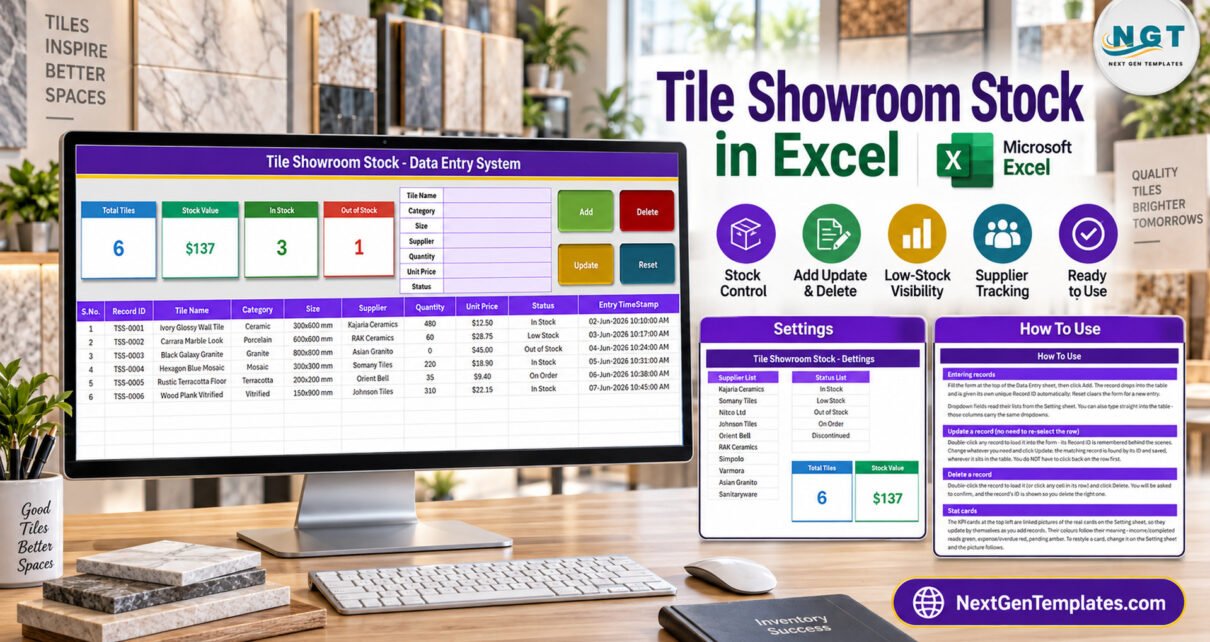
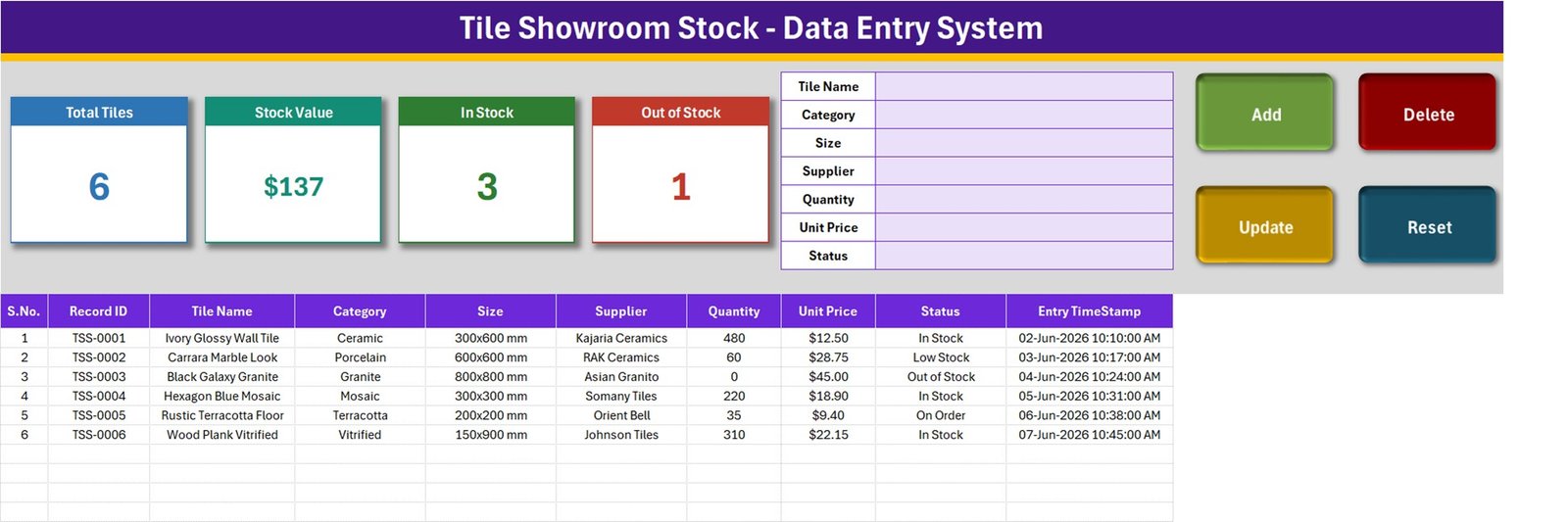
A tile showroom carries the same design in several sizes, from several suppliers, in several categories – ceramic, porcelain, vitrified, granite – which is why a stock book kept on paper quietly loses track of a size that has sold out. The Tile Showroom Stock Data Entry System in Excel is a macro-enabled workbook of about 64 KB with four sheets that turns that stock book into a single seven-field form: type the tile, click Add, and the row is written with its own Record ID and a timestamp. This walkthrough covers exactly what the workbook does, what it does not do, and how to read the four stat cards before you rely on them.
Key Features of the Tile Showroom Stock Data Entry System
Everything below was read from the shipped workbook itself, so what you see here is what opens on your screen.
- A seven-field entry panel – Tile Name, Category, Size, Supplier, Quantity, Unit Price and Status, in a lilac block at the top of the Data Entry sheet.
- Four VBA buttons – Add (green), Delete (red), Update (amber) and Reset (teal). They are macros inside an
.xlsm, so you need Excel for Windows desktop with Enable Content clicked. - Sequential Record IDs – the macro writes
TSS-0001,TSS-0002and so on, plus an Entry TimeStamp in the format 02-Jun-2026 10:10:00 AM. - Update by ID rather than by row – double-click a record, change it, click Update. The matching Record ID is found wherever it now sits, so sorting the table does not break editing.
- Four stat cards – Total Tiles, Stock Value, In Stock and Out of Stock, each a linked picture of a live formula cell on the Setting sheet.
- Four dropdown lists – 10 tile categories, 9 sizes, 10 suppliers and 5 stock statuses, all editable on the Setting sheet.
- A ten-column register – S.No., Record ID, Tile Name, Category, Size, Supplier, Quantity, Unit Price, Status and Entry TimeStamp, with dropdown validation from row 15 to row 214.
Sheet-by-Sheet Walkthrough
1. Data Entry
This is the only sheet you work in day to day. The purple banner reads “Tile Showroom Stock – Data Entry System”; below it sit the four cards, the form, the four buttons on the right, and then the table. The workbook ships with six sample tiles so you can watch the buttons behave before you clear them:
- TSS-0001 Ivory Glossy Wall Tile – Ceramic, 300×600 mm, 480 at $12.50, In Stock
- TSS-0002 Carrara Marble Look – Porcelain, 600×600 mm, 60 at $28.75, Low Stock
- TSS-0003 Black Galaxy Granite – Granite, 800×800 mm, 0 at $45.00, Out of Stock
- TSS-0004 Hexagon Blue Mosaic – Mosaic, 300×300 mm, 220 at $18.90, In Stock
- TSS-0005 Rustic Terracotta Floor – Terracotta, 200×200 mm, 35 at $9.40, On Order
- TSS-0006 Wood Plank Vitrified – Vitrified, 150×900 mm, 310 at $22.15, In Stock
On that sample the cards read Total Tiles 6, Stock Value $137, In Stock 3 and Out of Stock 1. Keep the Stock Value figure in mind – the limits section below explains why it is not what the name suggests.
2. Setting
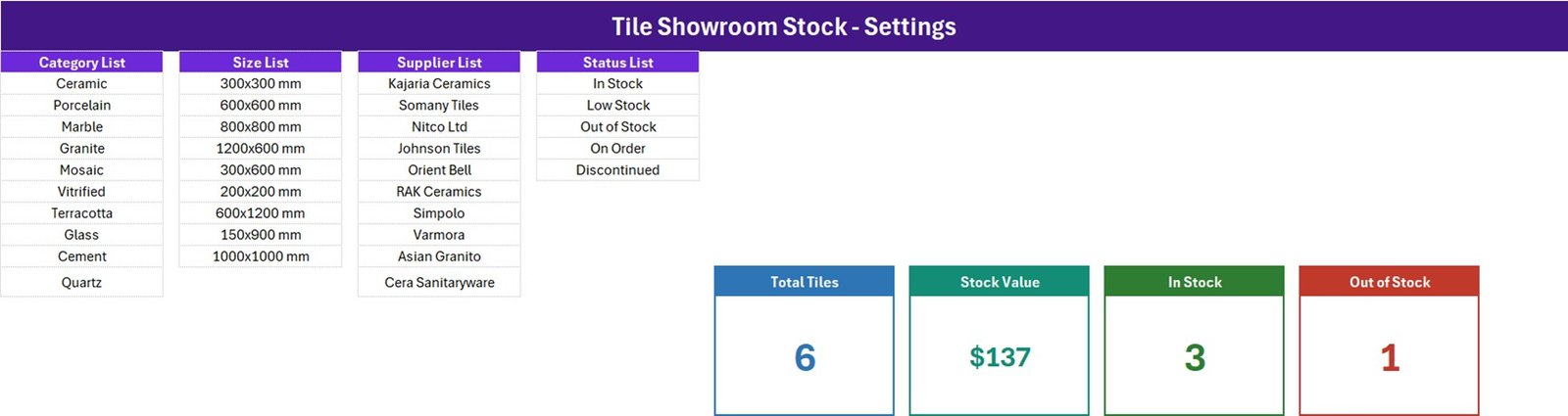
Four lists side by side, plus the four real KPI cells the Data Entry pictures point at. The Category List holds Ceramic, Porcelain, Marble, Granite, Mosaic, Vitrified, Terracotta, Glass, Cement and Quartz. The Size List runs 300×300, 600×600, 800×800, 1200×600, 300×600, 200×200, 600×1200, 150×900 and 1000×1000 mm. The Supplier List carries ten sample supplier names, and the Status List holds In Stock, Low Stock, Out of Stock, On Order and Discontinued. Every one of those is yours to rewrite. The supplier names are illustrative sample entries only – the template has no affiliation with any manufacturer.
3. Instructions
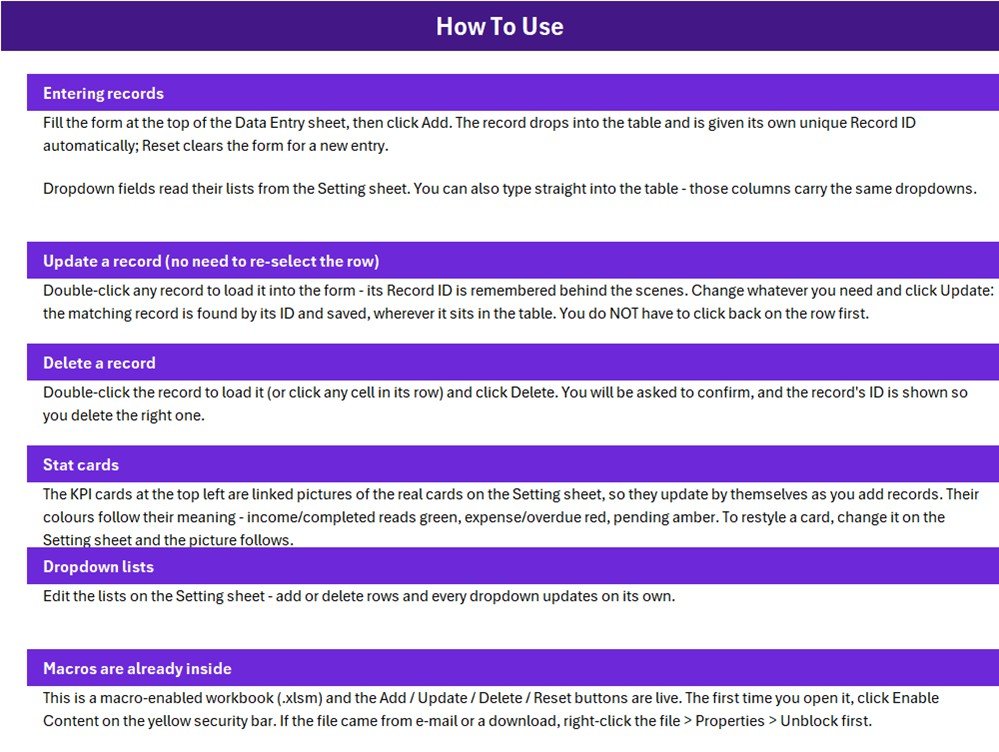
A How To Use page with six short sections: entering records, updating a record without re-selecting the row, deleting a record, the stat cards, the dropdown lists and enabling macros (including right-click > Properties > Unblock for a downloaded file). Two sentences on this sheet overstate the build, and both are covered in the limits section.
4. Get More Templates
A links sheet back to the NextGenTemplates catalogue. It has no effect on your data.
Excel Workbook vs. Google Sheets vs. Inventory Software – Feature Comparison
| What matters | This workbook | A Google Sheets stock list | Zoho Inventory / ERP software |
|---|---|---|---|
| Cost | $6.99 once | Free, but you build it | Recurring monthly subscription |
| Platform | Excel for Windows desktop, macros on | Any browser | Browser and mobile apps |
| Setup time | Under 5 minutes | 1 – 3 hours of building | Days, often with onboarding |
| Real-time team collaboration | No – single user | Yes | Yes |
| Mobile access | No | Yes | Yes |
| Customizable fields | Yes, edit the sheet and the VBA | Yes | Within the vendor’s model |
| Share with link | No – send the file | Yes | Yes |
| Batch, shade and barcode tracking | No | No, unless you add it | Usually yes |
| Automatic reorder alerts | No – Status is set by hand | No, unless you build it | Yes |
Who Should Use This Template
A single tile showroom, a flooring and bath fittings counter that still keeps a stock book, or a small tile trader holding a few hundred lines. It suits anyone who wants every tile, size and supplier in one dropdown-controlled list they can sort, filter and hand to an accountant.
It is the wrong tool for a multi-branch dealer that needs one shared stock figure, anyone who must track batch, shade or calibre lots, box-to-square-metre conversion or breakage, and any business that wants billing, purchase orders or barcodes. Nothing reduces Quantity when a sale happens – you edit it yourself.
Real-World Use Cases
Anita, single-counter tile showroom. She keeps around 250 lines on display and in the back store. Each Saturday she updates Quantity and moves anything running thin to Low Stock, then filters the Status column on Monday morning to see which suppliers to call.
Farhan, store assistant at a flooring shop. He sorts the table by Size and Category, so a customer asking for a 600×600 mm porcelain gets an answer in seconds, and the Entry TimeStamp shows which lines have not moved since the last delivery.
Joseph, small tile trader. He uses On Order and Discontinued to separate what is genuinely sellable from what is still in transit or being cleared out.
Advantages
- Clean data by design – Category, Size, Supplier and Status are dropdowns, so “600 x 600”, “600x600mm” and “60×60” never end up as three different sizes.
- An audit trail for free – every line carries a Record ID and the moment it was entered.
- Five-minute setup – rewrite four lists, delete six sample rows, start typing.
- Yours to change – an unlocked
.xlsm, so fields and macros can be adapted.
Opportunities for Improvement – Honest Limits
- Stock Value is a sum of unit prices, not inventory value. The card is
SUMof the Unit Price column with no quantity multiplier and no status filter. On the sample it reads $137 – the six unit prices added together – while those six lines at their listed quantities are worth $19,078.50. Add a Quantity x Unit Price column if you need a real valuation. - Only two of the five statuses have a card. In Stock and Out of Stock are counted; Low Stock, On Order and Discontinued are not, so the cards never add up to Total Tiles.
- Total Tiles counts lines, not tiles. It is a
COUNTAof the Tile Name column, so it reports how many records exist, not how many boxes are on hand, and a row saved without a name is never counted. Quantity is not totalled anywhere. - The dropdown lists do not auto-extend. The Instructions sheet says every dropdown updates on its own when you add rows, but the four named ranges are exactly as long as the shipped lists (10, 9, 10 and 5 items). A new supplier typed below the last one will not appear until you widen
SupplierListin Formulas > Name Manager. - Status is manual. A line at quantity 0 is only Out of Stock if you choose that status.
- 200 validated rows. Rows 15 to 214 carry the dropdowns; past that, copy the validation down.
Best Practices
- Pick one quantity unit – boxes, pieces or square metres – and write it into the Tile Name or a header note so nobody mixes them.
- Put the design code or shade in the Tile Name (for example “Carrara Marble Look – Shade B”) because there is no separate batch field.
- After editing a list on the Setting sheet, check its named range in Name Manager before you rely on the dropdown.
- Keep a dated backup copy of the file each month; it is a single-user desktop workbook.
Explore Relevant Templates
- Hardware Store Inventory Data Entry System in Excel – the same form-and-cards build for a hardware counter.
- Footwear Shop Stock Data Entry System in Excel – sizes, brands and stock status for a shoe shop.
- Stationery Shop Stock Data Entry System in Excel – a small-shop stock register in the same family.
- Cosmetics Shop Stock Data Entry System in Excel – retail stock with the same buttons and cards.
- Flooring and Tiles Dashboard in Excel – the reporting layer for the tile trade once you have months of data.
Frequently Asked Questions
Does it warn me when a tile runs low?
No. There is no reorder point and no alert, and there is no Low Stock card. Status is a dropdown you set by hand; filter the Status column to see low lines.
Is the Stock Value card the value of my stock?
No. It adds the Unit Price column only. Multiply Quantity by Unit Price in a spare column for a true figure.
Can I track boxes and square metres?
There is one Quantity column and no unit field, so choose one unit and use it consistently.
Will it work in Excel for the web or on a Mac?
Excel for the web cannot run VBA, so the buttons will not work there. It is built and sold as an Excel for Windows desktop tool.
Can two staff use it at the same time?
No. It is a single-user desktop file.
Can I add my own categories and suppliers?
Yes – edit the lists on the Setting sheet, then widen the matching named range in Formulas > Name Manager so the dropdown picks up the new rows.
About the Author
Built by PK – Microsoft Certified Professional with 15+ years of Excel, Google Sheets, and Power BI experience. Founder of NextGenTemplates, reaching 300K+ subscribers across YouTube channels. Every template is hand-built and tested before release.
Conclusion
The Tile Showroom Stock Data Entry System in Excel does one job properly: it keeps a disciplined, timestamped register of every tile line in your showroom, with category, size, supplier and status locked to dropdowns so the data stays clean. It is not inventory software, it does not bill anything, and two of its four cards need reading with the notes above in mind. Within those limits it replaces a paper stock book in five minutes.
Get the template on NextGenTemplates – one ZIP, one workbook, instant download, no subscription.
For step-by-step Excel and VBA walkthroughs, subscribe at youtube.com/@PKAnExcelExpert.