Part of the free Module 6: Data Validation · Lesson 5 of 14 · Full Excel course
Updated on 5 September 2026 · Works in Excel 365, 2021, 2019 and 2016 unless noted.
Time validation in Excel restricts a cell so it accepts only genuine time values that meet a condition, such as between 09:00 and 17:00, after 08:30 or not equal to 12:00. Text such as “10 am”, decimal numbers and out-of-range times are rejected. You set it up with Data > Data Validation, Allow: Time, and it works the same way in Excel 2016 through Microsoft 365.
How Excel stores times
Excel stores a time as a fraction of one day. Midnight is 0, noon is 0.5 and 18:00 is 0.75. A cell that shows 09:30 really holds 0.395833, and the time number format only changes how it is displayed. The Time rule compares this fraction with your limits, which is why it can reject 09:59 for a window that starts at 10:00, and why an entry stored as text always fails: text has no fraction to compare.
| Time shown | Value stored | How to calculate it |
|---|---|---|
| 00:00 | 0 | 0 hours ÷ 24 |
| 06:00 | 0.25 | 6 ÷ 24 |
| 09:00 | 0.375 | 9 ÷ 24 |
| 12:00 | 0.5 | 12 ÷ 24 |
| 17:00 | 0.708333 | 17 ÷ 24 |
| 18:00 | 0.75 | 18 ÷ 24 |
| 23:59:59 | 0.999988 | 86,399 ÷ 86,400 seconds |
Because a time is just a number, the Time setting covers 00:00:00 to 23:59:59 only. Anything at or above 1 is a date-time or a duration, and those need the Date or Decimal setting, or a Custom formula.
Step by step: allow times between 10:00 and 22:00
This example limits a call log to the hours a support desk is open. The same steps work for any start and end time.
- Select the cells that will hold the times, for example C2:C200.
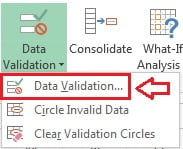
- On the ribbon go to Data > Data Tools > Data Validation and click the top half of the Data Validation button.
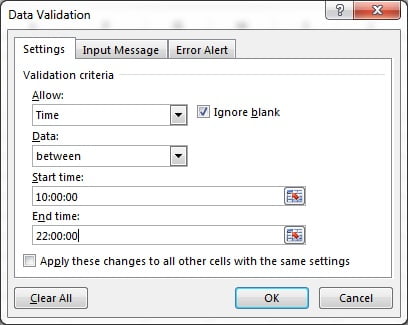
- On the Settings tab set Allow to Time.
- Set Data to between.
- Type 10:00:00 in Start time and 22:00:00 in End time. Excel converts what you type into the stored fraction.
- Click OK.
- Test the rule. Type 10:00, 3:15 PM and 22:00; all are accepted. Type 09:59, 23:00 or the word noon; each one triggers the error alert.
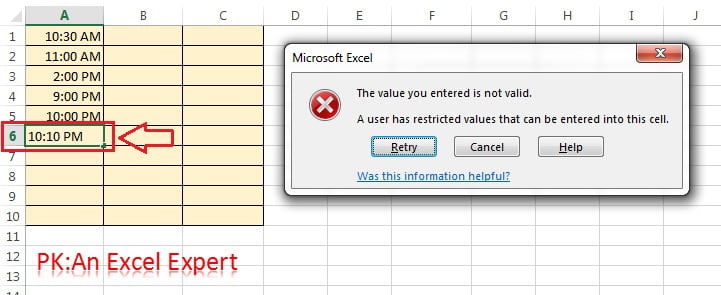
Both limits are inclusive, so 22:00:00 passes but 22:00:01 does not. If your users enter seconds, allow for that when you choose the end time.
The eight comparison options
The Data drop-down offers the same eight operators as the Whole number, Decimal and Date settings. Pick the one that matches the rule you want to enforce.
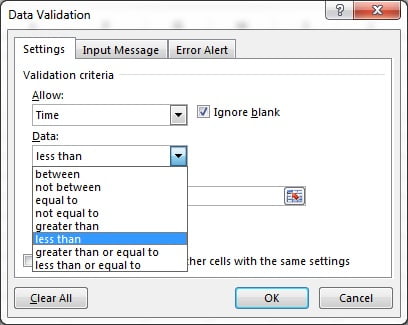
- between and not between: inside or outside a Start time and End time, both ends included.
- equal to and not equal to: exactly one permitted time, or one forbidden time such as 00:00 to stop blank-looking entries.
- greater than and less than: later or earlier than the limit, excluding the limit itself.
- greater than or equal to and less than or equal to: the limit and later, or the limit and earlier.
Common time rules and the setting to use
Most real time rules fall into a handful of patterns. Three of them can be done with the Time setting; the rest need the Custom setting with a formula, which is covered in custom validation basics.
| Rule | Setting | What to enter (cell A2 selected) |
|---|---|---|
| Shift window 09:00 to 17:00 | Time, between | Start 9:00:00, End 17:00:00 |
| No entries before opening at 08:30 | Time, greater than or equal to | Start 8:30:00 |
| Block the lunch hour 13:00 to 14:00 | Time, not between | Start 13:00:00, End 14:00:00 |
| 15-minute slots only | Custom | =MOD(A2*96,1)=0 |
| 30-minute slots between 09:00 and 17:00 | Custom | =AND(A2>=TIME(9,0,0),A2<=TIME(17,0,0),MOD(A2*48,1)=0) |
| End time after start time in the same row | Custom (on the end-time cell C2) | =C2>B2 |
| Night shift 22:00 to 06:00 | Custom | =OR(A2>=TIME(22,0,0),A2<=TIME(6,0,0)) |
The slot formulas work because a day has 96 quarter-hours and 48 half-hours. Multiplying the time fraction by 96 gives a whole number only when the time sits exactly on a 15-minute boundary. Floating-point rounding can occasionally make MOD return a value such as 0.0000001 instead of 0; if that happens use =MOD(ROUND(A2*96,6),1)=0.
Using TIME() and cell references as limits
The Start time and End time boxes accept formulas as well as typed times. Three forms are useful:
=TIME(9,0,0)means 09:00 whatever the regional date and time settings, so a workbook shared between offices behaves the same everywhere.=$H$1reads the limit from a settings cell. A manager can change the opening time in H1 without reopening the dialog on 200 cells.=NOW()-INT(NOW())is the current time of day, useful for “cannot be later than now” on a log sheet.
Always start these with an equals sign. If you type TIME(9,0,0) without it, Excel treats the text as an invalid time and refuses to close the dialog.
Worked example: appointment slots from 09:00 to 17:00
A clinic books appointments in a sheet where column B holds the slot time. Slots must fall between 09:00 and 17:00 and must be on a 15-minute boundary. Start with this data:
| Row | A: Patient | B: Slot time | Expected result |
|---|---|---|---|
| 2 | R. Mehta | 09:00 | Accepted |
| 3 | S. Khan | 10:45 | Accepted |
| 4 | L. Rossi | 08:30 | Rejected (before opening) |
| 5 | A. Okafor | 14:10 | Rejected (not a 15-minute slot) |
| 6 | J. Park | 17:00 | Accepted (end limit is inclusive) |
- Select B2:B100 and open Data > Data Validation.
- Set Allow to Custom and enter
=AND(B2>=TIME(9,0,0),B2<=TIME(17,0,0),MOD(B2*96,1)=0). Use a relative reference to B2 so each row checks its own cell. - On the Input Message tab type “Enter a time between 09:00 and 17:00 in 15-minute steps”.
- On the Error Alert tab keep Stop and write a clear message, for example “Slots run 09:00 to 17:00 in 15-minute steps”.
- Click OK, then apply the hh:mm number format to the column so 0.375 displays as 09:00.
Result: rows 2, 3 and 6 are accepted, rows 4 and 5 are blocked. If you only need the window and not the slot rule, use Allow: Time, between 9:00:00 and 17:00:00 instead; it is easier for other people to read in the dialog.
Tips and common mistakes
- Times typed as text. “10.00”, “10 am” and “10h30” are text or decimals, not times. Text is left-aligned by default;
=ISNUMBER(B2)returns FALSE. Type 10:00 or 10:00 AM with a space before AM. - 24-hour versus AM/PM. Both are accepted as input. 10:00 PM and 22:00 are the same fraction (0.916667), so a rule ending at 22:00 accepts either. Only the display format differs.
- Times over 24 hours. A duration such as 30:00 is stored as 1.25 and fails every Time rule. Validate durations with Allow: Decimal and format the cell as
[h]:mm. - Shifts across midnight. The Time setting cannot describe 22:00 to 06:00. Use the Custom OR formula from the table above.
- Seconds count. 17:00:30 fails a rule that ends at 17:00:00. If users enter seconds, end the window at 17:00:59 or use less than 17:01:00.
- Existing values are not rechecked. Validation only tests new entries. Use Circle Invalid Data to find old bad times.
- Pasting bypasses the rule. A pasted cell replaces validation along with the value. Protect the sheet or use Paste Special > Values if this matters.
Errors and how to fix them
| Symptom | Cause | Fix |
|---|---|---|
| Valid-looking time such as 10:00 is rejected | Entry stored as text, often after import or with a trailing space | Retype the value, or convert with =TIMEVALUE(TRIM(B2)) and paste as values |
| Dialog will not close: “The Start time you entered is not valid” | Limit typed without a colon, or a formula without the equals sign | Enter 9:00:00 or =TIME(9,0,0) |
| 22:00 accepted but 10:00 PM rejected | Regional settings do not recognise the AM/PM text | Use 24-hour input, or check Windows region format |
| Cell shows 0.4375 instead of 10:30 | Number format is General | Apply Home > Number > Time or a custom hh:mm format |
| Rule accepts 08:00 although the limit is a cell reference | Reference is relative and shifted when applied to a range | Use absolute references such as =$H$1 for limits |
| 15-minute slot formula rejects 09:15 | Floating-point remainder from MOD | Wrap in ROUND: =MOD(ROUND(B2*96,6),1)=0 |
Practice exercise
- Create a sign-in sheet with a Time In column and restrict it to 07:00 to 10:00. Test with 06:59, 07:00 and “7 am”.
- Add a Time Out column that must be later than Time In in the same row, using a Custom rule.
- Put the opening and closing times in cells H1 and H2 and rebuild the Time In rule so it reads its limits from those cells.
- Restrict a booking column to 30-minute slots between 10:00 and 16:00 with one AND formula.
- Enter several times as text on purpose, then use Circle Invalid Data to find them.
Key takeaways
- Excel stores times as fractions of a day; the Time setting compares that fraction with your limits.
- Use Allow: Time with between, greater than or the other six operators for any window inside a single day.
- Limits can be typed times,
=TIME(h,m,s)or absolute cell references. - Slots, cross-row checks and shifts across midnight need the Custom setting with a formula.
- Text entries, durations over 24 hours and pasted values are the usual reasons a time rule seems to fail.
Related lessons
- Data Validation course hub
- Date validation
- Custom (formula) validation basics
- Error alert: Stop, Warning and Information
- Prevent duplicates and enforce formats with custom formulas
- TODAY function and the Excel formulas module
- Microsoft Support: More on data validation
Frequently asked questions
How do I restrict a cell to a time range in Excel?
Select the cells, go to Data > Data Validation, set Allow to Time and Data to between, then type the Start time and End time such as 9:00:00 and 17:00:00. Click OK. Entries outside the range, and any text that is not a real time, are rejected with the error alert you define on the Error Alert tab.
Why does Excel reject 10:00 PM when my limit is 22:00?
Both values are the same fraction, 0.916667, so a correct rule accepts either. If 10:00 PM is refused, either the entry is stored as text (check with =ISNUMBER) or your regional settings do not recognise the AM/PM suffix. Type 22:00 instead, or retype the value with a space before PM.
How do I allow a night shift from 22:00 to 06:00?
The Time setting cannot span midnight because 22:00 (0.9167) is larger than 06:00 (0.25). Use Allow: Custom with the formula =OR(A2>=TIME(22,0,0),A2<=TIME(6,0,0)). That accepts anything from 22:00 to 23:59:59 and from 00:00 to 06:00 while rejecting daytime entries.
Can I force times to 15-minute intervals?
Yes. Use Allow: Custom with =MOD(A2*96,1)=0. A day contains 96 quarter-hours, so a time on a 15-minute boundary multiplied by 96 is a whole number. For 30-minute slots multiply by 48, for 10-minute slots by 144. Combine it with AND to add a start and end window.
Can I validate a duration longer than 24 hours?
Not with the Time setting, which stops at 23:59:59. A duration such as 30:00 is stored as 1.25 days. Set Allow to Decimal with a range such as 0 to 3, then format the cell as [h]:mm so the value displays as hours and minutes rather than a fraction.
Video lessons: watch the free Excel tutorials on PK: An Excel Expert on YouTube.
Want the finished version? Ready-made Excel dashboards, trackers and VBA systems are available at NextGenTemplates.com.