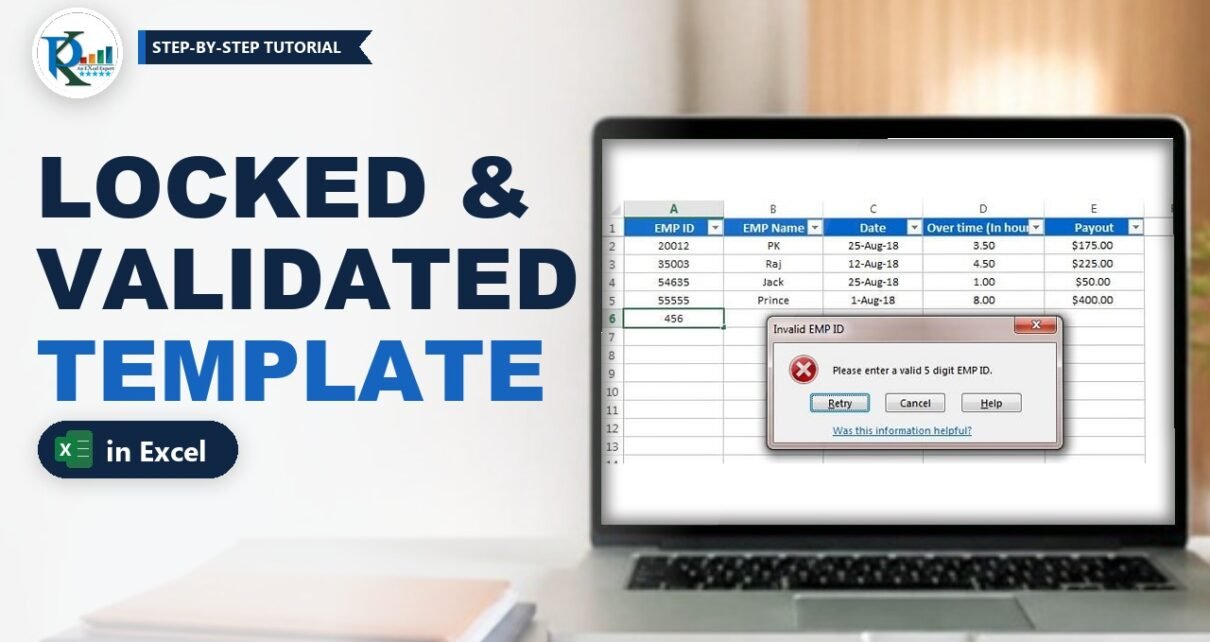
An Excel template with protection and validation is the safest way to collect data from other people. You send one file to several team members, they fill it in, and you consolidate the results. The problem is that, without rules, people type text into number columns, enter wrong dates or overwrite your formulas. In this tutorial you build an overtime payout template where only valid employee IDs, dates and hours are accepted, the payout calculates itself, its formula stays hidden, and nobody can change the sheet structure. No VBA is needed.
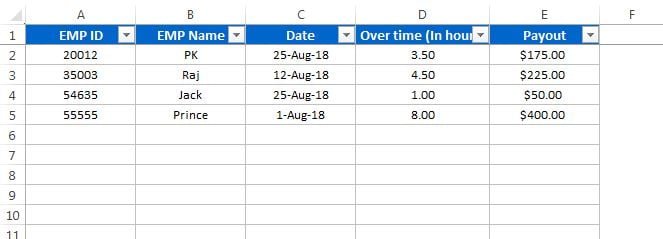
⬇️ Download the Protected Excel Template
Single-sheet workbook · .xlsx (no macros) · sheet and workbook are protected so you can test the rules
Watch the Video Tutorial
In the video, PK first tests the finished template, then rebuilds it in a new workbook: validation rules, the payout formula, a hiding rule, cell locking, sheet protection and workbook protection.
What You Will Build
- An EMP ID column that accepts only 5-digit numbers.
- A Date column that rejects text and dates before 1 January 2018.
- An Over time column that accepts 0 to 10 hours only.
- A Payout column that calculates automatically, hides its formula and stays blank on empty rows.
- A protected sheet where users can still filter, and a protected workbook where sheets cannot be added, renamed or deleted.
Part 1 – Set Up the Template Layout
Step 1: Create the headers
In a new workbook (Ctrl+N), enter these headers in A1:E1:
EMP ID | EMP Name | Date | Over time (In hours) | PayoutGive the header row a fill colour, add borders to the input area and turn off gridlines from View > Gridlines. The download file prepares rows 2 to 23 and freezes the header row so it stays visible while scrolling.
Set the number formats now so entries look consistent: d-mmm-yy for the Date column, 0.00 for Over time and a dollar currency format for Payout.
Part 2 – Add Data Validation Rules
Open the Data Validation dialog from Data > Data Validation or with the shortcut Alt+D+L. Each rule has two parts: the Settings tab decides what is allowed, and the Error Alert tab decides what the user sees when the entry is wrong.
Step 2: Allow only 5-digit employee IDs
Select A2:A23 and set:
- Allow: Whole number
- Data: between
- Minimum:
10000and Maximum:99999
These are the smallest and largest 5-digit numbers, so 456 or any text is refused. Then open the Error Alert tab, keep the Stop style, enter the title Invalid EMP ID and the message Please enter a valid 5 digit EMP ID.
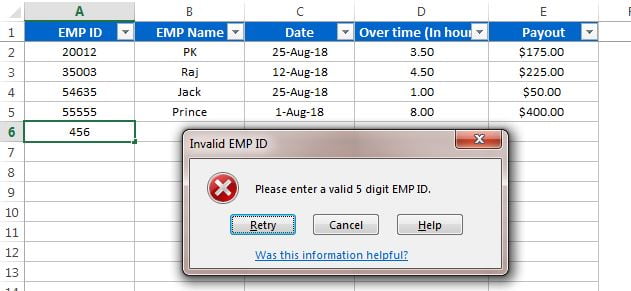
Without a custom message, Excel shows a generic error that doesn’t tell the user what to fix. A clear title and message save you a lot of follow-up emails.
Step 3: Allow only dates from 2018
Leave EMP Name without validation. Select C2:C23 and set Allow: Date. The download file uses greater than with the start date 1-Jan-2018; in the video PK picks greater than or equal to 1/1/2018. Choose whichever matches your rule. On the Error Alert tab use the title Invalid Date and the message Please enter a date after 1-Jan-18.
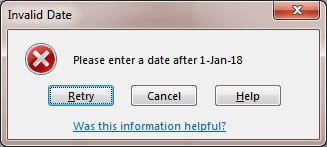
Because Excel stores dates as serial numbers, the date rule also blocks plain text such as yesterday.
Step 4: Limit overtime to 10 hours
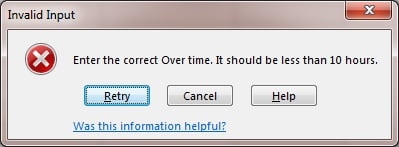
Select D2:D23 and set Allow: Decimal. The download file uses between 0 and 10, which also blocks negative hours; the video uses less than or equal to 10. Decimal (not Whole number) lets people enter 3.5 or 4.5 hours. Add the title Invalid Input and the message Enter the correct Over time. It should be less than 10 hours.
Part 3 – The Payout Formula
Step 5: Calculate the payout
The overtime rate in the example is $50 per hour. In E2 enter:
=D2*50Select E2:E23 and press Ctrl+D to fill the formula down. Now 3.5 hours shows $175.00 and 8 hours shows $400.00. If your rate changes, you only edit the formula before protecting the sheet.
Step 6: Hide the $0.00 on empty rows
Empty rows would show $0.00, which looks untidy. Select E2:E23, go to Home > Conditional Formatting > New Rule > Use a formula to determine which cells to format and enter:
=ISBLANK(D2)Click Format > Number > Custom and type three semicolons as the format:
;;;How the hiding rule works
D2has no dollar signs, so the rule moves down with each row: E3 checks D3, E4 checks D4, and so on.ISBLANKreturns TRUE while no overtime is entered for that row.- A custom number format has sections for positive, negative, zero and text values.
;;;leaves every section empty, so the value is still calculated but nothing is displayed. - As soon as someone types hours in column D, the rule turns off and the payout appears.
Part 4 – Lock, Hide and Protect
Step 7: Hide the payout formula
Select E2:E23, right-click and choose Format Cells (or press Alt+O+E). On the Protection tab tick Hidden and keep Locked ticked. After protection, the formula bar stays empty when someone clicks a payout cell.
Step 8: Unlock the input cells
Every cell is locked by default, but locking only works once the sheet is protected. Select the input range A2:D23, open Format Cells > Protection and untick Locked. These are the only cells users will be able to edit.
Step 9: Add a filter and protect the sheet
Select the header row and turn on the filter from Data > Filter. Then go to Review > Protect Sheet:
- Keep Protect worksheet and contents of locked cells ticked.
- In the list of allowed actions, tick Use AutoFilter so people can still filter their rows.
- Type a strong password, confirm it and click OK. Store it somewhere safe; Excel cannot recover it.
Now headers and payouts can’t be edited, columns can’t be inserted, and the payout formula is invisible.
Step 10: Protect the workbook structure
Sheet protection doesn’t stop people from renaming, adding, hiding or deleting sheets. For that, go to Review > Protect Workbook, keep Structure ticked and enter a password. The plus button for new sheets is disabled and the sheet tab menu no longer offers Insert, Delete, Rename or Hide.
Common Errors and Fixes
- Users can’t type anywhere after protection. The input cells are still locked. Unprotect the sheet, untick Locked for A2:D23 and protect again.
- The formula still shows in the formula bar. Hidden was not ticked, or the sheet is not protected yet. Hidden works only on a protected sheet.
- Pasted values bypass the validation. Data validation checks typed entries only; a normal paste can overwrite the rule, and even a paste of values is not checked. Ask users to type their entries, and before you consolidate, unprotect the sheet and use Data > Data Validation > Circle Invalid Data to find bad entries.
- Excel shows a generic error message. Fill in the Error Alert tab with your own title and message.
Tips for Data Collection Templates
- Add an Input Message on the Data Validation dialog to show a hint as soon as a cell is selected.
- Apply validation before you protect the sheet; you can’t change validation on a protected sheet.
- Keep the rate in one place. If it changes often, put it in a locked cell and reference it in the formula.
- Remember that sheet passwords stop accidental changes, not determined hackers. Don’t store confidential data that relies only on sheet protection.
- Microsoft’s guide Lock or unlock specific areas of a protected worksheet covers the protection options in detail.
Want It Ready-Made?
If you track employee hours regularly, the Automated Employee Timesheet Template in Excel on NextGenTemplates.com is ready to use, or you can browse more HR and payroll Excel templates.
Related Tutorials
- Whole Number Data Validation in Excel: Allow Integers Only
- Decimal Data Validation in Excel: Allow Numbers in a Range
- Date Validation in Excel: Restrict Cells to a Date Range
- Copy, Find and Remove Data Validation in Excel
- Quick Data Entry Form in Excel Without VBA
Frequently Asked Questions
How do I protect an Excel template but still allow data entry?
Unlock the input cells in Format Cells, Protection, then protect the sheet from the Review tab. Only the unlocked cells stay editable.
How do I hide a formula in Excel?
Select the formula cells, tick Hidden on the Protection tab of Format Cells, then protect the sheet. The formula bar stays empty for those cells.
How do I allow only 5-digit numbers in a column?
Use Data Validation with Allow set to Whole number, Data set to between, Minimum 10000 and Maximum 99999.
Can users still filter a protected sheet?
Yes. Add the filter before protecting, then tick Use AutoFilter in the Protect Sheet dialog.
What does Protect Workbook do?
It locks the workbook structure, so nobody can add, delete, rename, hide or unhide sheets without the password.
Does this template use VBA?
No. It uses only data validation, a simple formula, conditional formatting and Excel’s built-in protection.
About the Author
PK is a Microsoft Excel expert and trainer and the founder of PK: An Excel Expert and NextGenTemplates.com. He has been teaching Excel, Power Query and Power BI since 2016 on his YouTube channel.
Conclusion
An Excel template with protection and validation turns a fragile spreadsheet into a reliable data collection form. Validation keeps IDs, dates and hours clean, a simple formula calculates the payout, conditional formatting keeps empty rows tidy, and sheet and workbook protection stop accidental changes. Download the sample, test the rules, then build your own version for any form you send to your team.