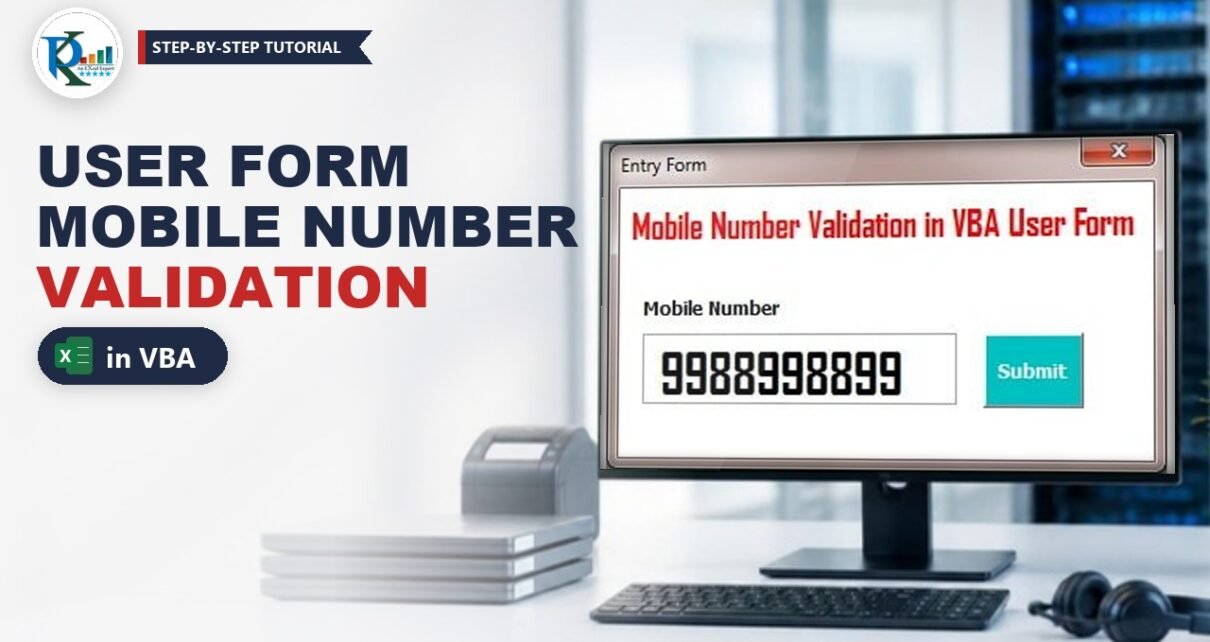
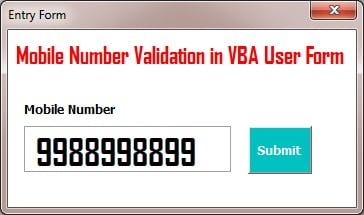
VBA user form validation for mobile number input stops bad data before it ever reaches your worksheet. In this tutorial you build a small Excel UserForm with one text box and a Submit button. As the user types, the form removes any letter or symbol and warns Only numbers are allowed, cuts the entry at 10 digits, and refuses to save a number that is too short. A valid number is written to the next empty row of a protected sheet. The same pattern works for any numeric field in a data entry form, such as PIN codes or employee IDs.
⬇️ Download the Workbook
Macro-enabled workbook · .xlsm (enable macros to run the form) · Excel 2010 and later for Windows
Watch the Video Tutorial

In the video, PK inserts a new UserForm, writes the TextBox1_Change validation line by line, and then adds the Submit code that saves the number below the existing list.
What You Will Build
- A UserForm with a Mobile Number label, a text box and a Submit button.
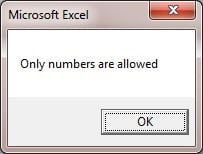
- Live validation that strips any non-numeric character and shows Only numbers are allowed.
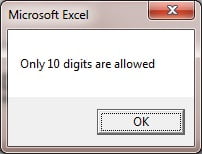
- A 10-digit limit that trims extra digits and shows Only 10 digits are allowed.
- A Submit check that blocks short or invalid numbers.
- Code that unprotects the sheet, adds the number to the next row of column A and protects it again.
Part 1 – Design the Mobile Number User Form
Step 1: Look at the sheet
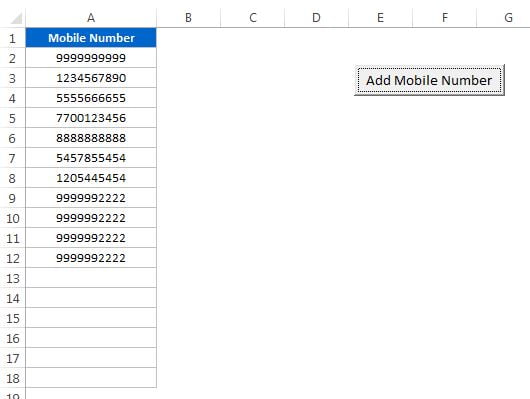
The workbook has one sheet with the heading Mobile Number in A1 and the saved numbers below it. The sheet is protected so nobody types into the list directly; new numbers arrive only through the form. An Add Mobile Number button opens the form.
Step 2: Insert the UserForm and its controls
Press Alt+F11 (or Developer > Visual Basic) to open the VBA editor, then choose Insert > UserForm. From the Toolbox add:
- A Label with the caption Mobile Number.
- A TextBox, which keeps its default name
TextBox1. - A CommandButton, default name
CommandButton1, with the caption Submit.
Format the form as you like from the Properties window (F4): background colour, a heading label, a bigger font in the text box. In the download, the finished form is named my_frm and its caption is Entry Form.
Step 3: Open the form from a sheet button
Add a button to the sheet (in the file it is an ActiveX command button captioned Add Mobile Number) and put this in the sheet’s code module:
Private Sub CommandButton1_Click()
my_frm.Show False
End Sub
Show False opens the form as modeless, so you can still scroll and look at the sheet while the form is open.
Part 2 – Validate the Mobile Number While Typing
Step 4: Write the TextBox1_Change event
Double-click the text box on the form. The editor creates an empty TextBox1_Change procedure. This event fires every time a single character is typed, pasted or deleted, so it is the right place for live checks. Here is the full code from the workbook:
Private Sub TextBox1_Change()

Dim i, text_count As Integer

If Len(Me.TextBox1) > 0 Then

    text_count = 0
    For i = 1 To Len(Me.TextBox1.Value)

        If IsNumeric(Mid(Me.TextBox1.Value, i, 1)) = False Then
            Me.TextBox1.Value = Replace(Me.TextBox1.Value, Mid(Me.TextBox1.Value, i, 1), "")
            text_count = text_count + 1
        End If

    Next i

    If text_count > 0 Then
        MsgBox "Only numbers are allowed"
        Exit Sub
    End If

    If Len(Me.TextBox1.Value) > 10 Then
        Me.TextBox1.Value = Left(Me.TextBox1.Value, 10)
        MsgBox "Only 10 digits are allowed"
    End If

End If

End Sub
How the code works
If Len(Me.TextBox1) > 0runs the checks only when the box contains at least one character, so clearing the box does not raise a message.- The
For i = 1 To Len(...)loop visits every character. If you type 1234, it runs four times. Mid(Me.TextBox1.Value, i, 1)takes one character at position i, andIsNumeric(...) = Falseis TRUE when that character is not a digit.Replace(..., Mid(...), "")removes that character (every copy of it) from the text box, so a typed letter disappears straight away.text_countcounts the removed characters. If it is above zero, the user sees Only numbers are allowed and the procedure stops.Left(Me.TextBox1.Value, 10)keeps only the first 10 digits when an 11th is typed, then shows Only 10 digits are allowed.
Changing TextBox1.Value inside its own Change event fires the event again. That is harmless here, because on the second pass the text is already clean and nothing more is removed.
Part 3 – Check and Save on Submit
Step 5: Write the Submit button code
Double-click the Submit button and add this code. It runs the final checks and then writes the number to the sheet:
Private Sub CommandButton1_Click()

If IsNumeric(Me.TextBox1.Value) = False Then
    MsgBox "Incorrect Mobile Number"
    Exit Sub
End If

If Len(Me.TextBox1.Value) < 10 Then
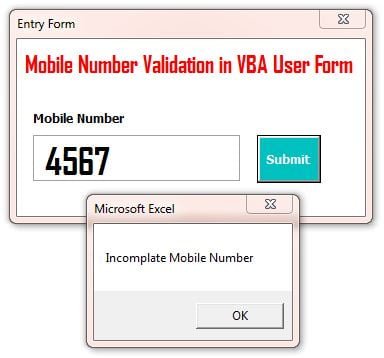
    MsgBox "Incomplete Mobile Number"
    Exit Sub
End If

Dim lr As Integer
lr = Application.CountA(ActiveSheet.Range("A:A"))

ActiveSheet.Unprotect "1234"
ActiveSheet.Range("A" & lr + 1).Value = Me.TextBox1.Value
ActiveSheet.Protect "1234"

Me.TextBox1.Value = ""

End Sub
Note: the downloadable workbook (and the screenshot below) spells this message Incomplate; the code above shows the corrected spelling.
How the Submit code works
IsNumeric(Me.TextBox1.Value) = Falsecatches an empty box or anything that is not a number, and shows Incorrect Mobile Number.Len(...) < 10catches a number that is too short. The form shows the message and does not save it.CountA(ActiveSheet.Range("A:A"))counts the filled cells in column A, heading included. With the heading and 11 numbers the count is 12, solr + 1points to row 13, the first empty row.Unprotect "1234"andProtect "1234"open the protected sheet just long enough to write the value. Use your own password in your file.Me.TextBox1.Value = ""clears the box, ready for the next number.
Step 6: Test every rule
Click Add Mobile Number and try each case: type a letter, type 11 digits, submit four digits, then submit a full 10-digit number. Only the last one should appear at the bottom of the list.
Alternative: Block Keys with KeyPress and MaxLength (Addition)
This section is not part of the original video. Instead of removing characters after they appear, you can stop them at the keyboard. Set the text box’s MaxLength property to 10 and add:
Private Sub TextBox1_KeyPress(ByVal KeyAscii As MSForms.ReturnInteger)
    If KeyAscii < 48 Or KeyAscii > 57 Then KeyAscii = 0
End Sub
Codes 48 to 57 are the digits 0 to 9, and setting KeyAscii = 0 cancels any other key. KeyPress does not see pasted text, so keep the Change event as a safety net if users paste numbers.
Common Errors and Fixes
- The number lands in the wrong row. The
+ 1must sit outside the CountA brackets:"A" & lr + 1. PK makes this exact slip in the video and moves the +1 to fix it. - Run-time error 1004 when saving. The password in
Unprotectdoes not match the one used to protect the sheet. Use the same password in both lines. - A blank cell inside column A breaks the next row. CountA counts filled cells only, so a gap makes the code overwrite an existing number. Keep the list without gaps.
- Overflow after many entries.
lris declared As Integer, which stops at 32,767. For long lists declare it As Long. (Addition)
Tips
- Excel stores the submitted value as a number, so a leading zero is dropped. If your numbers can start with 0, format column A as Text first. (Addition)
- Change the 10 in both procedures if your country uses a different mobile number length.
- Rename controls, for example
txtMobileandbtnSubmit, once you have more than one field; remember to rename the event procedures too. (Addition) - Save the file as .xlsm, otherwise the form and its code are removed.
- Microsoft documents the event used here in Change event (Microsoft Learn) and the check in IsNumeric function.
Want It Ready-Made?
If you need a complete form with many validated fields, look at the Data Entry Form in Excel or the Smart Data Entry Form with minimum VBA on NextGenTemplates.com, or browse all Excel VBA tools.
Related Tutorials
- Data Entry Form in Excel: Add, Update and Delete with VBA
- 5 VBA UserForm Super Tips
- Smart Data Entry Form with Minimum VBA
- Multilevel Dependent Drop-Down in a VBA User Form
- Free Step-by-Step VBA Course
Frequently Asked Questions
How do I allow only numbers in a VBA UserForm text box?
Use the text box Change event to loop through each character, test it with IsNumeric, and remove any character that is not a digit with Replace. The full code is in Step 4.
How do I limit a VBA text box to 10 digits?
In the Change event, check the length of the text and, when it is more than 10, keep only the first 10 characters with the Left function. You can also set the MaxLength property of the text box to 10.
Why does the form still refuse my number on Submit?
The Submit button checks that the entry is numeric and at least 10 digits long. A shorter number shows a message and is not saved.
Why is the sheet unprotected and protected again in the code?
The list sheet is protected so users cannot edit it by hand. The code removes the protection, writes the new number, and protects the sheet again immediately.
Does this work in Excel for Mac?
The workbook was built in Excel for Windows. UserForms run in recent Excel for Mac versions, but designing and editing them is limited there, so build and test the form on Windows.
About the Author
PK is a Microsoft Excel expert and trainer and the founder of PK: An Excel Expert and NextGenTemplates.com. He has been teaching Excel, VBA, Power Query and Power BI since 2016 on his YouTube channel.
Conclusion
VBA user form validation for mobile number input comes down to two procedures. The TextBox1_Change event cleans the entry while the user types, removing non-digits and stopping at 10 digits. The Submit button then confirms the number is complete before it is written to the next row of the protected sheet. Download the workbook, step through the code with F8, and reuse the same checks for every numeric field in your own data entry forms.