• Excel and VBA
    • VBA Course
    • Shortcut Keys
    • Useful Formulas
    • Basic Charts
    • Advanced Chart
    • Sort and Filter
    • Pivot Table
    • Data Validation
    • Conditional Formatting
    • Auto Fill and Flash Fill
    • Find and Replace
  • DownloadsPopular
    • Excel VBA Tools
    • Dashboard
      • Excel Dashboard
      • KPI Dashboard
      • Power BI Dashboard
    • Charts
      • Progress Charts
      • Info-graphics
      • Animated Charts
      • Comparisons
      • Gantt Charts
      • Heatmaps
      • Speedometers
      • Timelines
    • Inventory Management
    • HR and Payrolls
    • VBA Automation
    • Utilities and Converters
    • Checklist
    • Calendars
    • Data Analysis
    • Excel Templates
    • Financial Tools
    • Project Management
    • Sales and Marketing
    • Productivity
  • Excel Dashboard
  • Templates
  • Tutorials
    • Charts and Visualization
    • VBA
    • Excel Tips and Tricks
  • Power BI
  • Template StoreNew
  • CoursesNew
  • About Us
  • Contact Us

PK: An Excel Expert

Transforming Data into Decisions

Home>Blogs>Dashboard>Digital Asset Management KPI Dashboard in Power BI
Dashboard Power BI

Digital Asset Management KPI Dashboard in Power BI

25 Nov 2025
134Comments Off on Digital Asset Management KPI Dashboard in Power BI

Digital teams manage thousands of assets every day. Images, videos, documents, creative files, and digital resources keep increasing. When the volume grows, teams face challenges with tracking usage, performance, approvals, metadata accuracy, and storage efficiency. However, when you use a Digital Asset Management (DAM) system along with a KPI Dashboard in Power BI, you bring complete clarity to your workflow.

In this guide, you will learn everything about the Digital Asset Management KPI Dashboard in Power BI, how it works, why it matters, and how teams can improve performance by tracking the right KPIs. You will also discover the structure of the dashboard, its key features, its advantages, and the best practices to use it effectively.

Table of Contents

Toggle
    • Click to Purchases Digital Asset Management KPI Dashboard in Power BI
  • What Is a Digital Asset Management KPI Dashboard in Power BI?
  • Why Do Businesses Need a DAM KPI Dashboard?
  • Key Features of the Digital Asset Management KPI Dashboard in Power BI
  • 1. Summary Page
    • What You See on This Page:
    • Click to Purchases Digital Asset Management KPI Dashboard in Power BI
  • 2. KPI Trend Page
    • These combo charts display:
  • 3. KPI Definition Page
    • This page displays:
  • Excel Data Structure for the Dashboard
  • What KPIs Should You Track in Digital Asset Management?
    • Performance KPIs
    • Quality KPIs
    • Usage KPIs
    • Operational KPIs
    • Storage KPIs
  • How Does a Digital Asset Management KPI Dashboard Help Teams?
    • Click to Purchases Digital Asset Management KPI Dashboard in Power BI
    • You get these benefits:
  • Advantages of the Digital Asset Management KPI Dashboard in Power BI
  • Best Practices for the Digital Asset Management KPI Dashboard
  • Conclusion
  • Frequently Asked Questions (FAQs)
    • 1. What is a Digital Asset Management KPI Dashboard?
    • 2. Which teams use a DAM KPI Dashboard?
    • 3. Does the dashboard require coding?
    • 4. Can I customize the KPIs?
    • 5. How often should I update the data?
    • 6. Does it support department-wise analysis?
    • 7. Does Power BI automatically refresh the dashboard?
    • Click to Purchases Digital Asset Management KPI Dashboard in Power BI
    • Watch the step-by-step video tutorial:

Click to Purchases Digital Asset Management KPI Dashboard in Power BI

What Is a Digital Asset Management KPI Dashboard in Power BI?

A Digital Asset Management KPI Dashboard in Power BI helps teams track, measure, and analyze all activity related to digital assets. You can see how assets perform, how teams use those assets, how much storage each asset consumes, and how long the approval cycle takes. Because the dashboard works inside Power BI, it gives you dynamic visuals, automated updates, and real-time decision-making support.

The dashboard works with simple Excel files, making it easy for digital teams, marketing departments, agencies, and creative studios to update KPIs without complex tools.

Why Do Businesses Need a DAM KPI Dashboard?

Digital transformation grows every year. As a result, companies create more assets than ever before. Without proper tracking, teams face problems like:

  • Missing or duplicated assets

  • Slow approval cycles

  • High storage cost

  • Poor utilization of assets

  • Inaccurate metadata

  • Low ROI from content production

A DAM KPI dashboard solves these issues because it shows clear performance indicators. As a result, you make faster decisions, improve productivity, and reduce operational waste.

Key Features of the Digital Asset Management KPI Dashboard in Power BI

This dashboard is a ready-to-use solution. It reads data from Excel and turns it into clean visualization pages. You get insights about MTD (Month-to-Date), YTD (Year-to-Date), targets, previous year numbers, and KPI definitions.

The dashboard includes three main pages:

1. Summary Page
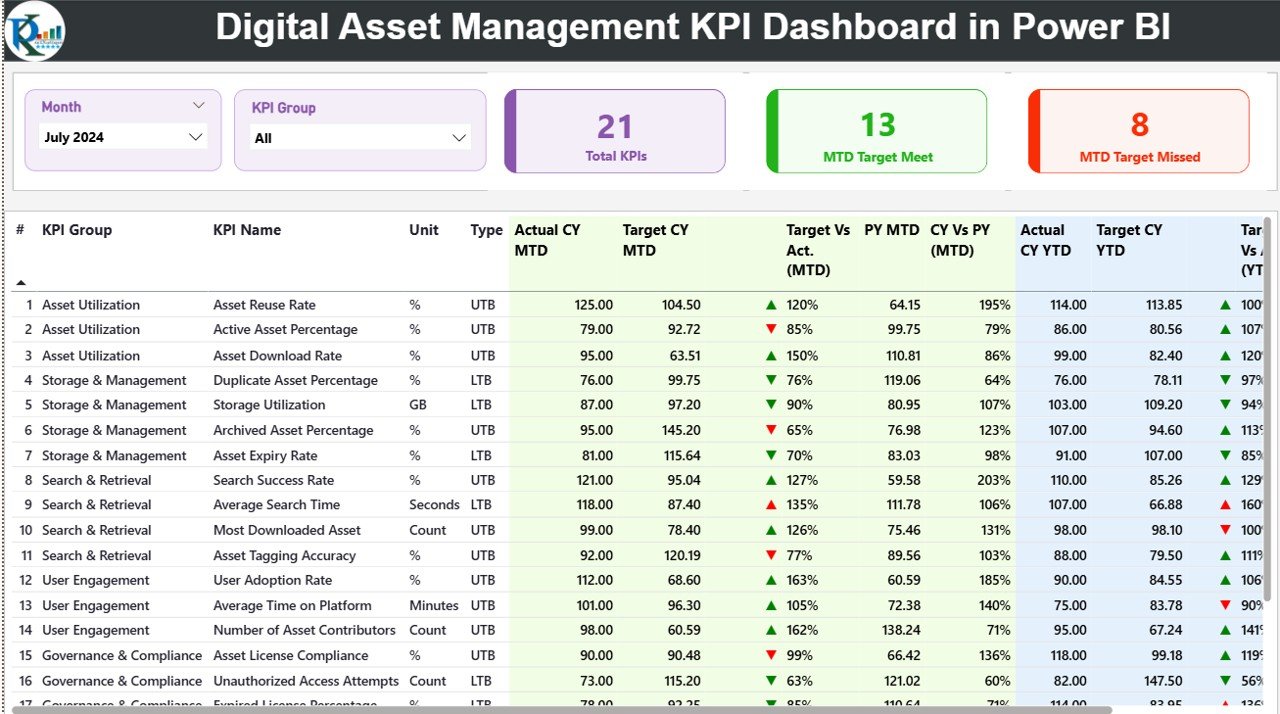
Digital Asset Management KPI Dashboard

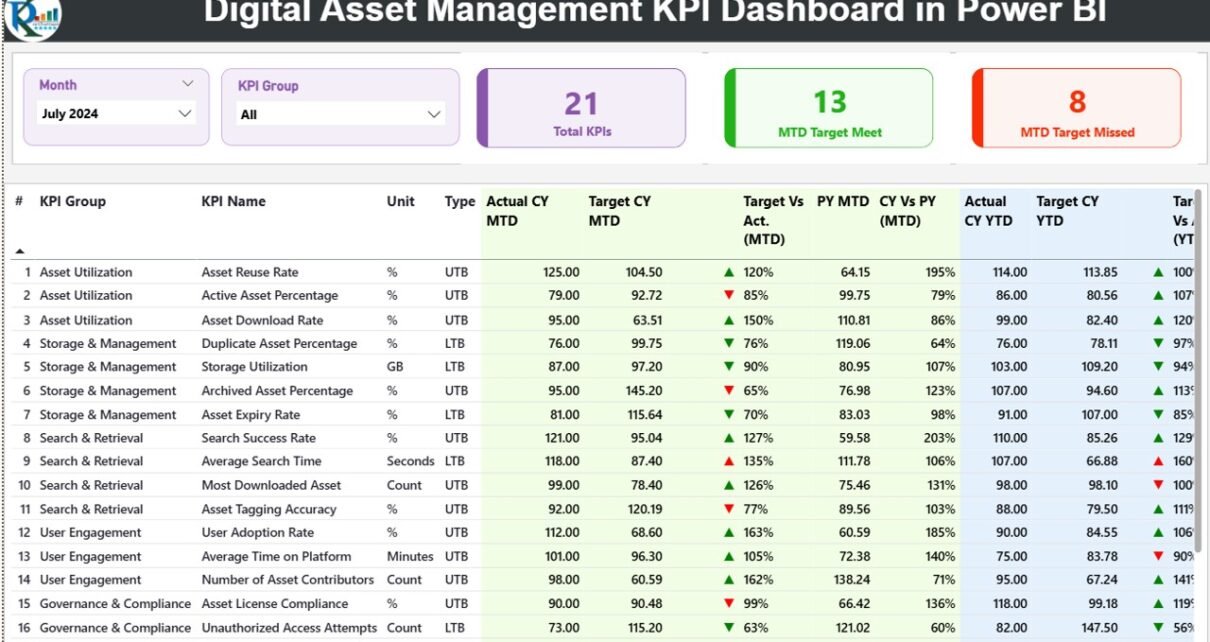
The Summary Page is the most important part of the dashboard. It gives you a complete view of all KPIs in one place. You can select the Month and KPI Group from slicers at the top, and the table updates instantly.

What You See on This Page:

✔ Slicers
You can filter the dashboard by Month and KPI Group.

✔ Cards

  • Total KPIs Count

  • MTD Target Met Count

  • MTD Target Missed Count

✔ Detailed KPI Table
The table includes:

  • KPI Number – Sequence number

  • KPI Group – Category such as approvals, metadata, file storage, downloads, etc.

  • KPI Name – Exact KPI that you are tracking

  • Unit – Measurement unit such as %, count, or days

  • Type – LTB (Lower The Better) or UTB (Upper The Better)

  • Actual CY MTD – Current year MTD actual

  • Target CY MTD – Current year MTD target

  • MTD Icon – Green or red arrows to show if the KPI meets the target

  • Target vs Actual (MTD) – Percentage comparison

  • PY MTD – Previous year’s MTD value

  • CY vs PY (MTD) – Comparison between current year and previous year MTD

You also get the complete YTD section:

  • Actual CY YTD

  • Target CY YTD

  • YTD Icon

  • Target vs Actual (YTD)

  • PY YTD

  • CY vs PY (YTD)

Because you see everything in one place, you take immediate action whenever a KPI misses the target.

Click to Purchases Digital Asset Management KPI Dashboard in Power BI

2. KPI Trend Page
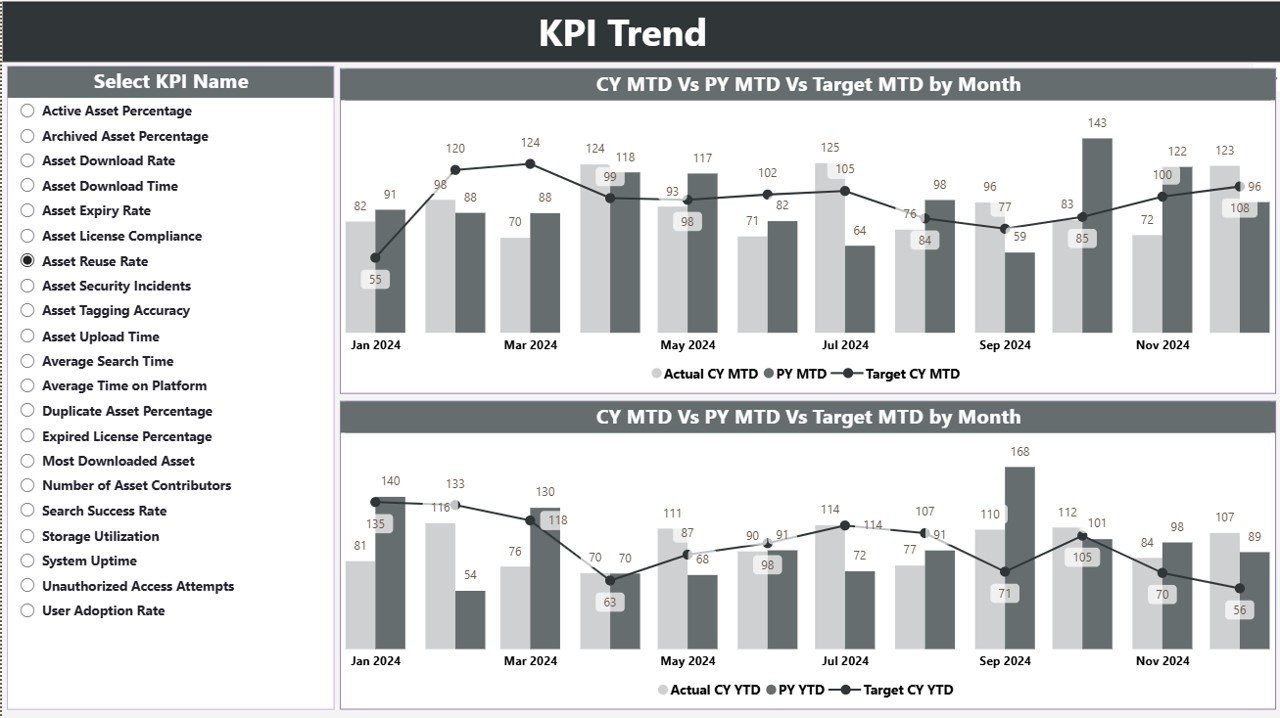
KPI Trend Page
KPI Trend Page

The trend page is the visual page for all KPIs. You select a KPI from a slicer on the left, and two combo charts appear.

These combo charts display:

  • Current Year Actual

  • Previous Year Actual

  • Target Values

  • MTD trends

  • YTD trends

This page helps you understand performance patterns. You easily identify:

  • Month-on-month changes

  • Seasonal variations

  • Areas where performance drops

  • KPIs that show consistent growth

Trend monitoring helps digital teams improve content planning, metadata quality, and asset usage.

3. KPI Definition Page
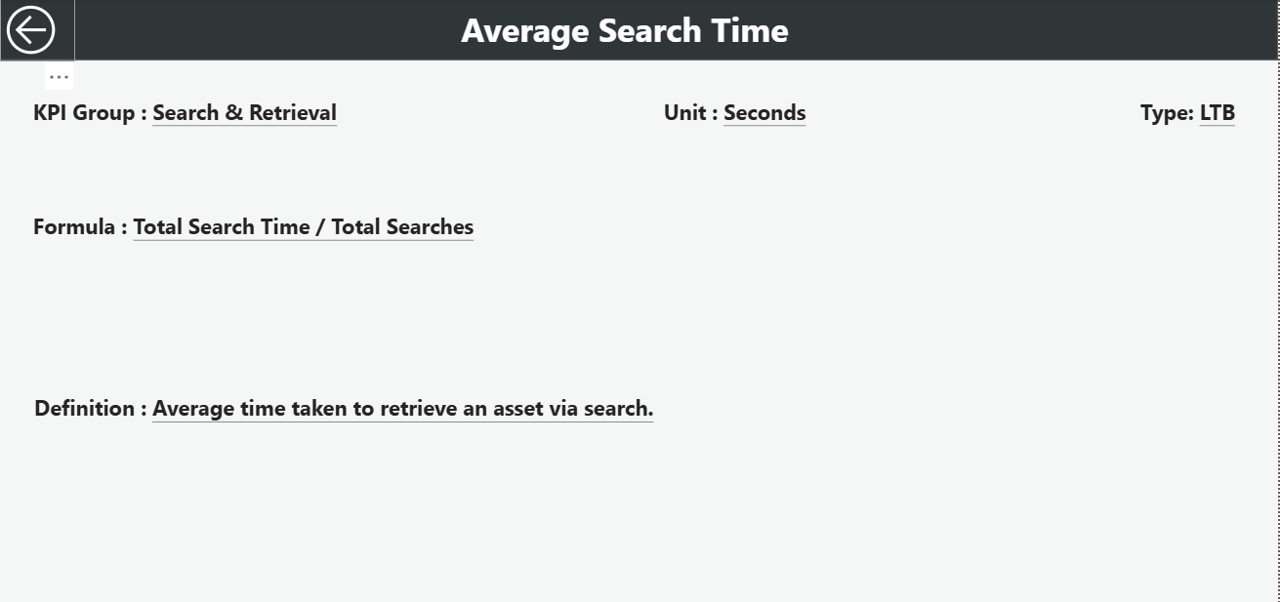
KPI Definition Page
KPI Definition Page

This is a hidden drill-through page. When you click any KPI in the Summary Page, you can drill through to see its details.

This page displays:

  • KPI Number

  • KPI Group

  • KPI Name

  • Formula

  • KPI Definition

  • Unit of Measurement

  • KPI Type (LTB or UTB)

You also get a back button on the top-left corner that returns you to the Summary Page.

Excel Data Structure for the Dashboard

The dashboard reads data from three Excel worksheets. They are very simple to update.

1. Input_Actual Sheet

Fill this sheet with:

  • KPI Name

  • Month (use the first day of each month like 1-Jan-2024)

  • MTD Actual

  • YTD Actual

2. Input_Target Sheet

Fill this sheet with:

  • KPI Name

  • Month

  • MTD Target

  • YTD Target

3. KPI Definition Sheet

This sheet contains:

  • KPI Number

  • KPI Group

  • KPI Name

  • Unit

  • Formula

  • Definition

  • Type (LTB or UTB)

Once you update these three sheets, the Power BI dashboard refreshes automatically.

What KPIs Should You Track in Digital Asset Management?

Here are the most common DAM KPIs:

Performance KPIs

  • Total Assets Created

  • Assets Approved

  • Assets Rejected

  • Assets Updated

  • Duplicate Assets Removed

Quality KPIs

  • Metadata Accuracy Rate

  • Tag Completeness

  • Assets Without Metadata

  • Assets That Need Review

Usage KPIs

  • Downloads per Asset

  • Top Downloaded Assets

  • Assets Never Used

  • Department-wise Usage

Operational KPIs

  • Approval Time

  • Upload to Publish Time

  • SLA Compliance Rate

Storage KPIs

  • Total Storage Used

  • Storage by File Type

  • Storage by Department

  • High-Size Assets

You can customize the spreadsheet to track more KPIs as your needs grow.

How Does a Digital Asset Management KPI Dashboard Help Teams?

Click to Purchases Digital Asset Management KPI Dashboard in Power BI

This dashboard improves the performance of any digital team. Because the dashboard shows MTD, YTD, target comparisons, and previous year data, teams make decisions faster.

You get these benefits:

  • Faster approval cycles

  • Better visibility of asset performance

  • Clear understanding of content value

  • Improved metadata quality

  • Reduced storage waste

  • Higher ROI from content creation

The dashboard works for marketing teams, branding agencies, creative studios, e-commerce companies, and enterprises with large asset libraries.

Advantages of the Digital Asset Management KPI Dashboard in Power BI

This dashboard brings many benefits to organizations. Here are the most important advantages:

1. You Make Quick Decisions

The dashboard updates instantly when you select a KPI or month. Because everything is visual, you make faster decisions without checking multiple files.

2. You Improve Content Quality

When you track metadata accuracy and approval cycles, you improve the quality of your digital assets. As a result, your content stays consistent and easy to find.

3. You Reduce Storage Costs

Storage costs increase when teams upload duplicate or unnecessary files. The dashboard highlights these issues and helps you remove unnecessary files.

4. You Improve Asset Usage

Because the dashboard shows which assets perform well, teams reuse top-performing content. This increases brand consistency and reduces production time.

5. You Increase ROI

When teams see how assets perform, they create better content. You get more value from your investment in content production, design, and digital marketing.

Best Practices for the Digital Asset Management KPI Dashboard

To get the best value from the dashboard, follow these best practices:

1. Update the Excel Files Regularly

Update the Actual and Target sheets every month. This keeps your dashboard accurate and trustworthy.

2. Define KPIs Clearly

Make sure your KPI definitions and formulas stay clear. Team members understand what each KPI means and how to measure it.

3. Use Consistent Naming Conventions

Always use the same KPI names in Actual and Target sheets. This avoids errors and makes updates easier.

4. Monitor Trends Monthly

Use the Trend page to monitor performance changes. When you track trends, you correct problems early.

5. Automate Where Possible

You can automate Excel updates using Power Automate or scripts. This saves time and reduces manual mistakes.

6. Review Storage KPIs Frequently

Storage KPIs increase fast. Review them regularly to control cost and avoid unnecessary asset buildup.

Conclusion

A Digital Asset Management KPI Dashboard in Power BI helps every digital team work smarter. You get complete visibility of asset usage, performance, metadata quality, and storage cost. The dashboard uses simple Excel sheets, so anyone can update KPIs without technical difficulty. When you use the Summary Page, Trend Page, and KPI Definition Page, you get deeper insights and take faster actions. As a result, your digital asset workflow becomes more efficient and more productive.

Frequently Asked Questions (FAQs)

1. What is a Digital Asset Management KPI Dashboard?

It is a Power BI dashboard that tracks and visualizes key metrics related to digital assets such as metadata quality, usage, storage, and approval cycles.

2. Which teams use a DAM KPI Dashboard?

Marketing teams, creative studios, e-commerce departments, branding teams, and enterprises with large digital libraries use this dashboard.

3. Does the dashboard require coding?

No. You only need to fill data in simple Excel sheets. Power BI handles the rest.

4. Can I customize the KPIs?

Yes. You can add or modify KPIs in the Excel definitions sheet, and the dashboard updates automatically.

5. How often should I update the data?

You should update monthly to keep MTD and YTD values accurate.

6. Does it support department-wise analysis?

Yes, you can add department fields to your Excel sheets and enhance filtering options.

7. Does Power BI automatically refresh the dashboard?

Yes, if you connect it with Power BI Service and schedule refreshes.

Visit our YouTube channel to learn step-by-step video tutorials

Youtube.com/@PKAnExcelExpert

Click to Purchases Digital Asset Management KPI Dashboard in Power BI

Watch the step-by-step video tutorial:

Tagged Asset Performance, Asset Usage Metrics, business intelligence, DAM Dashboard, Data Analytics, Digital Asset Management, Digital Assets, KPI Dashboard, KPI tracking, Metadata Quality, Power BI dashboard, Power BI Templates
PK
Meet PK, the founder of PK-AnExcelExpert.com! With over 15 years of experience in Data Visualization, Excel Automation, and dashboard creation. PK is a Microsoft Certified Professional who has a passion for all things in Excel. PK loves to explore new and innovative ways to use Excel and is always eager to share his knowledge with others. With an eye for detail and a commitment to excellence, PK has become a go-to expert in the world of Excel. Whether you're looking to create stunning visualizations or streamline your workflow with automation, PK has the skills and expertise to help you succeed. Join the many satisfied clients who have benefited from PK's services and see how he can take your Excel skills to the next level!
https://www.pk-anexcelexpert.com

Related Articles

Dashboard Power BI

Clinic Purchasing KPI Dashboard in Power BI

December 28, 2025December 28, 2025 PK
Managing purchasing operations in a clinic involves much more than placing orders and tracking invoices. Clinics deal with medical supplies,
Dashboard Power BI

Public Safety Dashboard in Power BI

October 28, 2025October 28, 2025 PK
Ensuring public safety is one of the most critical responsibilities of any government or municipal authority. With the rise in
Dashboard

Shelf Space Utilization KPI Dashboard in Excel

March 6, 2025March 6, 2025 PK
In the competitive retail industry, efficient shelf space utilization is crucial for maximizing sales and improving customer experience. To help

Post navigation

Oncology Services KPI Dashboard in Excel
Employee Workload Dashboard in Excel

Number of items in cart: 0

  • Your cart is empty.
  • Total: $0.00
  • Checkout

Join Our Course

  • Excel Pivot Tables for Data Analysis

Top Categories

  • Charts and Visualization (155)
  • Dashboard (1,745)
  • Excel Tips and Tricks (185)
  • Power BI (724)
  • Power Pivot (83)
  • Power Point Visualization (4)
  • Power Query (1)
  • Predictive Analytics (5)
  • Productivity (2)
  • Templates (1,200)
  • VBA (191)

Download Categories

  • Calendars (54)
  • Charts (131)
    • Animated Charts (5)
    • Comparisons (53)
    • Gantt Charts (7)
    • Heatmaps (1)
    • Info-graphics (44)
    • Progress Charts (32)
    • Speedometers (4)
    • Timelines (2)
  • Checklist (229)
  • Dashboard (513)
    • Excel Dashboard (25)
    • KPI Dashboard (366)
    • Power BI Dashboard (122)
  • Data Analysis (12)
  • Excel Templates (73)
  • Excel VBA Tools (44)
  • Financial Tools (9)
  • HR and Payrolls (19)
  • Inventory Management (6)
  • Product (9)
  • Productivity (1)
  • Project Management (15)
  • Sales and Marketing (13)
  • Utilities and Converters (6)
  • VBA Automation (27)
instant= new adsenseLoader( '#quads-ad1-place', { onLoad: function( ad ){ if (ad.classList.contains("quads-ll")) { ad.classList.remove("quads-ll"); } } });

Latest Articles

Financial Summary Dashboard in Power BI

January 12, 2026January 12, 2026 PK

Small Business KPI Scorecard in Excel

January 12, 2026January 12, 2026 PK

Pharmaceutical KPI Dashboard in Power BI

January 12, 2026January 12, 2026 PK

Community Development KPI Dashboard in Excel

January 12, 2026January 12, 2026 PK

Business Intelligence (BI) KPI Dashboard in Excel

January 12, 2026January 12, 2026 PK

Popular Articles

Real Estate Investment Trusts (REITs) Dashboard in Excel

November 4, 2025November 4, 2025 PK

Home Décor Stores Dashboard in Excel

December 19, 2025December 19, 2025 PK

Energy Efficiency KPI Dashboard in Excel

April 2, 2025April 2, 2025 PK

Museums & Cultural Centres Dashboard in Excel

December 13, 2025December 13, 2025 PK

Product Launch Calendar in Excel

January 27, 2025April 8, 2025 PK

Read More about..

  • Advanced Excel
  • VBA Course
  • Dashboard
  • Chart and Visualization
  • VBA Tips
  • Excel Tips and Trics
  • Our Excel Products
  • About US
  • Contact Us


Subscribe to our Newsletter


Download Dashboards

  • Project Management Dashboard
  • Zonal Dashboard
  • Sales Dashboard
  • Outbound Dashboard
  • A Quick Dashboard
  • C-SAT Dashboard
  • Performance Dashboard
  • Process Dashboard
  • Incentive Dashboard
instant= new adsenseLoader( '#quads-ad2-place', { onLoad: function( ad ){ if (ad.classList.contains("quads-ll")) { ad.classList.remove("quads-ll"); } } });

Popular Tags

Business Analytics business intelligence checklist template Conditional Formatting Customer Satisfaction data analysis Data Analytics Data visualization Event Management event tracker Excel excel-kpi-template Excel calendar excel checklist Excel Dashboard Excel dashboard template Excel Formula Excel formulas Excel KPI Dashboard Excel Template Excel Templates Excel Tips Excel tools Excel Tutorial healthcare analytics HR Analytics Info-graphics KPI analysis KPI Dashboard KPI dashboard Excel KPI tracking MTD YTD KPIs performance dashboard Performance Metrics performance tracking Power BI Power BI dashboard Power BI Reporting Power BI reports Power BI Templates Project Management Task Management Task Tracker Task Tracking VBA
  • Excel and VBA
    • VBA Course
    • Shortcut Keys
    • Useful Formulas
    • Basic Charts
    • Advanced Chart
    • Sort and Filter
    • Pivot Table
    • Data Validation
    • Conditional Formatting
    • Auto Fill and Flash Fill
    • Find and Replace
  • DownloadsPopular
    • Excel VBA Tools
    • Dashboard
      • Excel Dashboard
      • KPI Dashboard
      • Power BI Dashboard
    • Charts
      • Progress Charts
      • Info-graphics
      • Animated Charts
      • Comparisons
      • Gantt Charts
      • Heatmaps
      • Speedometers
      • Timelines
    • Inventory Management
    • HR and Payrolls
    • VBA Automation
    • Utilities and Converters
    • Checklist
    • Calendars
    • Data Analysis
    • Excel Templates
    • Financial Tools
    • Project Management
    • Sales and Marketing
    • Productivity
  • Excel Dashboard
  • Templates
  • Tutorials
    • Charts and Visualization
    • VBA
    • Excel Tips and Tricks
  • Power BI
  • Template StoreNew
  • CoursesNew
  • About Us
  • Contact Us
Copyright © 2023 PK-AnExcelExpert.com - Privacy Policy
This website uses cookies to improve your user experience, analyze site traffic and serve targeted ads in accordance with our Privacy Policy ACCEPT
Privacy & Cookies Policy

Privacy Overview

This website uses cookies to improve your experience while you navigate through the website. Out of these cookies, the cookies that are categorized as necessary are stored on your browser as they are essential for the working of basic functionalities of the website. We also use third-party cookies that help us analyze and understand how you use this website. These cookies will be stored in your browser only with your consent. You also have the option to opt-out of these cookies. But opting out of some of these cookies may have an effect on your browsing experience.
Necessary
Always Enabled
Necessary cookies are absolutely essential for the website to function properly. This category only includes cookies that ensures basic functionalities and security features of the website. These cookies do not store any personal information.
Non-necessary
Any cookies that may not be particularly necessary for the website to function and is used specifically to collect user personal data via analytics, ads, other embedded contents are termed as non-necessary cookies. It is mandatory to procure user consent prior to running these cookies on your website.
SAVE & ACCEPT