In today’s fast-paced financial world, compliance is more than a legal requirement—it is a survival strategy. Organizations face increasing pressure to meet strict regulatory deadlines, submit accurate reports, and prepare for frequent audits. Missing even a single compliance deadline can lead to heavy fines, reputational damage, or even legal action. To avoid such risks, businesses need structured tools that help them plan, track, and execute compliance-related activities with precision.
This is where the Finance Compliance AI Implementation Calendar in Excel steps in. It is a ready-to-use calendar template designed to streamline compliance management. Built on the flexibility of Excel and enhanced with AI-powered features, this tool enables finance teams to track events, monitor progress, and automate reminders—all within a familiar interface.
In this article, we will explore the structure of this calendar, its features, its advantages, best practices, opportunities for improvement, and real-world use cases. By the end, you will understand how to use this Excel-based calendar to manage financial compliance like a pro.
Click to Purchases Finance Compliance AI Implementation Calendar in Excel
What Is a Finance Compliance AI Implementation Calendar in Excel?
A Finance Compliance AI Implementation Calendar in Excel is a structured digital calendar designed to help businesses plan, monitor, and manage all their finance compliance activities. Unlike a traditional paper-based calendar or a simple spreadsheet, this template combines automation, visualization, and AI-driven insights to reduce errors and save time.
It provides organizations with:
-
A centralized system to track compliance deadlines and events.
-
An AI-enabled structure that identifies patterns and highlights risks.
-
Flexible views (annual, monthly, daily) for better time management.
-
A database-driven approach for event management with add, update, and delete options.
By integrating artificial intelligence within Excel, finance teams can predict upcoming workload peaks, prioritize urgent compliance events, and ensure nothing slips through the cracks.
Key Features of the Finance Compliance AI Implementation Calendar
This ready-to-use template has five structured worksheet tabs, each serving a unique purpose. Let’s look at them in detail.
Home Sheet Tab
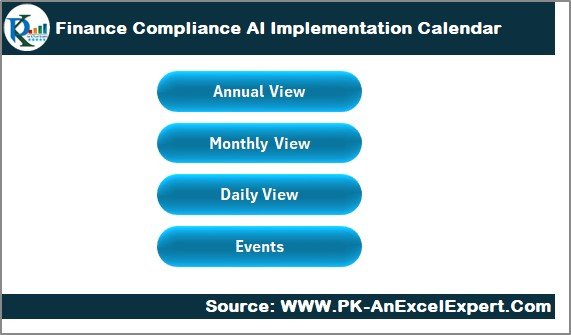
The Home sheet is the control center of the calendar. It acts as a navigation hub with buttons that allow users to jump directly to different sections.
-
Annual View button – Navigate to the yearly calendar.
-
Monthly View button – Switch to the month-wise calendar.
-
Daily View button – Focus on specific date ranges.
-
Events button – Access the database of all recorded compliance events.
This design saves time and makes the calendar user-friendly, even for people with limited Excel experience.
Annual View Sheet Tab
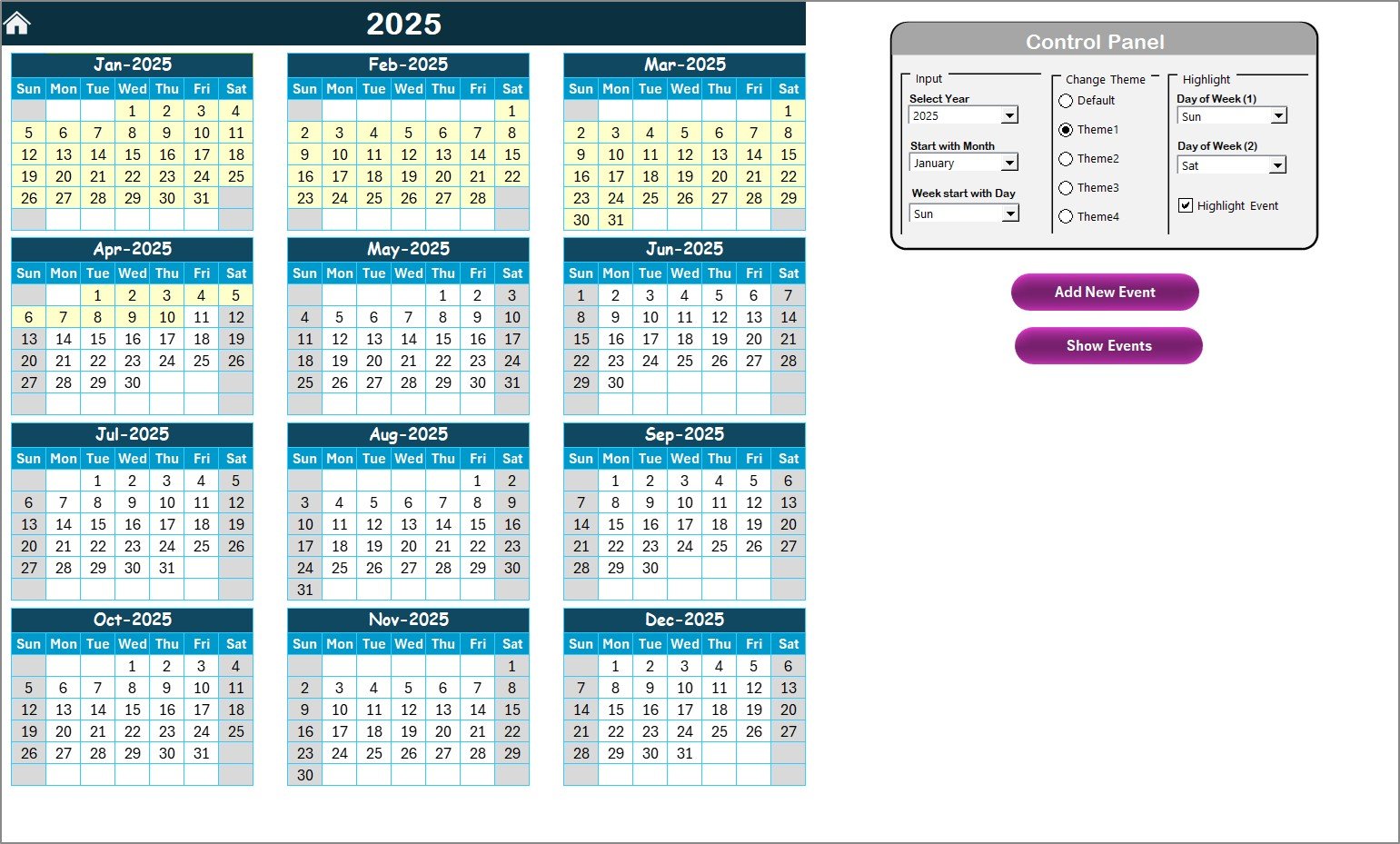
The Annual View provides a 12-month calendar on a single page, making it easy to see compliance activities throughout the year.
Key features include:
Control Panel with three groups:
- Input Group: Select year, starting month, and starting day of the week.
- Change Theme Group: Choose from five color themes to customize the look.
- Highlight Group: Highlight weekends (e.g., Saturday, Sunday) or compliance events in different colors.
- Add New Event Button: Add new compliance events directly on the selected date.
-
Show Event Button: Display all events scheduled for a specific date.
This view is particularly useful for finance leaders who need a high-level compliance overview for the entire year.
Click to Purchases Finance Compliance AI Implementation Calendar in Excel
Monthly View Sheet Tab
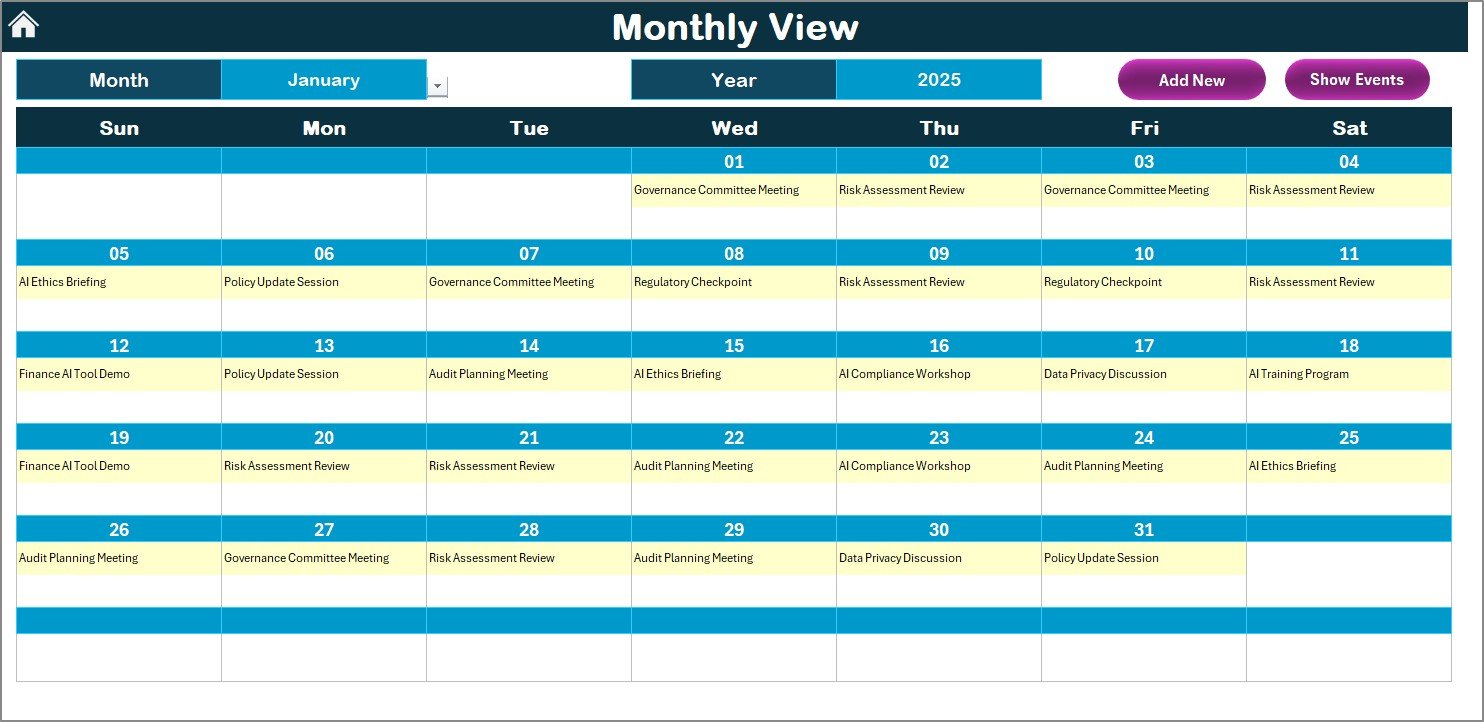
The Monthly View focuses on one month at a time. It is ideal for finance managers who need to plan month-end closings, tax submissions, or internal audits.
Key highlights:
-
Choose the month and year from the dropdown at the top.
-
View events directly on the monthly calendar.
-
If multiple events fall on one date, it displays “more than 1…” as a quick indicator.
-
Add New Event and Show Event buttons are available here as well.
This feature helps teams prioritize short-term compliance activities while keeping an eye on the big picture.
Daily View Sheet Tab
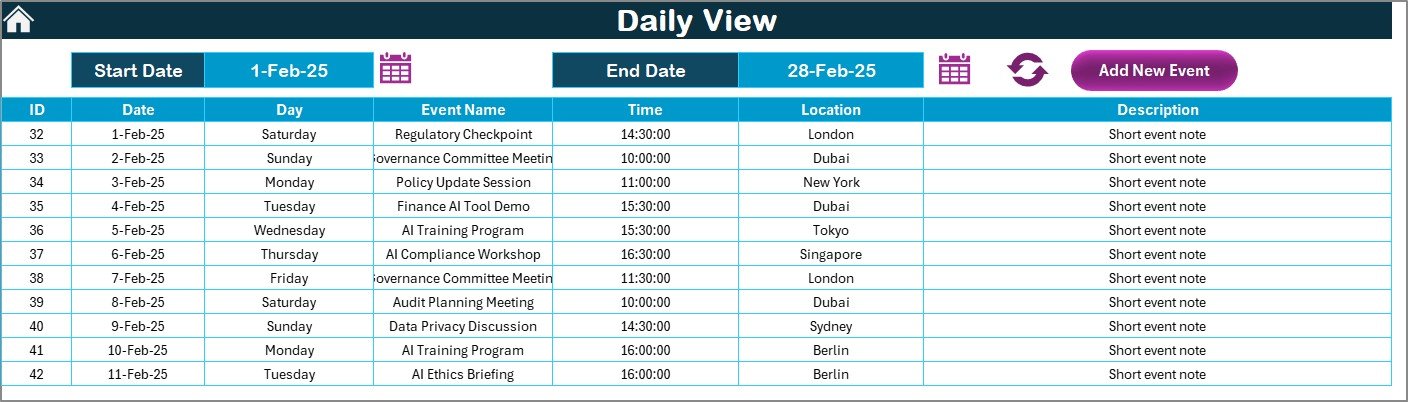
The Daily View allows users to zoom in on a specific date range.
-
Enter a Start Date and End Date using the built-in date picker.
-
Click Refresh to see updated events for the selected range.
-
Add new events directly using the Add New Event button.
This view is particularly useful for finance teams during audit preparation weeks or tax filing deadlines, where every day counts.
Events Sheet Tab
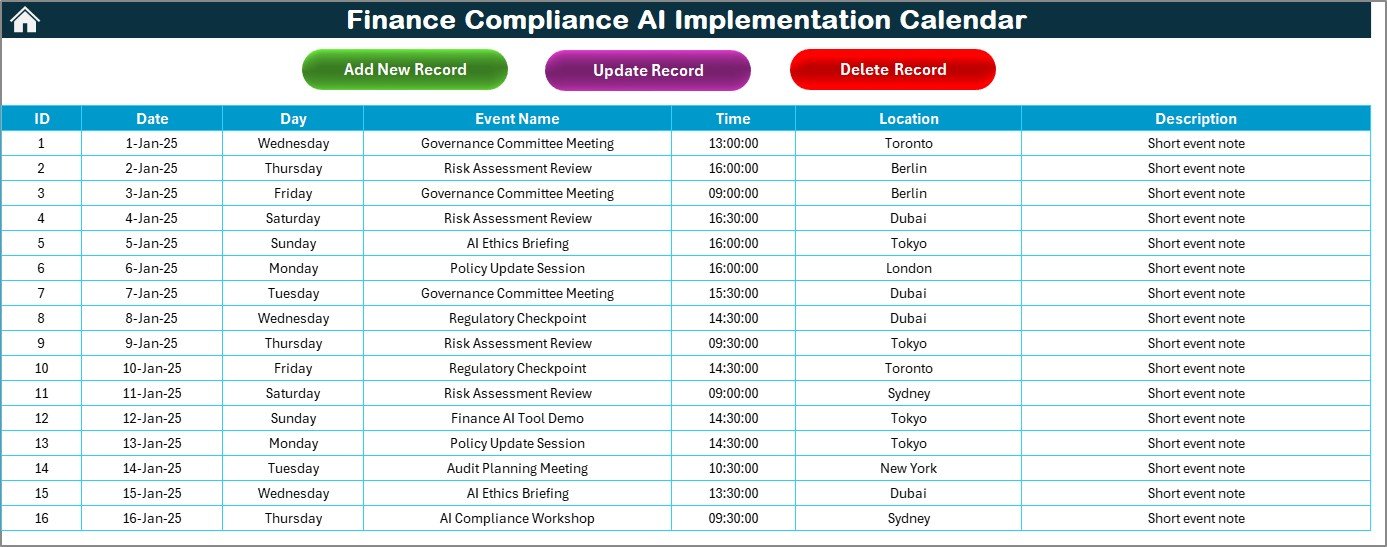
The Events Sheet is the database backbone of the calendar. It stores detailed information about every compliance activity.
Columns include:
-
ID: Auto-generated number for each record.
-
Date: Compliance event date.
-
Day: Day of the week (e.g., Monday, Tuesday).
-
Event Name: Title of the event.
-
Time: Scheduled time.
-
Location: Venue or platform (physical or virtual).
-
Description: Short description of the compliance task.
At the top, there are three buttons:
-
Add New Record – Open the event form to create a new record.
-
Update Existing Record – Modify details of a specific event.
-
Delete Record – Remove an outdated or canceled event.
This sheet makes it easy to track, manage, and update compliance data without losing history.
Advantages of Finance Compliance AI Implementation Calendar in Excel
Using this AI-powered Excel calendar brings multiple benefits:
✅ Centralized compliance management – All deadlines and events in one place.
✅ AI-powered reminders and predictions – Reduce the risk of missed deadlines.
✅ Flexible views – Annual, monthly, and daily options for better planning.
✅ Customization – Change themes, highlight weekends, and personalize settings.
✅ User-friendly interface – Easy for non-technical users.
✅ Audit readiness – Keeps an updated record of compliance activities.
✅ Time-saving automation – Add, update, and delete events without manual effort.
Opportunities for Improvement
Although this calendar is powerful, organizations can further optimize its use:
🔹 Integration with Outlook or Google Calendar for automated reminders.
🔹 Cloud storage (OneDrive/SharePoint) for team-wide collaboration.
🔹 AI-driven compliance risk scoring to identify potential delays.
🔹 Mobile-friendly access for on-the-go tracking.
🔹 Automated notifications via email to assigned responsible persons.
These improvements can make the template even more effective for enterprise-level compliance management.
Best Practices for Using the Finance Compliance AI Implementation Calendar
To get the most out of this template, follow these best practices:
-
Set up control panel preferences first – Choose the correct year, month, and theme.
-
Assign responsibility – Always mention the responsible person for each compliance event.
-
Use clear event names – Keep them short and descriptive (e.g., “Quarterly Tax Filing”).
-
Update regularly – Review and refresh events every week.
-
Leverage AI insights – Use AI features to identify risks and trends.
-
Back up event data – Store a copy of the Events Sheet regularly.
-
Highlight critical deadlines – Use the highlight feature for audit or tax events.
How AI Enhances Finance Compliance Calendars in Excel
Artificial intelligence takes this Excel calendar beyond a basic planner. AI features help by:
📌 Analyzing event history to predict busy compliance periods.
📌 Highlighting recurring delays and suggesting preventive measures.
📌 Automating reminders for approaching deadlines.
📌 Recommending workload distribution to avoid bottlenecks.
With AI integration, finance teams can proactively manage compliance instead of reacting to missed tasks.
Real-World Use Cases
The Finance Compliance AI Implementation Calendar can be applied in multiple scenarios:
-
Quarterly Financial Audits – Schedule audit dates and track required documents.
-
Tax Filing Deadlines – Ensure timely submission of corporate taxes.
-
Regulatory Reporting – Track submission of compliance forms to government bodies.
-
Risk Assessment Activities – Plan and monitor risk evaluation sessions.
-
Supplier & Vendor Compliance – Manage financial audits linked to external partners.
Step-by-Step Guide to Using the Calendar
-
Open the template and go to the Home sheet.
-
Select Annual View to set up the year and preferences.
-
Use the Add New Event button to enter compliance deadlines.
-
Switch to Monthly View for short-term planning.
-
Use Daily View during intense compliance periods.
-
Keep all event data updated in the Events Sheet.
-
Run periodic checks to ensure data accuracy.
Conclusion
Finance compliance is not optional—it is a mandatory practice that safeguards businesses from penalties and legal risks. The Finance Compliance AI Implementation Calendar in Excel offers a powerful yet user-friendly way to manage compliance deadlines, audits, and reporting tasks.
By combining the flexibility of Excel with the predictive power of AI, organizations can ensure timely compliance, reduce risks, and maintain transparency. With structured planning and regular updates, this calendar can become the backbone of your compliance management system.
Frequently Asked Questions (FAQ)
1. What is the Finance Compliance AI Implementation Calendar in Excel?
It is a ready-to-use Excel template designed to manage compliance deadlines, audits, and financial reporting with the help of AI automation.
2. Who should use this calendar?
Finance managers, compliance officers, auditors, accountants, and business owners who need to manage deadlines and regulatory obligations.
3. Can I customize the calendar?
Yes. You can change the theme, highlight weekends, and personalize event details to suit your organization’s needs.
4. How does AI help in this template?
AI helps by analyzing patterns, predicting compliance risks, and automating reminders for important deadlines.
5. Is the template beginner-friendly?
Absolutely. The calendar uses simple Excel functions, buttons, and forms, making it easy for anyone to use.
6. Can I integrate this calendar with Outlook or Google Calendar?
Currently, it works as an Excel-based tool, but you can integrate it with other calendars using add-ins or connectors.
7. How often should I update the events?
It is best to update the calendar weekly and review it monthly to ensure all compliance deadlines are accurate.
8. Is this template useful for small businesses?
Yes. Small businesses can benefit greatly as it helps them stay compliant without investing in expensive compliance management systems.
Visit our YouTube channel to learn step-by-step video tutorials