In finance and procurement, managing schedules, vendor communications, reviews, and customer interactions can be overwhelming. Every missed meeting, delayed payment, or forgotten review impacts business credibility and customer trust.
That’s why the Finance Procurement Customer Experience Calendar in Excel is such a powerful tool. It brings structure, visibility, and automation to your daily financial and procurement tasks — all inside a simple, ready-to-use Excel workbook.
In this detailed article, you’ll discover how this calendar works, what makes it unique, and how it can transform your finance and procurement operations.
Click to Purchases Finance Procurement Customer Experience Calendar in Excel
What Is a Finance Procurement Customer Experience Calendar in Excel?
A Finance Procurement Customer Experience Calendar is an interactive Excel-based tool that helps finance teams, procurement officers, and customer-experience managers organize their events, meetings, and deadlines.
It combines an annual, monthly, and daily planner with a dynamic event management system. You can add, view, or update events instantly without any coding knowledge — everything runs through Excel VBA forms and buttons.
In short, it’s your smart event manager inside Excel — designed to track supplier meetings, invoice approvals, budget reviews, audits, and customer-interaction activities.
Why Every Organization Needs This Calendar
Finance and procurement teams juggle hundreds of dates — from vendor renewals to budget submission deadlines. Manually tracking them invites chaos. This Excel calendar eliminates that risk by offering:
-
📅 Centralized scheduling across finance, procurement, and CX teams
-
🧾 Automated event logging for meetings, audits, and reviews
-
🧠 Better visibility of overlapping tasks or deadlines
-
🚀 Quick updates using built-in forms — no manual edits needed
-
💡 Custom themes and filters to tailor the experience
Whether you work in a small business or a multinational organization, this calendar keeps every stakeholder aligned and informed.
Click to Purchases Finance Procurement Customer Experience Calendar in Excel
Structure of the Finance Procurement Customer Experience Calendar
The template includes five well-organized worksheets, each serving a unique function. Together, they create a seamless workflow from yearly planning to daily task tracking.
1. Home Sheet – The Command Center
The Home Sheet acts as your dashboard and navigation hub.
It features four main buttons that help you move quickly between views:
-
🔹 Annual View
-
🔹 Monthly View
-
🔹 Daily View
-
🔹 Events
Each button links directly to the corresponding sheet, saving time and keeping the interface user-friendly.
The Home Sheet ensures that even first-time users can navigate the calendar effortlessly.
2. Annual View Sheet – Your Year at a Glance
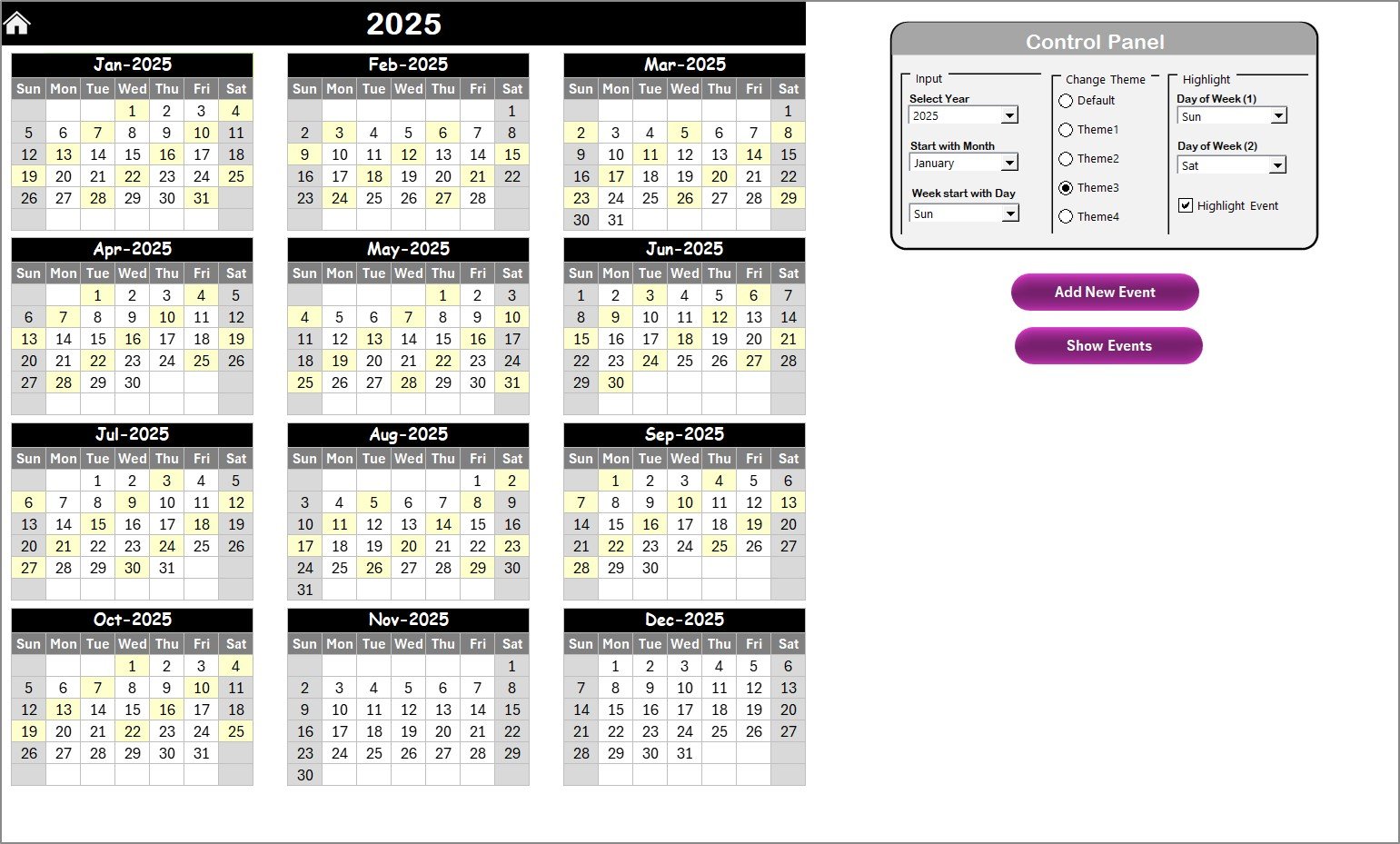
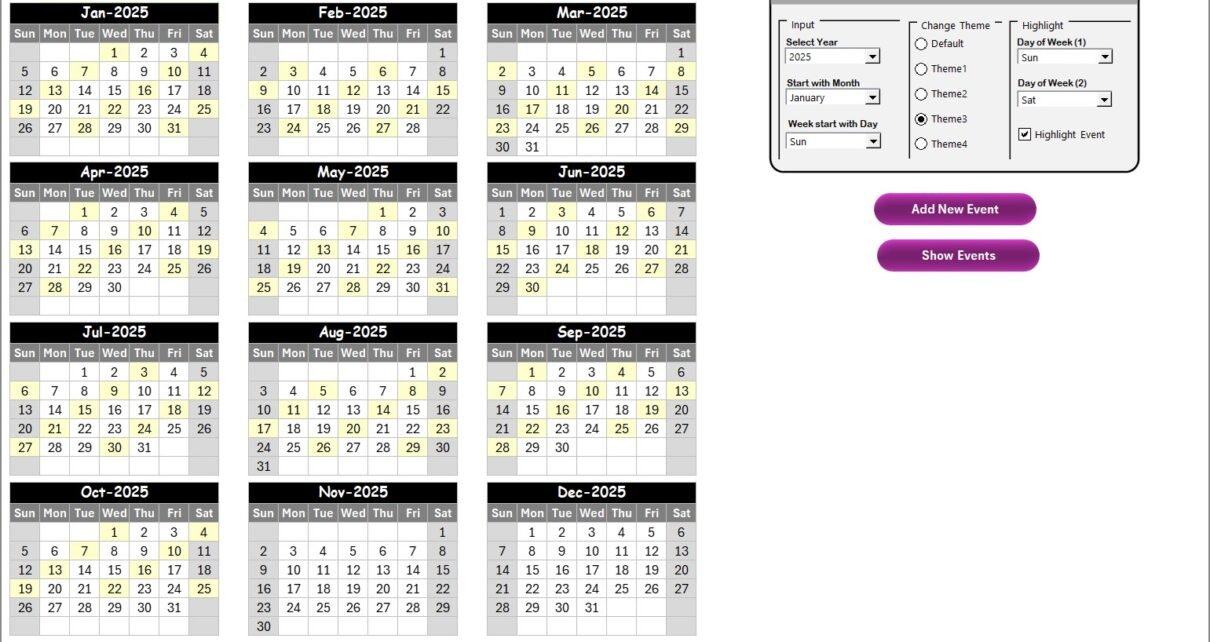
The Annual View Sheet displays all 12 months of the year on one page. It’s perfect for long-term visibility across finance, procurement, and customer-experience activities.
Key Highlights:
-
🧭 Control Panel with Three Groups:
A. Input Group:
-
Choose the Year dynamically.
-
Change the starting month of the calendar (e.g., April → March FY).
-
Select the starting day of the week (Monday or Sunday).
B. Change Theme Group:
-
Five built-in color themes to personalize your workbook.
-
Instantly switch to your preferred color scheme.
C. Highlight Group:
-
Highlight Weekends or any two specific days (e.g., Saturday & Sunday) in gray.
-
Check the Highlight Events option to mark event days in yellow automatically.
-
-
🎯 Add New Event Button:
Select a date, click the button, and an Add Event Form opens. Enter the details and submit — your event appears instantly. -
👁️ Show Event Button:
View all events for a selected date with one click.
This sheet is ideal for annual budget planning, procurement schedules, audits, and customer feedback cycles.
3. Monthly View Sheet – A Focused Look at Each Month
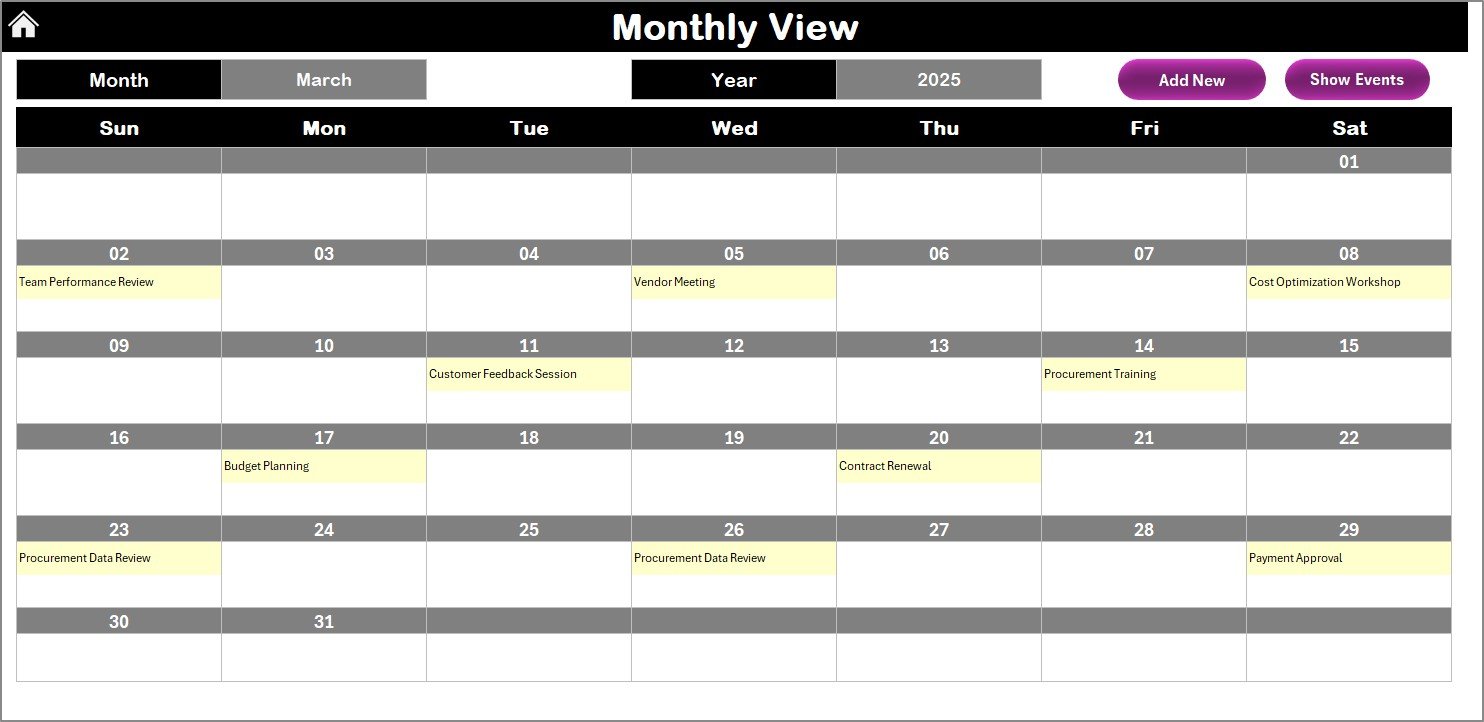
The Monthly View Sheet gives you a single-month snapshot with all the important events clearly visible.
Key Features:
-
🔄 Dynamic Month & Year Selection:
Use dropdowns to select any month and year; the calendar refreshes automatically. -
🗓️ Event Indicators:
If more than one event occurs on a single day, it shows “ more than 1 … ” for clarity. -
🖊️ Add New Event Button:
Just like in the annual view, you can add events directly from this page. -
👁️ Show Event Button:
Displays all events for the chosen date.
This sheet is perfect for monthly budget reviews, supplier evaluations, contract renewals, and training schedules.
4. Daily View Sheet – Detailed Event Tracking
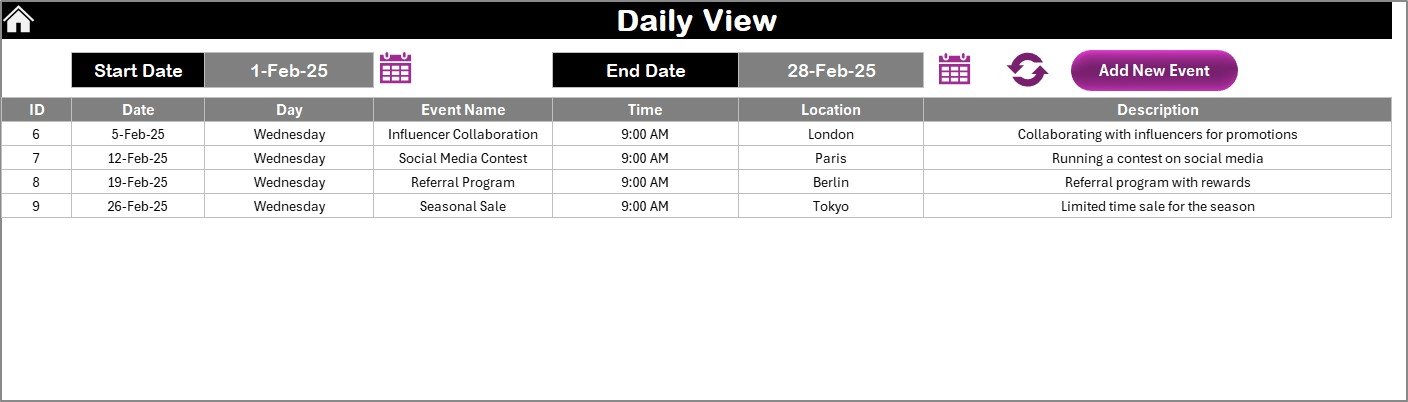
The Daily View Sheet focuses on day-to-day operations.
How It Works:
-
Enter a Start Date and End Date using calendar icons.
-
Click Refresh to display all events within that range.
-
The list updates automatically to reflect the latest data.
You can also add new events from this page using the Add New Event Button, which opens the same form interface.
This section is great for tracking meetings, payments, supplier calls, or customer engagements on specific days.
5. Events Sheet – The Database Behind the Scenes
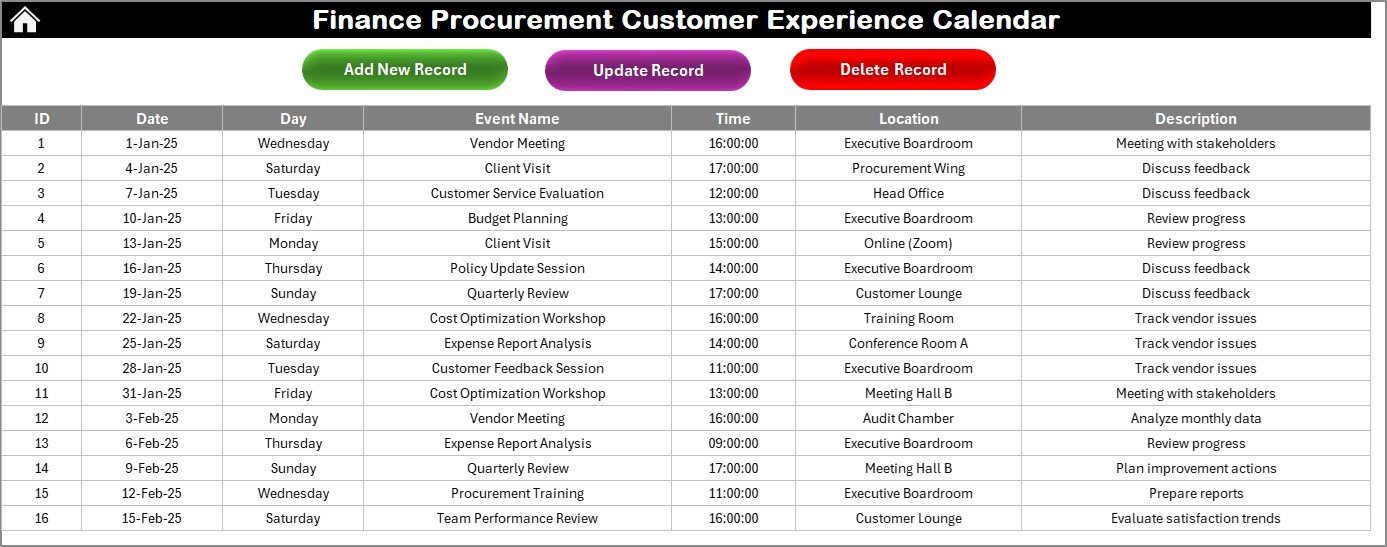
The Events Sheet is the database that powers the entire system. Every time you add, update, or delete an event, it’s recorded here.
Data Columns:
-
ID: Auto-generated event number
-
Date: Event date
-
Day: Day of the week
-
Event Name: Event title (e.g., “Quarterly Vendor Review”)
-
Time: Event time
-
Location: Venue or department
-
Description: Short details about the event
Buttons Available:
-
🟢 Add New Record – Opens a form to create new entries
-
🟡 Update Existing Record – Load data by ID and edit it easily
-
🔴 Delete Record – Removes a specific event permanently
This sheet keeps a clean, organized log of every finance and procurement event, ensuring transparency and accuracy.
Click to Purchases Finance Procurement Customer Experience Calendar in Excel
Key Use Cases
Here’s how various teams can benefit from this Excel calendar:
Finance Teams
-
Track financial audits, monthly closings, and investor meetings
-
Manage due dates for invoices, approvals, and payments
Procurement Teams
-
Schedule supplier evaluations, purchase-order deadlines, and tender openings
-
Maintain vendor performance reviews and compliance checks
Customer Experience Teams
-
Plan customer follow-ups, feedback sessions, and review meetings
-
Align procurement timelines with customer satisfaction initiatives
Advantages of Finance Procurement Customer Experience Calendar in Excel
1. Simplifies Time Management
Manage multiple teams and deadlines from one Excel file — no more juggling between apps or emails.
2. Enhances Coordination
Finance, procurement, and CX teams can align their timelines for seamless workflow execution.
3. Easy Data Entry with Forms
Built-in VBA forms make it easy to add or update events without touching raw data.
4. Customizable Themes
Switch between five color themes to match your company style or preference.
5. Accurate Tracking
Highlight weekends and events automatically, preventing scheduling conflicts.
6. Complete Visibility
Get a year-to-day view of every event — from strategic financial planning to daily operational tasks.
7. No Extra Software
Everything runs inside Microsoft Excel — simple, lightweight, and accessible to all users.
8. Perfect for Reporting
Export event data directly for audits or performance reviews with minimal effort.
How to Use the Calendar Efficiently
-
Open the file and go to the Home Sheet.
-
Choose a view (Annual, Monthly, or Daily).
-
Use Add New Event to log activities or meetings.
-
Use Show Event to view or verify existing events.
-
Refresh the Daily View for the latest entries.
-
Customize themes to suit your preference.
-
Highlight weekends or holidays for quick visibility.
-
Backup regularly to avoid accidental data loss.
Following these steps ensures smooth operation and accurate scheduling.
Best Practices for the Finance Procurement Calendar
1. Keep Data Consistent
Use uniform date and time formats to ensure accuracy in formulas and sorting.
2. Review Weekly
Regularly check for overlapping or outdated events to keep the calendar current.
3. Define Event Categories
Use consistent naming conventions (e.g., “Supplier Review – Q1,” “Audit Meeting – FY End”).
4. Utilize the Highlight Feature
Visually separate weekends and events to avoid confusion during busy weeks.
5. Train Users
Provide basic instructions to team members so everyone uses the same process.
6. Protect the Workbook
Lock formula cells and protect sheets from accidental edits.
7. Backup Frequently
Save a copy monthly or before major updates to secure your event history.
8. Integrate with Outlook or Power BI
If needed, export the Events Sheet to connect with other tools for advanced analytics.
Customization Tips
-
🎨 Change font styles and colors to match your corporate branding.
-
⏰ Add conditional formatting to mark urgent or overdue events.
-
📊 Create a pivot table on top of the Events Sheet to analyze event frequency or type.
-
🔒 Add a password-protected sheet for sensitive financial or vendor meetings.
-
🌍 Include regional holidays to prevent scheduling conflicts.
Who Can Benefit
This Excel calendar is ideal for:
-
Finance departments managing cash flow schedules
-
Procurement officers tracking tenders and supplier meetings
-
Customer-experience managers planning feedback cycles
-
Project coordinators handling cross-department tasks
-
SMEs wanting a cost-effective scheduling system
Conclusion
The Finance Procurement Customer Experience Calendar in Excel bridges the gap between financial planning, procurement management, and customer-experience tracking.
With its interactive design, event forms, and flexible views, it simplifies the entire scheduling process — from annual planning to daily execution.
If your team still relies on manual reminders or scattered emails, this template offers a smarter, structured alternative that keeps everyone aligned and efficient.
From board-level planning to vendor calls, every activity gets recorded, highlighted, and managed — all within Excel.
Click to Purchases Finance Procurement Customer Experience Calendar in Excel
Frequently Asked Questions (FAQs)
1. What is the purpose of this Excel calendar?
It helps finance, procurement, and customer-experience teams manage events, tasks, and deadlines in one organized system.
2. Can I add new events easily?
Yes. Use the Add New Event button to open a form and submit the event instantly.
3. Can I highlight weekends and holidays?
Absolutely. Use the Highlight Group on the Annual View Sheet to mark specific days in gray or highlight events in yellow.
4. Do I need VBA knowledge?
No. All features are ready-to-use with built-in buttons and forms.
5. Can I change the color theme?
Yes. Choose from five pre-designed themes in the Control Panel.
6. How do I see all events for a date?
Select the date and click Show Event to view every scheduled activity.
7. Is it suitable for multiple departments?
Yes. You can log finance, procurement, and CX events together, using naming conventions for clarity.
8. Can I delete or edit an event later?
Yes. Use Update Existing Record or Delete Record in the Events Sheet.
9. Will the data remain after closing Excel?
Yes. All entries save automatically in the Events Sheet database.
10. Where can I download this template?
You can download it from NextGenTemplates.com, where it’s available as a ready-to-use Excel file with full functionality.
Click to Purchases Finance Procurement Customer Experience Calendar in Excel
Visit our YouTube channel to learn step-by-step video tutorials


