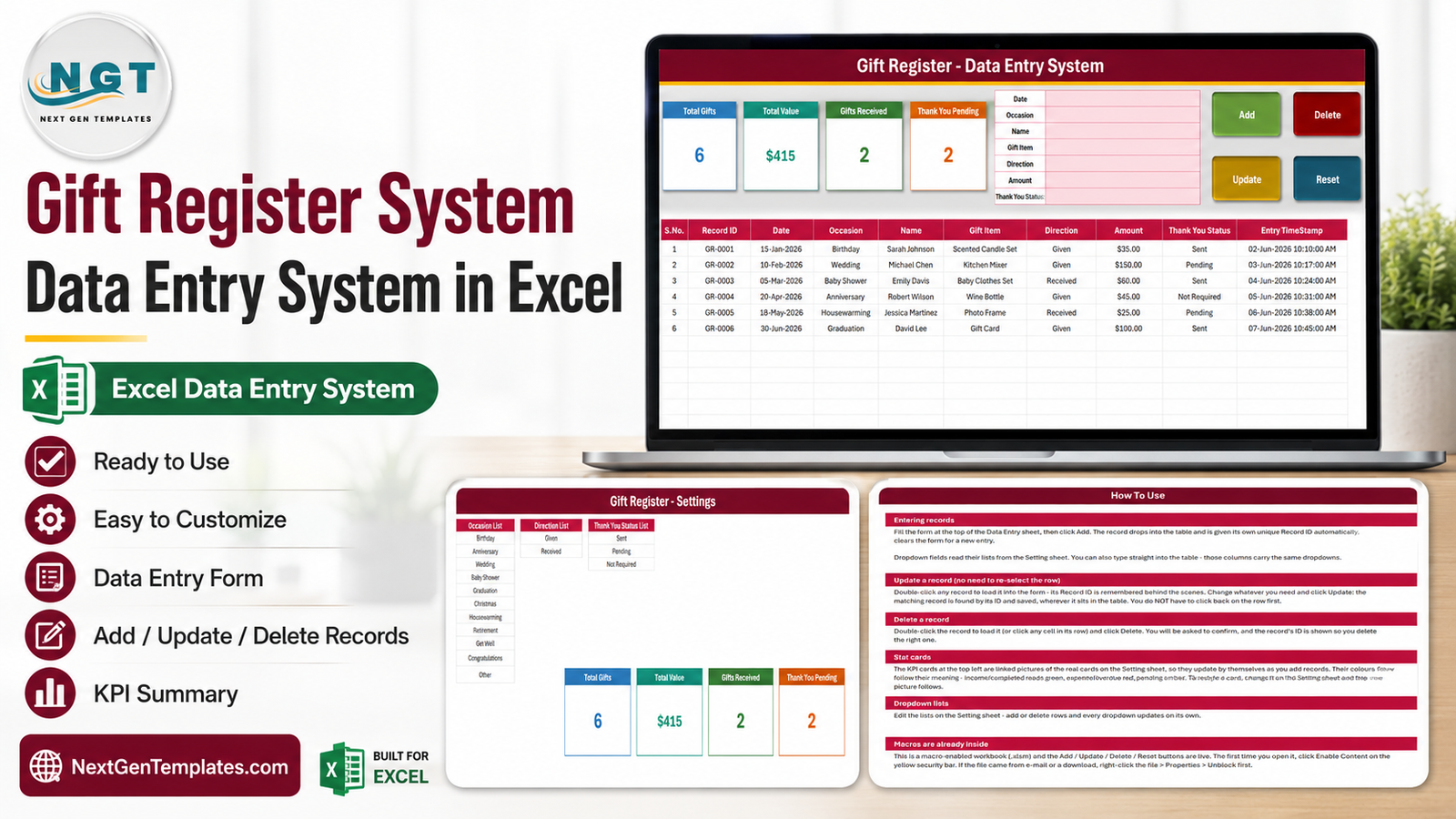
Most gift records die in the same place: a notebook that gets lost, or a spreadsheet with eleven columns that nobody keeps up. The moment you need to know who gave you the kitchen mixer, or whether you ever sent a thank-you to the neighbours, the record is either missing or unreadable.
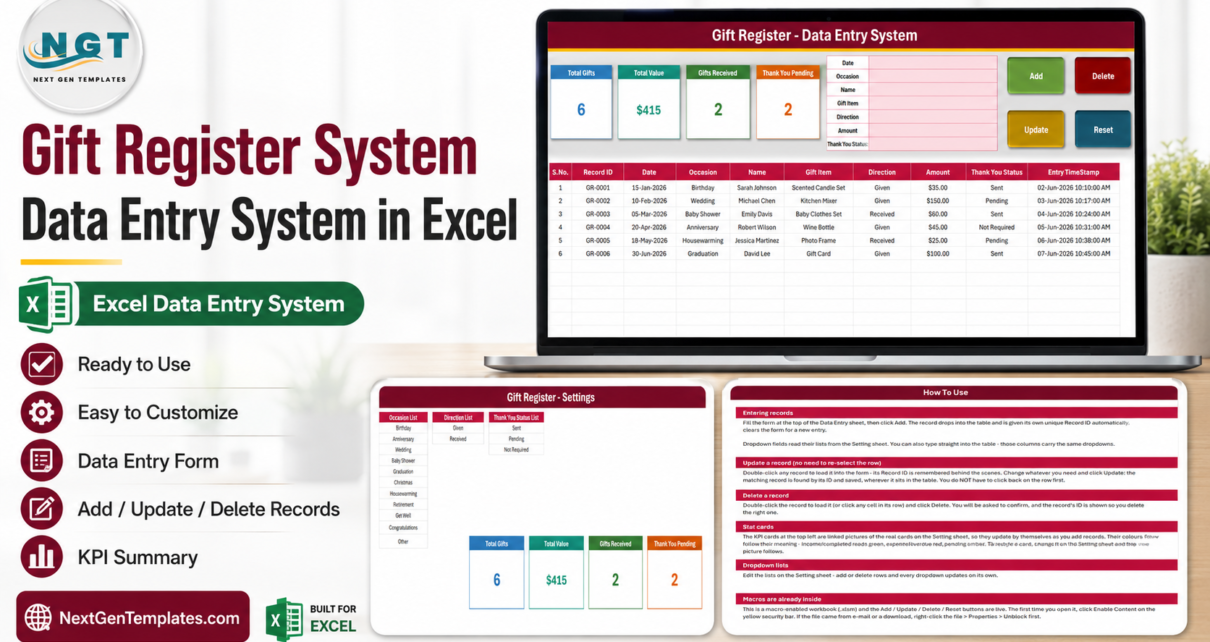
The Gift Register Data Entry System in Excel takes a different route. It is one macro-enabled workbook with a seven-field form at the top of the screen and four buttons beside it. You fill in Date, Occasion, Name, Gift Item, Direction, Amount and Thank You Status, click Add, and the record lands in the table underneath with its own ID – GR-0001, GR-0002 and so on – plus a timestamp of when you saved it. Four KPI cards along the top recalculate immediately: Total Gifts, Total Value, Gifts Received and Thank You Pending.
It is a record-keeping tool, and it is honest about that. It logs what you tell it and reports it back. Everything in the screenshots below is sample data, put there so you can see the layout working before you clear it out.
Key Features of the Gift Register Data Entry System in Excel
A form instead of a wall of columns
The entry panel holds seven fields in a single bordered block: Date, Occasion, Name, Gift Item, Direction, Amount and Thank You Status. Four of those are dropdowns fed from a separate Setting sheet, so the same occasion is never spelled three different ways.
Four buttons that actually do something
Add appends the record and issues its ID. Update finds the record by that ID and saves your changes wherever the row happens to sit – you do not have to click back onto it first. Delete asks you to confirm and shows the ID it is about to remove. Reset empties the form for the next entry. All four are VBA, which is why the file is an .xlsm.
KPI cards that maintain themselves
The four cards are linked pictures of master cards living on the Setting sheet. Because they are pictures of live cells, they refresh as you type, and because the masters are in one place, restyling a card is a single edit rather than four.
Given and Received in one register
A Direction field carries either Given or Received. That one field is what lets a single table serve as both “what came in” and “what went out” – and it is what makes the Gifts Received card possible without a second workbook.
Thank-you follow-up built into the data
Thank You Status holds Sent, Pending or Not Required. The Thank You Pending card counts the middle one, so the number of outstanding notes is on screen rather than in your head.
Sheet-by-Sheet Walkthrough
1. Data Entry
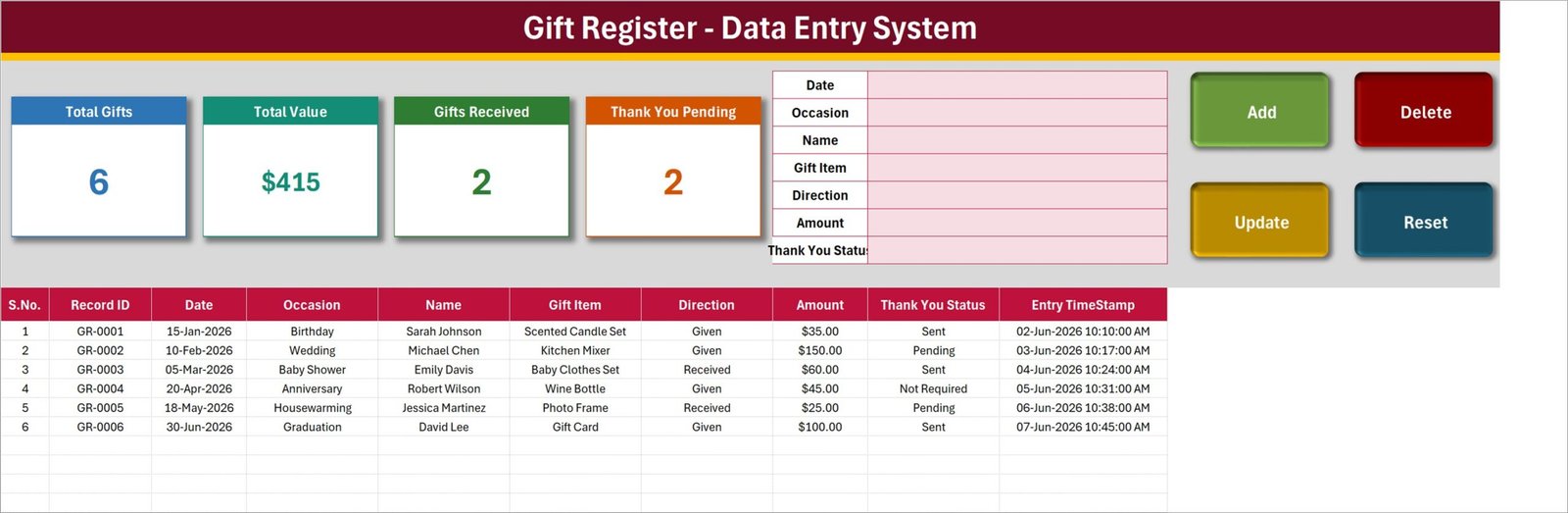
The working screen. The KPI row spans the top – in the sample file it reads Total Gifts 6, Total Value $415, Gifts Received 2 and Thank You Pending 2. To its right sits the seven-field entry form, and to the right of that the Add, Delete, Update and Reset buttons, colour-coded so the destructive one is obvious.
Below runs the records table with ten columns: S.No., Record ID, Date, Occasion, Name, Gift Item, Direction, Amount, Thank You Status and Entry TimeStamp. You are not locked into the form – the table columns carry the same dropdowns, so typing directly into a row works too.
2. Setting
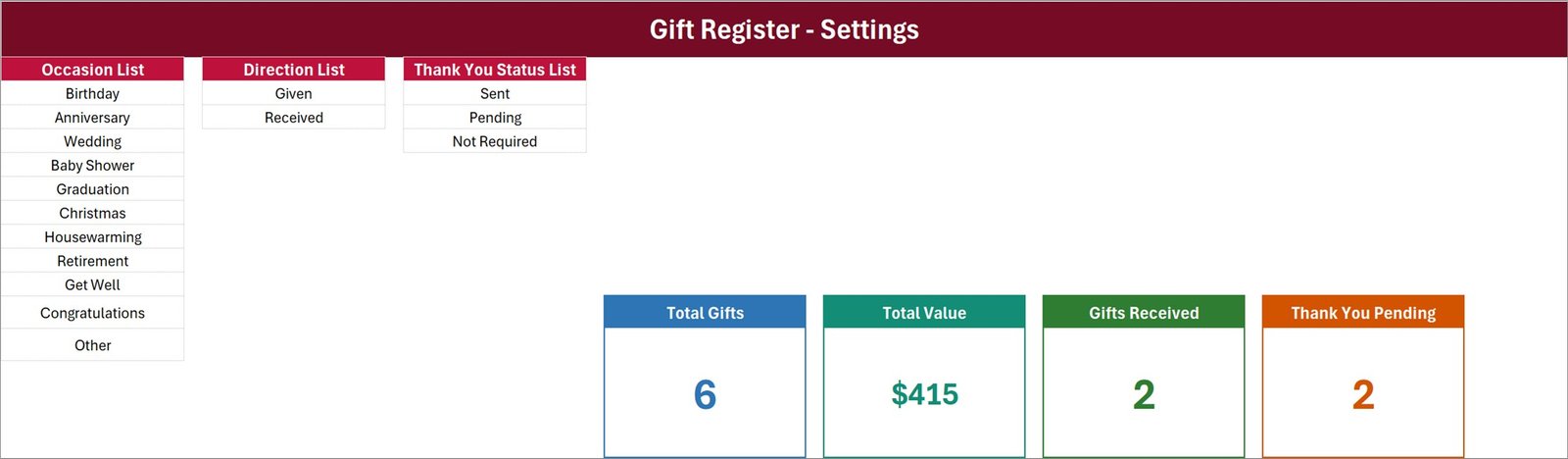
Three lists and four master cards. Occasion List ships with eleven values – Birthday, Anniversary, Wedding, Baby Shower, Graduation, Christmas, Housewarming, Retirement, Get Well, Congratulations and Other. Direction List holds Given and Received. Thank You Status List holds Sent, Pending and Not Required.
Add a row to any of them and the matching dropdown updates on its own – no named range to redefine, no data-validation dialog to reopen. If your family celebrates Diwali or Eid, type it in and it is available in the form seconds later. The four master KPI cards sit on the right of the same sheet.
3. How To Use
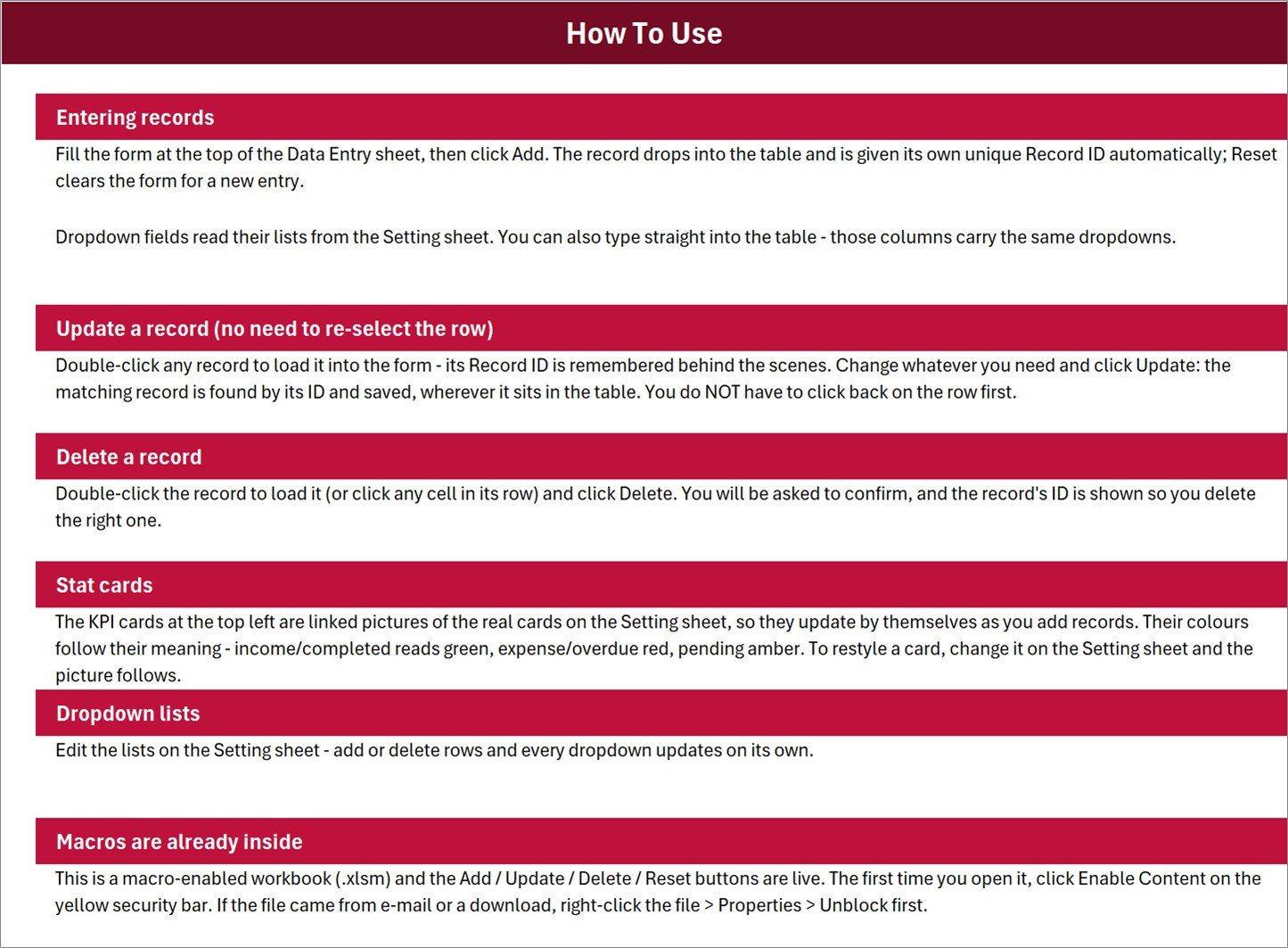
The manual, shipped inside the file. Six sections: entering records, updating a record without re-selecting the row, deleting safely, how the stat cards work, editing the dropdown lists, and a plain note that macros are already inside and need enabling on first open. Anyone you hand the file to can read it without you writing an e-mail.
4. Get More Templates
A short closing sheet with links back to the wider NextGenTemplates catalogue. It holds no data and touches nothing; delete it if you would rather your file did not carry it.
Gift Register Data Entry System in Excel vs. Google Sheets vs. Paid Registry Software – Feature Comparison
| This Excel system | A Google Sheets gift list | Paid registry / event software | |
|---|---|---|---|
| Cost | $6.99 one-off | Free, if you build it yourself | $15-40 per month |
| Platform | Desktop Microsoft Excel (.xlsm) | Browser | Browser / mobile app |
| Setup time | Under 5 minutes | 1-3 hours of building | 30-60 minutes plus onboarding |
| Real-time team collaboration | No – file based | Yes | Yes |
| Mobile access | View only; buttons need desktop Excel | Yes | Yes |
| Customizable fields | Yes – edit the sheet and the VBA | Yes | Limited to the vendor’s fields |
| Share with a link | No – you send the file | Yes | Yes |
| Year-1 cost at 5 users | $6.99 total | $0 | $900-2,400 |
| Given and Received in one register | Yes, via the Direction field | Only if you build it | Usually registry-only |
| Thank-you status with a pending count | Yes | A manual column | Varies by plan |
| Data stays on your own machine | Yes | Google’s servers | The vendor’s servers |
Who Should Use This Template
It suits anyone keeping a running record rather than running an operation. Households logging gifts across birthdays, weddings and the December rush. Couples working through a wedding haul and a pile of thank-you cards. Office managers who send leaving presents and festive hampers and would like one figure at year end instead of a shoebox of receipts. Clubs, societies and small teams that mark milestones and want to know what they gave whom.
It suits you especially if you already have desktop Excel and would rather buy once than subscribe to something you will use twice a year.
It will not suit you if several people need to type into the same register at the same moment – that is a job for a shared Google Sheet or a web app. Nor if you work only on a phone, or only in Excel for the web, because the VBA behind the buttons does not run in either.
Real-World Use Cases
The wedding haul
Priya logs each gift as it is opened: Direction set to Received, Thank You Status left on Pending. Ten days later she filters the Thank You Status column to Pending, works down the list, and flips each one to Sent as the card goes in the post. The Thank You Pending card counts her down to zero.
The office gift budget
Daniel runs a 40-person office. Leaving presents, new-baby hampers, congratulation baskets – all logged as Given with an Amount. At the end of the year the Total Value card is the single number he passes to finance, and the Occasion column shows how it split across the year.
The extended-family register
The Osei family keep one file across a large family. Because Given and Received sit in the same table, a quick filter by Name shows who they have not reciprocated with this year – the sort of thing that is invisible when the two directions live in separate lists.
Advantages of the Gift Register Data Entry System in Excel
- Nothing to learn. If you can fill in a form you can use it. The four buttons are the whole interface.
- No formulas to drag. The record IDs, the timestamps and the KPI figures are all produced for you.
- Editable at every level. The lists are cells, the cards are cells, and the VBA module is unlocked and commented if you want to add a field.
- One file, one payment. No account, no cloud sync, no renewal.
- Your data stays yours. The register lives on your machine, which matters when it carries the names of friends and colleagues.
- Consistent entries. Dropdowns on both the form and the table mean the Occasion column is actually filterable a year later.
Opportunities for Improvement
Worth saying plainly, so you can judge the fit:
- Single user at a time. It is a file, not a service. Two people cannot type into it simultaneously.
- Desktop Excel only. Excel for the web, Excel on iPad and Google Sheets will open the file but will not run the buttons.
- Macros must be enabled. Some corporate machines block macros by policy, and no template can work around that.
- Amounts are a single currency. There is one Amount column and no conversion; if you record in two currencies you would need to add a column and extend the VBA.
- No reminders. The Thank You Pending card shows you the count, but nothing e-mails you about it.
- No charts. This is a register with KPI cards, not a dashboard. If you want gift spend charted by month, the Excel dashboard range is the better starting point.
Best Practices
- Clear the sample data first. Delete rows GR-0001 to GR-0006 before your own first entry so nothing sample-shaped survives into your totals.
- Tune the Occasion List on day one. Five minutes on the Setting sheet, matching the list to how you actually celebrate, pays for itself in filterable data later.
- Log it the same day. The Entry TimeStamp only helps if entries go in while you still remember who brought what.
- Use Direction consistently. Decide once whether a gift you bought for someone else’s party is Given – it always is – and stick to it.
- Set Not Required deliberately. Use it for gifts where no note is expected, so the Pending count means something.
- Save as .xlsm. Save As with any other extension quietly strips the macros out.
- Keep a backup copy. One file is convenient and also a single point of failure – copy it somewhere safe after each big occasion.
- Unblock before you open. Files downloaded from the internet arrive with a mark-of-the-web flag; right-click, Properties, tick Unblock. Microsoft explains the behaviour in its own documentation on macros blocked in files from the internet.
Explore Relevant Templates
- Gift Register Data Entry System in Excel – the template described in this post.
- Donation Register Data Entry System in Excel – the same engine, pointed at incoming donations.
- Petty Reimbursement Data Entry System in Excel – small out-of-pocket claims.
- Employee Document Data Entry System in Excel – staff paperwork and expiry dates.
- Class Schedule Data Entry System in Excel – timetable records.
- Bar Stock Register, Supplement Sales and Livestock Register – three more systems from the same line.
Frequently Asked Questions
Do I have to enable macros to use it?
Yes. The Add, Update, Delete and Reset buttons are VBA, so the workbook ships as an .xlsm and you click Enable Content on the yellow bar the first time you open it. Without macros you can still type into the table by hand, but the buttons and the automatic record IDs will not work.
Will it run in Excel for the web or Google Sheets?
No. Neither runs VBA. Use desktop Microsoft Excel on Windows or Mac; Excel 2013 or later is fine.
Can I add my own occasions?
Yes. The Occasion List on the Setting sheet is an ordinary range. Add or remove rows and every dropdown – in the form and in the table column – updates by itself.
Can I add a field, like a phone number or an address?
Yes, with a small edit. Add the column to the table, add the label to the form, then extend the VBA to read and write that cell. The module is unlocked and commented.
Are the names and amounts in the screenshots real?
No. Every record shown is sample data included to demonstrate the layout. Delete it before you start.
How many records will it hold?
Thousands – it is a normal Excel table, so your machine is the limit rather than the template. A household or office register of a few hundred rows a year will not stress it.
What is actually in the download?
A single ZIP containing Gift_Register_System.xlsm. Nothing to install, no account to create.
About the Author
Built by PK – Microsoft Certified Professional with 15+ years of Excel, Google Sheets, and Power BI experience. Founder of NextGenTemplates, reaching 300K+ subscribers across YouTube channels. Every template is hand-built and tested before release.
Conclusion
A gift register only earns its keep if entering a record takes seconds. That is the whole argument for this workbook: seven fields, one button, and the ID, the timestamp and the four KPI figures produced for you. Given and Received live in the same table, so reciprocity is one filter away, and the Thank You Pending card keeps the outstanding notes visible instead of nagging at the back of your mind.
It is a desktop Excel product and it needs macros enabled – say so out loud rather than discovering it later. Within that boundary it does one job properly and costs less than the wrapping paper.
Get the Gift Register Data Entry System in Excel on NextGenTemplates, and for walkthroughs of this and every other template in the range, subscribe to youtube.com/@PKAnExcelExpert.