New: NextGenTemplates Academy - video courses on Excel formulas with AI and Pivot Tables & dashboards. Early-bird: 20% off with code EARLYBIRD20 - first 20 orders only. See the courses →
  • Learn Excel (Free Course)
    • 1. Shortcut Keys
    • 2. Fill & Flash Fill
    • 3. Find & Replace
    • 4. Sort & Filter
    • 5. Formulas & Functions
    • 6. Data Validation
    • 7. Conditional Formatting
    • 8. Basic Charts
    • 9. Advanced Charts
    • 10. Pivot Tables
    • 11. Excel Dashboards
    • 12. VBA Course
    • 13. Excel Formulas with AI
  • Templates
  • Tutorials
    • Charts and Visualization
    • VBA
    • Excel Tips and Tricks
    • Excel Dashboards
    • Power Pivot & DAX
  • Power BI
  • Template Store
    • Ready to Use Templates
  • Courses
  • Academy
    • Excel + AI Mastery: 100 Formulas
    • Excel Pivot Tables & Dashboards
  • About Us
  • Contact Us

PK: An Excel Expert

Transforming Data into Decisions

Home>Blogs>Dashboard>Incident Report Tracker in Excel
Dashboard Templates VBA

Incident Report Tracker in Excel

23 Jan 2025
1788Comments Off on Incident Report Tracker in Excel

In today’s fast-paced work environments, efficiently managing incidents is crucial for maintaining operational continuity. The Incident Report Tracker in Excel is ingeniously designed to simplify this process. By integrating Excel’s versatility with robust VBA scripting, this tool stands out as an essential resource for organizations aiming to streamline their incident management procedures.

Click to buy Incident Report Tracker in Excel

Table of Contents

Toggle
  • Discover the Incident Report Tracker
  • Explore the Key Features of the Incident Report Tracker
    • Secure Login Form
    • Comprehensive Main Dashboard
    • Dashboard Sheet Tab Features
    • Data Entry Sheet Tab
    • User-Friendly Buttons:
    • Add New Record:
    • Update Record:
    • Manage List Sheet Tab
    • Support Sheet Tab
    •  User Management:
    • Setting Sheet:
    • Login with Different User:
  • Advantages of the Incident Report Tracker
  • Best Practices for Using the Incident Report Tracker
  • Frequently Asked Questions
    • Watch the step-by-step video tutorial:

Discover the Incident Report Tracker

This Excel-based Incident Report Tracker offers a seamless blend of functionality and security, making incident reporting and follow-up more straightforward than ever. It’s an out-of-the-box solution that combines data entry, management, and analysis in one accessible platform.

Explore the Key Features of the Incident Report Tracker

Secure Login Form
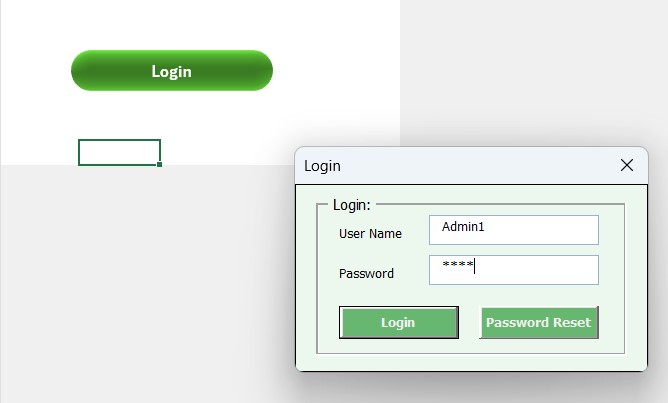
Secure Login Form
Secure Login Form
  • Initially, you will be greeted by a secure login form. Simply enter “Admin1” as the user ID and “abcd” as the password. You can either click the login button or press “Enter” to access the comprehensive main dashboard.

Click to buy Incident Report Tracker in Excel

Comprehensive Main Dashboard
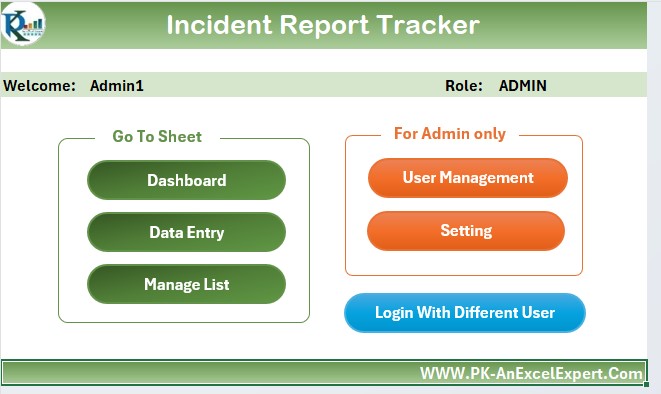
Comprehensive Main Dashboard
  • Once logged in, you’ll find yourself at the heart of the tool—the main dashboard. This central hub provides a detailed overview of all incident-related data through interactive charts and tables, enabling swift and informed decision-making.

Dashboard Sheet Tab Features
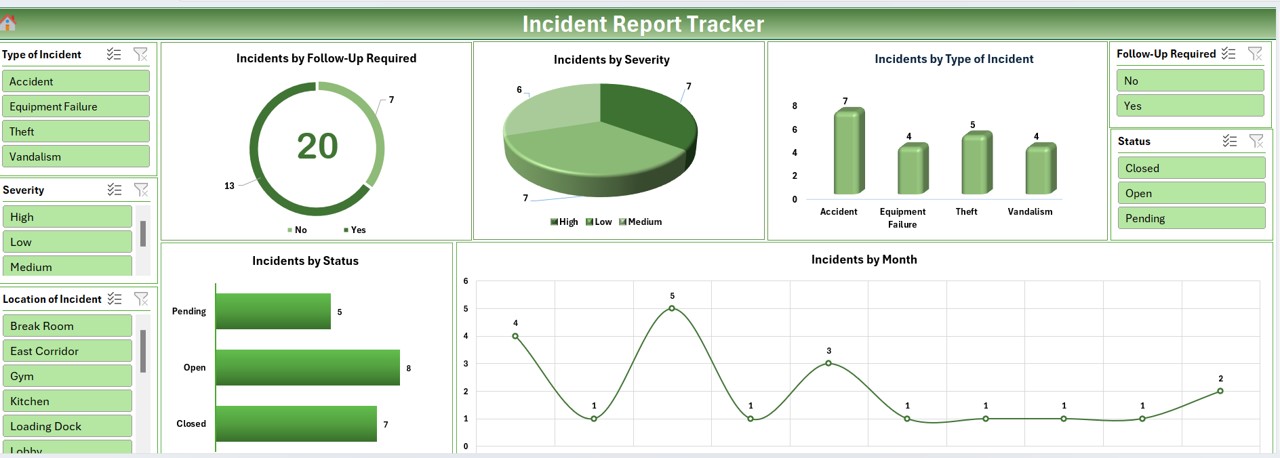
Incident Report Tracker
  • Tracking Incidents by Follow-Up Required: A doughnut chart provides a clear visual of necessary follow-up actions.
  • Understanding Incidents by Severity: A pie chart helps prioritize incidents based on their severity.
  • Analyzing Incidents by Type: A column chart categorizes incidents, facilitating easier management.
  • Monitoring Incidents by Status: A bar chart displays the progress in resolving incidents.
  • Viewing Incidents by Month: A line chart shows trends and patterns over time, offering strategic insights.

Data Entry Sheet Tab
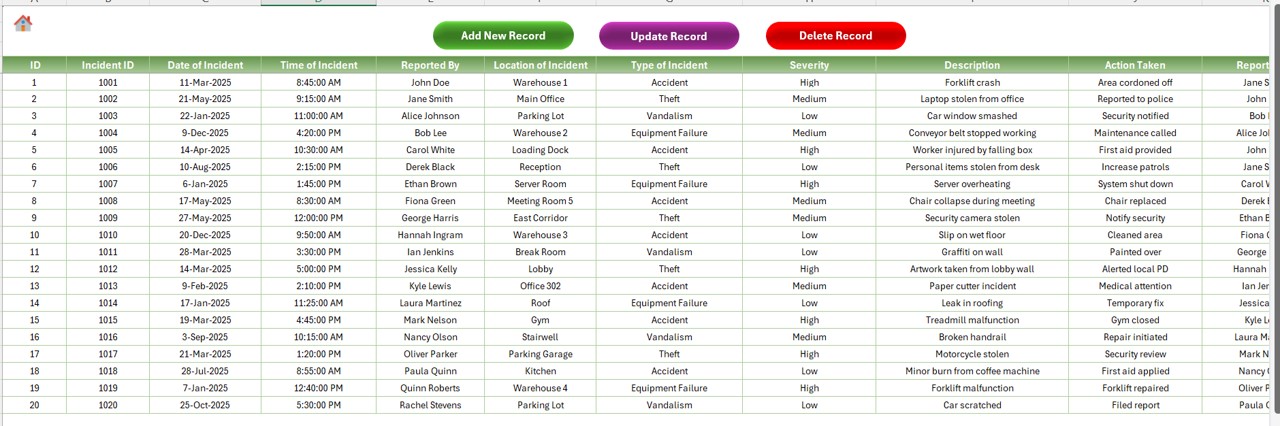
Data Entry Sheet
Data Entry Sheet

This tab is meticulously designed for straightforward data entry:

  • Included Fields: Everything from ID, Date, and Time of the incident to detailed notes on actions taken is covered here.

User-Friendly Buttons:

Add New Record:
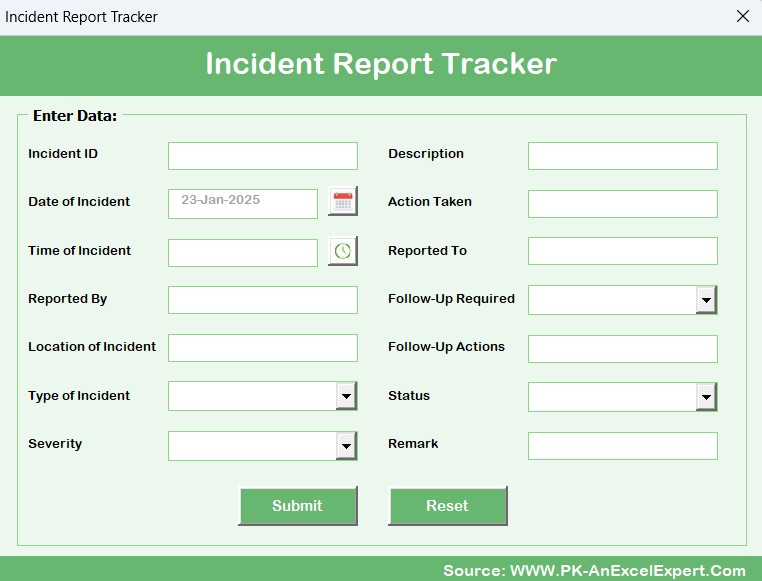
Add New Record
Add New Record
  • This button opens a form to enter new incidents quickly.

Update Record:

Click to buy Incident Report Tracker in Excel
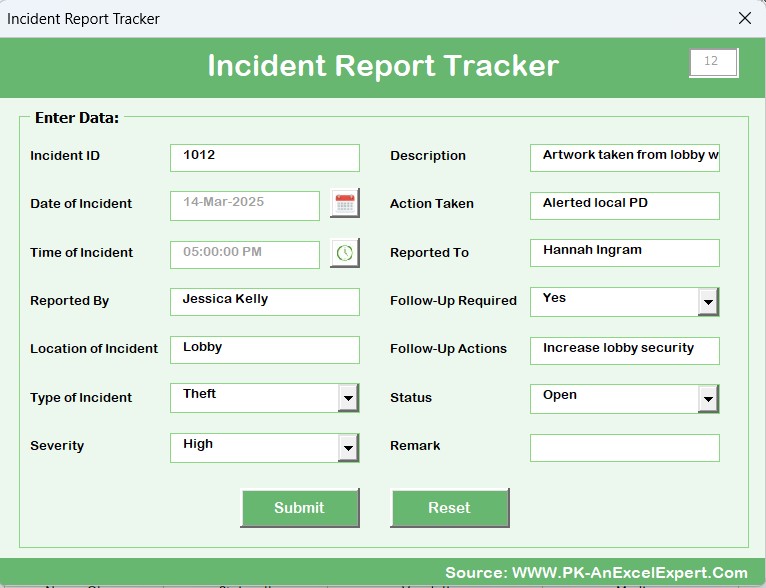
Update Record
Update Record
  • Easily modify existing information with pre-filled data in the form.
  • Delete Record: Safely remove records with a confirmation step to prevent accidental deletions.

Manage List Sheet Tab
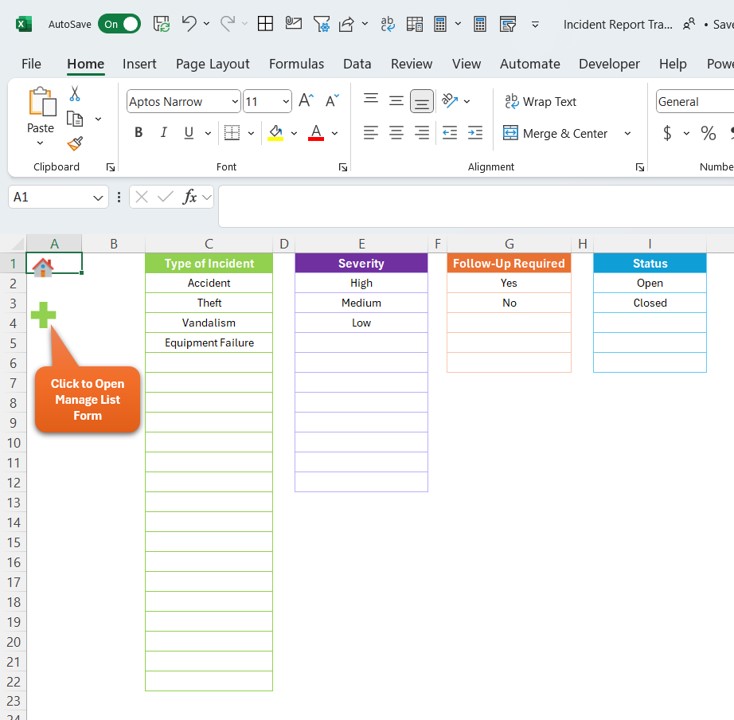
Manage List Sheet
Manage List Sheet
  • Tailor the dropdown lists for incident types, severities, and statuses through this tab, ensuring that the data entry form remains up-to-date and aligned with your specific needs.

Support Sheet Tab

  • Housing essential pivot tables that support the dashboard’s charts, this tab operates in the background and can be hidden to streamline user interactions.

 User Management:

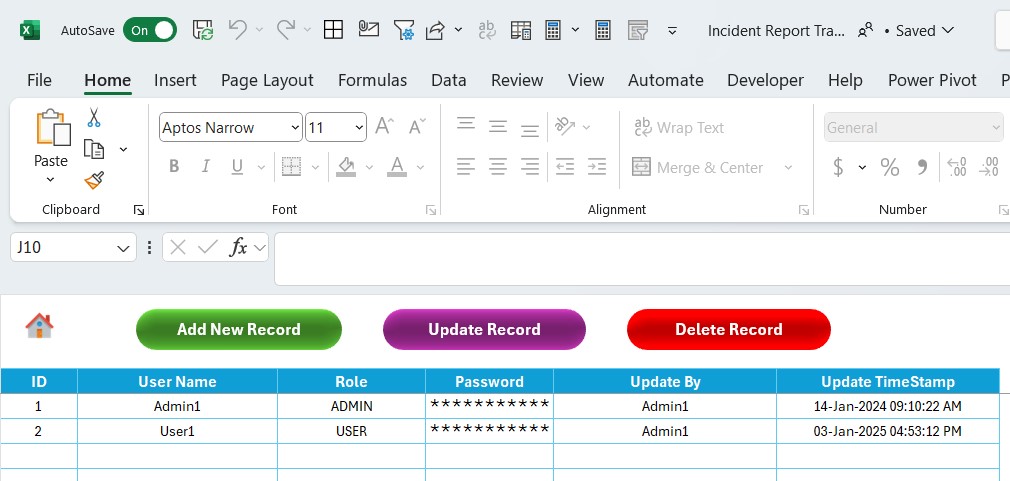
To open the user management, you can click on the user management button available on in the top. You can add update or delete and user from this screen and you can change the password also.

Click to buy Incident Report Tracker in Excel

Setting Sheet:
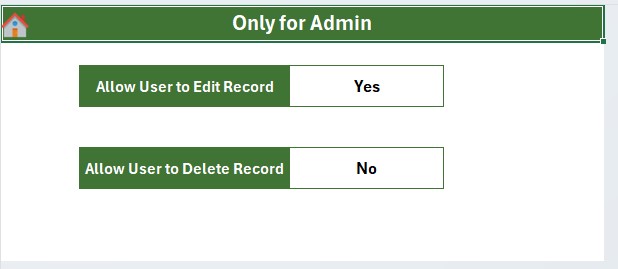
Setting Sheet
Setting Sheet


Login with Different User:

Login with Different User


Advantages of the Incident Report Tracker

  • Secured Data Management: The login form ensures that sensitive data is accessed only by authorized personnel.
  • Immediate Updates: Any data entered is instantly reflected in the dashboard, keeping information current and actionable.
  • Flexible Customization: Adapt the lists and fields to fit your organization’s specific requirements effortlessly.
  • Efficient Automation: Reduce the manual workload by automating data aggregation and visualization, freeing up time for critical tasks.

Best Practices for Using the Incident Report Tracker

  • Maintain Strict Access Controls: Regularly update user credentials and monitor access logs to protect sensitive data.
  • Educate Your Team: Provide comprehensive training on using the tracker to ensure data is entered accurately and consistently.
  • Backup Data Frequently: Implement a routine for backing up the tracker data to avoid loss and ensure continuity.
  • Continuously Improve: Regularly review and refine the setup of your data fields and charts to match your evolving needs.

Frequently Asked Questions

Q. How do I reset a forgotten password?

Navigate to the user management area from the top menu of the main dashboard to update or reset passwords as needed.

Q. Is it possible to customize the dashboard charts?

Absolutely, all charts are customizable. Modify them to better suit your analytical needs by adjusting settings in the Support Sheet tab.

Q. What steps should I take if I face an error with the VBA script?

Begin by ensuring macros are enabled and external content is not restricted in your Excel settings. If issues continue, refer to the provided user guide or reach out to the support team for assistance.

Click to buy Incident Report Tracker in Excel

Visit our YouTube channel to learn step-by-step video tutorials

Youtube.com/@PKAnExcelExpert


Watch the step-by-step video tutorial:

Click to buy Incident Report Tracker in Excel
Tagged data entry excel, Excel Dashboard, excel incident management, incident report tracker, incident tracking, secure login excel, VBA reporting tool
PK
Meet PK, the founder of PK-AnExcelExpert.com! With over 15 years of experience in Data Visualization, Excel Automation, and dashboard creation. PK is a Microsoft Certified Professional who has a passion for all things in Excel. PK loves to explore new and innovative ways to use Excel and is always eager to share his knowledge with others. With an eye for detail and a commitment to excellence, PK has become a go-to expert in the world of Excel. Whether you're looking to create stunning visualizations or streamline your workflow with automation, PK has the skills and expertise to help you succeed. Join the many satisfied clients who have benefited from PK's services and see how he can take your Excel skills to the next level!
https://www.pk-anexcelexpert.com

Related Articles

Templates

GDPR Compliance Tracking Checklist in Excel

August 26, 2025August 26, 2025 PK
In today’s digital world, organizations handle a massive amount of personal data. Protecting this information is not only a moral
Dashboard

Project Management Resource Allocation KPI Dashboard in Excel

May 5, 2025May 5, 2025 PK
Managing resources efficiently is essential for successful project management. The Project Management Resource Allocation KPI Dashboard in Excel provides a
Dashboard

Financial Tech Startups KPI Dashboard in Excel

May 5, 2026May 5, 2026 PK
The Financial Tech Startups KPI Dashboard in Excel tracks fintech-specific KPIs across 7 interactive worksheets, with built-in MTD and YTD

Post navigation

Healthcare Insurance KPI Dashboard Power BI
Vendor Registration Tracker in Excel

Join Our Course

  • Excel Pivot Tables for Data Analysis

Top Categories

  • Blogs (68)
  • Charts and Visualization (158)
  • Dashboard (3,150)
  • Excel Tips and Tricks (202)
  • Power BI (1,548)
  • Power Pivot (123)
  • Power Point Visualization (4)
  • Power Query (3)
  • Predictive Analytics (5)
  • Productivity (2)
  • Templates (2,247)
  • VBA (372)

Latest Articles

E-commerce Sales Dashboard in Excel: PivotTables + Slicers (Free File)

October 28, 2026 PK

Online Furniture Retail Dashboard in Excel: 5 Pages, 17 Charts

October 26, 2026 PK

Power BI KPI Cards with SVG + DAX: Let AI Write Them (Free File)

October 26, 2026 PK

How to Remove Duplicates in Excel Without Losing the Original (Free File)

October 26, 2026 PK

Power BI Drill Through: See the Orders Behind Any Bar (Free File)

October 25, 2026October 25, 2026 PK

Popular Articles

Humanitarian Aid KPI Scorecard in Excel

February 12, 2026February 12, 2026 PK

Laboratory Instruments KPI Dashboard in Excel

February 11, 2026February 11, 2026 PK

Theme Parks KPI Dashboard in Excel

January 23, 2026January 23, 2026 PK

Freelance Marketplaces Dashboard in Excel

September 23, 2026September 23, 2026 PK

Marketing Collateral Request Tracker in Excel

December 30, 2025December 30, 2025 PK

Learn More

  • Free Excel Course
  • VBA Course
  • Excel Dashboards
  • Charts and Visualization
  • VBA Tutorials
  • Excel Tips and Tricks
  • Power BI Tutorials
  • Courses

Subscribe to our Newsletter


Free Excel Course

  • 1. Shortcut Keys
  • 2. Fill and Flash Fill
  • 3. Find and Replace
  • 4. Sort and Filter
  • 5. Formulas and Functions
  • 6. Data Validation
  • 7. Conditional Formatting
  • 8. Basic Charts
  • 9. Advanced Charts
  • 10. Pivot Tables
  • 11. Excel Dashboards
  • 12. VBA Course
  • 13. Excel Formulas with AI

See the full learning path →

Popular Tags

Business Analytics business intelligence checklist template data analysis Data Analytics Data Entry data entry excel Data Entry form Data Entry form in VBA Data visualization Event Management Excel excel-kpi-template Excel calendar Excel Calendar Template excel checklist Excel Dashboard Excel dashboard template Excel KPI Dashboard Excel reporting Excel Template Excel Templates Excel Tips Excel Tutorial healthcare analytics HR Analytics KPI Dashboard KPI dashboard Excel KPI tracking MTD YTD analysis MTD YTD dashboard MTD YTD KPIs performance dashboard Performance Metrics performance tracking Power BI Power BI dashboard Power BI KPI Dashboard Power BI Reporting Power BI reports Power BI Template Power BI Templates Project Management Task Management VBA
  • Learn Excel (Free Course)
    • 1. Shortcut Keys
    • 2. Fill & Flash Fill
    • 3. Find & Replace
    • 4. Sort & Filter
    • 5. Formulas & Functions
    • 6. Data Validation
    • 7. Conditional Formatting
    • 8. Basic Charts
    • 9. Advanced Charts
    • 10. Pivot Tables
    • 11. Excel Dashboards
    • 12. VBA Course
    • 13. Excel Formulas with AI
  • Templates
  • Tutorials
    • Charts and Visualization
    • VBA
    • Excel Tips and Tricks
    • Excel Dashboards
    • Power Pivot & DAX
  • Power BI
  • Template Store
    • Ready to Use Templates
  • Courses
  • Academy
    • Excel + AI Mastery: 100 Formulas
    • Excel Pivot Tables & Dashboards
  • About Us
  • Contact Us
Copyright © 2023 PK-AnExcelExpert.com - Privacy Policy