Managing IT projects efficiently has become more critical than ever. As organizations grow, IT departments receive a continuous flow of project requests—software upgrades, infrastructure changes, automation initiatives, security improvements, and more. However, when teams handle these requests through emails, chats, or unstructured spreadsheets, confusion increases quickly. As a result, priorities clash, approvals slow down, and visibility disappears.
That is exactly where an IT Project Request Tracker in Excel plays a vital role.
In this detailed article, you will learn what an IT Project Request Tracker in Excel is, why organizations need it, how it works, its key features, advantages, best practices, and frequently asked questions. Moreover, this guide uses simple language, active voice, and practical examples so that anyone can understand and implement it easily.
Click to Purchases IT Project Request Tracker in Excel
What Is an IT Project Request Tracker in Excel?
An IT Project Request Tracker in Excel is a structured, Excel-based system designed to capture, track, manage, and analyze IT project requests from a single centralized file.
Instead of managing requests across emails, shared folders, or multiple spreadsheets, this tracker brings everything together in one professional tool. Moreover, because it uses Excel and VBA, it offers flexibility, automation, and strong control without expensive software.
This ready-to-use tracker allows IT teams to:
-
Record new project requests
-
Assign priorities and owners
-
Track estimated budgets
-
Monitor project status
-
Analyze requests using dashboards
As a result, IT managers gain clarity, control, and confidence while handling multiple projects.
Why Do Organizations Need an IT Project Request Tracker?
IT departments handle increasing workloads every year. Therefore, manual methods no longer work efficiently.
Here are the main reasons why organizations need an IT Project Request Tracker in Excel:
-
IT requests come from multiple departments
-
Budget tracking becomes difficult without structure
-
Project approvals often get delayed
-
Managers struggle to track priorities
-
Leadership lacks a clear performance overview
However, when teams use a structured tracker, they eliminate chaos and improve accountability. Moreover, Excel makes the solution affordable and familiar.
How Does the IT Project Request Tracker in Excel Work?
The IT Project Request Tracker in Excel works through a combination of forms, dashboards, data sheets, and automated controls. Each component plays a specific role.
Let us walk through the complete workflow step by step.
Login Form – Secure Access to the Tracker
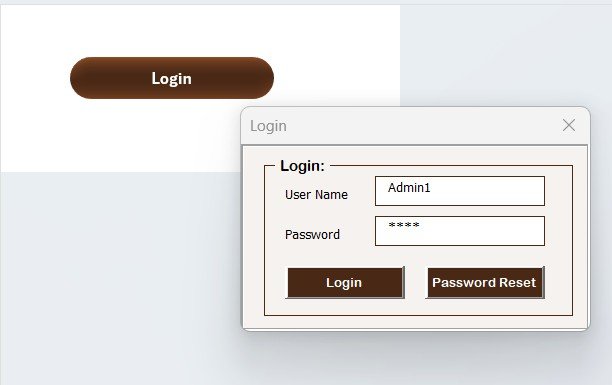
Security always matters, especially when IT project data includes budgets, timelines, and strategic initiatives.
How Does the Login Form Work?
-
Users enter their User ID and Password
-
Example credentials:
-
User ID:
Admin1 -
Password:
abcd
-
-
Users click the Login button or press Enter
-
The system verifies credentials and opens the Main Form
Because of this login system, unauthorized access becomes impossible. Moreover, IT admins can control who sees and edits data.
Click to Purchases IT Project Request Tracker in Excel
Main Form – Central Control Panel
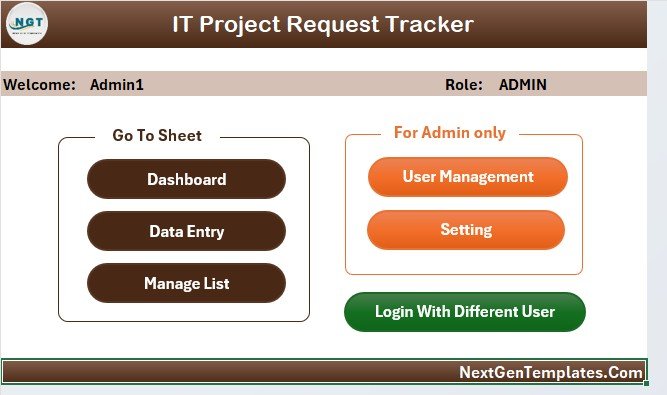
Once users log in successfully, the Main Form appears. This screen acts as the command center of the entire tracker.
What Can You Do from the Main Form?
-
Navigate to different sheets
-
Access data entry features
-
Open dashboards
-
Manage users
-
Change settings
Because everything stays accessible from one place, users save time and avoid confusion.
Dashboard Sheet – Visual Insights at a Glance
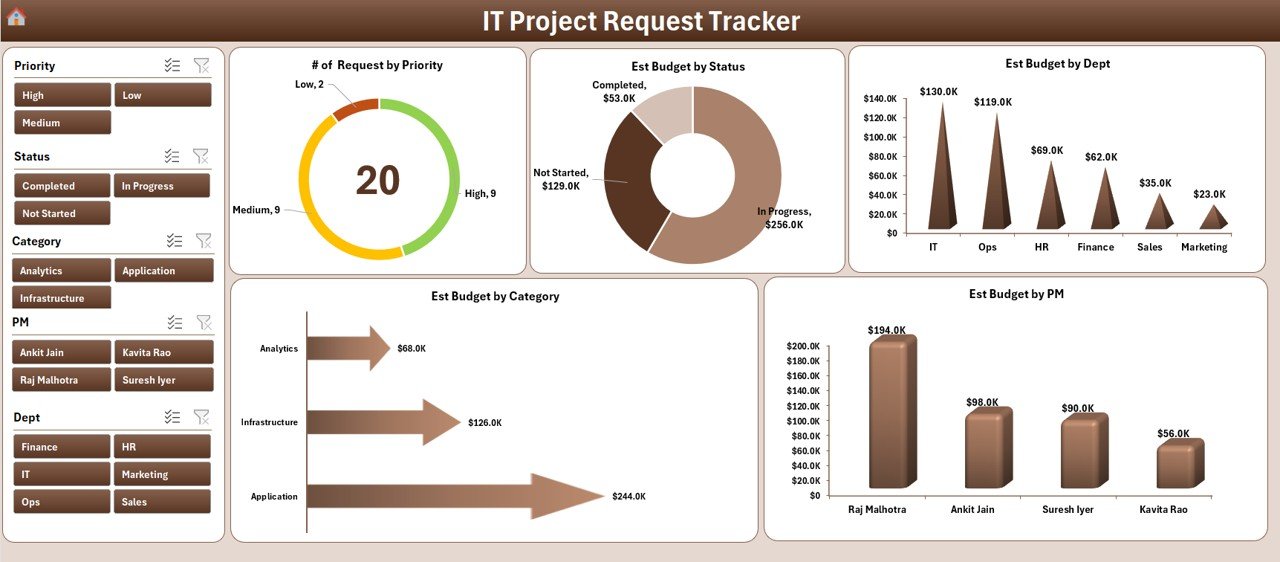
The Dashboard Sheet transforms raw data into clear visual insights. Instead of scanning rows and columns, decision-makers instantly understand performance.
Dashboard Features
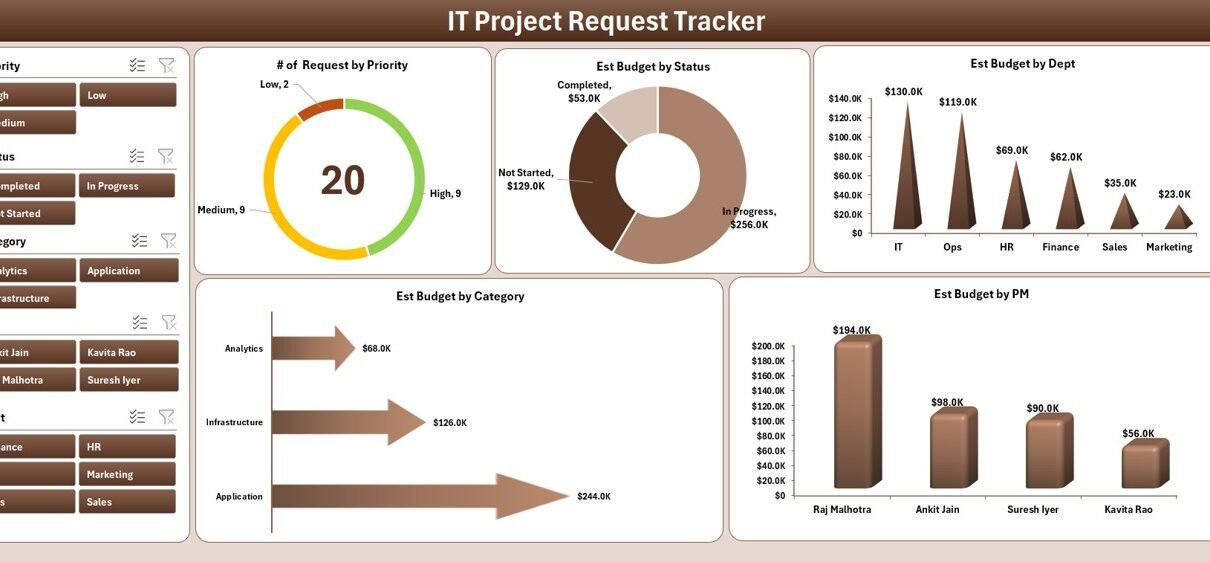
The dashboard includes 5 interactive slicers and 5 dynamic charts.
Slicers
Slicers allow users to filter data instantly by:
-
Department
-
Status
-
Category
-
Project Manager
-
Priority
Charts on the Dashboard
📊 Number of Requests by Priority
Shows how many requests fall under High, Medium, or Low priority.
📊 Estimated Budget by Status
Helps compare budget allocation across Open, Approved, In Progress, or Completed projects.
📊 Estimated Budget by Department
Highlights which departments consume the most IT budget.
📊 Estimated Budget by Category
Displays budget distribution across project categories.
📊 Estimated Budget by Project Manager
Shows workload and budget responsibility by project manager.
Because of these visuals, managers make faster and smarter decisions.
Click to Purchases IT Project Request Tracker in Excel
Data Entry Sheet – Simple and Powerful Record Management
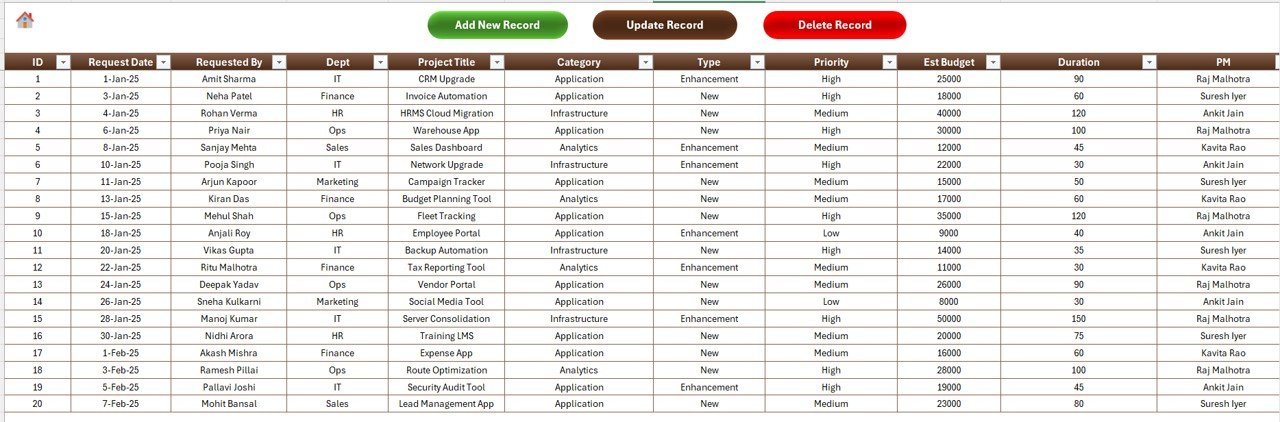
The Data Entry Sheet allows users to add, update, and delete project requests easily. Instead of typing directly into rows, users rely on guided forms and buttons.
Buttons Available on the Data Entry Sheet
Add New Record
-
Opens a user-friendly data entry form
-
Users fill in project details
-
Clicking Submit saves the record automatically
-
The dashboard refreshes instantly
Update Record
-
Users select an existing Project ID
-
Clicking Update Record opens the same form
-
The form displays prefilled data
-
Users edit details and submit changes
Delete Record
-
Users select the Project ID
-
Clicking Delete Record triggers a confirmation message
-
The system deletes the record safely after confirmation
As a result, data stays clean, accurate, and updated.
Manage List Sheet – Control Dropdown Values
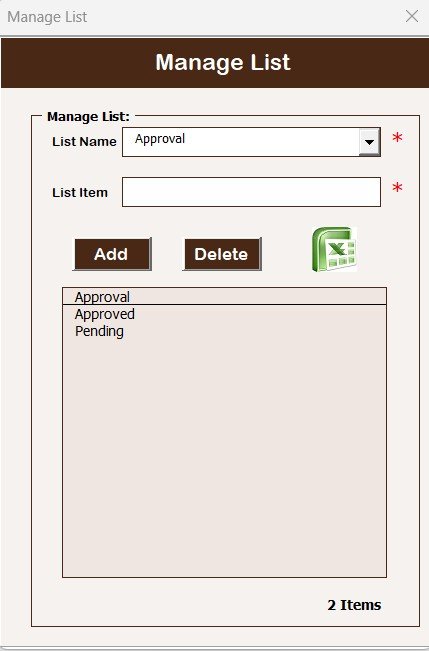
The Manage List Sheet controls all dropdown values used in the data entry form.
Why Is This Sheet Important?
-
Ensures data consistency
-
Prevents typing errors
-
Standardizes departments, statuses, categories, and priorities
Key Functions
-
Add new list values
-
Delete outdated list values
-
Automatically update form dropdowns
Because of this setup, users always select valid and approved values.
Support Sheet – Backend Data Processing
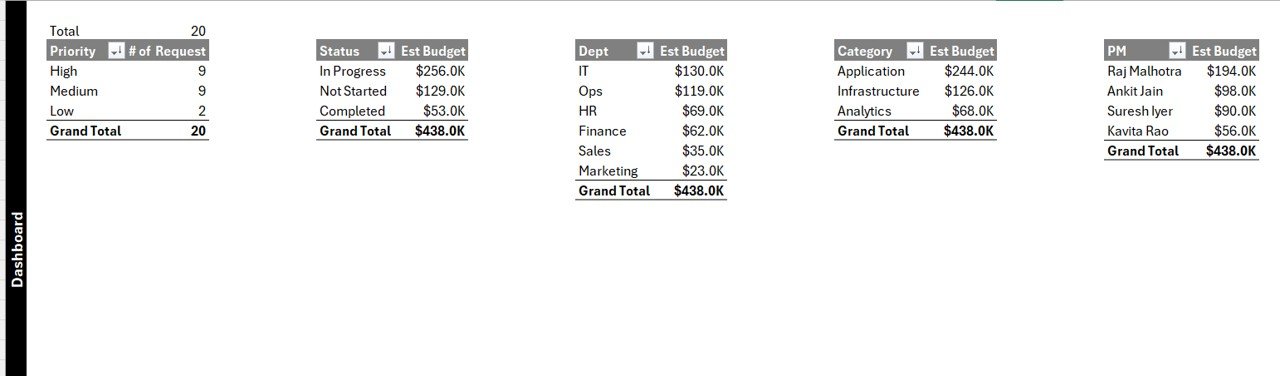
The Support Sheet works silently in the background.
Purpose of the Support Sheet
-
Stores pivot tables
-
Supports dashboard charts
-
Handles calculations
Users do not need to interact with this sheet. Moreover, they can hide it to keep the workbook clean and professional.
User Management – Full Control Over Access
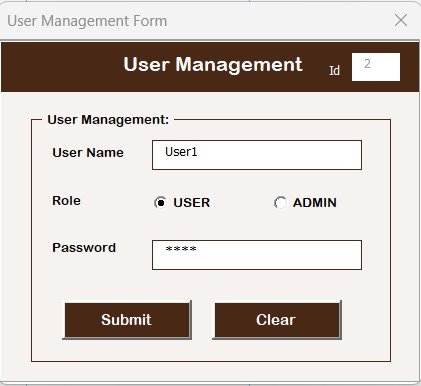
User access control plays a critical role in IT project management.
User Management Features
-
Add new users
-
Update existing users
-
Delete users
-
Change passwords
Admins can open User Management from the top menu. As a result, they maintain full control over security and accountability.
Settings Sheet – Customize the Tracker
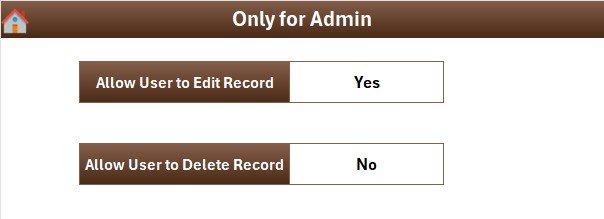
The Settings Sheet allows customization based on organizational needs.
What Can You Configure?
-
Default values
-
Display preferences
-
System behavior
Because every organization works differently, this flexibility adds strong value.
Login with Different Users – Role-Based Access
The tracker supports multiple users. Therefore, different team members can log in using their credentials.
Benefits of Multi-User Login
-
Clear ownership
-
Controlled access
-
Better accountability
Each user works within defined boundaries, which improves data integrity.
Advantages of IT Project Request Tracker in Excel
Using an IT Project Request Tracker in Excel delivers multiple benefits.
Key Advantages
-
✅ Centralized project request management
-
✅ Improved visibility across departments
-
✅ Faster approvals and decisions
-
✅ Automated dashboards and reports
-
✅ Reduced manual errors
-
✅ Secure login and user control
-
✅ Budget tracking and accountability
-
✅ No expensive software required
Because Excel remains familiar, teams adopt the tracker quickly.
Who Should Use an IT Project Request Tracker?
Click to Purchases IT Project Request Tracker in Excel
This tracker suits many roles and industries.
Ideal Users
-
IT Managers
-
Project Managers
-
CIOs and IT Directors
-
PMO Teams
-
Internal Audit Teams
-
Corporate IT Departments
Whether the organization is small or large, this tracker adapts easily.
Best Practices for the IT Project Request Tracker in Excel
To get maximum value, follow these best practices.
1. Standardize Request Entry
Always use the data entry form. Avoid manual typing into sheets.
2. Keep Lists Updated
Review the Manage List Sheet regularly to remove outdated values.
3. Assign Clear Priorities
Define priority rules clearly so teams handle urgent requests first.
4. Update Status Regularly
Encourage project managers to update status frequently.
5. Review Dashboards Weekly
Use dashboards during review meetings to drive decisions.
6. Control User Access
Give editing rights only to authorized users.
7. Back Up the File
Maintain regular backups to prevent data loss.
Following these practices ensures long-term success.
How Does This Tracker Improve IT Governance?
Good governance requires transparency, control, and reporting.
This tracker:
-
Documents every request
-
Tracks approvals and changes
-
Provides audit-ready data
-
Supports budget oversight
As a result, leadership gains confidence in IT operations.
Conclusion – Why Choose an IT Project Request Tracker in Excel?
An IT Project Request Tracker in Excel offers a powerful yet simple solution for managing IT project requests efficiently. Instead of struggling with scattered emails and unclear priorities, teams gain structure, visibility, and control.
Because this tracker combines Excel, VBA automation, dashboards, and user management, it delivers enterprise-level functionality without enterprise-level costs.
If your IT team wants clarity, accountability, and smarter decisions, this tracker becomes an essential tool.
Frequently Asked Questions (FAQs)
What is an IT Project Request Tracker in Excel?
It is an Excel-based system that helps capture, track, and analyze IT project requests in one place.
Does this tracker require advanced Excel skills?
No. The tracker uses simple forms and buttons, making it easy for all users.
Can multiple users access the tracker?
Yes. The tracker supports multiple users with login credentials.
Does the dashboard update automatically?
Yes. The dashboard refreshes automatically when data changes.
Can I customize dropdown lists?
Yes. You can manage all lists from the Manage List Sheet.
Is this tracker suitable for small organizations?
Yes. It works well for both small and large organizations.
Do I need internet access to use it?
No. The tracker works offline in Excel.
Can I hide backend sheets?
Yes. You can hide the Support Sheet for a clean interface.
Visit our YouTube channel to learn step-by-step video tutorials