Regulatory reporting is one of the most critical activities in any organization that operates under financial, compliance, or government frameworks. Businesses in sectors such as banking, insurance, healthcare, energy, and manufacturing must submit reports to regulators on time, with accuracy, and in the correct format. Any mistakes or delays can lead to penalties, reputational damage, or even legal issues.
To make this complex process easier, many organizations rely on a Regulatory Reporting Preparation Guide Checklist in Excel. This checklist template serves as a step-by-step guide to ensure every task is tracked, assigned, and completed before deadlines. Excel provides flexibility, automation options, and the ability to collaborate across teams.
Click to Purchase Regulatory Reporting Preparation Guide Checklist in Excel
In this article, we will explore everything you need to know about using a Regulatory Reporting Preparation Guide Checklist in Excel. We will cover:
-
What this checklist is and why it matters
-
How the Excel template works
-
Features of the template
-
Advantages of using it
-
Best practices for effective reporting
-
Opportunities for improvement
-
FAQs to address common queries
What Is a Regulatory Reporting Preparation Guide Checklist?
A Regulatory Reporting Preparation Guide Checklist is a structured tool that helps organizations manage all the tasks related to regulatory reporting. Instead of relying on scattered notes or emails, teams use the checklist to assign responsibilities, monitor progress, and ensure compliance requirements are met on time.
The checklist includes critical fields such as:
-
Serial No. – Unique task identifier
-
Checklist Item – Description of the reporting task
-
Responsible Person – Assigned team member
-
Deadline – Target date for completion
-
Remarks – Notes or observations
-
Status – Marked as ✔ (completed) or ✘ (pending)
By using Excel as the base platform, organizations can easily customize the checklist, apply conditional formatting, create dropdowns for responsible persons, and add visual progress tracking.
Why Use Excel for Regulatory Reporting?
Many tools exist for compliance management, but Excel remains the most popular choice for several reasons:
-
Flexibility – You can easily modify the template for different industries.
-
Familiarity – Almost every team member knows how to use Excel.
-
Visualization – Add charts, progress bars, and KPIs.
-
Cost-effective – No need to purchase expensive compliance software.
-
Integration – Can link with databases, Power BI, or Google Sheets.
Excel offers scalability—a startup with a few compliance tasks or a large corporation with hundreds of requirements can both benefit from the same template with slight adjustments.
Click to Purchase Regulatory Reporting Preparation Guide Checklist in Excel
Key Features of the Template
The Regulatory Reporting Preparation Guide Checklist in Excel includes two main worksheets:
1. Checklist Sheet Tab
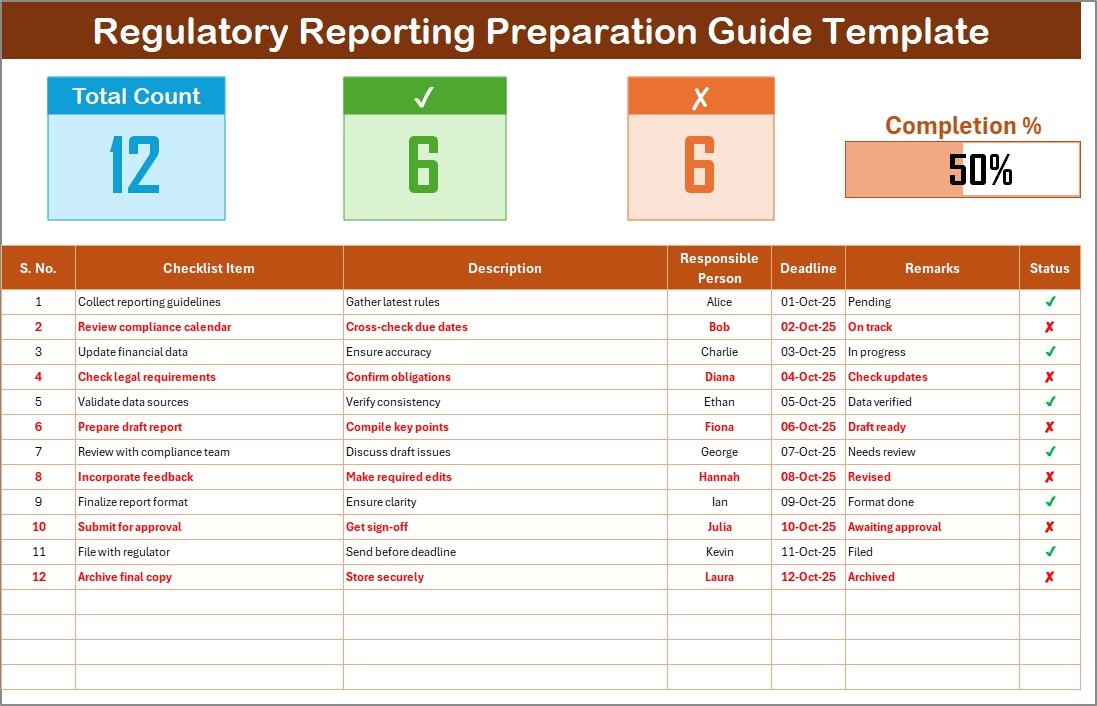
This is the primary working sheet where you manage and track reporting tasks.
Top Section:
-
Total Count – Displays the number of tasks in the checklist.
-
Checked Count – Shows the number of completed tasks.
-
Crossed Count – Displays pending or missed tasks.
-
Progress Bar – Provides a quick view of completion percentage.
Main Checklist Table Columns:
-
Serial No.
-
Checklist Item
-
Description
-
Responsible Person
-
Deadline
-
Remarks
-
Status (✔ or ✘)
This sheet ensures every detail is visible at a glance.
2. List Sheet Tab

This sheet is used to store unique lists of responsible persons. By linking it to dropdowns in the main sheet, you avoid errors and maintain data consistency. For example, when assigning a task to “Finance Manager,” you choose from a dropdown instead of typing manually.
How to Use the Template Step by Step
-
Download and open the template in Excel.
-
Go to the List sheet and enter the names of all responsible persons.
-
Switch to the Checklist sheet.
-
Fill in the checklist table with all required reporting tasks.
-
Assign each task to a person using the dropdown.
-
Set a deadline for each task.
-
As tasks are completed, update the Status column with ✔.
-
Review the progress bar and counters to monitor completion.
-
Add remarks for additional notes (e.g., “Waiting for data approval”).
-
Before submission, filter for ✘ to see all incomplete tasks.
This systematic process ensures nothing is overlooked.
Advantages of Regulatory Reporting Preparation Guide Checklist in Excel
Using this checklist offers several benefits:
✅ Accuracy – Reduces errors in regulatory reports.
✅ Accountability – Clear responsibility for each task.
✅ Efficiency – Saves time with dropdowns and automation.
✅ Transparency – Everyone knows the current status.
✅ Customization – Easily modify for specific industries.
✅ Compliance – Helps avoid penalties by ensuring deadlines are met.
✅ Scalability – Works for small teams and large organizations.
Opportunities for Improvement
While Excel is powerful, there are areas for improvement:
⚠ Automation – Consider integrating VBA macros to auto-update reports.
⚠ Collaboration – For large teams, move the checklist to Google Sheets or SharePoint for real-time updates.
⚠ Data Security – Regulatory data is sensitive; ensure files are stored securely.
⚠ Version Control – Use shared drives or OneDrive to avoid duplicate versions.
⚠ Advanced Reporting – Combine with Power BI for dashboards and analytics.
Best Practices for Regulatory Reporting Preparation in Excel
To maximize the effectiveness of your checklist, follow these best practices:
-
Standardize checklist items – Use consistent language and task descriptions.
-
Set realistic deadlines – Avoid overloading individuals with too many tasks.
-
Update regularly – Review and update checklist items weekly.
-
Use conditional formatting – Highlight overdue tasks in red.
-
Leverage filters – Quickly filter tasks by responsible person or deadline.
-
Secure the file – Protect sheets with passwords to avoid accidental edits.
-
Maintain audit trails – Add a column for “Last Updated By” and timestamp.
-
Train your team – Ensure everyone knows how to use the checklist properly.
-
Integrate with reminders – Use Excel + Outlook to trigger deadline alerts.
-
Review post-submission – After regulatory filing, mark tasks as archived for records.
Real-World Use Cases
The checklist is highly versatile and can be applied in multiple industries:
-
Banking – Compliance with Basel III, liquidity ratios, and risk reporting.
-
Insurance – Regulatory filings like solvency margins and claim statistics.
-
Healthcare – Patient data privacy, HIPAA compliance, and quality metrics.
-
Energy Sector – Environmental reporting, safety audits, and usage tracking.
-
Manufacturing – Workplace safety, labor law compliance, and quality checks.
Conclusion
Regulatory reporting requires accuracy, timeliness, and accountability. By using a Regulatory Reporting Preparation Guide Checklist in Excel, organizations can simplify the process, assign responsibilities, and track progress efficiently.
This ready-to-use template provides the flexibility of Excel along with structured task management. When combined with best practices and improvement strategies, it becomes a powerful compliance tool.
Whether you work in finance, insurance, healthcare, or any other regulated industry, this checklist can help you stay compliant, avoid penalties, and build a reputation for reliability.
Click to Purchase Regulatory Reporting Preparation Guide Checklist in Excel
Frequently Asked Questions (FAQs)
1. What is a Regulatory Reporting Preparation Guide Checklist in Excel?
It is a structured Excel tool that helps organizations manage tasks, assign responsibilities, and track progress for regulatory reporting.
2. Can I customize the checklist for my industry?
Yes, you can easily edit checklist items, add new columns, or adjust deadlines based on your industry’s reporting requirements.
3. How does the progress bar work in the template?
The progress bar calculates the percentage of tasks marked ✔ and visually shows completion status.
4. Can multiple team members use the checklist?
Yes, if stored in Google Sheets, SharePoint, or OneDrive, multiple users can collaborate in real time.
5. How do I ensure data security in regulatory checklists?
Protect the file with passwords, restrict access, and store it on secure platforms like OneDrive or Google Drive.
6. What happens if a deadline is missed?
The checklist highlights overdue tasks. Teams should take corrective action immediately to avoid non-compliance penalties.
7. Can I link the checklist with Power BI?
Yes, you can connect Excel to Power BI to create visual dashboards and monitor compliance KPIs.
Visit our YouTube channel to learn step-by-step video tutorials
Click to Purchase Regulatory Reporting Preparation Guide Checklist in Excel
Watch the step-by-step video tutorial: