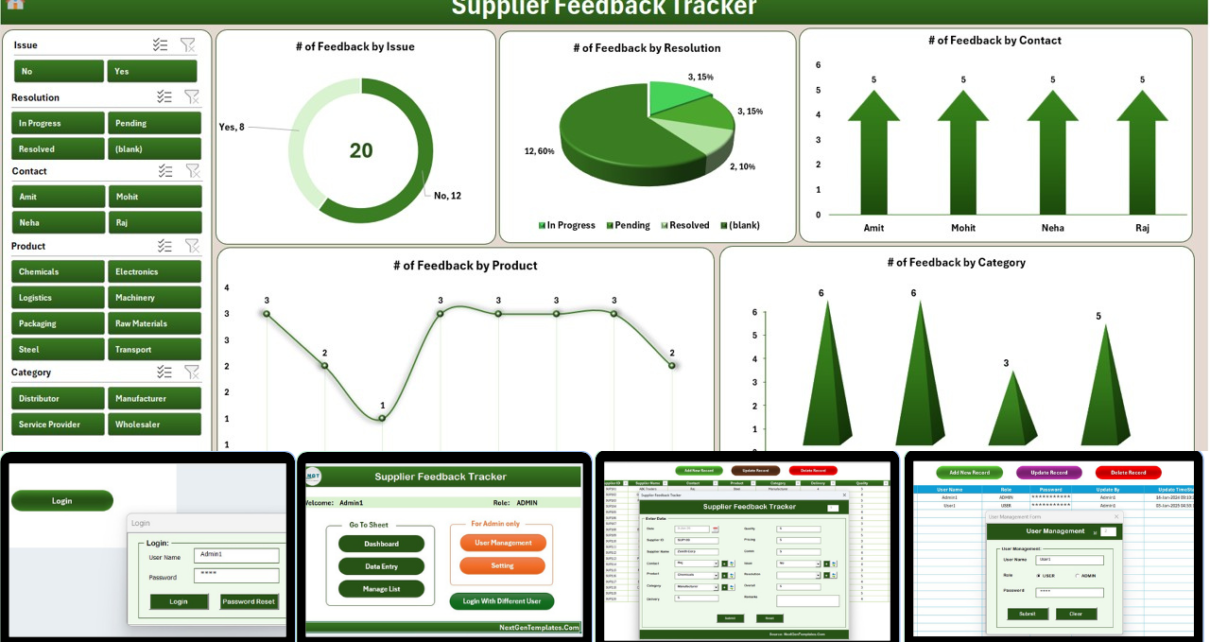
The Supplier Feedback Tracker in Excel is a VBA-powered workbook that captures, scores, and analyzes feedback against every active supplier through one password-protected file. It bundles 8 sheets — Login Form, Home Page, a slicer-driven Dashboard with 4 slicers and 5 charts, a Data sheet with Add, Update and Delete macro buttons, a List sheet, a Support sheet, a Settings sheet, and a User Management sheet — into a single role-based tool. Setup takes under 10 minutes: open the file, enable macros, log in, and start logging feedback.
If your procurement, quality, or sourcing team still records supplier feedback in scattered emails and ad-hoc spreadsheets, you already know the cost: missed defects, no visibility on bottom-quartile suppliers, and no audit trail when something goes wrong. According to Gartner research on supplier relationship management, organizations that systematically capture supplier feedback see significantly lower supply disruption rates than those that don’t. This Excel supplier feedback tracker closes that gap with a small one-time investment and a workbook your team can use the same day.
Introduction to the Supplier Feedback Tracker in Excel
The Supplier Feedback Tracker in Excel is a multi-sheet VBA application built for procurement, quality assurance, and sourcing teams that want a structured way to record and analyze supplier feedback without paying $30–$120 per user per month for a full SRM SaaS suite. Every interaction — logging a complaint, scoring a delivery, updating a record — happens through a clean UserForm that writes back to the Data sheet and refreshes the Dashboard automatically.
The tracker uses a Type-1 VBA pattern: visible worksheets for the day-to-day workflow, plus a UserForm-driven entry experience. Admin users can manage the full workbook; standard users can only enter feedback. All credentials live in a dedicated User Management sheet, so you control access without touching code.
Key Features of Supplier Feedback Tracker in Excel
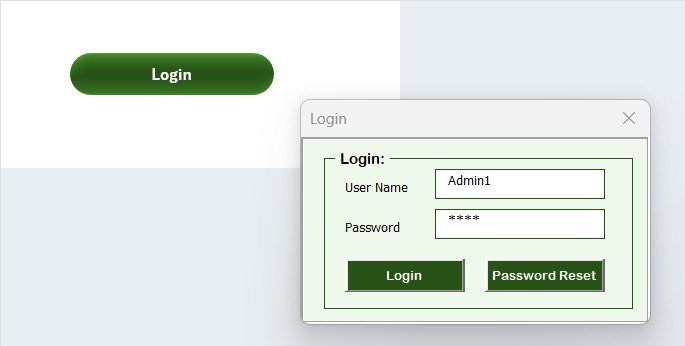
🔐 Password-Protected Login Form — A modal UserForm validates username and password against the User Management sheet before the workbook unlocks. Two roles are supported: Admin (full access) and User (feedback entry only). This gives procurement leads control while letting reviewers contribute safely.
📊 Slicer-Driven Dashboard with 4 Slicers + 5 Charts — The Dashboard displays 5 visualizations of your supplier feedback data: feedback score by supplier, feedback by category, monthly feedback trend, status distribution, and rating breakdown. Four slicers let you filter every chart simultaneously by supplier, category, rating band, or feedback period.
📝 3-Button VBA Data Entry — Add, Update, Delete — The Data sheet has three macro buttons at the top. Add New Record opens a clean UserForm with combo boxes pulled from the List sheet. Update Record loads the selected ID into the same form for edits. Delete Record removes the row after a confirmation prompt. The Dashboard auto-refreshes after every action.
🗂️ List Sheet for Combo Box Master Data — Maintain dropdown values like supplier names, feedback categories, ratings, and statuses on one editable sheet. Every change instantly updates the data entry UserForm without needing to touch VBA code.
👥 Built-In User Management — Add, edit, or remove users and assign Admin or User roles directly inside the workbook. No external user database, AD integration, or login server needed — the file is fully self-contained.
⚙️ Settings & Support Sheets — A Settings sheet stores tracker-level configuration (titles, default categories, branding fields). The Support sheet holds the pivot tables that drive the Dashboard charts and is typically hidden from end users.
For deeper context on building Excel UserForms and VBA login systems, Microsoft’s official UserForm documentation on Microsoft Learn is a good reference if you want to extend the tool.
Sheets Explanation — Inside the Supplier Feedback Tracker
1. Login Form — Entry-point UserForm. Validates credentials against the User Management sheet and routes Admin vs User role to the correct view.
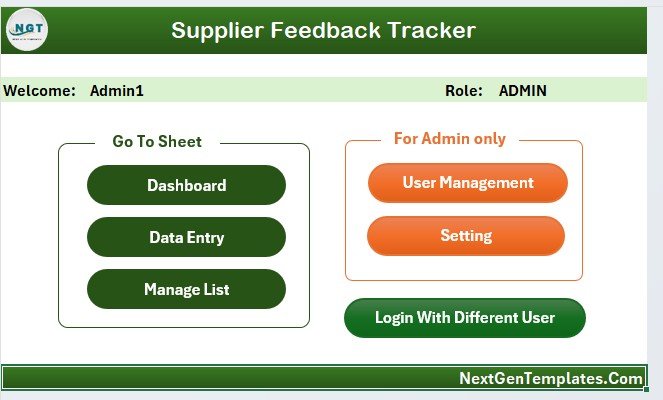
2. Home Page — Clean landing screen with navigation buttons to the Dashboard, Data, List, and User Management sheets. Acts as the central hub once a user logs in successfully.
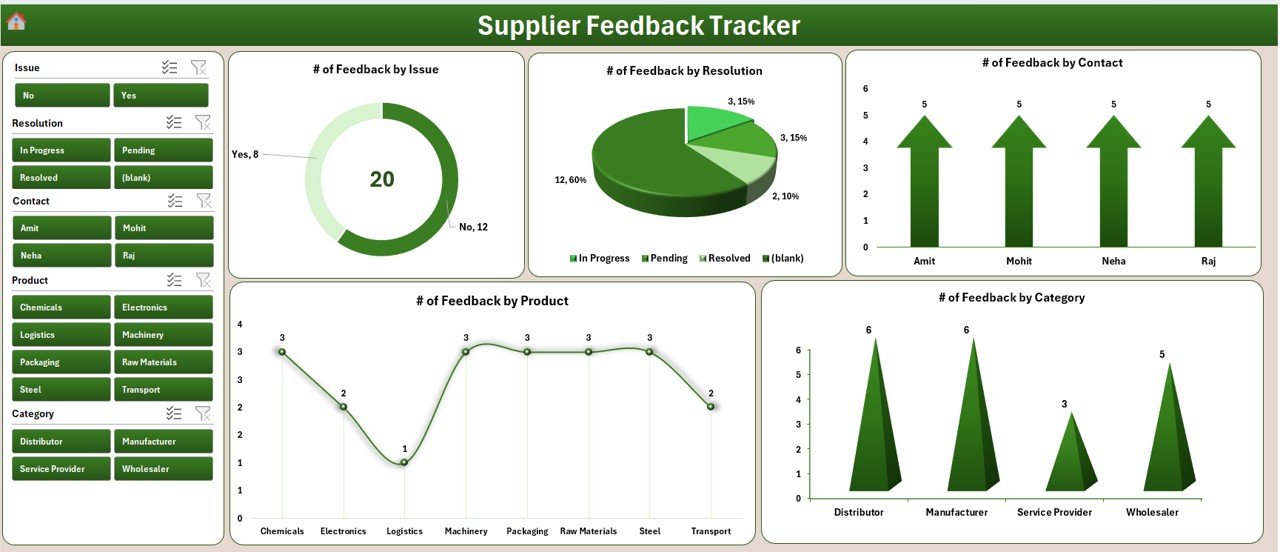
3. Dashboard Sheet — The visual reporting page with 5 charts (feedback score by supplier, feedback count by category, monthly feedback trend, status mix, and rating distribution) plus 4 slicers. All charts move together when a slicer is clicked, so you can isolate a single supplier or a single category in one click.
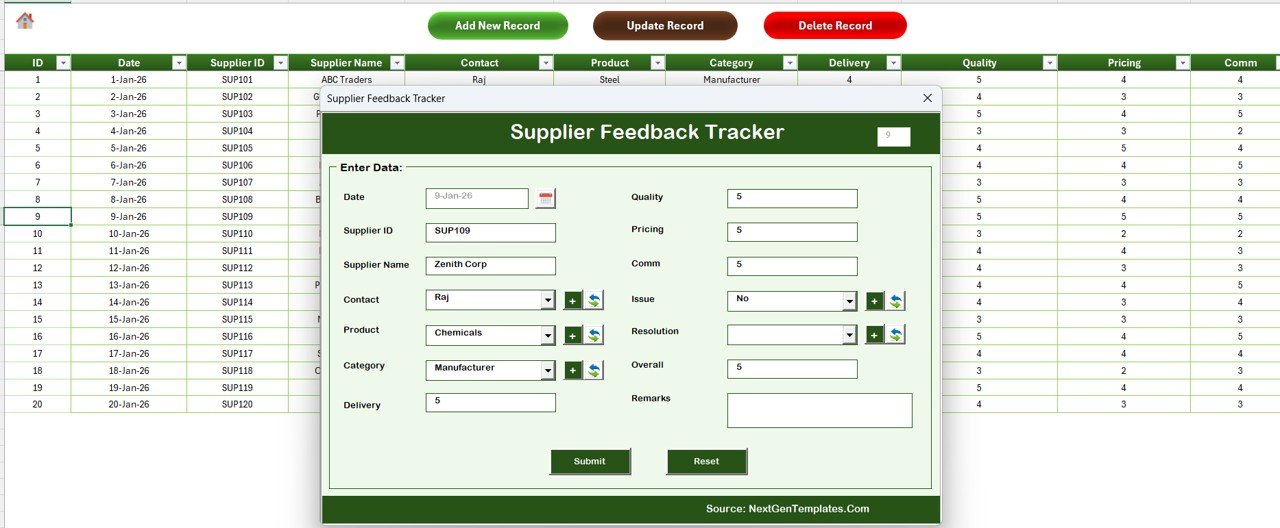
4. Data Sheet — Stores every feedback record with a unique ID. Three macro buttons at the top — Add New Record, Update Record, Delete Record — drive the entire workflow. The UserForm pulls dropdown values from the List sheet and writes new rows back into this sheet.
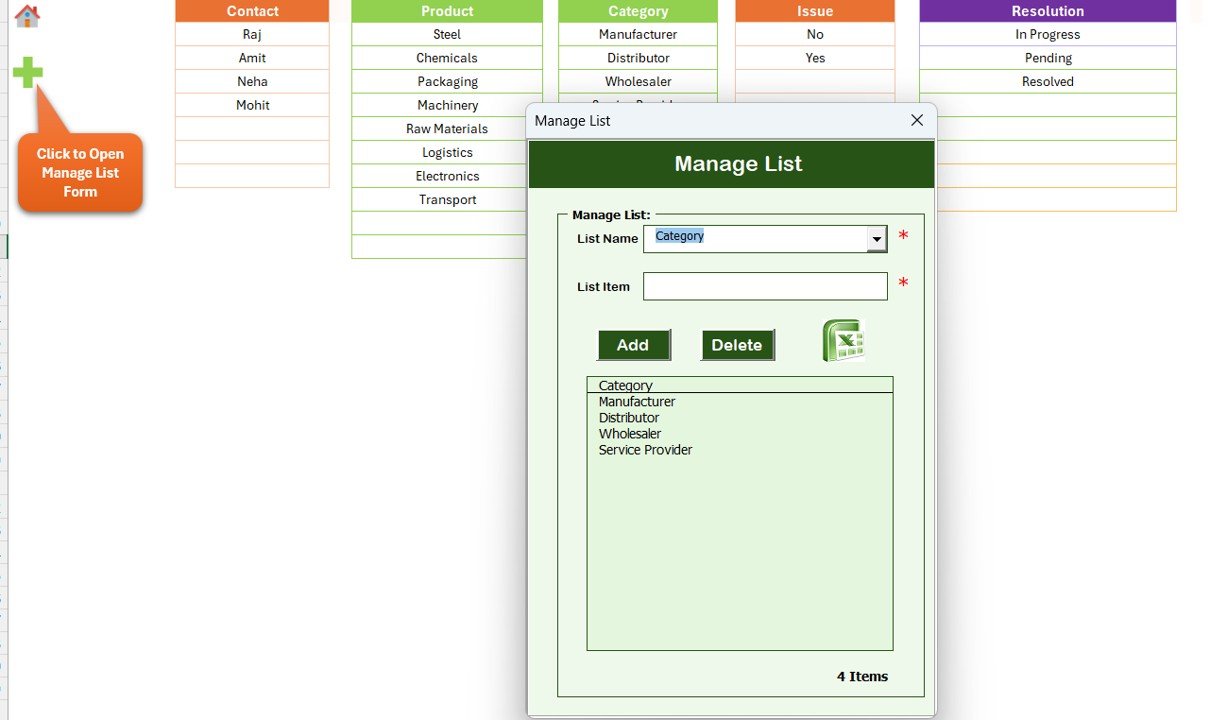
5. List Sheet — The master list that feeds combo boxes in the Add and Update form. Edit values here to instantly change the dropdowns shown to reviewers across the workbook.
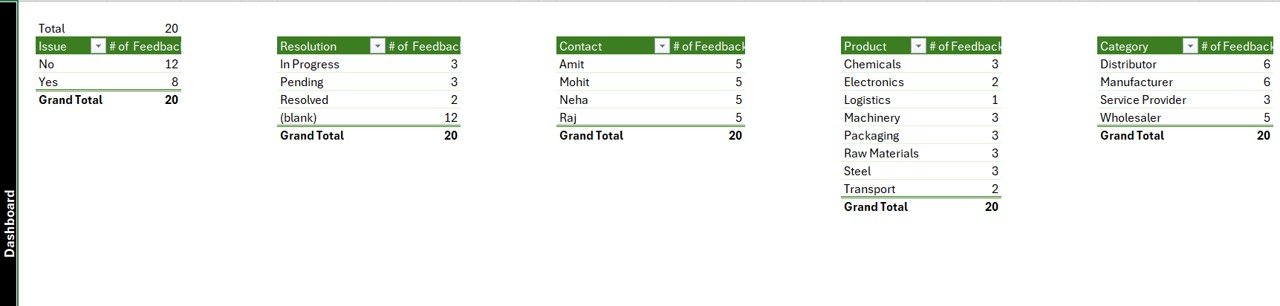
6. Support Sheet — Hosts the pivot tables that drive the Dashboard charts. You can hide this tab from regular users and only expose the Dashboard.
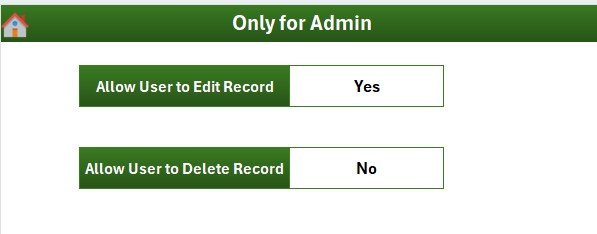
7. Settings Sheet — Stores configuration values used by the tracker: titles, default categories, and branding fields like logo paths.
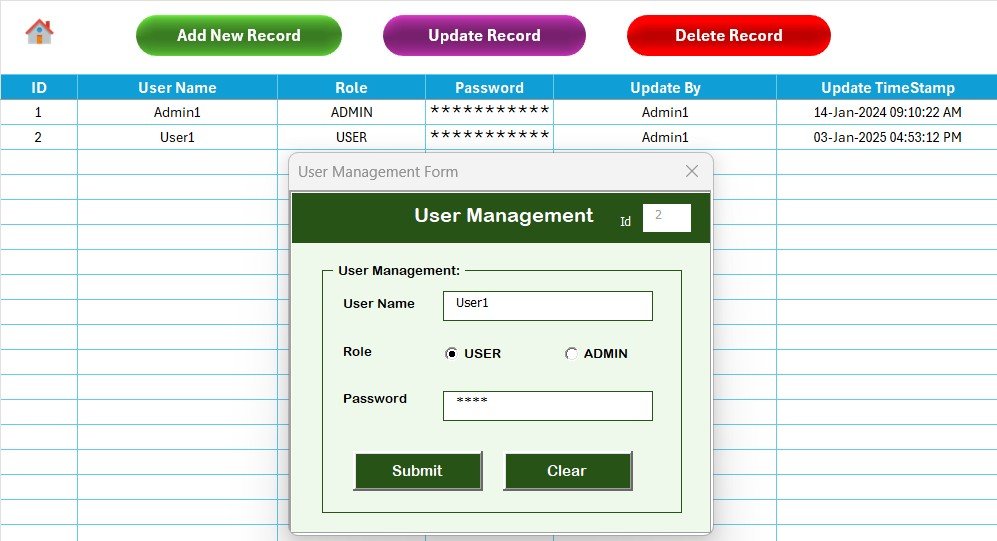
8. User Management Sheet — Add or remove usernames, set passwords, and choose Admin or User roles. The Login Form reads from this sheet for authentication.
Supplier Feedback Tracker in Excel vs. Google Sheets Equivalent vs. Paid SRM SaaS — Feature Comparison
| Feature | Supplier Feedback Tracker in Excel | Google Sheets equivalent | SAP Ariba / Coupa SRM |
|---|---|---|---|
| Cost | $6.99 one-time ✅ | $0–$15 / template | $30–$120 / user / month |
| Platform | Microsoft Excel — works offline ✅ | Browser + Google account required | Cloud SaaS only |
| Setup time | Under 10 minutes ✅ | 15–30 minutes | 3–6 weeks |
| Login + role-based access | Built-in (Admin / User) ✅ | Manual sheet protection | Yes (enterprise SSO) |
| Add / Update / Delete via UserForm | Yes — VBA UserForm ✅ | Apps Script form | Web form |
| Slicer-driven dashboard | 4 slicers, 5 charts ✅ | Filters, fewer chart options | Pre-built scorecards |
| Per-user license fees | None ✅ | None | $30–$120 / user / month |
| Year-1 cost at 5 users | $6.99 total ✅ | ~$0 | $1,800–$7,200 |
| Customizable in your tools | Full VBA + Excel control ✅ | Apps Script + Sheets | Limited to vendor config |
For procurement and quality teams that want structured supplier feedback, slicer-driven analysis, and role-based access without paying $30+ per user per month for a full SRM suite, the Supplier Feedback Tracker in Excel sits in the sweet spot.
Who Should Use This Template
✅ Perfect for:
- Procurement managers at small and mid-size businesses (10–500 employees) who want to score suppliers monthly
- Quality assurance teams logging supplier defects, complaints, and corrective actions in one shared file
- Operations leads who need a Dashboard to brief leadership on supplier performance every quarter
- Sourcing analysts comparing feedback across categories, regions, or contract years
- Consultants who want a ready-to-customize Excel + VBA tool to deploy at multiple client sites
❌ Not a fit if:
- You’re an enterprise team that needs SOC 2, SSO, audit trails, and integration with SAP or Oracle ERP
- You’re a Mac-only shop — VBA UserForm controls behave inconsistently outside Excel for Windows
- Your team refuses to enable Excel macros — the entire login, form, and button logic is VBA-driven
- You need cloud-native, real-time concurrent editing across continents
Real-World Use Cases
Priya runs procurement at a 60-person packaging manufacturer. She uses the Supplier Feedback Tracker in Excel to record monthly feedback from production, QA, and warehousing on each of her 22 suppliers. The slicer-driven Dashboard lets her flag the bottom-quartile suppliers in seconds and present a one-page scorecard at the quarterly business review — without paying $7,000 a year for a full SRM platform.
Marcus leads QA at a regional medical device distributor. His team logs every shipment defect through the Add Record UserForm and tags the supplier, category, and severity. When an audit hits, Marcus filters the Dashboard to a single supplier and prints the feedback trend chart as evidence — turning what used to be a two-week scramble into a 30-minute task.
Sofia is a freelance procurement consultant. She deploys the Supplier Feedback Tracker at three client sites, each with its own User Management sheet, and customizes the List sheet so every client sees their own categories. One $6.99 license becomes a polished, branded deliverable across her engagements.
Advantages of Supplier Feedback Tracker in Excel
One-time payment, lifetime access — At $6.99 you replace the recurring cost of a full SRM SaaS for small teams. The Year-1 cost saving at just 5 users is over $1,800 compared with the entry-level enterprise tools.
Offline, file-based control — Your supplier feedback never leaves the workbook. There’s no cloud account to manage, no contractual data-sharing, and no risk of being locked out when a SaaS subscription lapses.
Fully customizable VBA — Every module is unlocked. You can extend the UserForm with extra fields, add KPIs to the Dashboard, change chart styles, or hook the data into Power Query for cross-workbook reporting.
Familiar Excel UI — Your team already knows Excel. There’s no new tool to roll out, no training course to buy, and no change-management plan to write.
Opportunities for Improvement
Windows-first by design. VBA UserForms behave inconsistently on Excel for Mac, so Mac-only shops should pair the file with the Google Sheets version of the tracker instead.
Single-file concurrency. Excel doesn’t support real-time concurrent editing the way Google Sheets does. If three people need to enter feedback at the same time, queue access through the Login Form or run feedback collection through a shared OneDrive copy.
Macro security prompt. Excel will warn the first time the file is opened. Adding the file path to your Trusted Locations or signing the VBA project with a digital certificate removes the prompt for production use.
Best Practices
📌 Change the default admin password the first time you log in — open User Management and update the credentials before sharing the file.
📌 Edit the List sheet first, then start logging. Setting the supplier names, categories, ratings, and statuses up front means every later record uses consistent dropdown values, which keeps the Dashboard charts clean.
📌 Lock the Support sheet from regular users. Hide the tab and protect the workbook structure so reviewers can’t accidentally break the pivot tables that drive the Dashboard charts.
📌 Back up the workbook weekly. Because the file holds both your data and the VBA logic, a corrupted file means lost feedback. A simple OneDrive or SharePoint version history protects you.
📌 Standardize feedback categories. Pick 5–8 categories (e.g., On-Time Delivery, Quality, Communication, Pricing, Compliance) and stick to them across the year for trend comparison.
Explore Relevant Templates
🔹 Vehicle Reservation Tracker in Excel — Same VBA login + UserForm pattern, applied to fleet booking.
🔹 Client Contract Amendment Tracker in Excel — Tracks contract changes with role-based access and a slicer-driven dashboard.
🔹 New Vendor Setup Tracker in Excel — Onboard new suppliers with the same UserForm-driven workflow.
🔹 Vendor Evaluation To-Do List Checklist in Excel — Pair this checklist with the Supplier Feedback Tracker for end-to-end vendor management.
🔹 Also available as: Supplier Feedback Tracker in Google Sheets — for Mac shops or cloud-first teams.
Frequently Asked Questions
What is the Supplier Feedback Tracker in Excel?
The Supplier Feedback Tracker in Excel is a VBA-powered workbook with 8 sheets — Login Form, Home, Dashboard, Data, List, Support, Settings, and User Management — that captures supplier feedback through a UserForm and analyzes it on a slicer-driven dashboard with 4 slicers and 5 charts.
Do I need to enable macros to use this Excel supplier feedback tracker?
Yes. The Supplier Feedback Tracker in Excel uses VBA for the Login Form, the Add, Update and Delete buttons, and the User Management sheet. When Excel prompts you, click Enable Content. Without macros, the login and form features will not work.
How does this tracker compare to SAP Ariba or Coupa for supplier feedback?
Enterprise SRM platforms like SAP Ariba and Coupa charge $30–$120 per user per month and take weeks to implement. The Supplier Feedback Tracker in Excel covers the same core capture, score, and dashboard workflow for a one-time $6.99 with under 10-minute setup, ideal for small and mid-size procurement teams.
Can multiple users log in to the supplier feedback tracker?
Yes. The User Management sheet stores usernames, passwords, and Admin or User roles. The Login Form validates credentials against this sheet, so multiple team members can use the same workbook with appropriate access levels.
How long does setup take?
Setup of the Supplier Feedback Tracker in Excel takes under 10 minutes — unzip the file, enable macros, log in with the default admin credentials, change the password, edit the List sheet with your supplier names, and start adding records on the Data sheet.
Can I customize the dashboard and the data entry form?
Yes. Both Excel layouts and the VBA UserForm are fully editable. You can add or remove combo box fields, change chart styles, swap out logos via the Settings sheet, and adjust slicer fields. All VBA modules are unlocked for inspection and modification.
What is the best Excel template to track supplier feedback?
The Supplier Feedback Tracker in Excel from NextGenTemplates is one of the most complete Excel VBA templates for supplier feedback tracking — it combines a login system, role-based User Management, a UserForm-based data entry workflow, and a slicer-driven dashboard with 4 slicers and 5 charts in one file.
About the Author
Built by PK — Microsoft Certified Professional with 15+ years of Excel, Google Sheets, and Power BI experience. Founder of NextGenTemplates, reaching 300K+ subscribers across YouTube channels (@PK-AnExcelExpert, @NextGenTemplates, @NeoTechNavigators). Every template is hand-built and tested before release.
Conclusion
If your team is still tracking supplier feedback in scattered emails or unstructured spreadsheets, the Supplier Feedback Tracker in Excel gives you a structured, role-based, slicer-driven workbook that pays for itself in the first week. You get login security, a UserForm-based capture flow, an auto-refreshing dashboard, and full VBA control — for the price of a takeaway coffee, paid once.
👉 Click here to Purchase the Supplier Feedback Tracker in Excel
✅ Instant download · One-time payment · No subscription · Lifetime access
🎥 Visit Youtube.com/@PK-AnExcelExpert for step-by-step video tutorials on this and 300+ other Excel tools.
📅 Last updated: May 2026