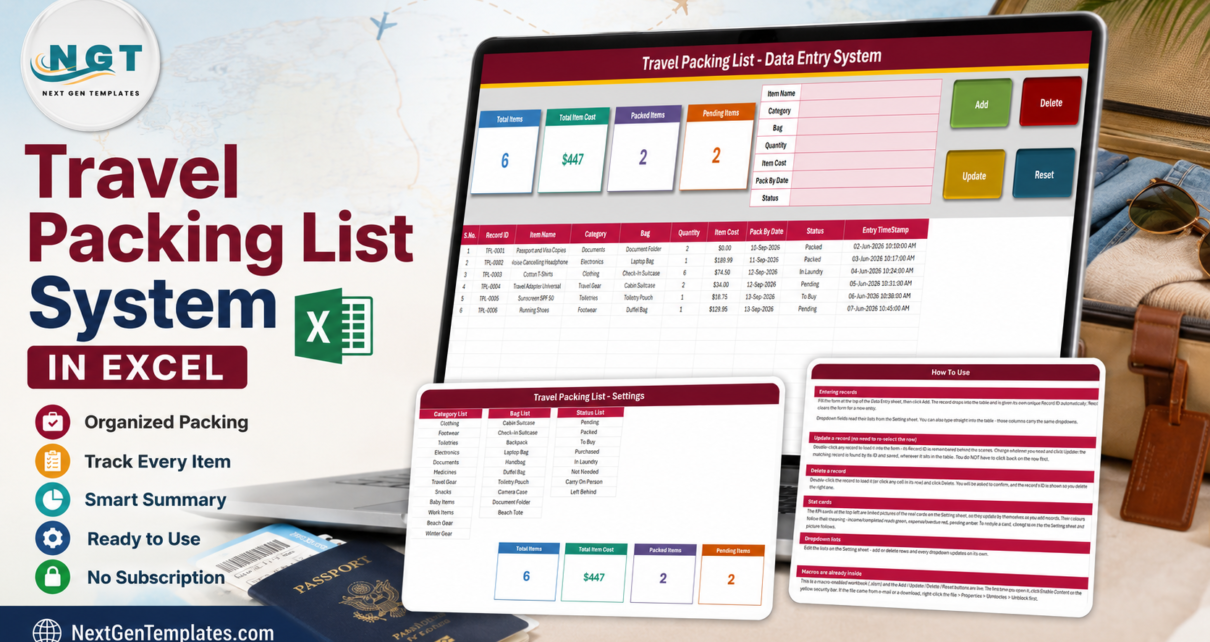
Most packing lists die the moment the trip ends. You scribble one on a phone note, you tick half of it, and next time you start again from nothing – which is exactly why the same charger, the same adapter and the same pair of socks get left behind trip after trip. The Travel Packing List Data Entry System in Excel is built the other way round: it treats every item as a record you keep, not a line you cross out. It is a macro-enabled workbook with a 7-field entry form, a 10-column records table, four live summary cards, three editable dropdown lists holding 30 preset values between them, and four real VBA buttons. Every row is issued a sequential Record ID in the TPL-0001 pattern and stamped with the moment it was entered. Four sheets, one file, $6.99 once. This post walks through what is actually in the workbook, what the cards do and do not count, and where it fits against a Google Sheets list or a paid packing app. Travel Packing List Data Entry System in Excel
Key Features of Travel Packing List Data Entry System in Excel
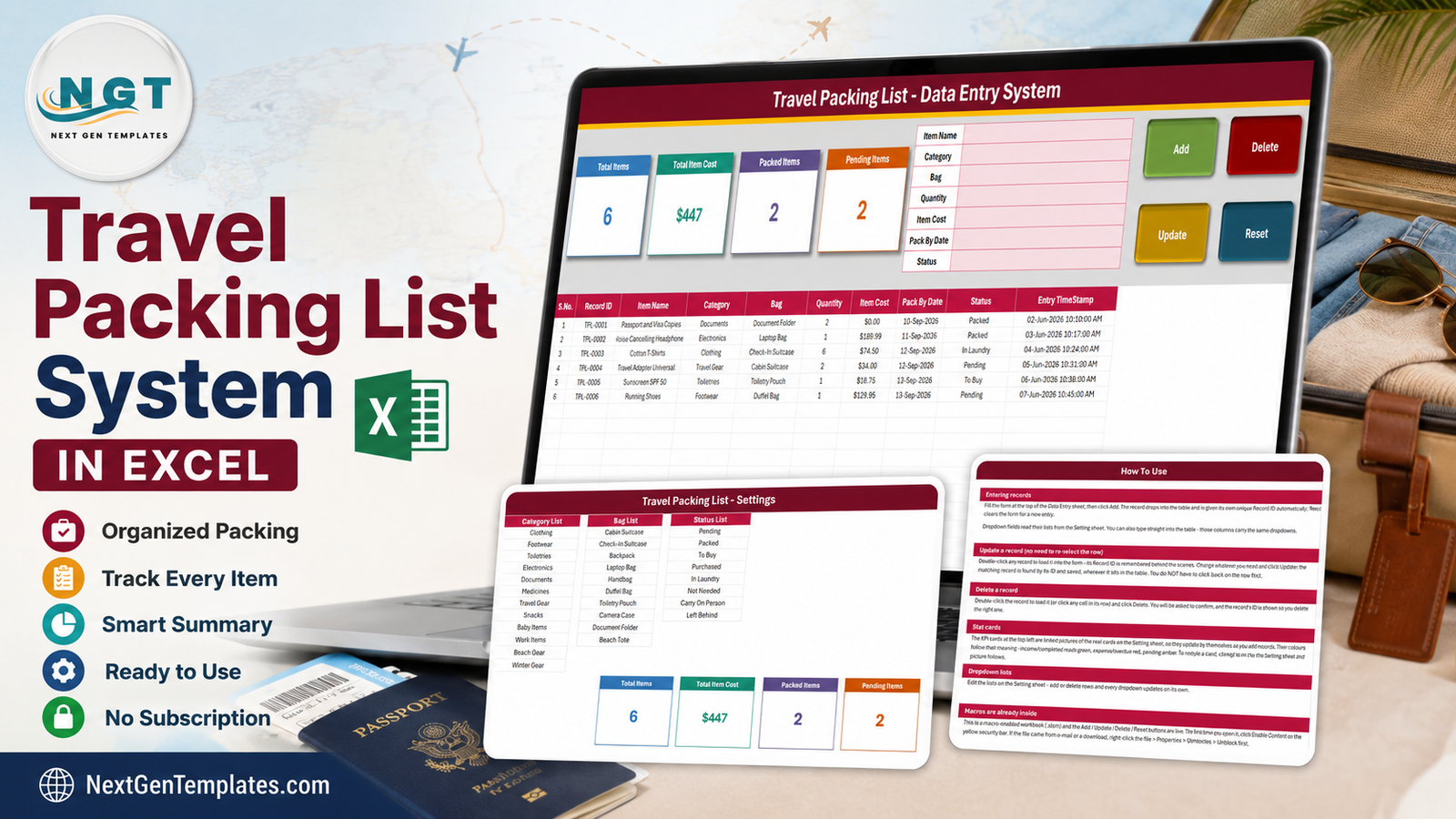
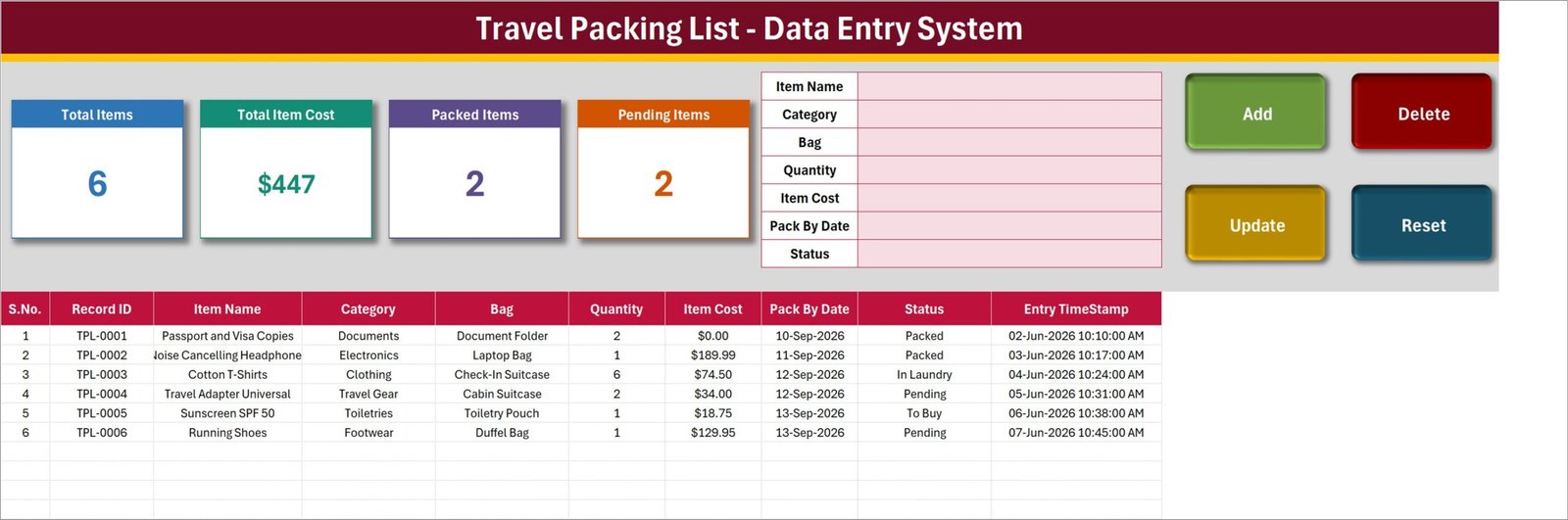
- A 7-field form – Item Name, Category, Bag, Quantity, Item Cost, Pack By Date and Status, sitting at the top of the Data Entry sheet with nothing to scroll to.
- Four working VBA buttons – Add, Update, Delete and Reset. Double-click any row in the table and it loads back into the form with its Record ID remembered, so you do not have to click back on the row before saving.
- Automatic Record ID and Entry TimeStamp – the workbook issues TPL-0001, TPL-0002 and so on, and writes the date and time on every Add.
- Four live summary cards – Total Items, Total Item Cost, Packed Items and Pending Items. They are formulas on the Setting sheet, shown on the Data Entry screen as linked pictures, so they refresh as you type.
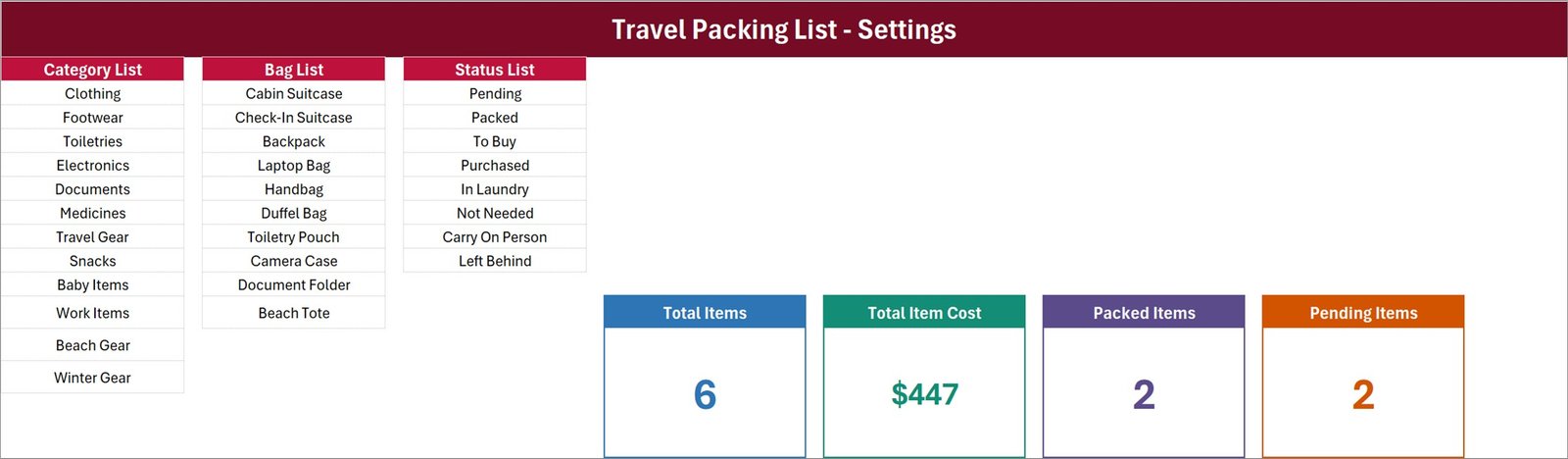
- Three dropdown lists you own – 12 categories (Clothing, Footwear, Toiletries, Electronics, Documents, Medicines, Travel Gear, Snacks, Baby Items, Work Items, Beach Gear, Winter Gear), 10 bags and 8 packing statuses.
- A Bag column that means something – Cabin Suitcase, Check-In Suitcase, Backpack, Laptop Bag, Handbag, Duffel Bag, Toiletry Pouch, Camera Case, Document Folder and Beach Tote, so you can sort and pack one container at a time.
- A Pack By Date column – stage a long trip across several evenings rather than the night before.
- An eight-value status list – Pending, Packed, To Buy, Purchased, In Laundry, Not Needed, Carry On Person and Left Behind, which is the vocabulary a real packing week actually needs. Travel Packing List Data Entry System in Excel
Inside the Workbook – Sheet by Sheet
The download is one ZIP holding a single file, Travel_Packing_List_System.xlsm. There is no separate PDF manual, because the instructions are a sheet inside the workbook. Four sheets in total.
1. Data Entry
The working screen. Four coloured cards run along the top left, the entry form sits to their right, and the Add, Delete, Update and Reset buttons are stacked on the far right. Below all of it, the records table: S.No., Record ID, Item Name, Category, Bag, Quantity, Item Cost, Pack By Date, Status and Entry TimeStamp. The S.No. column is a formula, so numbering repairs itself when you delete a row. Category, Bag and Status carry the same dropdowns in the table as in the form, which means you can either use the buttons or type straight into the grid. Travel Packing List Data Entry System in Excel
2. Setting
Three list columns – Category List, Bag List, Status List – plus the four card formulas themselves, sitting out in the open where you can read and edit them. Add a row to a list and every dropdown that reads it updates on its own. This is also where you go to change what a card counts.
3. Instructions (How To Use)
Six sections in plain English: entering records, updating a record, deleting a record, the stat cards, the dropdown lists, and macro security. It is the sheet to read first if you have never used a VBA workbook before.
4. Get More Templates
A links sheet back to the wider NextGenTemplates library. No data of yours lives here.
Travel Packing List Data Entry System in Excel vs. Google Sheets vs. Paid Packing Apps – Feature Comparison
| What matters | This Excel system | Google Sheets packing list | Paid packing app |
|---|---|---|---|
| Cost | $6.99 once | Free to $5 once | $3 – $30 per year, per person |
| Platform | Desktop Excel for Windows (.xlsm) | Any browser | Phone app |
| Setup time | Under 10 minutes | 15 – 30 minutes to build the form yourself | 2 minutes, then it decides your list for you |
| Real-time collaboration | No – single user, single file | Yes | Usually only on a paid family plan |
| Mobile access | View only, and the buttons will not run | Yes | Yes, that is the point |
| Customizable fields | Yes – all three lists are yours to edit | Yes | Limited to the categories the app ships |
| Share with link | No – you send the file | Yes | Yes |
| Year-1 cost at 5 users | $6.99 total | $0 – $25 | $75 – $150 |
| Automatic Record ID and time stamp | Yes, on every row | Only if you write the formula | Hidden from you |
| Works with no account and no internet | Yes | No | No |
Who Should Use This Template
It suits the traveller who repeats trips. If your kit is broadly the same every time – the same laptop bag, the same wash bag, the same three cables – then last trip’s list is 80 per cent of this trip’s list, and a workbook that keeps it is worth more than an app that regenerates it. It suits families splitting one trip across several bags, because the Bag column is a real grouping rather than a note in brackets. And it suits anyone carrying expensive kit who wants a written record of what went into which case.
It is not for you if you want to tick items off on your phone while you stand over the suitcase. VBA does not run in Excel for the web, in Google Sheets, or on Excel for Mac; the buttons need desktop Excel for Windows. It is also not a compliance tool of any kind. It does not weigh a bag, does not know any airline’s baggage allowance or size limits, does not check security rules on liquids, batteries or sharps, and does not calculate customs or duty-free allowances. There is no barcode scanning and no luggage tracking. Item Cost is whatever you type into it – not a valuation, not an insurance document, and with no currency conversion.
Real-World Use Cases
The fortnightly business traveller. One master list of about 40 recurring items. Before each trip, everything goes back to Pending, and packing runs down the Bag column – Laptop Bag first, Cabin Suitcase second. The Documents category is the one that catches the passport every single time.
A family of four, three weeks abroad. Each person’s kit gets its own bag value, and the Pack By Date column spreads 90 items across four evenings instead of one. Baby Items and Medicines are their own categories, so they never disappear into a “misc” pile.
A working photographer. Every body, lens and light is a row, with its purchase cost in Item Cost and its case named in Bag. On arrival the sheet becomes the repack checklist; if a case goes missing, there is at least a written record of what was in it – one the photographer wrote, not a certified inventory.
Advantages of Travel Packing List Data Entry System in Excel
- The record survives the trip. Nothing is thrown away at the airport; next trip starts from a populated sheet.
- No account, no internet, no subscription. The file lives on your machine and works on a plane.
- Everything is editable. Lists, colours, card formulas and the VBA itself are all open. Nothing is locked behind a paid tier.
- Genuinely fast entry. Three of the seven fields are dropdowns, so a typical item takes a few seconds.
- The IDs are real. A sequential Record ID plus an Entry TimeStamp means updates and deletes hit the row you meant, even after sorting.
Opportunities for Improvement
This is a small workbook shipped from a shared data-entry template, and it is worth being straight about what that leaves behind. Four things you should know before you rely on the cards, all of them one-formula fixes on the Setting sheet:
- Total Item Cost does not multiply by Quantity, and does not filter by Status. It is a plain SUM of the Item Cost column. In the shipped sample it reads $447 across six rows; multiply each unit cost by its quantity and the true figure is $853.69. The card also counts a row still marked To Buy. If you want the real number, replace the SUM with a SUMPRODUCT of the Quantity and Item Cost columns.
- Only 2 of the 8 statuses have cards. Packed and Pending are carded; To Buy, Purchased, In Laundry, Not Needed, Carry On Person and Left Behind are not. So 2 + 2 will never add up to Total Items 6 – and that is by design, not a broken formula.
- Quantity is never totalled anywhere. There is no “total pieces” card. Copy a card and point it at the Quantity column if you want one.
- Total Items counts the Item Name column, not the Record ID column. The S.No. formula keys off Record ID while the card counts Item Name, so a row saved with a blank item name would be stored and not counted. Point the COUNTA at column B to line the two up.
Two smaller things. The dropdown validation is applied to rows 15 to 214 – about 200 items – while the card formulas read the whole column, so past row 214 the maths keeps working but the dropdowns stop until you drag the validation down. And the “Stat cards” paragraph on the How To Use sheet carries generic wording about income, expense and overdue colours that belongs to other templates in the same family, not to a packing list; the mechanism it describes is correct, the example colours are not about this workbook. None of these stop the template doing its job, but you should know them rather than discover them.
Best Practices
- Edit the three lists before you enter anything. Rename the bags to the bags you actually own. It takes two minutes and makes every dropdown useful.
- Delete the six sample rows once you have looked at them. Load each one and use the Delete button rather than clearing cells, so the numbering and IDs stay consistent.
- Keep one file per trip type, not one per trip. A “work trips” copy and a “family holidays” copy beats twenty near-identical files.
- Use Pack By Date deliberately. Spreading items over three or four evenings is the single biggest reason a list like this beats a phone note.
- Reset statuses instead of deleting rows. At the end of a trip, set everything back to Pending and you have next trip’s list ready.
- Fix the Total Item Cost formula on day one if the money figure matters to you, so you are never reading a number that means something other than what you think.
- Unblock the file before opening it. Microsoft blocks macros in files that arrive from the internet – right-click the file, choose Properties and tick Unblock. Microsoft explains the behaviour in its own guidance on macros from the internet being blocked by default in Office.
Explore Relevant Templates
- Travel Packing Checklist in Excel – the $1.99 tick-box version, for when you want a printable sheet rather than a record you keep.
- Post-Travel Unpacking Checklist in Excel – the other end of the trip.
- Vacation & Trip Budget Tracker in Google Sheets – for what the trip costs, which this workbook deliberately does not calculate.
- Hotel Booking Agent Data Entry System in Excel – the same form-and-cards engine applied to bookings.
- Book Reading Log Data Entry System in Excel – another personal-use build from the same family.
Frequently Asked Questions
Do I have to enable macros?
Yes. Add, Update, Delete and Reset are VBA macros, so you must click Enable Content the first time you open the .xlsm. If the file arrived by e-mail or download, right-click it, choose Properties and tick Unblock first, or Excel will keep the macros disabled.
Does it run on a Mac, in Excel for the web, or in Google Sheets?
No. The buttons need desktop Microsoft Excel for Windows. The sheets will open elsewhere, but the macros will not run.
Why is Total Item Cost lower than what I actually spent?
Because the card sums unit costs without multiplying by Quantity and without filtering by Status. Six t-shirts entered at $74.50 count once. Swap the SUM on the Setting sheet for a SUMPRODUCT across the Quantity and Item Cost columns and the card will tell you the truth.
Why don’t Packed and Pending add up to Total Items?
Because six of the eight statuses have no card. Everything is counted in Total Items; only Packed and Pending have counters of their own. Copy an existing COUNTIF on the Setting sheet to add a card for any status you care about.
How many items can I store?
The card formulas read the whole column, so there is no practical ceiling on the arithmetic. The dropdown validation covers rows 15 to 214, so past about 200 items you will want to drag the validation down to keep the lists working.
Will it tell me if my bag is overweight or if something is banned in cabin baggage?
No. There is no weight field, no airline data and no security, customs or duty-free rules anywhere in the workbook. It records what you decide to pack. Your airline’s own site remains the authority on allowances and restrictions.
Is any of my data uploaded?
No. It is a local file. No account, no login, no sync and no cloud service. Nothing leaves your computer unless you send the file yourself.
About the Author
Built by PK – Microsoft Certified Professional with 15+ years of Excel, Google Sheets, and Power BI experience. Founder of NextGenTemplates, reaching 300K+ subscribers across YouTube channels. Every template is hand-built and tested before release.
Conclusion
The Travel Packing List Data Entry System in Excel is a small, honest workbook: a 7-field VBA form, a 10-column table with real Record IDs, four summary cards, three lists you control, and four sheets in one .xlsm. It will not pack for you, it will not weigh your bag, and two of its four cards need a formula tweak before their numbers mean what you would assume – all of which is said plainly above so you can decide with your eyes open. What it will do is keep the list, so the next trip starts from something instead of nothing. It is $6.99 once, with no subscription and no account.
Get the Travel Packing List Data Entry System in Excel on NextGenTemplates – instant download, lifetime access.
For step-by-step Excel and VBA video tutorials, subscribe to youtube.com/@PKAnExcelExpert.