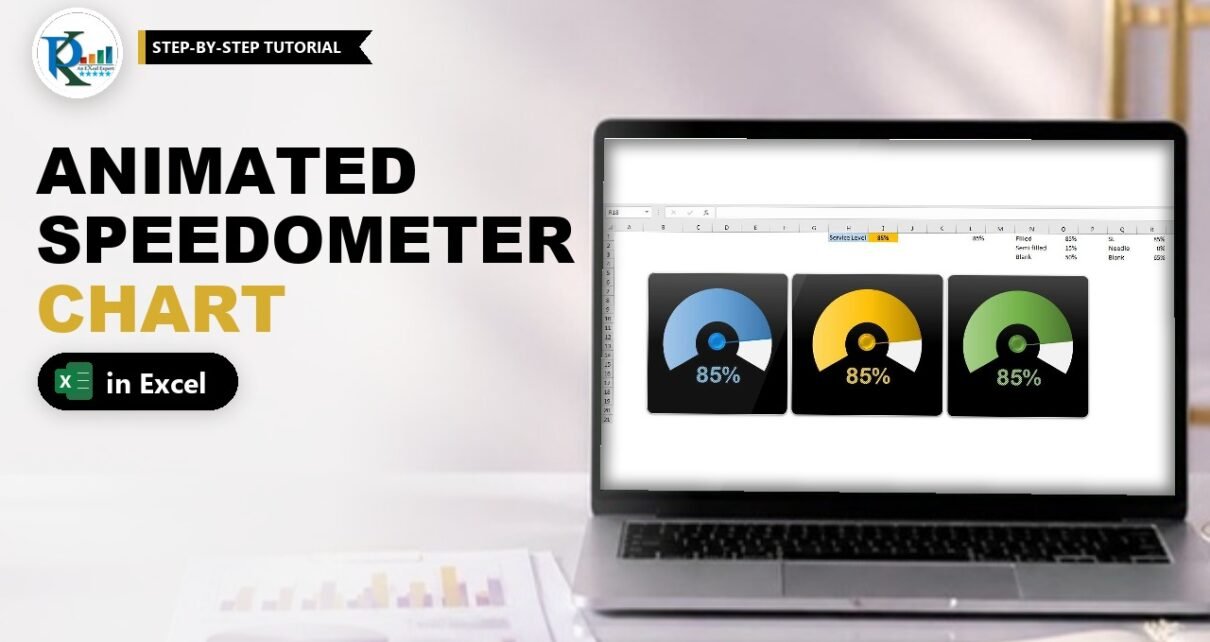
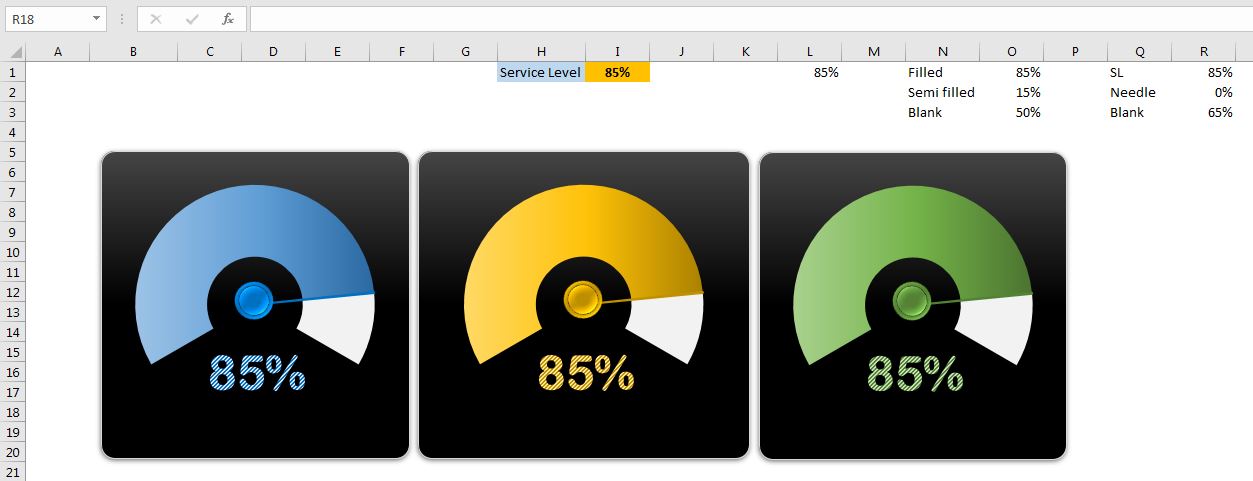
An animated speedometer chart in Excel does more than show a KPI: when the value changes, the coloured arc sweeps up from zero, the needle travels with it and the big percentage label counts up, just like a car dashboard waking up. In this tutorial you build it from a doughnut chart and a pie chart, then add a short VBA loop with DoEvents that plays the animation whenever the Service Level value changes or the sheet is opened. It is a great eye-catcher for a business dashboard.
Watch the Video Tutorial
PK builds the blue speedometer in a new workbook, links a WordArt label to it, then writes the Worksheet_Change and Worksheet_Activate macros that animate it.
What You Will Build
- A 240-degree dial made from a doughnut chart with a gradient-filled arc and a light grey remainder.
- A thin needle made from a pie chart on the secondary axis.
- A glossy centre hub and a large percentage label linked to a cell.
- A VBA animation that counts the gauge up from 0% to the new value, on every change and every time the sheet is activated.
How the Sheet Is Laid Out
The video uses three small areas on Sheet1:
- E1:F1: the label Service Level and the input cell F1 (85% in the example). This is the only cell you type into.
- N1: a second copy of the value. The charts and the label read N1, not F1. The macro writes into N1 step by step, which is what creates the animation.
- O1:P3 for the dial and R1:S3 for the needle, described below.
Why two cells? If the charts read F1 directly, they would jump straight to the new value. By pointing them at N1 and letting VBA walk N1 from 1% up to the target, you see every frame in between.
Part 1: Build the Speedometer Dial
Step 1: The dial data
In O1:O3 type Filled, Semi Filled and Blank. In P1:P3 enter the formulas below. The video only shows the results on screen (85%, 15% and 50%); the formulas follow PK’s narration: Filled takes the value in N1, Semi Filled is 100% minus that value, and Blank is a fixed 50%.
P1  =N1
P2  =100%-P1
P3  50%
With 85% you get 85%, 15% and 50%, a total of 150%. That total is the key to the gauge shape: the Filled and Semi Filled parts always add up to 100% and take two thirds of the circle (240 degrees), and the 50% Blank takes the remaining 120 degrees at the bottom.
Step 2: Insert and rotate the doughnut
Select O1:P3 and choose Insert → Pie or Doughnut Chart → Doughnut. Delete the chart title and the legend. Right-click the ring, open Format Data Series and set:
- Angle of first slice: 240°
- Doughnut Hole Size: about 45%
The Filled slice now starts at the lower left and sweeps clockwise over the top.
Step 3: Colour the dial
Set Shape Outline → No Outline for the doughnut. Then format each slice:
- Blank: Fill → No fill, so the bottom of the circle disappears.
- Semi Filled: Solid fill in a light grey.
- Filled: Gradient fill. PK picks the third blue option from the Preset gradients and sets the Direction to Linear Left.
Part 2: Add the Needle with a Pie Chart
Step 4: The needle data
In R1:R3 type SL, Needle Width and Blank, and in S1:S3 enter the formulas below. Again the screen shows only the values; as PK explains in the narration, SL takes the service level value, the needle width is a small fixed percentage (he suggests about 0.5%), and Blank is 150% minus the sum of the other two.
S1  =N1
S2  0.5%
S3  =150%-SUM(S1:S2)
These three cells also add up to 150%, so the needle uses exactly the same scale as the dial. S1 is an invisible slice that pushes the needle forward by the current value, S2 is the needle itself and S3 fills the rest.
Step 5: Add the series and turn it into a pie
Right-click the chart, choose Select Data → Add, leave the name blank and use S1:S3 as the values. The series formula in the video is =SERIES(,Sheet1!$R$1:$R$3,Sheet1!$S$1:$S$3,2). Then right-click the chart, choose Change Series Chart Type, set Series2 to Pie and tick Secondary Axis.
Step 6: Format the pie
Give the pie No Outline and set its Angle of first slice to 240°, the same as the doughnut, so both charts start from the same point. Set the SL slice and the Blank slice to No fill. Only the thin needle slice should remain.
The needle slice is very hard to click at 0.5%. PK’s trick: change S2 to 10% for a moment, select the slice, give it a solid blue fill and a solid blue border of width 1, and then set S2 back to 0.5%.
Step 7: The centre hub
Insert an Oval (Insert → Shapes → Basic Shapes), draw a small circle over the needle’s pivot, fill it with the same blue and apply Shape Effects → Preset → Preset 7 for a glossy, raised look.
Type 45% in N1 and the arc and needle follow, but there is no animation yet and no number on the gauge.
Part 3: Add the Label and the Black Card
Step 8: A live percentage label
Select the chart and choose Insert → WordArt. With the WordArt selected, click in the formula bar, type =N1 and press Enter. The label now shows the animated value. Linking it resets the formatting, so format it again: a large size, the Arial Rounded MT font, and a text fill in blue and light blue to match the dial. PK uses a two-colour pattern fill (blue background, light blue foreground) for the striped digits.
Step 9: Card background and rounded corners
Turn off gridlines with View → Gridlines. Select the chart and fill the chart area with black (or pick a dark Shape Style). For rounded corners, right-click the chart, choose Format Chart Area, open Border and tick Rounded corners.
Part 4: Animate the Speedometer Chart in Excel with VBA
Step 10: Save as a macro-enabled workbook
Save the file as .xlsm or .xlsb, otherwise Excel strips the macro when you save.
Step 11: The Worksheet_Change macro
Press Alt+F11, double-click Sheet1 in the Project window, choose Worksheet in the left drop-down and Change in the right one. This is the code from the video:
Option Explicit

Private Sub Worksheet_Change(ByVal Target As Range)

    Dim i As Integer

    If Target.Address = "$F$1" Then

        For i = 1 To Int(Target.Value * 100)
            DoEvents
            Range("N1").Value = i / 100
        Next i

        Range("N1").Value = Target.Value

    End If

End Sub
How the code works
Worksheet_Changeruns every time a cell on this sheet is edited, andTargetis the edited cell.If Target.Address = "$F$1"makes sure the animation only runs when the Service Level input changes.- 85% is stored as 0.85, so
Int(Target.Value * 100)gives 85 steps.Intdrops any decimals, so a value such as 85.653% still gives a whole number of steps. - Each step writes
i / 100into N1 (1%, 2%, 3% and so on), so the arc, needle and label grow a little at a time. DoEventshands control back to Excel for a moment so the screen repaints and you actually see each step.- After the loop,
Range("N1").Value = Target.Valuewrites the exact value, including any decimals the loop skipped.
Step 12: Control the speed
To slow the animation down, use a bigger number in both places: Target.Value * 500 and i / 500 gives five times as many smaller steps. PK also tries 1000 (slower still) and 50 (faster). The two numbers must match, otherwise the gauge stops at the wrong value before the final line corrects it.
Step 13: Animate when the sheet is activated
Choose Activate in the right-hand drop-down of the same sheet module and add the same loop. There is no Target here, so read the input cell directly:
Private Sub Worksheet_Activate()

    Dim i As Integer

    For i = 1 To Int(Range("F1").Value * 100)
        DoEvents
        Range("N1").Value = i / 100
    Next i

    Range("N1").Value = Range("F1").Value

End Sub
Remember the Dim i As Integer line: with Option Explicit at the top, a missing declaration stops the macro with a Variable not defined compile error, which also happens in the video. Now switch to another sheet and back, and the gauge sweeps up again.
Common Errors and Fixes
Nothing happens when I change the value
Check that the code is in the sheet’s own module (not a standard Module), the file is saved as .xlsm or .xlsb, macros are enabled, and you typed into F1, the cell named in the code.
The needle and the dial do not line up
Both series need an Angle of first slice of 240°, both tables must total 150%, and the pie must be on the secondary axis.
Run-time error 13: Type mismatch
This fix is an addition, not shown in the video. It appears if F1 is cleared or contains text. Add If Not IsNumeric(Target.Value) Or IsEmpty(Target.Value) Then Exit Sub right after the If Target.Address line.
Tips
- Keep the animation short. Around 1 to 2 seconds feels lively; longer animations get in the way when someone edits the sheet.
- For extra gauges, as in the screenshot, copy the chart, change the gradient and hub colours to gold or green, and point the copy at its own helper cells.
- Microsoft documents the Worksheet.Change event used to trigger the animation.
Want It Ready-Made?
If you want the finished workbook with all three colour themes and the working macros, get the Animated Speedometer Chart in Excel template on NextGenTemplates.com, or browse more Excel templates. To learn charts, infographics and dashboards step by step, see the course Excel Pivot Tables and Dashboards.
Related Tutorials
- Ultimate Speedometer in Excel built with shapes and a rotating VBA needle
- RYG Dial Gauge Meter in Excel with red, yellow and green zones (no VBA)
- Speedometer Chart in Excel: Build a Gauge Chart Step by Step
- 3D Gauge Chart in Excel
- Animated Hour Glass Chart in Excel
Frequently Asked Questions
How does the animation work without any add-in?
A short VBA loop writes the value into a helper cell one percent at a time, and DoEvents lets Excel redraw the chart after each step. The chart reads the helper cell, so you see it sweep up to the new value.
Can I make the animation slower or faster?
Yes. Change the multiplier and the divisor in the loop to the same bigger number for a slower animation, or a smaller number for a faster one. Step 12 shows the values PK tests.
Why does the chart read N1 instead of the input cell?
If the charts read the input cell, they would jump straight to the final value. Reading a helper cell that the macro updates step by step is what creates the animation.
Does the animation run when the file opens?
The Worksheet_Activate macro runs when you switch to the sheet. If you also want it on opening, call the same loop from the Workbook_Open event.
Is this different from the other speedometers on the site?
Yes. The Ultimate Speedometer uses shapes and rotates a needle, and the RYG Dial Gauge uses coloured zones without VBA. This version adds an animated sweep to a doughnut and pie chart gauge.
About the Author
PK is a Microsoft Excel expert and trainer and the founder of PK: An Excel Expert and NextGenTemplates.com. He has been teaching Excel, VBA, Power Query and Power BI since 2016 on his YouTube channel.
Conclusion
An animated speedometer chart in Excel needs only two charts, two small helper tables and a few lines of VBA. The 150% doughnut draws the dial, the 150% pie draws the needle, and a loop with DoEvents walks the helper cell up to the new value so the gauge sweeps into place. Build the blue version first, copy it for other colours, and your dashboard gets a gauge that catches every eye in the meeting.