Part of the free Module 12: Excel VBA Course · Lesson 16 of 18 · Full Excel course
A user defined function (UDF) is a custom Excel function written in VBA with the Function keyword; once it lives in a module you can call it from any cell exactly like SUM or VLOOKUP. In this lesson you will learn how to create a VBA user defined function with required and optional arguments, call it from the worksheet, understand ByVal versus ByRef, and make it recalculate with Application.Volatile.
What a UDF is and when to write one
A Sub procedure performs actions; a Function procedure returns a value. When a calculation is too awkward for a worksheet formula, is repeated across many workbooks, or needs logic such as loops and Select Case, wrap it in a Function and the whole team can use it as a formula. UDFs are written between Function Name(arguments) As Type and End Function, and the result is set by assigning to the function’s own name. They must be placed in a standard module, not in a sheet or ThisWorkbook module, to appear in the formula list.
Arguments
Function Rectangle_Area(length As Double, width As Double) As Double
    Rectangle_Area = length * width
End Function
Two typed arguments come in, the product is assigned to the function name and returned as a Double.
Optional arguments
Put Optional before an argument to allow the caller to omit it; every argument after the first optional one must also be optional. Use IsMissing to detect an omitted Variant argument, or give a default value directly.
Function Rectangle_Area(length As Double, Optional width As Variant) As Double
    If IsMissing(width) Then
        Rectangle_Area = length * length     'square
    Else
        Rectangle_Area = length * width
    End If
End Function
Called with one argument the function returns the area of a square; with two it returns the rectangle area. The shorter form Optional width As Double = 0 gives a default but cannot use IsMissing.
How to use the function on a worksheet
- Press Alt+F11 to open the Visual Basic Editor.
- Choose Insert > Module (Alt+I+M).
- Paste the Rectangle_Area function into the module.
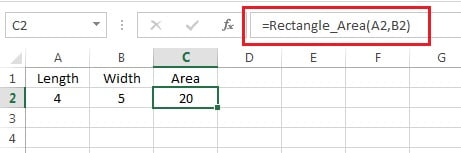
- Return to Excel and type
=Rectangle_Area(A2,B2)in a cell. The name appears in the AutoComplete list as you type.
ByVal and ByRef
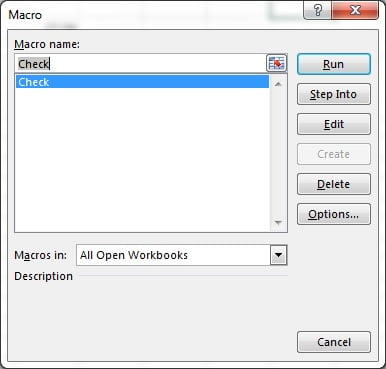
Arguments can be passed two ways. ByVal sends a copy: changes inside the function do not affect the caller’s variable. ByRef, the VBA default, sends the address: changes inside the function change the original variable. The test below shows the difference.
Function Get_Square(ByVal i As Integer) As Integer
    i = i * i
    Get_Square = i
End Function

Sub Check()
    Dim x As Integer
    x = 5
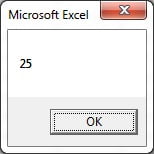
    MsgBox Get_Square(x)   '25
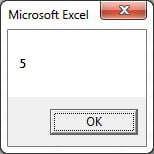
    MsgBox x               '5  - unchanged because ByVal
End Sub
Run Check with Alt+F8: the first message is 25 and the second is still 5.
Now change ByVal to ByRef and run Check again.
Function Get_Square(ByRef i As Integer) As Integer
    i = i * i
    Get_Square = i
End Function
The function still returns 25, but this time the second message also shows 25 because x itself was modified.
Because ByRef is the default, declare arguments ByVal in UDFs unless you deliberately want to change the caller’s variable.
Application.Volatile
Excel recalculates a UDF only when one of its arguments changes. If the function reads something else, such as the current time, a cell colour or another sheet, add Application.Volatile as the first line so it recalculates whenever the workbook does.
Function Rectangle_Area(length As Double, Optional width As Variant) As Double
    Application.Volatile
    If IsMissing(width) Then
        Rectangle_Area = length * length
    Else
        Rectangle_Area = length * width
    End If
End Function
Use Volatile sparingly; every volatile function recalculates on every change and slows large workbooks.
Complete example: a robust UDF
Function Grade(ByVal score As Variant, Optional ByVal passMark As Double = 40) As Variant
    'Returns a letter grade, or #VALUE! for non-numeric input
    If Not IsNumeric(score) Or IsEmpty(score) Then
        Grade = CVErr(xlErrValue)
        Exit Function
    End If
    Select Case CDbl(score)
        Case Is >= 90:       Grade = "A"
        Case Is >= 75:       Grade = "B"
        Case Is >= passMark: Grade = "C"
        Case Else:           Grade = "Fail"
    End Select
End Function
This runnable UDF validates its input, returns a proper Excel error value for bad data, offers an optional pass mark with a default, and can be entered as =Grade(B2) or =Grade(B2,50).
Tips and common mistakes
- UDFs cannot change other cells, format anything or select ranges when called from a worksheet; they may only return a value.
- Put them in a standard module. Functions in sheet modules are not visible to formulas.
- Do not name a UDF like a cell (AREA1) or an existing function; it will not be callable.
- Declare a return type (
As Double,As String) to avoid Variant overhead. - Add a description with Application.MacroOptions so it shows in the Insert Function dialog.
- Share via an add-in (.xlam) to make the function available in every workbook without copying code.
Practice and real-world use
Write a UDF that returns the number of working days between two dates excluding a holiday range, and one that extracts the domain from an email address. Custom commission, tax and KPI-status functions are the most common UDFs in business templates.
Related lessons
Frequently asked questions
Why does my user defined function show #NAME?
Excel cannot find it. Check that the function is in a standard module of the same workbook (or an open add-in), the name is spelt exactly, macros are enabled, and the function is not Private.
Why does my UDF not recalculate?
UDFs recalculate only when an argument changes. If the function reads other data, add Application.Volatile as its first line or pass the dependent cells as arguments.
What is the difference between ByVal and ByRef?
ByVal passes a copy of the value, so the caller’s variable is untouched. ByRef, the default, passes a reference, so changes inside the function alter the original variable.
Want the finished version? Ready-made Excel dashboards, trackers and VBA systems are available at NextGenTemplates.com.