Managing customer service tasks without a clear system often creates confusion, missed follow-ups, and unhappy customers. Moreover, when teams rely on emails, chats, or scattered Excel files, they lose visibility and control. That is exactly why a Customer Service Task Calendar in Excel becomes a powerful and practical solution.
In this detailed and SEO-friendly guide, you will learn what a Customer Service Task Calendar in Excel is, why customer support teams need it, how it works, its complete worksheet-wise structure, advantages, best practices, and frequently asked questions. Additionally, this article uses clear language, simple explanations, and real-world logic so you can apply it immediately.
Click to buy Customer Service Task Calendar in Excel
What Is a Customer Service Task Calendar in Excel?
A Customer Service Task Calendar in Excel is a structured and ready-to-use calendar system that helps customer support teams plan, schedule, track, and manage service-related tasks and events in one centralized Excel workbook.
Instead of tracking tasks across emails, tickets, reminders, and notes, teams use one interactive calendar to see daily, monthly, and annual customer service activities. As a result, nothing slips through the cracks.
Because the calendar runs in Microsoft Excel, it stays flexible, affordable, and easy to customize, even for non-technical users.
Why Do Customer Service Teams Need a Task Calendar?
Customer service work never stops. Every day includes follow-ups, callbacks, escalations, reviews, training sessions, and internal meetings. Therefore, without a proper calendar, teams struggle to stay organized.
Here is why a Customer Service Task Calendar in Excel becomes essential:
- Customer requests arrive daily and need timely responses
- Teams manage multiple tasks across different dates
- Managers need visibility into workloads
- Missed follow-ups hurt customer satisfaction
- Manual reminders waste time
However, when teams use a structured Excel calendar, they gain clarity, control, and consistency.
How Does a Customer Service Task Calendar in Excel Work?
This calendar works as a central planning and tracking tool. Users add customer service events, tasks, and activities using simple forms. Then, the calendar automatically reflects those events across annual, monthly, and daily views.
Moreover, built-in controls allow users to change the year, month, theme, and highlights without editing formulas. As a result, the calendar stays user-friendly and efficient.
What Worksheets Are Included in the Customer Service Task Calendar in Excel?
This ready-to-use Customer Service Task Calendar includes five powerful worksheets, each designed for a specific purpose.
Let us explore each sheet in detail.
Home Sheet
The Home Sheet works as the main index page of the workbook. From here, users can navigate to any calendar view with a single click.
Key Features of the Home Sheet
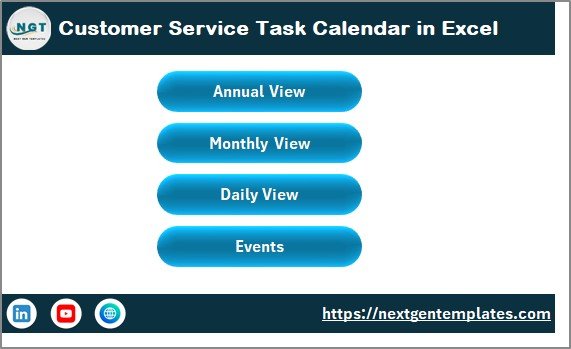
The Home sheet includes four navigation buttons:
- Annual View Button – Opens the yearly calendar
- Monthly View Button – Opens the monthly calendar
- Daily View Button – Opens the detailed daily event list
- Events Button – Opens the event database
Because of this design, users do not waste time searching for sheets. Instead, they move instantly to the required view.
Click to buy Customer Service Task Calendar in Excel
Annual View Sheet
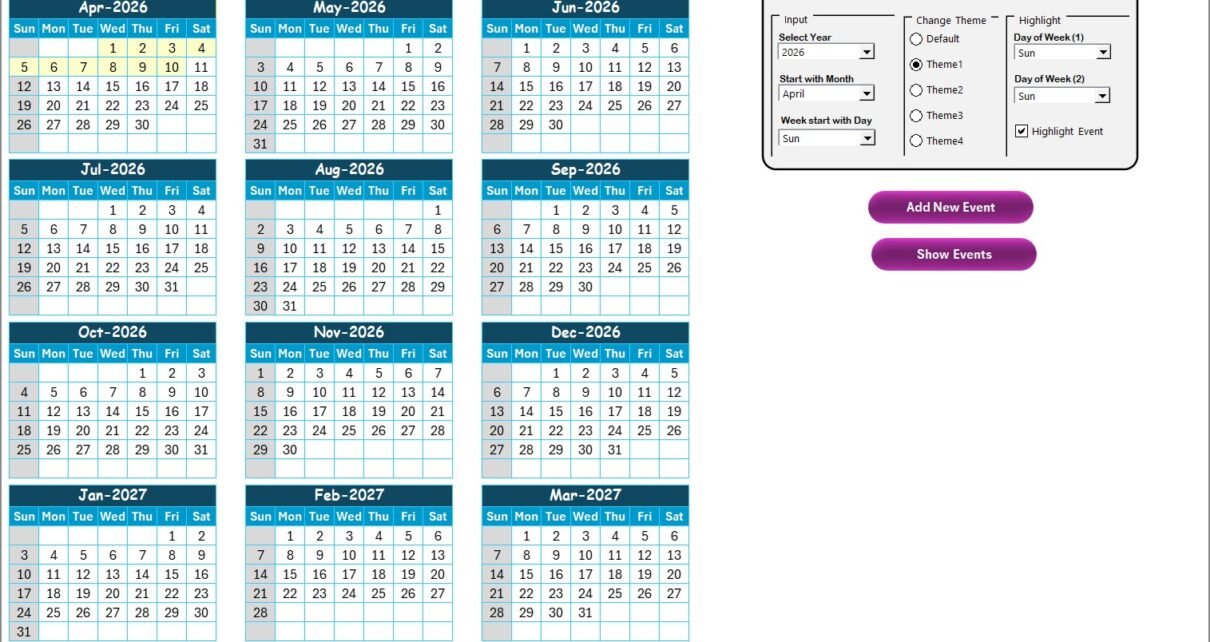
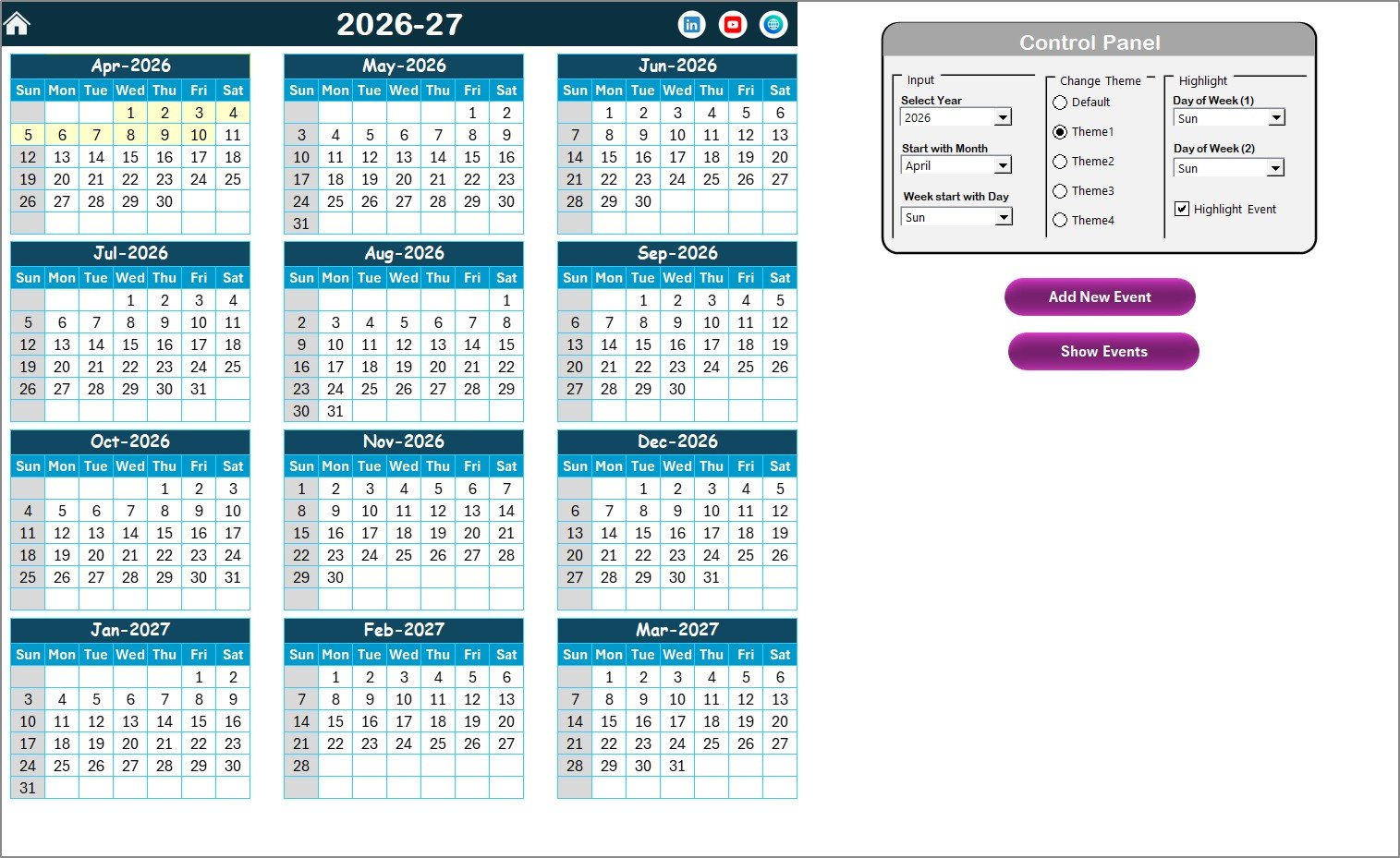
The Annual View Sheet shows all 12 months in one screen. This view helps managers and team leads see the entire year at a glance.
What Does the Annual View Show?
- A full 12-month calendar layout
- Highlighted weekends or selected days
- Highlighted customer service events
- Clean and printable design
This view works perfectly for year-level planning, audits, and workload analysis.
Click to buy Customer Service Task Calendar in Excel
What Control Panel Features Are Available in the Annual View?
The Annual View includes a powerful Control Panel that allows full customization without technical skills.
Input Group
In this section, users can:
- Select the Year to update the calendar automatically
- Change the starting month of the year
- Set the starting day of the week
As a result, the calendar adapts instantly to regional or business requirements.
Change Theme Group
Here, users can select from five color themes. Once selected, the theme applies to the entire workbook.
This feature helps teams:
- Match company branding
- Improve visual clarity
- Reduce eye strain
Highlight Group
This group allows users to:
- Highlight Day of Week (1)
- Highlight Day of Week (2)
For example, teams can highlight Saturday and Sunday in grey to mark non-working days.
Additionally, users can enable the Highlight Event checkbox. When enabled, the calendar highlights all events in yellow, making them instantly visible.
How Do You Add and View Events in the Annual View?
The Annual View includes two powerful action buttons.
Add New Event Button
Users can:
- Select a date on the calendar
- Click the Add New Event button
- Fill in the event details in the form
- Click Submit
The event then appears automatically on the selected date.
Show Event Button
To view events on a specific date:
- Select the date
- Click Show Event
Excel then displays the list of all events scheduled for that date.
Monthly View Sheet
The Monthly View Sheet shows a single calendar for a selected month. This view works best for day-to-day planning and short-term scheduling.
How Does the Monthly View Work?
Users select:
- Month
- Year
Based on this selection, Excel updates the calendar automatically.
How Are Multiple Events Displayed?
The calendar displays:
- One event directly on the date
- If more than one event exists, Excel shows “more than 1…”
This approach keeps the calendar clean while still indicating busy days.
What Buttons Are Available in the Monthly View?
The Monthly View includes two buttons at the top.
Add New Event Button
Users select a date, click the button, fill the form, and submit. The system then records the event instantly.
Show Event Button
Users select a date and click Show Event to view all events scheduled on that day.

Click to buy Customer Service Task Calendar in Excel
Daily View Sheet
The Daily View Sheet displays a detailed list of events within a selected date range. This view helps supervisors and agents review tasks in detail.
How Does the Daily View Work?
Users enter:
- Start Date
- End Date
They then click the Refresh button to load the latest data.
Why Is the Daily View Important?
This view helps teams:
- Review workloads
- Track completed and pending tasks
- Prepare daily action plans
- Analyze service activity trends
Add New Event from Daily View
The Daily View also includes an Add New Event button. Users click it, fill the form, and submit the task without switching sheets.

Click to buy Customer Service Task Calendar in Excel
Events Sheet
The Events Sheet works as the database for the entire calendar. Every event added from any view stores its details here.
What Information Does the Events Sheet Store?
Each record includes:
- ID – Auto-generated unique number
- Date – Event date
- Day – Day of the week
- Event Name – Task or activity name
- Time – Event time
- Location – Event location
- Description – Short task description
Because of this structure, data remains clean, consistent, and easy to analyze.

Click to buy Customer Service Task Calendar in Excel
What Buttons Are Available on the Events Sheet?
At the top of the Events sheet, users see three powerful buttons.
Add New Record Button
This button opens the event form. Users fill in details and submit. Excel then adds the record automatically.
Update Existing Record Button
Users select an ID, click this button, and update the pre-filled form. After submission, Excel updates the record instantly.
Delete Record Button
Users select the ID and click Delete Record. Excel removes the event safely and cleanly.
Advantages of Customer Service Task Calendar in Excel
Using a Customer Service Task Calendar in Excel offers several powerful benefits.
- Centralized Task Management
Teams manage all customer service tasks in one file instead of scattered tools.
- Improved Time Management
Clear visibility helps agents prioritize tasks and meet service deadlines.
- Better Team Coordination
Managers and agents stay aligned on daily, monthly, and yearly activities.
- Reduced Missed Follow-Ups
Automatic scheduling and visibility prevent forgotten tasks.
- No Additional Software Cost
Excel eliminates the need for expensive scheduling tools.
- Fully Customizable
Users adjust themes, dates, and layouts without technical skills.
- Easy Reporting and Review
Managers quickly review workloads and performance using calendar views.
Who Should Use a Customer Service Task Calendar in Excel?
This calendar suits:
- Customer service teams
- Call centers
- Helpdesk teams
- Support managers
- Operations teams
- Small and medium businesses
Best Practices for the Customer Service Task Calendar in Excel
To get maximum value, teams should follow these best practices.
- Update Events Daily
Always add and update tasks on the same day to keep data accurate.
- Use Clear Event Names
Short and clear names help teams understand tasks quickly.
- Maintain Consistent Descriptions
Use simple descriptions to explain task purpose.
- Review the Daily View Every Morning
Daily reviews help teams plan the day efficiently.
- Use Highlight Features Wisely
Highlight weekends and key service days for better clarity.
- Train the Team Once
A short training ensures everyone uses the calendar correctly.
- Backup the File Regularly
Regular backups protect important service data.
Conclusion: Why Is a Customer Service Task Calendar in Excel a Smart Choice?
A Customer Service Task Calendar in Excel transforms how support teams plan and execute daily activities. Instead of chaos and missed follow-ups, teams gain structure, clarity, and confidence.
Because this calendar includes annual, monthly, daily, and database views, it supports both strategic planning and daily execution. Moreover, Excel keeps the system affordable, flexible, and easy to use.
If you want to improve customer satisfaction, task visibility, and team productivity, this calendar becomes an essential tool.
Frequently Asked Questions About Customer Service Task Calendar in Excel
What is a Customer Service Task Calendar in Excel used for?
Teams use it to schedule, track, and manage customer service tasks and events in one centralized Excel file.
Can non-technical users use this calendar?
Yes. The calendar uses buttons, forms, and simple controls, so anyone can use it easily.
Does this calendar support multiple years?
Yes. Users can change the year from the control panel, and the calendar updates automatically.
Can I customize colors and themes?
Yes. The calendar includes five built-in themes that apply across the workbook.
How many events can I add?
You can add unlimited events because Excel stores them in a structured database.
Can I edit or delete events later?
Yes. The Events sheet allows users to update or delete records using buttons.
Does the calendar highlight weekends and events?
Yes. Users can highlight specific weekdays and events using the Highlight Group.
Is this calendar suitable for small businesses?
Absolutely. Small teams benefit greatly from structured planning without extra software costs.
Can I use this calendar offline?
Yes. Because it runs in Excel, you can use it offline anytime.
Does this calendar replace customer support software?
No. However, it works perfectly as a planning and tracking companion for support tools.
Visit our YouTube channel to learn step-by-step video tutorials
Watch the step-by-step video tutorial:
Click to buy Customer Service Task Calendar in Excel