The ticketing and live events industry moves fast. Every concert, sports event, exhibition, or festival generates massive data around ticket sales, attendance, revenue, refunds, and customer engagement. Therefore, event organizers, promoters, and venue managers must track performance daily, monthly, and yearly. However, when teams rely only on raw Excel sheets or scattered reports, decision-making becomes slow and confusing.
That is why a Ticketing and Live Events KPI Dashboard in Excel becomes a powerful and practical solution. It converts raw ticketing data into a clear, interactive, and visual performance tracking system. Moreover, it helps teams monitor MTD, YTD, targets, and previous-year performance in one single dashboard.
In this detailed article, you will learn what a Ticketing and Live Events KPI Dashboard in Excel is, why it matters, how it works, its structure, worksheets, advantages, best practices, and frequently asked questions. Additionally, you will understand how this ready-to-use Excel dashboard supports faster and smarter decisions for live events.
Click to Purchases Ticketing and Live Events KPI Dashboard in Excel
What Is a Ticketing and Live Events KPI Dashboard in Excel?
A Ticketing and Live Events KPI Dashboard in Excel is a structured and interactive Excel-based reporting tool that tracks key performance indicators related to ticket sales and event performance. Instead of checking multiple spreadsheets, users see all KPIs on one dashboard.
This dashboard shows:
-
Month-to-Date (MTD) performance
-
Year-to-Date (YTD) performance
-
Target vs Actual comparison
-
Previous Year (PY) vs Current Year comparison
-
KPI trends with charts
Moreover, Excel formulas, drop-downs, and conditional formatting make the dashboard fully dynamic and user-friendly.
Why Do Ticketing and Live Events Businesses Need a KPI Dashboard?
Ticketing and live events businesses handle time-sensitive data. Every delay in analysis can lead to lost revenue or poor planning. Therefore, a KPI dashboard becomes essential.
Key Reasons Why You Need This Dashboard
-
You track ticket sales performance in real time
-
You compare actual sales against targets easily
-
You monitor trends across months and years
-
You identify underperforming events quickly
-
You improve pricing, promotion, and capacity planning
As a result, teams spend less time creating reports and more time taking action.
How Does a Ticketing and Live Events KPI Dashboard in Excel Work?
This dashboard works on a simple yet powerful concept. First, users enter actual, target, and previous-year numbers. Then, Excel formulas calculate MTD, YTD, and variance values. Finally, charts and conditional formatting present insights visually.
Because everything runs inside Excel, users do not need advanced tools or coding skills. Instead, they only update numbers, select months, and analyze results instantly.
Click to Purchases Ticketing and Live Events KPI Dashboard in Excel
What Are the Key Features of the Ticketing and Live Events KPI Dashboard in Excel?
This ready-to-use dashboard comes with 7 well-structured worksheets. Each sheet serves a specific purpose and ensures smooth data flow.
1. Home Sheet – How Does the Navigation Work?

The Home Sheet works as an index page.
Key Highlights of the Home Sheet
-
Acts as the landing page of the dashboard
-
Contains 6 navigation buttons
-
Each button jumps to a specific worksheet
-
Improves usability and professional look
Therefore, even non-technical users can move across sheets easily.
2. Dashboard Sheet – What Insights Does the Main Dashboard Show?

The Dashboard Sheet is the heart of this KPI system.
Key Features of the Dashboard Sheet
-
Month selection drop-down at cell D3
-
Automatically updates all KPI values based on the selected month
-
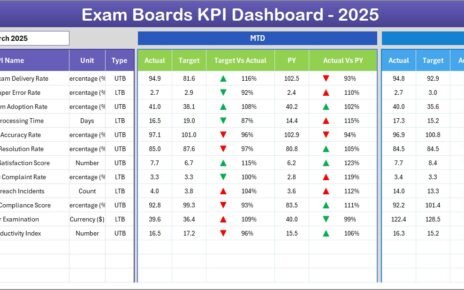
Displays both MTD and YTD metrics
KPIs Shown on the Dashboard
-
MTD Actual
-
MTD Target
-
MTD Previous Year
-
Target vs Actual variance
-
PY vs Actual variance
-
YTD Actual
-
YTD Target
-
YTD Previous Year
Visual Enhancements
-
Conditional formatting with up/down arrows
-
Color indicators for performance improvement or decline
As a result, decision-makers understand performance at a glance.
Click to Purchases Ticketing and Live Events KPI Dashboard in Excel
3. KPI Trend Sheet – How Can You Analyze KPI Trends?

The KPI Trend Sheet focuses on individual KPI performance over time.
What Can You Select?
-
KPI Name from a drop-down in cell C3
What Information Does This Sheet Display?
-
KPI Group
-
KPI Unit
-
KPI Type (Upper the Better or Lower the Better)
-
KPI Formula
-
KPI Definition
Charts Included
-
MTD Trend Chart (Actual, Target, PY)
-
YTD Trend Chart (Actual, Target, PY)
Therefore, users can analyze whether performance improves or declines month by month.
4. Actual Numbers Input Sheet – Where Do You Enter Actual Data?

The Actual Numbers Input Sheet stores real performance values.
How Does Data Entry Work?
-
Select the first month of the year in cell E1
-
Enter MTD and YTD actual numbers for each KPI
-
Data automatically flows to the dashboard and trend sheets
Because of this structure, data entry stays simple and organized.
Click to Purchases Ticketing and Live Events KPI Dashboard in Excel
5. Target Sheet – How Do You Track Targets?

The Target Sheet allows teams to define performance goals.
What Do You Enter Here?
-
Monthly MTD target values
-
Monthly YTD target values
-
Target values for each KPI
Once entered, Excel automatically compares targets with actual performance.
6. Previous Year Numbers Sheet – Why Is Year-on-Year Comparison Important?

The Previous Year Numbers Sheet stores last year’s data.
Benefits of This Sheet
-
Enables YoY comparison
-
Helps identify growth or decline
-
Supports strategic planning for future events
As a result, businesses understand seasonal patterns clearly.
7. KPI Definition Sheet – Why Are KPI Definitions Important?

The KPI Definition Sheet acts as a master reference.
Information Stored in This Sheet
-
KPI Name
-
KPI Group
-
Unit of Measurement
-
KPI Formula
-
KPI Definition
This sheet ensures consistency, clarity, and transparency across teams.
Click to Purchases Ticketing and Live Events KPI Dashboard in Excel
What KPIs Can You Track Using This Dashboard?
This dashboard supports a wide range of ticketing and live event KPIs, such as:
-
Tickets Sold
-
Ticket Revenue
-
Average Ticket Price
-
Attendance Rate
-
Capacity Utilization
-
Refund Rate
-
No-Show Percentage
-
Revenue per Event
-
Sales Growth Rate
You can customize KPIs easily based on business needs.
Advantages of Ticketing and Live Events KPI Dashboard in Excel
Using this dashboard delivers multiple business benefits.
Key Advantages
-
📊 Centralized KPI tracking in one Excel file
-
⏱️ Saves time on manual reporting
-
📈 Improves performance visibility
-
🎯 Tracks targets and achievements clearly
-
🔄 Enables month-wise and year-wise comparison
-
👥 Easy to use for all team members
Therefore, Excel becomes a strategic reporting tool rather than just a data entry tool.
Click to Purchases Ticketing and Live Events KPI Dashboard in Excel
How Does This Dashboard Support Better Decision-Making?
This dashboard supports decisions in several ways.
-
Helps adjust ticket pricing strategies
-
Identifies underperforming events early
-
Supports marketing campaign optimization
-
Improves venue capacity planning
-
Enhances revenue forecasting
Because insights appear instantly, teams react faster and smarter.
Best Practices for the Ticketing and Live Events KPI Dashboard in Excel
To get maximum value, follow these best practices:
✅ Update actual numbers regularly
✅ Maintain accurate target values
✅ Use consistent KPI definitions
✅ Review KPI trends monthly
✅ Use conditional formatting wisely
✅ Keep input sheets clean and validated
✅ Avoid overwriting formulas
Following these practices ensures long-term dashboard accuracy and reliability.
Click to Purchases Ticketing and Live Events KPI Dashboard in Excel
Who Can Use This Ticketing and Live Events KPI Dashboard?
This dashboard suits multiple roles and industries.
Ideal Users
-
Event Managers
-
Ticketing Teams
-
Venue Owners
-
Concert Promoters
-
Sports Event Organizers
-
Finance and Revenue Teams
Because Excel remains widely used, adoption becomes easy.
How Is This Dashboard Different from Basic Excel Reports?
Unlike basic reports, this dashboard offers:
-
Automation instead of manual calculations
-
Interactive drop-down selections
-
Visual performance indicators
-
Trend analysis with charts
-
Professional layout and navigation
As a result, users move from reporting to analysis quickly.
Can You Customize This Dashboard?
Yes, customization stays simple.
You can:
-
Add or remove KPIs
-
Change KPI formulas
-
Modify target values
-
Adjust chart formats
-
Rebrand colors and layout
Therefore, the dashboard adapts easily to different event types.
Conclusion: Why Should You Use a Ticketing and Live Events KPI Dashboard in Excel?
A Ticketing and Live Events KPI Dashboard in Excel transforms raw ticketing data into meaningful insights. It improves visibility, accuracy, and speed of decision-making. Moreover, it removes the complexity of manual reporting and replaces it with an automated, visual, and professional solution.
If you manage live events and ticket sales, this dashboard helps you stay in control, track performance confidently, and grow revenue consistently.
Click to Purchases Ticketing and Live Events KPI Dashboard in Excel
Frequently Asked Questions (FAQs)
1. What is a Ticketing and Live Events KPI Dashboard in Excel?
It is an Excel-based tool that tracks ticket sales, revenue, attendance, and performance KPIs using MTD, YTD, targets, and trend analysis.
2. Do I need advanced Excel skills to use this dashboard?
No. You only need basic Excel knowledge to enter data and select months.
3. Can I add my own KPIs to the dashboard?
Yes. You can add new KPIs by updating the KPI Definition and input sheets.
4. Does the dashboard support year-on-year comparison?
Yes. It includes a dedicated Previous Year Numbers sheet for YoY analysis.
5. Can I use this dashboard for different event types?
Yes. You can use it for concerts, sports events, exhibitions, and festivals.
6. How often should I update the dashboard?
You should update actual numbers monthly or weekly, depending on reporting needs.
7. Is this dashboard suitable for small teams?
Yes. It works well for both small teams and large event organizations.
Click to Purchases Ticketing and Live Events KPI Dashboard in Excel
Visit our YouTube channel to learn step-by-step video tutorials