In today’s fast-moving business environment, organizations constantly monitor performance to achieve strategic goals. Companies track Key Performance Indicators (KPIs) to measure success, improve productivity, and ensure accountability. However, many teams still struggle to manage KPI-related tasks effectively because they rely on scattered notes, emails, or unstructured spreadsheets.
As a result, deadlines get missed, responsibilities become unclear, and performance tracking loses accuracy. Therefore, businesses increasingly adopt structured checklist systems to simplify KPI monitoring.
One practical and powerful solution is the KPI Tracking To-Do List Checklist in Excel — a ready-to-use template designed to organize KPI tasks, monitor progress, and improve accountability through a simple yet effective checklist system.
In this comprehensive guide, you will learn everything about the KPI Tracking To-Do List Checklist in Excel, including its structure, features, advantages, implementation steps, best practices, and frequently asked questions.
Click to Purchases KPI Tracking To-Do List Checklist in Excel
What Is a KPI Tracking To-Do List Checklist in Excel?
A KPI Tracking To-Do List Checklist in Excel is a structured task management tool that helps organizations track KPI-related activities using a checklist format.
Instead of managing performance tasks across multiple tools, teams can track all responsibilities in one centralized Excel sheet. Moreover, users can monitor completion status, assign responsibilities, and measure progress instantly.
This checklist transforms KPI execution into clear, actionable steps. Consequently, managers gain better visibility while employees understand their responsibilities clearly.
Click to Purchases KPI Tracking To-Do List Checklist in Excel
Why Do Organizations Need a KPI Tracking Checklist?
Many companies define KPIs successfully but struggle during execution. Although KPI dashboards provide insights, teams still need a structured system to track daily or weekly actions connected to those KPIs.
Without a checklist:
-
Tasks remain incomplete.
-
Deadlines pass unnoticed.
-
Team accountability decreases.
-
Progress tracking becomes manual and time-consuming.
However, when organizations use a KPI checklist, they create a disciplined workflow. As a result, teams complete KPI activities consistently and efficiently.
Key Features of the KPI Tracking To-Do List Checklist in Excel
This ready-to-use template provides a simple yet powerful structure for KPI task management.
Workbook Structure
The template contains two worksheets, each designed for a specific purpose.
Click to Purchases KPI Tracking To-Do List Checklist in Excel
1. KPI Tracking To-Do List Checklist Sheet (Main Sheet)
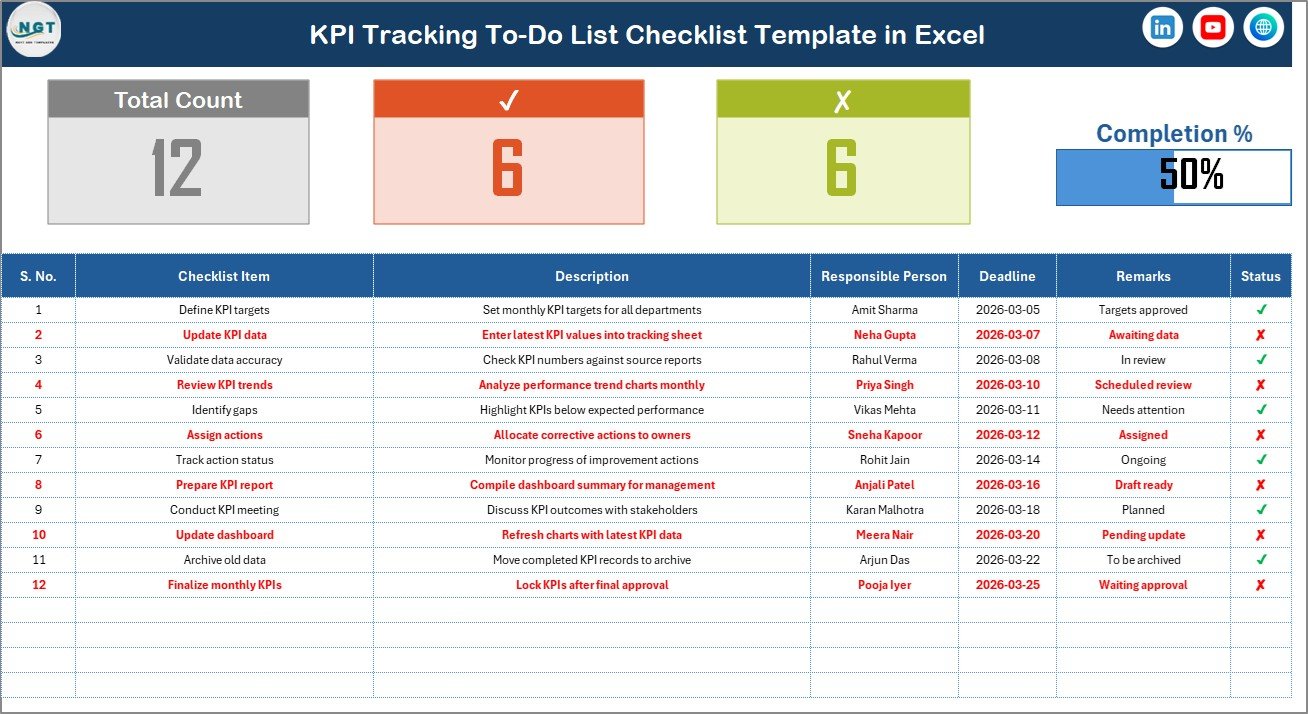
This sheet acts as the central working area where users capture and manage checklist data.
Top Section – KPI Overview Panel
At the top of the sheet, users can instantly view KPI tracking statistics, including:
-
Total Count – Total checklist items
-
Checked Count – Completed tasks
-
Crossed Count – Pending or rejected tasks
-
Progress Bar – Visual representation of completion percentage
Because this section updates automatically, managers can monitor progress at a glance.
Checklist Table Structure
The main checklist table allows users to manage KPI tasks efficiently.
Columns included:
-
Serial No.
-
Checklist Item
-
Description
-
Responsible Person
-
Deadline
-
Remarks
-
Status (✔ or ✘)
Users simply update the Status column using ✔ for completed tasks or ✘ for incomplete items. Immediately, the dashboard metrics update automatically.
Therefore, the template eliminates manual calculations and reduces tracking errors.
Click to Purchases KPI Tracking To-Do List Checklist in Excel
2. List Sheet Tab
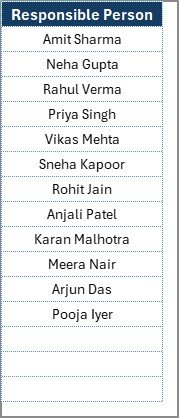
The List sheet stores a unique list of Responsible Persons.
This sheet helps create dropdown selections in the main checklist table. As a result:
-
Data entry becomes faster.
-
Naming errors reduce.
-
Reporting remains consistent.
Moreover, administrators can easily add or remove team members without modifying formulas.
Click to Purchases KPI Tracking To-Do List Checklist in Excel
How Does the KPI Tracking Checklist Improve Productivity?
A structured checklist changes how teams approach KPI execution.
Clear Responsibility Assignment
Each task includes a responsible person. Consequently, accountability increases, and confusion disappears.
Better Deadline Management
Since deadlines appear clearly, teams prioritize tasks effectively.
Real-Time Progress Tracking
The progress bar visually shows completion levels. Therefore, managers instantly understand performance status.
Simplified Monitoring
Instead of reviewing long reports, leaders check one sheet and understand progress immediately.
Click to Purchases KPI Tracking To-Do List Checklist in Excel
How to Use the KPI Tracking To-Do List Checklist in Excel?
Follow these simple steps to implement the template successfully.
Step 1: Define KPI Tasks
First, identify all activities required to achieve KPIs, such as:
-
Data collection
-
Performance review
-
Reporting updates
-
Compliance checks
Step 2: Enter Checklist Items
Add each task into the checklist table:
-
Write clear task names.
-
Add descriptions for clarity.
-
Assign responsible persons.
Step 3: Assign Deadlines
Next, define realistic deadlines. This step ensures timely completion.
Step 4: Update Status Regularly
Mark:
-
✔ when tasks complete
-
✘ when tasks remain pending
The progress indicators update automatically.
Step 5: Monitor Progress
Review the top dashboard regularly to measure performance and identify delays.
Click to Purchases KPI Tracking To-Do List Checklist in Excel
Advantages of KPI Tracking To-Do List Checklist in Excel
Using this checklist offers several operational benefits.
✅ Improved Accountability
-
Every task has an owner.
-
Teams understand responsibilities clearly.
-
Managers avoid follow-up confusion.
✅ Better KPI Execution
-
Teams focus on actionable steps.
-
Goals translate into measurable activities.
✅ Easy Implementation
-
No advanced software required.
-
Works in standard Excel environment.
✅ Real-Time Visibility
-
Progress updates instantly.
-
Leaders make faster decisions.
✅ Reduced Errors
-
Dropdown lists standardize entries.
-
Automated counts minimize manual work.
✅ Enhanced Team Collaboration
-
Everyone works on a shared structure.
-
Communication improves naturally.
Who Can Benefit from This KPI Checklist Template?
Many industries and departments can use this tool effectively.
Business Managers
Track operational KPI activities efficiently.
HR Teams
Monitor recruitment or performance review KPIs.
Finance Departments
Track reporting deadlines and compliance tasks.
Operations Teams
Manage production and process improvement activities.
Project Managers
Align daily tasks with strategic goals.
Small Businesses
Implement KPI tracking without expensive tools.
Click to Purchases KPI Tracking To-Do List Checklist in Excel
Best Practices for the KPI Tracking To-Do List Checklist
To maximize results, organizations should follow proven practices.
1. Keep Checklist Items Clear
Write short and actionable task descriptions.
2. Update Status Daily or Weekly
Regular updates ensure accurate tracking.
3. Assign One Owner per Task
Avoid multiple owners to maintain accountability.
4. Use Realistic Deadlines
Set achievable timelines to maintain motivation.
5. Review Progress in Meetings
Use the checklist during team reviews.
6. Maintain Clean Responsible Person List
Update the List sheet regularly.
7. Avoid Overloading the Checklist
Focus only on KPI-related activities.
How Does Excel Make KPI Tracking Simple?
Click to Purchases KPI Tracking To-Do List Checklist in Excel
Excel remains one of the most accessible business tools worldwide. Therefore, organizations prefer Excel-based templates.
Familiar Interface
Most employees already understand Excel.
Flexible Customization
Users can modify columns and formulas easily.
Automated Calculations
Excel handles counts and percentages instantly.
Visual Progress Indicators
Charts and progress bars improve understanding.
No Subscription Cost
Companies avoid expensive software investments.
Common Challenges in KPI Tracking (And How This Template Solves Them)
Problem: Lack of Visibility
Solution: Progress bar and counters provide instant insights.
Problem: Missed Deadlines
Solution: Dedicated deadline column improves planning.
Problem: Data Inconsistency
Solution: Dropdown lists standardize inputs.
Problem: Poor Accountability
Solution: Responsible person assignment ensures ownership.
Click to Purchases KPI Tracking To-Do List Checklist in Excel
How Can Teams Customize This Checklist?
Organizations can easily adapt the template.
You may add:
-
Priority column
-
Department column
-
KPI category grouping
-
Conditional formatting alerts
-
Email reminder integration
Because Excel supports customization, teams tailor the checklist according to workflow needs.
How Does a KPI Checklist Support Performance Culture?
A KPI checklist does more than track tasks. It builds discipline.
Teams begin to:
-
Focus on measurable outcomes.
-
Complete tasks systematically.
-
Communicate progress openly.
-
Take ownership of results.
Consequently, organizations develop a performance-driven culture.
Click to Purchases KPI Tracking To-Do List Checklist in Excel
Future Scope of KPI Tracking Using Excel Templates
Although advanced analytics tools continue evolving, Excel-based systems remain highly relevant.
In the future, organizations may integrate:
-
Power BI dashboards
-
Automated reminders
-
Cloud collaboration
-
AI-based performance analysis
However, the checklist structure will always remain the foundation of KPI execution.
Conclusion
The KPI Tracking To-Do List Checklist in Excel provides a simple yet powerful solution for managing KPI-related activities. Instead of relying on scattered tracking methods, organizations gain a centralized system that improves accountability, visibility, and productivity.
Because the template combines structured task management with automated progress monitoring, teams execute KPIs more effectively. Moreover, its simplicity ensures quick adoption across departments.
Whether you manage a small team or a large organization, this checklist helps convert strategy into action. Therefore, businesses that implement structured KPI tracking achieve better results, improved coordination, and stronger performance outcomes.
Click to Purchases KPI Tracking To-Do List Checklist in Excel
Frequently Asked Questions (FAQs)
1. What is a KPI Tracking To-Do List Checklist?
It is an Excel-based checklist used to manage tasks related to Key Performance Indicators and monitor completion progress.
2. Who should use this checklist template?
Managers, HR teams, project leaders, finance professionals, and small businesses can use it effectively.
3. Do I need advanced Excel skills to use it?
No. The template uses simple inputs and automatic calculations, so beginners can use it easily.
4. How does the progress bar work?
The progress bar calculates completed tasks based on ✔ status entries automatically.
5. Can I customize the checklist?
Yes. You can add columns, modify formulas, and adjust formatting according to your needs.
6. How often should teams update the checklist?
Teams should update task status daily or weekly to maintain accurate tracking.
7. Is this checklist suitable for small businesses?
Yes. Small businesses benefit greatly because it provides structured KPI tracking without costly software.
8. Can multiple users work on the checklist?
Yes. Teams can share the file through cloud storage platforms like OneDrive or Google Drive.
Click to Purchases KPI Tracking To-Do List Checklist in Excel
Visit our YouTube channel to learn step-by-step video tutorials