Introduction
Construction Project Timeline Calendar in Excel is a powerful and user-friendly template designed to help you efficiently manage construction schedules. This ready-to-use calendar template allows project managers and teams to visualize annual, monthly, and daily timelines along with detailed event tracking.
Key Features of Construction Project Timeline Calendar in Excel
- Comprehensive dashboard with multiple calendar views.
- Easy navigation between Annual, Monthly, Daily, and Event Sheets.
- Customizable control panel for year, starting month, and day of the week selection.
- Multiple color themes to suit user preferences.
- Event highlighting and detailed event management.
- Supports adding, viewing, updating, and deleting events through an intuitive interface.
Dashboard Pages Explanation
Home Sheet Tab
This is the index sheet allowing quick navigation through the calendar’s sections using four buttons.
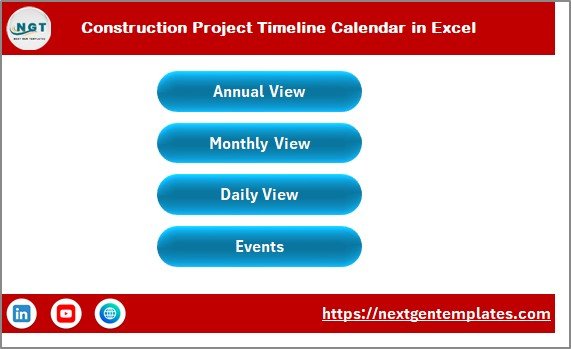 Construction Project Timeline Calendar in Excel
Annual View Sheet Tab
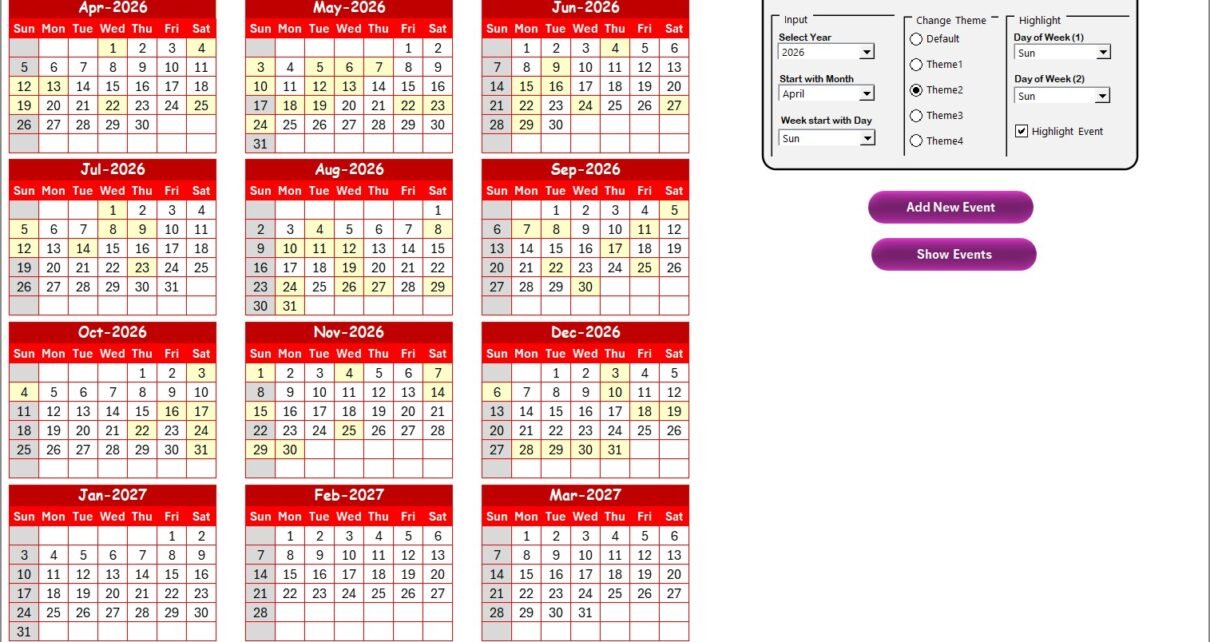
This sheet displays all 12 months in a calendar format with a control panel and additional buttons for managing events.
- Control Panel Groups:
- Input Group: Select Year, Starting Month, and Starting Day of the Week to customize the calendar.
- Change Theme Group: Choose from 5 color themes to apply throughout the workbook.
- Highlight Group: Select two days of the week to highlight (e.g., Sat and Sun) and toggle event highlighting.
- Add New Event Button: Add events on a selected date with a simple form.
- Show Event Button: View events listed for the selected date.
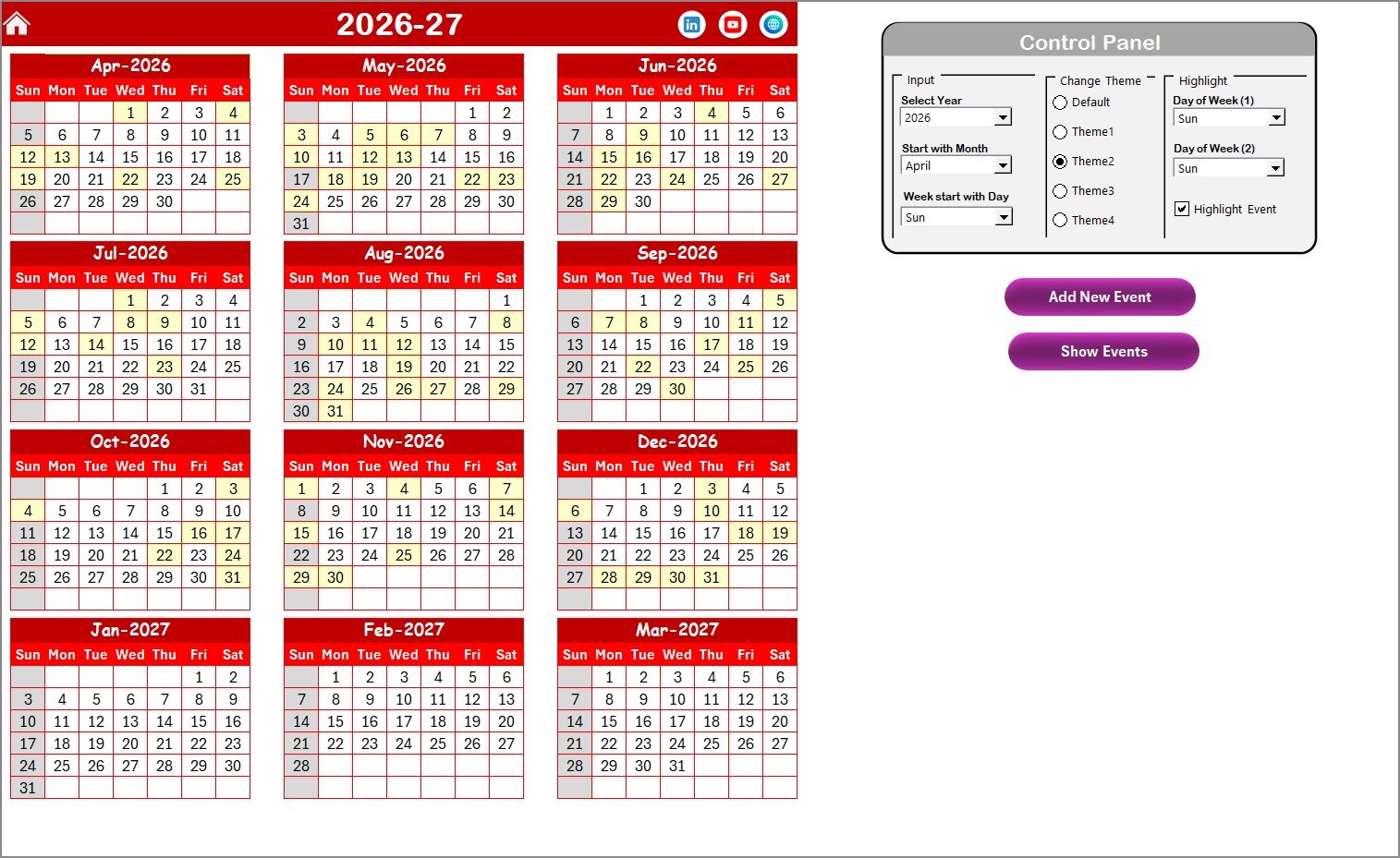 Annual View Sheet tab
Monthly View Sheet Tab
This sheet shows a detailed calendar for the selected month and year. It supports viewing one or multiple events with options to add and display event details.
- Select Month and Year from dropdowns.
- Events are displayed, showing ‘more than 1…’ if multiple exist on a date.
- Add New Event Button: Add event details for selected dates.
- Show Event Button: View event list for the selected date.
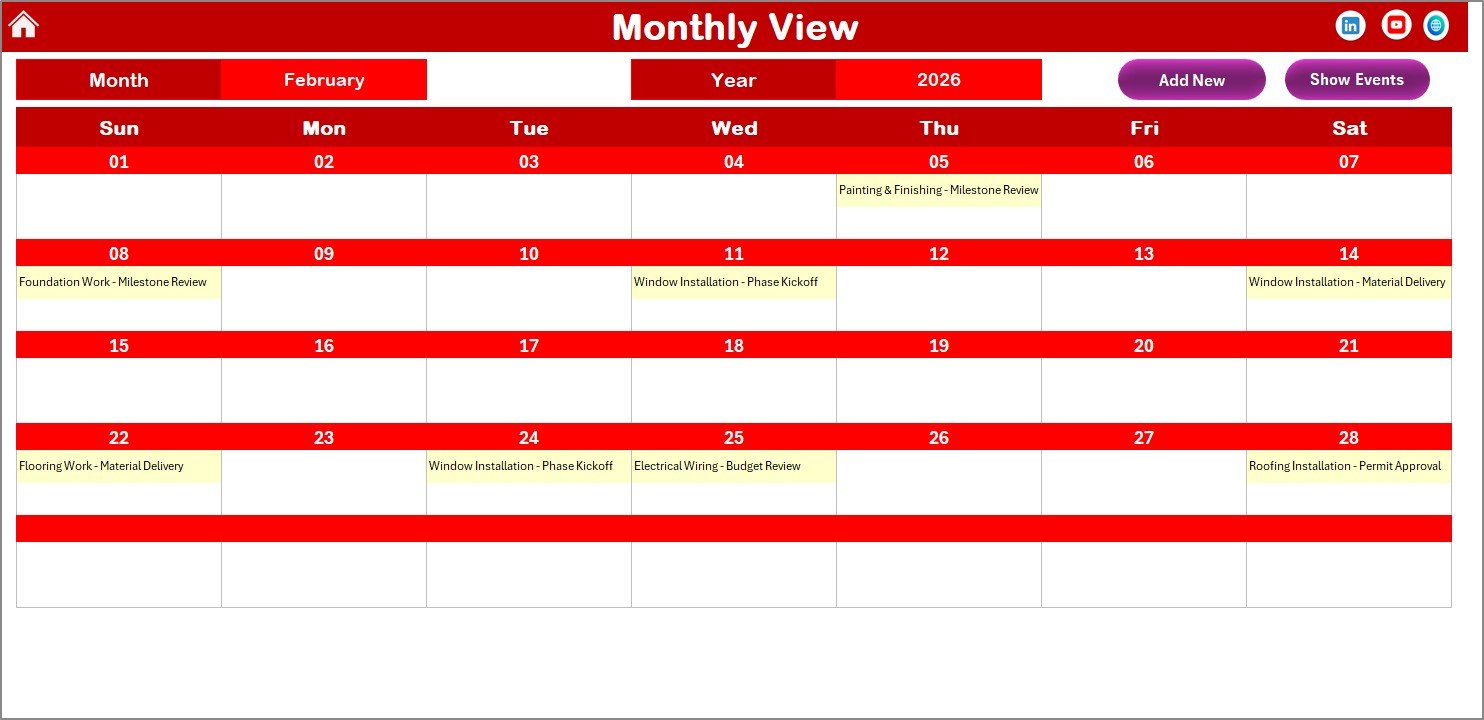 Monthly View Sheet tab
Daily View Sheet Tab
Displays detailed event lists for a selected date range. Easily refresh data, add new events, and monitor the project day by day.
- Select Start and End date using calendar icons.
- Click Refresh button to update data.
- Add New Event Button: Opens form to add detailed event information.
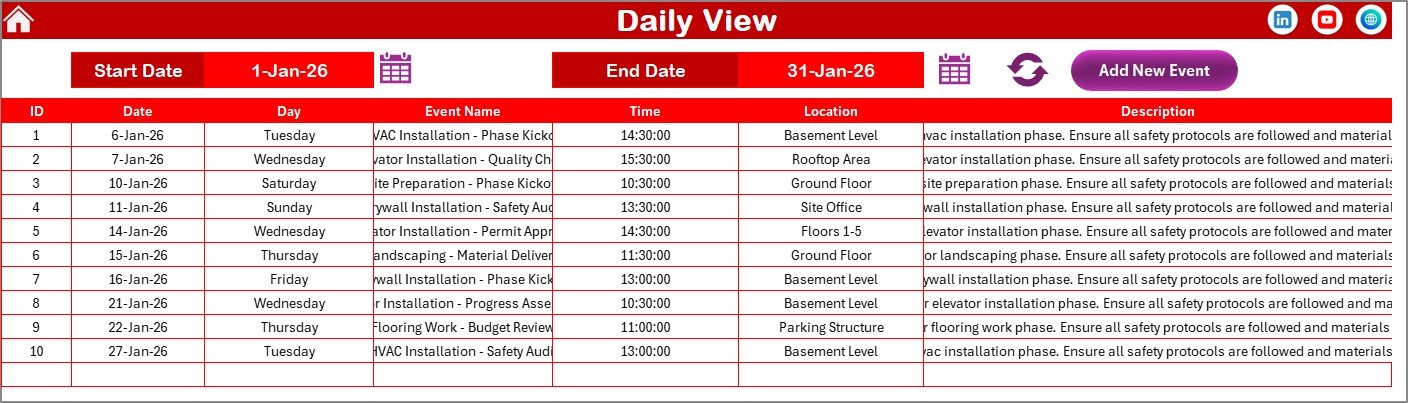 Daily View Sheet tab
Events Sheet Tab
This is the backend database capturing all event details systematically.
- Columns: ID, Date, Day, Event Name, Time, Location, Description.
- Buttons on top:
- Add New Record: Opens form for new event entry.
- Update Existing Record: Select an ID to edit event details.
- Delete Record: Remove event data by selecting ID.
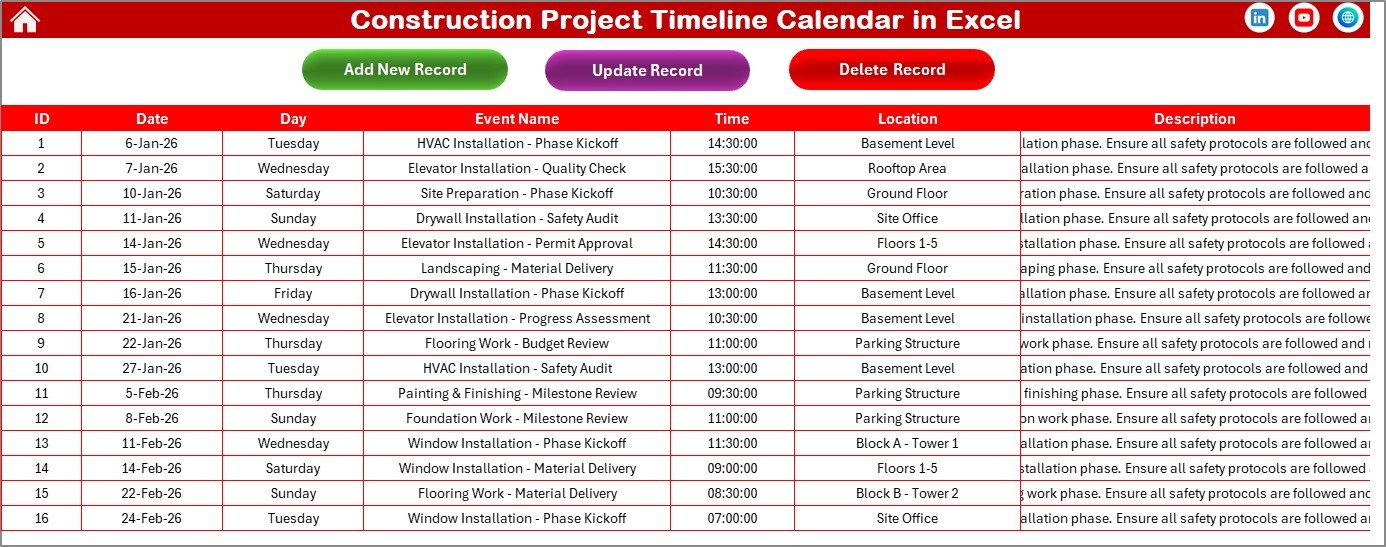 Events Sheet tab
Advantages of Construction Project Timeline Calendar in Excel
- Streamlined project management with clear visual timelines.
- Customizable views to fit different reporting needs.
- Easy event management and tracking to keep stakeholders informed.
- Flexible design with multiple color themes for better user experience.
- Automated calendar adjustments based on selected year and month.
Opportunities for Improvement
Click to Buy Construction Project Timeline Calendar in Excel
- Integration with cloud services for real-time collaboration.
- Mobile-friendly version or app integration.
- Advanced notifications or reminders for upcoming events.
- Enhanced reporting and analytics features.
Best Practices
- Regularly update event details for accurate timeline tracking.
- Use the theme options to differentiate project phases visually.
- Leverage the highlight feature to quickly identify critical dates.
- Backup the Excel file periodically to avoid data loss.
- Train your team on navigating the dashboard and managing events.
FAQs
Click to Buy Construction Project Timeline Calendar in Excel
Can I customize the starting day of the week?
Yes, the Annual View sheet control panel allows you to select the starting day to match your regional calendar standards.
How do I add a new event?
Select the relevant date on your chosen calendar view and click the ‘Add New Event’ button. Fill the form and submit to save.
Are the events highlighted automatically?
Yes, you can toggle event highlighting in the control panel, and weekends or other days can be highlighted for easy distinction.
Is this calendar template compatible with all versions of Excel?
It is designed for modern versions of Excel (Excel 2016 and above) with macro support enabled.
Conclusion
Click to Buy Construction Project Timeline Calendar in Excel
The Construction Project Timeline Calendar in Excel is a versatile, easy-to-use tool designed to simplify project scheduling and event management. By consolidating annual, monthly, and daily views alongside a robust events database, it empowers project managers to keep their workflows on track and stakeholders informed.
For more information and to watch the demo, Visit our YouTube channel to watch the demo.
For more official Excel guidance, visit Microsoft Excel Support.
Click to Buy Construction Project Timeline Calendar in Excel