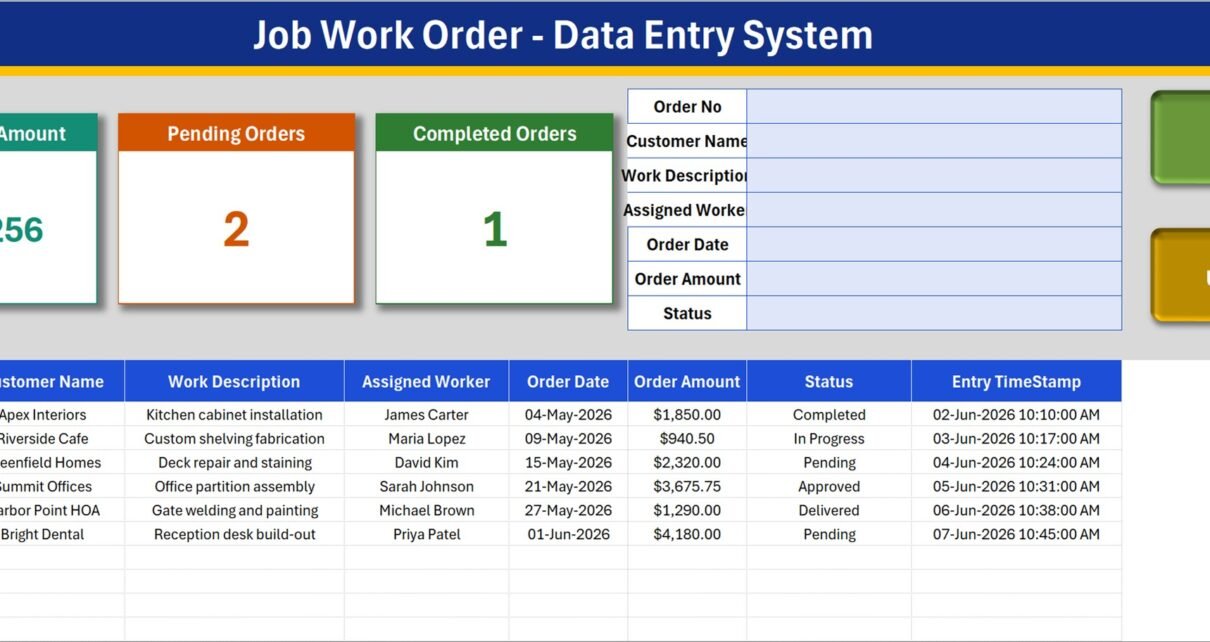
A work order register earns its keep when anyone can glance at it and say who is doing what, for whom, and for how much. The Job Work Order Data Entry System in Excel puts 7 input fields, 4 VBA buttons, 4 summary cards and a 10-column register on a single working sheet. The supplied demo holds 6 work orders worth $14,256.25, with 2 marked Pending and 1 marked Completed, so the calculations are visible before you replace the sample rows. It is built for one person maintaining an offline master file on Windows desktop Excel – not for a crew editing the same file at once, and not as a replacement for field-service software.
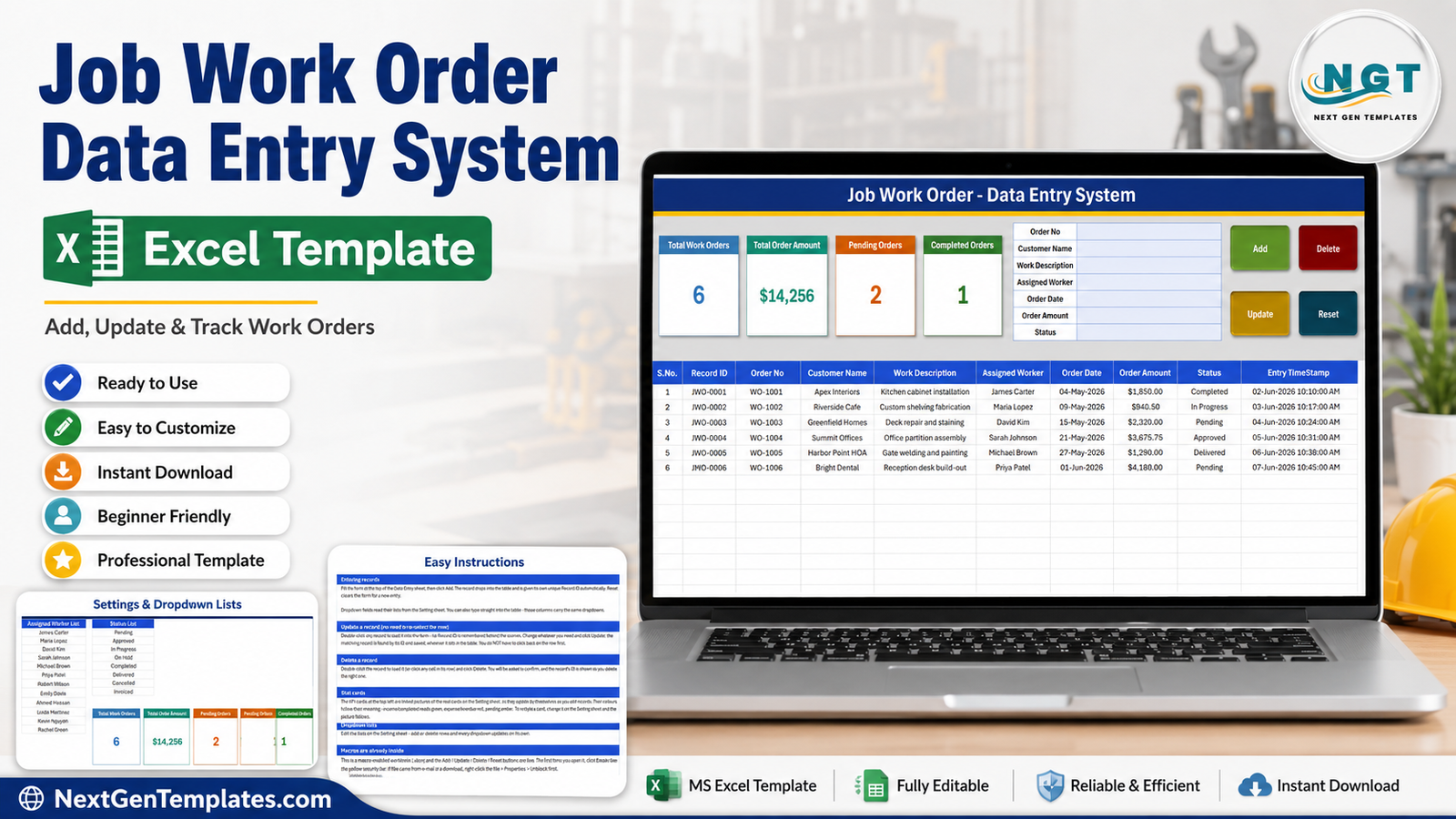
Key Features of the Job Work Order Data Entry System in Excel
- Seven fields in one form: Order No, Customer Name, Work Description, Assigned Worker, Order Date, Order Amount and Status.
- Add, Update, Delete and Reset: four VBA buttons cover the full record lifecycle, and Delete confirms by showing the record’s ID first.
- Automatic identity: new rows get a JWO-0001 style Record ID and an Entry TimeStamp, so your own Order No can keep whatever numbering your business already uses.
- ID-based editing: double-click a row to load it, change it and click Update without re-selecting the row.
- Four summary cards: Total Work Orders, Total Order Amount, Pending Orders and Completed Orders, all recalculated from the register.
- Ten-column register: the whole job history stays visible and filterable as an ordinary Excel table.
- Editable dropdowns: 12 sample worker names and an 8-stage status list live on the Setting sheet.
- Guidance inside the file: a How To Use sheet means nobody needs a separate manual to start.
Workbook Sheets Explained
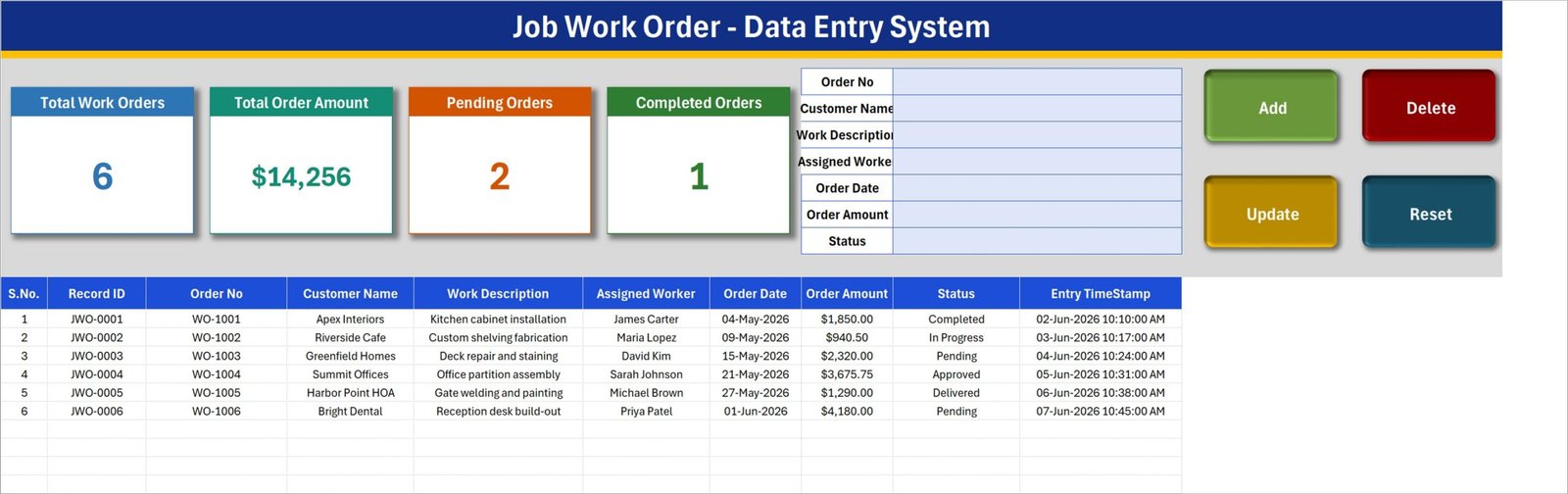
Data Entry sheet
The main sheet combines the summary and the working area. Four colour-coded cards on the left show the number of work orders, the total order value, how many orders sit at Pending and how many at Completed. The seven-field form sits in the middle, and Add, Delete, Update and Reset sit on the right. Beneath them the register records S.No., Record ID, Order No, Customer Name, Work Description, Assigned Worker, Order Date, Order Amount, Status and Entry TimeStamp.
The six visible work orders are fictional examples: a kitchen cabinet installation for Apex Interiors, custom shelving fabrication for Riverside Cafe, deck repair and staining for Greenfield Homes, an office partition assembly for Summit Offices, gate welding and painting for Harbor Point HOA, and a reception desk build-out for Bright Dental. They exist to show different workers, values and statuses. Delete or overwrite them before real use.
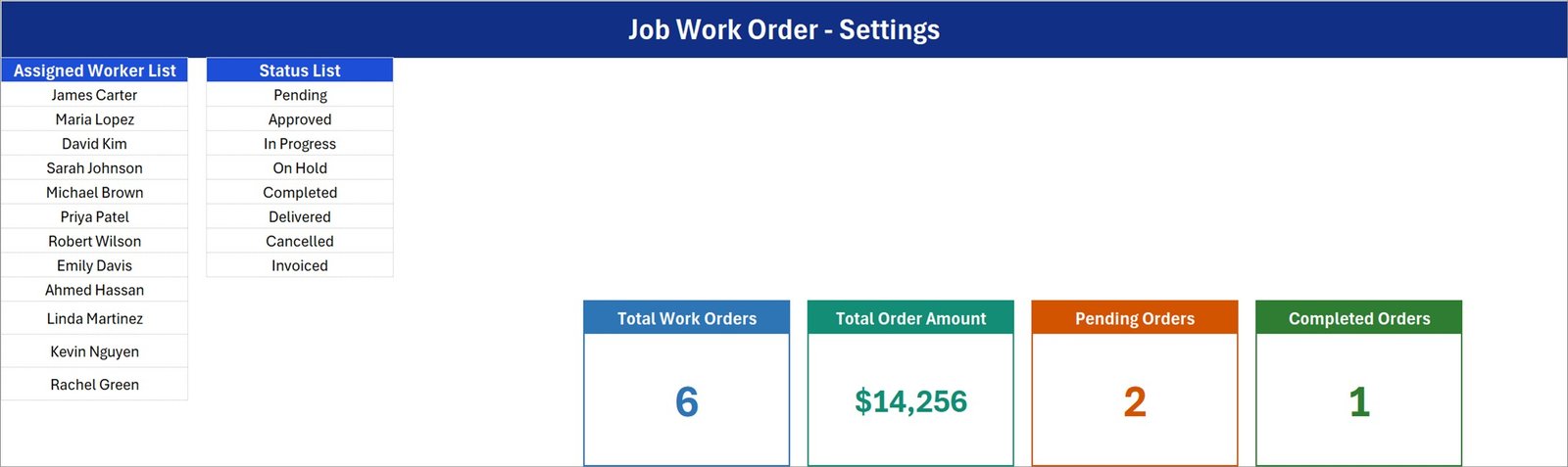
Setting sheet
The Assigned Worker List holds 12 sample names – James Carter, Maria Lopez, David Kim, Sarah Johnson, Michael Brown, Priya Patel, Robert Wilson, Emily Davis, Ahmed Hassan, Linda Martinez, Kevin Nguyen and Rachel Green. The Status List holds eight stages: Pending, Approved, In Progress, On Hold, Completed, Delivered, Cancelled and Invoiced. Both are ordinary cells, so a workshop can drop in its own crew and its own workflow language. The four master summary cards also sit on this sheet; the cards on the Data Entry sheet are linked pictures of them.
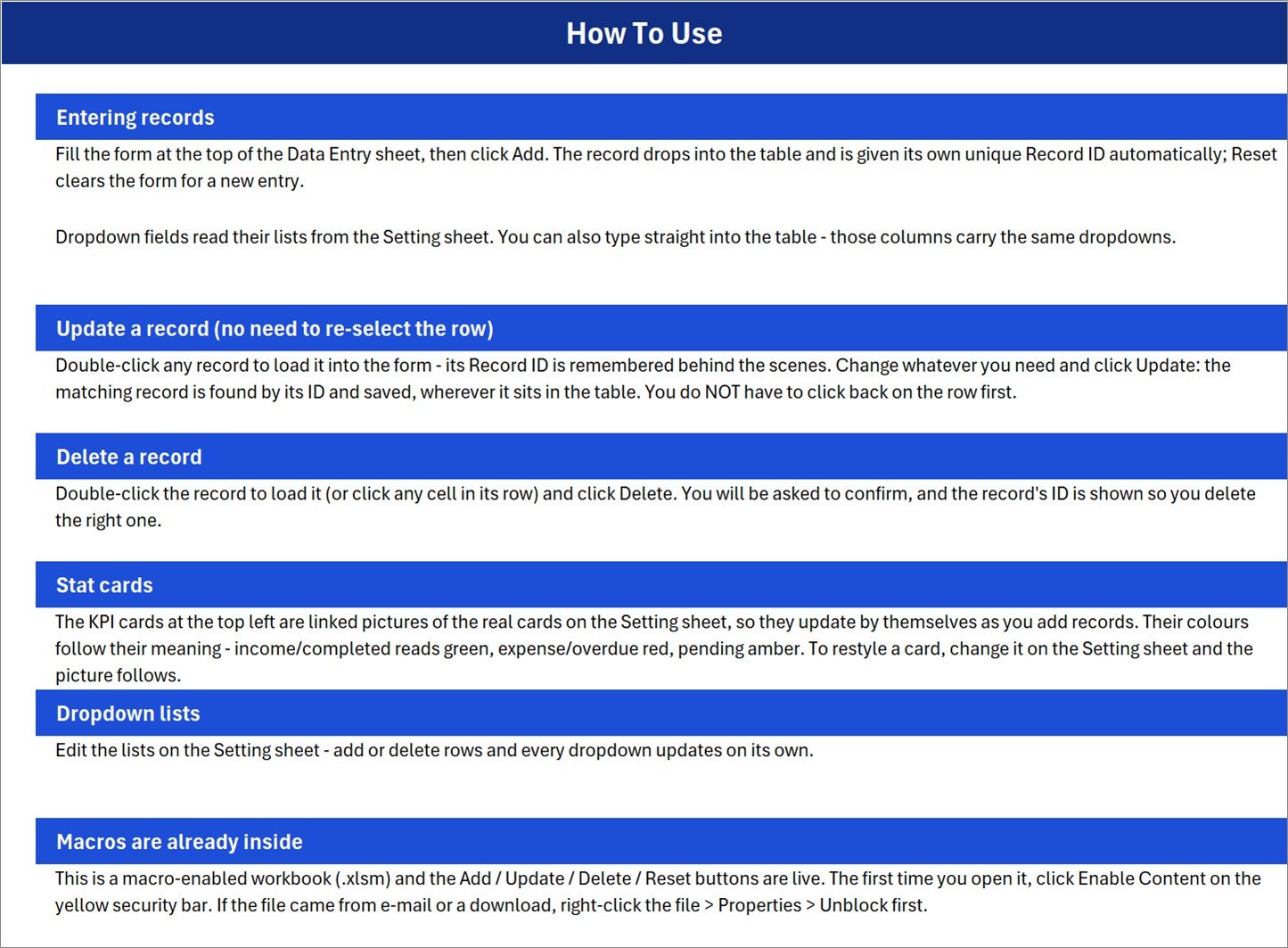
How To Use sheet
Six short sections explain entering a record, updating by remembered Record ID, deleting with confirmation, how the stat cards behave, editing the dropdown lists, and the fact that the macros ship inside the file. It also mentions the Windows Properties > Unblock step that a downloaded macro-enabled workbook often needs before Excel will run it.
Get More Templates sheet
The fourth sheet is a small catalogue and tutorial link page. It holds no job data and no configuration.
How the Four Summary Cards Are Calculated
The cards are simple, deliberately so, and it is worth knowing exactly what each one counts before you rely on it in a meeting:
- Total Work Orders counts every row that has a Record ID.
- Total Order Amount sums the whole Order Amount column – including rows you later mark Cancelled.
- Pending Orders counts rows whose Status is exactly Pending.
- Completed Orders counts rows whose Status is exactly Completed.
Because the status list runs to eight values, the Pending and Completed cards will not add up to Total Work Orders. In the shipped demo, 6 orders produce 2 Pending and 1 Completed; the other three sit at In Progress, Approved and Delivered and are counted by neither card. That is correct behaviour, not a bug – but it does mean the cards are a quick pulse check rather than a full status breakdown. If you want an at-a-glance split of all eight stages, filter the Status column or build a small pivot beside the register.
Job Work Order Data Entry System in Excel vs. Google Sheets vs. Field-Service Software – Feature Comparison
| This Excel template | Google Sheets job log | Field-service SaaS | |
|---|---|---|---|
| Price model | $6.99 once | Account cost plus build time | Recurring per-user subscription |
| Primary platform | Windows desktop Excel | Browser and mobile | Browser and mobile apps |
| Setup effort | Edit two lists, clear demo rows | Build validation and scripts | Configure users and workspace |
| Live multi-user editing | No | Yes | Yes |
| Offline use | Yes | Limited | Usually cloud-first |
| Built-in record buttons | Yes, with VBA | Needs Apps Script or a form | Yes |
| Technician mobile access | No | Sheets mobile app | Yes |
| Quotes, invoices, scheduling | No | Only if you build it | Usually included |
| Custom fields | Full workbook access | Full sheet access | Plan-dependent |
| Five-user first-year cost | $6.99 total | Workspace cost plus build time | Five user subscriptions |
Who Should Use This Template
This workbook suits a joinery or fabrication workshop, a welding shop, a repairs and maintenance contractor, a signage or furniture maker, or an office coordinator who takes job requests by phone and email and needs one reliable place to record them. It works best when a single trusted editor maintains the file and shares printouts, PDFs or filtered extracts with everyone else.
It is a poor fit when technicians must update jobs from a phone on site, when customers expect an automatic quotation or invoice, when jobs need scheduling on a shared calendar, or when several people must edit at the same time. In those situations a browser-based system or dedicated field-service software will serve you far better, and it is more honest to say so than to sell a spreadsheet as something it is not.
Real-World Use Cases
Joinery workshop intake
Daniel takes cabinet and shelving jobs from designers and homeowners. Each one goes in with its description, the fitter assigned and the agreed amount. Every Monday he filters Status to Pending and allocates the week’s work from that view.
Property maintenance office
Priya logs repair requests raised by residents’ associations and small offices. She uses Assigned Worker to see who is loaded, and Total Order Amount as a rough running value of the work booked so far this month.
Fabrication supervisor’s master file
Marcus keeps one file of open welding and fabrication jobs. Because every row carries a JWO Record ID, discussions about a specific job are unambiguous, and nothing gets quoted twice between site visits.
Advantages of the Job Work Order Data Entry System in Excel
The strength here is focus. There is one form, one register and one settings area, and the VBA removes the fiddly part of spreadsheet record keeping: Add inserts a row and stamps it, double-click loads an existing record, Update finds it by ID wherever it now sits in the table, Delete confirms the target, and Reset clears the form for the next entry. Nobody has to scroll sideways across ten columns to type an entry.
The lists and structure stay editable, so a buyer can change the workflow language without asking anyone’s permission, and the file works offline with customer names and job values kept on the buyer’s own machine.
Opportunities for Improvement
This is a register, not a job-costing engine. A future version could add a due or promised date, an overdue count, separate labour and material values, a priority field, a notes column, per-worker workload charts and a printable job card. Anything involving mobile updates or simultaneous editing would need a cloud-based build instead.
There is also one cosmetic documentation issue in the shipped How To Use sheet: the stat-card paragraph uses generic wording about income, expense, overdue and pending colours, while this workbook’s cards are Total Work Orders, Total Order Amount, Pending Orders and Completed Orders. The card labels and formulas themselves are correct; only that explanatory sentence should be reworded in a future build.
Best Practices
- Save a clean master copy before entering live jobs, so you can always start over.
- Replace the sample workers and statuses first, so nobody invents near-duplicate labels later.
- Delete the six demo work orders once you have tested the buttons.
- Agree what each of the eight statuses means – especially the difference between Completed, Delivered and Invoiced.
- Keep Order Amount numeric and decide up front whether it is inclusive or exclusive of tax; the workbook does no tax maths.
- Use one editor at a time and keep dated backups of the file.
- Enable macros only when you trust the source. Microsoft explains notification-based macro settings and trusted documents in its official macro security guidance.
Explore Relevant Templates
- Work Order Dashboard in Excel – charts and analysis over the same kind of data.
- Work Order Dashboard in Power BI – the Power BI version of that reporting.
- Work Order Dashboard in Google Sheets – a browser-based reporting option.
- Maintenance Work Order Data Entry System in Excel – the maintenance-focused sibling register.
- Machine Maintenance Data Entry System in Excel – a VBA register for workshop equipment servicing.
- Work Progress Data Entry System in Excel – the same pattern for internal task tracking.
Frequently Asked Questions
Does the workbook run in Excel for the web or on a Mac?
No. Its buttons use VBA, which requires Microsoft Excel for Windows on the desktop. Excel for the web and Google Sheets cannot run them, and Excel for Mac is not tested or supported for this file.
Must macros be enabled?
Yes, if you want Add, Update, Delete and Reset to work. Use Excel’s notification-based security prompt and click Enable Content rather than switching macro security off globally.
Can I rename the workers and statuses?
Yes. Edit the two lists on the Setting sheet; the form and the table dropdowns read from those cells, and both update automatically.
Why do the Pending and Completed cards not add up to the total?
The status list has eight values and the cards count only two of them. Orders at Approved, In Progress, On Hold, Delivered, Cancelled or Invoiced are in the total but in neither card.
Does it produce quotations or invoices?
No. It records job data and totals the order value. It does not generate customer documents, calculate tax, or split labour from materials.
Can several people update it at the same time?
No. Use one editor at a time. A Google Sheets build or a web app is the right answer for simultaneous updates.
Can I add more than six work orders?
Yes. Six is only the sample count. New records are appended to the Excel table as you add them.
What does the download contain?
One ZIP containing Job_Work_Order_System.xlsm, a macro-enabled Excel workbook with four sheets.
About the Author
Built by PK – Microsoft Certified Professional with 15+ years of Excel, Google Sheets, and Power BI experience. Founder of NextGenTemplates, reaching 300K+ subscribers across YouTube channels. Every template is hand-built and tested before release.
Conclusion
The Job Work Order Data Entry System in Excel sits neatly between an unstructured job list and subscription field-service software. One editor gets a consistent form, automatic IDs and timestamps, four working buttons, four summary cards and a filterable ten-column register – for a one-time price and with the data staying on their own machine.
Get the Job Work Order Data Entry System in Excel for $6.99, clear the demo rows, drop in your own workers and statuses, and start logging jobs. For more Excel VBA tutorials, visit PK-AnExcelExpert on YouTube.
Last updated: 20 August 2026.