Part of the free Module 3: Find and Replace · Lesson 1 of 6 · Full Excel course
Updated on 5 September 2026 · Works in Excel 365, 2021, 2019 and 2016 unless noted.
Go To Special in Excel selects every cell of one kind in a single click: all blanks, all formulas, all constants, all visible cells or every cell with a note, validation rule or conditional format. Together with Find All, which selects every cell that matches a search, it turns Find and Replace from a text tool into a precise selection tool for cleaning and protecting data.
Find All as a selection tool
Most people click Find Next and hop from match to match. Find All is faster. Press Ctrl+F, type the text and click Find All. Excel lists every match with its workbook, sheet, cell address, value and formula, and shows the count at the bottom of the list.
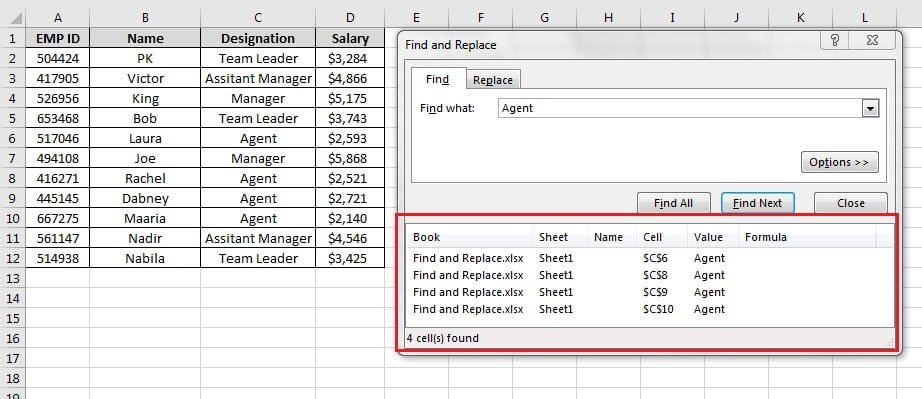
- Click a column header in the list (Sheet, Cell, Value) to sort the results.
- Click any row to jump to that cell while the dialog stays open.
- Click inside the list and press Ctrl+A. Every matching cell in the sheet is now selected.
- Close the dialog. The selection survives, so you can fill, bold, delete or clear all the matches at once with one command.
In the practice file, Find All for “Agent” selects C6, C8, C9 and C10. Press Ctrl+A in the list, close the dialog and apply a fill colour: all four cells change together.
Go To with F5 or Ctrl+G
Press F5 or Ctrl+G to open the Go To dialog. Type a reference such as D500, a range such as A1:D12 or a sheet reference such as Sheet2!B10 in the Reference box and press Enter. The list above the box shows named ranges and the last four places you jumped from, so Go To doubles as a back button. The Special button at the bottom opens Go To Special.
The same choices are also on the ribbon at Home > Editing > Find & Select, where Formulas, Notes, Conditional Formatting, Constants, Data Validation and Select Objects are one-click shortcuts to the most used Go To Special options.
Every Go To Special option
Select a range first. With a single cell selected, Go To Special works on the whole used area of the sheet.
| Option | What it selects | Typical use |
|---|---|---|
| Notes | Cells that contain a note (comment in Excel 2016) | Review or delete all notes |
| Constants | Typed values; tick Numbers, Text, Logicals or Errors to narrow it | Clear input cells without touching formulas |
| Formulas | Cells that contain a formula, with the same four sub-boxes | Highlight or lock every calculation; Errors finds every #N/A and #REF! |
| Blanks | Empty cells inside the used range | Fill gaps, delete blank rows |
| Current region | The block of data around the active cell (same as Ctrl+A once) | Select a table quickly |
| Current array | The whole array or spilled range the active cell belongs to | Edit legacy array formulas |
| Objects | Shapes, charts, pictures and controls | Delete every object on a sheet |
| Row differences | Cells in each row that differ from the active column | Compare two columns row by row |
| Column differences | Cells in each column that differ from the active row | Spot a broken formula in a row of identical formulas |
| Precedents / Dependents | Cells the active formula reads from or cells that read from it (Direct only or All levels) | Audit a model without trace arrows |
| Last cell | The bottom-right cell of the used range | Find why a sheet scrolls to row 50,000 |
| Visible cells only | Excludes hidden and filtered rows and columns (Alt+;) | Copy a filtered list without the hidden rows |
| Conditional formats | Cells with a conditional formatting rule (All or Same as active cell) | Find where rules are applied |
| Data validation | Cells with a validation rule (All or Same) | Find every drop-down list |
Fill blank cells with the value above
Exported reports often show a region name once and leave the cells beneath it blank. Pivot tables and lookups need every row filled.
- Select the column with the gaps, for example A2:A20.
- Press F5, click Special, choose Blanks and click OK. Every empty cell is selected and the first blank is the active cell.
- Without clicking anywhere, type
=and press the Up arrow once. The formula now points to the cell directly above, for example=A2. - Press Ctrl+Enter. The same relative formula goes into every selected blank, so each gap copies the value above it.
- Select the column, press Ctrl+C, then Home > Paste > Paste Values to replace the formulas with static text.
Delete all blank rows safely
- Select one column that is never empty on a real row, such as the ID column. Never select the whole sheet.
- Press F5, click Special, choose Blanks, OK.
- On the Home tab choose Delete > Delete Sheet Rows.
Selecting the whole table instead of one column deletes any row that has a blank in any column, including partially complete records. If your data has no reliable column, add a helper column with =COUNTA(A2:F2), filter for 0 and delete the visible rows.
Copy only visible cells
When you copy a filtered or grouped range, Excel 365 and 2021 usually copy only the visible rows, but subtotalled and outlined sheets still paste the hidden rows too. To be certain:
- Select the filtered range.
- Press Alt+; (semicolon) or choose Go To Special > Visible cells only. White lines appear between the visible blocks.
- Press Ctrl+C and paste. Only the visible cells arrive.
Select every formula or every constant
Choose Formulas to select every calculation, then apply a fill colour so reviewers can see what must not be typed over, or open Format Cells > Protection, tick Locked and protect the sheet. Choose Constants with only Numbers ticked to select every hand-typed number and press Delete to reset an input template while every formula survives. Choose Formulas with only Errors ticked to jump straight to every #N/A, #REF! and #DIV/0! in a model.
Worked example: fill the region column
| Region | Rep | Sales |
|---|---|---|
| North | PK | 3,284 |
| Victor | 4,866 | |
| King | 5,175 | |
| South | Laura | 2,593 |
| Joe | 5,868 |
Select A2:A6, press F5, Special, Blanks, OK. Type =A2 (or = and Up arrow) and press Ctrl+Enter. A3 and A4 now show North, A6 shows South. Copy column A and paste as values. A pivot table on this data now groups every rep under the right region.
Tips and common mistakes
- Do not click after selecting blanks. A single click collapses the multi-cell selection and Ctrl+Enter fills only one cell.
- Paste values before sorting. The =A2 style formulas point to the cell above; sorting rearranges them and the regions become wrong.
- Blanks means truly empty. A cell holding a space, an apostrophe or a formula returning “” is not blank. Use Find and Replace or TRIM to clean those first.
- Constants with Text ticked is the quickest way to find numbers stored as text: numbers that look right but are selected as Text.
- Row differences needs the active cell in the comparison column. Select both columns and make sure the active cell is in the column you trust.
- Last cell reveals bloat. If it lands far below your data, delete those empty rows and save to shrink the file.
- Find All plus Ctrl+A only works inside the results list. Pressing Ctrl+A on the sheet selects the whole sheet instead.
Errors and how to fix them
| Message or symptom | Cause | Fix |
|---|---|---|
| “No cells were found” | No cell of that type exists in the selection, or the blanks contain spaces or empty strings | Check the selection; clean with Find and Replace (find a space, replace with nothing) |
| Ctrl+Enter filled one cell only | The selection was lost by a click before typing | Reselect blanks and type without clicking |
| Delete Sheet Rows removed good records | Whole table selected before Blanks, so partial rows were deleted | Ctrl+Z, select one always-filled column instead |
| Hidden rows pasted along with visible ones | Visible cells only was not applied before copying | Select, press Alt+; then copy |
Practice exercise
- In the practice file, use Find All for “Manager”, press Ctrl+A in the list and colour the selected cells.
- Delete the Designation in rows 4, 7 and 11, then use Go To Special > Blanks and Ctrl+Enter to fill each gap from the cell above.
- Add a Total row with
=SUM(D2:D12), then use Go To Special > Formulas to select it and apply a bold font. - Filter Designation to “Agent”, select the visible rows with Alt+; and paste them to a new sheet.
- Use Go To Special > Constants > Numbers to select all salaries and check the count on the status bar.
Key takeaways
- Find All followed by Ctrl+A selects every search match so you can format or delete them together.
- F5 or Ctrl+G opens Go To; its Special button selects cells by type.
- Blanks plus a relative formula and Ctrl+Enter fills gaps in seconds.
- Delete blank rows from a single always-filled column, never from the whole table.
- Alt+; selects visible cells only before you copy a filtered range.
- Formulas and Constants let you protect calculations and reset inputs safely.
Related lessons
- Find and Replace in Excel: the complete guide (module hub)
- Find and Replace wildcards: 10 patterns
- Find and replace formatting and colours
- Find and replace across sheets and workbooks
- Excel shortcut keys
- Data sort and filter course
- Microsoft Support: Find or replace text and numbers on a worksheet
Frequently asked questions
How do I select all blank cells in Excel?
Select the range, press F5 (or Ctrl+G), click Special, choose Blanks and click OK. Every empty cell in the range is selected. You can then type a value or formula and press Ctrl+Enter to put it in all of them, or use Home, Delete, Delete Sheet Rows to remove the rows.
How do I fill blank cells with the value above in Excel?
Select the column, open Go To Special, choose Blanks, then type = and press the Up arrow so the formula points to the cell above. Press Ctrl+Enter to fill every blank at once. Finally copy the column and paste as values so the filled cells no longer depend on formulas.
What is the shortcut for Go To Special in Excel?
Press F5 or Ctrl+G to open Go To, then press Alt+S for Special. Two options have their own shortcuts: Alt+; selects visible cells only, and Ctrl+Shift+O selects all cells with notes. On the ribbon, Home, Find & Select lists Formulas, Constants, Blanks alternatives directly.
How do I select only visible cells in Excel?
Select the filtered or grouped range and press Alt+; or choose Go To Special, Visible cells only. Thin white lines show the breaks between visible blocks. Copy and paste now transfers only the rows you can see, which is essential on sheets with subtotals or collapsed outline groups.
How do I find all formulas in an Excel sheet?
Choose Home, Find & Select, Formulas, or open Go To Special and pick Formulas. Every formula cell is selected and the status bar shows the count. Tick only Errors to jump to every error value, or press Ctrl+` (grave accent) to display all formulas in place instead of their results.
Want the finished version? Ready-made Excel dashboards, trackers and VBA systems are available at NextGenTemplates.com.