Part of the free Module 3: Find and Replace · Lesson 5 of 6 · Full Excel course
Updated on 5 September 2026 · Works in Excel 365, 2021, 2019 and 2016 unless noted.
Find and replace across sheets in Excel uses the same Ctrl+H dialog you already know. Click Options, set Within to Workbook, and Find All, Replace and Replace All then cover every worksheet in the file, including hidden ones. To limit the change to a few sheets, group them first. Excel cannot search several workbooks or closed files in one pass, so each open file is handled in turn.
Within: Sheet or Workbook
The Within drop-down is the switch that decides how far a search reaches. It is hidden until you expand the dialog, which is why so many people never see it.
- Press Ctrl+H (or Home > Editing > Find & Select > Replace).
- Click Options >> to expand the dialog.
- Open the Within list and choose Workbook.
- Type your search text in Find what, then click Find All, Find Next, Replace or Replace All.
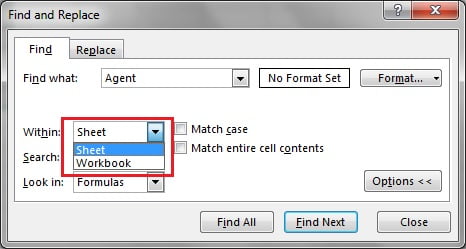
Workbook searches the cells of every worksheet in the active file, in tab order, including sheets that are hidden. It reads formulas, values or notes depending on the Look in setting. It does not search headers and footers, chart titles, shapes, text boxes, SmartArt, data validation messages, defined-name formulas or any other workbook, open or closed. Excel resets Within to Sheet each time you reopen the file, so check it before a large Replace All.
Find All across the whole workbook
Find All with Within: Workbook is the safest first move because it shows you every match before anything changes. The results list at the bottom of the dialog has six columns: Book, Sheet, Name, Cell, Value and Formula, and the status line reports the total number of cells found.
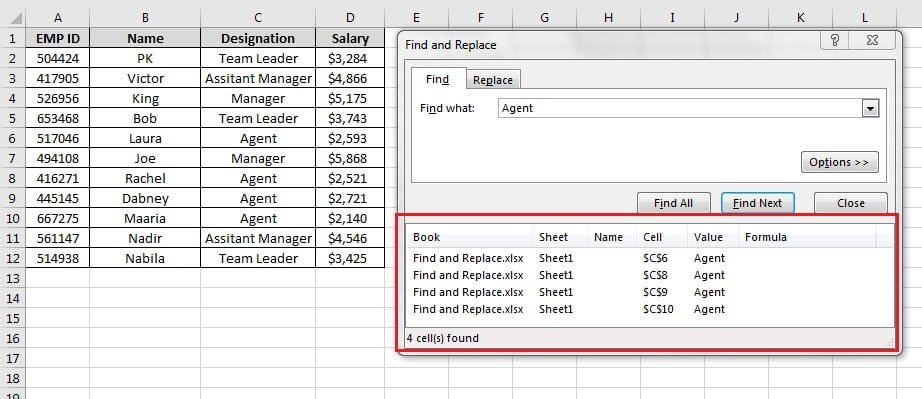
Useful moves inside that list:
- Sort by any column by clicking its header. Sorting by Sheet groups matches by tab; sorting by Value exposes spelling variants side by side.
- Jump to a match by clicking its row. Excel activates that sheet and selects the cell while the dialog stays open.
- Select every match at once by clicking inside the list and pressing Ctrl+A. Close the dialog and the cells stay selected on the current sheet, ready for a fill colour or a delete. Note that a multi-sheet selection only applies formatting to the active sheet.
Review the count, then run Replace All only when the list contains nothing you want to keep.
Replace on grouped sheets
Sometimes Workbook is too wide. If the price list must change on the regional sheets but not on the archive sheet, group only the sheets you want and leave Within on Sheet.
- Click the first sheet tab, then hold Ctrl and click each additional tab. Hold Shift instead to select a run of adjacent tabs. To select everything, right-click any tab and choose Select All Sheets.
- Check the title bar: Excel shows [Group] after the file name.
- Press Ctrl+H, fill in Find what and Replace with, then click Replace All. Excel searches every grouped sheet and reports the total number of replacements.
- Right-click a tab and choose Ungroup Sheets, or click any tab that is not in the group.
Warning: while sheets are grouped, every edit you make propagates. Typing in A1, deleting a row or changing a fill colour happens on all grouped sheets at once. Ungroup as soon as the replace finishes. A quick way to confirm you are out of group mode is to look for [Group] in the title bar; if it has gone, you are safe.
Multiple open workbooks
The Find and Replace dialog only ever searches the active workbook, even when several files are open and even with Within: Workbook selected. The Book column in the Find All list confirms this: it always shows one file name.
To cover several open files, work through them in turn:
- Run Find All or Replace All in the first workbook.
- Press Ctrl+Tab (or Ctrl+F6) to switch to the next open workbook. The dialog stays open and remembers your settings, although Within may revert to Sheet, so glance at it.
- Click Replace All again and repeat for each file.
There is no built-in way to search closed files. Windows File Explorer can list which .xlsx files in a folder contain a word, which narrows down what to open. Power Query (Data > Get Data > From File > From Folder) can combine and transform the contents of many files, though it produces a new table rather than editing the originals. When you genuinely need to replace text inside dozens of closed workbooks, a short VBA loop is the practical answer, and chapter 6 covers Range.Replace for exactly that job.
Limits and what Find does not search
Knowing where the dialog stops saves you from silent misses and unwanted edits.
| Area | Find | Replace | Notes |
|---|---|---|---|
| Hidden sheets | Yes | Yes | With Within: Workbook, Replace All also changes hidden sheets. Unhide and check them afterwards. |
| Very hidden sheets (set via VBA) | Not reliably | Not reliably | Test on your own file. Set the sheet to Visible in the VBA editor before an important replace. |
| Protected sheets | Yes | No | Replace stops with a protected-sheet message. Unprotect the sheet first. |
| Filtered-out or hidden rows | Find All lists them; Find Next skips them | Replace All changes them | Replace All does not respect a filter. Copy visible cells elsewhere if only visible rows should change. |
| Merged cells | Yes | Yes | The value lives in the top-left cell of the merge; that is the address you will see. |
| Notes (old-style comments) | Only with Look in: Notes | No | Threaded comments are not searched at all. |
| PivotTable cells | Yes (as values) | No | Change the source data and refresh instead. |
| Charts, shapes, text boxes, headers and footers | No | No | Edit these objects manually or with VBA. |
| Other open workbooks | No | No | Switch with Ctrl+Tab and repeat. |
| Closed workbooks | No | No | Use File Explorer search, Power Query or a VBA loop. |
Worked example
Open the course practice file Find-and-Replace.xlsx. Copy the employee table from Sheet1 to three new sheets named Jan, Feb and Mar. To reproduce a typical data-entry error, retype the two Assistant Manager cells on each sheet as Assitant Manager. A five-row subset of one sheet now looks like this:
| EMP ID | Name | Designation | Salary |
|---|---|---|---|
| E101 | Rahul Verma | Team Leader | 45000 |
| E102 | Priya Nair | Assitant Manager | 52000 |
| E103 | Amit Shah | Agent | 28000 |
| E104 | Sneha Rao | Assitant Manager | 51000 |
| E105 | Vikram Das | Manager | 68000 |
Fix all three sheets in one pass:
- Select any cell on the Jan sheet and press Ctrl+H.
- Click Options >> and set Within to Workbook. Tick Match entire cell contents so a correct entry is never touched twice.
- Type
Assitant Managerin Find what andAssistant Managerin Replace with. - Click Find All. The list shows six rows: two on Jan, two on Feb and two on Mar, and reports 6 cell(s) found.
- Click Replace All. Excel confirms All done. We made 6 replacements.
Run Find All once more with the misspelt text: the list is empty, which is your proof that every sheet is clean.
Tips and common mistakes
- Always Find All before Replace All. The results list is a free preview of exactly what will change and where.
- Check Within every time. It quietly returns to Sheet when you reopen the file, so a workbook-wide replace can end up fixing one tab only.
- Use Match entire cell contents for codes and names. Without it, replacing
Agentwould also alterSenior Agent. - Ungroup immediately. Leaving sheets grouped is the fastest way to overwrite twelve months of data with one careless keystroke.
- Look in: Values versus Formulas matters. On the Replace tab Excel only offers Formulas, so text produced by a formula cannot be replaced; change the formula or its source instead.
- Save before a large Replace All. Undo works, but it is one long step across many sheets, and it is lost if the file is saved and closed.
- Watch the count. If Excel reports far more replacements than expected, a partial match or a hidden sheet is usually the reason.
Errors and how to fix them
| Message or symptom | Cause | Fix |
|---|---|---|
| The cell or chart you are trying to change is on a protected sheet | One of the sheets in the workbook or group is protected | Review > Unprotect Sheet on that tab, run the replace, then protect it again |
| Replace changed cells on a sheet you did not expect | Within was set to Workbook, or a hidden sheet contained matches | Press Ctrl+Z, run Find All to see the affected sheets, then group only the sheets you want |
| Formulas now return #REF! or #NAME? | The replaced text also appeared inside formulas, sheet names or references | Undo, set Look in to Values to locate matches, and read chapter 4 on safe formula replacement |
| Replacement count higher than expected | Partial matches inside longer words, or extra copies on hidden sheets | Tick Match entire cell contents, unhide all sheets and review Find All first |
| We could not find what you were looking for | Within is on Sheet, Look in is wrong, or the text has trailing spaces | Switch Within to Workbook, try Look in: Values, and search with a trailing wildcard such as Manager* |
| Cannot change this part of a PivotTable report | The match sits inside a pivot table | Edit the source data and click Refresh |
Practice exercise
- In the practice file, create the Jan, Feb and Mar sheets described above and use Find All with Within: Workbook to count how many cells contain
Agentacross all three sheets. - Group only Jan and Feb, then replace
Team LeaderwithTeam Lead. Confirm that Mar is unchanged and ungroup the sheets. - Hide the Mar sheet, replace
ManagerwithMgrworkbook-wide using Match entire cell contents, then unhide Mar and check how many cells changed there. - Protect the Feb sheet and repeat a workbook-wide replace. Note the message Excel shows and how the replacement count differs.
- Open a second workbook, keep the dialog open and use Ctrl+Tab to run the same Find All in both files.
Key takeaways
- Within: Workbook extends Find, Replace and Find All to every sheet in the active file, hidden sheets included.
- Group sheets with Ctrl+click to limit a replace to chosen tabs, and ungroup straight afterwards.
- The dialog never reaches other open workbooks or closed files; switch with Ctrl+Tab or use VBA.
- Charts, shapes, headers, footers, threaded comments and pivot cells sit outside what Replace can change.
- Find All first, read the count, then Replace All.
Related lessons
- Find and Replace in Excel: dialog, options and wildcards (course hub)
- Find All, Go To and Go To Special
- Replace inside formulas, sheet names and references safely
- Find and replace with formulas and VBA
- Working with workbooks in VBA
- Working with worksheets in VBA
- Microsoft Support: Find or replace text and numbers on a worksheet
Frequently asked questions
How do I find and replace in all sheets in Excel?
Press Ctrl+H, click Options, and change Within from Sheet to Workbook. Enter the Find what and Replace with text and click Find All to preview the matches on every sheet, then Replace All. Excel reports the total number of replacements across the whole workbook, including any hidden sheets.
Does Find and Replace work on hidden sheets?
Yes. With Within set to Workbook, Excel searches and replaces on hidden sheets as well as visible ones, which is convenient but easy to overlook. Sheets set to Very Hidden through VBA are not reliably included. If a hidden sheet must stay untouched, group the visible sheets instead of using Workbook.
Can Excel search multiple workbooks at once?
No. The Find and Replace dialog only searches the active workbook, and the Book column in Find All always shows one file. Keep the dialog open, press Ctrl+Tab to move to the next workbook and run the search again. For closed files, use Windows File Explorer search, Power Query or a VBA loop.
How do I replace on selected sheets only?
Group the sheets first. Click one tab, hold Ctrl and click the others, and Excel shows [Group] in the title bar. Leave Within on Sheet, run Replace All, and the change applies to every grouped sheet only. Right-click a tab and choose Ungroup Sheets as soon as you finish.
Why does Replace All say the cell is protected?
At least one sheet in the workbook or group is protected, and Excel refuses to change locked cells. Go to Review, click Unprotect Sheet on that tab, enter the password if there is one, run the replace, then protect the sheet again. Find still works on protected sheets; only Replace is blocked.
Want the finished version? Ready-made Excel dashboards, trackers and VBA systems are available at NextGenTemplates.com.