Part of the free Module 3: Find and Replace · Lesson 4 of 6 · Full Excel course
Updated on 5 September 2026 · Works in Excel 365, 2021, 2019 and 2016 unless noted.
Find and Replace in Excel formulas edits the text of every formula at once: swap a sheet name, point a model at a different column, change a range, add or remove dollar signs or rename a function. Because the Replace tab always searches with Look in: Formulas, the same Replace All that fixes a typo can also rewrite hundreds of calculations, so this chapter is about doing it safely.
Why Replace works inside formulas
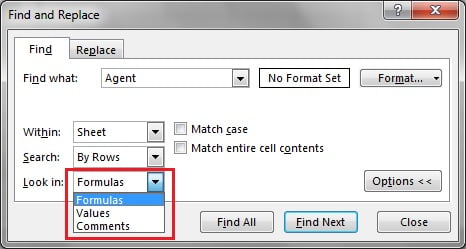
On the Find tab, Look in offers Formulas, Values and Notes. Formulas searches the text you would see in the formula bar: constants you typed and the formula strings themselves. Values searches only the displayed results. The Replace tab drops the choice and always uses Formulas, because Excel can only rewrite what is stored in the cell, not what is calculated. So =SUM(Sheet1!A1:A10) is found by searching for “Sheet1”, “A1:A10”, “SUM” or even “!”.
The safe workflow for every formula replace
- Save, or work on a copy. Undo reverses a Replace All, but not after you save and close.
- Select the range that should change. With one cell selected the whole sheet is in scope.
- Press Ctrl+F, type the text, set Look in to Formulas and click Find All. Read the Formula column in the list: this is exactly what will be rewritten.
- If some listed cells must not change, press Ctrl+A in the list, close the dialog, then hold Ctrl and click the cells to remove from the selection. Alternatively use Go To Special to select only Formulas or only Constants.
- Switch to the Replace tab, type the replacement, tick Match case if the text also appears in another case, and click Replace All.
- Check the count Excel reports against the Find All count, then press F9 and look for #REF!, #NAME? or #VALUE! with Go To Special > Formulas > Errors.
Change a sheet name in every formula
Renaming a sheet tab updates references automatically. Find and Replace is for the other case: a block of formulas points to Jan and you want a copy that points to Feb.
- Copy the Jan summary block to a new area and keep it selected.
- Press Ctrl+H. Find what
Jan!, Replace withFeb!. Including the exclamation mark stops “Jan” inside “January” or a cell named JanTotal from matching. - Replace All. Sheet names with spaces are quoted, so search for
'Jan 2026'!including the apostrophes.
Change references, ranges and dollar signs
| Job | Find what | Replace with | Watch out for |
|---|---|---|---|
| Point at a different column | Data!C | Data!D | Also matches C in CC or CD; check Find All first |
| Extend a range | A2:A100 | A2:A500 | Match entire cell contents must be off |
| Make references absolute | B2 | $B$2 | Only for a handful of cells; F4 in the formula bar is safer |
| Remove absolute references | $ | (empty) | Also removes $ from text such as currency labels |
| Swap a function | SUMPRODUCT( | SUMPRODUCT(--( | Arguments must still make sense; test one first |
| Rename a defined name | TaxRate | VATRate | Better: rename it in Name Manager and Excel updates every formula |
| Redirect an external link | [Budget2025.xlsx] | [Budget2026.xlsx] | Data > Edit Links > Change Source does this without touching formula text |
Turn formulas into text and back
A classic trick when you need to move formulas without Excel adjusting their references: replace = with #= (or any unused prefix). Every formula becomes plain text and can be cut, pasted or sorted freely. Afterwards replace #= with = to bring them back to life. The same trick pauses a slow workbook while you edit it, and it is the quickest way to search formula text with wildcards without changing anything.
Worked example: copy a monthly summary to the next month
Sheet Summary holds three formulas for January that read the practice-file style sheets Jan and Feb.
| Cell | January formula | After replace |
|---|---|---|
| B2 | =SUM(Jan!D2:D12) | =SUM(Feb!D2:D12) |
| B3 | =COUNTIF(Jan!C2:C12,"Agent") | =COUNTIF(Feb!C2:C12,"Agent") |
| B4 | =AVERAGEIF(Jan!C2:C12,"Manager",Jan!D2:D12) | =AVERAGEIF(Feb!C2:C12,"Manager",Feb!D2:D12) |
- Copy B2:B4 to C2:C4 and keep C2:C4 selected.
- Ctrl+F, Find what
Jan!, Find All: 4 matches in 3 cells (B4 contains it twice, but Find All lists cells, so 3 cells). - Replace tab, Replace with
Feb!, Replace All. Excel reports “All done. We made 3 replacements” (one per cell, every occurrence inside each cell is changed). - F9 to recalculate; the February totals appear and there are no errors.
Tips and common mistakes
- Anchor the search text. Include the ! after a sheet name, the ( after a function name or the $ before a reference so shorter matches inside other words are skipped.
- Find All is your preview. The Formula column shows the exact strings that will change; sort by Sheet to spot cells you forgot about.
- Replacing a function name is not a conversion. Changing VLOOKUP( to XLOOKUP( leaves the old arguments in place and produces #VALUE!; rewrite the formula properly instead.
- Use Name Manager for names and Edit Links for external files. Both update every formula without a text search and cannot produce partial matches.
- Constants inside formulas count too. Replacing 2025 with 2026 also changes
=A1*2025and=DATE(2025,1,1). Tick Match entire cell contents when you only mean typed values. - Protected sheets block the replace. Excel says the cell is protected; unprotect the sheet first (Review > Unprotect Sheet).
- Array and spill formulas are rewritten as a block. A legacy CSE array formula must be replaced across its whole range or Excel refuses with “You can’t change part of an array”.
Errors and how to fix them
| Error after Replace All | Cause | Fix |
|---|---|---|
| #REF! | The new reference points to a sheet, column or row that does not exist | Ctrl+Z; check the target sheet name and range with Find All first |
| #NAME? | A function or defined name was renamed to something Excel does not recognise, or the sheet name now needs quotes | Ctrl+Z; wrap names containing spaces in single quotes, e.g. ‘Feb 2026’! |
| #VALUE! | The replacement changed an argument or a function to one with different arguments | Rewrite the formula instead of patching it by text |
| “The formula you typed contains an error” with a prompt for every cell | The replacement leaves an unbalanced bracket or a stray operator | Press Esc, Ctrl+Z and correct the replacement text |
| “You can’t change part of an array” | A legacy array formula is partly inside the selection | Select the whole array range (Ctrl+/ ) and repeat |
| Nothing found although the formula is visible | Look in is set to Values, or a Format filter is active | Set Look in to Formulas; Format > Clear Find Format |
Practice exercise
- Copy Sheet1 of the practice file twice and rename the copies Jan and Feb. On a Summary sheet write three formulas that reference Jan, then copy them and switch the copies to Feb with Find and Replace.
- Extend every
D2:D12reference toD2:D50in one Replace All and confirm the count. - Replace = with #= on the Summary sheet, move the block two rows down, then replace #= with = and check that no reference shifted.
- Deliberately replace Feb! with Mar! (no Mar sheet exists), observe the #REF! errors, then undo.
- Define a name TaxRate, use it in a formula, then rename it in Name Manager and confirm the formula updated without a text replace.
Key takeaways
- The Replace tab always searches formula text, so every Replace All can rewrite calculations.
- Select the range, run Find All, read the Formula column, then replace.
- Anchor search strings with !, ( or $ to avoid partial matches.
- Use Name Manager and Edit Links for names and external files; use sheet renaming for tabs.
- Replacing = with #= freezes formulas as text for safe moving.
- After replacing, check for #REF!, #NAME? and #VALUE! with Go To Special > Formulas > Errors.
Related lessons
- Find and Replace in Excel: the complete guide (module hub)
- Go To Special: select blanks, formulas and visible cells
- Find and replace across sheets and workbooks
- Find and replace with SUBSTITUTE, REPLACE and VBA
- Excel Formulas course
- Excel INDIRECT function
- VLOOKUP in Excel
- Microsoft Support: Find or replace text and numbers on a worksheet
Frequently asked questions
Can I use Find and Replace inside formulas in Excel?
Yes. The Replace tab always searches with Look in set to Formulas, so any text in a formula, including sheet names, cell references, ranges, function names and constants, can be replaced. Select the range first, run Find All to preview the affected formulas, then Replace All and check for errors.
How do I change a sheet name in all formulas at once?
If you simply rename the tab, Excel updates every reference automatically. To re-point copied formulas at another sheet, press Ctrl+H, put the old name followed by an exclamation mark (Jan!) in Find what and the new name (Feb!) in Replace with, then Replace All. Quote names that contain spaces: ‘Jan 2026’!.
How do I make all references absolute with Find and Replace?
For a few cells, replace B2 with $B$2 after selecting only those formulas. For anything larger, use F4 in the formula bar or a VBA loop that sets Application.ConvertFormula, because a text replace on “B” or “2” also hits other references and numbers. Always confirm the Find All list before Replace All.
Why do my formulas show #REF! after Find and Replace?
The replacement created a reference to something that does not exist: a sheet that is not in the workbook, a column beyond XFD or a row beyond the sheet. Press Ctrl+Z to undo the whole Replace All, check the exact target name with Find All, and repeat with the corrected text.
How do I copy formulas without changing the references?
Replace = with #= so the formulas become text, copy or move them anywhere, then replace #= with = to restore them. Because text is not adjusted when copied, every reference stays exactly as written. Alternatively select the cells and use the formula bar with Ctrl+C on the text itself.
Want the finished version? Ready-made Excel dashboards, trackers and VBA systems are available at NextGenTemplates.com.