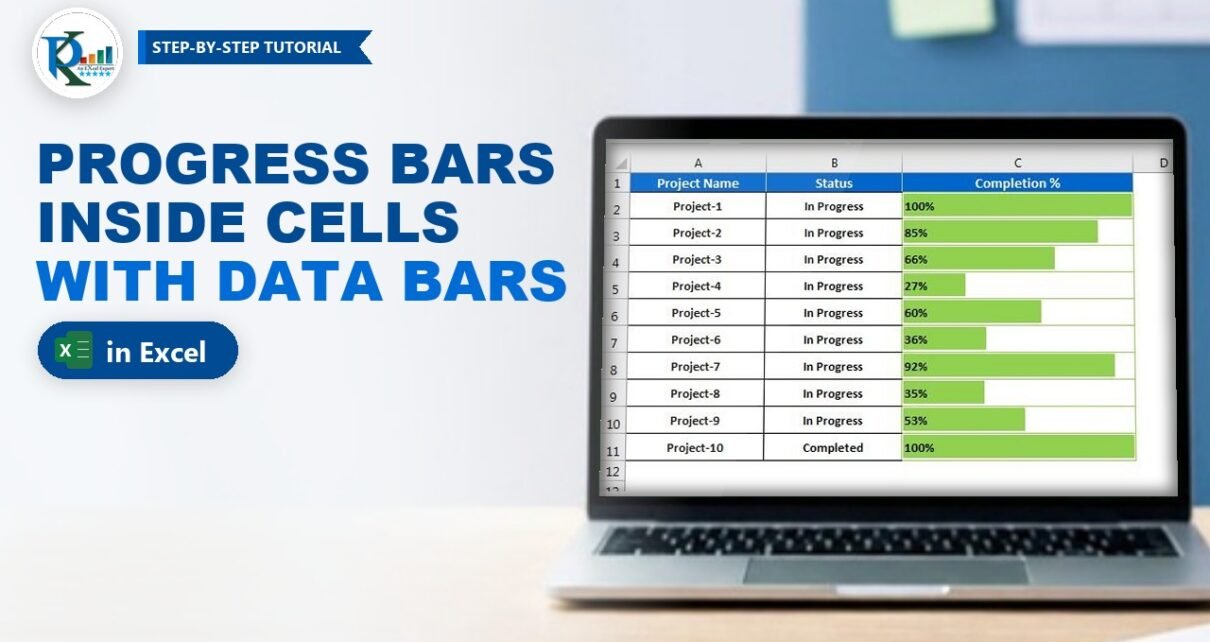
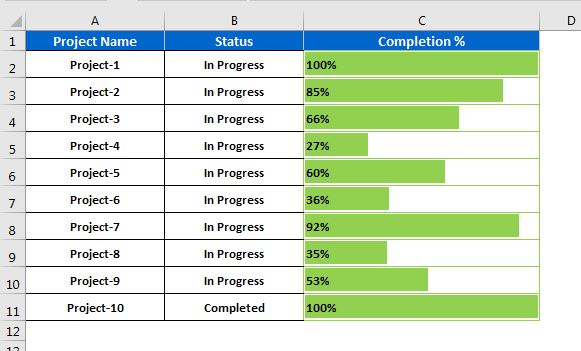
A progress bar in Excel cells turns a column of plain percentages into a row of bars you can read at a glance: 27% shows a short bar, 92% almost fills the cell and 100% fills it completely. You build it with one Conditional Formatting rule, the Data Bar, and no chart, formula or VBA. The trick that makes it work as a real progress bar is fixing the scale at 0 to 1, so the bar length always means the same thing. It works in Excel 2010, 2013, 2016, 2019, 2021 and Microsoft 365.
Watch the Video Tutorial
In the video PK formats a ten-project table, adds a green Data Bar rule with a fixed 0 to 1 scale, then shows the gradient fill and the right-to-left bar direction.
What You Will Build
- A project table with Project Name, Status and Completion % in columns A to C.
- In-cell progress bars in C2:C11 that grow and shrink as you type a new percentage.
- A fixed 0% to 100% scale, so 50% is always half a cell, whatever the other values are.
- A matching green border that makes each cell look like an empty progress track.
- Two variations: a gradient fill and bars that run from right to left.
The Sample Data
The example uses a small project list. Row 1 holds the headers and rows 2 to 11 hold ten projects:
- Column A – Project Name: Project-1 to Project-10.
- Column B – Status: In Progress, and Completed for Project-10.
- Column C – Completion %: 100%, 85%, 66%, 27%, 60%, 36%, 92%, 35%, 53% and 100%.
The completion values are real percentages. Excel stores 85% as 0.85, and that detail matters in Part 2. If your sheet holds plain numbers such as 85, see the Common errors section before you set up the rule.
In the video PK pastes the data as values and number formats, then applies borders and a blue header in one click with the Quick Formatting button of his free PK’s Utility Tool. Normal borders and a fill colour from the Home tab give you the same look.
Part 1 – Give the Completion Cells a Green Border
Step 1: Select the percentage range
Select C2:C11, the ten Completion % cells. Do not include the header in C1, or Excel treats it as part of the range.
Step 2: Add a light green outline and inside border
Right-click the selection and choose Format Cells (or press Alt, O, E, the classic menu shortcut). On the Border tab:
- Pick a thin line style.
- Open Color and choose a light green.
- Click Outline and Inside, then OK.
Why bother? The border shows the full width of 100%. When a bar only fills part of the cell, the green frame around it reads as the empty part of the track, exactly like a progress bar on a website.
Part 2 – Create the Progress Bar in Excel Cells with a Data Bar Rule
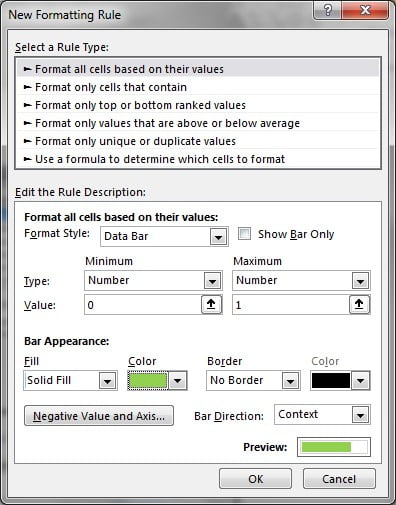
Step 3: Open a new conditional formatting rule
Keep C2:C11 selected and go to Home > Conditional Formatting > New Rule. The first rule type, Format all cells based on their values, is already selected. Leave it.
Step 4: Change the Format Style to Data Bar
The Format Style box starts on 2-Color Scale. Open the drop-down and choose Data Bar. The dialog now shows Minimum, Maximum and the Bar Appearance settings.
Step 5: Fix the scale – Minimum 0, Maximum 1
This is the most important step. Set:
- Minimum: Type
Number, Value0(0 is already filled in). - Maximum: Type
Number, Value1.
Because 100% is stored as 1, this tells Excel that an empty bar means 0% and a full bar means 100%. Completion can never go below 0% or above 100%, so the scale fits the data exactly.
How the scale works
- With the default Automatic type, Excel sizes the bars from the values in the range, so the largest value always gets the longest bar. If your best project is at 60%, its bar would look complete.
- With Number 0 to 1, the bar length is simply the value divided by 1. 27% fills 27% of the cell, 53% fills a little over half and 100% fills the whole cell.
- The scale stays the same when you change values, so the bars stay honest. Type 2% and you get a sliver; type 50% and the bar stops in the middle.
Step 6: Choose the bar colour
Under Bar Appearance, keep Fill as Solid Fill and pick the same light green you used for the border. Leave Border as No Border, because the cell border already frames the bar, and leave Bar Direction as Context for now. Look at the Preview bar to check the result, then click OK.
Step 7: Tidy the look
Left-align the percentages in C2:C11 so the number sits at the start of the bar, and make them bold if you like. Then increase the row height slightly so the bars look like proper tracks. Now type a new value in any cell and watch the bar resize straight away.
Part 3 – Gradient Fill and Right-to-Left Bars
Step 8: Switch to a gradient fill
Select C2:C11 and go to Home > Conditional Formatting > Manage Rules. Select the Data Bar rule, click Edit Rule and change Fill from Solid Fill to Gradient Fill. Click OK twice. The bars now fade from strong green to light green, a softer style that suits reports.
Step 9: Change the bar direction
Open the same rule again with Manage Rules > Edit Rule and look at Bar Direction. It is set to Context, which follows your sheet direction, so for a normal sheet the bars run left to right. Choose Right-to-Left and click OK, and the bars start from the right edge of the cell instead. That is handy for mirrored comparisons, such as target on one side and actual on the other.
Show Bar Only: A Clean Progress Column (Addition)
This variation is not in the video. It uses a standard Data Bar setting. If the percentage text gets in the way of the bar, add a second column with the bar only:
- In D2 enter
=C2and copy it down to D11. - Apply the same Data Bar rule to D2:D11 (Number 0 to Number 1).
- Tick Show Bar Only in the rule. The numbers disappear and only the bars remain, while column C still shows the exact percentage.
If your progress comes from task counts, calculate it first, for example =MIN(1,Done/Total) where Done and Total are your own cells. MIN keeps a value over 100% from overflowing the scale.
Modern Excel Alternative: A Text Bar with REPT (Addition)
Also an addition, not from the video. Before Data Bars existed, people drew bars with text. This formula repeats a bar character in proportion to the value:
=REPT("|",ROUND(C2*50,0))With 50 characters for 100%, 27% shows 14 bars. Format the cell with a narrow font and a colour of your choice. Data Bars are cleaner for most reports, but the REPT method lets you colour bars with separate rules. PK shows that version in Multi-color Data Bar with the REPT Function.
Common Errors and Fixes
Every bar is full, or almost full
Your values are probably whole numbers such as 85 instead of 85%. With a maximum of 1, anything above 1 shows a full bar. Either convert the values (divide by 100 and apply the Percent format) or set the Maximum value to 100.
The highest value fills the cell even though it is below 100%
The rule still uses Automatic minimum and maximum. Edit the rule and change both types to Number, with 0 and 1 as the values.
No bar appears at all
The cells contain numbers stored as text (often after a paste from another system). Select them, use the warning icon and choose Convert to Number, or multiply them by 1 with Paste Special.
The bar hides the number
Use a lighter bar colour or the gradient fill, make the text bold, or move the bars to a helper column with Show Bar Only as shown above.
Tips
- Match the bar colour and the cell border, as in the video. It makes the empty part of each cell look like a track.
- Copy the format to new rows with the Format Painter, or turn the data into an Excel Table so the rule grows with it.
- Use Data Bars in dashboards and summary reports where people need to compare progress quickly.
- Keep to one bar colour per column. Too many colours make the bars harder to compare.
- Microsoft’s guide to conditional formatting in Excel covers Data Bars, color scales and icon sets.
Want It Ready-Made?
If you want the finished workbook from this tutorial, get the Progress Bar in Excel Cells using Conditional Formatting template on NextGenTemplates.com. For multi-colour bars that change with each value, see Dynamic Colorful Progress Bars in Excel Cells, or browse all Excel charts and visualization templates. To use conditional formatting, charts and slicers inside full dashboards, join the video course Excel Pivot Tables and Dashboards.
Related Tutorials
- Progress Bar Chart in Excel
- Multi-color Data Bar with the REPT Function
- Dynamic Conditional Formatting in Excel
- Conditional Formatting in a Pivot Table with 3 Examples
- Project Plan (Gantt Chart) in Excel
Frequently Asked Questions
How do I add a progress bar inside an Excel cell?
Select the percentage cells, go to Home, Conditional Formatting, New Rule, choose Format all cells based on their values and set the Format Style to Data Bar. Set the minimum to Number 0 and the maximum to Number 1, pick a colour and click OK.
Why should the maximum be 1 and not 100?
Excel stores percentages as decimals, so 100% is the number 1. A maximum of 1 makes a full bar mean 100%. If your cells hold whole numbers like 85, use 100 as the maximum instead.
Why does my 60% bar look full?
The rule is using Automatic minimum and maximum, which stretches the largest value across the whole cell. Change both types to Number with 0 and 1 so the scale is fixed.
Can I show only the bar without the percentage?
Yes. Edit the Data Bar rule and tick Show Bar Only. Apply it to a helper column that copies the percentages if you still want to see the numbers next to the bars.
Can the progress bar run from right to left?
Yes. Open Manage Rules, edit the Data Bar rule and change Bar Direction from Context to Right-to-Left.
Do in-cell progress bars need VBA?
No. They are built with a single Conditional Formatting rule, so the workbook can stay a normal .xlsx file and the bars update as soon as a value changes.
About the Author
PK is a Microsoft Excel expert and trainer and the founder of PK: An Excel Expert and NextGenTemplates.com. He has been teaching Excel, Power Query and Power BI since 2016 on his YouTube channel.
Conclusion
A progress bar in Excel cells takes one Data Bar rule and one important setting: a fixed Number scale from 0 to 1, so every bar shows its true share of 100%. Add a matching green border, left-align the numbers, and you have a project table that anyone can read in a second. Try the gradient fill or the right-to-left direction when you want a different style.