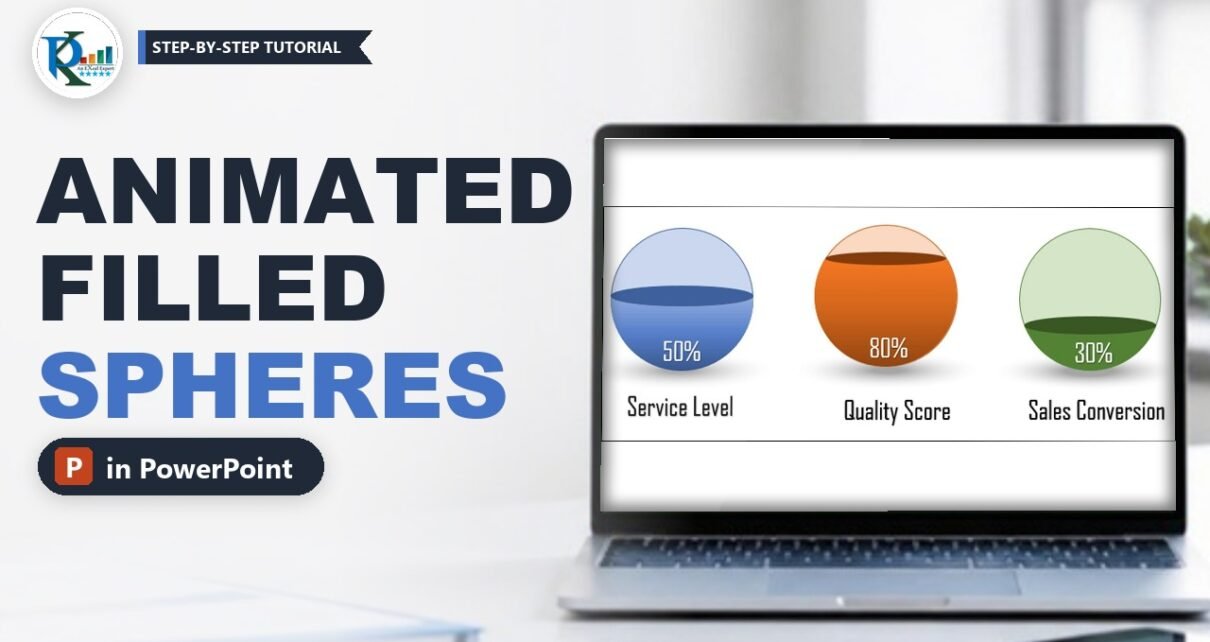
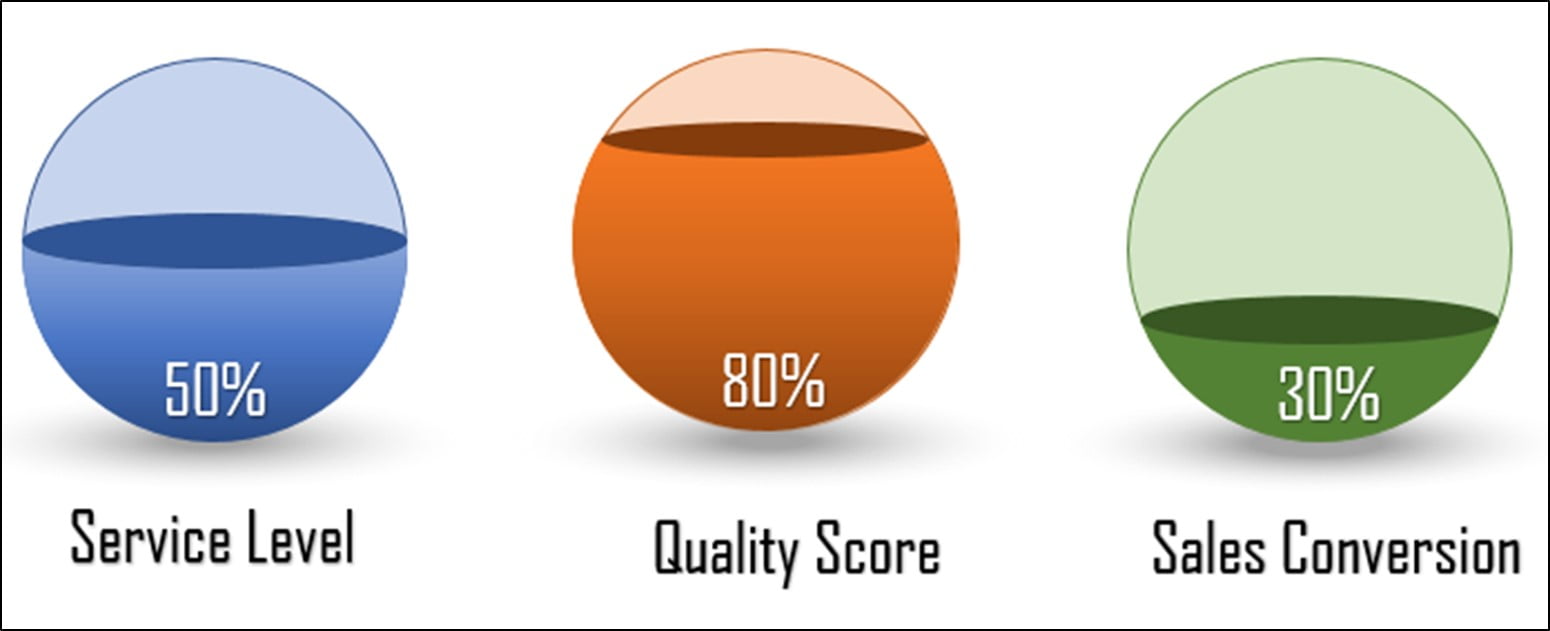
Animated filled spheres in PowerPoint turn plain KPI percentages into glass balls that fill up, one click at a time, while you present. Each sphere shows a metric such as Service Level, Quality Score or Sales Conversion, and the liquid wipes in from the bottom before the percentage zooms into view. In this tutorial you build the effect with four basic shapes and two animations, no add-ins needed. The free template has the finished three-sphere slide plus the practice slide from the video.
⬇️ Download the Filled Spheres Template
Two slides with animations · .pptx (no macros) · 45 KB
Watch the Video Tutorial
In the video I build one sphere from scratch, animate it, then copy it and change the colour and fill level for the next metric.
What You Will Build
- A glass sphere made from a light, see-through circle.
- A liquid fill made from a Chord shape with a dark gradient and a flat oval as the liquid surface.
- A soft floor shadow made from a path-gradient oval.
- Two animations: the liquid wipes up on a click, then the percentage zooms in automatically.
- Three KPI spheres in blue, orange and green that fill one after another as you click.
One thing to know up front: these spheres are shapes, not a chart. The fill level is set by dragging the shape handles, so when a number changes you adjust the shape and the label by hand (Step 13 shows how).
Build Animated Filled Spheres in PowerPoint
Step 1: Add a title bar
Insert a new slide and delete its placeholders. Go to Insert → Shapes → Rectangle, draw a bar across the top and fill it with your organisation’s colour. Add the slide title with Insert → WordArt, then on the Home tab make it smaller, bold and white.
Step 2: Draw the glass sphere
Go to Insert → Shapes → Basic Shapes → Oval and hold Shift while you drag, so the height and width stay equal. In Shape Format → Size set both to the same value; I used 2.6" in the video.
Fill it with a light version of your colour. In the template the circle uses the theme blue with about 70% transparency, so the “empty” part of the sphere looks like glass.
Step 3: Add the Chord shape for the liquid
Insert a Chord from Basic Shapes (it looks like a circle with a slice cut off). Give it exactly the same height and width as the sphere, for example 2.6" by 2.6", and place it right on top of the circle. Because the sizes match, the two look like one shape.
Step 4: Set the fill level with the yellow handles
Select the chord. It has two yellow adjustment handles. Drag the first handle down, then drag the second handle to the other side, until the chord covers only the lower part of the circle with a straight top edge. That top edge is the liquid level. In the video it sits at about 55%.
Step 5: Add the liquid surface
Insert another Oval, this time wide and flat, and place it on the straight top edge of the chord so it matches the width at that height. Fill it with a dark shade of the same colour. This flat oval is the top surface of the liquid and gives the 3D look.
Step 6: Shade the liquid with a gradient
Select the chord, choose Shape Fill in the main colour, then Shape Fill → Gradient and pick one of the Dark Variations. The gradient makes the liquid darker at the bottom, like a real filled ball. Remove the outlines from the chord and the flat oval.
Step 7: Add the percentage
Insert a WordArt with the value, such as 55%, and place it on the liquid. I used Arial in white; the three-sphere slide in the template uses Agency FB with a light shadow.
Step 8: Add the floor shadow
Insert a wide, flat Oval under the sphere, right-click → Format Shape and set:
- Fill: Gradient fill, Type: Path
- First gradient stop: a darker grey with about 30% transparency
- Second gradient stop: white with 100% transparency
- Line: No line
Right-click the shadow and choose Send to Back. The path gradient fades from the centre outwards, so it looks like soft light under the ball.
Animate the Filled Sphere
Step 9: Group the liquid
Select the chord and the flat surface oval only (not the glass circle or the text), right-click → Group. Now the liquid can be animated as one piece.
Step 10: Wipe the liquid in
With the group selected, go to Animations and choose Wipe. Its default direction is From Bottom, which is exactly what you want: the liquid rises from the bottom of the sphere. The template uses a 0.5 second duration, starting On Click.
Step 11: Zoom the percentage in
Select the percentage text and choose the Zoom entrance animation. Open the Animation Pane, right-click this second animation and choose Start After Previous. Now one click fills the sphere and the number appears straight after.
Press F5 (or Shift+F5 for the current slide) and click once to test it.
Create the Other Spheres
Step 12: Copy and recolour
Select everything that makes up the sphere, copy and paste it, and move the copy into place. Then change the colours:
- Glass circle: the new light colour (for example light orange).
- Chord: the main colour plus a Dark Variations gradient. Select it inside the group by clicking the group once, then the chord.
- Surface oval: a dark shade of the new colour, no outline.
Step 13: Set a new fill level
For a lower value, such as 30%, drag the chord handles so the straight edge moves down, then move the surface oval down and make it narrower so it matches the new width. Type the new percentage in the label. Finally you can give each glass circle a slightly darker outline in its own colour, as in the finished slide.
Because the copy keeps its animations, each new sphere fills on its own click. Check the order in the Animation Pane so the spheres fill from left to right.
Common Errors and Fixes
These notes are general PowerPoint guidance, added to help you troubleshoot. They are not from the video.
The liquid sticks out of the sphere
The chord and the circle are not the same size or are not aligned. Set both to the same height and width and use Align → Align Center and Align Middle.
The whole sphere wipes in, not just the liquid
The glass circle was grouped with the liquid. Ungroup, then group only the chord and the surface oval before adding Wipe.
The percentage appears before the liquid
The Zoom animation is set to On Click or With Previous. Change it to After Previous in the Animation Pane.
Tips
These tips are additions to the video.
- Match the colours to the meaning: green for on target, orange for watch, red for off target.
- Keep every sphere the same size so the fill levels are easy to compare.
- Use the Selection Pane (Alt+F10) to rename shapes such as Liquid, Surface and Label; it makes editing much faster.
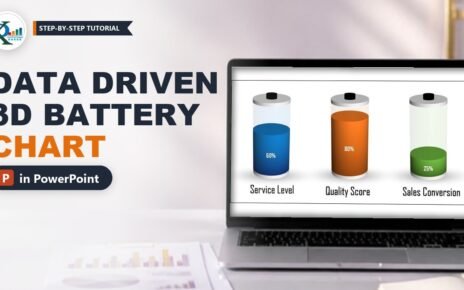
- If you need the level to follow real data automatically, use a chart-based visual instead, such as the 3D battery chart linked below.
- Learn more about entrance effects in Microsoft’s guide to animating text or objects.
Want It Ready-Made?
For a KPI visual that updates from data instead of hand-placed shapes, see the Data Driven 3D Container Chart in PowerPoint. You can browse all PowerPoint chart templates on NextGenTemplates.com.
Related Tutorials
- Data driven 3D battery chart in PowerPoint
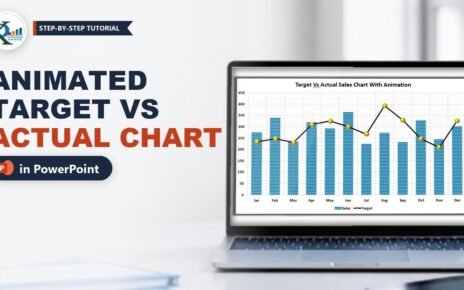
- Animated target vs actual sales chart in PowerPoint
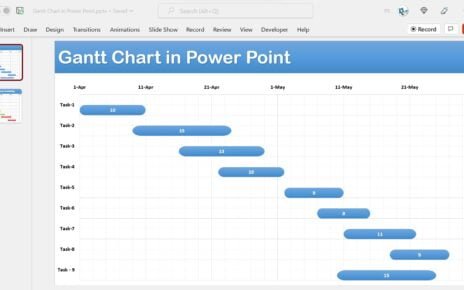
- Data-driven Gantt chart in PowerPoint with conditional formatting
Frequently Asked Questions
Which shapes make a filled sphere in PowerPoint?
Four basic shapes: a light transparent oval for the glass, a Chord of the same size for the liquid, a flat dark oval for the liquid surface and a path-gradient oval for the shadow.
Which animation fills the sphere?
The Wipe entrance effect from the bottom, applied to the group of the chord and the surface oval. The percentage uses Zoom set to start after the previous animation.
Are the filled spheres linked to data?
No. The fill level is set by dragging the chord handles and moving the surface oval, so you update the shapes and the label by hand when a value changes.
How do I change the fill percentage?
Drag the chord handles to move the straight top edge, move and resize the surface oval to match, and type the new value in the label. Step 13 explains it.
Can I use this template for a business review?
Yes. It was designed for monthly and quarterly business review slides. Replace the metric names, colours and values with your own.
About the Author
PK is a Microsoft Excel expert and trainer and the founder of PK: An Excel Expert and NextGenTemplates.com. He has been teaching Excel, VBA, Power Query, Power BI and PowerPoint visuals since 2016 on his YouTube channel.
Conclusion
Animated filled spheres in PowerPoint need nothing more than an oval, a chord, two flat ovals and two animations, yet they make a KPI slide far more engaging. Build one sphere carefully, group the liquid, add Wipe and Zoom, then copy it for each metric and adjust the colour and level. Download the template to see both slides and adapt them for your next review.