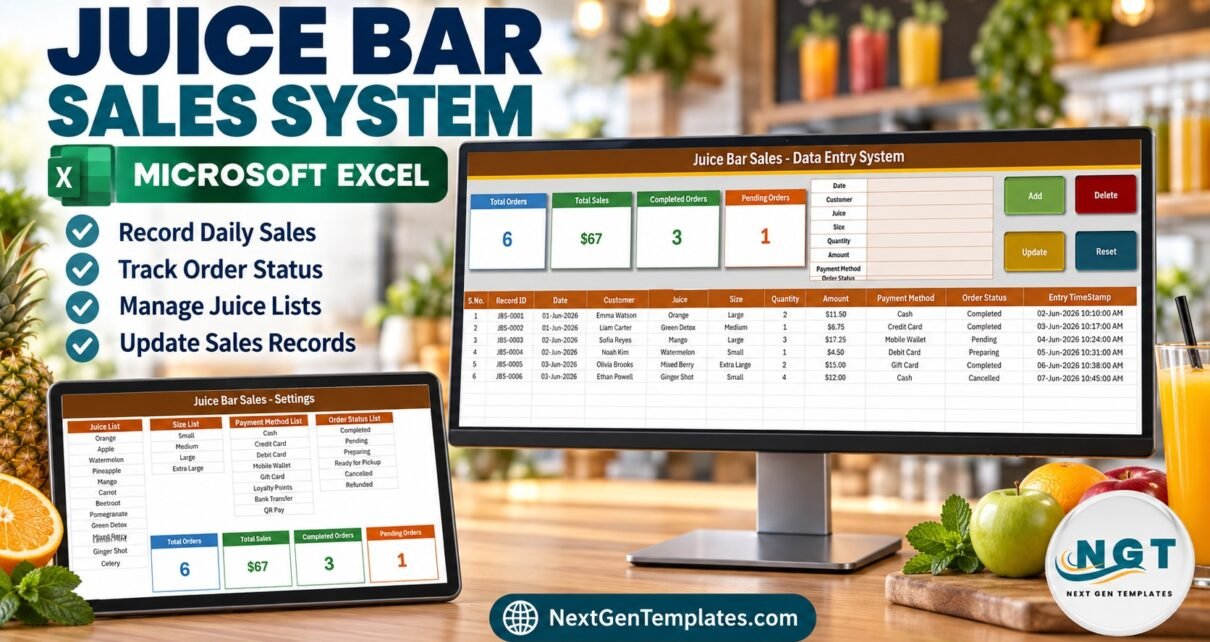
The Juice Bar Sales Data Entry System in Excel is a four-sheet, macro-enabled workbook that files every juice order through an eight-field form into an 11-column table, stamps each one with a JBS-0001 style Record ID and an entry timestamp, and keeps four stat cards – Total Orders, Total Sales, Completed Orders and Pending Orders – above the form. It ships with 200 pre-formatted rows and dropdowns for 13 juices, 4 cup sizes, 8 payment methods and 6 order statuses.
Most small juice bars start with a notebook or a loose spreadsheet, and within a month nobody can say which orders were cancelled, which were paid by QR code, or how many Green Detox cups went out last Tuesday. This juice bar sales tracker gives the counter a proper form, a unique ID per order and a status on every row, without renting a till system. It is an order register for Excel on a Windows PC – not a point-of-sale system – and this post shows exactly what is inside, including four things the cards do not do.
Key Features of the Juice Bar Sales Data Entry System in Excel
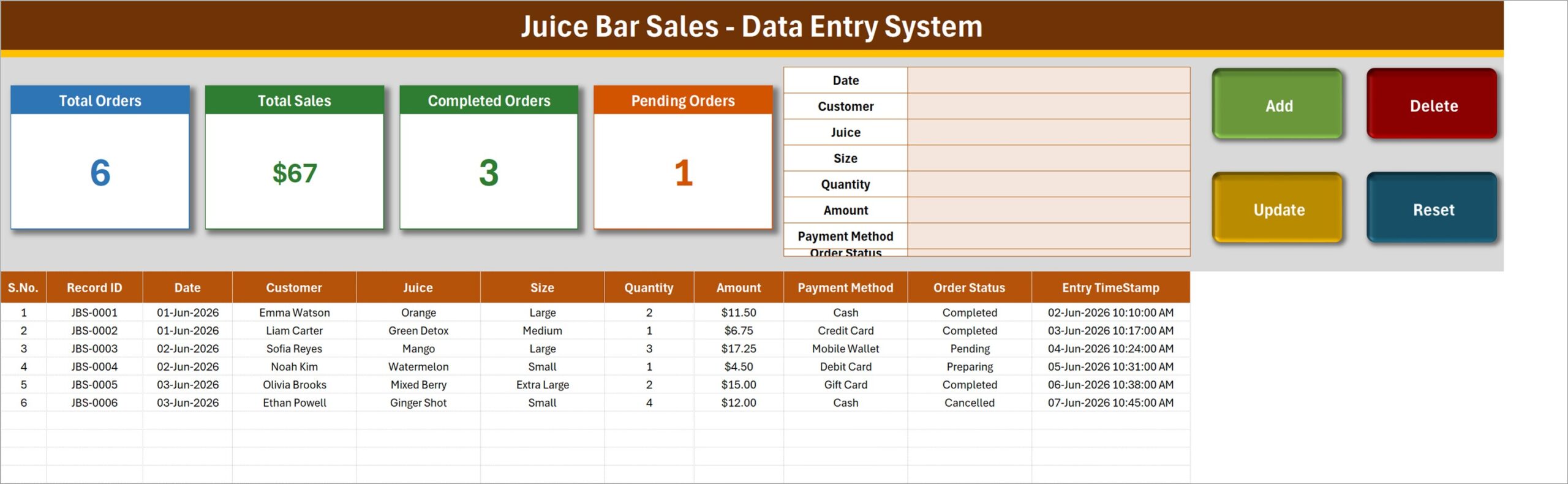
- Eight-field order form – Date, Customer, Juice, Size, Quantity, Amount, Payment Method and Order Status, at the top-right of the Data Entry sheet.
- Four VBA buttons – Add, Update, Delete and Reset, running the macros
Add_Record,Update_Record,Delete_RecordandReset_Form. - Automatic Record ID – orders are filed as JBS-0001, JBS-0002 and onward, so repeat customers never overwrite each other.
- Entry TimeStamp – the moment an order was saved is written into the last column.
- Update by ID – double-click any order to reload it; Update finds the row by its Record ID, even after you sort.
- Four stat cards – built on the Setting sheet and shown on Data Entry as linked pictures.
- 200 ready rows – rows 15 to 214 carry the Juice, Size, Payment Method and Order Status dropdowns plus date and $ formats.
The workbook contains exactly four sheets: Data Entry, Setting, Instructions and Get More Templates. It uses no external connections and no add-ins.
Sheet-by-Sheet Walkthrough
1. Data Entry
This is where the counter works. The eight-field form sits beside the Add, Delete, Update and Reset buttons, and the table below has S.No., Record ID, Date, Customer, Juice, Size, Quantity, Amount, Payment Method, Order Status and Entry TimeStamp. Six sample orders ship with it – from Emma Watson’s two large Orange juices at $11.50 to Ethan Powell’s four Ginger Shots at $12.00 – so you can test every button before clearing them.
2. Setting
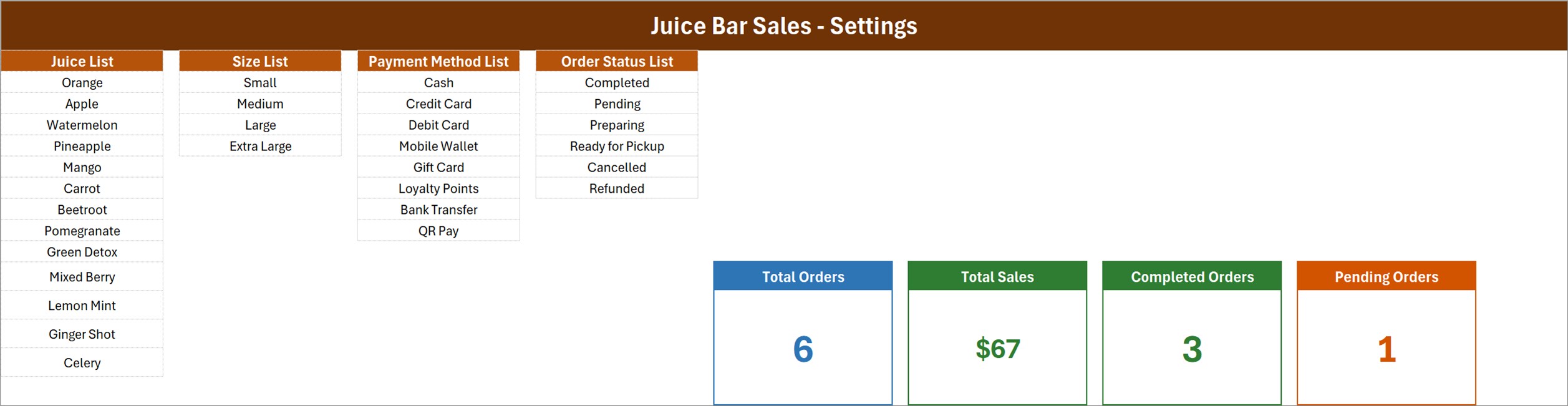
The four lists that feed every dropdown, plus the four real stat cards. Juice List: Orange, Apple, Watermelon, Pineapple, Mango, Carrot, Beetroot, Pomegranate, Green Detox, Mixed Berry, Lemon Mint, Ginger Shot and Celery. Size List: Small, Medium, Large, Extra Large. Payment Method List: Cash, Credit Card, Debit Card, Mobile Wallet, Gift Card, Loyalty Points, Bank Transfer, QR Pay. Order Status List: Completed, Pending, Preparing, Ready for Pickup, Cancelled, Refunded.
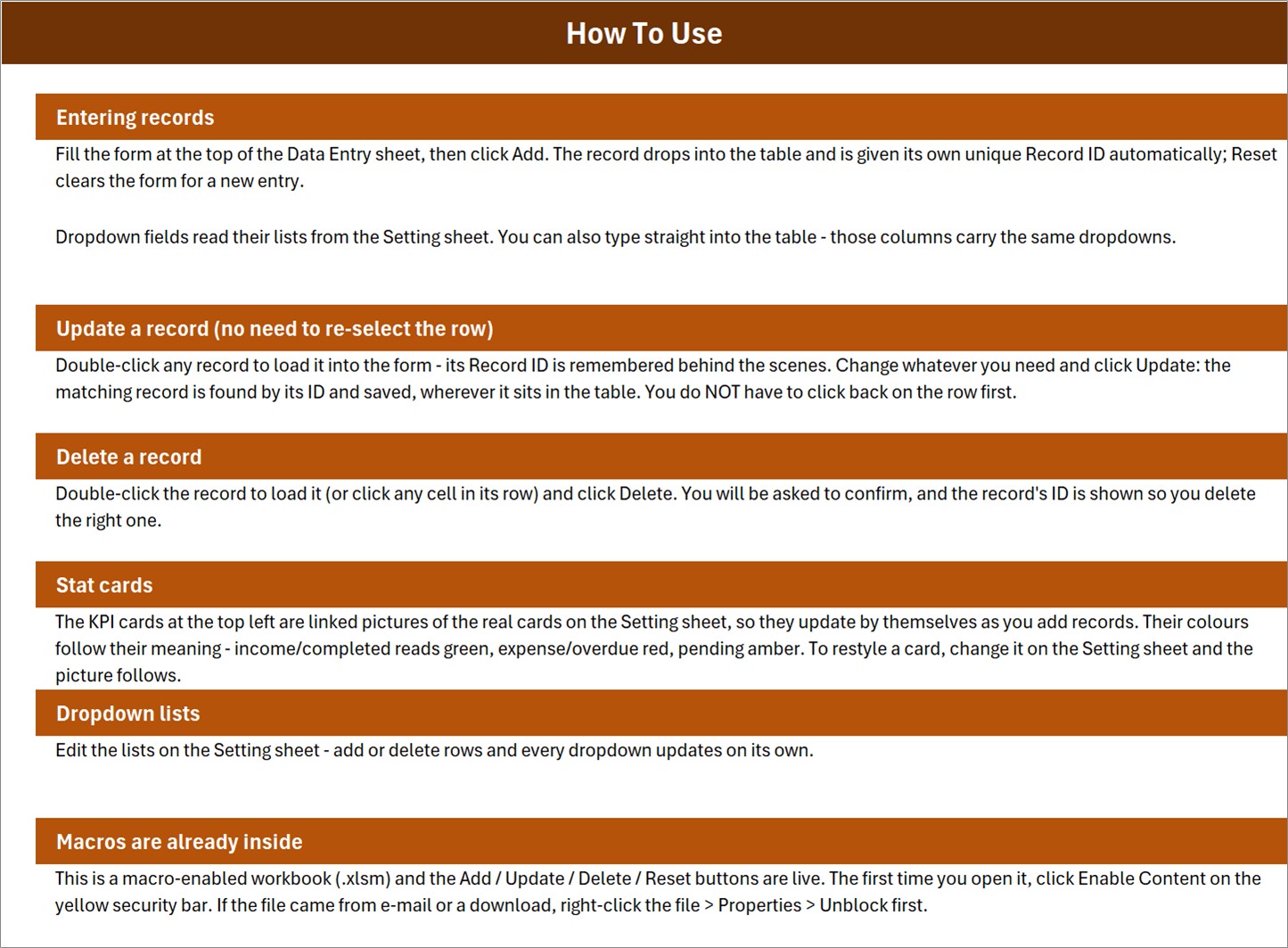
3. Instructions (How To Use)
Six short sections: entering records, updating a record without re-selecting the row, deleting, how the stat cards work, editing the dropdown lists, and enabling macros.
4. Get More Templates
A short page of links back to the NextGenTemplates store.
What the Four Stat Cards Actually Count
We opened the formulas behind each card so you do not have to guess:
- Total Orders –
COUNTAof the Date column. An order saved with an empty Date is not counted. - Total Sales – a plain
SUMof the Amount column with no status filter. Pending, Preparing, Ready for Pickup, Cancelled and Refunded orders are all included. With the sample data the card shows $67, while the three Completed orders total $33.25 and the cancelled $12.00 order is still in the figure. Read it as orders keyed, not cash taken. - Completed Orders and Pending Orders –
COUNTIFon Order Status. These are the only two of the six statuses with a card, so 3 + 1 does not reach the 6 in Total Orders.
Amount is typed by hand. There is no price list behind the Juice dropdown, so the workbook does not multiply Quantity by a unit price.
Juice Bar Sales Data Entry System in Excel vs. Google Sheets vs. POS Software – Feature Comparison
| Feature | Juice Bar Sales Data Entry System in Excel | A Google Sheets form | POS software (Square / Toast) |
|---|---|---|---|
| Cost | $6.99 once ✅ | Free, build it yourself | Monthly plans plus card fees |
| Platform | Excel for Windows, desktop | Browser, any device | Tablet, terminal and browser |
| Setup time | About 10 minutes ✅ | Hours of building | Days, plus hardware |
| Real-time team collaboration | No – one file, one editor | Yes | Yes |
| Mobile access | No | Yes | Yes |
| Customizable fields | Lists yes; form fields need VBA edits | Yes | Within the vendor’s model |
| Share with link | No – you send the file | Yes | Staff logins |
| Year-1 cost at 5 users | $6.99 ✅ | $0 | Subscription, hardware and processing fees |
| Takes card payments or prints receipts | No – records the method only | No | Yes |
For a juice bar that wants an orderly record of every order without renting a till system, this workbook sits in the sweet spot.
Who Should Use This Template
Perfect for:
- Single-counter juice bars, smoothie kiosks and market stalls moving off a paper order book
- Gym, spa or campus juice counters that report orders to a manager each week
- Owners who want an Excel data entry form with a unique ID and timestamp on every order
Not a fit if:
- You need a till – it does not take card payments, print receipts or open a cash drawer
- You want fruit, bottle or cup stock deducted as you sell – there is no inventory here
- Several people must type at once, or you work on a Mac, a phone or Excel for the web
Real-World Use Cases
Maya runs a two-person kiosk in a shopping mall. Between rushes she keys each order – customer, juice, size, quantity, amount, Cash or QR Pay – and marks it Completed. At close she filters Order Status to Completed and totals Amount for her cash-up, because she knows the Total Sales card also includes pending and cancelled tickets.
Jordan manages the smoothie bar in a gym. He swapped the juice list for his own protein blends, marks pre-class orders Ready for Pickup, and double-clicks the row to switch it to Completed when a member collects.
Priya does the books for a juice cart. Each Friday she receives the file, sorts by Payment Method and checks Mobile Wallet and Bank Transfer orders against the statement. The Record ID lets her query a single order with the owner without any confusion.
Advantages of This Juice Bar Order Register
- One-time cost – no monthly fee and no per-user seats.
- Clean records – dropdowns stop “Orange”, “orange juice” and “OJ” from becoming three different drinks.
- Traceable – every order has its own ID and save time, useful when a customer disputes a refund.
- Yours to change – rename the juices, sizes and payment methods to match your menu board in minutes.
Opportunities for Improvement
Honest limits worth knowing before you buy:
- Total Sales is unfiltered. A Completed-only sales card would be more useful for cash-up; for now, filter the table.
- Four statuses have no card. Preparing, Ready for Pickup, Cancelled and Refunded are recorded but not counted on top.
- The lists are full, fixed ranges. The Instructions sheet says dropdowns update when you add rows, but a new item typed below the last entry (for example a 14th juice under Celery) does not appear. Insert a row inside the list, or widen the range with Excel’s Name Manager.
- No price list. Amount is typed, so a mistyped price is not caught.
- Dropdowns stop at row 214. Copy the validation down if you pass 200 orders.
Best Practices
- Replace the four lists on the Setting sheet before you enter a single real order.
- Always fill Date – the Total Orders card counts dates, not IDs.
- Move each order through its status (Pending, Preparing, Ready for Pickup, Completed) rather than adding a second row.
- For daily takings, filter Order Status to Completed and read the Amount total.
- Start a fresh copy each month or quarter, and keep a backup before deleting sample rows.
- If Excel blocks the buttons, read Microsoft’s note on macros from the internet being blocked and unblock the file.
Explore Relevant Templates
This workbook belongs to a family of small data entry systems. On this blog you can read how the Cafe Daily Sales Data Entry System in Excel handles a cafe’s takings, how the Bakery Sales Register Data Entry System in Excel works for a bakery counter, and how the Menu Item Master Data Entry System in Excel keeps a drinks menu in order.
In the store, pair it with the Kitchen Inventory Log Data Entry System in Excel for produce and supplies, or step up to the Coffee Cafe POS Web App if you need a real point of sale.
Frequently Asked Questions
Do I have to enable macros?
Yes. The Add, Update, Delete and Reset buttons in this workbook are VBA macros. Click Enable Content when the file opens; if the download was blocked, right-click the file, open Properties and tick Unblock first.
Is this a POS system?
No. It is a juice bar order register for recording orders. It does not process card payments, print receipts or track stock. The Payment Method column only notes how each customer paid.
Why is Total Sales higher than the money I took?
The Total Sales card sums the Amount of every order, including pending, preparing, cancelled and refunded ones. Filter Order Status to Completed and total the Amount column to see completed sales.
Will it run on a Mac, Excel for the web or Google Sheets?
It is built for Microsoft Excel on Windows desktop. Excel for the web and Google Sheets cannot run VBA, and the workbook has not been tested on Mac Excel.
How long does setup take?
About ten minutes: replace the four lists on the Setting sheet, delete the six sample orders, and start adding real orders with the form.
How does it compare to Square or Toast?
Those are full till systems with card processing and monthly fees. This workbook is a one-time purchase that keeps a tidy order record on your PC and never touches a payment.
About the Author
Built by PK – Microsoft Certified Professional with 15+ years of Excel, Google Sheets and Power BI experience. Founder of NextGenTemplates, reaching 300K+ subscribers across YouTube channels. Every template is hand-built and tested before release.
Conclusion
If your juice counter still runs on a notebook, this workbook gives you a form, a unique ID and a status on every order for the price of a large smoothie. Read the Total Sales card as orders keyed rather than cash taken, and it will serve a single-counter bar well.
👉 Click here to Purchase the Juice Bar Sales Data Entry System in Excel
✅ Instant download · One-time payment · No subscription
🎥 More Excel tutorials: Youtube.com/@PK-AnExcelExpert
Last updated: September 2026