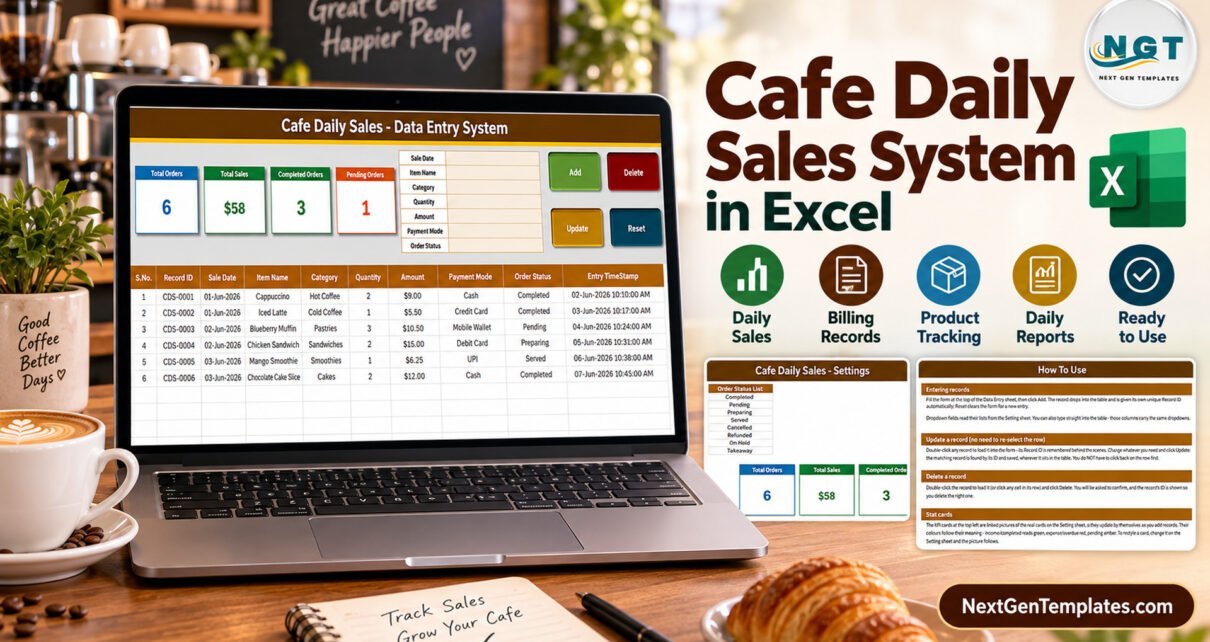
The Cafe Daily Sales Data Entry System in Excel is a macro-enabled workbook with a 7-field sales form, 4 VBA buttons, 4 live stat cards and 3 dropdown lists holding 28 values – 12 menu categories, 8 payment modes and 8 order statuses. Every saved sale gets an automatic Record ID in the CDS-0001 series and an Entry TimeStamp, and the records table has formatted, dropdown-ready rows for 200 sales lines.
Plenty of small cafes and coffee kiosks still total the day on a till roll or in a notebook. That works until someone asks how much Cold Coffee sold last week, how much came in by UPI, or which orders were never completed, and the answer means reading every line again. This walkthrough covers every sheet, exactly what each stat card counts, and the limits worth knowing before you set it up for your own counter.

What the Cafe Daily Sales Data Entry System in Excel Does
It is an .xlsm workbook with four sheets. You type a sale into a form, click Add, and the sale drops into a records table with its Record ID and timestamp. There is nothing to install, nothing to sign into and no subscription. Four cards beside the form recount themselves as sales are added, updated or deleted.
It is deliberately small, so it needs a plain explanation: this is a record of sales you have already made. It is not a point-of-sale till or cash register, it does not take card payments or total a basket, it does not calculate tax or tips, it does not print receipts or kitchen tickets, and it does not deduct stock. The six sample items and figures are fictional.
Key Features
- Seven-field form: Sale Date, Item Name, Category, Quantity, Amount, Payment Mode and Order Status.
- Four VBA buttons: Add, Update, Delete (with a confirmation that shows the Record ID) and Reset.
- Record IDs: the CDS Record ID is what Update and Delete use to find the row, so two identical-looking sales never get confused.
- Double-click to edit: the row loads into the form and the macro remembers its ID, so Update finds it wherever it sits.
- Dropdowns in two places: on the form and on table rows 15-214, all reading the Setting sheet.
- Linked-picture stat cards: the cards on Data Entry are pictures of formula cards on Setting, so restyling one restyles both.
- Unlocked: no sheet protection and no VBA password.
Sheets Explanation
Data Entry sheet
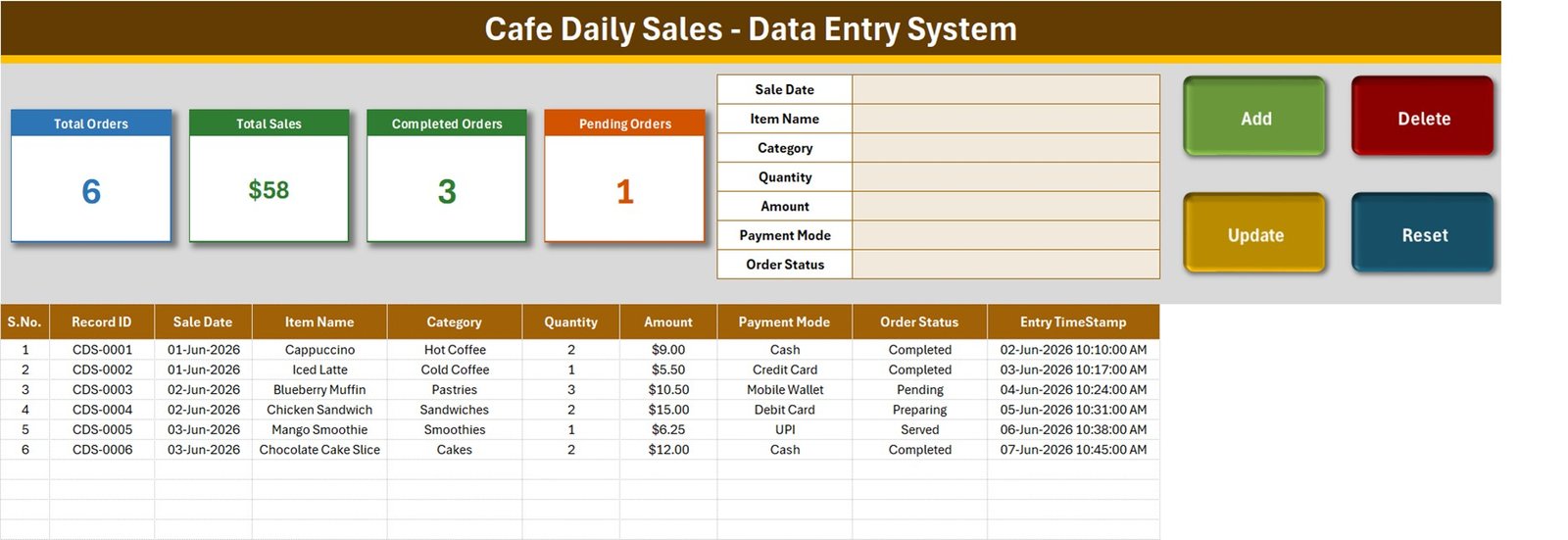
The form, the four buttons and the four stat cards sit across the top. Below them the table holds S.No., Record ID, Sale Date, Item Name, Category, Quantity, Amount, Payment Mode, Order Status and Entry TimeStamp. The samples are a Cappuccino, an Iced Latte, a Blueberry Muffin, a Chicken Sandwich, a Mango Smoothie and a Chocolate Cake Slice, and with them loaded the cards read 6 orders, $58 total sales, 3 completed orders and 1 pending order.
Setting sheet
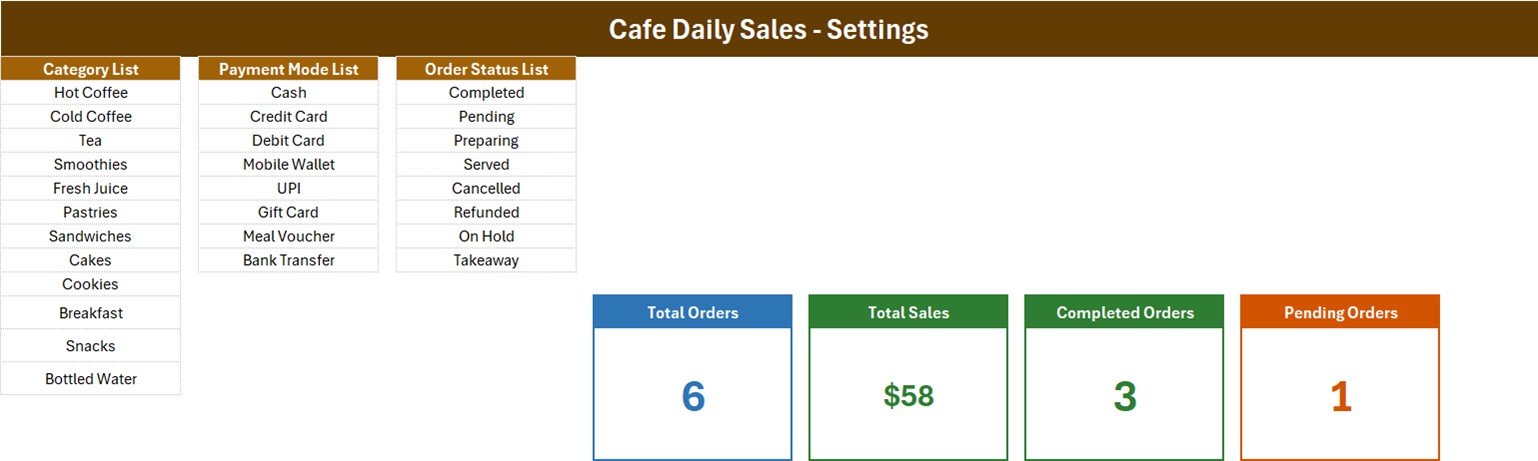
Three lists drive every dropdown: Category List (Hot Coffee, Cold Coffee, Tea, Smoothies, Fresh Juice, Pastries, Sandwiches, Cakes, Cookies, Breakfast, Snacks, Bottled Water), Payment Mode List (Cash, Credit Card, Debit Card, Mobile Wallet, UPI, Gift Card, Meal Voucher, Bank Transfer) and Order Status List (Completed, Pending, Preparing, Served, Cancelled, Refunded, On Hold, Takeaway). The four formula cards live here too.
How To Use sheet
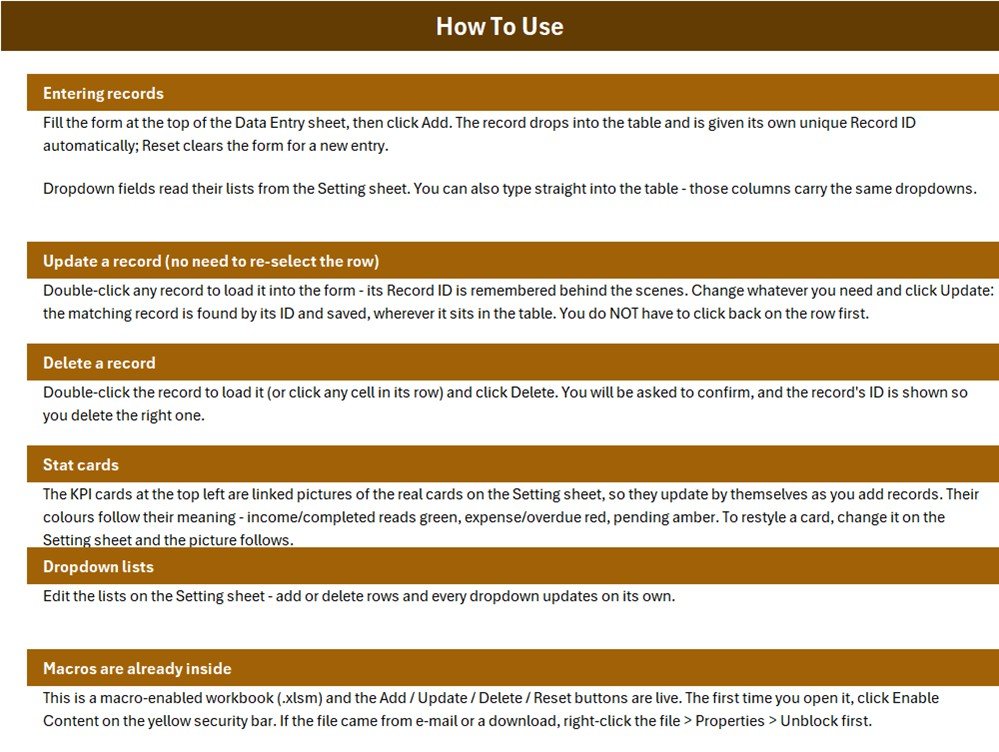
Short instructions for entering, updating and deleting records, how the stat cards update, how to edit the lists and how to enable the macros on first open.
What the Four Stat Cards Count
These are the real formulas on the Setting sheet, read from the workbook itself:
| Card | Formula | What it means |
|---|---|---|
| Total Orders | COUNTA('Data Entry'!$C$15:$C$1048576) | Counts filled Sale Date cells. Add refuses a blank Sale Date, so this is the number of rows entered – one per sales line, not one per ticket. |
| Total Sales | SUM('Data Entry'!$G$15:$G$1048576) | Every Amount whatever the Order Status – Pending, Preparing, Cancelled and Refunded included. |
| Completed Orders | COUNTIF('Data Entry'!$I$15:$I$1048576,"Completed") | Rows whose status is exactly Completed. |
| Pending Orders | COUNTIF('Data Entry'!$I$15:$I$1048576,"Pending") | Rows whose status is exactly Pending. |
Total Sales is entered, not completed. The samples total $58.25 (the card shows $58), but only $26.50 comes from Completed rows; the pending Blueberry Muffins ($10.50), the Chicken Sandwiches still Preparing ($15.00) and the Served Mango Smoothie ($6.25) make up the rest. For completed sales only, replace Setting!I13 with this SUMIFS formula:
=SUMIFS('Data Entry'!$G$15:$G$1048576,'Data Entry'!$I$15:$I$1048576,"Completed")Completed plus Pending will not equal the order count. Only two of the eight statuses have a card, so on the samples 3 + 1 falls short of 6. Add =COUNTIF('Data Entry'!$I$15:$I$1048576,"Refunded") as a fifth card if refunds matter to you. Note that Takeaway sits in the status list even though it describes an order type rather than progress; many cafes move it to its own column.
Amount is typed. Quantity and Amount are separate boxes, there is no unit price or Quantity x Price formula, and there are no tax, tip or discount fields. The macro copies the Amount box straight into column G, so enter the line total from your till.
The lists do not grow on their own. How To Use says every dropdown updates when you add rows, but the named ranges are fixed – CategoryList is Setting!$A$3:$A$14, Payment_ModeList $C$3:$C$10, Order_StatusList $E$3:$E$10 – and all three are full. Insert a row inside a list to add a value, or redefine the name as =OFFSET(Setting!$A$3,0,0,COUNTA(Setting!$A$3:$A$100),1).
How the Buttons Behave – Details From the Macro
- Add only insists on Sale Date. It does not check Item Name, Quantity or Amount, and text that Excel cannot read as a date is saved as today’s date.
- Record IDs are the highest existing number plus one. Deleting an older sale never causes a repeat, but if you delete the newest sale, the next sale you add reuses its Record ID.
- Update rewrites every field, including the Entry TimeStamp, so the timestamp shows when a row was last saved rather than first entered.
- Delete removes the whole worksheet row, so the formatted, dropdown-ready block (rows 15-214) shortens by one row each time.
Excel Workbook vs. Notebook Log vs. Cafe POS Software – Feature Comparison
| Feature | Cafe Daily Sales workbook (Excel) | Notebook or Google Sheets log | Cafe / restaurant POS software |
|---|---|---|---|
| Cost | $6.99 one-time (regular $11.99) | Free, but you build it | Recurring monthly subscription |
| Platform | Excel for Windows desktop | Paper or any browser | Vendor app, till or tablet |
| Setup time | About 10 minutes | Hours of design work | Days of menu import |
| Entry form with Add / Update / Delete | Yes, VBA | No | Yes |
| Payments, receipts, kitchen tickets, stock | No | No | Usually |
| Real-time team collaboration | No | Sheets only | Yes |
| Customizable lists and fields | Fully unlocked | Yes | Vendor settings only |
| Year-1 cost | One purchase, no renewal | Free | Subscription x 12 months |
For a small cafe that already rings up sales elsewhere and wants a searchable record of what sold and how it was paid, this workbook sits in the sweet spot.
Who Should Use This Template
Perfect for:
- Small cafes, coffee kiosks and juice bars recording each sale, its menu category, the amount and how it was paid
- Owners who want completed and pending orders at a glance
- Anyone comfortable in Excel who wants a file they fully control
Not a fit if:
- You need a till, card payments, kitchen or table tickets, printed receipts, tax invoices or stock levels
- You need accounting ledgers or tax-compliant sales records
- Your team works on Mac, in a browser or in Google Sheets, or needs several people editing at once
Real-World Use Cases
Aisha runs a 20-seat neighbourhood coffee shop. At closing she keys in the day’s sales by item from her till roll, filters by Category to compare Hot Coffee with Pastries, and checks the Pending Orders card for anything still open.
Tom operates a coffee kiosk at a station. He logs sales during quiet hours, filters Payment Mode to split cash from UPI and card, and switches Total Sales to the Completed-only formula so refunds stop inflating his total.
A campus cafe adds a Refunded card and moves Takeaway into its own column, so order type and order progress are tracked separately.
Advantages
- One purchase, no subscription and no per-user fee.
- Ten minutes from download to the first real sale.
- Update and Delete work by Record ID, so sorting or filtering the table does not break them.
- Everything is visible and editable – formulas, lists and macro.
Opportunities for Improvement
- A Unit Price column with Amount calculated as Quantity x Unit Price.
- A completed-only sales card, and cards for Preparing, Served, Cancelled and Refunded.
- A daily total by Sale Date – today the cards only show grand totals.
- Self-extending dropdown lists to match what How To Use promises.
- Record IDs that are never reused, and keeping the first Entry TimeStamp on Update.
Best Practices
- Always add sales through the form so every row gets a Record ID; rows typed straight into the table cannot be loaded back with a double-click.
- Rewrite the Category and Payment Mode lists before you enter real sales, inserting rows inside each block.
- Amounts are formatted in US dollars – change the number format on column G and the Total Sales card for your own currency.
- Keep a dated backup copy of the file each week.
Macros and Compatibility
Macros must be enabled and Windows desktop Excel is required. On first open click Enable Content; Microsoft’s guide to enabling macros in Microsoft 365 files covers the security bar, and its note on macros from the internet being blocked explains the Unblock checkbox.
Explore Relevant Templates
If you like this format, the Bakery Sales Register Data Entry System in Excel and the Optical Shop Sales Data Entry System in Excel apply the same form-and-cards build to other counters, and the Restaurant Order Data Entry System in Excel covers table orders. For charts rather than a register, read the Coworking Cafes Dashboard in Excel walkthrough.
In the store, the Coffee Cafe POS Web App is the option if you need a real point-of-sale system.
Frequently Asked Questions
What does the Cafe Daily Sales Data Entry System in Excel record?
One row per sales line: Sale Date, Item Name, Category, Quantity, Amount, Payment Mode and Order Status, plus an automatic Record ID and Entry TimeStamp. Four cards show total orders, total sales, completed orders and pending orders.
Is it a POS or cash register?
No. It does not take payments, total a basket, apply tax, print receipts or kitchen tickets, or track stock. It records sales you have already rung up elsewhere.
How long does setup take?
About ten minutes. Enable macros, replace the sample categories and payment modes on the Setting sheet, delete the six sample rows and start adding sales. Nothing needs installing.
Do I need to know VBA?
No. The Add, Update, Delete and Reset buttons are already wired. VBA only matters if you want to change what a button writes, such as adding a Unit Price field.
Why is Total Sales higher than the money I took?
The card adds every Amount whatever the Order Status. On the samples it shows $58 against $26.50 from Completed rows. Swap in the SUMIFS formula above to count Completed rows only.
Can a ticket with several items be one order?
Not as built. Each row holds one item, so a cappuccino and a muffin on the same ticket are two rows and count as two orders on the Total Orders card.
About the Author
Built by PK – Microsoft Certified Professional with 15+ years of Excel, Google Sheets and Power BI experience. Founder of NextGenTemplates, reaching 300K+ subscribers across YouTube channels. Every template is hand-built and tested before release.
Conclusion
This workbook turns a till roll or sales notebook into a table you can sort and filter, with four numbers on top that keep themselves current. Know what those numbers count – every row rather than completed sales, a typed Amount, one item per row and two statuses out of eight – and it will not surprise you.
Click here to Purchase the Cafe Daily Sales Data Entry System in Excel – $11.99, currently $6.99.
✅ Instant download · One-time payment · No subscription
Last updated: September 2026
Watch more Excel tutorials at Youtube.com/@PKAnExcelExpert