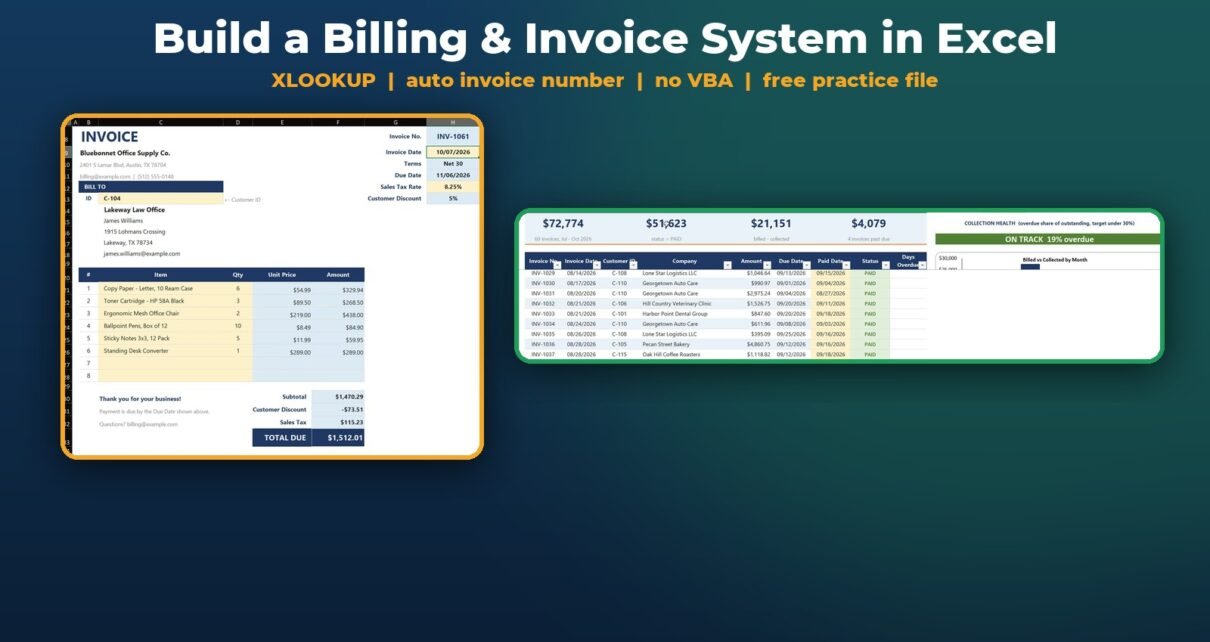
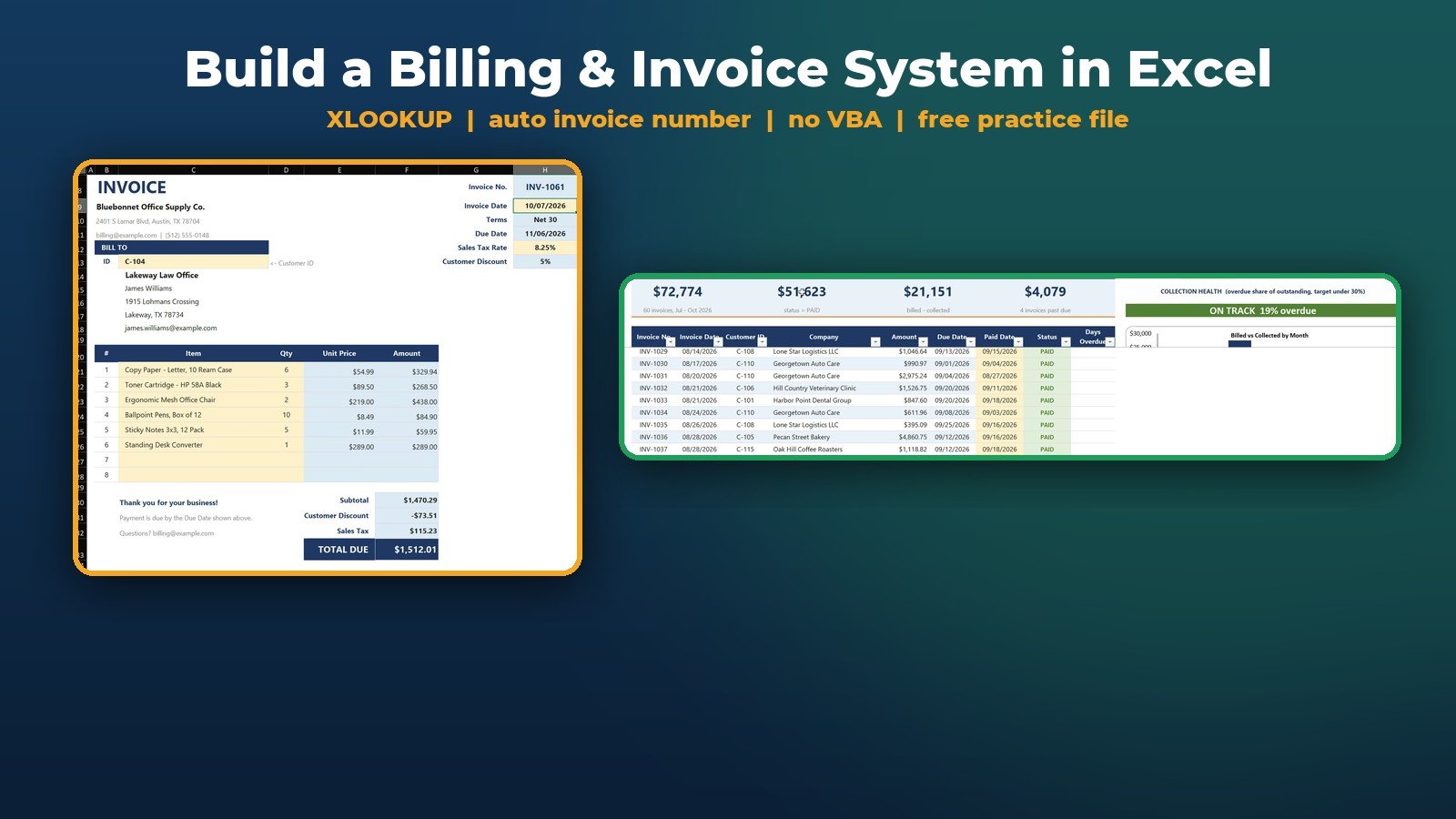
Typing every invoice by hand costs time, and one wrong price costs money. In this tutorial you build a complete billing system in Excel with formulas only – no VBA, no macros. Pick a customer from a dropdown and the whole Bill To block fills itself, the item lines price themselves, the totals add a 5% customer discount and 8.25% sales tax, and an Invoice Register tracks 60 invoices and $72,774 billed, so you always know who still owes you money.
⬇️ Download the Free Practice File
Practice + Solution workbooks · .zip · Excel 2021 / Microsoft 365
Watch the Video Tutorial
Video Overview
The video works through the free practice file for Bluebonnet Office Supply Co., an office supply business in Austin, Texas. Part one turns the Customer ID cell into a dropdown and writes one TRANSPOSE + XLOOKUP formula that fills the company, contact, street, city and email, then pulls the payment terms, the due date and the customer discount. Part two adds item dropdowns, looks up each unit price, multiplies by the quantity and builds the subtotal, discount, sales tax and total due. Part three moves to the Invoice Register: a PAID / OPEN / OVERDUE status column, days overdue, and SUMIFS cards for collected, outstanding and overdue money – then a payment comes in and the collection badge flips from red to green. The bonus writes the next invoice number with MAX.
What You Will Build
- An invoice where a Customer ID dropdown fills the whole Bill To block, terms, due date and discount.
- Self-pricing item lines with dropdowns, unit prices from the price list and automatic amounts.
- Totals: subtotal, customer discount, 8.25% sales tax and total due, all rounded to cents.
- An Invoice Register with PAID / OPEN / OVERDUE status, days overdue and four KPI cards.
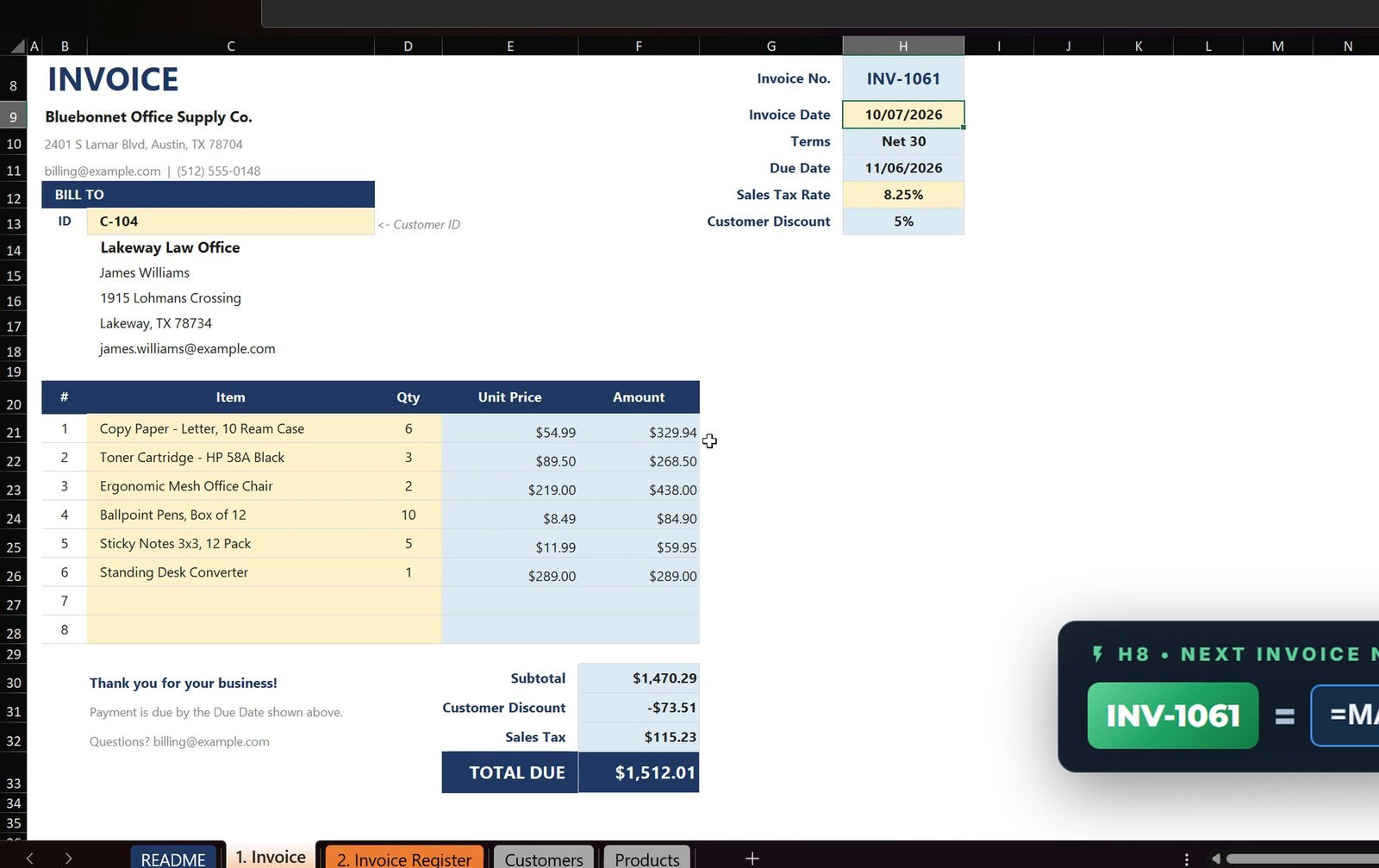
- A next invoice number that writes itself: INV-1061.
The Practice File
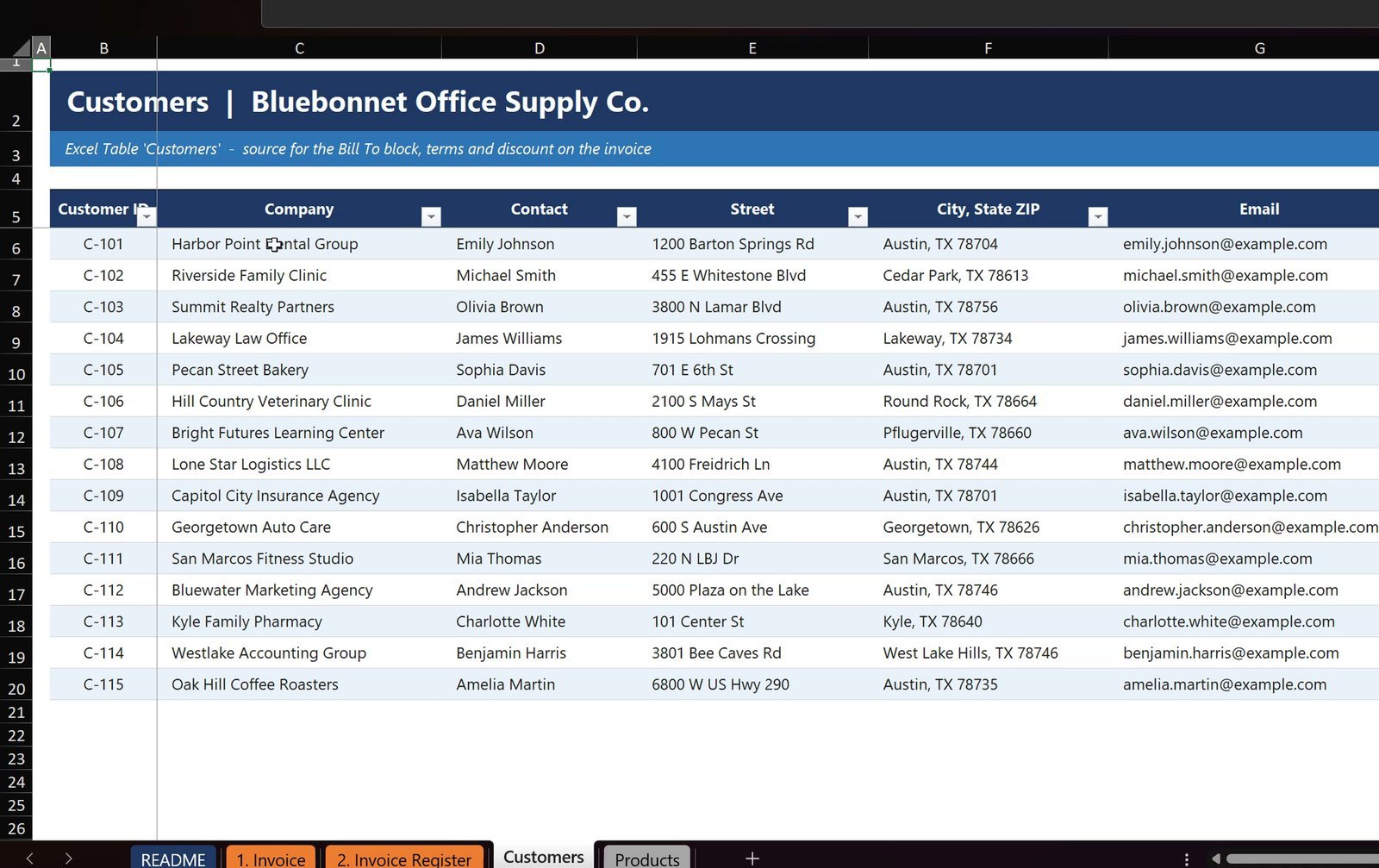
The download has two workbooks. The Practice File has every sheet and all the data ready, but the lesson formulas and dropdowns are blank so you can build along with the video. The Solution has everything working. Sheets: README, 1. Invoice, 2. Invoice Register, Customers (an Excel Table of 15 Texas business customers with terms and discount) and Products (a price list of 20 items).
Part 1 – Customer Details That Fill Themselves
Step 1: Customer dropdown with Data Validation
Select C13 on the 1. Invoice sheet, open Data › Data Validation, choose List and select the Customer ID column of the Customers table (B6:B20) as the source.
Step 2: One formula for the whole Bill To block
In C14 enter this formula. XLOOKUP returns the Company to Email columns as one row, and TRANSPOSE turns it into a column that spills down five rows:
=TRANSPOSE(XLOOKUP(C13,Customers[Customer ID],Customers[[Company]:[Email]]))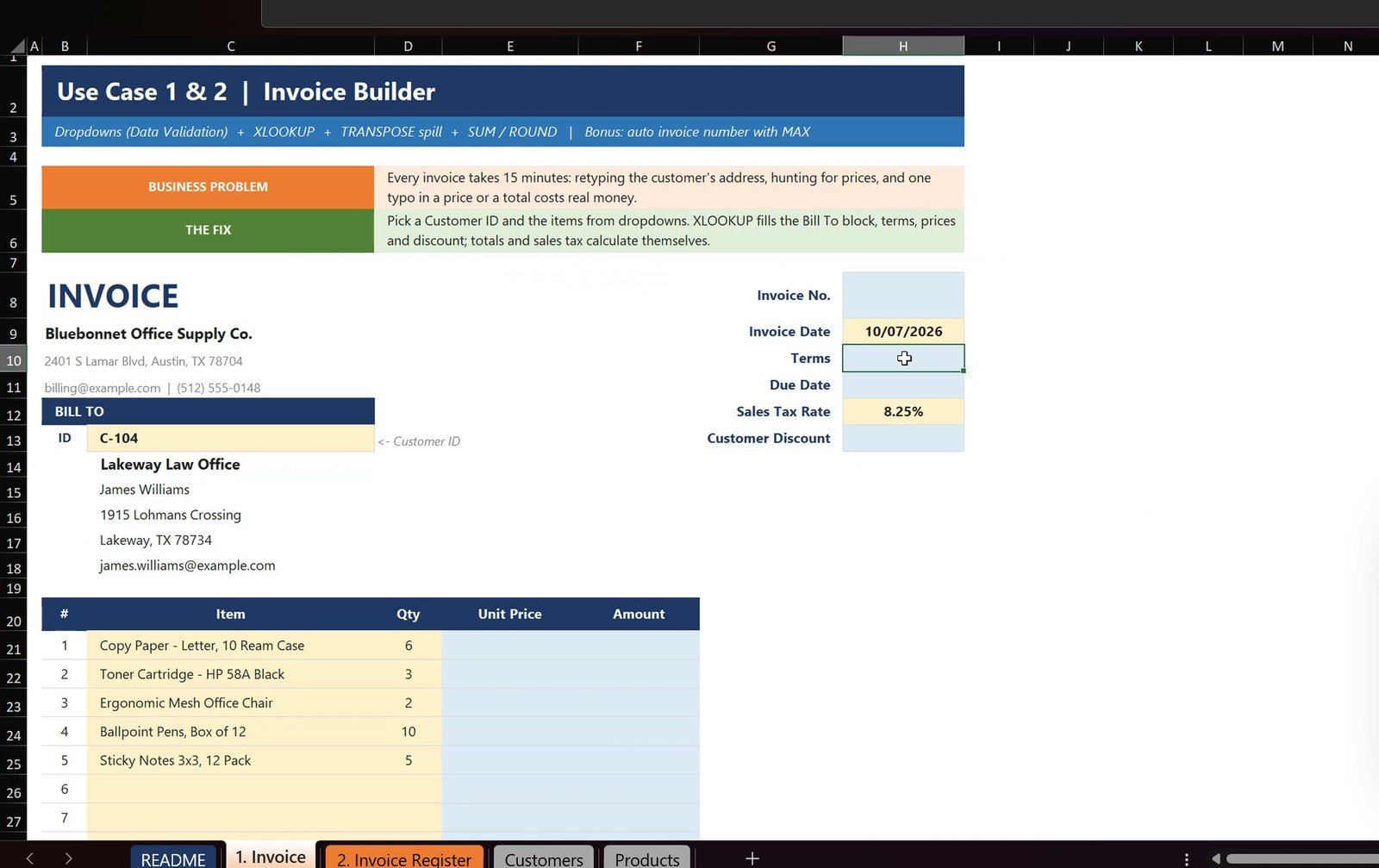
Step 3: Terms, due date and discount
H10  =XLOOKUP(C13,Customers[Customer ID],Customers[Terms])
H11  =H9+XLOOKUP(C13,Customers[Customer ID],Customers[Terms Days])
H13  =XLOOKUP(C13,Customers[Customer ID],Customers[Discount %])
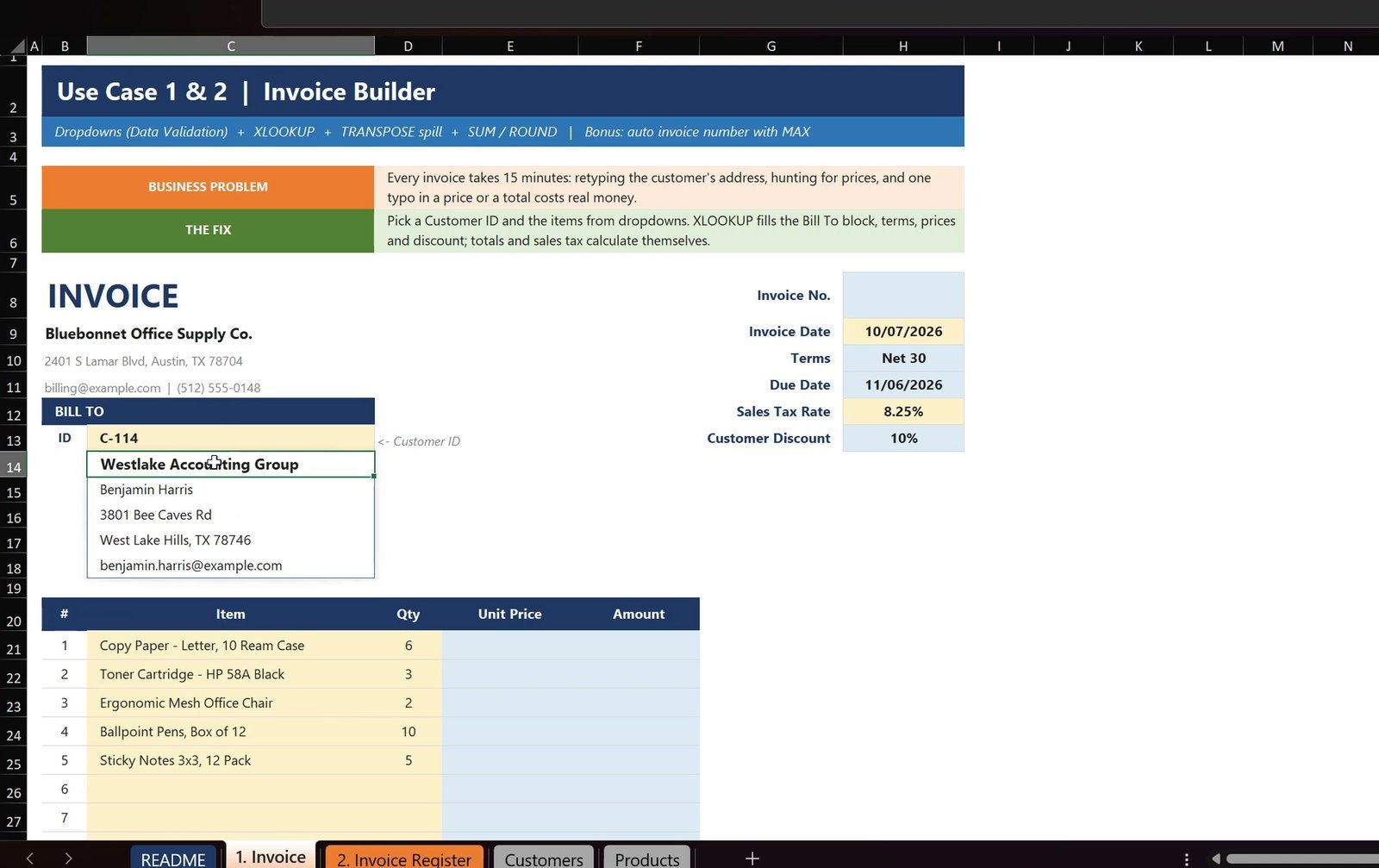
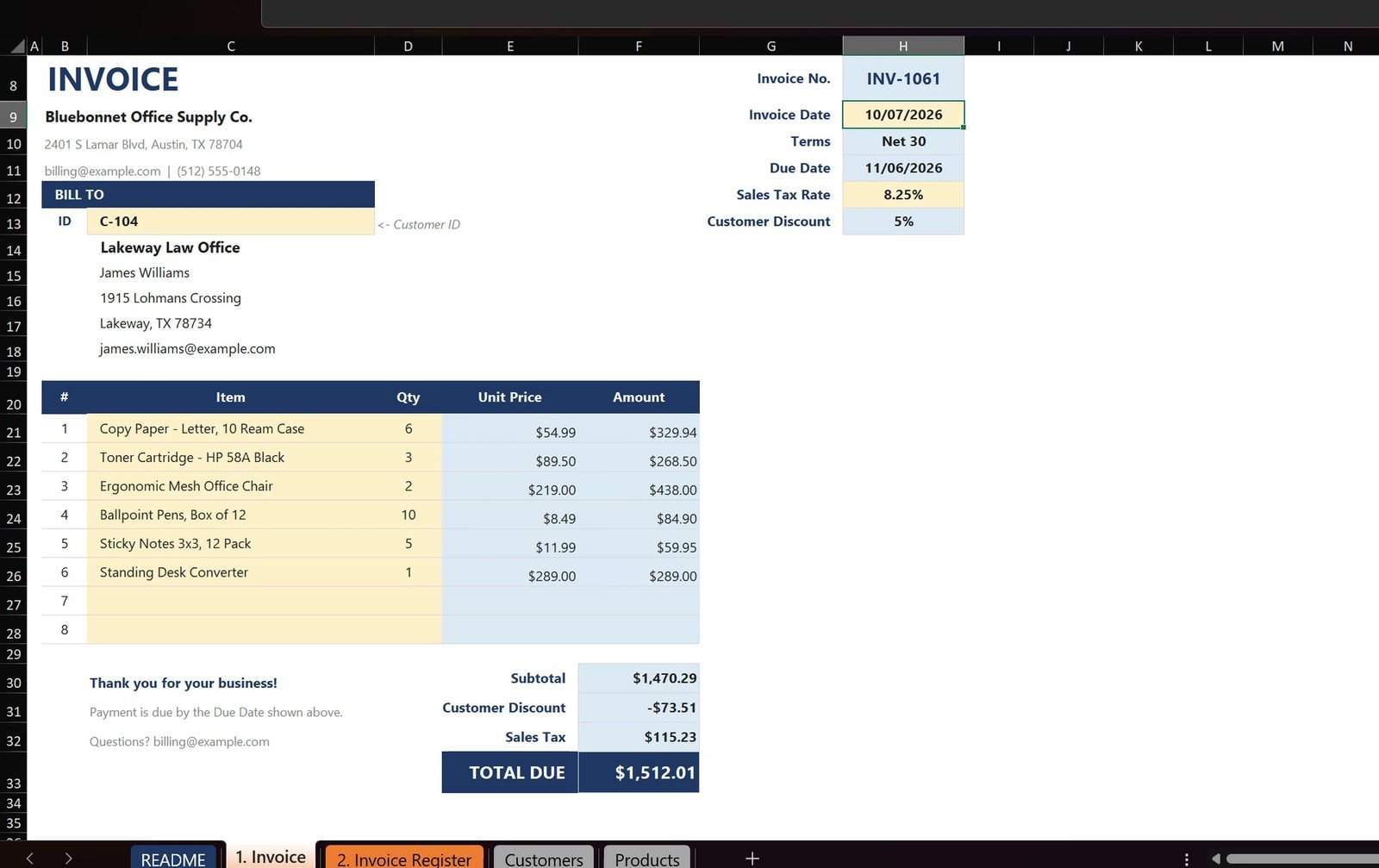
For C-104 that gives Net 30, a due date of 11/06/2026 for an invoice dated 10/07/2026, and a 5% discount. Switch C13 to C-114 and the block changes to Westlake Accounting Group with a 10% discount.
Part 2 – Line Items That Price Themselves
Step 4: Item dropdowns
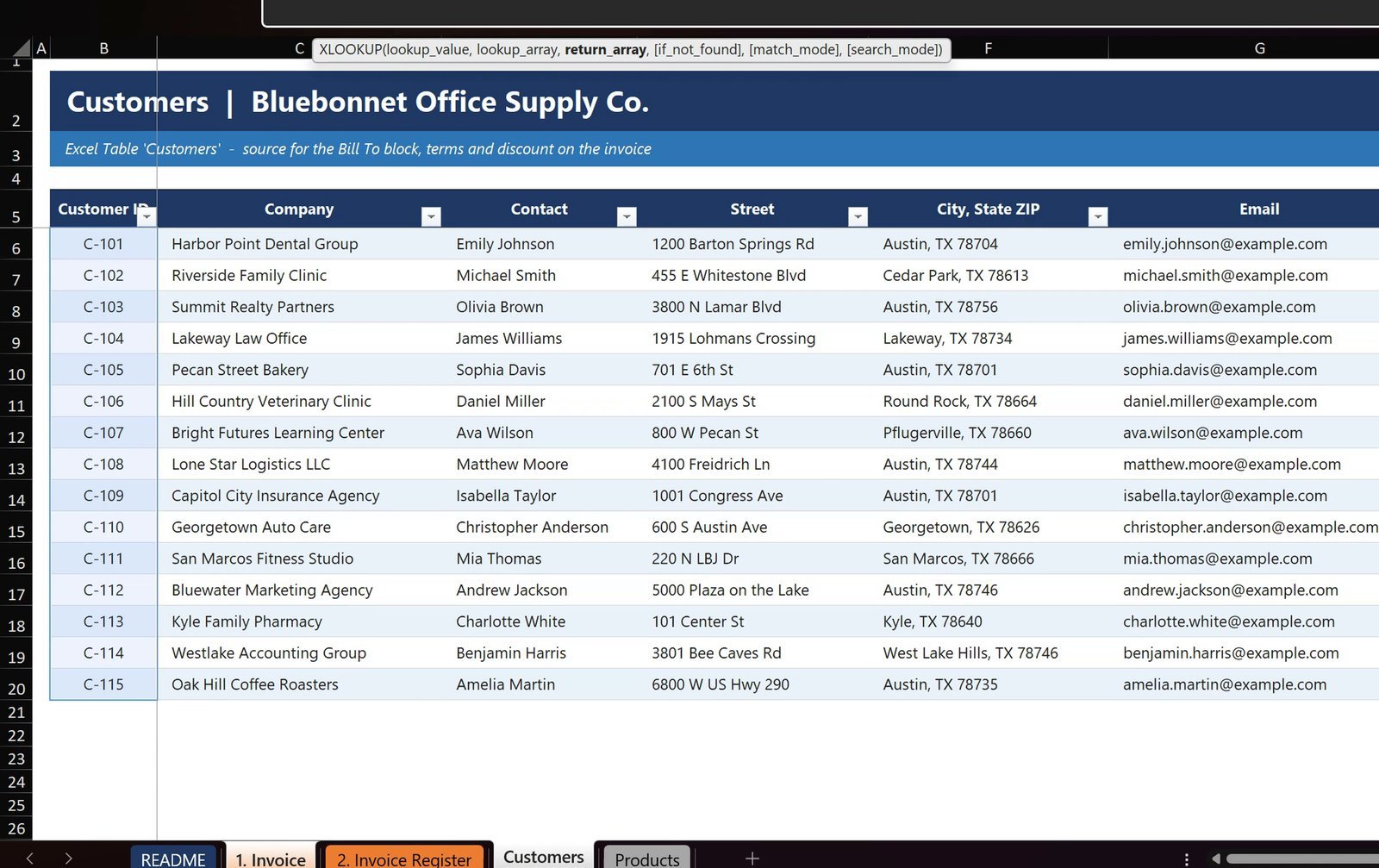
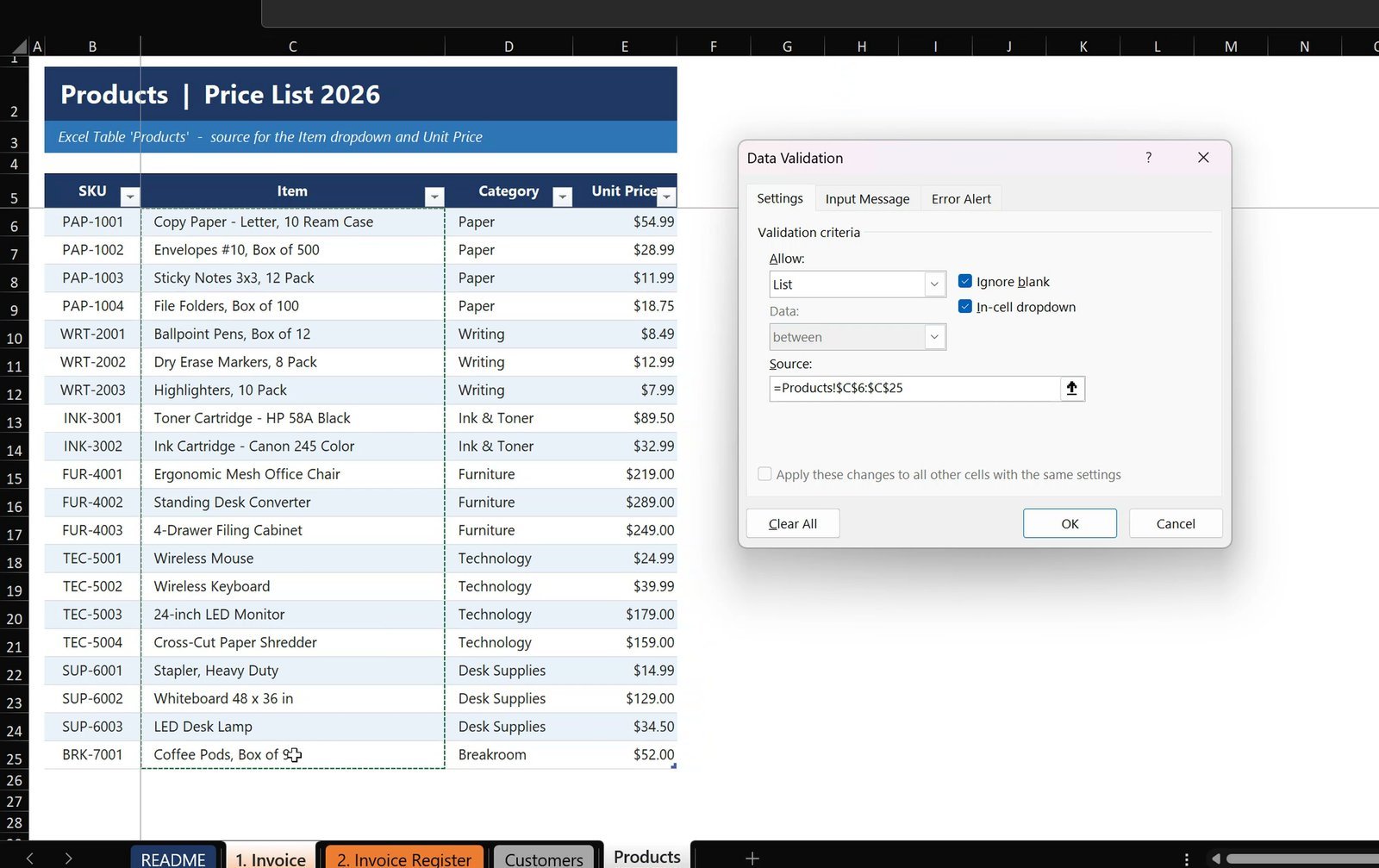
Select C21:C28 and add a Data Validation list with the Item column of the Products table (C6:C25) as the source.
Step 5: Unit price and amount
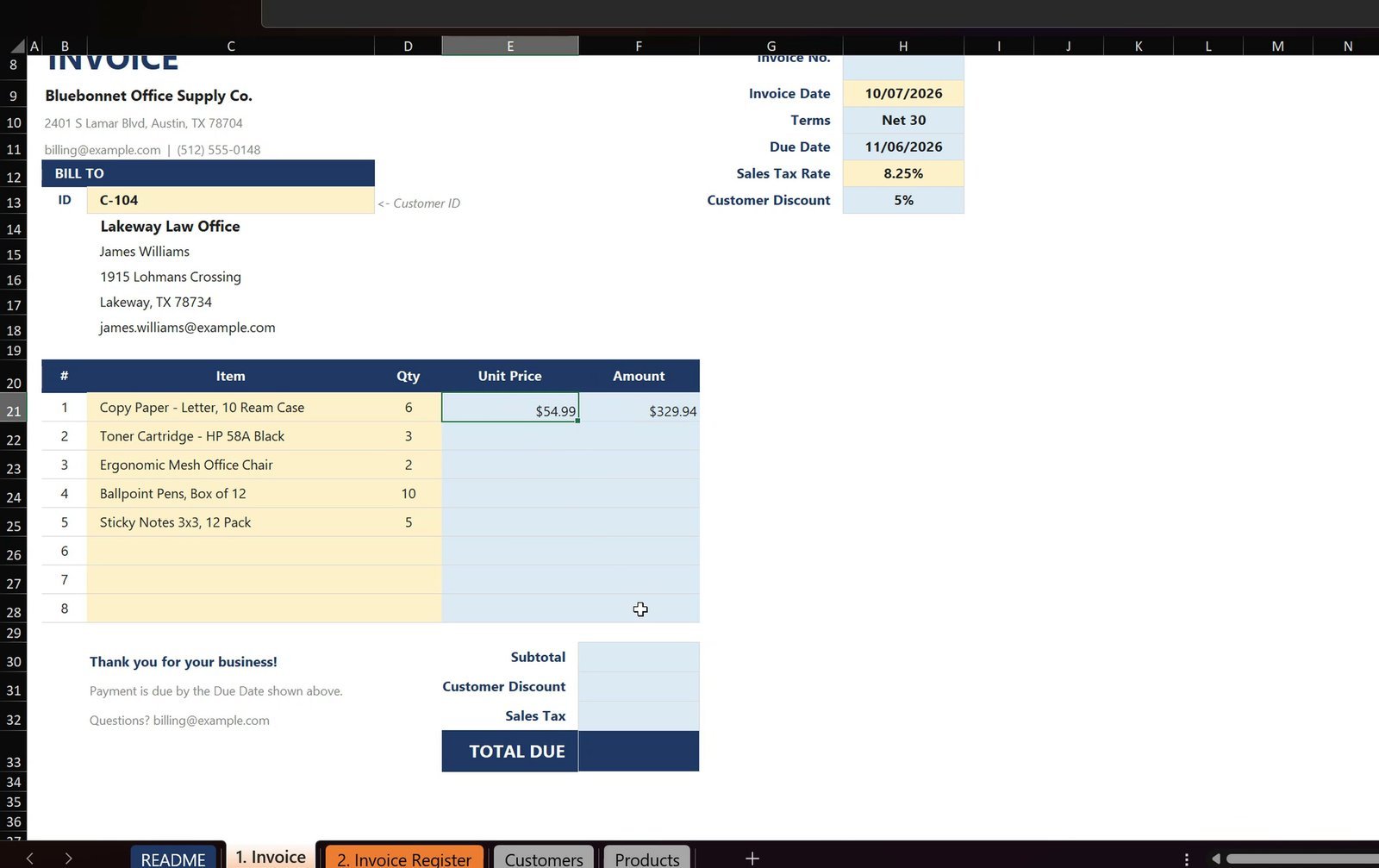
E21  =IF(C21="","",XLOOKUP(C21,Products[Item],Products[Unit Price]))
F21  =IF(C21="","",D21*E21)
Fill both down to row 28. The IF wrapper keeps empty lines blank instead of showing #N/A.
Step 6: Subtotal, discount, sales tax and total
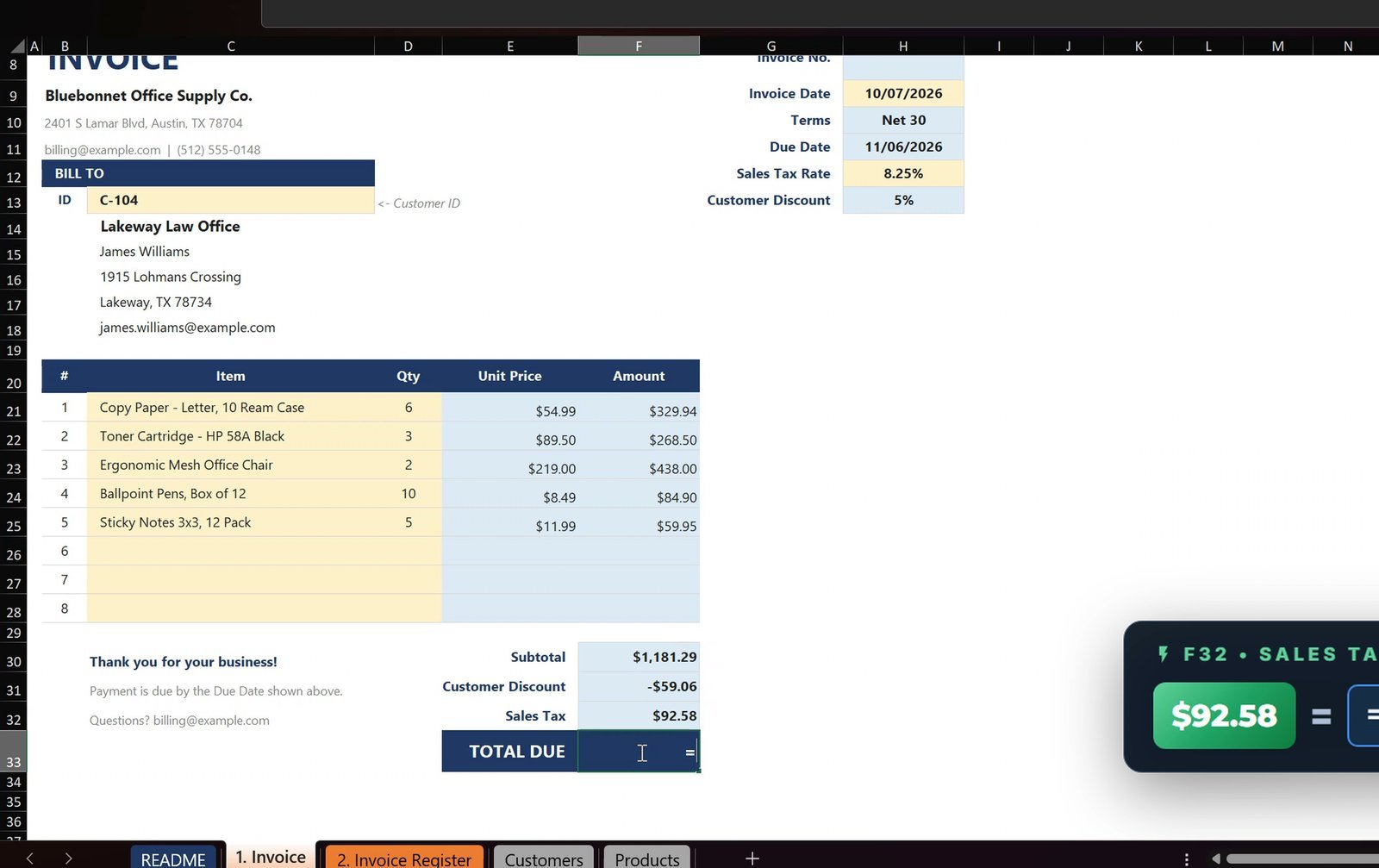
F30  =SUM(F21:F28)
F31  =-ROUND(F30*H13,2)
F32  =ROUND((F30+F31)*H12,2)
F33  =F30+F31+F32
With the Standing Desk Converter added in row 26, the invoice shows a subtotal of $1,470.29, a discount of -$73.51, sales tax of $115.23 and a total due of $1,512.01.
Part 3 – Who Owes You Money? The Invoice Register
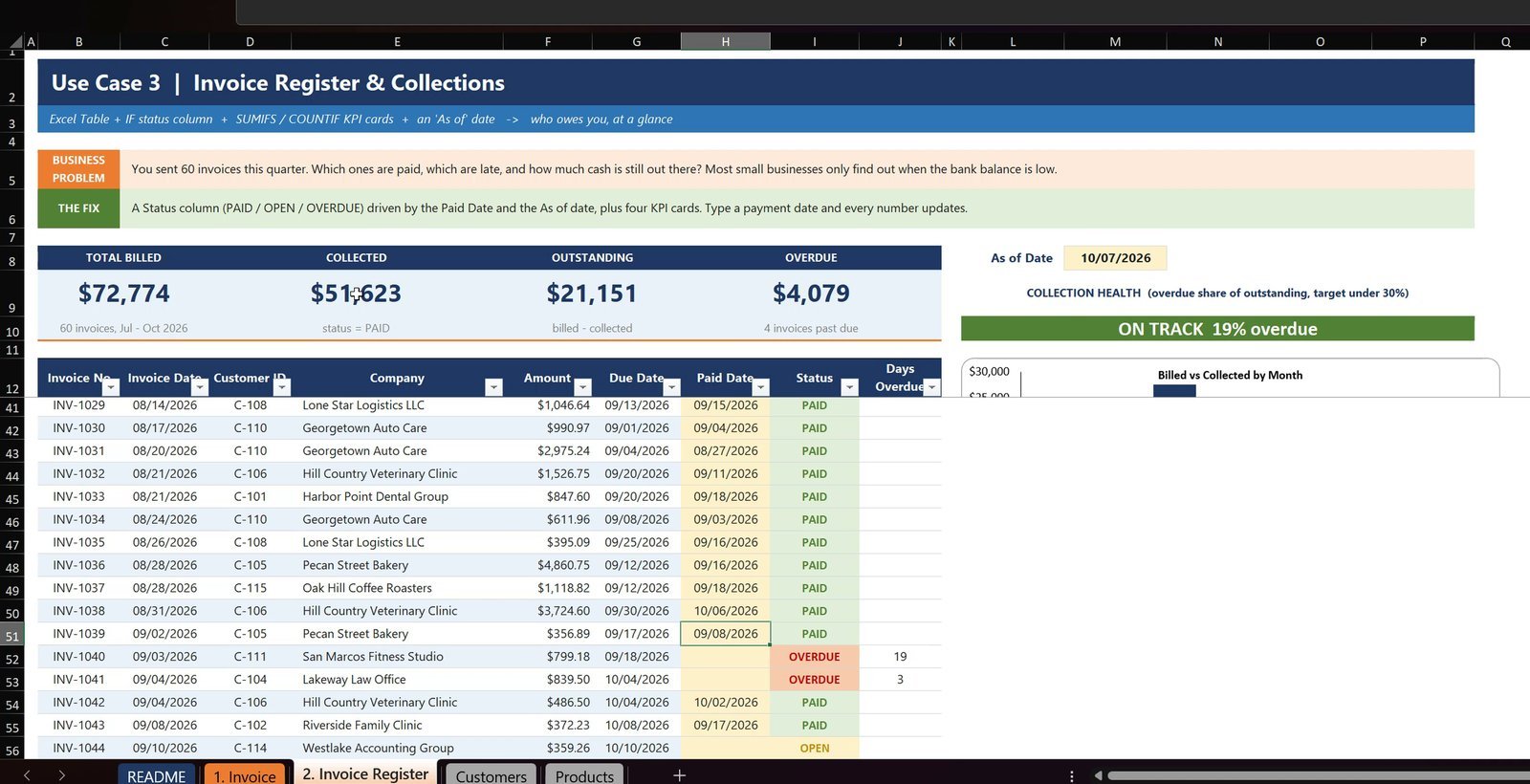
The 2. Invoice Register sheet holds 60 invoices from July to October 2026 in an Excel Table called Register, with an As of Date of 10/07/2026 in M8.
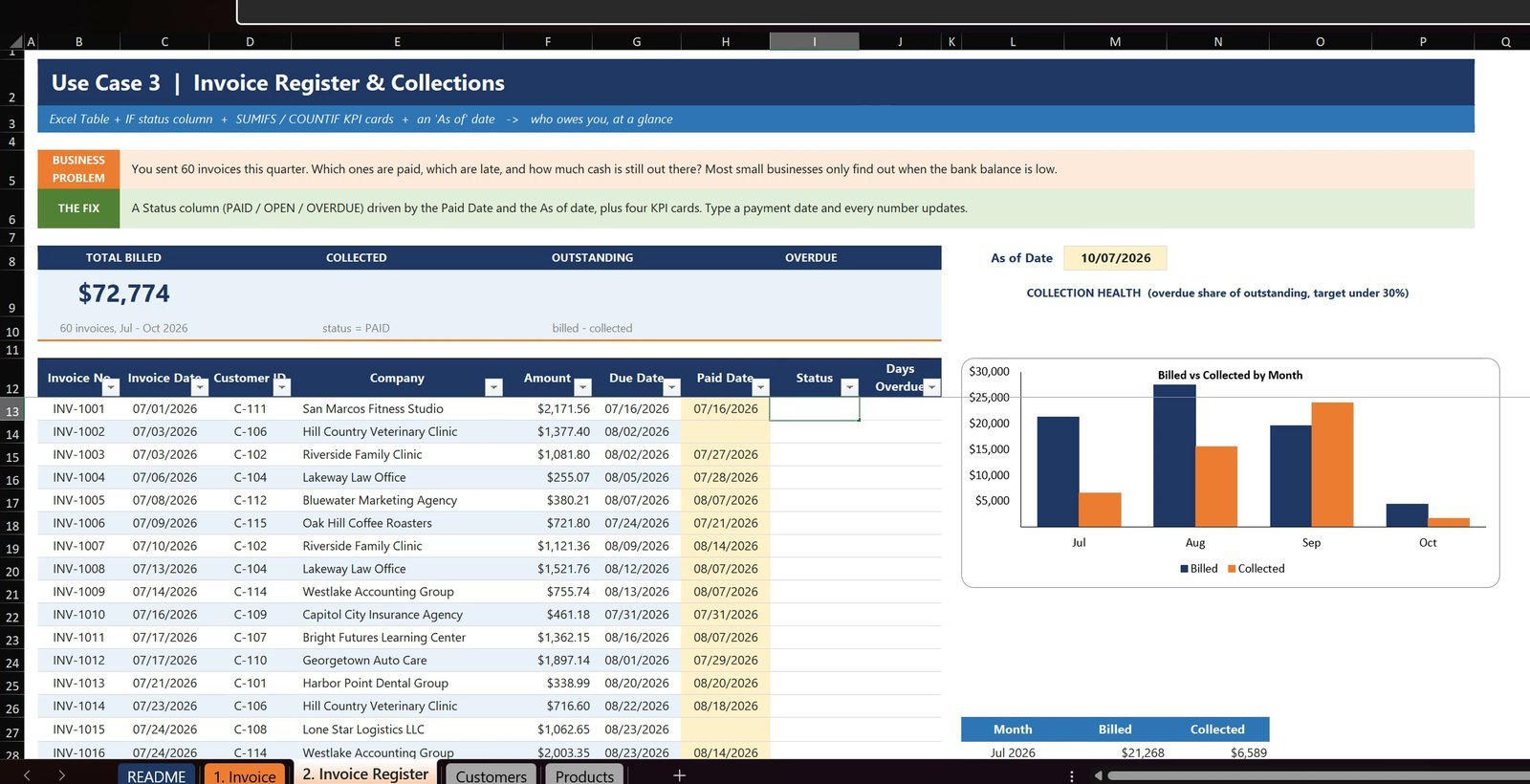
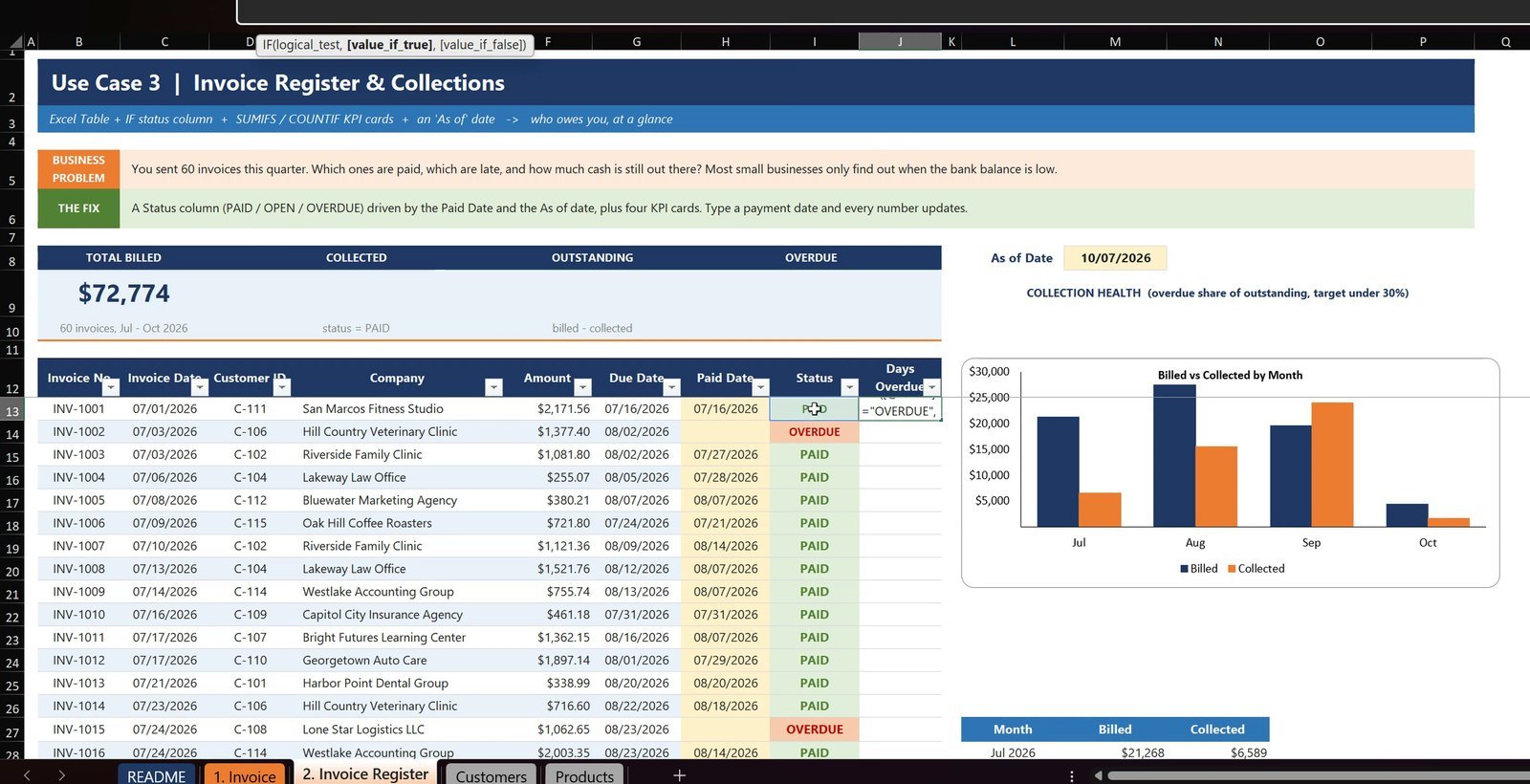
Step 7: PAID / OPEN / OVERDUE status and days overdue
I13  =IF([@[Paid Date]]<>"","PAID",IF($M$8>[@[Due Date]],"OVERDUE","OPEN"))
J13  =IF([@Status]="OVERDUE",$M$8-[@[Due Date]],"")
Because Register is a table, each formula fills the whole column by itself. The result: 42 PAID, 13 OPEN and 5 OVERDUE.
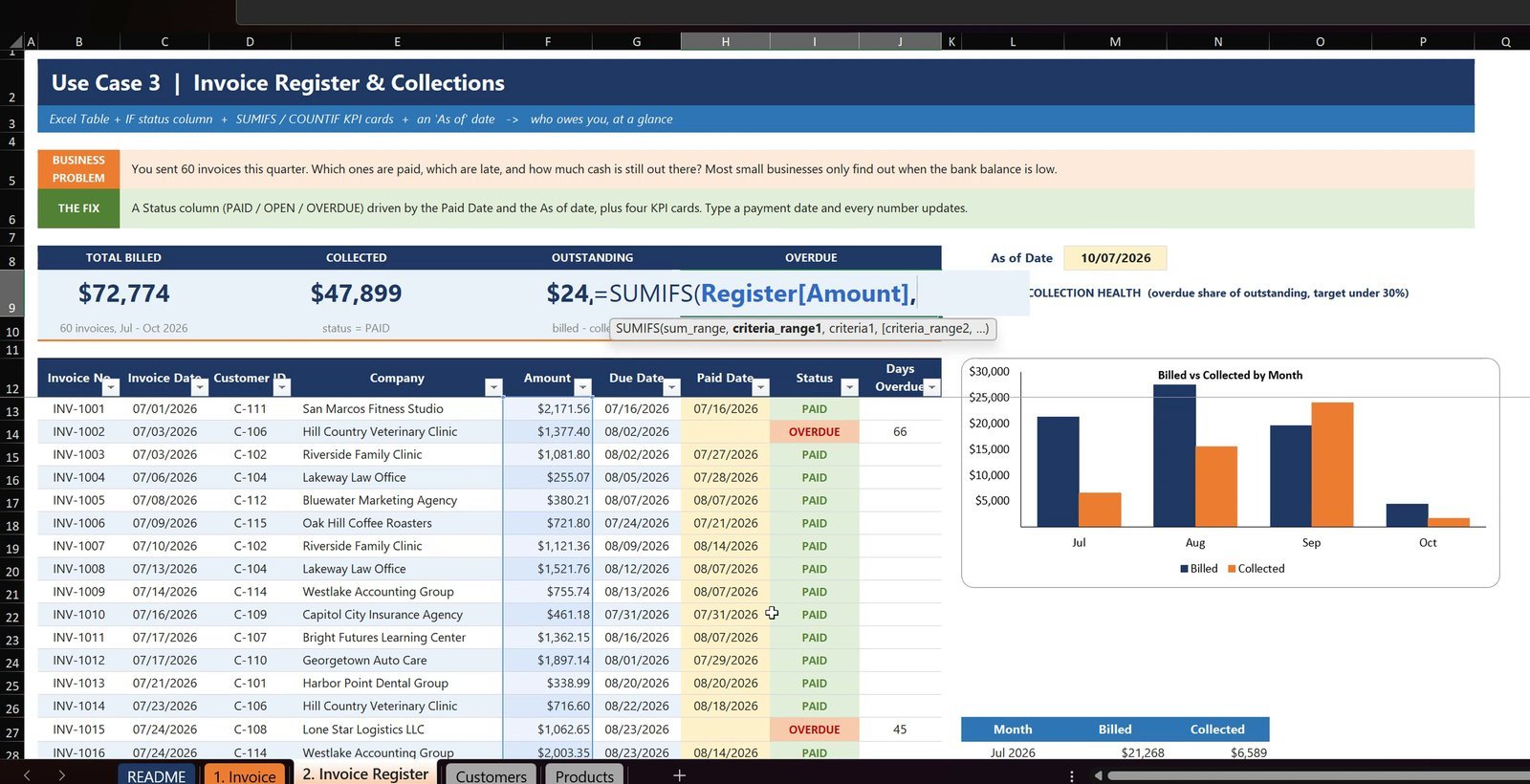
Step 8: SUMIFS KPI cards
D9   =SUMIFS(Register[Amount],Register[Status],"PAID")
F9   =B9-D9
H9   =SUMIFS(Register[Amount],Register[Status],"OVERDUE")
H10  =COUNTIF(Register[Status],"OVERDUE")&" invoices past due"
Total Billed is $72,774, Collected $47,899, Outstanding $24,875 and Overdue $7,803 across 5 invoices – and the badge says FOLLOW UP NOW, 31% overdue.
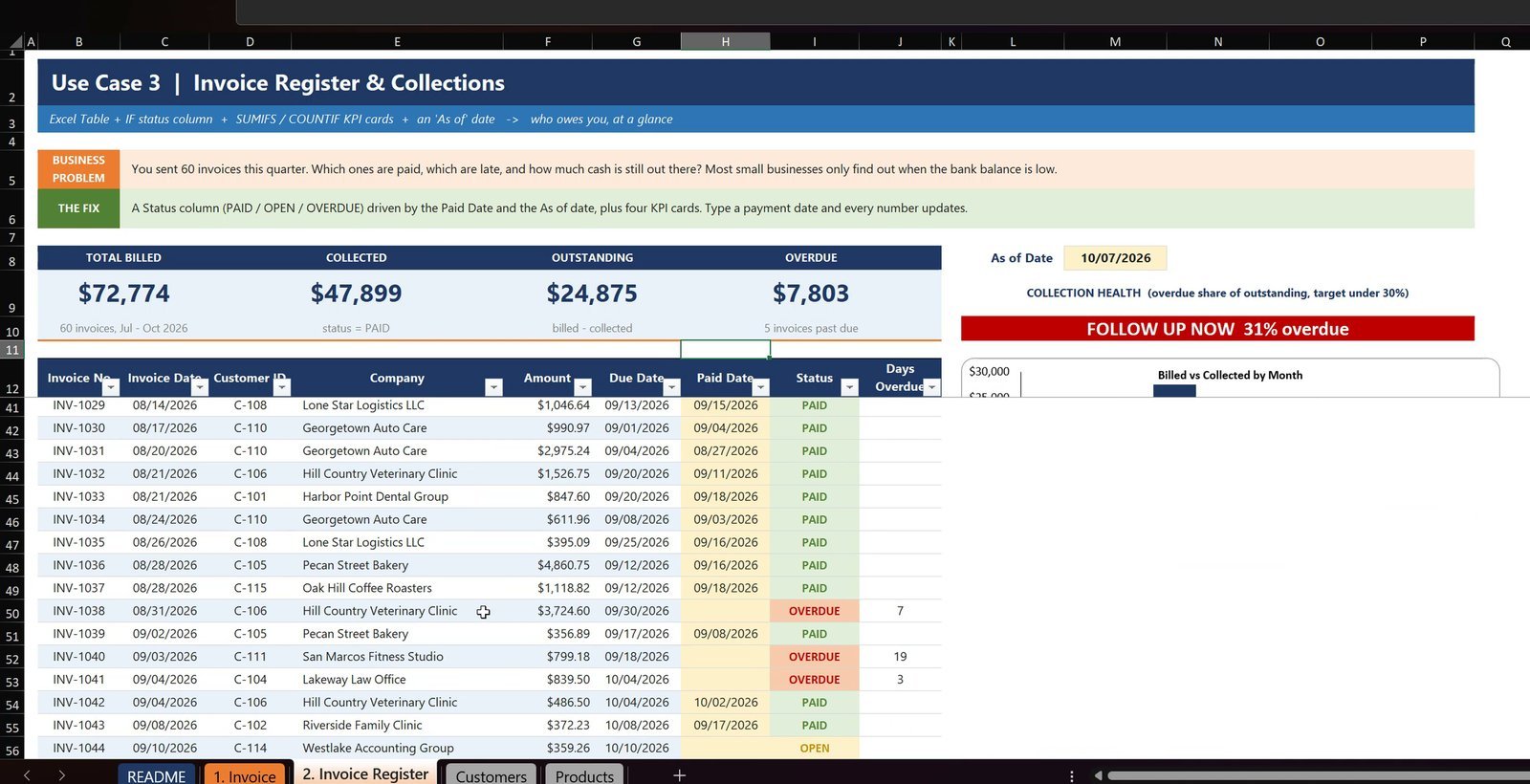
Step 9: Record a payment
Hill Country Veterinary Clinic pays INV-1038 ($3,724.60). Type the paid date in its row and everything updates: Collected rises to $51,623, Outstanding falls to $21,151, Overdue drops to $4,079 (4 invoices) and the badge turns green – ON TRACK, 19% overdue.
Bonus – The Next Invoice Number
H8 =MAX(Register[Invoice No])+1The invoice numbers are stored as numbers with the custom format "INV-"0, so MAX works and the invoice shows INV-1061. The print area is set to B8:H33 on one page, so Ctrl + P gives a clean one-page invoice.
Formulas vs a Ready-Made VBA Billing System
| Need | This tutorial (formulas) | Ready-made VBA system |
|---|---|---|
| Invoice with lookups and totals | Yes | Yes, with entry forms |
| Saving each invoice to the register | Typed into the table | One click |
| Paid / open / overdue tracking | Yes | Yes |
| Stock, expenses and P&L | No | Yes |
| Macros needed | None (.xlsx) | Yes (.xlsm) |
Tips
- Keep invoice numbers as numbers with the format
"INV-"0– typed text like “INV-1061” breaks MAX. - Leave five empty cells under the TRANSPOSE formula, or you get #SPILL!.
- Wrap line formulas in
IF(C21="","",...)so unused lines stay blank. - Use an As of Date cell for a reproducible register; put
=TODAY()in it for a live one. - Microsoft’s XLOOKUP documentation covers every argument used here.
Want It Ready-Made?
If you want billing with entry forms, stock, expenses and a P&L, see the Retail Store Management System in Excel VBA on NextGenTemplates.com, or browse more Excel templates. To master XLOOKUP, SUMIFS and the other formulas step by step, join the full video course Excel + AI Mastery: 100 Essential Formulas and Real-World Projects. More on this site: Auto Invoicing in Excel Using Formula (No VBA), Invoice Generator in Excel and Client Invoice Tracker Data Entry System in Excel.
Frequently Asked Questions
Can I build a billing system in Excel without VBA?
Yes. Everything in this tutorial is formulas, Data Validation and Excel Tables: XLOOKUP, TRANSPOSE, IF, ROUND, SUMIFS, COUNTIF and MAX. The file is a normal .xlsx with no macros.
How do I auto generate an invoice number in Excel?
Keep the invoice numbers in the register as real numbers and give the cells the custom number format "INV-"0. Then the next number is =MAX(Register[Invoice No])+1, which shows as INV-1061 in the video.
Why does my XLOOKUP Bill To formula show #SPILL!?
TRANSPOSE(XLOOKUP(…)) returns five values that spill down. Every cell below the formula must be empty; clear the five cells under it and the error disappears.
How do I stop empty invoice lines from showing #N/A?
Wrap the line formulas in IF, for example =IF(C21="","",XLOOKUP(C21,Products[Item],Products[Unit Price])), so an empty item cell returns an empty string instead of an error.
How does the PAID / OPEN / OVERDUE status work?
A paid date means PAID. Without one, the invoice is OVERDUE when the As of Date is later than the Due Date, otherwise OPEN. Type a paid date and the status, the KPI cards and the collection badge update at once.
Should I use TODAY() or an As of Date cell?
An As of Date cell keeps the register reproducible – the numbers do not move overnight. Put =TODAY() in that cell when you want a live register.
Which Excel version do I need?
Excel 2021 or Microsoft 365, because XLOOKUP and spilled arrays are not available in Excel 2019 and older.
Is there a ready-made Excel billing system with stock and P&L?
Yes. The Retail Store Management System in Excel VBA on NextGenTemplates.com adds billing forms, stock, expenses and a P&L on top of what this tutorial builds.
Download the Practice File
Get the Practice and Solution workbooks in one zip and build the billing system along with the video.
⬇️ Download the Free Practice File
Practice + Solution workbooks · .zip · Excel 2021 / Microsoft 365
About the Author
PK (Priyendra Kumar) runs PK: An Excel Expert and NextGenTemplates.com and has been teaching Excel, Power Query and Power BI on YouTube for years. Every number in this tutorial comes from the Solution file you can download above.
Conclusion
A billing system in Excel does not need macros. A few dropdowns, XLOOKUP, ROUND, SUMIFS and MAX give you invoices that fill themselves, a register that tells you who owes you money, and invoice numbers that never repeat.