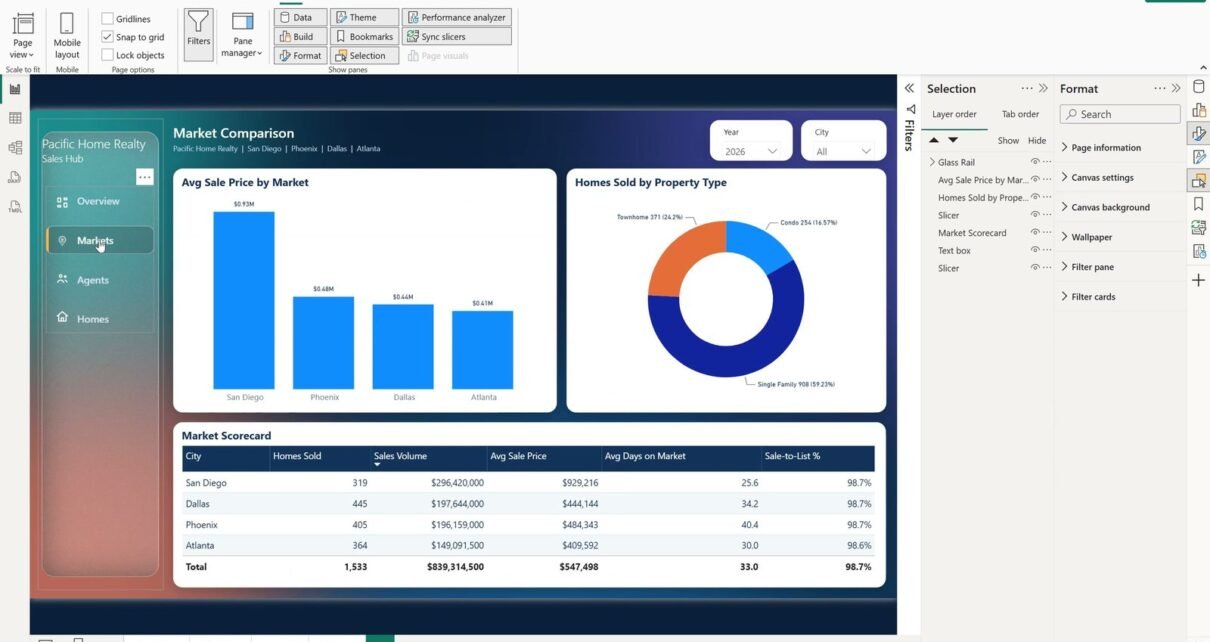
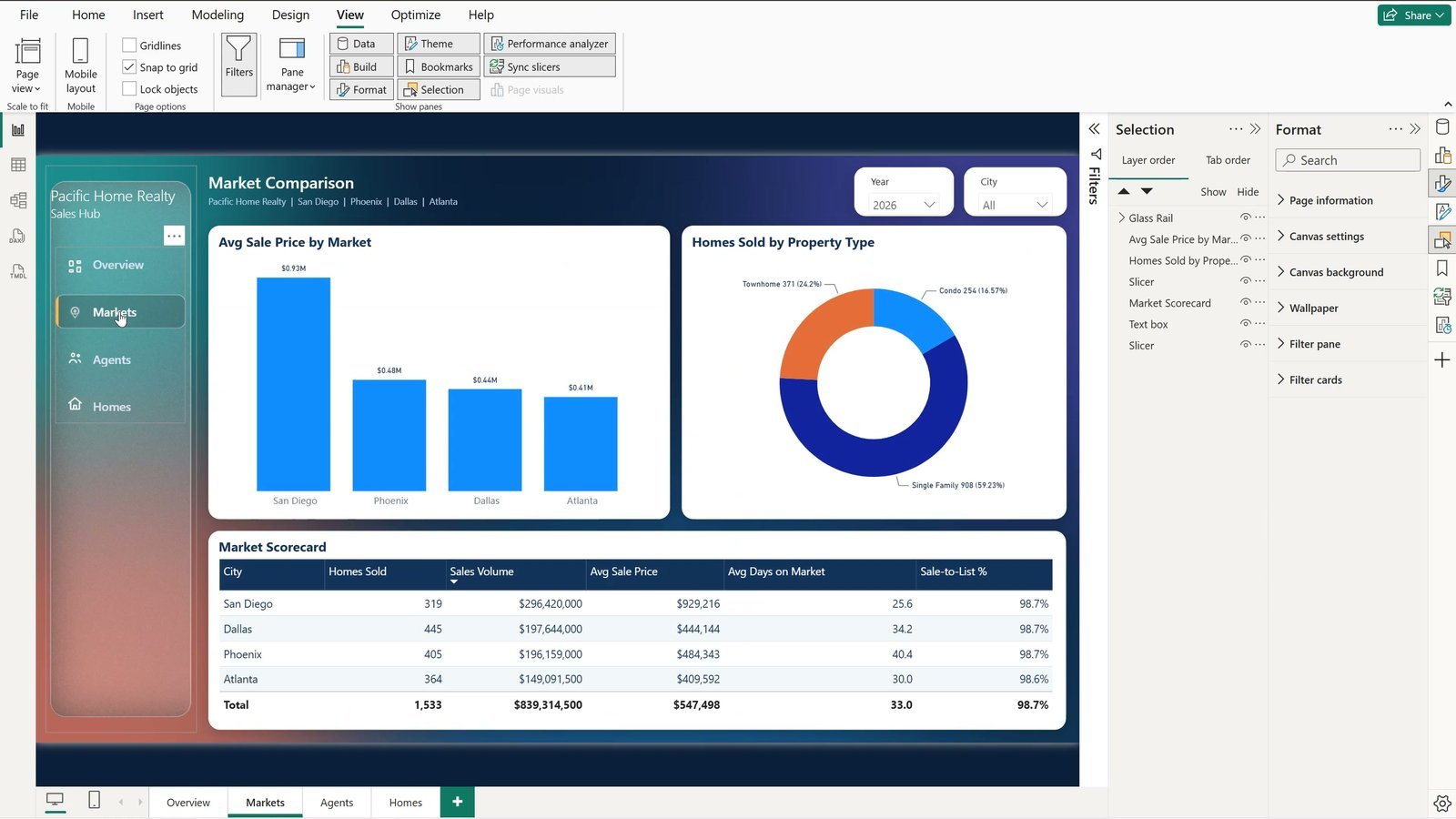
Your Power BI report has four pages, but people only ever see the first one – because the only way to the others is the tiny page tabs at the bottom. In this tutorial you build a Power BI page navigator styled as a modern frosted-glass side menu that works like an app: glass tabs, a soft hover highlight, an amber bar on the page you are on, an icon for every page, and a bonus menu that collapses to icons. Everything is done inside Power BI Desktop – no PowerPoint, no hand-made buttons – on Pacific Home Realty’s sales report with 3,437 closed home sales from four markets.
⬇️ Download the Free Practice File
Practice + Solution .pbix (and a version with the bonus menu), frosted glass strips, icon pack, Pacific Home Realty data · .zip · Power BI Desktop
Watch the Video Tutorial
Video Overview
The 10-minute video builds the whole menu in the free practice file, step by step, in the real Power BI Desktop. Step one places a frosted glass image on the left of the page. Step two adds the built-in Page navigator and turns it vertical. Step three makes the tabs look like glass with a rounded shape, Segoe UI Semibold text and a fill at 100% transparency. Step four styles the Hover, Pressed and Selected states, with an amber accent bar for the current page. Step five adds an icon to every tab, fixes the classic gotcha where the icons block the clicks, groups the rail and copies it to every page. The bonus turns it into a menu that collapses to icons with two bookmarks.
What You Will Build
- A frosted glass pane on the left of every page – an image, so it looks the same everywhere.
- A vertical Power BI page navigator that follows your page names and order by itself.
- Glass tabs with three states – a soft highlight on hover, a brighter one on press, and white bold text with an amber bar on the selected page.
- Icons for every tab and a brand text box, grouped as one “Glass Rail” and copied to all four pages.
- Bonus: a collapsible icon menu driven by a chevron button, a menu button and two bookmarks.
The Practice File
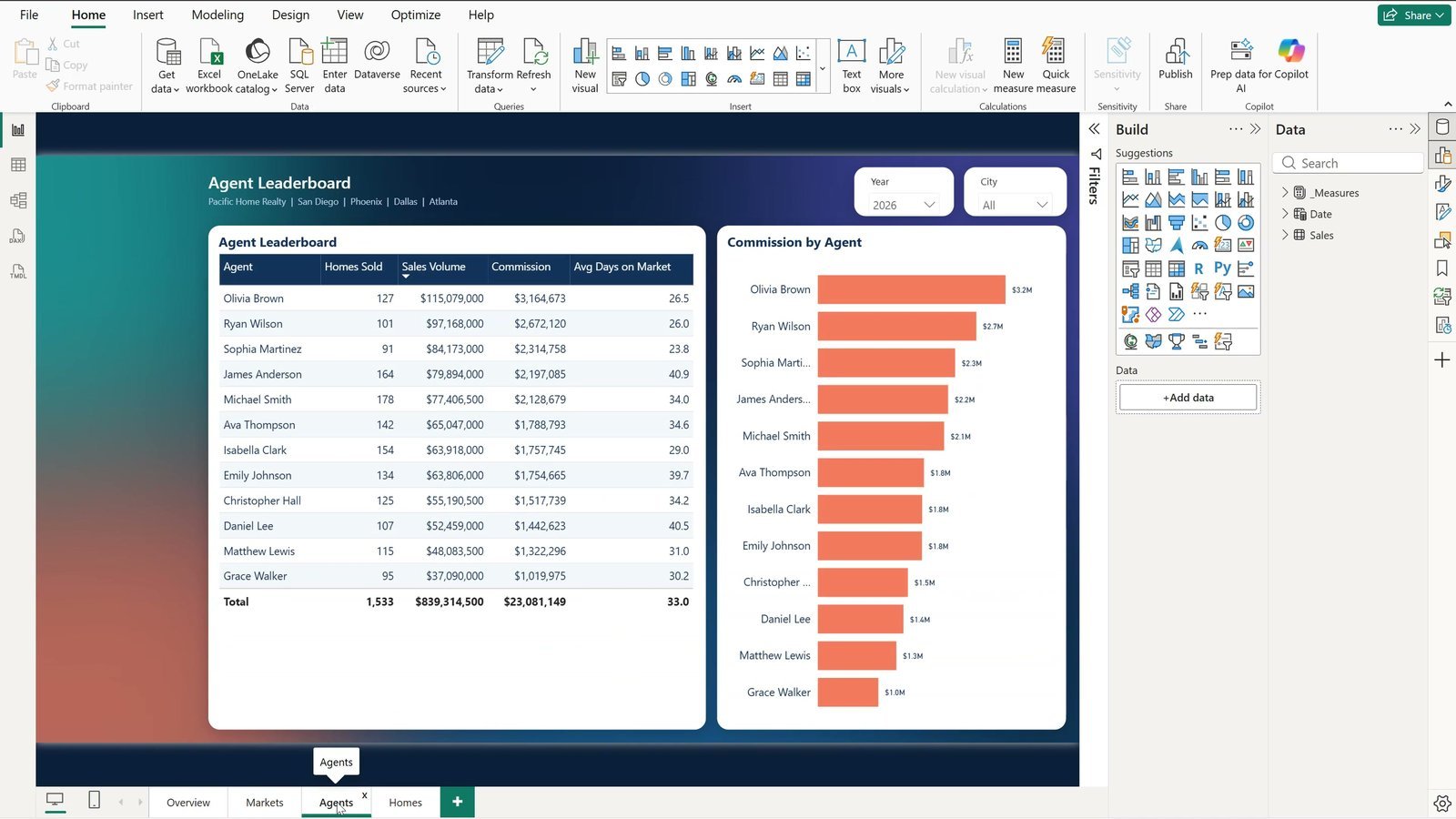
The practice report holds 3,437 closed home sales from four markets – San Diego, Phoenix, Dallas and Atlanta – on four pages: Overview, Markets, Agents and Homes. Every page has a Year and a City slicer. The dark page background is already set (glass needs colour behind it), and the empty space on the left is where the menu goes.
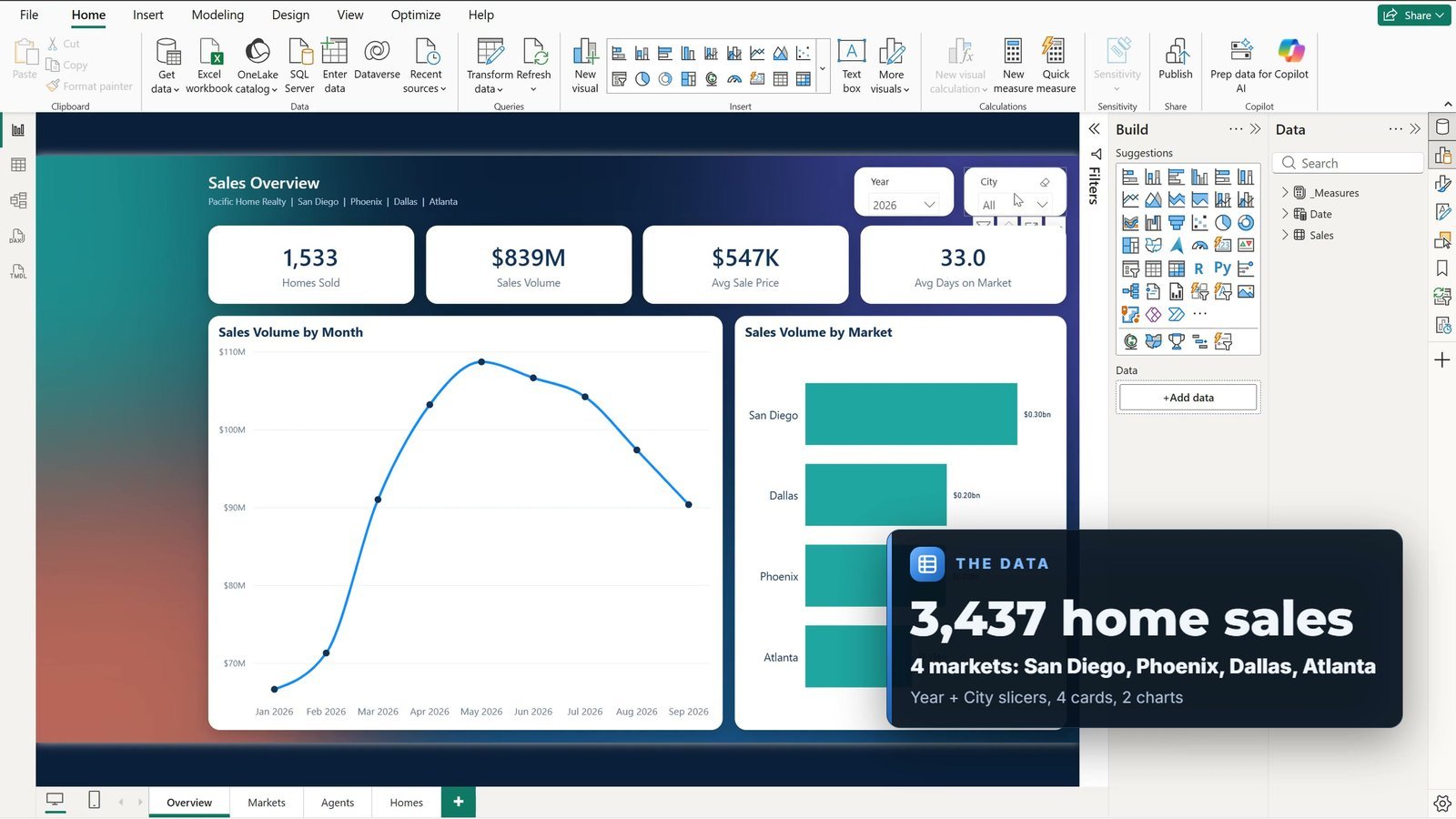
Right now the only way between pages is the row of page tabs at the bottom of Power BI Desktop.
Step 1: The Frosted Glass Pane
- On the Insert tab click Image, open the practice folder and pick Frosted-Nav-Strip.png.
- In the Format pane open Size and style > Size and position: Horizontal 12, Vertical 12, Width 184, Height 696.
- Still under Size and style, turn off Background, Visual border and Shadow.
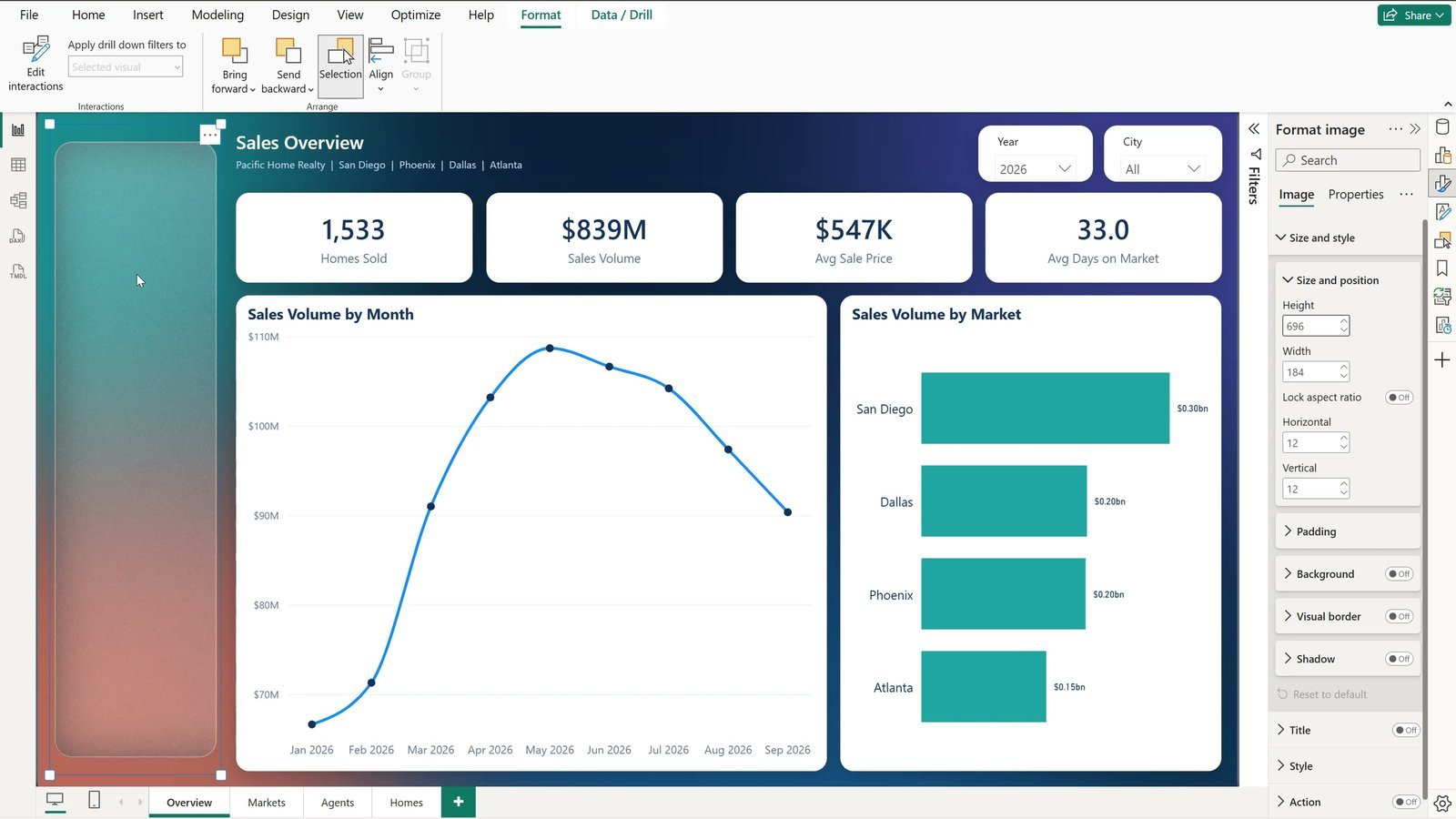
Why it looks like glass: the image is the page background’s own left edge, blurred, with a light white tint – so the colours seem to show through. Power BI has no blur effect of its own; this trick needs none.
Step 2: Add the Power BI Page Navigator
Click an empty part of the page first. Then go to Insert > Buttons > Navigator > Page navigator. Power BI adds one button for every page, all in one row.
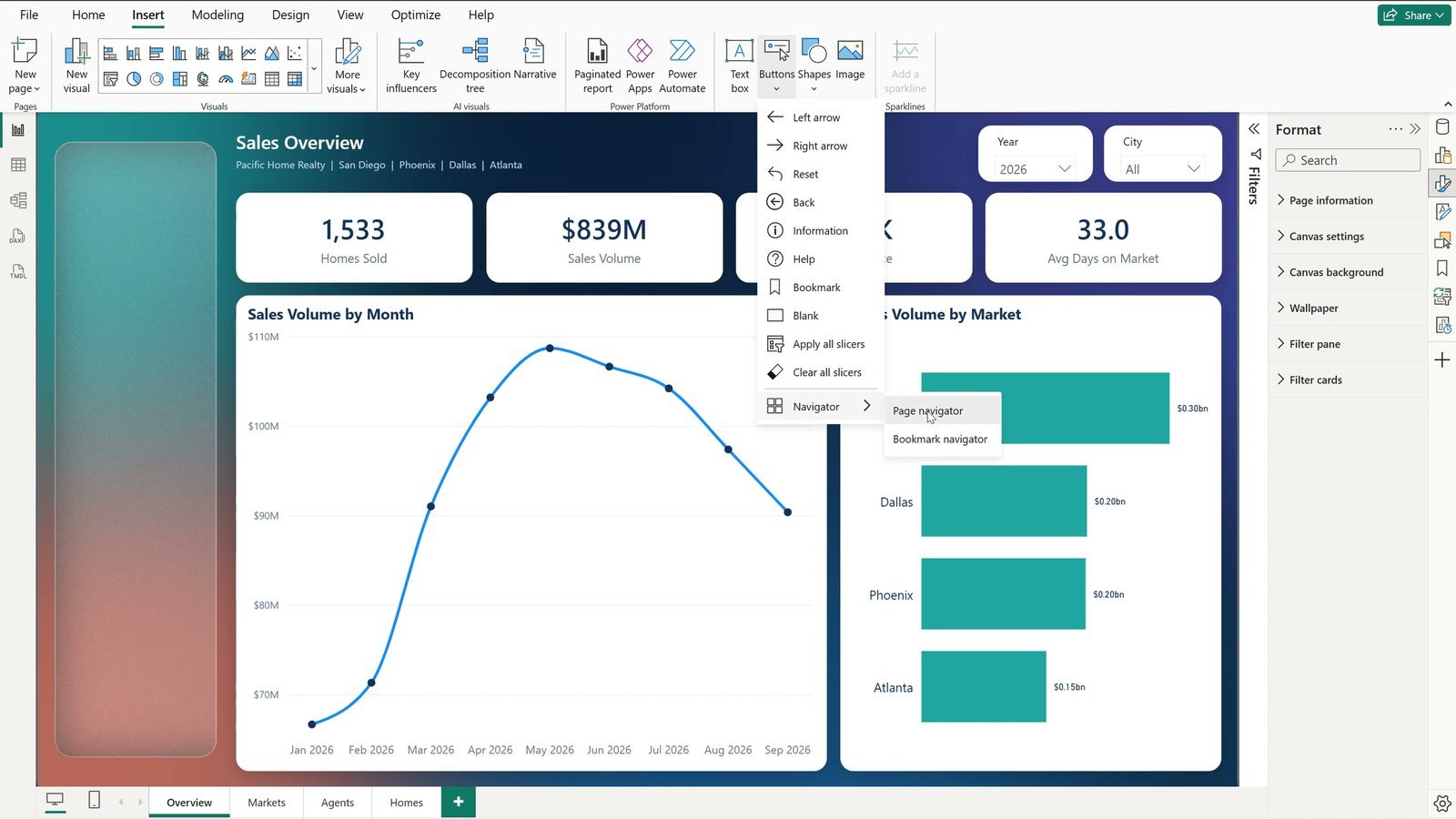
- Format pane, Visual tab, Grid layout: Orientation Vertical, Padding 8.
- Size and style > Size and position: Horizontal 24, Vertical 112, Width 160, Height 216. The four tabs now sit on the glass, one below the other.
- Visual > Pages: Show hidden pages Off and Show tooltip pages Off, so only the four report pages appear.
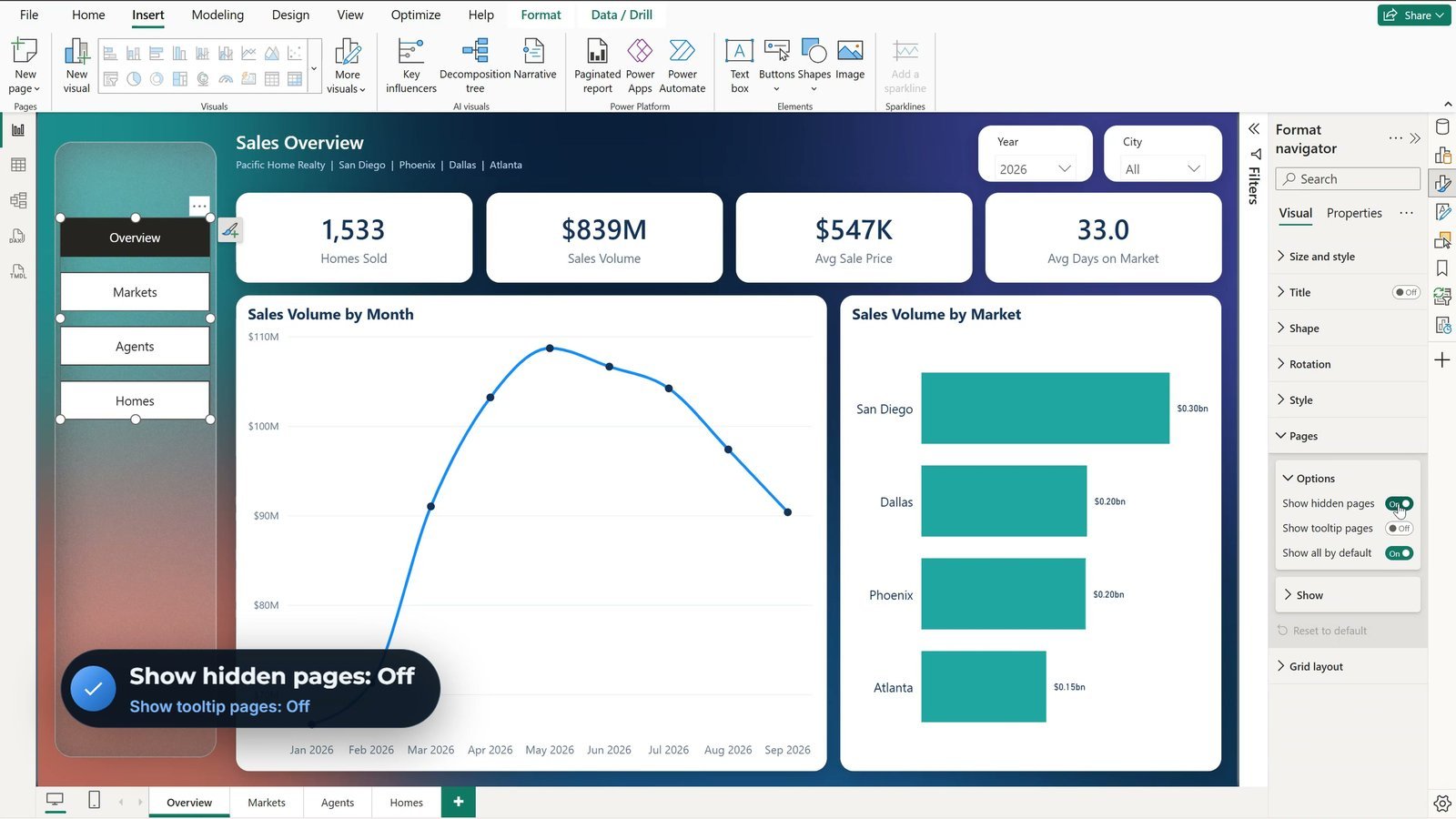
The nice part: the tabs come from the page names, in page order. Rename a page or add a new one and the menu updates by itself – you never edit the buttons by hand.
Step 3: Make the Tabs Look Like Glass
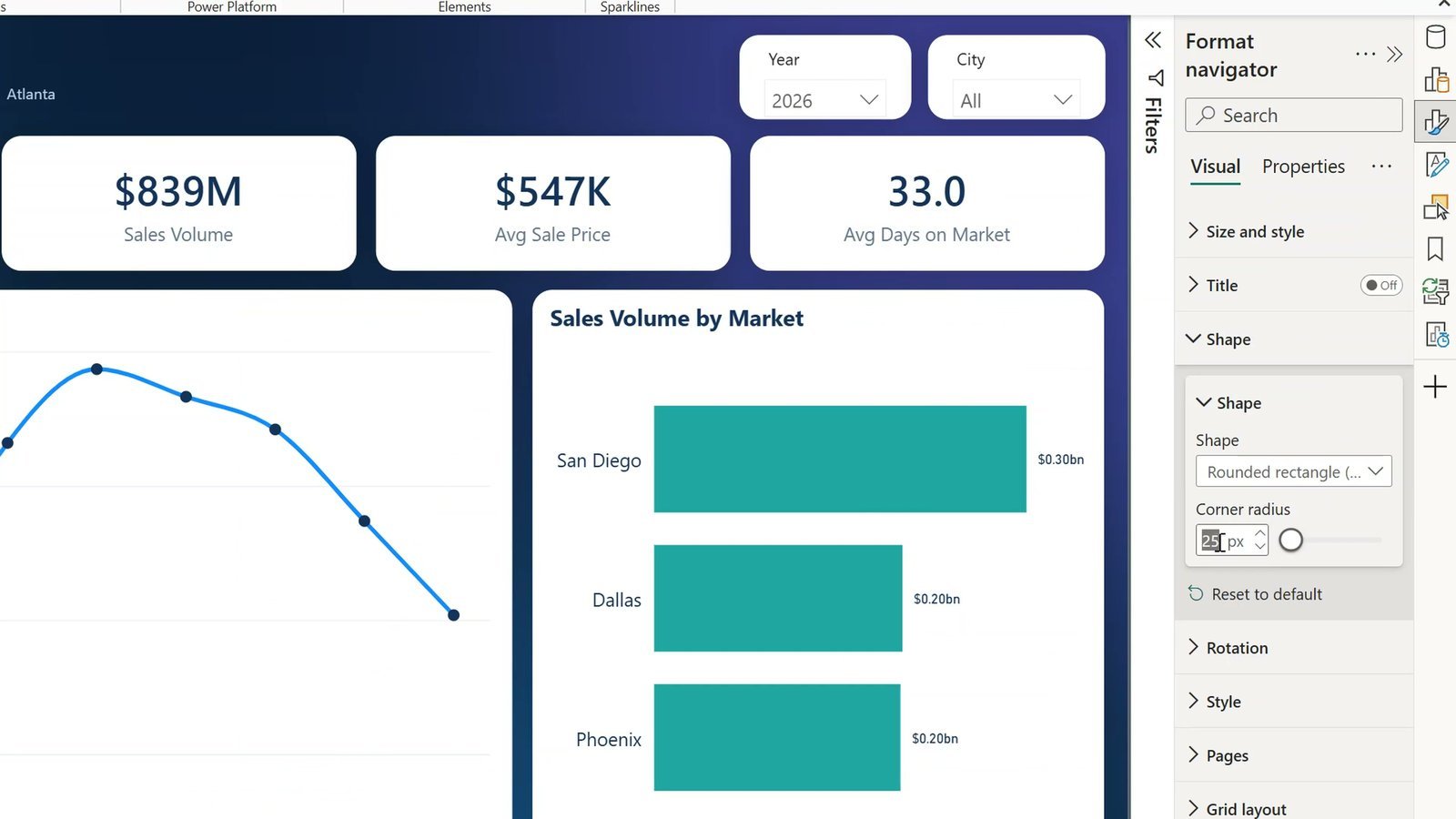
- Open Shape, pick Rounded rectangle and set Rounded corners to 10.
- Open Style. At the top, Apply settings to > State must say Default – this is the normal look of every tab.
- Text: Segoe UI Semibold, size 11, a soft light blue colour, Horizontal alignment Left and Left padding 46 (room for the icons).
- Fill: on, white, Transparency 100%. Border: white, Transparency 100%.
- Size and style: turn off the navigator’s Background, Visual border and Shadow. The tabs now float on the glass.
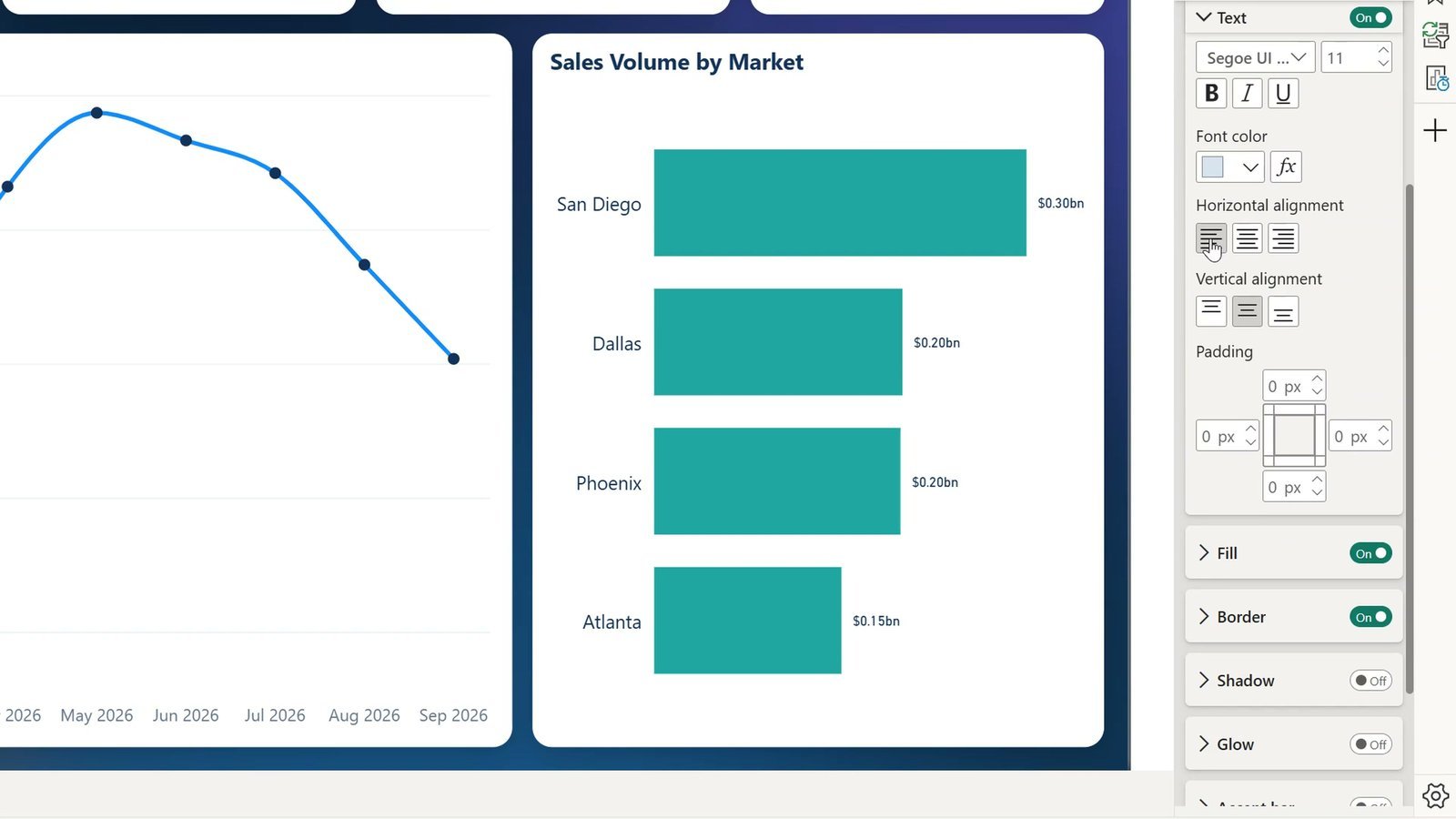
Why not just turn the fill off? A fill at 100% transparency is invisible, but the whole tab still reacts to the mouse, so the hover highlight covers the full tab.
Step 4: Hover, Pressed and Selected States
This is what makes it feel like an app. Go back to Style and change the State each time:
| State | Text | Fill | Border | Accent bar |
|---|---|---|---|---|
| Hover | White | White, 84% transparent | White, 85% transparent, width 1 | – |
| Pressed | White | White, 72% transparent | White, 75% transparent | – |
| Selected | White, bold | White, 78% transparent | White, 55% transparent | On, amber, Left, width 4 |
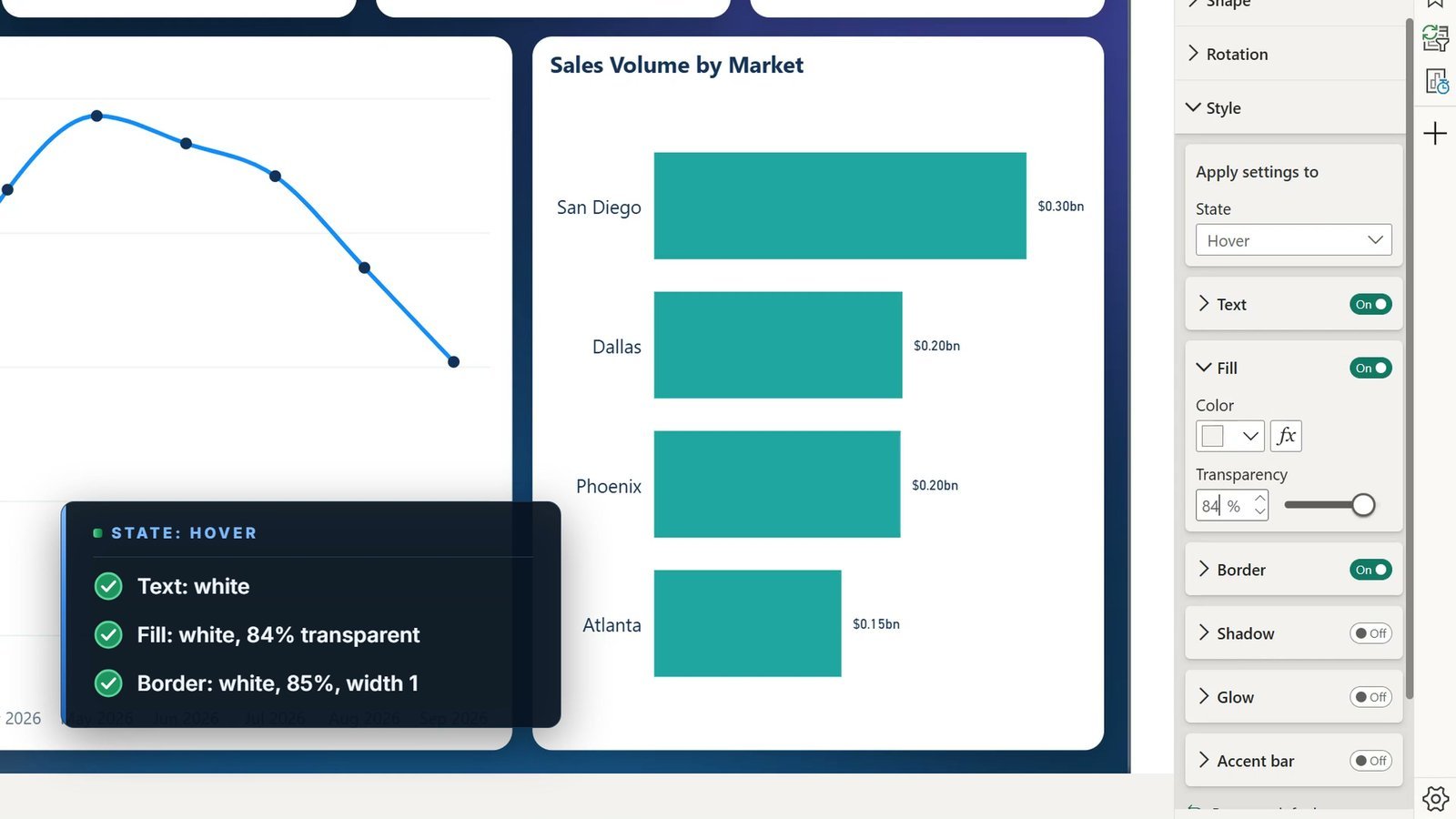
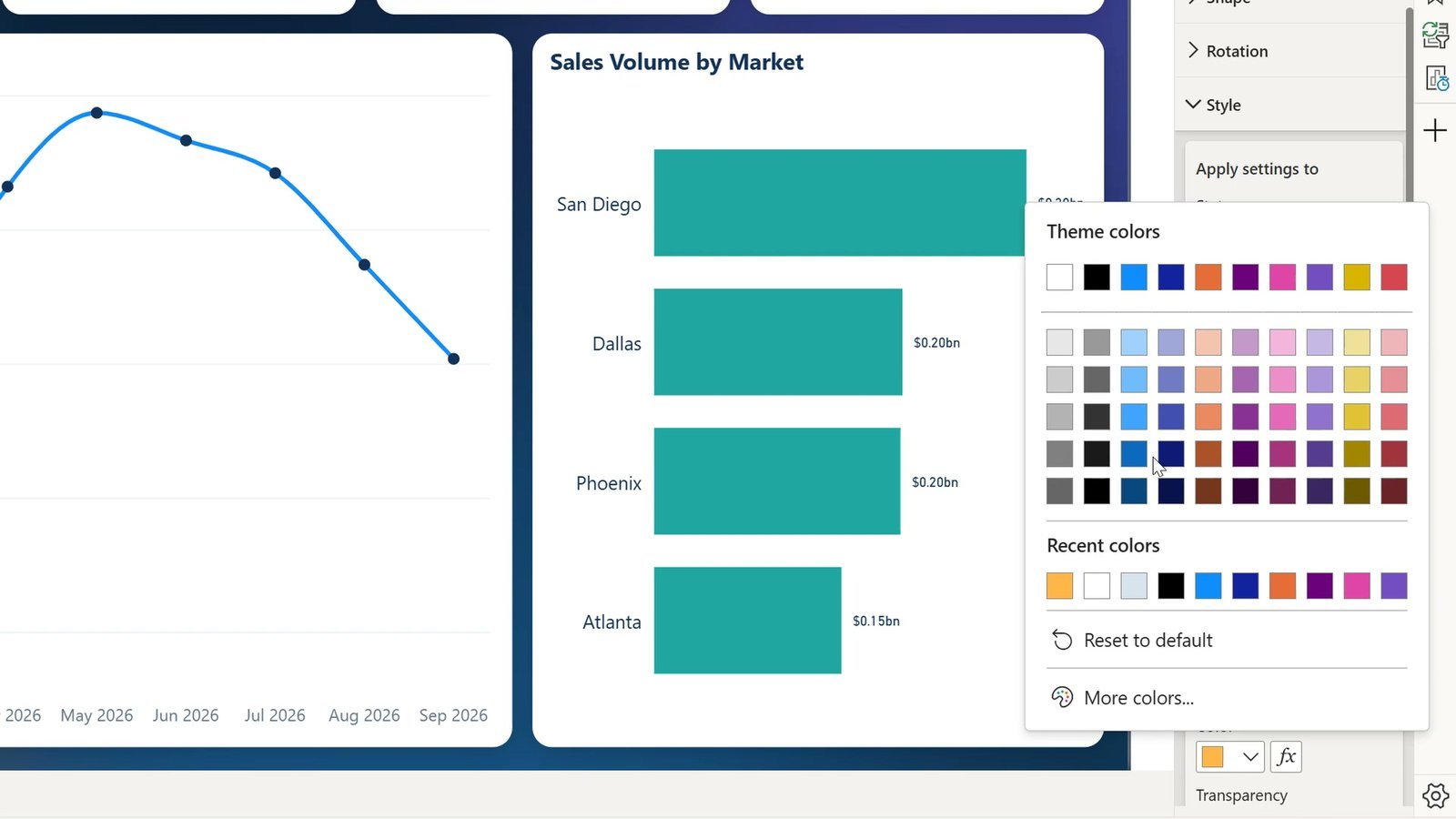
Gotcha: the State box stays on the last state you picked. Always set it back to Default before changing anything that should apply to every tab.
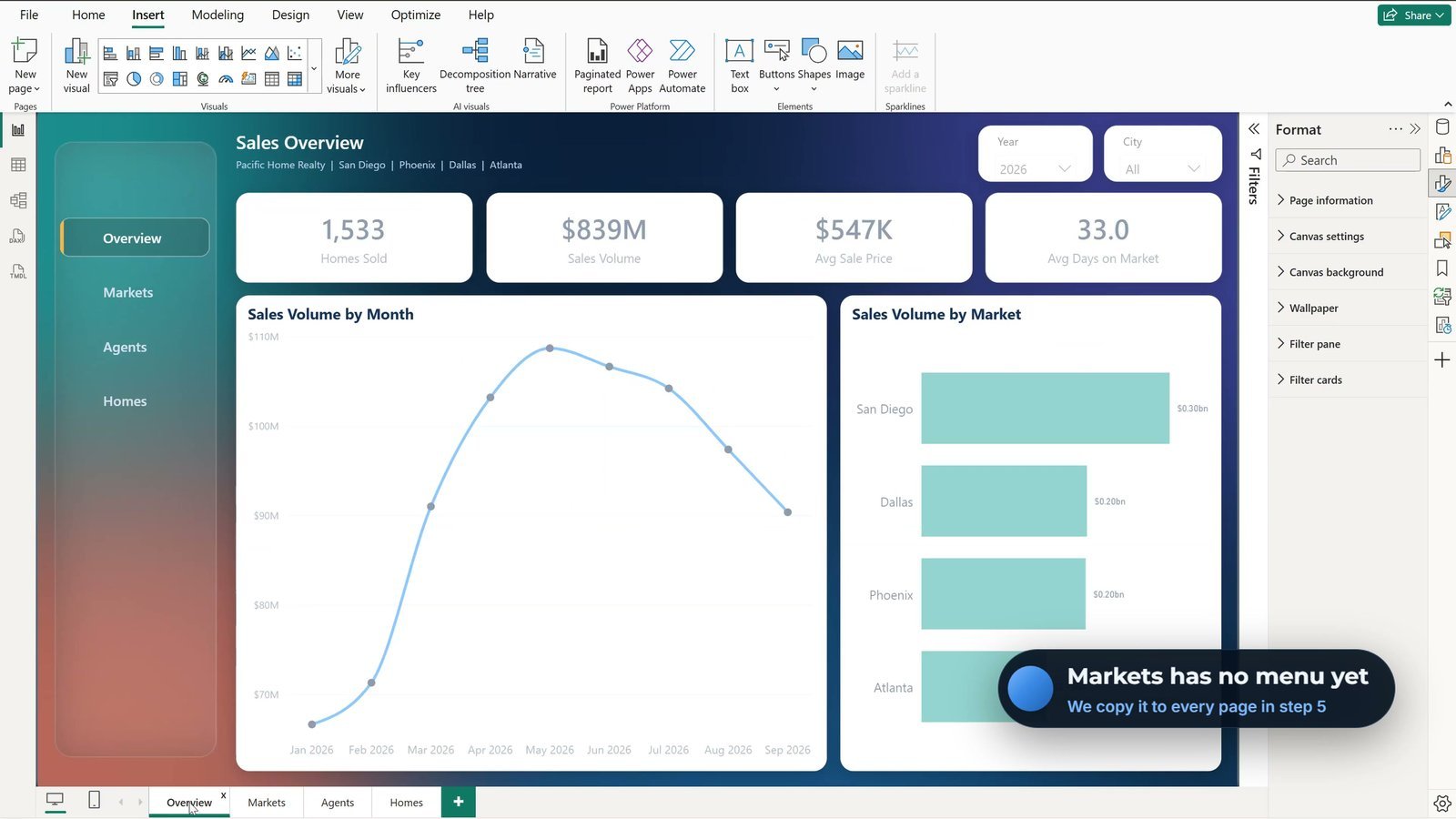
Test it: in Power BI Desktop hold Ctrl and click a tab. Ctrl+click Markets and the page changes (Markets has no menu yet – you copy it there in step 5).
Step 5: Icons, Brand Text and Every Page
- Insert > Image, open the Icons folder and pick overview.png. Size 20 x 20, Horizontal 38, Vertical 126.
- Do the same for markets at Vertical 182, agents at 238 and homes at 294.
The Big Gotcha: Icons Block the Clicks
Ctrl+click the Markets icon now and nothing happens: the icon images sit on top of the navigator and eat the click. The fix: View > Selection, then drag the Page navigator to the top, above the four icons (the icons stay above the glass pane). Ctrl+click the icon again and it works.
Brand Text, Group and Copy
- Add a text box at the top of the glass: Pacific Home Realty in white, size 14, and Sales Hub below it in light blue, size 11.
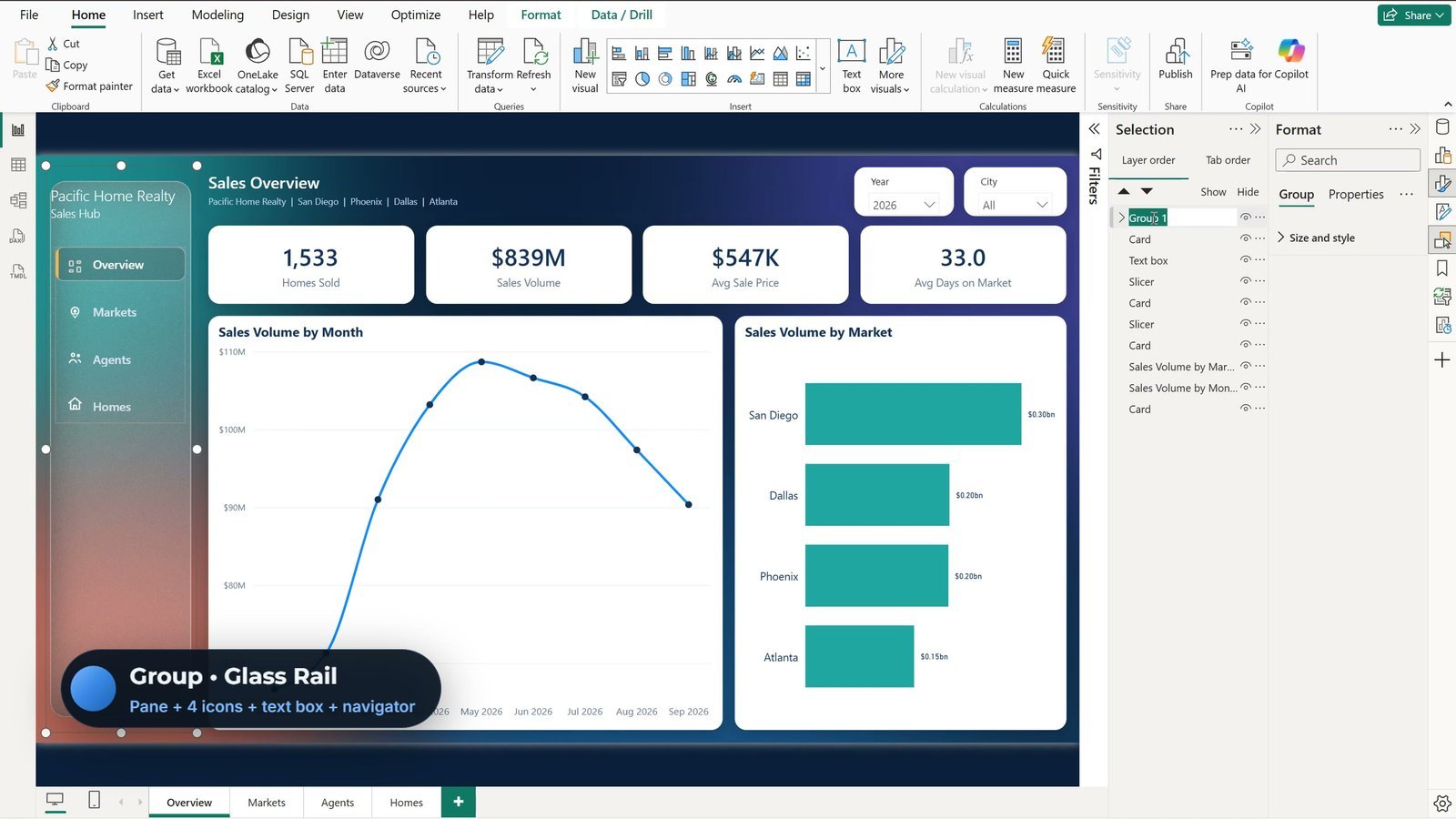
- In the Selection pane, Ctrl+click the glass pane, the four icons, the text box and the navigator, right-click > Group, and rename the group Glass Rail.
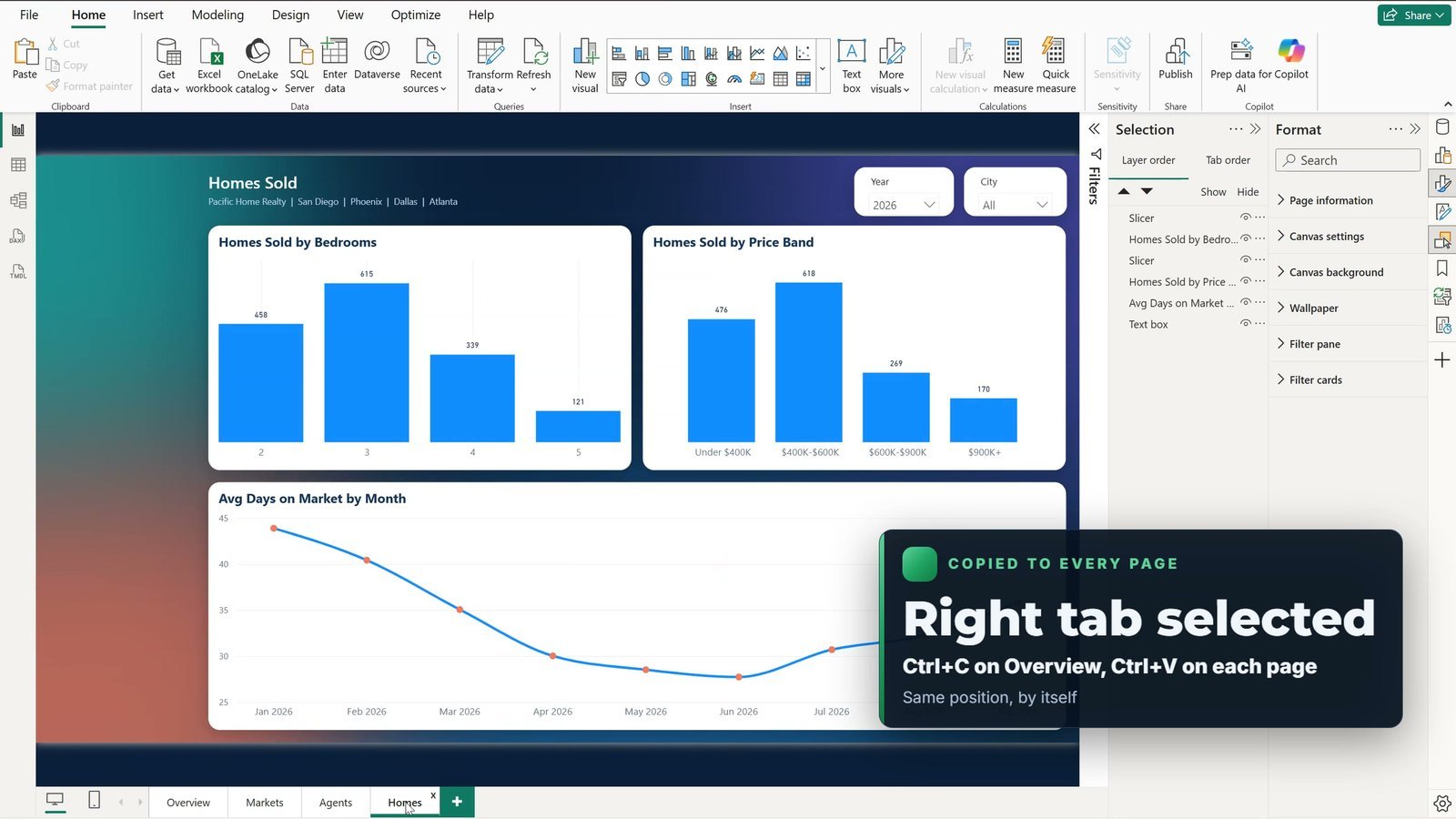
- Press Ctrl+C, go to Markets and press Ctrl+V – Power BI pastes it in the same position. Repeat on Agents and Homes.
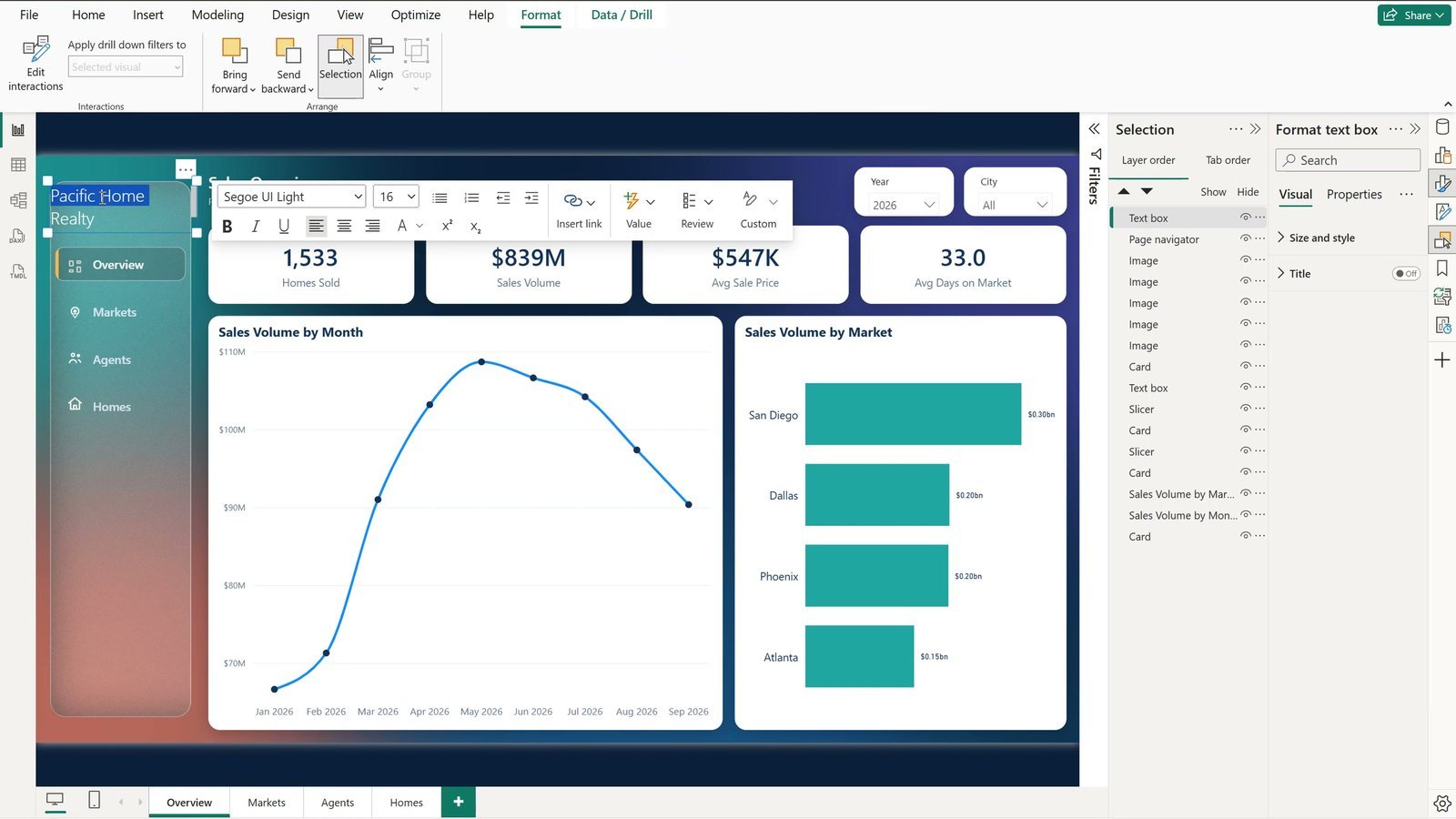
On every page the right tab is already selected, by itself.
Bonus: A Menu That Collapses to Icons
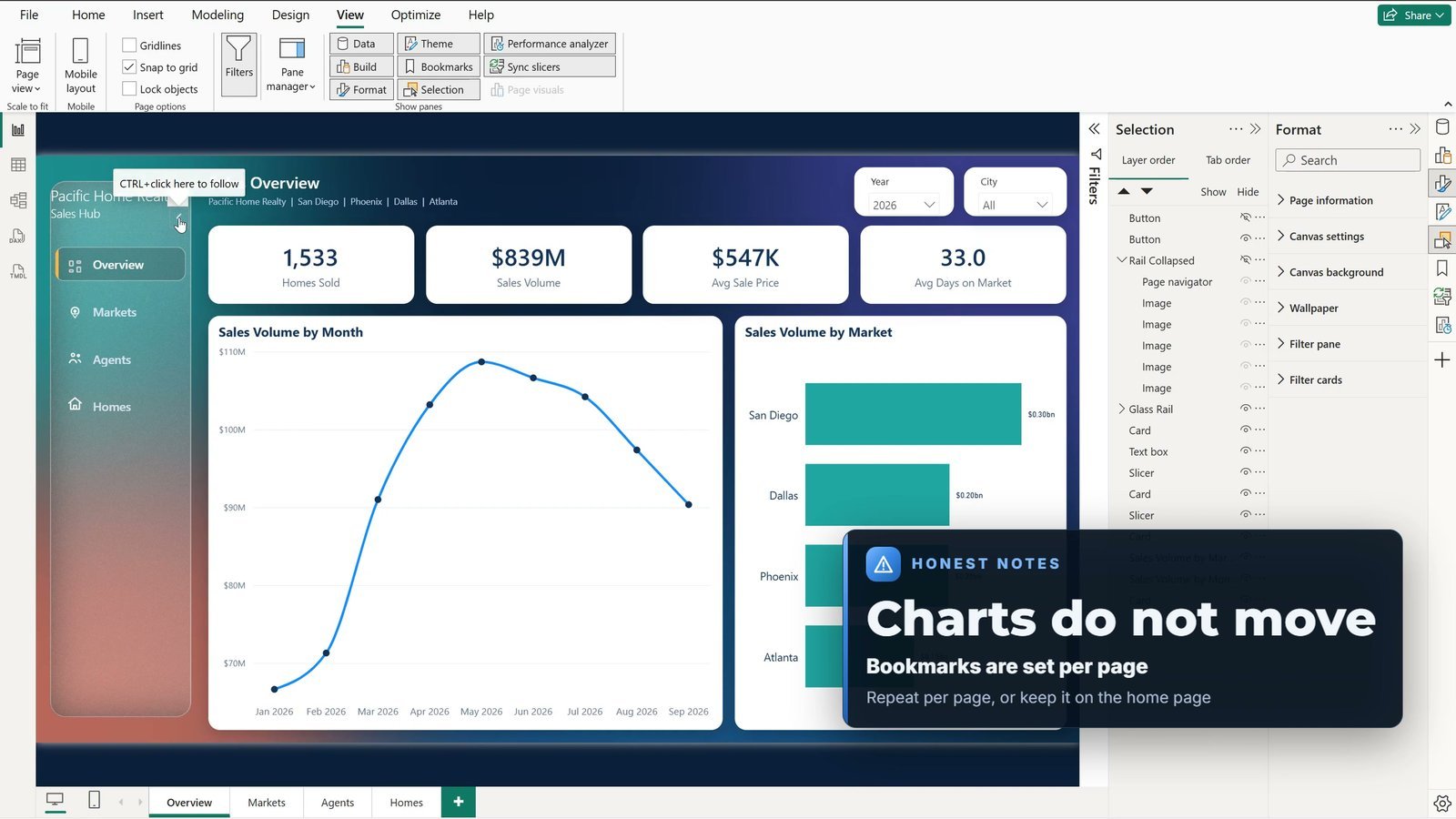
- On Overview, copy the Glass Rail group, paste it and rename the copy Rail Collapsed. Hide Glass Rail in the Selection pane so you can work on the copy.
- In the copy, swap the glass image to Frosted-Nav-Strip-Collapsed.png (width 64), set the navigator width to 56, turn the text off and delete the brand text box. Only the icons show.
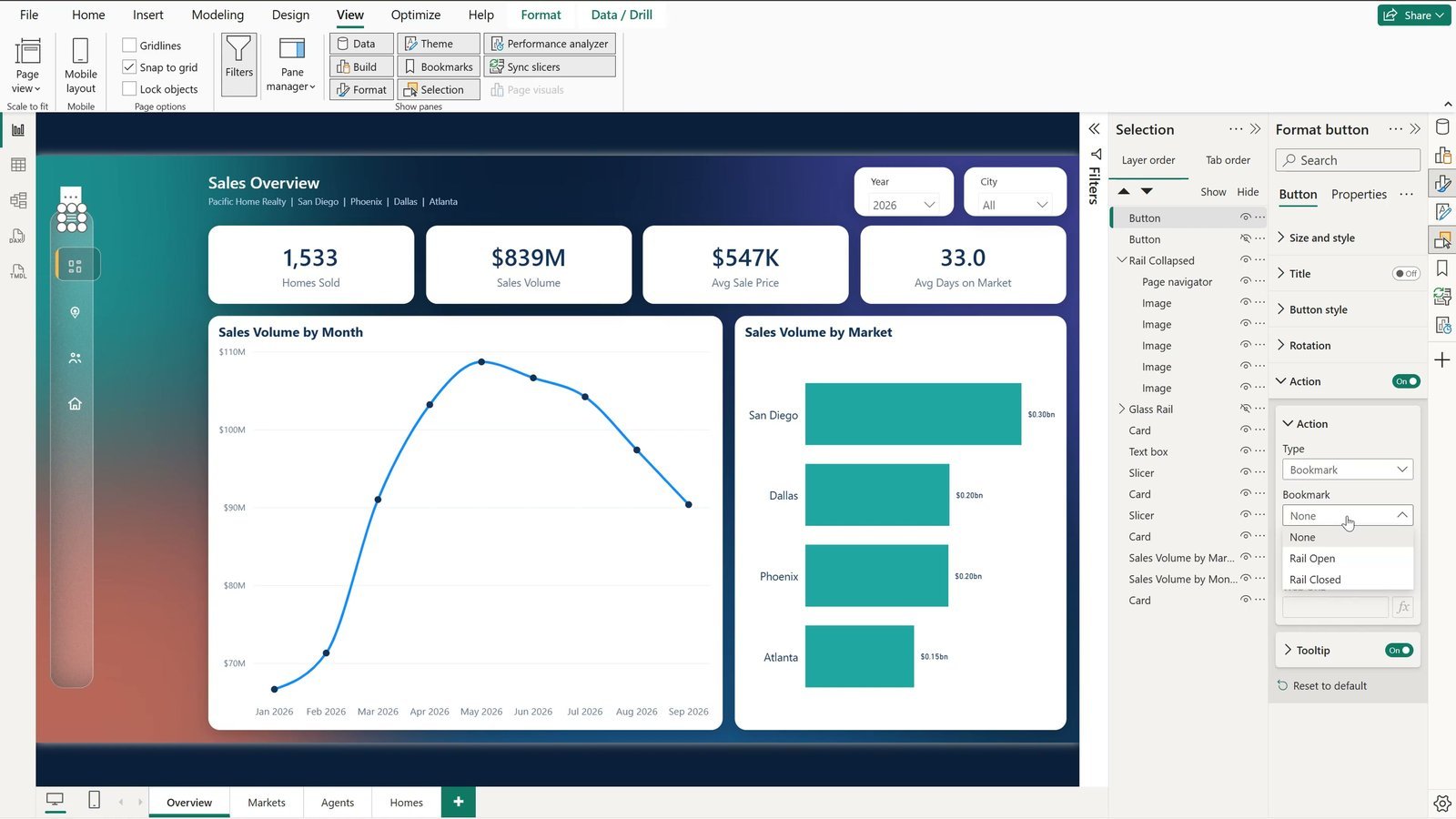
- Insert > Buttons > Blank. Under Button style > Icon choose Custom and pick chevron-left from the Icons folder; put it at the top of Glass Rail. Add a second blank button with the menu icon at the top of Rail Collapsed.
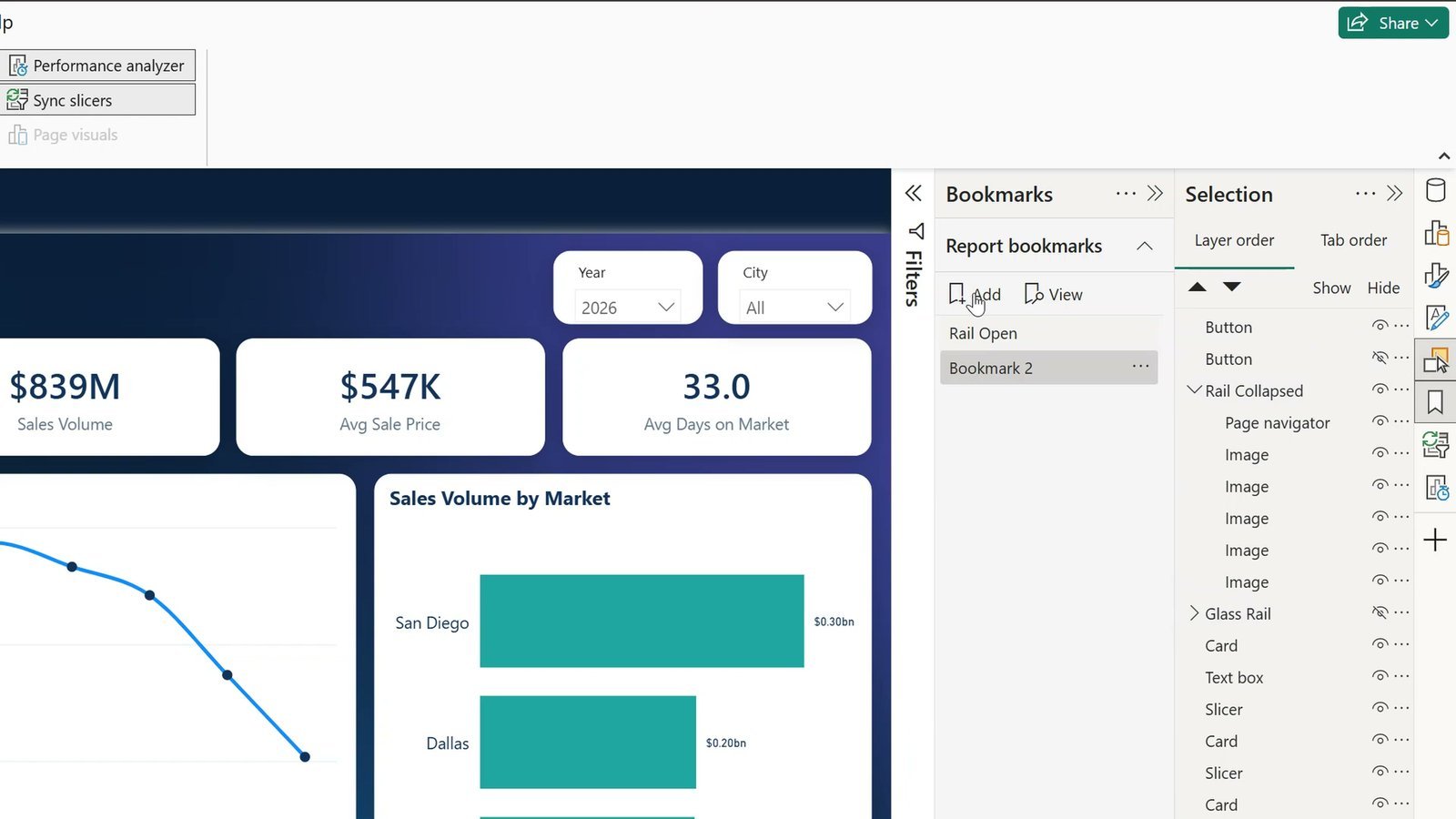
- View > Bookmarks: hide Rail Collapsed and add a bookmark Rail Open; then hide Glass Rail, show Rail Collapsed and add Rail Closed.
- For each bookmark select both rail groups and both buttons, open the three dots, untick Data (your slicer choices are kept), tick Selected visuals and click Update.
- Chevron button: Action On, Type Bookmark, Bookmark Rail Closed. Menu button: Bookmark Rail Open.
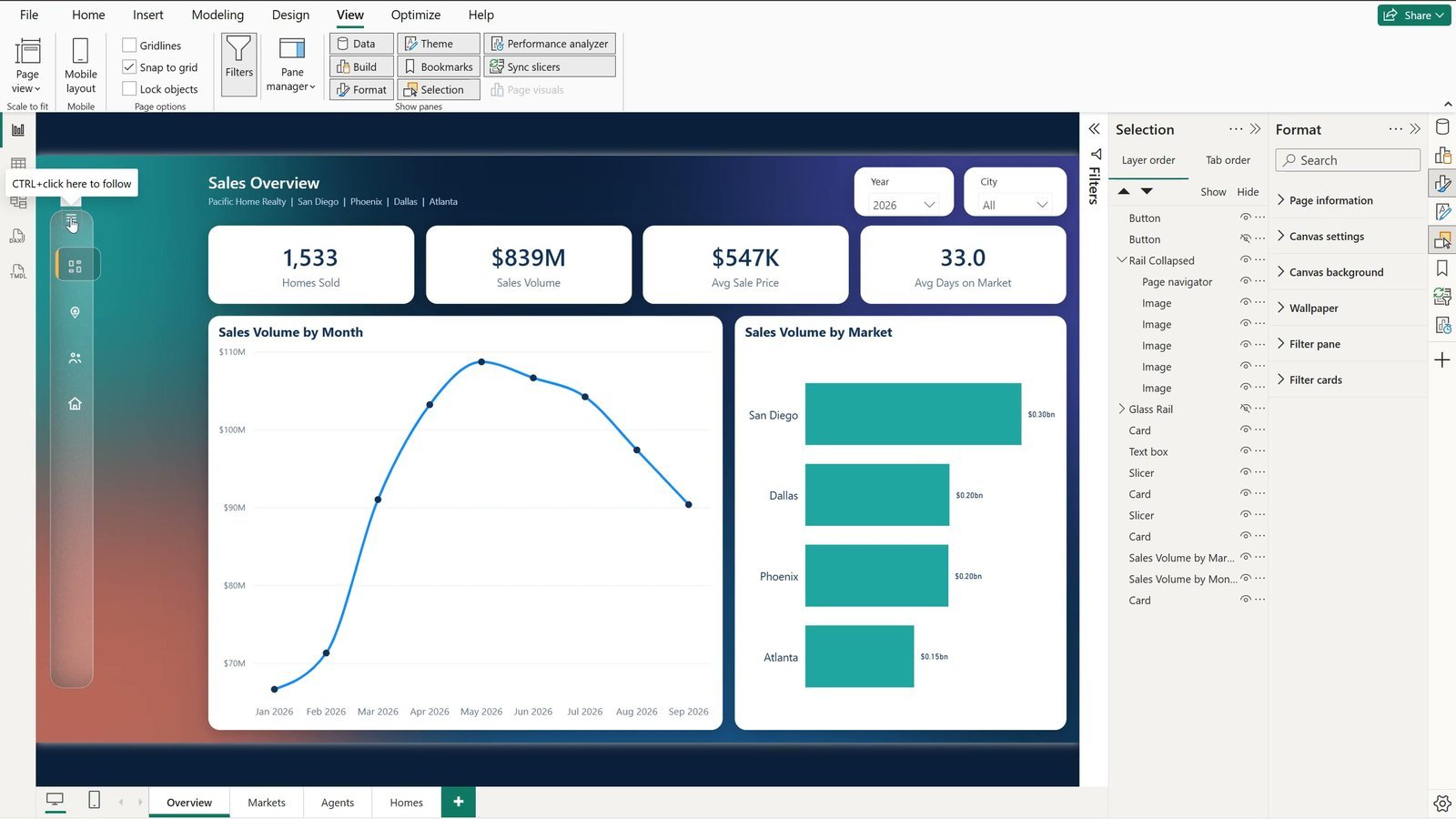
Two honest notes: Power BI does not move the charts when the menu collapses, so keep room on the left; and bookmarks are per page, so repeat this on each page or keep it on your home page only.
Page Navigator vs Other Ways to Navigate
| Method | Set-up | Look and behaviour | Updates itself? |
|---|---|---|---|
| Page tabs at the bottom | None | Small and easy to miss | Yes, but no styling |
| Separate buttons with a Page navigation action | One button per page, by hand | Full control of each button | No – edit every button |
| Page navigator (this tutorial) | One visual | Hover / Pressed / Selected states built in | Yes – follows page names and order |
| Bookmark navigator | One visual | Jumps between saved views, not pages | Yes – follows bookmarks |
Tips
- Keep the menu identical on every page: build it once, group it, then copy and paste – the position is kept.
- Microsoft’s guide to page and bookmark navigators lists every navigator option.
- Restyle the whole report to match the glass with a custom Power BI theme JSON, and see five more app-style moves in Power BI Dashboard Design: Make Your Report Look Like an App.
- For a finished multi-page example, look at the Sporting Goods Dashboard in Power BI.
Want It Ready-Made?
If you would rather start from a finished report, see the Real Estate Dashboard in Power BI on NextGenTemplates.com, and browse the store for more ready-made Power BI dashboards. We also build custom Power BI and Excel dashboards on demand. If you also work in Excel, the Excel Pivot Tables & Dashboards course on Next Gen Templates Academy teaches dashboards step by step.
Frequently Asked Questions
What is the Page navigator in Power BI?
It is a built-in button group (Insert > Buttons > Navigator > Page navigator) that adds one button for every page of the report. The tabs use the page names in page order, so when you rename or add a page the menu updates by itself.
How do I make the Power BI page navigator vertical?
Select the navigator, open the Format pane, go to Visual > Grid layout and set Orientation to Vertical. A padding of 8 gives the tabs some air. Then set the size under Size and style > Size and position (160 x 216 in this file).
How do I get a glass (frosted) effect in Power BI?
Power BI has no blur effect, so the glass is an image: a copy of the page background's own left edge, blurred and lightly tinted white, placed behind the menu. The colors behind it seem to show through. Both frosted strips come free in the download.
Why do the navigator buttons not respond when I click them?
In Power BI Desktop you have to hold Ctrl and click a button; a plain click only selects it. If Ctrl+click still does nothing, an image (such as an icon) sits on top of the navigator and blocks the click – drag the Page navigator above the icons in View > Selection.
How do I change the hover and selected look of the tabs?
In the navigator's Format pane open Style and change Apply settings to > State to Hover, Pressed or Selected, then set Text, Fill and Border for that state. The State box remembers the last state you picked, so set it back to Default before changing anything that should apply to every tab.
Why use a fill at 100% transparency instead of turning the fill off?
A fill at 100% transparency is invisible, but the whole tab still reacts to the mouse, so the hover highlight shows across the full width of the tab, not just over the text.
Can a Power BI menu collapse to icons?
Yes, with bookmarks. Copy the rail, make a narrow icon-only version, add two blank buttons (chevron and menu icons) and two bookmarks, Rail Open and Rail Closed, with Data unticked and Selected visuals ticked. Power BI does not move the charts when the menu collapses, and bookmarks are per page.
Is the practice file free?
Yes. The zip has the practice .pbix to follow along, the solution .pbix, a solution with the bonus collapsible menu, both frosted glass strips, the page background and the icon pack (SVG and PNG). You need Power BI Desktop, which is free.
Download the Practice File
Get the practice report, the solution files, the frosted glass strips and the icon pack in one zip – free.
⬇️ Download the Free Practice File
Practice + Solution .pbix (and a version with the bonus menu), frosted glass strips, icon pack, Pacific Home Realty data · .zip · Power BI Desktop
About the Author
PK (Priyendra Kumar) runs PK: An Excel Expert and NextGenTemplates.com and has been teaching Excel, VBA and Power BI on YouTube for years. Every step in this tutorial was recorded in the real Power BI Desktop with the files you can download above.
Conclusion
A Power BI page navigator with a frosted glass pane, three button states and an icon per page turns a report of hidden pages into something that feels like an app – and because it follows the page names and order, it keeps itself up to date. Download the free file, build it once, and copy the Glass Rail into your own reports.