Part of the free Module 12: Excel VBA Course · Lesson 6 of 18 · Full Excel course
Updated on 5 September 2026 · Works in Excel 365, 2021, 2019 and 2016 unless noted.
The VBA If Then Else statement runs one block of code when a condition is True and a different block when it is False. It is how a macro makes decisions: skip a blank row, colour an overdue cell, stop when the user clicks No. This lesson covers the single-line and block forms, ElseIf, nested If, the And, Or and Not operators, the comparison operators and the IIf function, with complete runnable code.
If Then Else syntax: single-line and block forms
An If statement has two shapes. The single-line If handles one short action and needs no End If. The block If spans several lines, can hold as many statements as you like in each branch, and must always be closed with End If. The condition is any expression that evaluates to True or False, usually a comparison built with =, <>, >, <, >= or <=.
Option Explicit   ' put this line once at the very top of the module

Sub CheckStock()
    Dim qty As Long
    qty = 7

    ' Single-line If: one action, no Else, no End If
    If qty < 10 Then MsgBox "Reorder soon"

    ' Block If: several statements per branch, closed with End If
    If qty < 10 Then
        MsgBox "Reorder soon"
        ActiveSheet.Range("A1").Value = "Low"
    Else
        MsgBox "Stock is fine"
        ActiveSheet.Range("A1").Value = "OK"
    End If
End Sub
Option Explicit belongs at the top of the module, above every procedure; the later examples on this page assume it is already there. The Else part is optional. When you leave it out and the condition is False, VBA simply continues with the line after End If.
If Then Else with a MsgBox answer
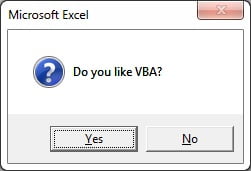
A common first use is branching on the button a user clicks in a MsgBox. With the vbYesNo buttons, Yes returns the constant vbYes (6) and No returns vbNo (7), so the If statement compares the result with those constants.
Sub IF_Else_Then()
    Dim s As VbMsgBoxResult
    s = MsgBox("Do you like VBA?", vbQuestion + vbYesNo)

    If s = vbYes Then
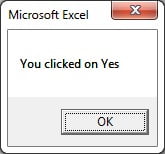
        MsgBox "You clicked on Yes"
    Else
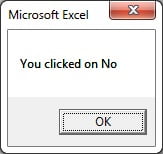
        MsgBox "You clicked on No"
    End If
End Sub
Only one of the two MsgBox lines runs, depending on the button the user clicked.
ElseIf: test several conditions in order
ElseIf adds further tests that VBA checks only when the earlier ones were False. The first True branch runs and every remaining branch is skipped, so order the tests from most specific to least specific. A final Else catches everything that did not match.
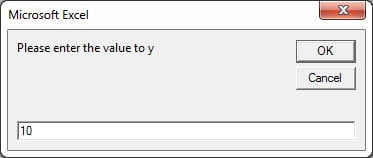
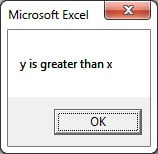
Sub IF_And_ElseIF()
    Dim x As Double, y As Double
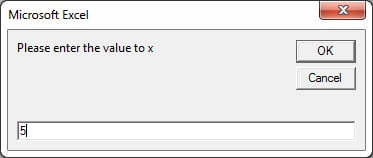
    x = Val(InputBox("Please enter the value of x"))
    y = Val(InputBox("Please enter the value of y"))

    If x > y Then
        MsgBox "x is greater than y"
    ElseIf y > x Then
        MsgBox "y is greater than x"
    Else
        MsgBox "x is equal to y"
    End If
End Sub
Val converts the typed text to a number. The three branches cover greater, smaller and equal, so exactly one message always appears.
Comparison operators used in If conditions
Every If condition is built from comparison operators. They work on numbers, dates and text, and each one returns True or False.
| Operator | Meaning | Example | Result |
|---|---|---|---|
= |
Equal to | If x = 10 Then |
True when x is exactly 10 |
<> |
Not equal to | If status <> "Closed" Then |
True for any value except Closed |
> |
Greater than | If sales > 500 Then |
True for 501 and above |
< |
Less than | If due < Date Then |
True when the date is in the past |
>= |
Greater than or equal | If score >= 40 Then |
True for 40 and above |
<= |
Less than or equal | If age <= 17 Then |
True for 17 and below |
Like |
Pattern match | If code Like "INV-####" Then |
True for INV- followed by four digits |
Is |
Same object | If rng Is Nothing Then |
True when the object variable is not set |
Text comparisons with = are case-sensitive by default, so "yes" = "YES" is False. Wrap both sides in UCase or add Option Compare Text at the top of the module to ignore case.
And, Or and Not: combining conditions
Join tests with And (both must be True), Or (either may be True) and Not (reverses the result). Use brackets when you mix And with Or, because And is evaluated before Or and the unbracketed version rarely means what you intended.
Sub CheckOrder()
    Dim sales As Double, region As String, isClosed As Boolean
    sales = 1250
    region = "North"
    isClosed = False

    If sales >= 1000 And region = "North" Then MsgBox "North bonus applies"
    If region = "North" Or region = "South" Then MsgBox "Domestic order"
    If Not isClosed Then MsgBox "Order is still open"
    If (sales >= 1000 Or region = "West") And Not isClosed Then MsgBox "Priority review"
End Sub
Unlike many languages, VBA does not short-circuit: it evaluates every part of the expression even when the first part already decides the result. That matters when a later test could raise an error, which is exactly when you should nest instead.
Nested If: one test inside another
A nested If places a complete If block inside a branch of another. The inner test only runs when the outer condition is True, which makes it the safe way to check a cell is not empty before you test whether it is numeric.
Sub SafeTotal()
    Dim cell As Range
    Dim total As Double

    For Each cell In ActiveSheet.Range("B2:B20")
        If Not IsEmpty(cell.Value) Then
            If IsNumeric(cell.Value) Then
                total = total + cell.Value
            End If
        End If
    Next cell

    MsgBox "Total of numeric cells: " & total
End Sub
Keep nesting to two or three levels. Beyond that, move the inner logic into its own procedure or switch to Select Case.
The IIf function: an If in one expression
IIf(condition, valueIfTrue, valueIfFalse) returns one of two values and is handy inside an assignment or a string. It is a function, not a statement, so it cannot run blocks of code, and it always evaluates both values even though it returns only one. Never use it when the unused branch could divide by zero or reference a missing object.
Sub DueStatus()
    Dim due As Date
    Dim status As String

    due = DateSerial(2026, 8, 31)
    status = IIf(due < Date, "Overdue", "Open")
    MsgBox "This invoice is " & status
End Sub
Worked example: grade every row with If and ElseIf
Suppose a sheet named Data holds sales figures in column B, and you want a grade in column C: A for 1000 or more, B for 500 to 999, C for anything above 0, and a flag for blanks or text.
| A: Rep | B: Sales | C: Grade (result) |
|---|---|---|
| Anita | 1450 | A |
| Ben | 720 | B |
| Chen | 310 | C |
| Dev | 0 | No sale |
| Ella | n/a | Check |
Sub Grade_Sales()
    Dim sh As Worksheet
    Dim lastRow As Long, i As Long
    Dim sales As Double

    Set sh = ThisWorkbook.Worksheets("Data")
    lastRow = sh.Cells(sh.Rows.Count, "B").End(xlUp).Row
    If lastRow < 2 Then Exit Sub                     ' no data

    For i = 2 To lastRow
        If IsNumeric(sh.Cells(i, "B").Value) Then
            sales = sh.Cells(i, "B").Value
            If sales >= 1000 Then
                sh.Cells(i, "C").Value = "A"
            ElseIf sales >= 500 Then
                sh.Cells(i, "C").Value = "B"
            ElseIf sales > 0 Then
                sh.Cells(i, "C").Value = "C"
            Else
                sh.Cells(i, "C").Value = "No sale"
            End If
        Else
            sh.Cells(i, "C").Value = "Check"
        End If
    Next i
End Sub
The macro finds the last used row, exits early with a single-line If when there is no data, then runs an If/ElseIf ladder inside a For loop. The outer IsNumeric test stops text such as n/a from causing a type mismatch, and the column C results match the table above.
Tips and common mistakes
- Order matters in an ElseIf ladder. Testing
> 0before>= 1000would grade every row C because the first True branch wins. - Compare numbers as numbers. InputBox returns text, and as text “9” is greater than “10”. Convert with
ValorCDblbefore comparing. - Text comparisons are case-sensitive. Use
UCase(x) = "YES"or putOption Compare Textat the top of the module. - Do not rely on short-circuiting.
If rng Is Nothing Or rng.Value = 0still evaluatesrng.Valueand fails when rng is Nothing. Nest the tests instead. - Switch to Select Case when one variable is compared with many values; it reads far better than five ElseIf lines.
- Do not compare Booleans with True.
If isClosed Thenis cleaner thanIf isClosed = True Thenand behaves identically. - Indent every branch so each If lines up with its End If. The editor does not enforce it, but your eyes depend on it when a block runs to forty lines.
Errors and how to fix them
| Error | Cause | Fix |
|---|---|---|
| Compile error: Block If without End If | A multi-line If has no closing End If, or a single-line If was split across lines | Add End If, or put the whole single-line If on one line |
| Compile error: End If without Block If | An End If follows a single-line If that already completed | Remove the stray End If or convert the If to block form |
| Compile error: Else without If | Else appears after a single-line If or outside any block | Rewrite the statement as a block If |
| Run-time error 13: Type mismatch | Comparing text with a number, for example a cell containing n/a with 500 | Test with IsNumeric first, or convert with Val |
| Run-time error 91: Object variable not set | An object test such as rng.Value runs while rng is Nothing | Check If rng Is Nothing in an outer If before using the object |
| Condition is never True | Case difference in text, or trailing spaces from the sheet | Compare UCase(Trim(x)) or use Option Compare Text |
Practice exercise
- Modify
Grade_Salesso grade A rows get a green fill and Check rows get a yellow fill (useInterior.Color). - Add an And condition so a row is graded only when column D contains Closed; otherwise write Pending in column C.
- Write a macro that asks for a percentage with InputBox and returns Distinction for 75 or above, Pass for 40 to 74 and Fail below 40, rejecting non-numeric input with a message.
- Rewrite the three-grade macro from task 3 as a single
IIfexpression nested inside another IIf, then decide which version is easier to read. - Loop through A2:A50 and, with a nested If, count the cells that are not empty and contain a date earlier than today.
Key takeaways
- A single-line If holds one action and needs no End If; a block If must always end with End If.
- ElseIf runs the first True branch and skips the rest, so order the tests carefully and finish with Else.
- And, Or and Not combine conditions, but VBA evaluates every part, so nest tests that depend on earlier ones.
- Comparison operators return True or False and text comparison is case-sensitive unless you use UCase or Option Compare Text.
- IIf returns one of two values in an expression and evaluates both, so keep it for simple value choices.
- When one variable is compared with many values, Select Case is clearer than a long ElseIf ladder.
Watch the If Then Else video tutorial
Click here to download the practice file.
Related lessons
- Excel VBA course hub
- Select Case statement
- MsgBox and InputBox
- Loops in VBA
- Error handling in VBA
- Excel formulas course and the worksheet COUNTIF function
- If…Then…Else statement reference on Microsoft Learn
Frequently asked questions
What is the difference between If Then Else and IIf in VBA?
If Then Else is a statement that runs whole blocks of code and can contain ElseIf branches. IIf is a function that returns one of two values inside a single expression. IIf always evaluates both values, so it is unsuitable when the unused branch could raise an error, such as a division by zero or a reference to an object that is Nothing.
How many ElseIf clauses can I use in one If statement?
There is no practical limit. VBA checks the branches from top to bottom and runs the first one whose condition is True. When you reach four or five ElseIf lines that all test the same variable, Select Case is easier to read and to maintain, and it performs the same job.
Why do I get the error Block If without End If?
The compiler found an If that starts a multi-line block but never met its End If. Either add the missing End If, or, if you meant a single-line If, put the condition and the action on the same line. Every If followed by a line break must be closed with End If.
Does VBA short-circuit And and Or conditions?
No. VBA evaluates every part of a condition even when the first part already decides the outcome. An expression such as rng Is Nothing Or rng.Value = 0 still reads rng.Value and fails when rng is Nothing. Put the dependent test inside a nested If so it only runs when it is safe.
How do I write an If statement based on a cell value in Excel VBA?
Read the cell with Range or Cells and compare it in the condition, for example If Range("A1").Value > 100 Then. Test IsEmpty or IsNumeric first if the cell might be blank or hold text, and loop with For or For Each to apply the same If to a whole column.
Want the finished version? Ready-made Excel dashboards, trackers and VBA systems are available at NextGenTemplates.com.