Part of the free Module 12: Excel VBA Course · Lesson 15 of 18 · Full Excel course
VBA can use Excel’s worksheet functions in three ways: write a formula into a cell with the Formula property, call the function directly with Application.WorksheetFunction, or use VBA’s own built-in functions such as Left, Mid and Format. In this lesson you will learn when to use each approach, how to fill a VLOOKUP down a column with VBA, and how to avoid the run-time error that WorksheetFunction raises on #N/A.
Three ways to calculate in VBA
Formula property: the cell receives a live Excel formula that keeps recalculating after the macro ends; use it when the sheet should stay dynamic. Application.WorksheetFunction: VBA runs the function itself and you store the result as a value; use it inside loops and calculations where no formula should remain. VBA functions: hundreds of native functions for text, dates, numbers and files that need no worksheet at all. Knowing which to pick keeps macros fast and workbooks free of unnecessary formulas.
Write an Excel formula with the Formula property
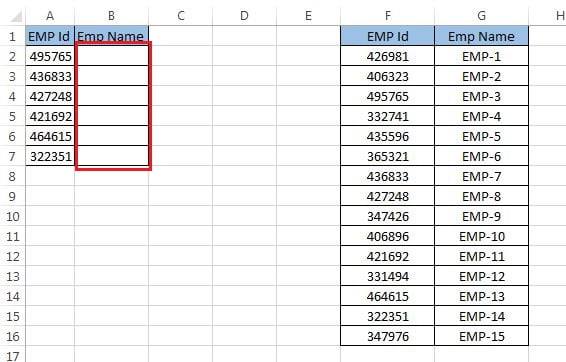
Column A holds employee IDs and F:G is a lookup table of IDs and names. We need the name in column B.
Sub Excel_Formula()
    Dim sh As Worksheet
    Dim last_Row As Long
    Set sh = ThisWorkbook.Sheets("Sheet1")

    last_Row = sh.Cells(sh.Rows.Count, "A").End(xlUp).Row
    sh.Range("B2").Formula = "=VLOOKUP(A2,F:G,2,0)"
    sh.Range("B2:B" & last_Row).FillDown
End Sub
The formula text is exactly what you would type in the cell, in English function names with comma separators; FillDown copies it to the last row and the relative reference A2 adjusts automatically.
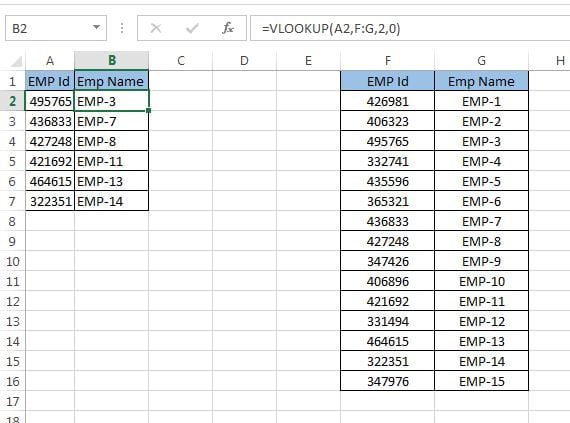
Two variations are worth knowing. FormulaR1C1 uses relative notation, "=VLOOKUP(RC[-1],C6:C7,2,0)", so one string works for every row and can be assigned to the whole range at once. Formula2 (Excel 365) writes dynamic-array formulas such as XLOOKUP and FILTER without the implicit-intersection @ sign.
Call a function with Application.WorksheetFunction
Sub Worksheet_Function()
    Dim sh As Worksheet
    Dim last_Row As Long, i As Long
    Set sh = ThisWorkbook.Sheets("Sheet1")
    last_Row = sh.Cells(sh.Rows.Count, "A").End(xlUp).Row

    For i = 2 To last_Row
        sh.Range("B" & i).Value = Application.WorksheetFunction.VLookup( _
            sh.Range("A" & i).Value, sh.Range("F:G"), 2, 0)
    Next i
End Sub
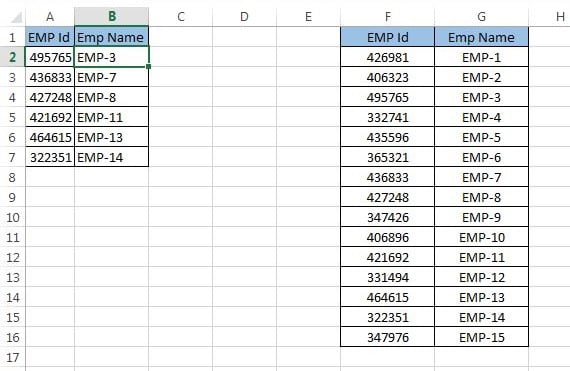
Each iteration performs the lookup in VBA and writes the result as a plain value, so column B contains names, not formulas.
WorksheetFunction stops the macro with run-time error 1004 when the function would return an error such as #N/A. To handle misses gracefully drop the WorksheetFunction part and test the result:
Dim result As Variant
result = Application.VLookup(sh.Range("A" & i).Value, sh.Range("F:G"), 2, 0)
If IsError(result) Then result = "Not found"
sh.Range("B" & i).Value = result
Application.VLookup returns an error value instead of raising one, and IsError lets you substitute a friendly message.
VBA’s built-in functions
Sub VBA_Function()
    MsgBox Left("PK-AnExcelExpert.com", 2)          'PK
    MsgBox UCase(Mid("PK-AnExcelExpert.com", 4, 12)) 'ANEXCELEXPER
    MsgBox Format(Date, "dd-mmm-yyyy")               'today formatted
    MsgBox InStr("PK-AnExcelExpert.com", "Excel")    '6
End Sub
These functions run inside VBA with no worksheet involved and are the fastest choice for string and date handling in loops. A reference list of the most useful ones follows.
| VBA Formula | Description | Example | Return |
|---|---|---|---|
| Format | Applies a format to given value and returns the result as a string. | VBA.Format(0.65, "0%") | 65% |
| InStr | Returns the place of a substring within a string. | VBA.InStr("PK-AnExcelExpert.com", "Excel") | 6 |
| Left | Returns a substring from the start of a given string. | VBA.Left("PK-AnExcelExpert.com", 2) | PK |
| Len | Returns the length of a given string. | VBA.Len("PK-AnExcelExpert.com") | 20 |
| LCase | Converts a given string to lower case text. | VBA.LCase("PK-AnExcelExpert.com") | pk-anexcelexpert.com |
| Mid | Returns a substring from the middle of a given string. | VBA.Mid("PK-AnExcelExpert.com", 6, 5) | Excel |
| Replace | Replaces a substring within a given text string. | VBA.Replace("PK-AnExcelExpert.com", "AnExcel", "PPT") | PK-PPTExpert.com |
| Right | Returns a substring from the end of a given string. | VBA.Right("PK-AnExcelExpert.com", 3) | com |
| StrReverse | Returns the character in Reverse order of given string | VBA.StrReverse("PK-AnExcelExpert.com") | moc.trepxElecxEnA-KP |
| Trim | Removes leading and trailing spaces from a given string. | VBA.Trim(" PK ") | PK |
| UCase | Converts a given string to upper case text. | VBA.UCase("PK-AnExcelExpert.com") | PK-ANEXCELEXPERT.COM |
| IsDate | Check the given value is a date or not. | VBA.IsDate(#1/1/2018#) | True |
| IsNumeric | Check the given value is a number or not. | VBA.IsNumeric("PK") | False |
| IsError | Check the given value is an error or not. | BA.IsError("PK") | False |
Some names overlap: Left, Trim, Round and Format exist in both worlds and behave slightly differently. VBA’s Round uses banker’s rounding, so use WorksheetFunction.Round when the result must match a cell formula, and use WorksheetFunction.Trim to remove interior double spaces the way Excel does.
Complete example: lookup with a fallback and a live total
Sub Complete_Lookup_Report()
    Dim sh As Worksheet
    Dim lastRow As Long, i As Long
    Dim result As Variant

    Set sh = ThisWorkbook.Sheets("Sheet1")
    lastRow = sh.Cells(sh.Rows.Count, "A").End(xlUp).Row

    For i = 2 To lastRow
        result = Application.VLookup(sh.Cells(i, "A").Value, sh.Range("F:G"), 2, False)
        If IsError(result) Then
            sh.Cells(i, "B").Value = "Not found"
            sh.Cells(i, "B").Font.Color = vbRed
        Else
            sh.Cells(i, "B").Value = WorksheetFunction.Proper(Trim(result))
        End If
    Next i

    sh.Cells(lastRow + 2, "A").Value = "Found:"
    sh.Cells(lastRow + 2, "B").Formula = "=COUNTIF(B2:B" & lastRow & ",\"<>Not found\")"
End Sub
This runnable macro looks up every ID as a value with a red “Not found” fallback, cleans the name with Trim and Proper, and finishes with a live COUNTIF formula written through the Formula property.
Tips and common mistakes
- Formula strings are always in English with comma separators, regardless of the user’s regional settings; use
FormulaLocalonly if you deliberately want the local syntax. - Double the quotes inside formula strings:
"=IF(A2="""",""Blank"",A2)". - WorksheetFunction raises errors; Application.Function returns them. Choose the second form whenever a miss is possible.
- Not every function is available through WorksheetFunction (for example IFERROR and CONCAT). Use Evaluate(“=formula”) or a VBA equivalent instead.
- Convert to values when done if formulas are only a temporary step:
rng.Value = rng.Value.
Practice and real-world use
Write one macro that fills a column with live SUMIFS formulas and another that computes the same totals with WorksheetFunction.SumIfs and writes values. Compare recalculation speed on a large sheet. Report generators use the value approach for archived snapshots and the formula approach for interactive dashboards.
Related lessons
Frequently asked questions
What is the difference between Formula and Value in VBA?
Formula writes a formula string that Excel keeps recalculating. Value writes a static result. Assigning a string that starts with = to Value also creates a formula, but Formula makes the intent clear.
Why does WorksheetFunction.VLookup give error 1004?
The lookup value was not found, so the function would return #N/A, which WorksheetFunction converts into a run-time error. Use Application.VLookup and test the result with IsError instead.
Can I use IFERROR or XLOOKUP in VBA?
Not through WorksheetFunction. Write them into a cell with the Formula or Formula2 property, or use Application.Evaluate with the full formula text to get the result directly in VBA.
Want the finished version? Ready-made Excel dashboards, trackers and VBA systems are available at NextGenTemplates.com.