Creating a data entry form using Excel VBA and Chat GPT has never been easier. The combination of these two robust tools can aid in enhancing productivity and efficiency. This article explains in-depth how to design a VBA user form for data entry, and how to use Chat GPT in Excel VBA.
What is Chat GPT?
Chat GPT is an artificial intelligence model developed by the leading AI firm, Open AI. This cutting-edge AI technology assists in generating human-like text based on the input provided. It’s like having an AI assistant who can write code, draft emails, answer questions, and much more. The open ai chat gpt 4, the latest version, has been instrumental in enhancing various business processes, including Excel VBA coding.
Creating a VBA User form
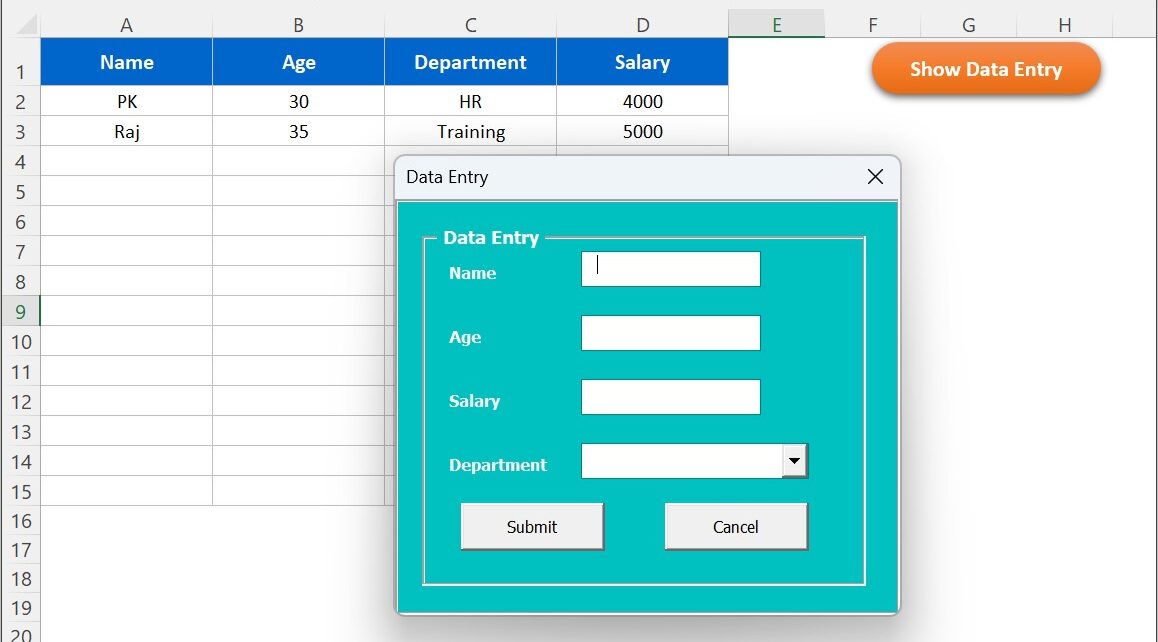
Creating a user form using Excel VBA is a breeze, especially when we leverage the capabilities of Chat GPT. We designed a user form to input data into a worksheet. This form includes Name, Age, Salary, and Department (presented as a drop-down).

Setting up Worksheets
Next, we created two worksheets named “Data” and “Setting”. The “Data” sheet is where we input the user form data. The columns on this sheet include Name, Age, Department, and Salary, spanning from range A:D.

The “Setting” sheet contains the list of departments under column A, which is used to populate the dropdown in the user form.

Chat GPT in Excel VBA
To generate VBA codes, we presented a prompt to Chat GPT, as shown below:
We have created a VBA user form with below details-
Name as Textbox1
Age as Textbox2
Salary as Textbox3
Department as Combobox1
Submit button as Commandbutton1
Cancel button as Commandbutton2
We have a “Data” worksheet to enter the data from the user form. Enter the data from Row number 2. below is the information of the worksheet headers
Range A1 is “Name”
Range A2 is “Age”
Range A3 is “Department”
Range A4 is “Salary”
Write the VBA code to enter the data from user form to “Data” Worksheet in new row every time on pressing “Submit” button.
Put the validation in the code as below
1) Age and Salary should be as positive Number.
3) None of the box should be blank.
After adding the data into worksheet, make all the boxes blank.
We have another worksheet “Setting” Wherein we have given the list of Department on Column A. First row is header. Department list is available from range A2. Write the VBA code on User form load to create the Department list from here in the Department Combo box. Make it dynamic as we add new department, it should be added in the combo box automatically.
We have added a rectangle shape on the “Data” worksheet as a button. Write a macro to open the user form. we will assign that macro on this button.
The Chat GPT responded with three different VBA codes that were integrated into the user form.
Private Sub CommandButton1_Click()

'Validation check

If TextBox1.Value = "" Or TextBox2.Value = "" Or TextBox3.Value = "" Or ComboBox1.Value = "" Then

MsgBox "Please fill all the fields"

Exit Sub

End If


If Not IsNumeric(TextBox2.Value) Or Not IsNumeric(TextBox3.Value) Then

MsgBox "Age and Salary should be numeric values"

Exit Sub

End If


If TextBox2.Value < 0 Or TextBox3.Value < 0 Then

MsgBox "Age and Salary should be positive values"

Exit Sub

End If


Dim ws As Worksheet

Set ws = Worksheets("Data")


'Find the next empty row

Dim nextRow As Long

nextRow = ws.Cells(ws.Rows.Count, "A").End(xlUp).Row + 1


'Add values to the cells

ws.Cells(nextRow, "A").Value = TextBox1.Value

ws.Cells(nextRow, "B").Value = TextBox2.Value

ws.Cells(nextRow, "C").Value = ComboBox1.Value

ws.Cells(nextRow, "D").Value = TextBox3.Value


'Clear the fields

TextBox1.Value = ""

TextBox2.Value = ""

TextBox3.Value = ""

ComboBox1.Value = ""

End Sub
Private Sub UserForm_Initialize()

Dim ws As Worksheet

Set ws = Worksheets("Setting")


Dim rng As Range

Set rng = ws.Range("A2", ws.Range("A" & ws.Rows.Count).End(xlUp))


For Each cell In rng

ComboBox1.AddItem cell.Value

Next cell

End Sub
Module to show the form: Sub Show User Form() frm_Data.Show ' Replace UserForm1 with the name of your UserForm End Sub
Advantages of Using Chat GPT in Excel VBA
- Automation and Efficiency: Automating code generation reduces the chances of manual errors and increases the efficiency of the coding process.
- Versatility: Chat GPT is versatile and can generate different types of codes based on the prompts provided.
- Time-Saving: The quick generation of code saves considerable time and resources.
- User-friendly: The ease of integrating Chat GPT with Excel VBA makes it a user-friendly option for many developers.
Best Practices for Using Chat GPT in Excel VBA
Here are some best practices:
- Clear Prompts: Provide clear and concise prompts to get the best results.
- Cross-Check: Always cross-check the generated code to ensure it aligns with the required output.
- Test: Make sure to test the codes in different scenarios to ensure its robustness and reliability.
Frequently Asked Questions
Q. What is Chat GPT?
Chat GPT is an artificial intelligence model developed by OpenAI. They have designed it to generate human-like text based on the input provided.
Q. How does Chat GPT assist in Excel VBA?
Chat GPT can generate VBA codes based on the prompts provided. It helps automate the coding process, making it more efficient and error-free.
Q. What are some best practices while using Chat GPT in Excel VBA?
Some best practices include providing clear prompts, cross-checking the generated code, and testing the code in different scenarios to ensure its robustness.
Q. What are the opportunities for improvement in using Chat GPT in Excel VBA? While Chat GPT has significantly enhanced Excel VBA’s efficiency, handling complex prompts and completely understanding the context can be areas for future improvement.
With the right usage and application, Chat GPT and Excel VBA can revolutionize how we approach data entry and many other tasks. Remember, it’s all about leveraging these tools effectively for your specific needs. Happy coding!
Visit our YouTube channel to learn step-by-step video tutorials