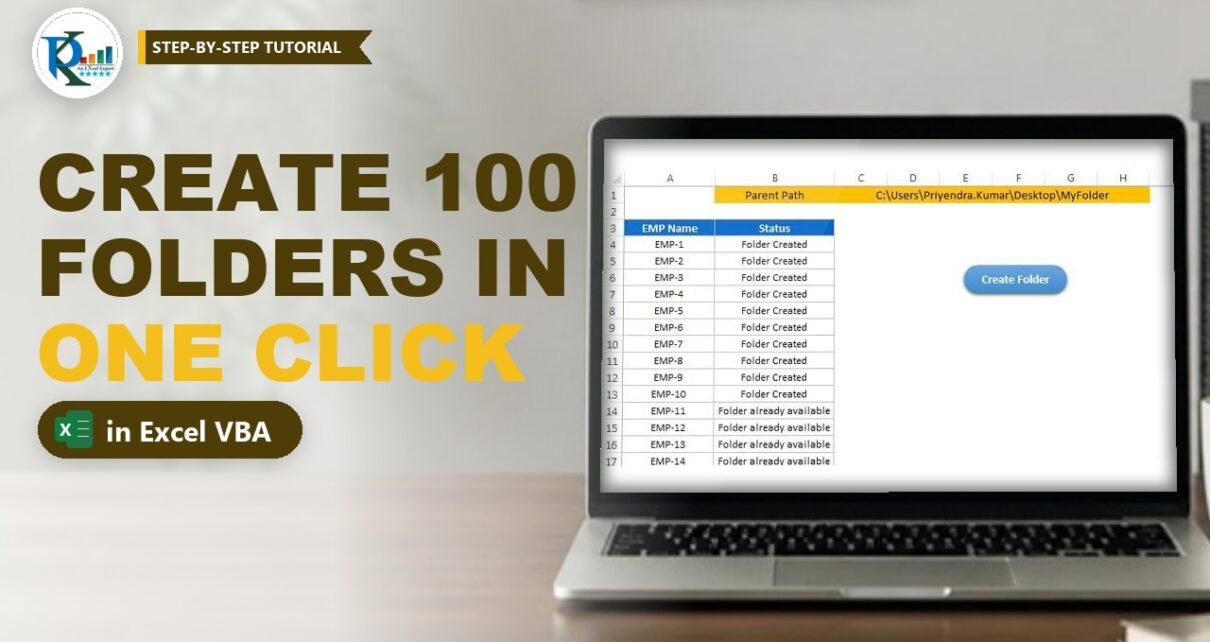
To create multiple folders from an Excel range, you only need a short VBA macro that reads a list of names, builds a path for each one and makes the folder with MkDir. In this tutorial you build that macro step by step. A parent path in one cell, a list of 100 employee names, one button, and in under a second you get 100 folders, plus a status next to every name that tells you whether the folder was created or was already there. If you run it again, nothing breaks.
⬇️ Download the Create Multiple Folders Workbook
ZIP with one macro-enabled workbook · .xlsm (VBA) · Excel 2010 and later on Windows
Watch the Video Tutorial
In the video PK writes the macro from an empty module, assigns it to a button, creates 100 employee folders in one click and then adds the check that stops the macro from failing when a folder already exists.
What You Will Build
- A parent path cell (C1) that decides where every new folder goes.
- A folder list in column A, starting in A4. The practice file has EMP-1 to EMP-100.
- A dynamic loop that finds the last name on its own, so the list can be 5 rows or 5,000.
- A safety check with
Dir(..., vbDirectory)so existing folders are skipped instead of causing an error. - A status column (B) that shows Folder Created or Folder already available for every row.
- A Create Folder button on the sheet that runs the macro in one click.
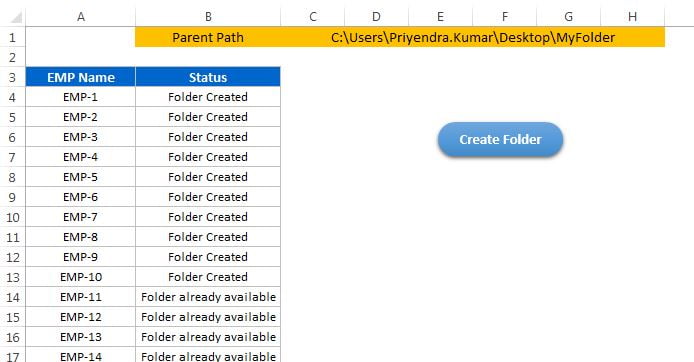
How the Sheet Is Laid Out
Everything sits on Sheet1:
- B1 holds the label Parent Path and C1 (merged C1:H1) holds the full folder path, for example
C:\Users\Priyendra.Kumar\Desktop\MyFolder. Change it to a folder that exists on your PC. - A3 and B3 are the headers EMP Name and Status.
- A4:A103 holds the 100 folder names, EMP-1 to EMP-100. Column B starts empty; the macro fills it.
The parent folder must already exist. The macro creates folders inside it, one level deep.
Part 1 – Create Multiple Folders with a VBA Loop
Step 1: Open the VBA editor and insert a module
Go to Developer → Visual Basic (or press Alt + F11). In the editor choose Insert → Module and start a new macro called Create_Multiple_Folder. If the Developer tab is missing, switch it on in File → Options → Customize Ribbon.
Step 2: Point to the sheet
Declare a worksheet variable and set it to Sheet1, so every reference in the code clearly belongs to that sheet:
Dim sh As Worksheet
Set sh = ThisWorkbook.Sheets("Sheet1")
Step 3: Loop from row 4 to the last name
The first name is in A4, so the loop starts at 4. The last row is found dynamically:
Dim i As Integer
For i = 4 To sh.Range("A" & Application.Rows.Count).End(xlUp).Row
    '...create one folder per row...
Next i
Application.Rows.Count is the last row of the sheet. .End(xlUp) jumps up from there to the last filled cell in column A, exactly like pressing Ctrl + Up Arrow, and .Row returns its row number (103 in the practice file). Add or remove names and the loop adjusts by itself.
Watch the spelling: it is xlUp with a lower-case L, not the number 1. PK points this out in the video because it is the most common reason people say the code "does not work".
Step 4: Build the full path of each sub-folder
Each folder path is the parent path from C1, a path separator and the name from column A:
Dim sub_folder_path As String
sub_folder_path = sh.Range("C1").Value & Application.PathSeparator & sh.Range("A" & i).Value
Application.PathSeparator returns the separator of the system Excel runs on (a backslash on Windows). You could also type "\" directly; the practice file contains a second macro that does exactly that. For row 4 the result is C:\Users\Priyendra.Kumar\Desktop\MyFolder\EMP-1.
Step 5: Create the folder and write the status
MkDir creates the folder, and the next line records the result in column B of the same row:
MkDir (sub_folder_path)
sh.Range("B" & i).Value = "Folder Created"
This already works the first time. But click the button a second time and VBA stops with an error, because MkDir cannot create a folder that already exists. Step 6 fixes that.
Part 2 – Skip Folders That Already Exist
Step 6: Check the folder with Dir before creating it
Dir(path, vbDirectory) returns the folder name when the folder exists and an empty string when it does not. So the macro only calls MkDir when Dir returns "":
If Dir(sub_folder_path, vbDirectory) = "" Then
    MkDir (sub_folder_path)
    sh.Range("B" & i).Value = "Folder Created"
Else
    sh.Range("B" & i).Value = "Folder already available"
End If
This is the same test used in the Check Folder Existence using VBA tutorial, where it is wrapped in a reusable function.
The complete macro
This is the Create_Multiple_Folder macro exactly as it is in the downloadable workbook (Module3):
Option Explicit

Sub Create_Multiple_Folder()

Dim sh As Worksheet
Set sh = ThisWorkbook.Sheets("Sheet1")
Dim sub_folder_path As String

Dim i As Integer

For i = 4 To sh.Range("A" & Application.Rows.Count).End(xlUp).Row

    sub_folder_path = sh.Range("C1").Value & Application.PathSeparator & sh.Range("A" & i).Value

    If Dir(sub_folder_path, vbDirectory) = "" Then
        MkDir (sub_folder_path)
        sh.Range("B" & i).Value = "Folder Created"
    Else
        sh.Range("B" & i).Value = "Folder already available"
    End If

Next i

End Sub
How the code works
- Set sh fixes the sheet, so the macro works even if another sheet is active when you click.
- For i = 4 To …End(xlUp).Row visits every name from A4 down to the last filled cell.
- sub_folder_path joins the parent path, the separator and the name into one full path.
- Dir(…, vbDirectory) = "" is TRUE only when the folder is missing, so
MkDirnever hits an existing folder. - Column B gets a status on every row, which gives you a simple log of what happened.
Option: use the Folder_Existence function instead
The workbook also contains the Folder_Existence user-defined function (Module1) and a second macro, Create_Folder (Module2), which calls that function instead of testing Dir inline:
Sub Create_Folder()

Dim sh As Worksheet
Set sh = ThisWorkbook.Sheets("Sheet1")

Dim i As Integer

For i = 4 To sh.Range("A" & Application.Rows.Count).End(xlUp).Row
    If Folder_Existence(sh.Range("C1").Value & "\" & sh.Range("A" & i).Value) = True Then
        sh.Range("B" & i).Value = "Folder already available"
    Else
        VBA.MkDir (sh.Range("C1").Value & "\" & sh.Range("A" & i).Value)
        sh.Range("B" & i).Value = "Folder Created"
    End If
Next i

End Sub
Both macros give the same result. Calling the function is handy when several macros in one project need the same check.
Part 3 – Add the Create Folder Button
Step 7: Insert a shape and assign the macro
Go to Insert → Shapes, draw a rounded rectangle, type Create Folder on it and pick any style you like. Right-click the shape, choose Assign Macro, select Create_Multiple_Folder and click OK. The practice file has two Create Folder buttons: one runs Create_Folder and the other runs Create_Multiple_Folder.
Step 8: Test it
Put a real, empty folder path in C1 and click the button. All 100 folders appear in well under a second and column B says Folder Created. Click again and every row says Folder already available. In the video PK then deletes EMP-1 to EMP-10 in File Explorer and runs it once more: only those ten are recreated, which is exactly the status you see saved in the practice file.
Save the workbook as .xlsm (Excel Macro-Enabled Workbook), otherwise the code is removed when you save.
Modern Alternative: FileSystemObject (Addition)
This section is an extra and is not part of the original video. If you prefer object-style code, the Scripting FileSystemObject can do the same check and create step:
Dim fso As Object
Set fso = CreateObject("Scripting.FileSystemObject")
If Not fso.FolderExists(sub_folder_path) Then fso.CreateFolder sub_folder_path
It behaves like Dir plus MkDir: it also creates only one level at a time. Use whichever style you find easier to read.
Common Errors and Fixes
These fixes are general VBA guidance added to this refresh.
Run-time error 76: Path not found
The parent path in C1 does not exist, or it is misspelt. MkDir creates only the last folder of a path, so create the parent folder first or correct C1.
Run-time error 75: Path/File access error
The folder already exists, which happens when the Dir check is missing. Add the check from Step 6. Also clean the names in column A: Windows does not allow / : * ? " < > | in folder names, and a name with one of those characters makes MkDir fail.
Compile error: Variable not defined on xlUp
You typed x1Up with the number one. Change it to xlUp with a lower-case L.
Overflow when the list is very long
Integer stops at 32,767. For longer lists declare Dim i As Long.
Tips
- Use Trim on the names, for example
Trim(sh.Range("A" & i).Value), so stray spaces do not create look-alike folders. - Add a check for empty cells inside the loop if your list can have gaps, so you do not try to create a folder with no name.
- Keep the status column: it doubles as a log you can filter to see what was created on the last run.
- Pair this macro with a file-list macro to check what each folder contains later.
- Microsoft's reference for the MkDir statement covers the details of folder paths.
Want It Ready-Made?
If you need more than one level of folders, renaming in bulk or a ready interface, the Folder Automation Tool V1.0 in Excel on NextGenTemplates.com does bulk folder creation, renaming and organising from a simple sheet, with no coding. You can also browse all Excel VBA tools.
Related Tutorials
- Check Folder Existence using VBA
- Rename Multiple Files on One Click
- File System Object: Get Files Information in Excel
- Bulk File Creator in Excel VBA
- 33 Useful VBA Shortcut Keys
Frequently Asked Questions
How do I create multiple folders at once from a list in Excel?
Put the parent path in one cell and the folder names in a column, then run a VBA loop that joins the path and each name and creates the folder with MkDir. The macro in this tutorial does that for every name from A4 to the last filled row.
Why does my macro fail when I run it a second time?
MkDir raises an error when the folder already exists. Check the folder with Dir and vbDirectory first, as shown in Step 6, and only create it when Dir returns an empty result.
Can the macro create sub-folders inside sub-folders?
Not in one go. MkDir creates only the last folder of the path, so every parent must already exist. Create each level in turn, starting from the top.
Where do the new folders get created?
Inside the folder whose path you type in cell C1. Change C1 and the next run creates the folders there.
Do I need to save the workbook in a special format?
Yes. Save it as an Excel Macro-Enabled Workbook with the .xlsm extension, and enable macros when you open it, otherwise the button does nothing.
About the Author
PK is a Microsoft Excel expert and trainer and the founder of PK: An Excel Expert and NextGenTemplates.com. He has been teaching Excel, VBA, Power Query and Power BI since 2016 on his YouTube channel.
Conclusion
To create multiple folders from an Excel range you need one loop, one path, one Dir check and one MkDir. Keep the parent path in C1, the names in column A and let the status column tell you what happened. Download the workbook, point C1 to an empty folder and click Create Folder to see 100 folders appear at once.