Managing conference calls is one of the most overlooked yet essential tasks in today’s fast-paced business environment. Whether you are coordinating with internal teams, external clients, or global stakeholders, keeping track of schedules, organizers, platforms, and participants can quickly become overwhelming. Missed calls, double bookings, or poor documentation often lead to inefficiency and miscommunication.
This is exactly where a Conference Call Schedule Tracker in Excel proves to be a game-changer. It combines the simplicity of Excel with the power of VBA automation to create a structured, user-friendly, and ready-to-use tool for scheduling, monitoring, and managing all your conference calls in one place.
In this article, we will explore the features, advantages, best practices, and common questions about using this template so you can streamline your operations with ease.
Click to Purchases Conference Call Schedule Tracker in Excel
What Is a Conference Call Schedule Tracker in Excel?
A Conference Call Schedule Tracker in Excel is a pre-built Excel template enhanced with VBA functionality that allows users to log in, add, update, and manage all their conference call schedules without the need for complicated or expensive software.
This tool is designed to be simple enough for individual use and powerful enough for organizational deployment. By integrating user management, dashboards, and automated forms, it transforms Excel into a centralized scheduling platform.
Key Features of the Conference Call Schedule Tracker
This tracker includes multiple built-in features that enhance usability and productivity. Let’s walk through the highlights:
Login Form

-
Secure entry with User ID and Password.
-
Default login:
Admin1(User ID) andabcd(Password). -
After successful login, users are redirected to the main form.
-
Prevents unauthorized access and allows better tracking of usage.
Main Form

-
Acts as the central hub of the tool.
-
Once logged in, users can navigate to different sheets and functionalities.
-
Easy-to-use interface where you can manage schedules, dashboards, data, and user information.
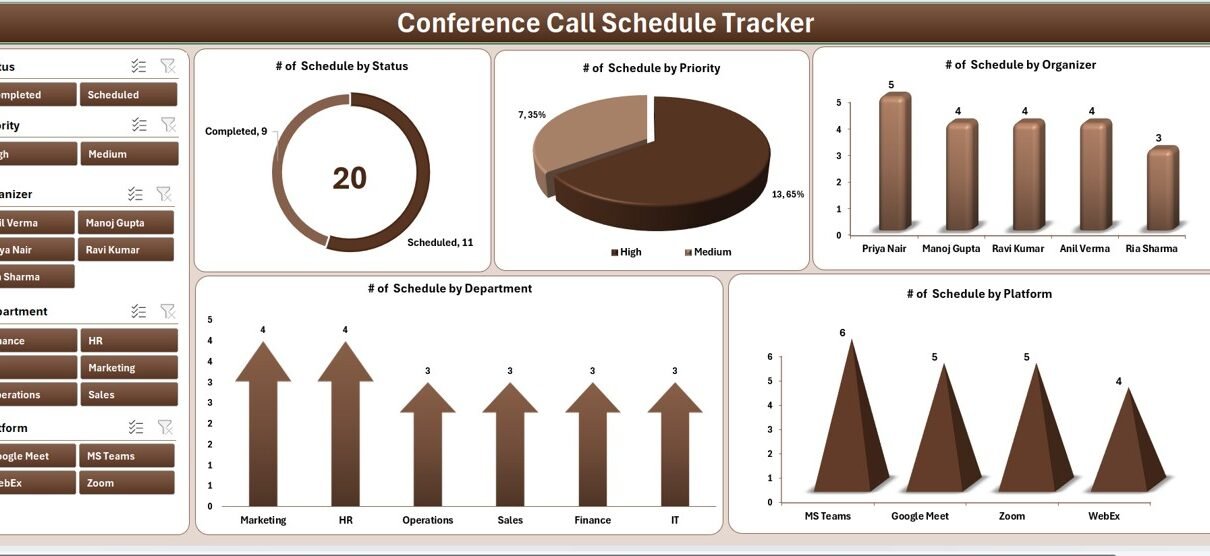
Dashboard Sheet

-
Provides a visual overview of all conference call activities.
-
Includes 5 slicers for easy filtering.
Click to Purchases Conference Call Schedule Tracker in Excel
Features 5 interactive charts:
- Number of Schedules by Status
- Number of Schedules by Priority
- Number of Schedules by Organizer
- Number of Schedules by Department
- Number of Schedules by Platform
These visuals make it easier to monitor call distribution, identify bottlenecks, and ensure balanced workloads.
Data Entry Sheet

The Data tab comes with three main buttons:
Add New Record
- Opens a data entry form.
- Users can fill in details such as date, time, organizer, department, status, and platform.
- On submission, the record is automatically added to the data sheet and updates the dashboard in real-time.
Update Record
- Click on the ID of an existing record.
- Opens the same form but pre-filled with existing details.
- Make changes and submit to refresh the record and dashboard instantly.
Delete Record
- Select the ID of the record to be deleted.
- Confirm the action before the record is removed.
- Ensures data integrity by preventing accidental deletions.
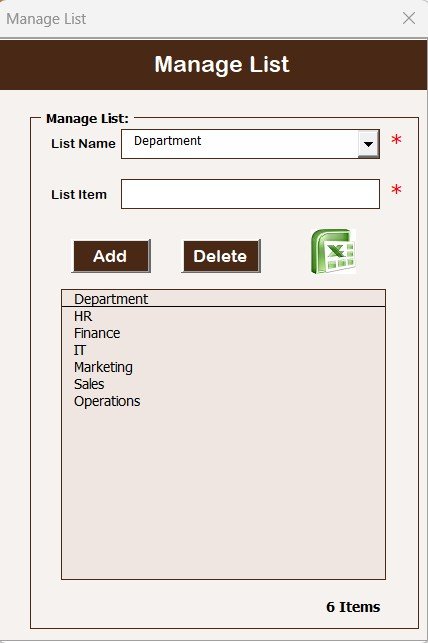
Manage List Sheet
-
Allows customization of dropdown values used in the data entry form.
-
For example, you can add or delete organizers, departments, or platforms.
-
Keeps data entry standardized while allowing flexibility.
Support Sheet
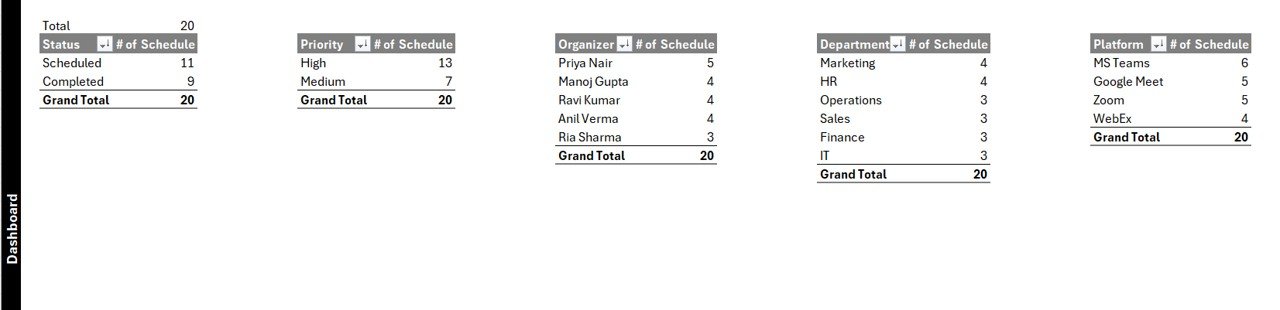
-
Contains pivot tables used to create dashboard charts.
-
Fully automated — you don’t need to edit or adjust it.
-
Can be hidden to avoid confusion for end users.
User Management
-
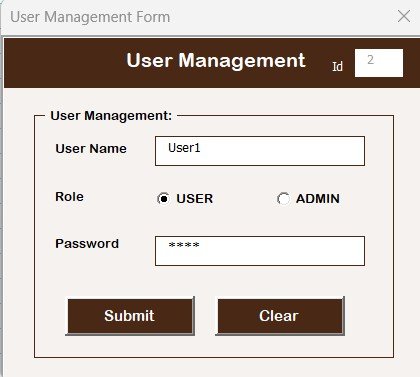
Manage who has access to the tool.
-
Add, update, or delete users.
-
Change passwords directly from the User Management panel.
-
Supports multiple users with different credentials.
Settings Sheet
-
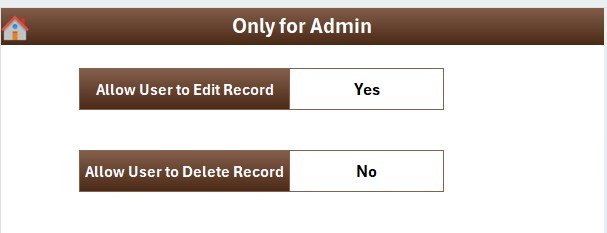
Store configuration options.
-
Adjust tool behavior to suit your organization’s workflow.
-
Keeps customization separate from the main data, reducing errors.
Multi-User Login
-
Different users can log in with unique credentials.
-
Allows better accountability since each record update can be tracked by user.
-
Increases security compared to open-access spreadsheets.
Why Do You Need a Conference Call Schedule Tracker?
Managing calls without a proper system can create chaos. Teams often face:
-
Overlapping schedules
-
Missed deadlines
-
Forgotten follow-ups
-
Lack of accountability
This tracker addresses all these issues by providing a centralized system to manage every aspect of conference calls.
Advantages of Conference Call Schedule Tracker in Excel
Here are some of the key benefits of using this tool:
✅ Centralized Scheduling – All conference call details are stored in one place.
✅ Time Savings – Automated forms reduce manual data entry errors.
✅ Enhanced Visibility – Dashboards provide real-time call insights.
✅ Customizable – Adapt dropdown lists, fields, and user settings to fit your needs.
✅ Cost-Effective – Eliminates the need for expensive scheduling software.
✅ Secure Access – Login and user management features prevent unauthorized use.
✅ Scalable – Suitable for individuals, small teams, and larger organizations.
How to Use the Conference Call Schedule Tracker?
-
Login with your credentials.
-
Access the Main Form to navigate across functionalities.
-
Add New Records using the Data Entry form.
-
Update or Delete Records as required.
-
Review Dashboards for insights into scheduling patterns.
-
Manage Lists to keep dropdowns updated.
-
Use User Management to control access rights.
-
Adjust Settings for custom requirements.
Best Practices for the Conference Call Schedule Tracker
To get the most value out of this tool, follow these best practices:
🔹 Keep Data Consistent – Regularly update dropdown lists in the Manage List sheet.
🔹 Use Dashboards Frequently – Review slicer-based charts to track progress and workload.
🔹 Secure User Access – Change passwords periodically and restrict unnecessary access.
🔹 Update Records Promptly – Make sure call schedules are updated in real-time to avoid conflicts.
🔹 Backup Data – Keep periodic backups of the workbook to avoid accidental data loss.
🔹 Train Users – Provide short guidance to team members on how to add, update, or delete records.
Opportunities for Improvement
Although the tracker is powerful, there are areas that organizations can enhance:
🔸 Integration with Outlook/Teams – Automating calendar sync could save even more time.
🔸 Email Reminders – Adding VBA-based reminders for upcoming calls.
🔸 Mobile-Friendly Options – Developing a lighter version for mobile access.
🔸 Advanced Analytics – Adding KPIs like average call duration, most active organizer, etc.
Conclusion
The Conference Call Schedule Tracker in Excel is more than just a scheduling tool — it is a complete system that improves efficiency, accountability, and communication. With features like dashboards, login security, user management, and real-time updates, it helps both small teams and large organizations manage their conference calls without stress.
By adopting best practices and continuously improving the tool, businesses can eliminate missed calls, streamline operations, and build a culture of accountability.
Frequently Asked Questions (FAQs)
1. Can I use this tracker without VBA knowledge?
Yes. The tool is ready-to-use. You don’t need to know VBA to operate it.
2. Is the login information customizable?
Yes. You can add new users and update passwords in the User Management section.
3. Can I track multiple departments?
Absolutely. The Manage List sheet allows you to create dropdowns for multiple departments, organizers, and platforms.
4. Does the dashboard update automatically?
Yes. Once you add, update, or delete a record, the dashboard refreshes in real time.
5. Can I hide support sheets from users?
Yes. Support sheets can be hidden to prevent confusion while keeping the tool functional.
6. Is this tracker secure for sensitive information?
Yes. Login and user management features prevent unauthorized access, making it suitable for sensitive scheduling data.
7. Do I need Excel expertise to use this tracker?
No. The tool is designed for users of all levels. The forms and buttons simplify data entry and management.
8. Can I add additional features?
Yes. Advanced users can customize VBA code to add more features like email reminders or integration with other systems.
Visit our YouTube channel to learn step-by-step video tutorials