In today’s fast-moving work environment, effective collaboration is essential for achieving success. Whether your organization operates remotely or in an office, managing collaboration requests — from meetings and document reviews to task assignments — can quickly become overwhelming without the right tool.
That’s where the Team Collaboration Request Tracker in Excel (with VBA automation) comes in.
This ready-to-use tool simplifies the entire process of managing, tracking, and analyzing team requests — all from a single Excel workbook that requires no external software or complicated setup.
In this article, you’ll discover everything about the Team Collaboration Request Tracker — its structure, features, benefits, and best practices. You’ll also find answers to the most common questions users ask about implementing this tool effectively.
📘 What Is a Team Collaboration Request Tracker?
A Team Collaboration Request Tracker is an Excel-based system that helps teams log, manage, and track collaboration-related requests such as meeting arrangements, task assignments, project updates, or inter-departmental communication.
Instead of handling dozens of emails or messages, this tracker centralizes all requests in a structured Excel file. It uses forms, dashboards, and charts powered by VBA automation to provide real-time visibility into request status, priority, department, and assignee.
In simple terms, it’s like having a lightweight project management system right inside Excel — perfect for organizations that want to streamline collaboration without expensive subscriptions or complex integrations.
Click to Purchases Team Collaboration Request Tracker in Excel
⚙️ Key Features of the Team Collaboration Request Tracker
Let’s look at each major component of this tool and how it simplifies team collaboration and management.
🔐 1. Login Form – Secure and Personalized Access
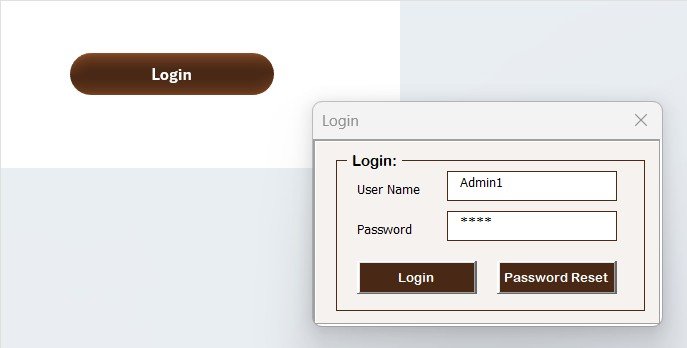
The tool begins with a login form that ensures data security and user accountability.
-
To access the tracker, users simply enter a User ID (e.g., Admin1) and Password (e.g., abcd).
-
After logging in, the system redirects to the main form automatically, creating a secure and user-specific workspace.
-
This feature supports role-based access so that only authorized team members can add, update, or delete records.
This approach keeps your team’s collaboration data organized, private, and protected.
🏠 2. Main Form – The Control Center
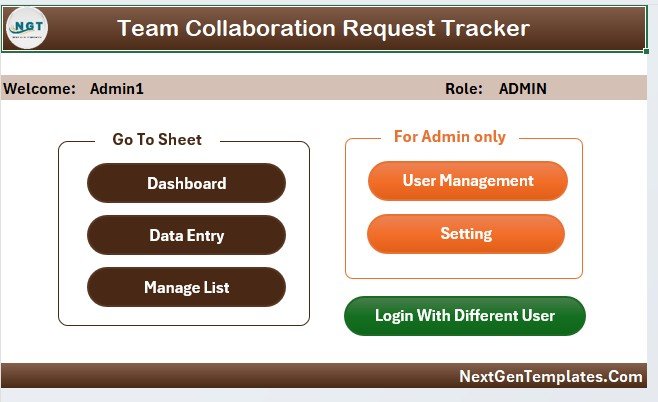
Once logged in, users land on the Main Form, which serves as the control center of the tracker. From here, they can manage everything — from adding new collaboration requests to viewing status updates.
The interface is clean and intuitive, making it easy even for non-technical users to navigate.
All primary functions such as Add New Record, Update Record, Delete Record, and Open Dashboard are accessible via buttons, ensuring a smooth workflow.
The main form allows you to view, filter, and manage all team requests without switching between multiple sheets or files.
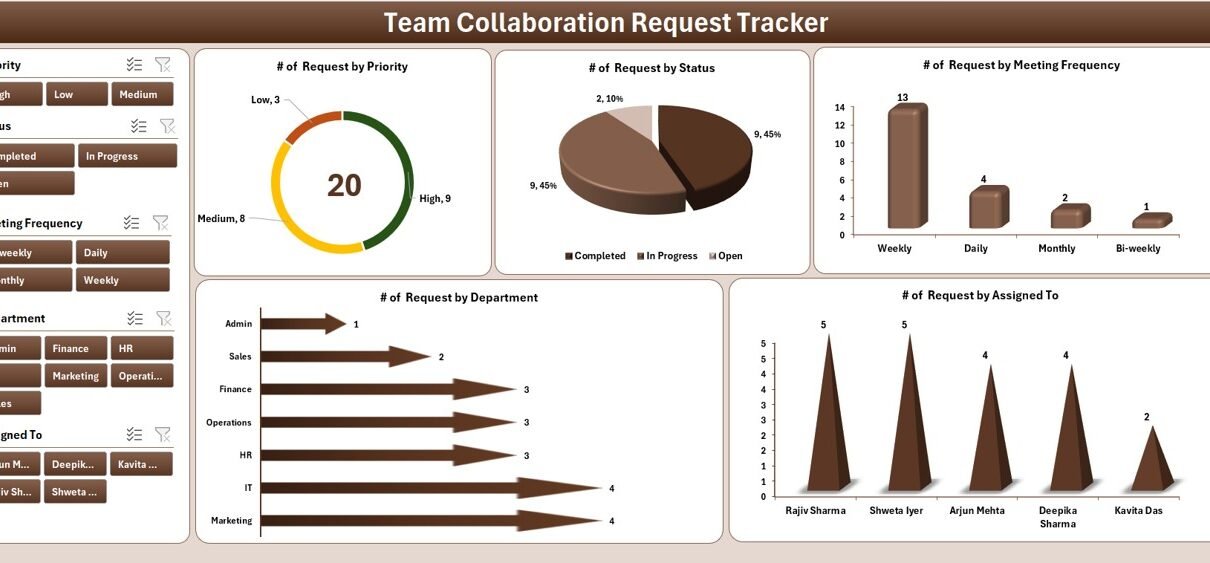
📊 3. Dashboard Sheet Tab – Visual Insights That Drive Action
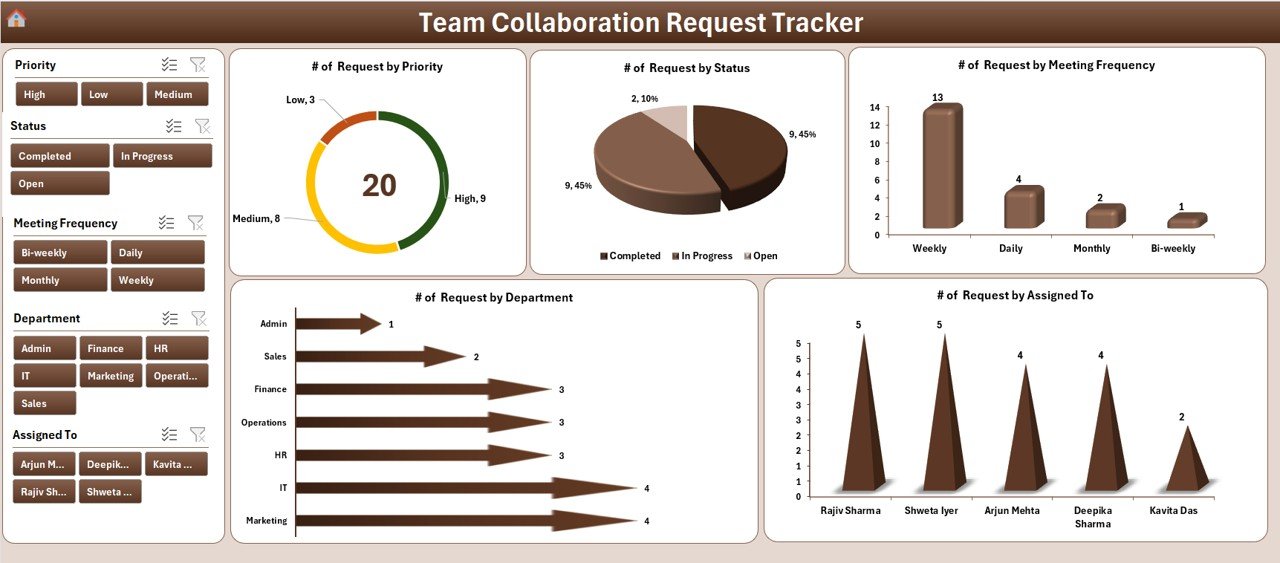
The Dashboard is where all the magic happens.
This interactive sheet converts raw data into visual insights using slicers, charts, and pivot tables.
You can filter requests using five slicers:
-
Priority
-
Status
-
Meeting Frequency
-
Department
-
Assigned To
Each slicer dynamically updates the visuals in real time, giving you a powerful and interactive experience.
The dashboard includes five key charts:
-
# of Requests by Priority – Understand which tasks need urgent attention.
-
# of Requests by Status – Track pending, completed, and in-progress tasks.
-
# of Requests by Meeting Frequency – Analyze how often teams meet to collaborate.
-
# of Requests by Department – Identify which departments have the most active collaboration needs.
-
# of Requests by Assigned To – See workload distribution among team members.
Together, these charts provide a 360° view of how collaboration flows across your organization.
🧾 4. Data Entry Sheet Tab – Simplified Record Management
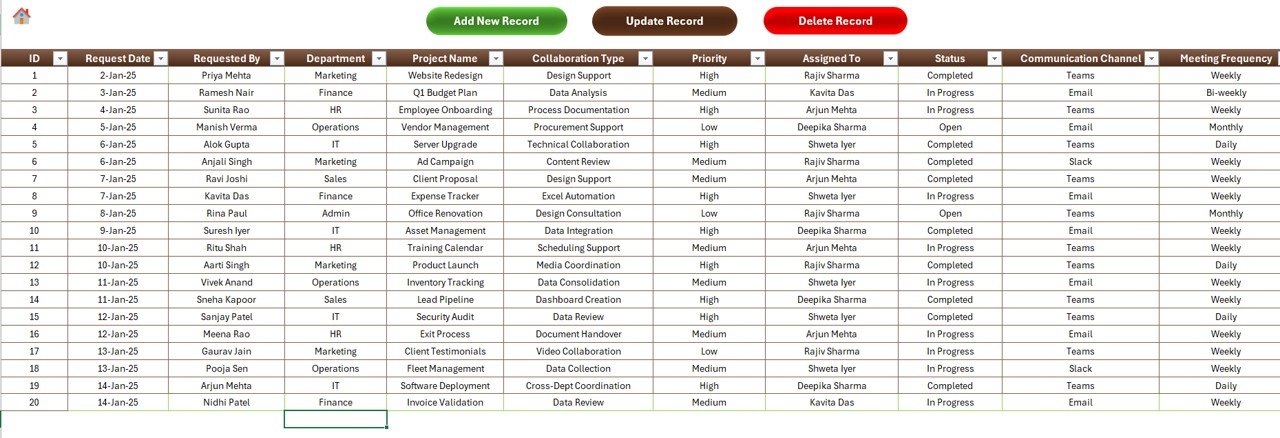
This sheet is the backbone of your tracker. It contains all the collaboration data and provides quick access to essential buttons placed at the top:
➕ Add New Record
Clicking this button opens a Data Entry Form. Users can input details like request type, priority, department, and assignee. Once submitted, the form automatically:
-
Saves the data to the sheet
-
Updates pivot tables
-
Refreshes the dashboard charts
No manual updates are required — everything runs through VBA automation.
Click to Purchases Team Collaboration Request Tracker in Excel
✏️ Update Record
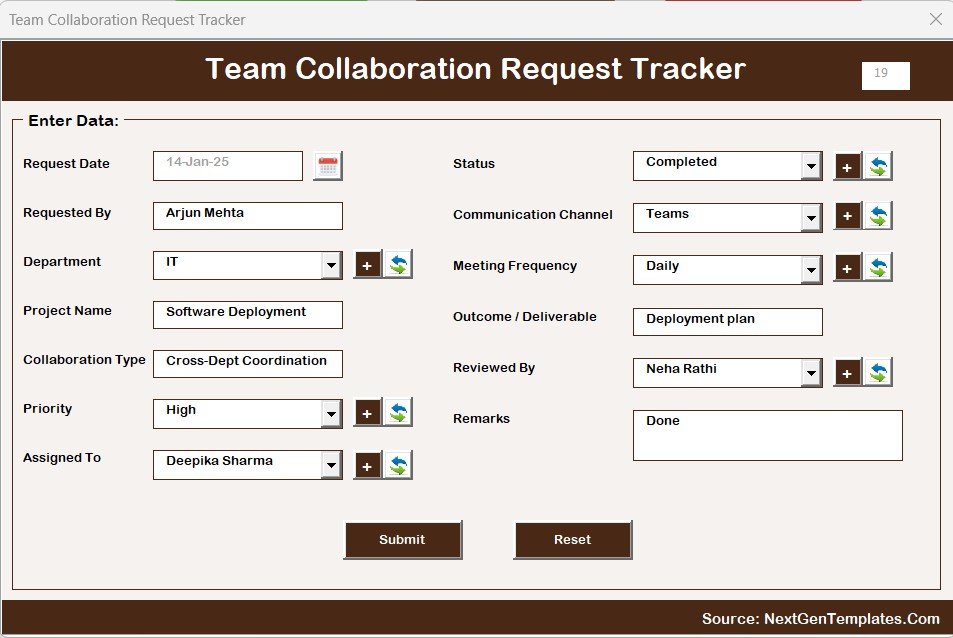
If you need to modify an existing request, select its ID and click Update Record.
The form loads the existing data, allowing users to make necessary edits and resubmit. This saves time and ensures data accuracy.
❌ Delete Record
To remove a record, select the request ID and click the Delete Record button.
The system will confirm before deletion to prevent accidental data loss.
All these functions make the tracker extremely easy to maintain, even for large teams handling hundreds of requests every month.
🗂️ 5. Manage List Sheet Tab – Customizable Dropdowns and Lists
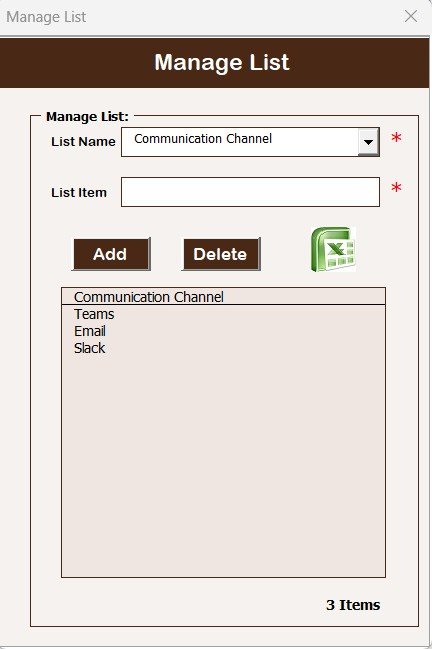
The Manage List tab stores the lists that populate dropdown menus across forms.
Here, you can add, update, or delete list values for:
-
Departments
-
Priorities
-
Status options
-
Meeting frequencies
Two control buttons — Add and Delete — make it easy to maintain these lists without editing VBA code.
This flexibility ensures the tracker can adapt to your organization’s evolving needs.
🧮 6. Support Sheet Tab – The Behind-the-Scenes Engine
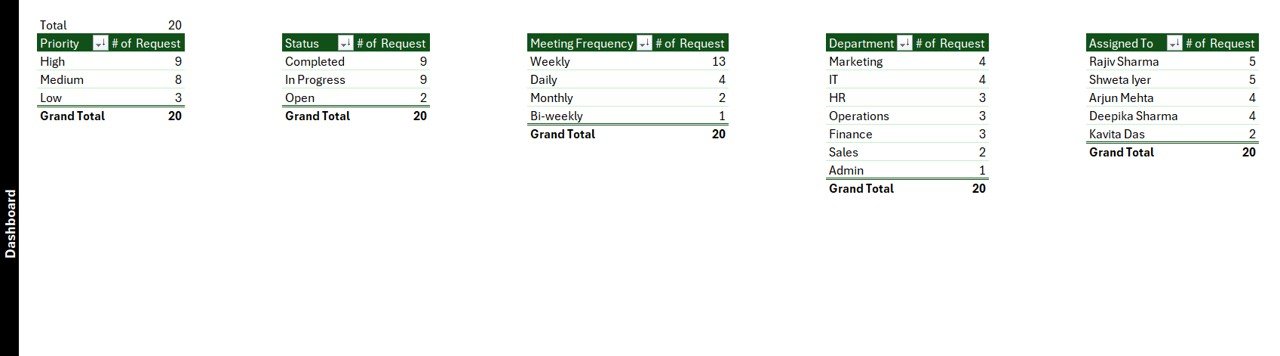
While you don’t need to interact with this sheet, it plays an essential role.
The Support sheet stores pivot tables and calculations that power the dashboard visuals.
Users can safely hide this tab to prevent accidental modifications.
All updates are automated, so you’ll never have to refresh charts manually — the VBA code handles it seamlessly.
👥 7. User Management – Control Access and Roles
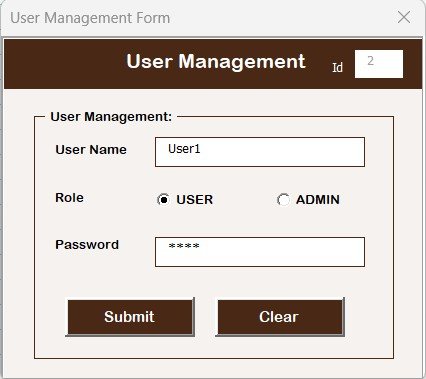
Managing multiple users is simple through the User Management form.
From here, administrators can:
-
Add new users
-
Update existing users
-
Delete users
-
Reset or change passwords
This functionality ensures that every team member has the right access level and that data remains secure.
You can easily track who created or updated a particular request — essential for accountability and audit purposes.
⚙️ 8. Settings Sheet – Full Customization
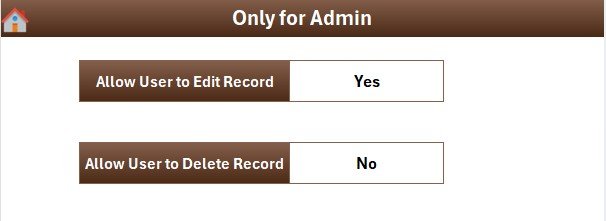
The Settings Sheet allows administrators to define key parameters such as:
-
Default user roles
-
Password rules
-
Notification preferences
-
Department codes or abbreviations
This makes the tracker adaptable for different industries — whether you manage a marketing team, IT support, HR department, or cross-functional project group.
🔄 9. Multi-User Login Support
Unlike static Excel templates, this tracker allows multiple users to log in with different credentials.
Each user’s activity is linked to their login ID, helping managers identify ownership, improve accountability, and ensure transparent collaboration.
💡 Why Teams Need a Collaboration Request Tracker
Without a structured tracker, collaboration requests often get lost in email threads, chat messages, or personal to-do lists. This leads to miscommunication, missed deadlines, and inefficient teamwork.
A Team Collaboration Request Tracker ensures:
-
Centralized management of all requests
-
Real-time visibility into progress
-
Quick identification of blockers or delays
-
Data-driven decision-making
It transforms the way your team collaborates — from reactive communication to proactive coordination.
🌟 Advantages of the Team Collaboration Request Tracker
Here are the key benefits of using this tool in your daily operations:
✅ 1. Simplifies Communication
Team members can easily log, assign, and track collaboration requests without sending dozens of messages. Everyone stays on the same page.
✅ 2. Boosts Productivity
Automated forms, dashboards, and slicers eliminate manual updates. This saves hours every week and keeps the focus on meaningful work.
✅ 3. Improves Accountability
Since every request has a unique ID, it’s easy to track who created, updated, or completed a task. This improves responsibility across teams.
✅ 4. Provides Instant Insights
With its visual dashboard, managers can identify trends, bottlenecks, and priorities instantly — enabling faster decision-making.
✅ 5. Enhances Flexibility
The tool is built entirely in Excel, so you can customize it for your organization without needing external software or a license.
✅ 6. Strengthens Security
User authentication and controlled access keep sensitive data safe while still allowing collaboration.
✅ 7. Works Offline
Unlike web-based systems, this tracker works perfectly even without an internet connection. That makes it ideal for organizations with restricted networks.
🧠 How to Use the Team Collaboration Request Tracker Effectively
To get the best out of this Excel-VBA tracker, follow these simple steps:
-
Set Up User Accounts:
Start by defining who will access the tracker. Use the User Management feature to add users and assign roles. -
Customize Lists:
Go to the Manage List Tab and update dropdown lists like Department, Status, or Priority. -
Start Logging Requests:
Use the Add New Record button to begin capturing collaboration requests. -
Monitor Progress:
Check the Dashboard Sheet to review team workload, pending tasks, and departmental performance. -
Update or Delete as Needed:
Keep your tracker clean and up-to-date using the Update and Delete Record buttons. -
Analyze Trends:
Use the slicers and charts to identify long-term patterns — for example, which departments request the most meetings or which employees handle the highest workloads.
🧭 Best Practices for Using the Team Collaboration Request Tracker
To make your collaboration tracking more effective, follow these best practices:
🔹 Keep Lists Updated
Regularly review and update dropdown lists for departments, priorities, and statuses. This ensures consistent data entry.
🔹 Train All Users
Provide a short training session to your team. Show them how to log in, enter data, and use the dashboard.
🔹 Protect the VBA Code
Lock the VBA modules with a password to prevent accidental changes that might break the automation.
🔹 Backup Regularly
Create weekly backups of your Excel file to avoid data loss in case of system failure.
🔹 Monitor Performance
Use the dashboard frequently to identify workload distribution and address bottlenecks early.
🔹 Limit Access to Sensitive Tabs
Hide the Support and Settings sheets for non-admin users to protect system integrity.
🧩 Use Cases Across Different Teams
This tracker can adapt to a variety of departments and industries. Here are some common examples:
-
Human Resources: Track inter-departmental support requests, employee onboarding coordination, or event organization.
-
IT Support: Log software access requests, troubleshooting sessions, or system updates.
-
Project Management: Track cross-team collaboration on deliverables and client communication.
-
Marketing: Manage creative review requests, content approvals, and social media coordination.
-
Operations: Handle daily task assignments, status updates, and reporting schedules.
Because it’s Excel-based, you can easily tailor it to your business process and metrics.
📈 Why Excel + VBA Is Perfect for Collaboration Management
While there are many modern collaboration tools, Excel still offers several advantages for internal teams:
-
No subscription cost
-
Works offline
-
Customizable and transparent
-
Integrates easily with existing data sources
-
Fast and familiar interface for all users
Click to Purchases Team Collaboration Request Tracker in Excel
The VBA automation enhances this by turning a simple spreadsheet into a dynamic management system with forms, validations, and dashboards.
🏁 Conclusion
The Team Collaboration Request Tracker in Excel is a powerful yet simple solution for teams that want to organize, track, and analyze their collaboration requests effectively.
By combining Excel’s analytical power with VBA’s automation, it offers an all-in-one platform that streamlines communication, enhances accountability, and drives team productivity.
Whether you lead a small department or a large organization, this tracker helps you maintain control, improve visibility, and make faster decisions — without depending on costly software subscriptions.
❓ Frequently Asked Questions (FAQs)
1. What is the purpose of a Team Collaboration Request Tracker?
It helps teams centralize and manage all collaboration requests in one place, ensuring that no task or meeting request gets missed.
2. Can I customize the tracker for my team?
Yes, the tracker is fully editable in Excel. You can modify dropdown lists, user roles, and even add new KPIs or visuals.
3. Is it possible to use this tracker with multiple users?
Absolutely. Multiple users can log in with unique credentials. Each user’s activity remains linked to their ID for better accountability.
4. Do I need coding knowledge to use it?
No coding is required. All VBA automation runs in the background. You just need to enable macros when opening the file.
5. What versions of Excel support this tool?
The tracker works on Microsoft Excel 2016 and above (both Windows and Mac). You simply need to enable macros.
6. Can this tracker replace project management software?
For small to medium teams, yes. It provides many of the same functions — such as task tracking, dashboards, and user management — without subscription costs.
7. How can I secure my data?
Use the built-in login system, protect the VBA code, and create password-protected backups to ensure security.
8. Is it suitable for remote teams?
Yes, you can store the file on shared drives like OneDrive or SharePoint, allowing remote team members to access and update it collaboratively.
Visit our YouTube channel to learn step-by-step video tutorials