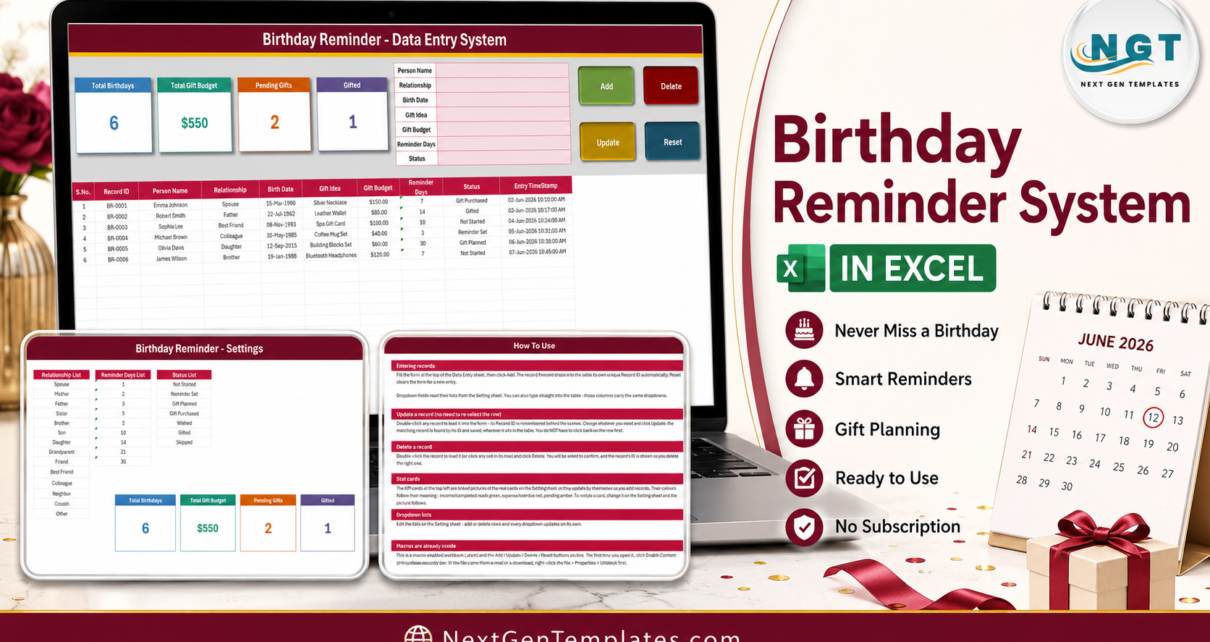
The Birthday Reminder Data Entry System in Excel is a macro-enabled workbook that keeps one row per person – Person Name, Relationship, Birth Date, Gift Idea, Gift Budget, Reminder Days and Status – and writes a unique Record ID plus an entry timestamp onto every row you save. Four live summary cards sit above the form, three editable dropdown lists ship with 14, 9 and 7 entries, and the file is four sheets: Data Entry, Setting, Instructions and Get More Templates. The record table is pre-formatted for 200 rows. Setup takes under 10 minutes.
Most birthday lists start life as two columns in a notes app and quietly rot. Dates get typed three different ways, half the entries have no year, the gift you bought last December is remembered by nobody, and every year somebody gets messaged two days late. This workbook fixes the boring part of that: it gives you a form, forces the messy columns into dropdown lists, numbers every record, and keeps four running totals in view while you type. What it deliberately does not do is tell you a birthday is coming – and that distinction is worth getting straight before you read any further.
Key Features of the Birthday Reminder Data Entry System
- A seven-field form. Person Name, Relationship, Birth Date, Gift Idea, Gift Budget, Reminder Days and Status, all in one panel at the top of the Data Entry sheet.
- Four real VBA buttons. Add, Update, Delete and Reset are macros that ship inside the .xlsm, not pictures of buttons.
- Automatic Record IDs. Every person is stamped BR-0001, BR-0002 and so on. The macro takes one more than the highest number already used, so IDs stay unique even after deletions.
- An automatic Entry TimeStamp in column J, so you always know when a record was created.
- Double-click editing. Double-click a row and it loads back into the form with its Record ID remembered; change what you need and press Update. You do not have to re-select the row.
- A confirmed delete that shows the Record ID before it removes anything.
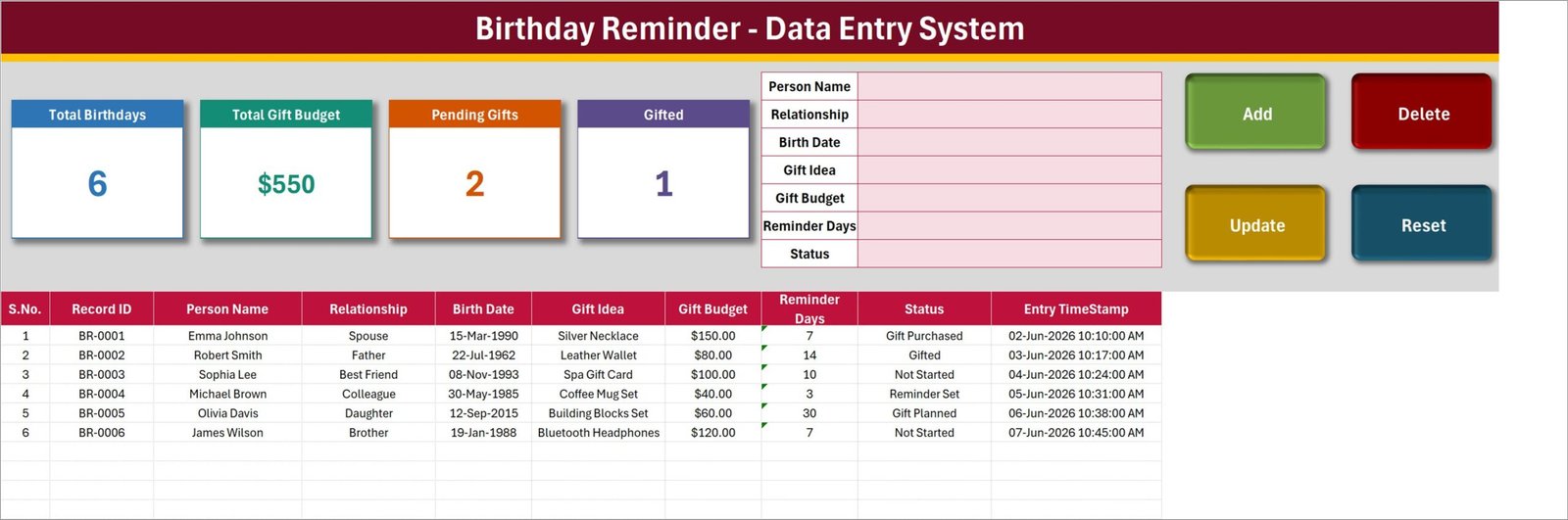
- Four summary cards – Total Birthdays, Total Gift Budget, Pending Gifts and Gifted – built as linked pictures of real cells on the Setting sheet, so they refresh as you type.
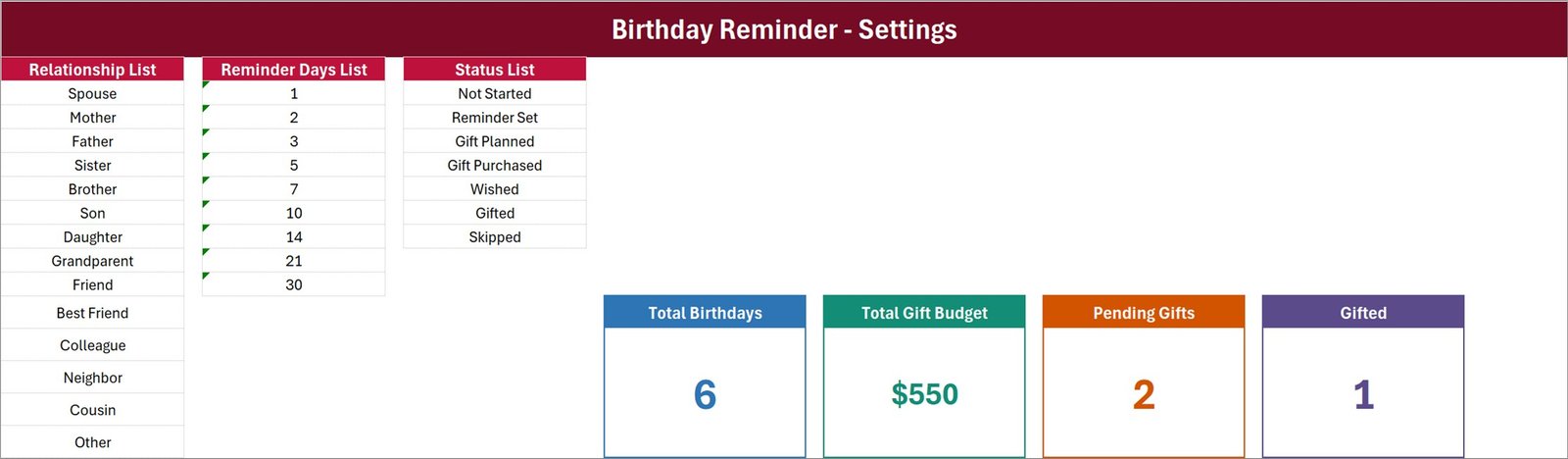
- Three editable dropdown lists – 14 relationships, 9 reminder lead times (1, 2, 3, 5, 7, 10, 14, 21, 30 days) and 7 statuses (Not Started, Reminder Set, Gift Planned, Gift Purchased, Wished, Gifted, Skipped).
- 200 pre-formatted rows carrying the dropdowns, the currency format on Gift Budget and the running S.No.
Sheets Explanation
Data Entry
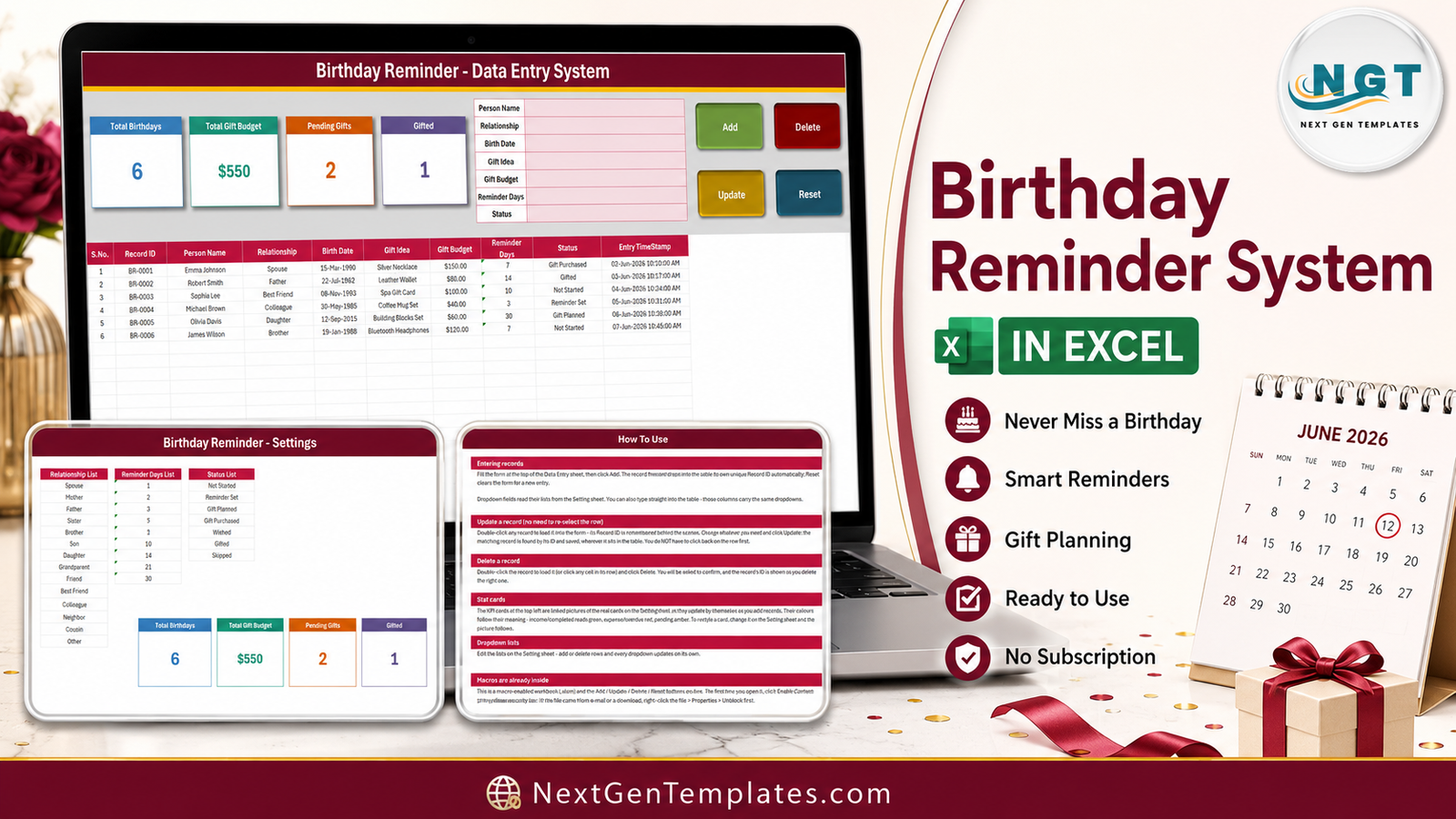
The sheet you live in. The four cards and the seven-field form run across the top, the Add / Delete / Update / Reset buttons sit on the right, and the ten-column record table starts at row 15: S.No., Record ID, Person Name, Relationship, Birth Date, Gift Idea, Gift Budget, Reminder Days, Status and Entry TimeStamp. Six sample rows ship with the file – Emma Johnson, Robert Smith, Sophia Lee, Michael Brown, Olivia Davis and James Wilson – so you can see the shape before you clear them out.
Setting
Three source lists and the four real KPI cards. Relationship runs from Spouse and Mother down to Cousin and Other; Reminder Days holds the nine lead times; Status holds the seven stages. The cards to the right of those lists are the originals – the ones on the Data Entry sheet are camera-linked pictures of them, so restyling a card here changes it there too.
Instructions (How To Use)
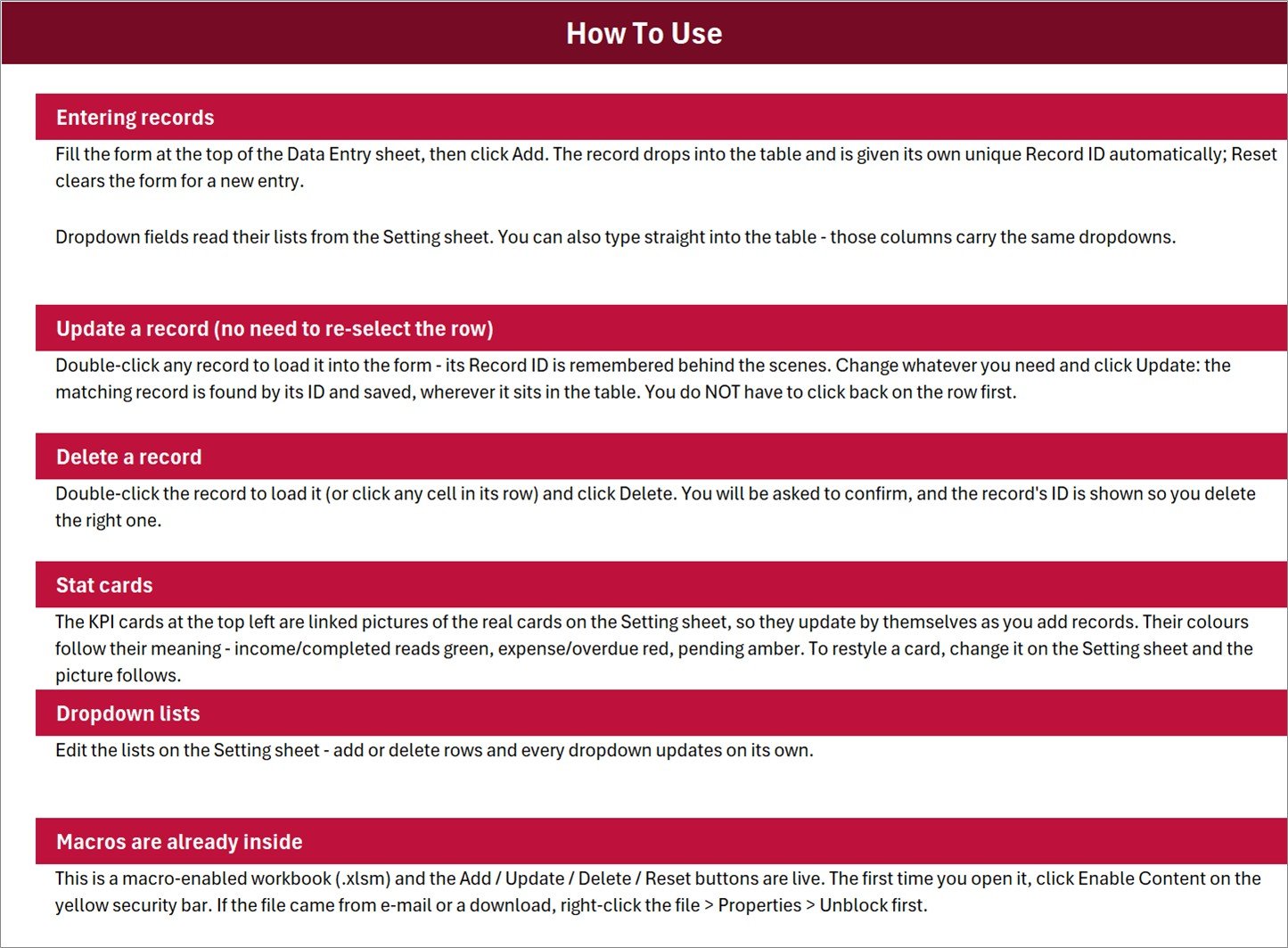
A single printed page: entering records, updating by double-click, deleting, how the stat cards work, editing the dropdown lists, and enabling macros the first time you open the file. It is the page to read before you touch anything else.
Get More Templates
A short links sheet back to the NextGenTemplates library. Nothing to configure.
What This Workbook Is Not
It is not a reminder engine. There is no alert, no e-mail, no pop-up, no conditional formatting on approaching dates and no days-until-next-birthday formula anywhere in this build. Reminder Days is a lead time you pick from a dropdown so the record says how much notice you wanted; Status is how you mark that you acted. If you need your phone to buzz, you need a calendar app, not this file.
It also imports nothing. No Outlook, no Google Contacts, no social network, no CSV wizard. It does not calculate age, it does not sort itself by upcoming birthday, and it is a single-user desktop file – two people cannot type into it at once.
Birthday Reminder Data Entry System vs. a Google Sheets List vs. a Paid Reminder App – Feature Comparison
| This template (Excel) | Google Sheets birthday list | Paid reminder / contacts app | |
|---|---|---|---|
| Cost | $6.99 one time | Free, build it yourself | $3-$8 per user per month |
| Platform | Excel for Windows, desktop | Browser | Phone app plus web |
| Setup time | Under 10 minutes | 1-2 hours to build a form and lists | 15 minutes plus contact import |
| Real-time team collaboration | No – single-user file | Yes | Yes |
| Mobile access | No – macros need desktop Excel | Yes | Yes |
| Customizable fields | Yes – lists and columns are yours | Yes | Limited to the vendor’s fields |
| Share with link | No – send the file | Yes | Yes |
| Year-1 cost at 5 users | $6.99 total | $0 | $180-$480 |
| Automated alerts or notifications | No | Only if you script it | Yes, push and e-mail |
| Gift idea and gift budget per person | Yes, built in | Add the columns yourself | Rarely |
Who Should Use This Template
Anyone keeping a birthday list of roughly 20 to 200 names who wants the gift idea and the money written down beside the name, offline, once, for $6.99. Families who buy for a lot of people in December. Office managers who own the staff birthday list. Small shop owners who send a card or a discount to regulars. People who have decided they do not want another monthly subscription for something this small.
Skip it if you want notifications, want it on a phone, want several editors at once, or want it to read birthdays out of an existing contact list. None of those are in the file.
Real-World Use Cases
The family list. Thirty-eight names across two sides of a family. Relationship separates immediate family from the cousins who get a message rather than a parcel. Gift Budget stops December being a surprise. Status stops two people buying the same present.
The office list. A 24-person firm where one person owns the birthday spreadsheet. Reminder Days records how much notice each team lead wants before the card goes round; Gift Idea holds the standing preference, so nobody has to ask again.
The small shop. Sixty regular customers whose birthday earns a discount card. Gift Idea holds the offer, Gift Budget holds its value, and the Total Gift Budget card shows what the whole gesture costs across a year.
Advantages of the Birthday Reminder Data Entry System
- The form removes the two habits that ruin a birthday list: inconsistent spelling and half-filled rows.
- Record IDs and timestamps mean you can talk about “BR-0014” rather than “the third Sarah”.
- The gift idea and the budget live with the person, so next year’s decision has last year’s context.
- Everything is plain Excel – no add-in, no login, no cloud service that can change its pricing.
- Four sheets is small enough to actually read, and every list is editable in one place.
Opportunities for Improvement
Honesty is more useful than polish, so here is what a careful buyer should know about this particular build. None of it stops the workbook doing its job, but all of it is worth knowing before you read the cards as gospel.
- The two status cards do not add up to the total. Pending Gifts counts only the status “Not Started” and Gifted counts only “Gifted”. The other five statuses – Reminder Set, Gift Planned, Gift Purchased, Wished and Skipped – have no card. In the shipped sample that is 2 + 1 against a Total Birthdays of 6. Read the four cards as four separate numbers, not as a breakdown of the list.
- Total Gift Budget is unfiltered. It sums the whole Gift Budget column regardless of status, so a gift already given, or one you marked Skipped, still sits inside the total. It is a planned-budget figure, not an outstanding-spend figure. If you want “still to buy”, filter the table by status and read the status bar total instead.
- Total Birthdays counts the Person Name column, not the Record ID column. The Add button does refuse an empty first field, so anything you enter through the form is counted. But the sheet is not protected, so a row typed straight into the grid without a name would be stored and never counted. Enter through the form and this never bites you.
- Reminder Days is stored as text, which is why Excel shows a small green triangle in the corner of every Reminder Days cell and in the Reminder Days list on the Setting sheet. It is cosmetic – no card or formula reads that column – and the indicator can be turned off under File > Options > Formulas.
- The dropdown lists read fixed ranges (Relationship A3:A16, Reminder Days C3:C11, Status E3:E9). Inserting a row inside a list extends the range automatically; typing a new value below the last item does not, so widen the named range under Formulas > Name Manager if you append.
- Formatting stops at row 214. Rows 15 to 214 carry the dropdowns and the S.No. formula. The cards read the whole column, so records past 214 still count – they just arrive unformatted until you copy the formatting down.
- The Instructions page carries a stray line about card colours meaning “income/completed green, expense/overdue red, pending amber”. That is boilerplate from the wider data-entry template family; there is no income, expense or overdue concept in this workbook. Ignore that sentence.
Best Practices
- Edit the three lists on the Setting sheet before you enter a single record, so you never have to re-type a relationship or a status later.
- Delete the six sample rows in one go (rows 15 to 20) rather than typing over them.
- Always enter through the form. Typing straight into the grid works, but it is how blank names and off-list values get in.
- Give every person a status the day you add them, even if that status is “Not Started”. The two status cards are only useful if the column is complete.
- Sort by Birth Date once a month and walk the names whose day is close. That monthly pass is the reminder this file does not give you.
- Keep the .xlsm somewhere backed up. It is a single file with no cloud copy behind it.
- Enable macros the correct way – trust the folder rather than clicking Enable Content every time. Microsoft explains the options in its guide to enabling or disabling macros in Microsoft 365 files.
Explore Relevant Templates
- Birthday Reminder Data Entry System in Excel – the workbook described in this post.
- Gift Register Data Entry System in Excel – logs gifts given and received after the event, with thank-you tracking.
- Staff Birthday and Anniversary Calendar in Excel – the workplace version, laid out as a calendar.
- Birthday Party Checklist in Excel – for planning one party rather than keeping a list.
- Book Reading Log Data Entry System in Excel – the same VBA form built around a personal reading list.
Frequently Asked Questions
Does the workbook remind me about birthdays?
No. It stores a lead time and a status; it sends nothing and calculates no countdown. Treat it as the list you consult, not the thing that taps you on the shoulder.
Do I need macros enabled?
Yes. Add, Update, Delete and Reset are VBA. Click Enable Content on the yellow bar the first time you open the file, and if it arrived as a download, right-click it, choose Properties and tick Unblock first.
Will it run on a Mac, in Excel for the web, or in Google Sheets?
No. Use desktop Excel for Windows. VBA does not run in the browser version, in Excel for Mac’s sandbox for this kind of form, or in Google Sheets.
How many people can I store?
200 rows come pre-formatted. There is no hard limit beyond that – records below row 214 still count in the cards, they simply need the formatting copied down.
Can I add a phone number or an address column?
You can add columns to the right of Entry TimeStamp and they will sit there happily, but the form and its macros write the seven fields they know about. A new field would need a small VBA edit to be part of Add and Update.
Why do the summary cards look like pictures?
Because they are – camera-tool pictures of live cells on the Setting sheet. That is how they stay crisp at any zoom while still updating the moment the underlying formula changes.
Is there a Google Sheets version?
Not of this workbook. The VBA buttons are the product, and they do not travel. Browse the NextGenTemplates Google Sheets trackers if you need something in the browser.
About the Author
Built by PK – Microsoft Certified Professional with 15+ years of Excel, Google Sheets, and Power BI experience. Founder of NextGenTemplates, reaching 300K+ subscribers across YouTube channels. Every template is hand-built and tested before release.
Conclusion
The Birthday Reminder Data Entry System in Excel is a small, honest tool: a form, a clean table, four running numbers and three lists you control, for a one-time $6.99. It will not buzz your phone, and this post has been deliberate about saying so. What it will do is give a birthday list a shape it can keep for years – names, dates, gift ideas, budgets and where each one got to – without a subscription and without leaving your own machine.
For step-by-step Excel and VBA walkthroughs, subscribe to youtube.com/@PKAnExcelExpert.